
Setting Up a Gateway in Strobes
5 min readEdit
On this page⌄
- Overview
- Why Is It Needed?
- Types of Gateways
- Gateway or Shell: Which One Do I Need?
- Prerequisites
- Adding a Gateway
- Step 1: Click Settings
- Step 2: Click Gateways
- Step 3: Click Add Gateway
- Step 4: Enter a Gateway Name
- Step 5: Select Your Operating System
- Step 6: Copy the Command
- Step 7: Click Add Gateway
- Installing the Gateway on Your Host
- Step 8: Open a Terminal on the Gateway Host
- Step 9: Paste and Run the Command
- Step 10: Wait for the Gateway to Connect
- Verifying the Gateway
- Step 11: Return to Settings > Gateways
- Downloading the Gateway Program Manually
- Viewing or Deleting a Gateway
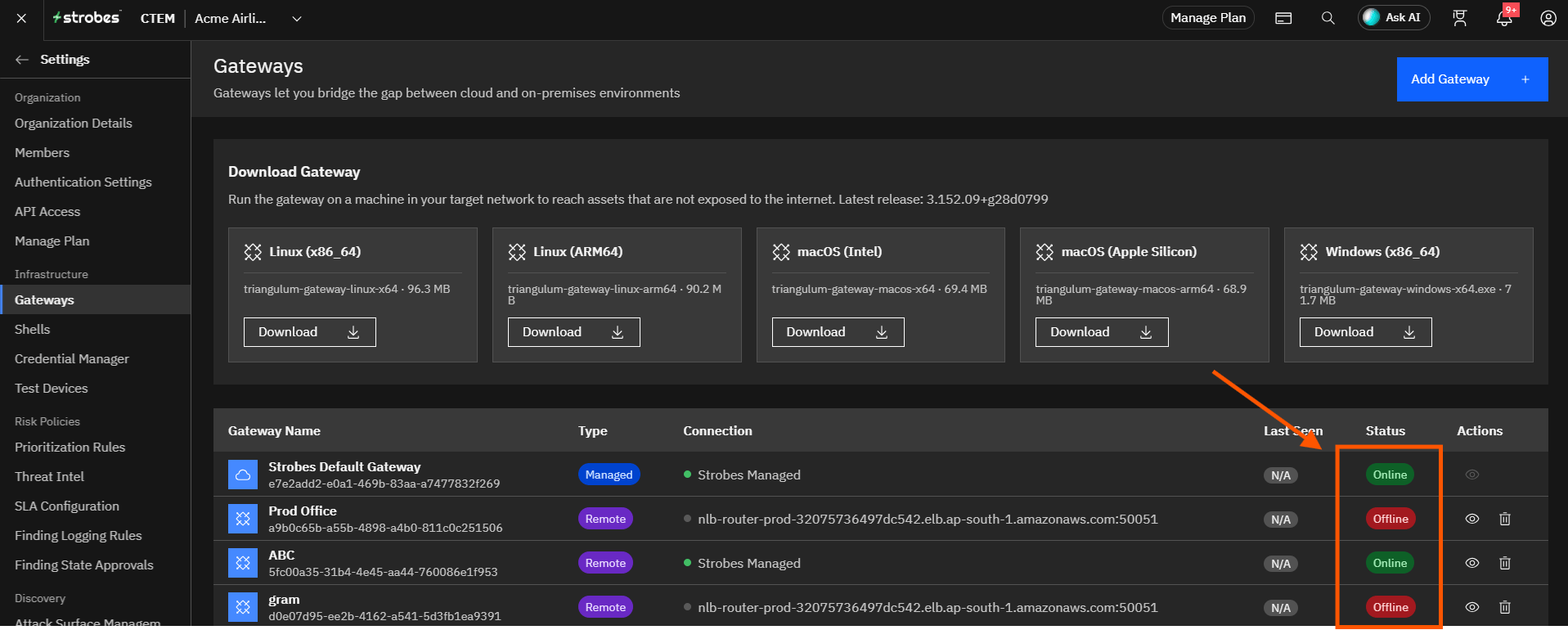
- Understanding the Status Column
- Tips
Overview
A gateway lets Strobes reach assets that are not exposed to the internet. You run a small gateway program on a machine inside your network. The machine registers itself with Strobes and connects out to the Strobes cloud, so no inbound firewall ports need to be opened. This article shows how to add a gateway, install it on a Linux, macOS, or Windows host, and confirm that it is online.
Why Is It Needed?
Many assets sit in private networks, such as internal servers, IP ranges, and applications. The Strobes cloud cannot reach them directly. A gateway placed inside that network bridges the gap between the cloud and your on-premises environment, so Strobes can work with those assets without changing your firewall.
Types of Gateways
The Gateways page lists two types of gateway.
Managed | Remote | |
|---|---|---|
Where it runs | In the Strobes cloud | On a machine in your network |
Who runs it | Strobes | You |
Used for | Assets that are reachable from the internet | Assets that are not exposed to the internet |
Setup | None. Strobes Default Gateway is available in every organization. | Add the gateway in Strobes and run the installer on your host |
Connection column | Strobes Managed | The Strobes endpoint the gateway connects to |
If your assets are reachable from the internet, the Strobes Default Gateway is enough. Add a Remote gateway when the assets are inside a private network.
Gateway or Shell: Which One Do I Need?
Gateways and shells are set up separately. Use the one that matches what you need.
Gateway | Shell | |
|---|---|---|
Purpose | Lets Strobes reach assets in a private network | Lets an AI agent run commands on a machine |
Set up in | Settings > Gateways | Settings > Shells |
Connection | The host connects out to Strobes | Bridge connects out to Strobes. SSH connects in from Strobes. |
For the shell option, see "Creating a Shell Using Shell Bridge in Strobes".
Prerequisites
Before you start, make sure you have:
- Owner or Manager access to your Strobes account.
- A Linux, macOS, or Windows machine inside the network that holds your target assets.
- Administrator or root access on that machine.
- Outbound internet access from that machine to your Strobes URL and to the Strobes endpoint on port
50051. - Whitelist the domain based on your organization region:
US region:triangular.us.strobes.co
IN region:triangular.in.strobes.co - Your Strobes API key from Settings > API Access.
Adding a Gateway
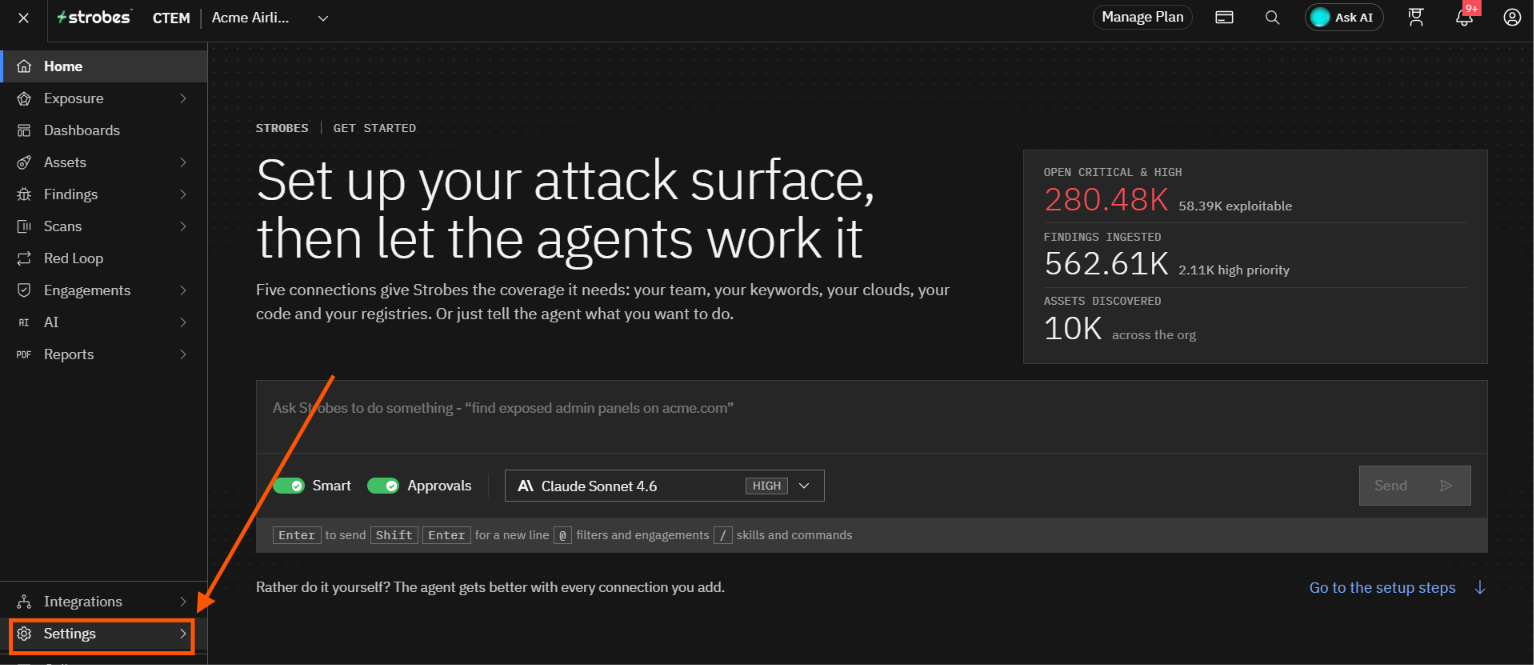
Step 1: Click Settings
In the left sidebar, click Settings. The Settings menu opens.
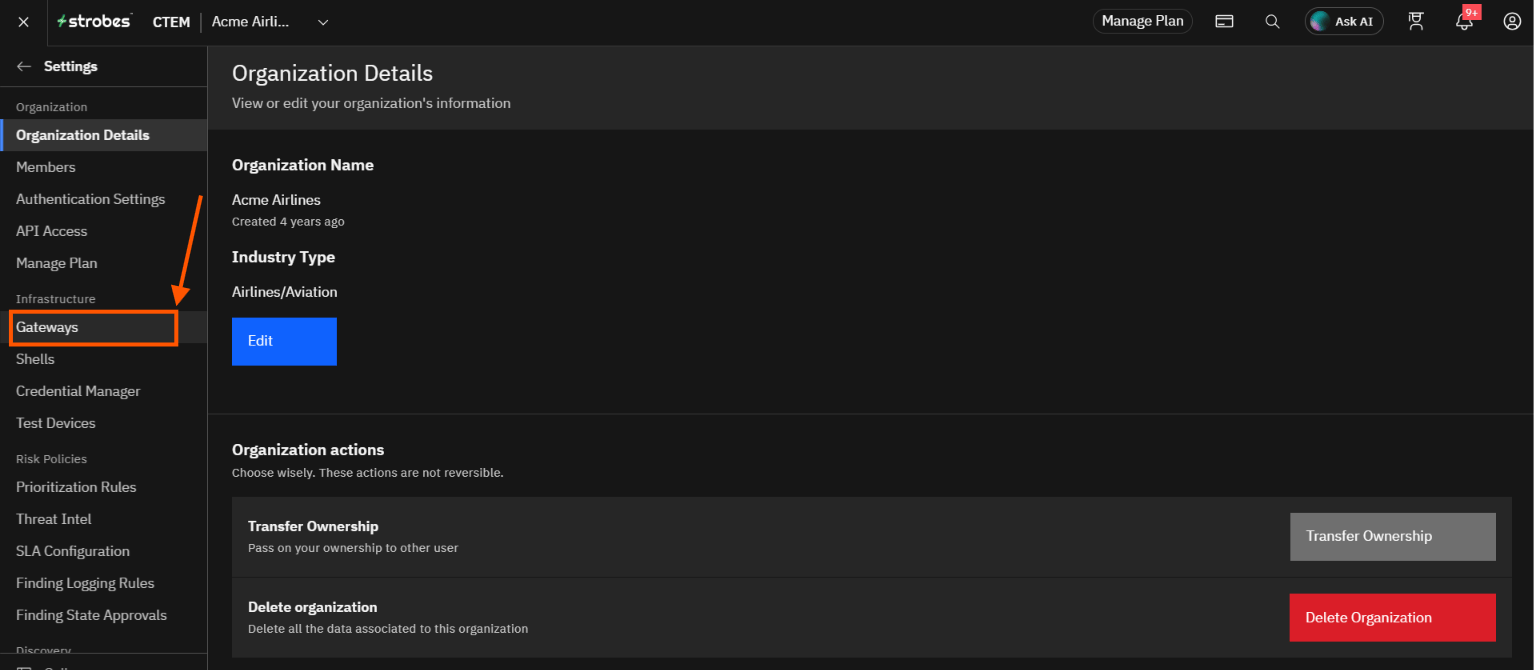
Step 2: Click Gateways
In the Settings menu, click Gateways.
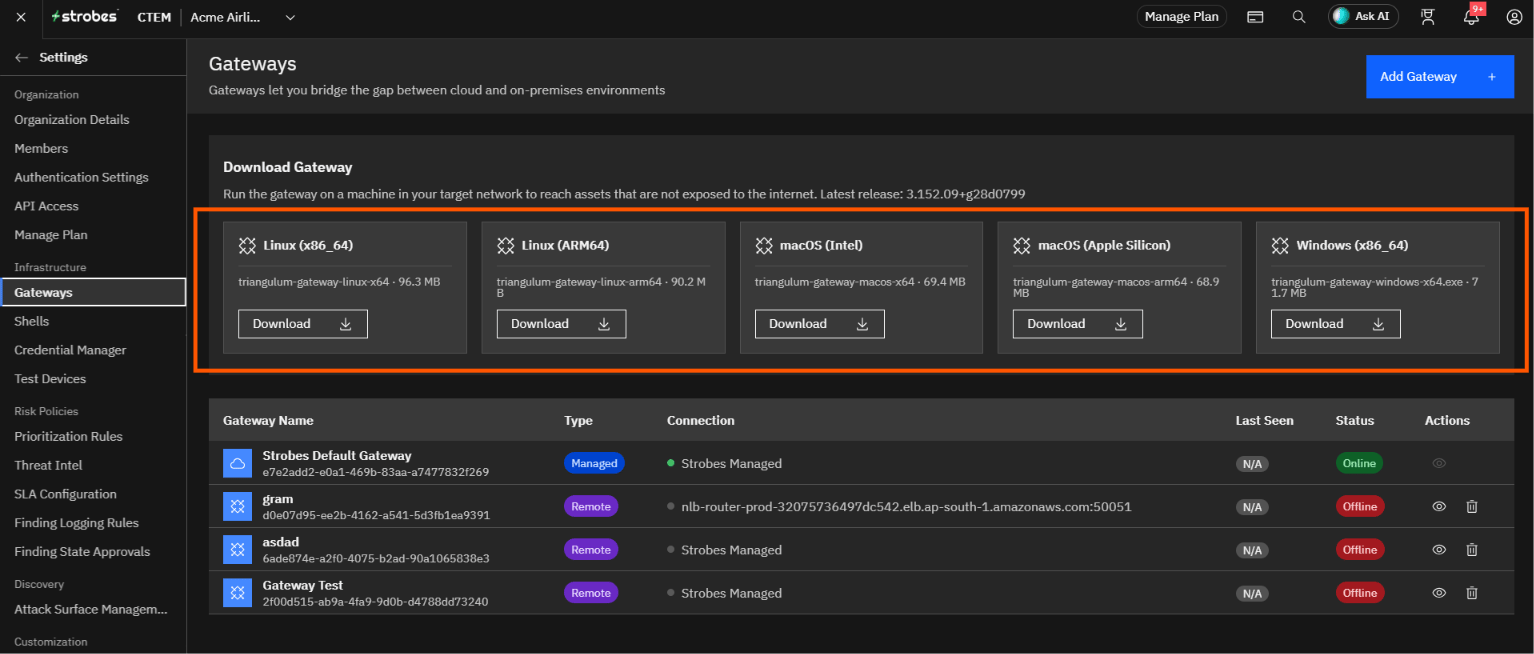
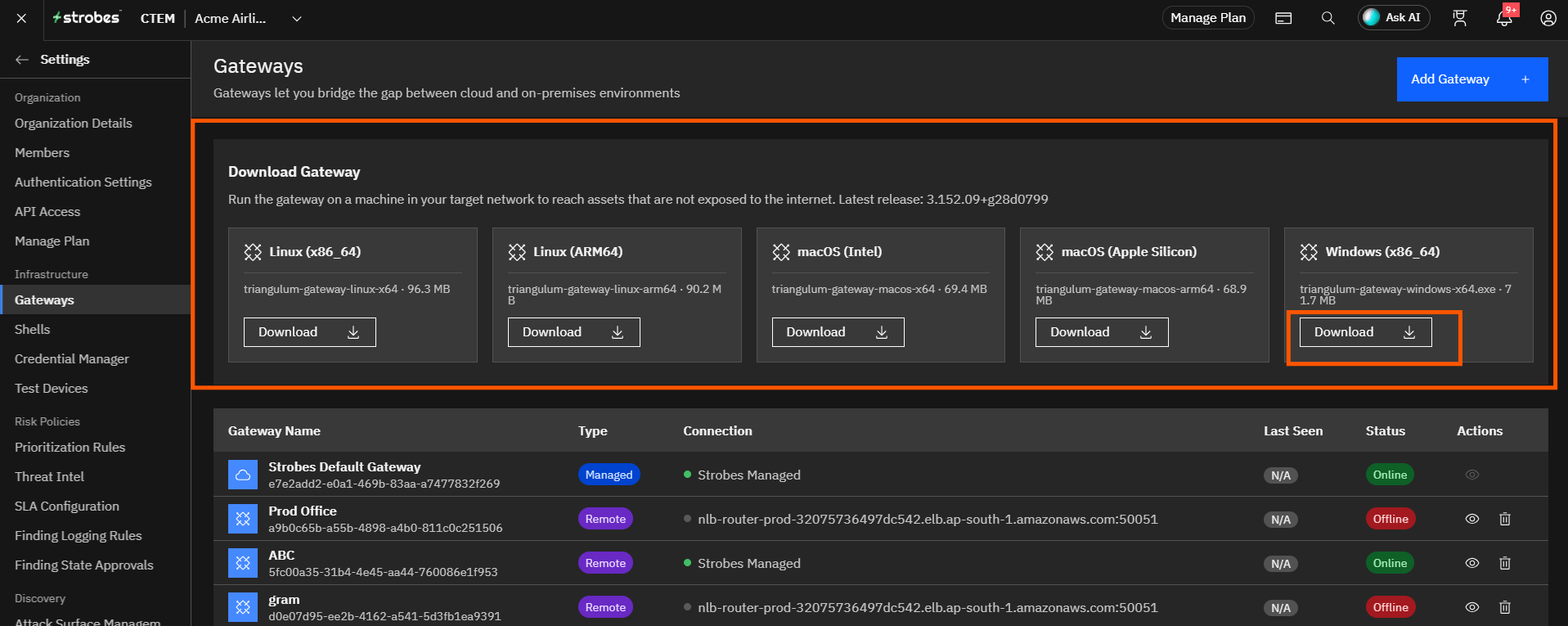
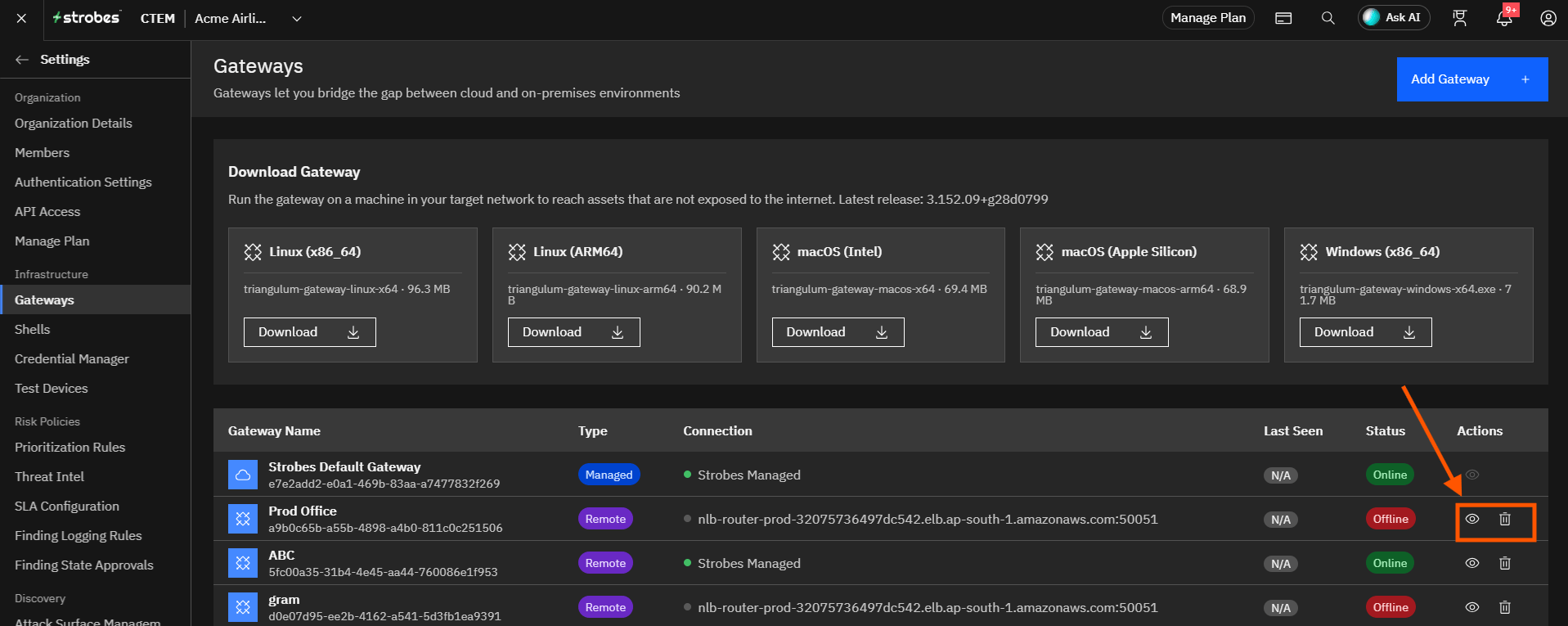
The page has a Download Gateway section with the gateway program for each operating system, followed by the list of your gateways. The list shows each gateway's name, type, connection, last seen time, and status.
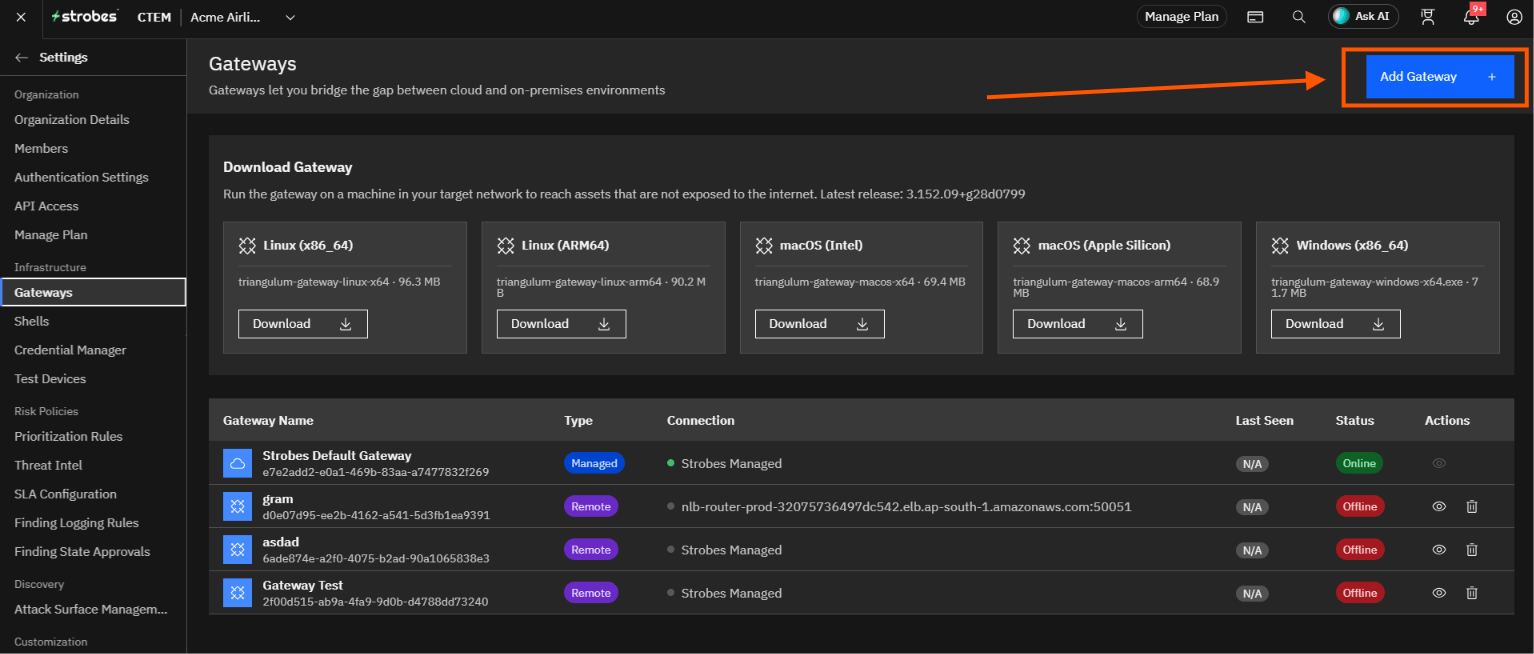
Step 3: Click Add Gateway
Click Add Gateway at the top right of the page. The Add a gateway panel opens on the right.
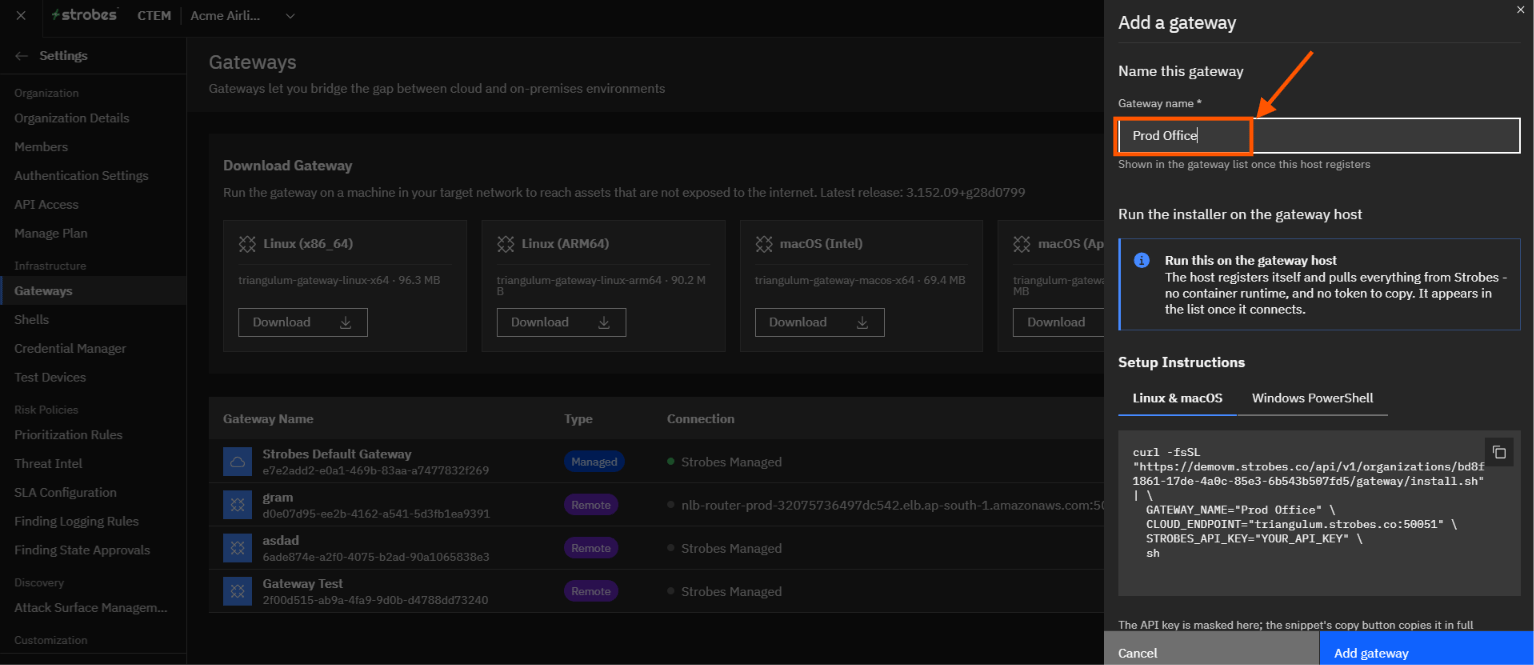
Step 4: Enter a Gateway Name
In Gateway name, enter a name that identifies the location or purpose of the gateway, such as Prod Gateway. This name appears in the gateway list once the host registers.
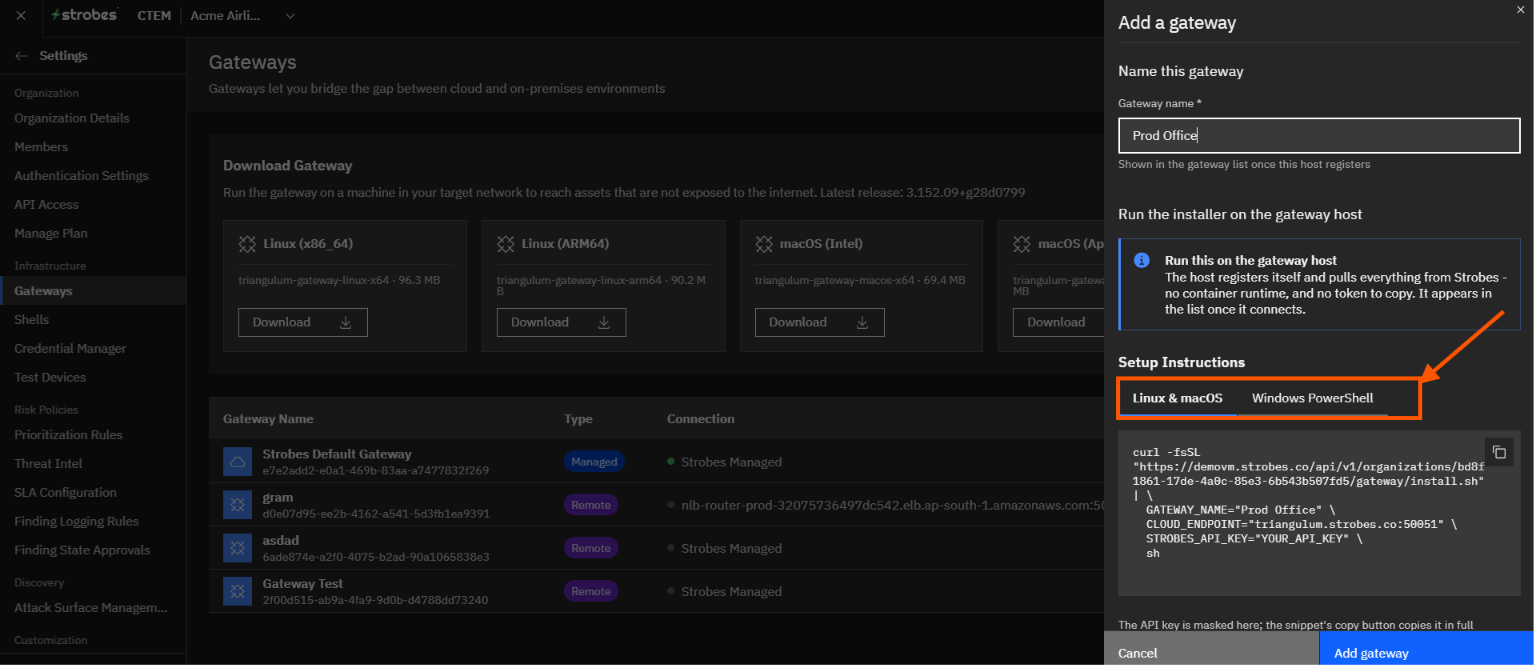
Step 5: Select Your Operating System
Under Setup Instructions, select the tab that matches the gateway host:
- Linux & macOS: For Linux and macOS machines.
- Windows PowerShell: For Windows machines.
The command updates with your gateway name, your organization, and the Strobes endpoint already filled in.
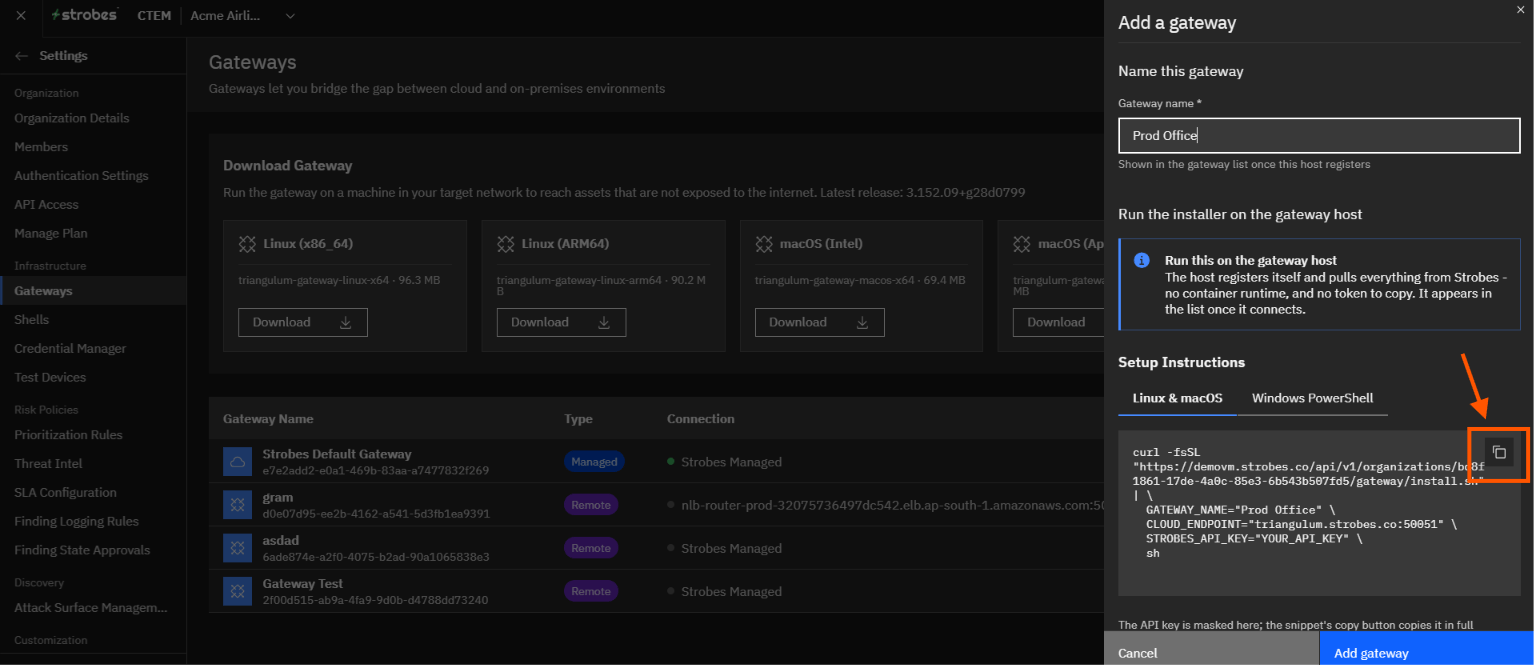
Step 6: Copy the Command
Click the copy button on the command. The copied command includes your full API key, even though the key is masked on the screen.
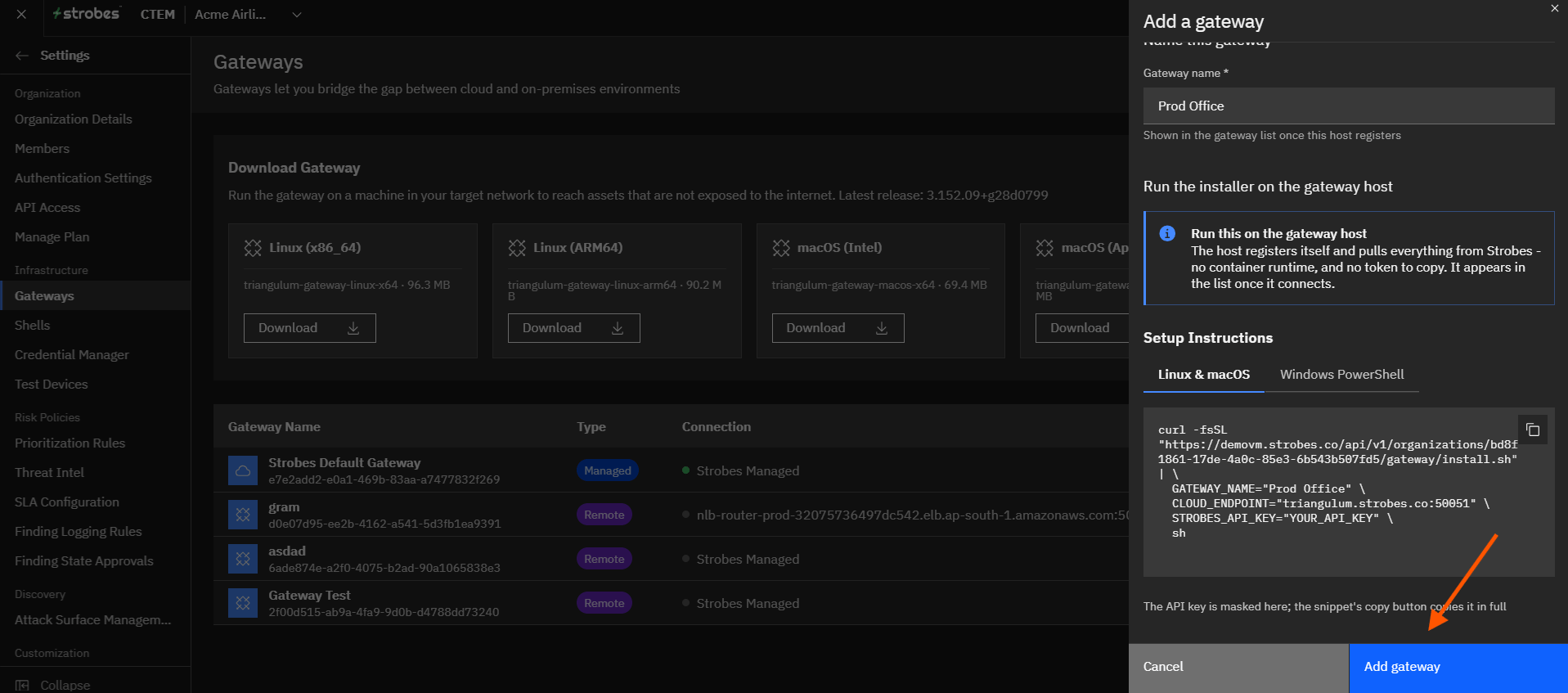
Step 7: Click Add Gateway
Click Add gateway at the bottom right of the panel. The panel closes and the gateway is created.
Installing the Gateway on Your Host
Step 8: Open a Terminal on the Gateway Host
On the machine you are connecting, open a terminal:
- Linux or macOS: Open Terminal.
- Windows: Open PowerShell as Administrator. Search for "PowerShell" in the Start menu.
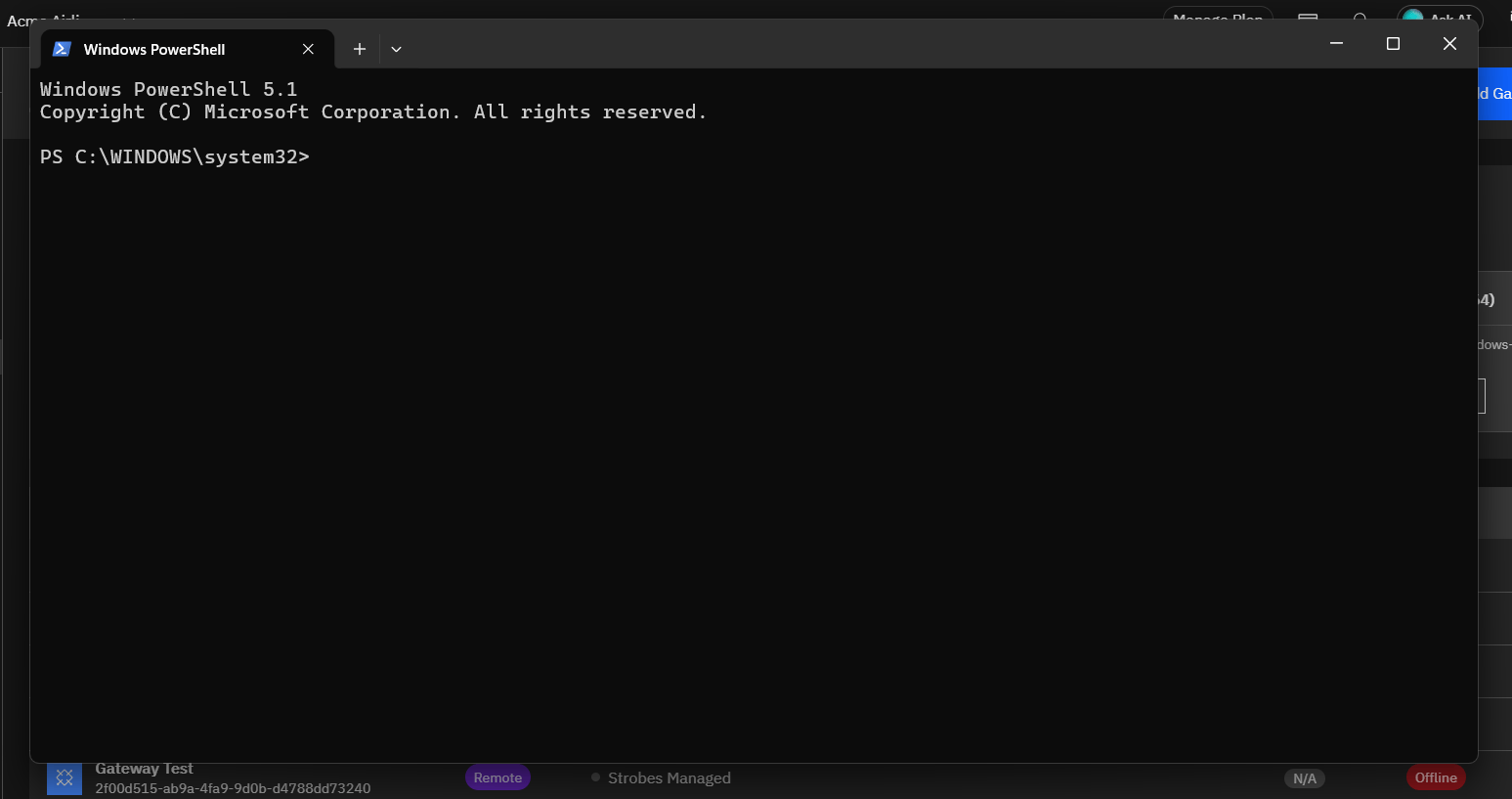
Step 9: Paste and Run the Command
Paste the copied command into the terminal and press Enter.
On Linux and macOS, the command has this form:
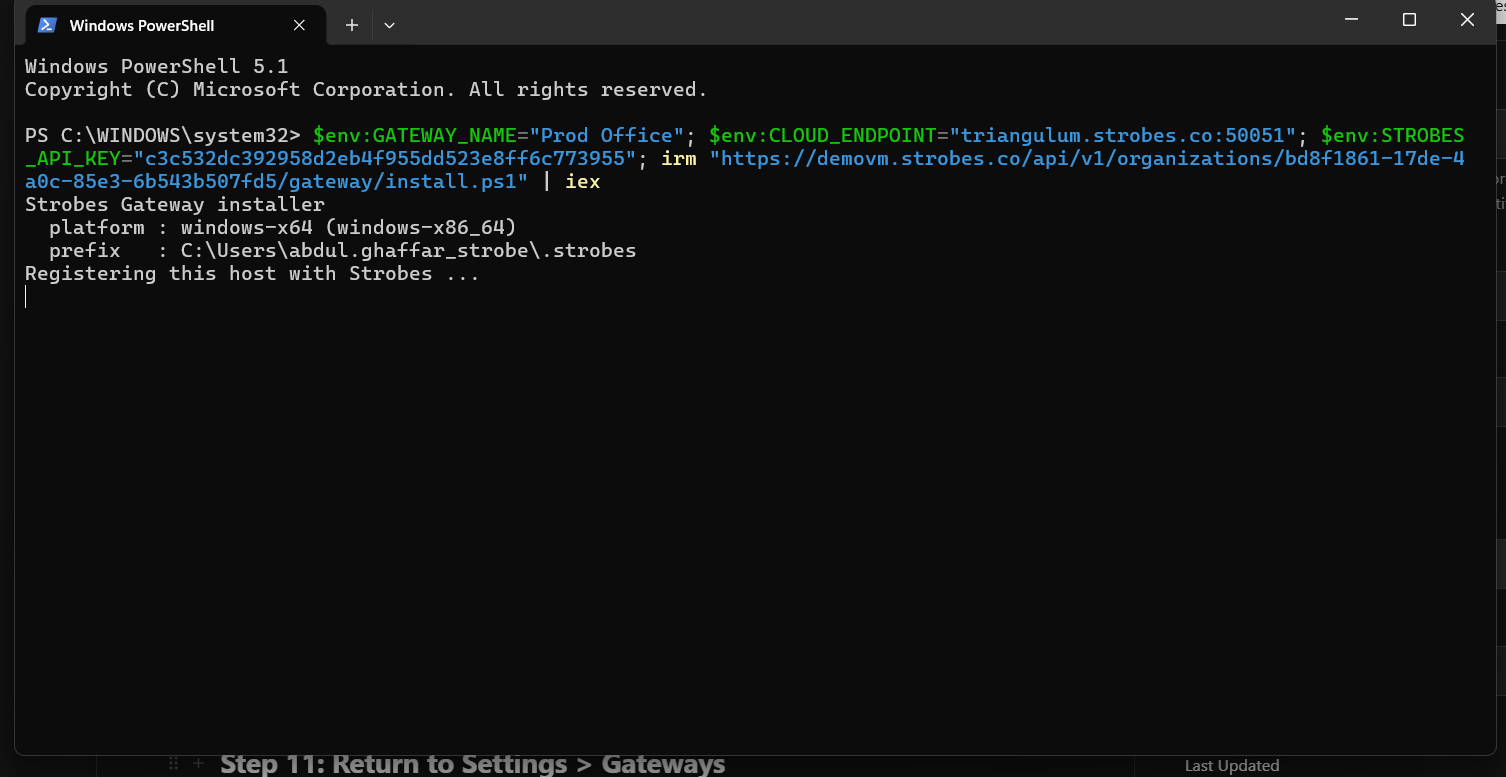
The host registers itself and pulls everything it needs from Strobes. You do not need a container runtime or a separate token.
Step 10: Wait for the Gateway to Connect
Wait for the installer to finish. The gateway connects to Strobes and appears in the gateway list once it registers.
Verifying the Gateway
Step 11: Return to Settings > Gateways
Go back to Settings > Gateways. The new gateway appears in the list with Type set to Remote. When it is connected, Status shows Online and Last Seen shows the time of the last check-in.
Downloading the Gateway Program Manually
If you prefer to install the program yourself instead of using the one-line command, download it from the Download Gateway section at the top of the Gateways page. Click Download for the operating system of the host:
Operating system | File |
|---|---|
Linux (x86_64) |
|
Linux (ARM64) |
|
macOS (Intel) |
|
macOS (Apple Silicon) |
|
Windows (x86_64) |
|
The section also shows the latest release number.
Viewing or Deleting a Gateway
In the Actions column of a Remote gateway, two actions are available:
- View Gateway: Opens the gateway's panel with its install command, so you can reinstall it on a host.
- Delete: Removes the gateway from Strobes.
The Strobes Default Gateway is managed by Strobes and has no Delete action.
Understanding the Status Column
Status | What it means |
|---|---|
Online | The gateway is connected to Strobes. |
Offline | The gateway is not connected. The host may be turned off, the gateway program may have stopped, or the host cannot reach Strobes. |
Tips
- Install the gateway on a dedicated, always-on machine inside the target network, so it stays online.
- The gateway only needs outbound access. Allow outbound traffic from the host to your Strobes URL and to port
50051on the Strobes endpoint. - If a gateway shows Offline, check that the host is running, that the gateway program is running, and that the host can reach Strobes.
- Use clear names, such as the office or data centre, so you can tell gateways apart when you have several.
- Treat your API key like a password. Do not share it or store it in version-controlled files.
- Delete gateways you no longer use, so the list shows only active ones.
More in Getting Started
- Welcome to StrobesA first-day orientation to the Strobes continuous threat exposure management platform: what it does and where to start.
- Key concepts in StrobesA glossary of the core objects in Strobes: how assets, findings, tasks, engagements, AI pentests, automations, dashboards and reports fit together.
- Alerts vs. Vulnerabilities vs. Findings
Was this page helpful?