
Human in the Loop
AI agents queue up the decisions and inputs they need from you (user)
2 min readEdit
On this page⌄
The Human in the Loop page in Strobes is where AI agents queue up the decisions and inputs they need from you — asset creation approvals, custom field updates, status changes, and anything else flagged as requiring human judgment. This article explains the page and how to act on items in the queue.
To open the page, expand AI in the left sidebar and click Human in the Loop.
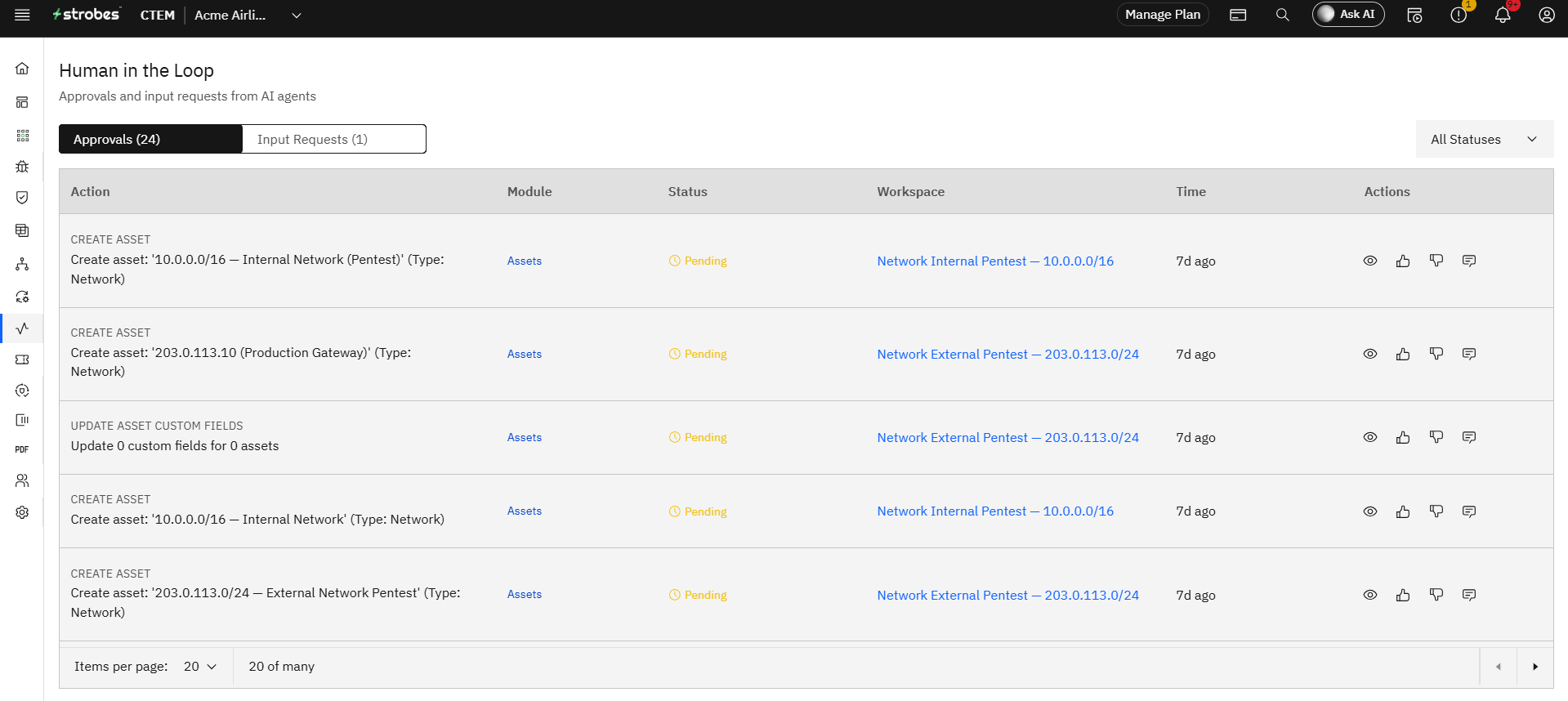
The page has the following:
- Two tabs: Approvals and Input Requests
- A table of pending items
- Status filter
- Per-row actions
Now, let's take a look at each.
The Approvals tab
The Approvals tab lists every action an AI agent has proposed and is waiting for you to confirm. A counter on the tab (e.g., Approvals (24)) tells you how many items are pending. Typical approvals include:
- CREATE ASSET — the agent wants to add a new asset it discovered (e.g., "Create asset: '10.0.0.0/16 — Internal Network (Pentest)' (Type: Network)").
- UPDATE ASSET CUSTOM FIELDS — the agent wants to update custom field values on existing assets.
- CHANGE FINDING STATUS — the agent wants to mark a finding as Fixed or False Positive.
- PUSH TO TRACKER — the agent wants to create a Jira/GitHub ticket from a finding.
- RUN A DESTRUCTIVE ACTION — anything the platform classifies as high-impact.
The Input Requests tab
The Input Requests tab is for cases where the agent needs information from you rather than approval. For example, "Which subdomain pattern should I include in the scope?" or "Confirm the production gateway IP before I exclude it." The counter (e.g., Input Requests (1)) shows how many are waiting for a reply.
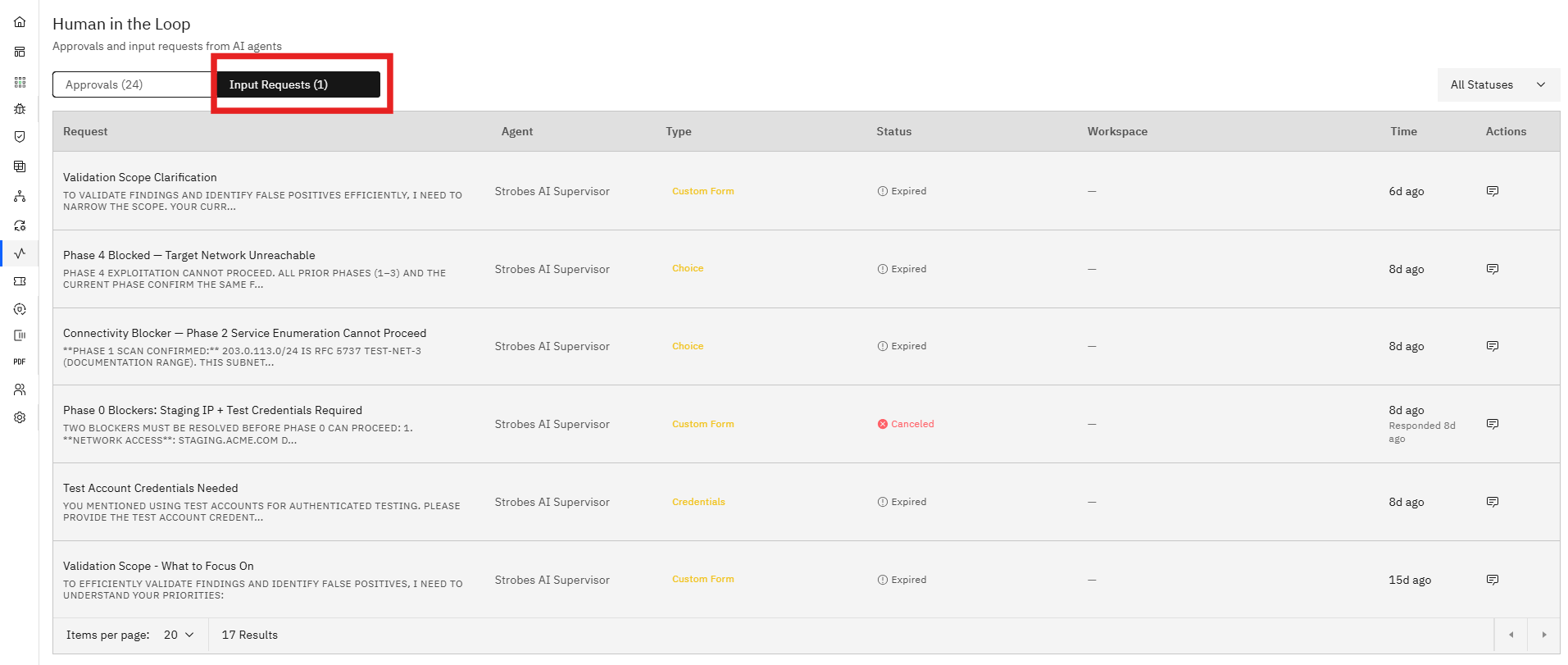
The table of pending items
Each row shows:
- Action — the proposed action and a short description.
- Module — the part of Strobes the action will affect (e.g., Assets, Findings, Tickets).
- Status — Pending, Approved, Rejected, or Expired.
- Workspace — a link to the source workspace.
- Time — when the agent raised the item (e.g., 5d ago).
- Actions — icon buttons to view, approve (thumbs up), reject (thumbs down), or comment.
Status filter
The All Statuses dropdown narrows the table to a single state. This is useful for catching up on what's still Pending, or for auditing recently Rejected items.
Per-row actions
Each row has four action icons:
- View (eye icon) — open the full details and the agent's reasoning.
- Approve (thumbs up) — confirm the action; the agent executes it immediately.
- Reject (thumbs down) — block the action; the agent moves on or asks for an alternative.
- Comment (speech bubble) — leave a note for the agent or other reviewers.
Note: A workspace running with Supervisor Mode = Auto will still surface approvals here for guardrail-triggered or high-impact actions. Switch to Supervisor Mode = User to make every step require approval.
More in Strobes AI
- AI Overview pageEntry point to Strobes AI,
- AI InboxView and manage every AI agent conversations.
- Knowledge BaseUpload your organization's documents
- SchedulesRun AI agent tasks on a recurring cadence
- GuardrailsSafety rails that keep AI agents from leaking secrets
- LogsThe audit trail for every AI agent action across your organization
Was this page helpful?