
Cloud security (CSPM) workflow
1 min readEdit
On this page⌄
This guide will walk you through how to setup a continuous scan on your cloud account. It involves four steps which are as follows:
Choosing your Cloud Platform:
- In this step you need to select your cloud platform.
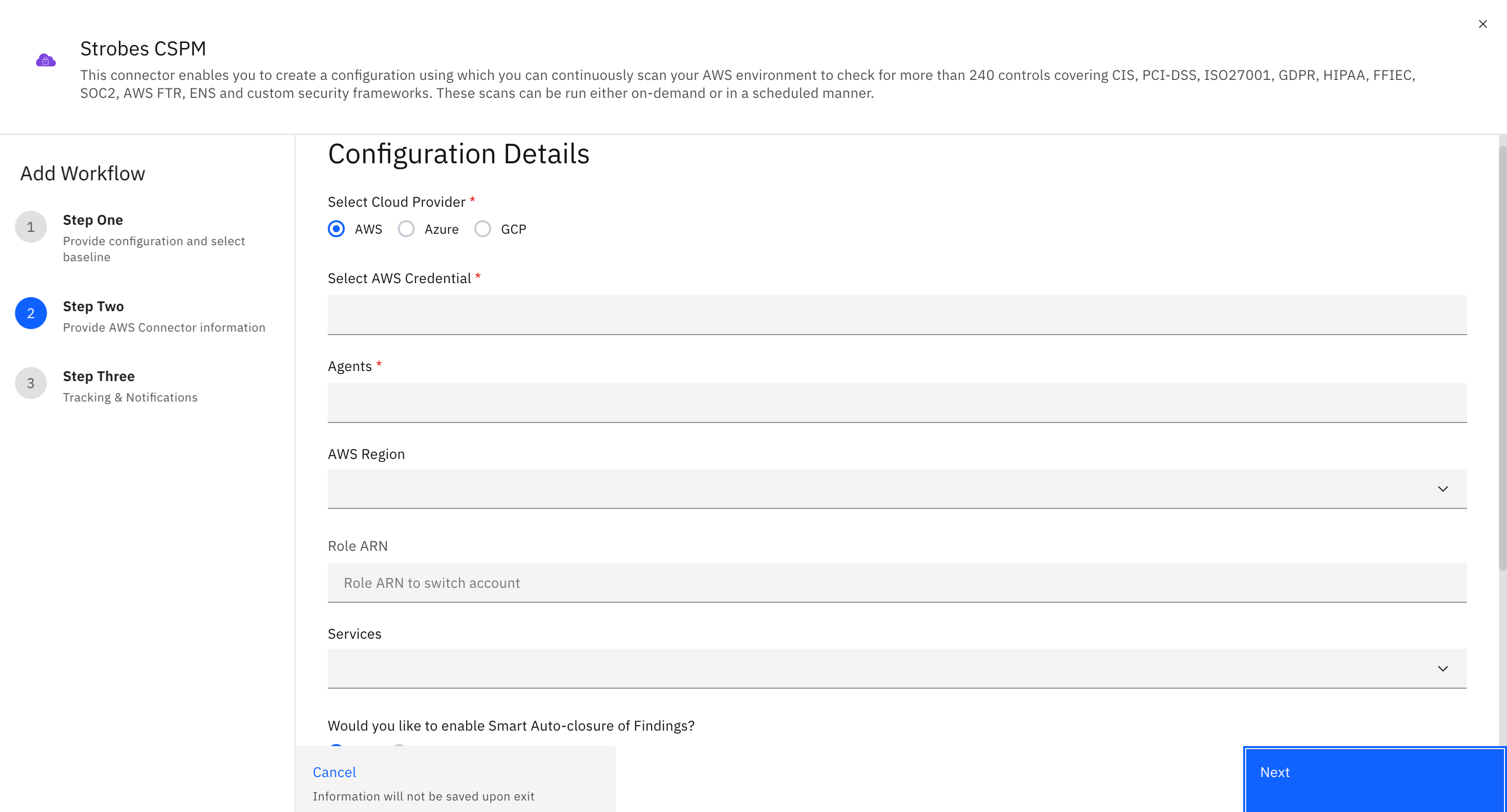
- The available options are as follows:
- Amazon Web Services
- Microsoft Azure
Choosing the Credentials:
- In this step, you need to select the credentials using which scans can be run on your account.
- In order to select the credentials, click on the 'Select Credentials' dropdown and the credentials that you have added will be displayed.
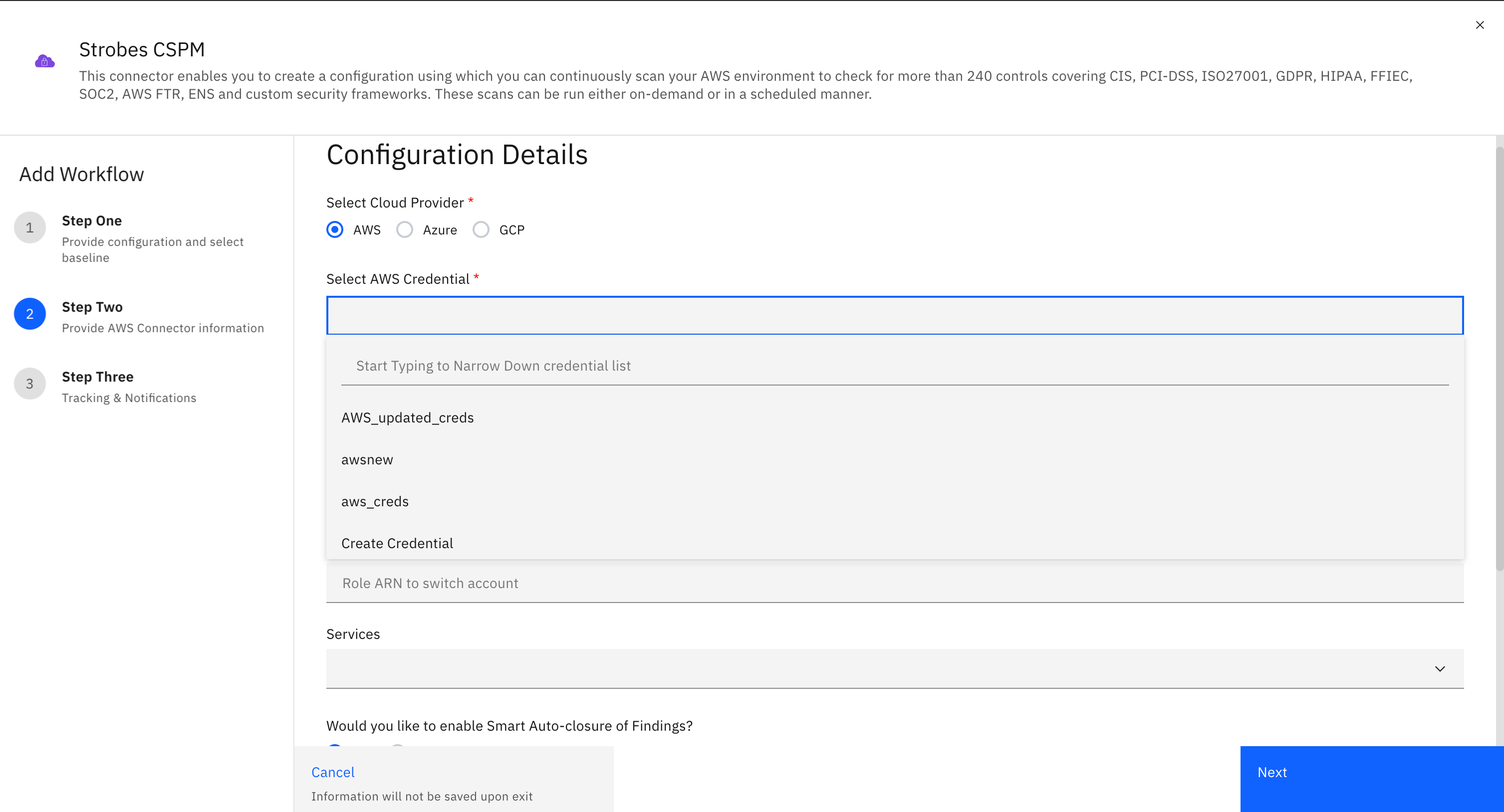
- Select one of the credentials from the list.
Choosing the Region (AWS):
- In this step, you need to select the region in which your account has various services running.
- In order to select the region, click on the AWS Region dropdown and all the regions will be displayed.
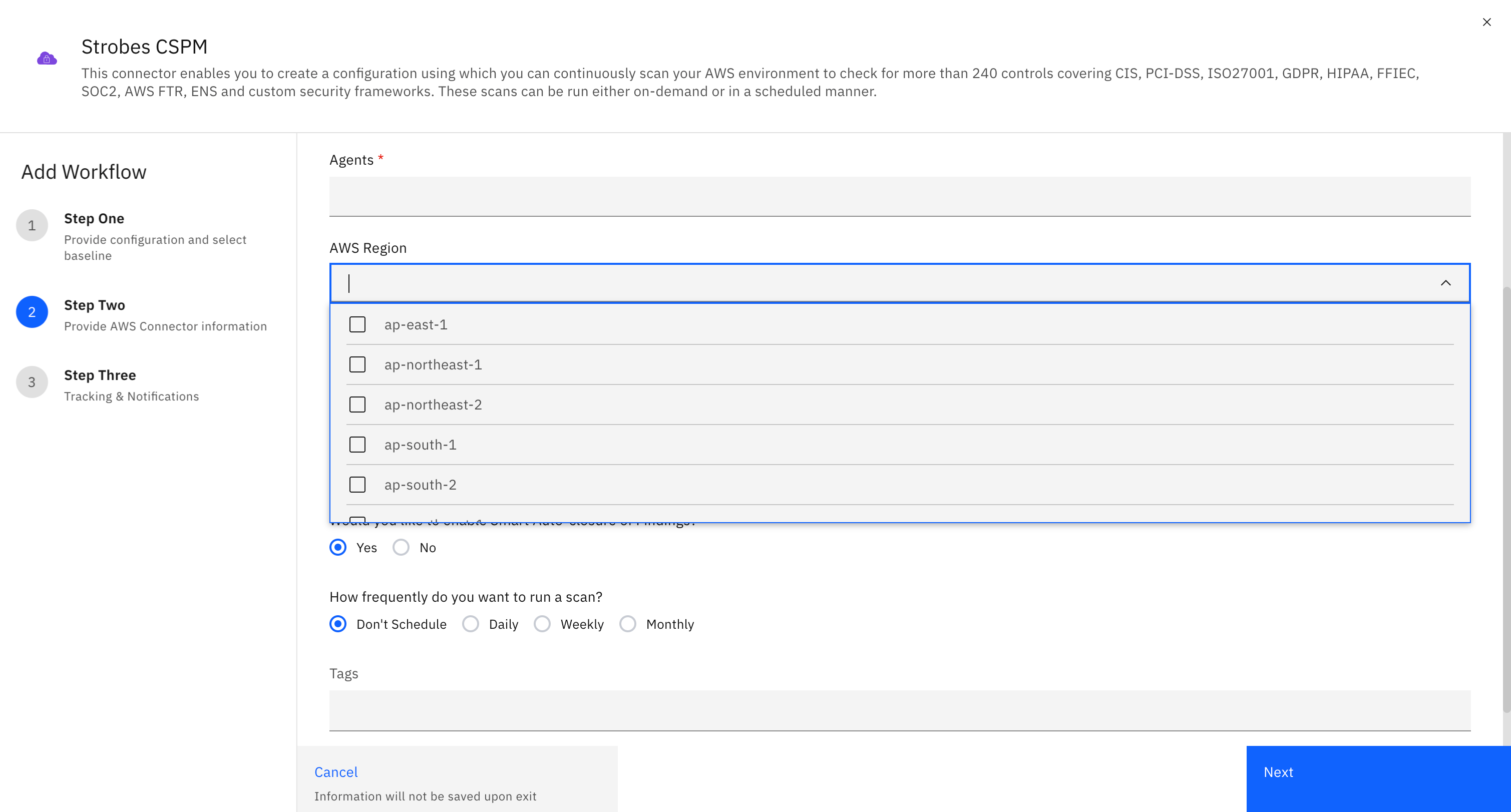
- Select one region from the list.
Choosing the Frequency:
- In this step, you need to select the schedule frequency at which the configuration will be run.
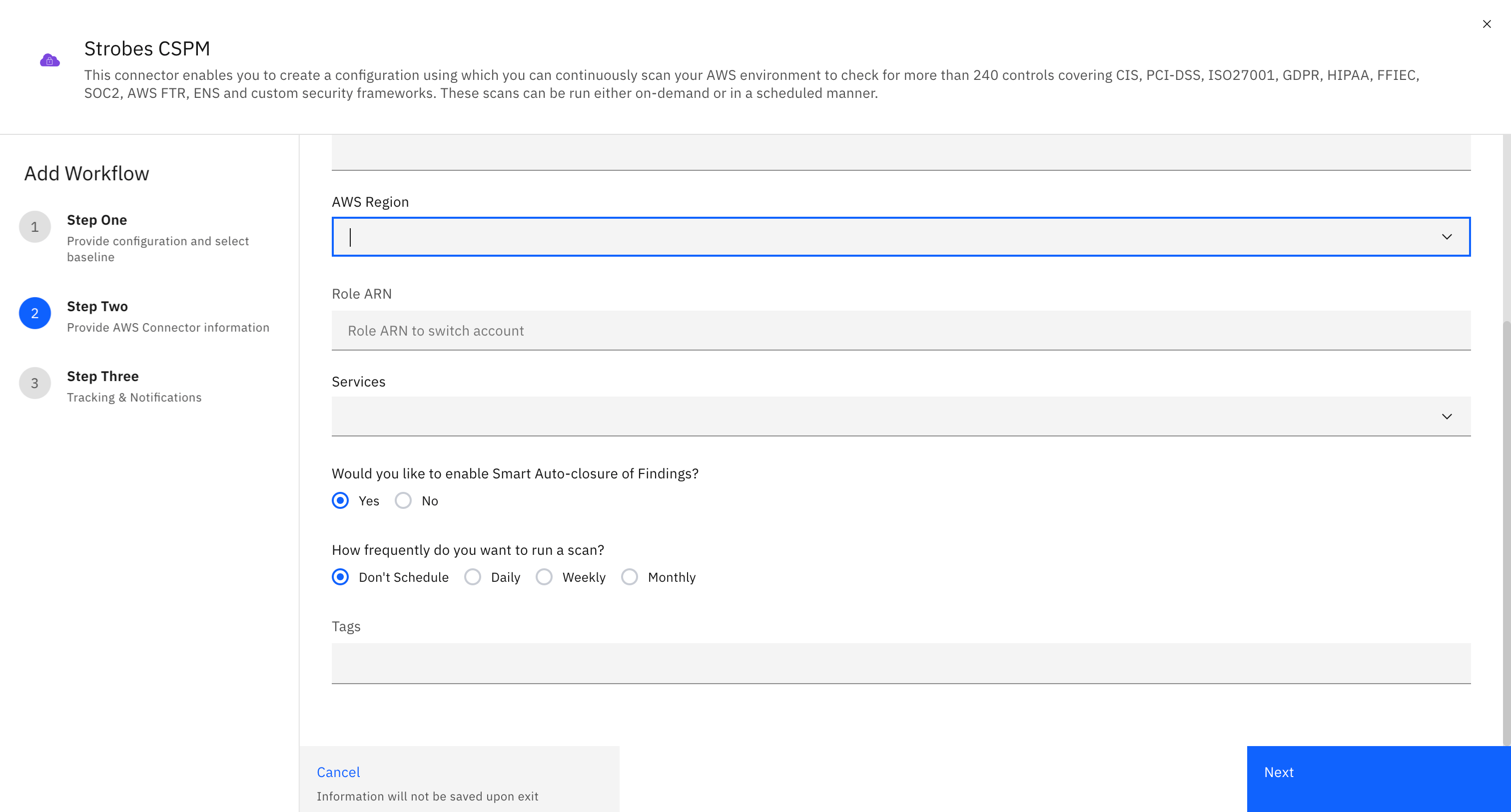
- There are three available options as follows:
- Daily
- Weekly
- Monthly
The following are the instructions to add AWS/AZURE credentials.
Configuring AWS Credential Manager
- Navigate to 'Settings' and click on 'Credential Manager'
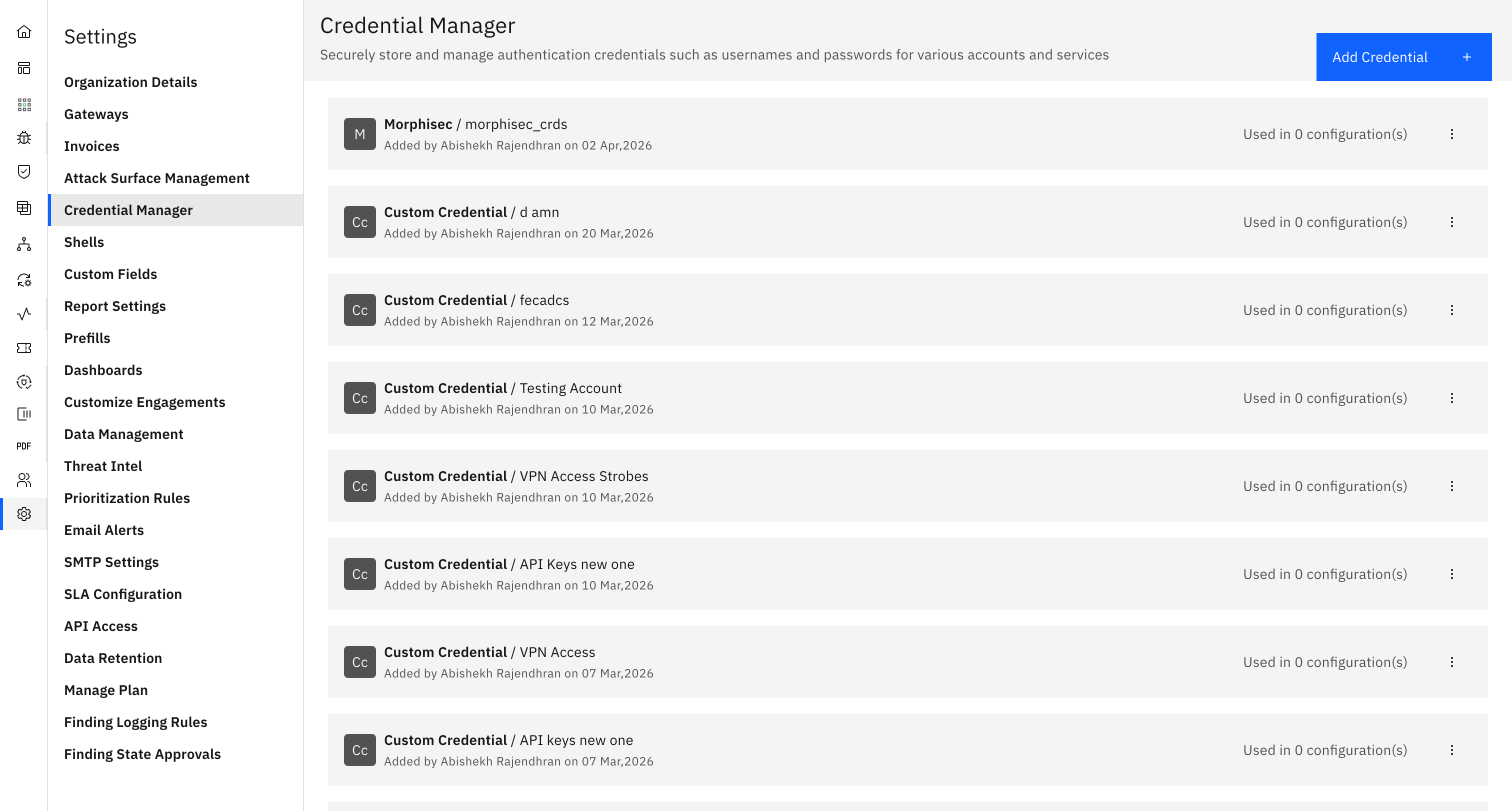
- Click on 'Add Credential'.
- Now select your connector as 'AWS'.
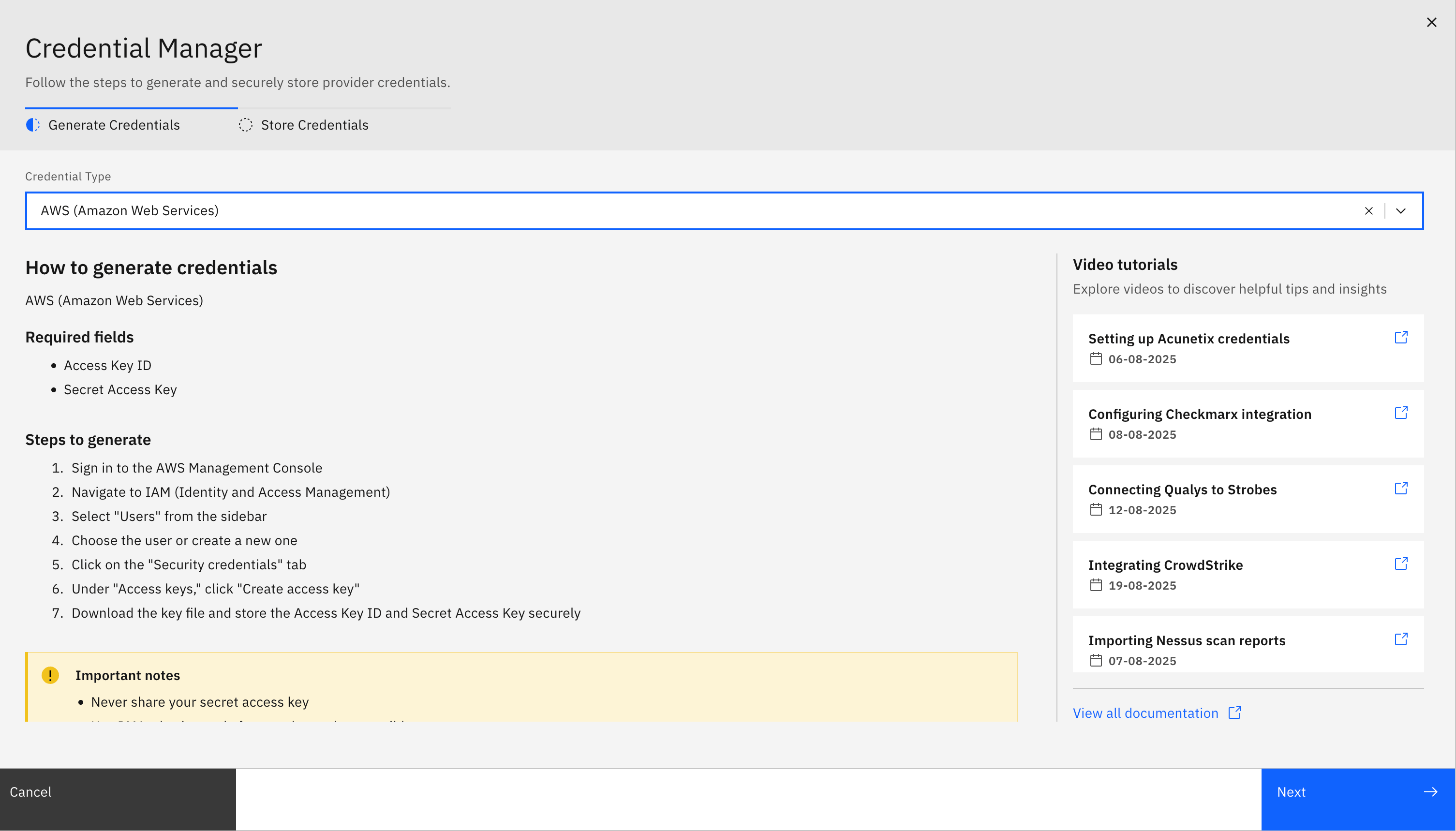
- Enter the 'Name' for your configuration, your 'AWS Access Key' and 'AWS Secret Key'. More on how to generate AWS Access Keys here.
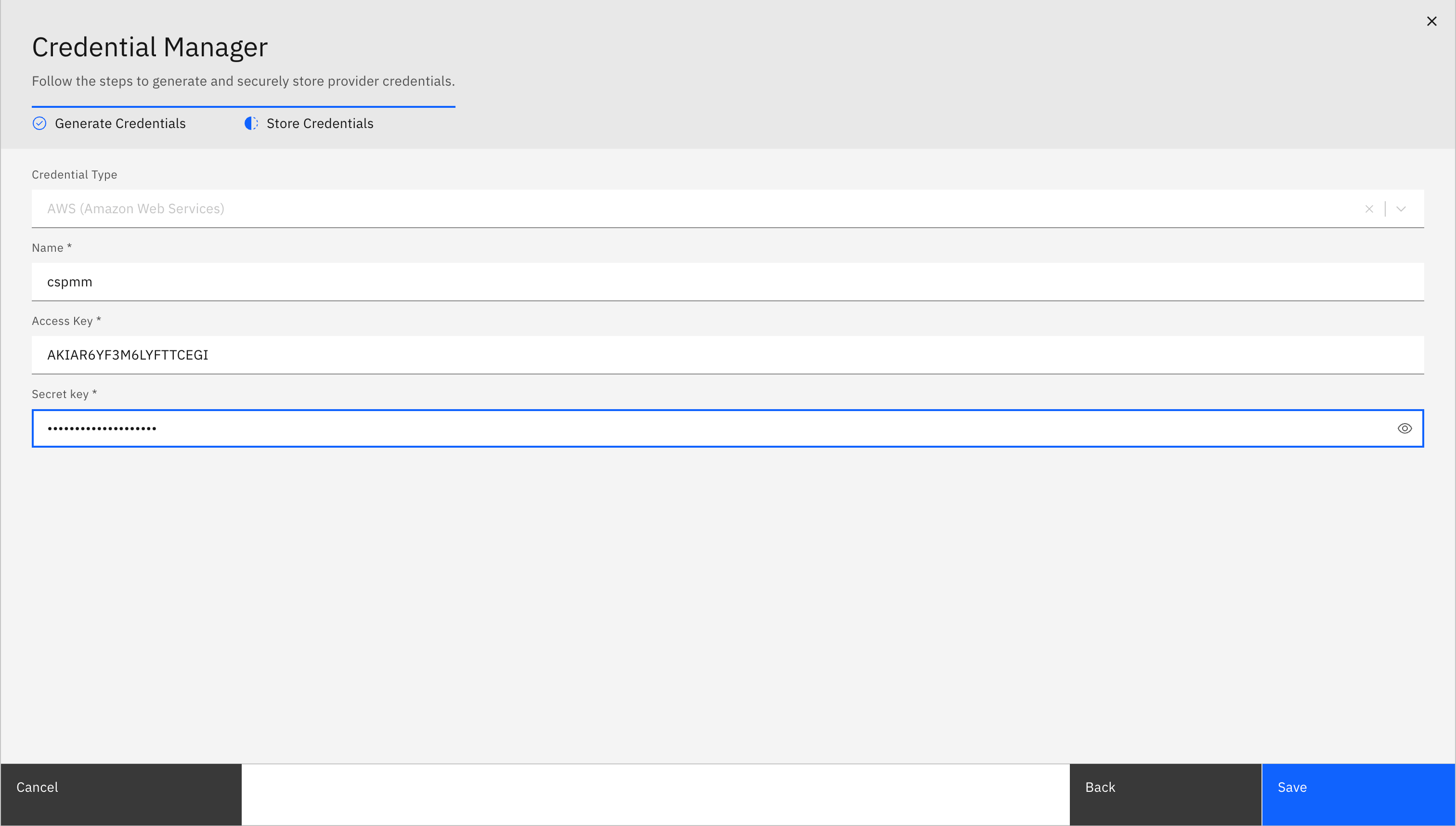
- Click on 'Save' and your AWS credentials will get saved.
Configuring AZURE Credential Manager
- Navigate to 'Settings' and click on 'Credential Manager'
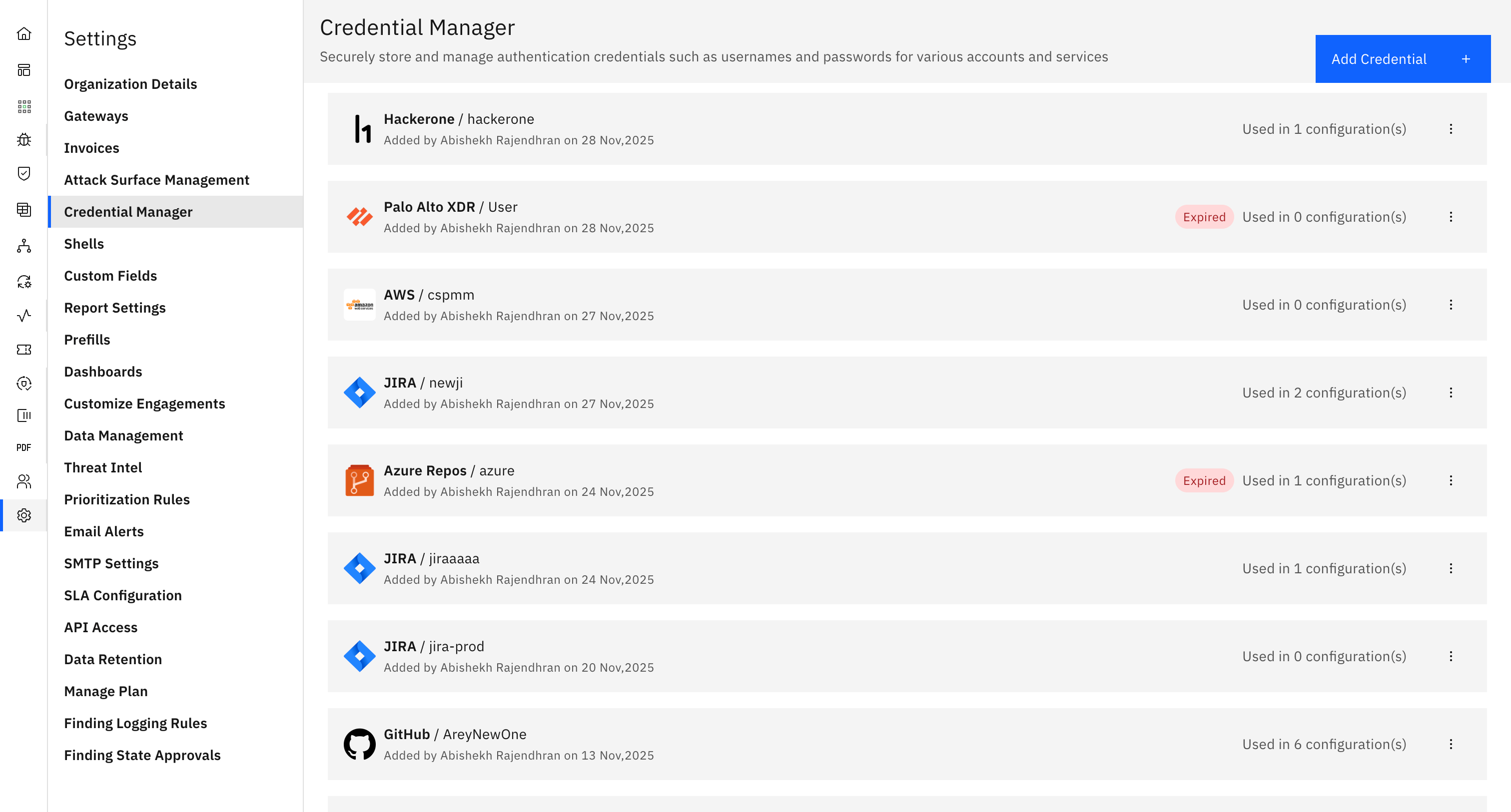
- Click on 'Add Credential'.
- Now select your connector as 'AZURE'.
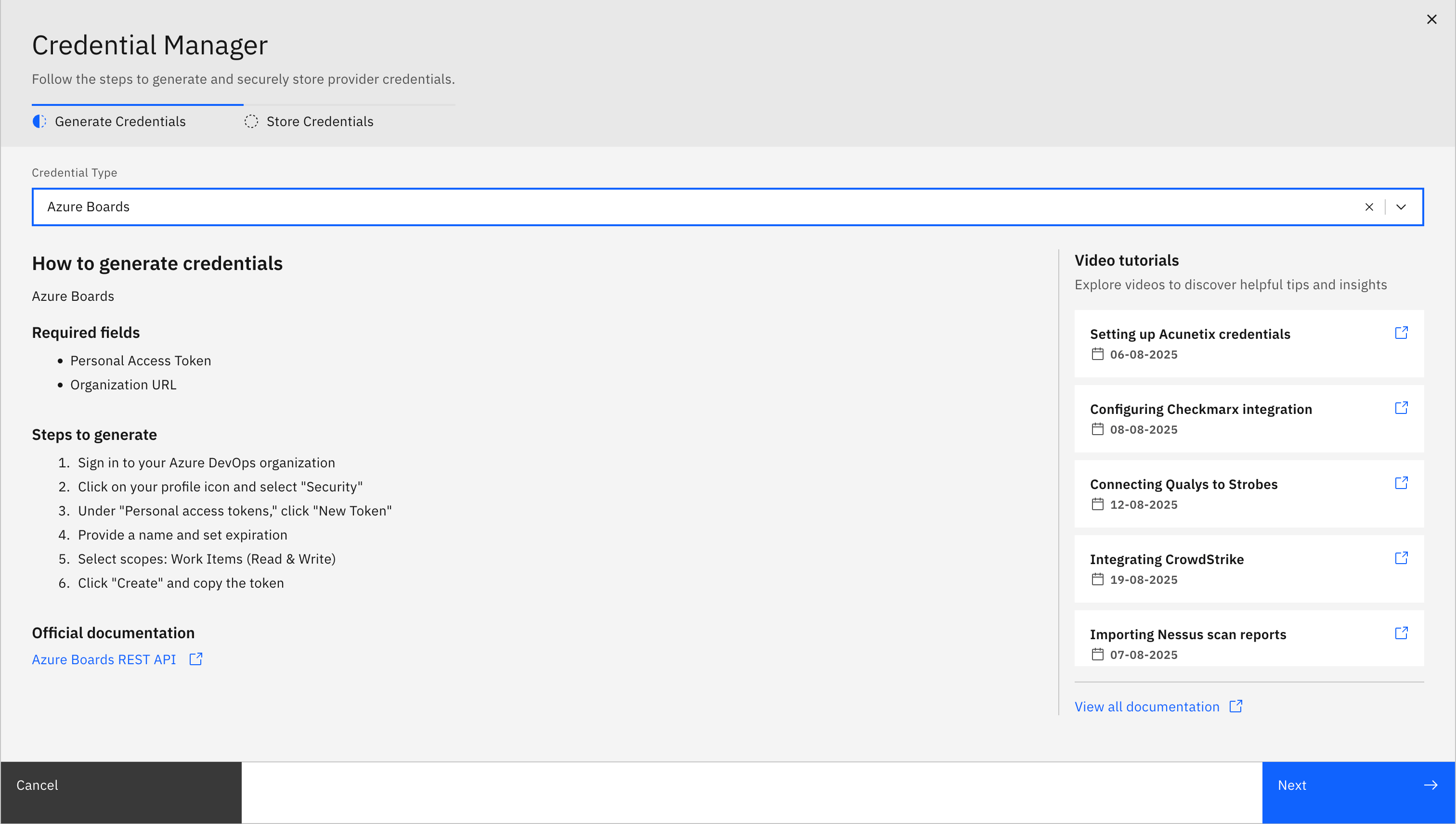
- Enter the 'Name' for your configuration, your 'Client ID', 'Client Secret', 'Tenant ID' and your 'Subscription ID'. More about how to get these details from the azure portal here and here.
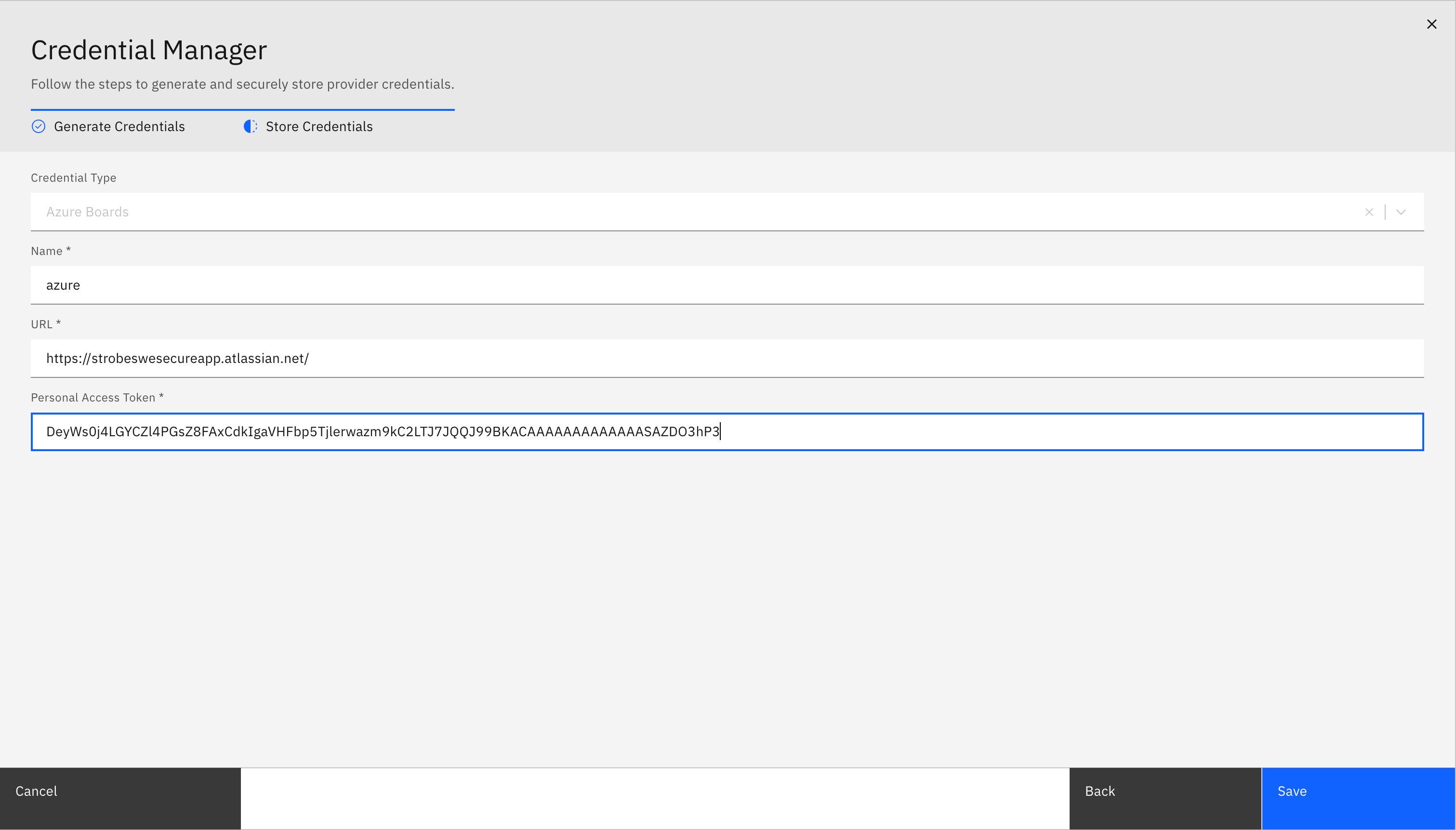
- Click on 'Save' and your AZURE credentials will get saved.
More in Scan workflows
Was this page helpful?