
Container scanning workflow
2 min readEdit
On this page⌄
This guide will walk you through how to setup continuous scanning on your Container images. It involves four steps which are as follows.
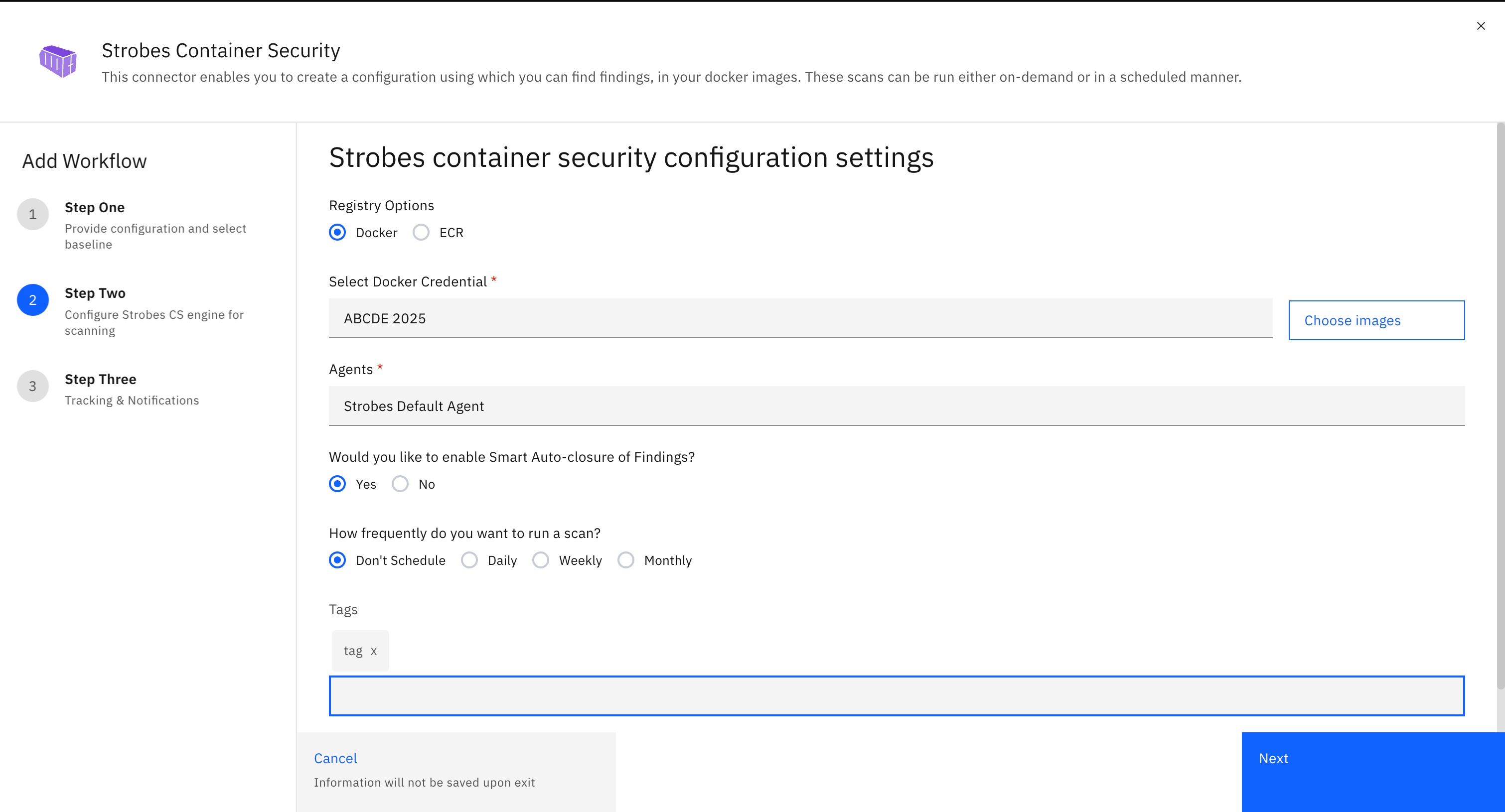
Choosing the Container Registry:
- In this step, you need to select the registry where your images are hosted.
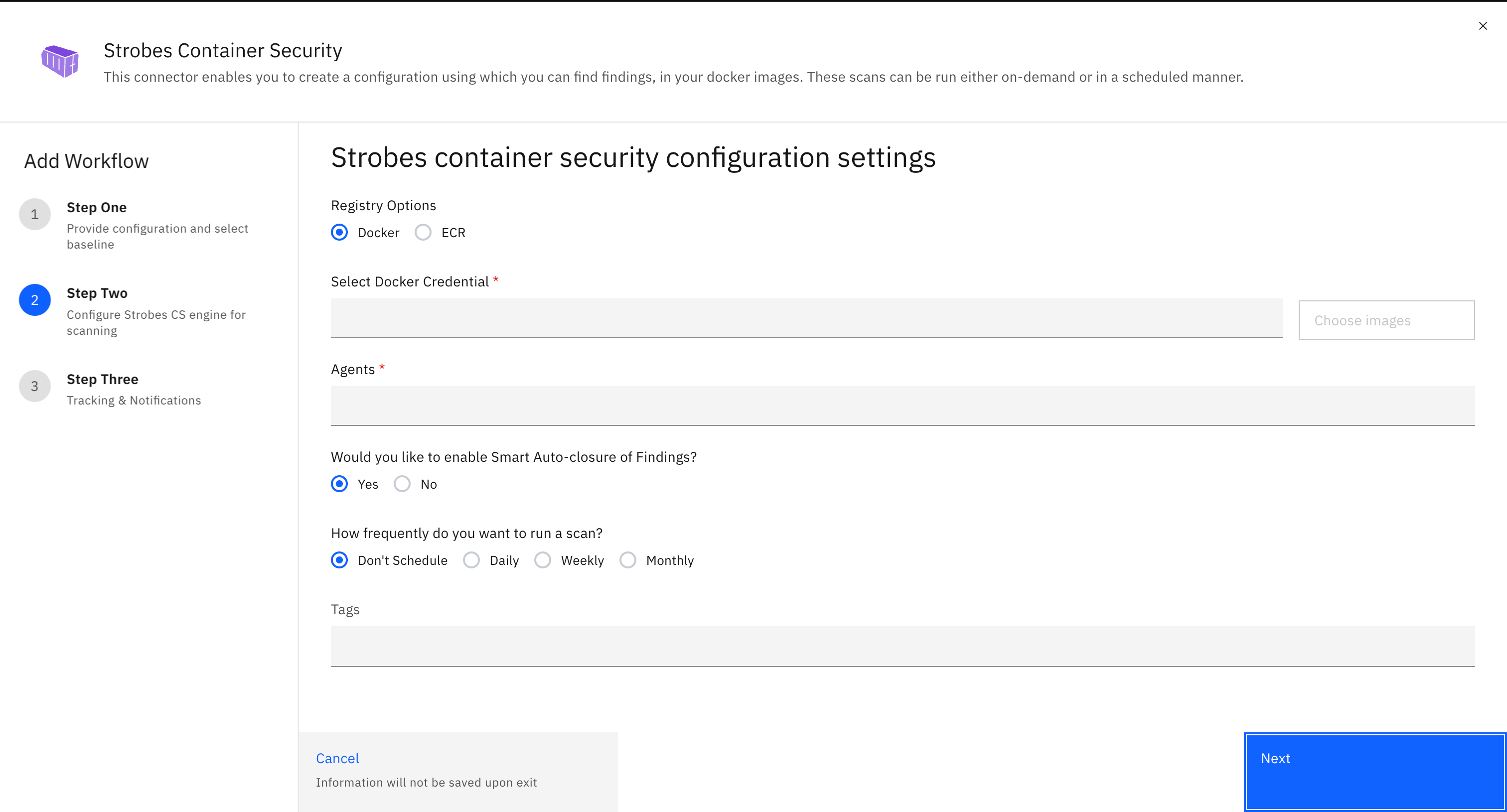
- There are two available options as follows:
- Docker Hub.
- Amazon ECR.
Choosing the Images:
- In this step, you need to select the credentials using which your images will be accessed to run scans on.
- Depending on the registry that you have selected in the previous step, you will be provided with a dropdown to choose your credentials using which images can be accessed.
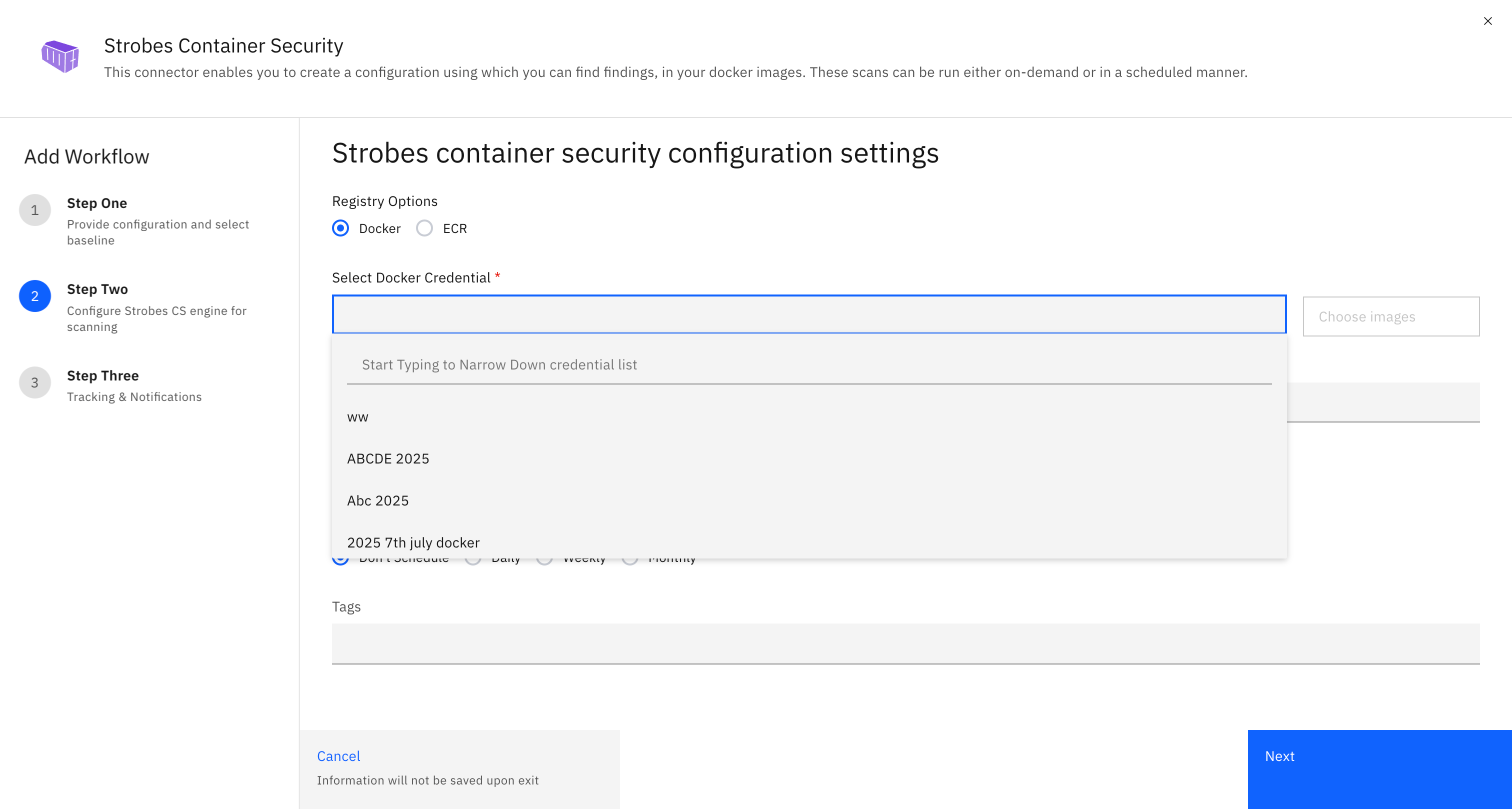
- After selecting the credentials, all the images associated with the selected credentials will be listed out and by default all the images will be selected.
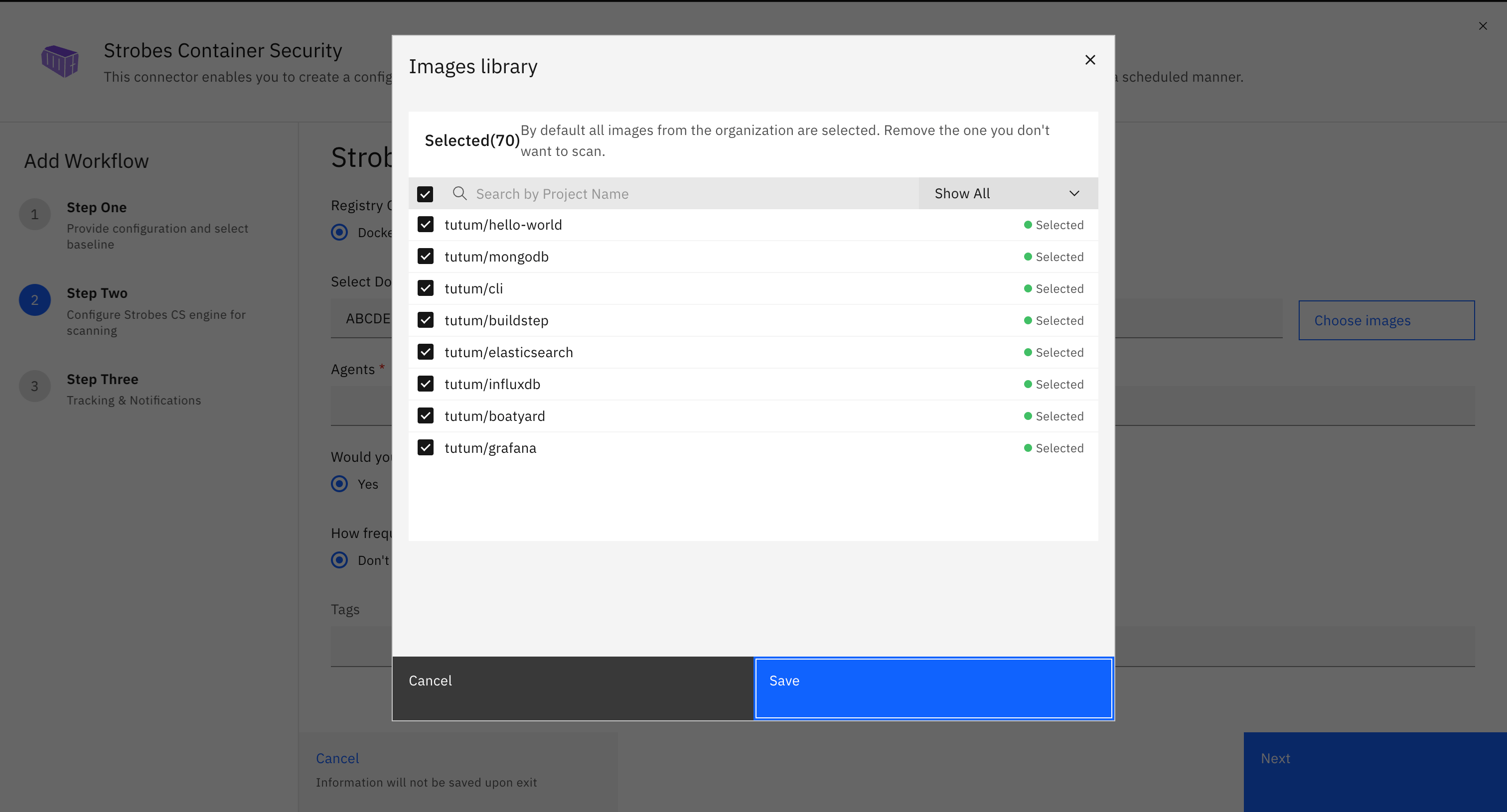
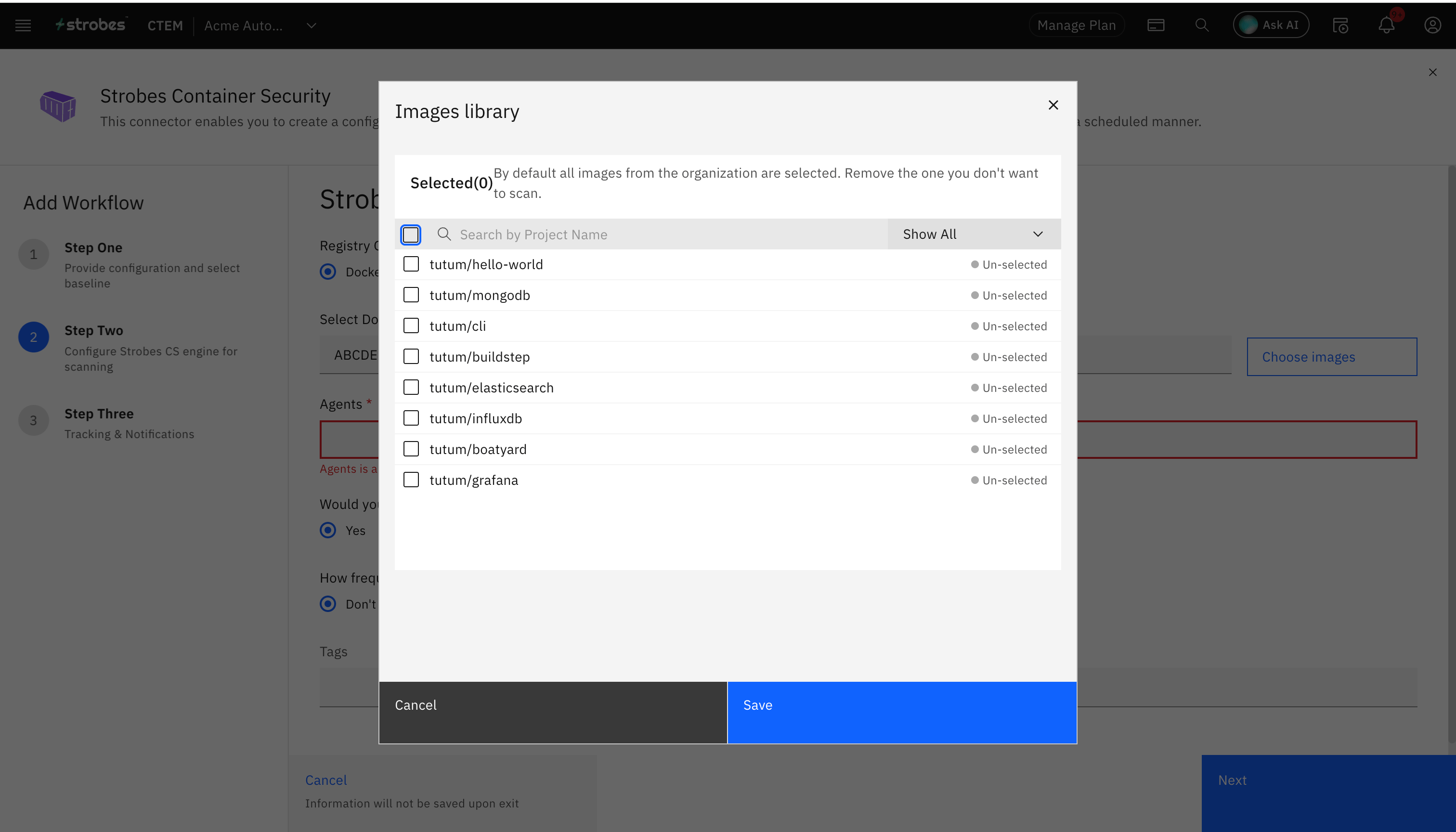
- If you need to create configurations for all the images then you can proceed to the next step, otherwise you can unselect the images that you do not need to create configurations for and then proceed to the next step.
Choosing the Tag:
- In this step, you will have to enter the tag of the image on which the configurations will be run. By default, the tag name will be 'latest'.
Choosing the Frequency:
- In this step, you need to select the schedule frequency at which the configurations will be run.
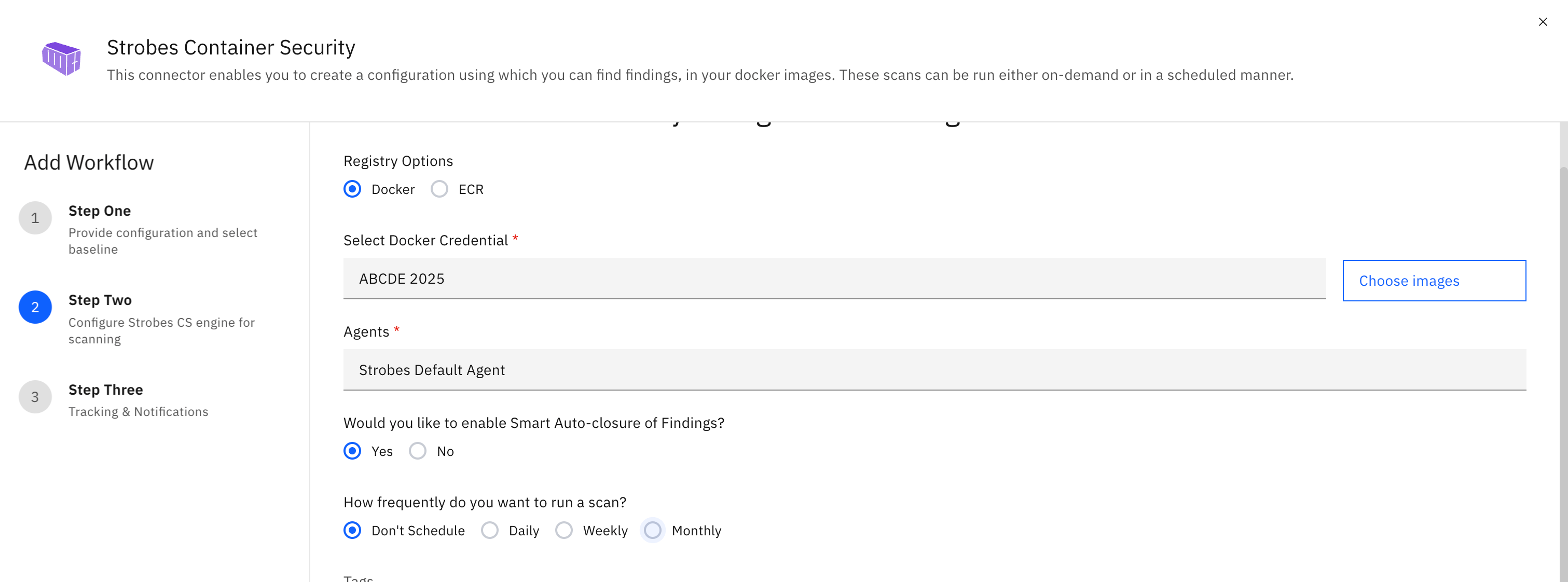
- There are three available options as follows:
- Daily
- Weekly
- Monthly
The following are the instructions to add Docker Hub, Amazon ECR registry credentials.
Configuring Docker Hub Credential Manager
- Navigate to 'Settings' and click on 'Credential Manager'.
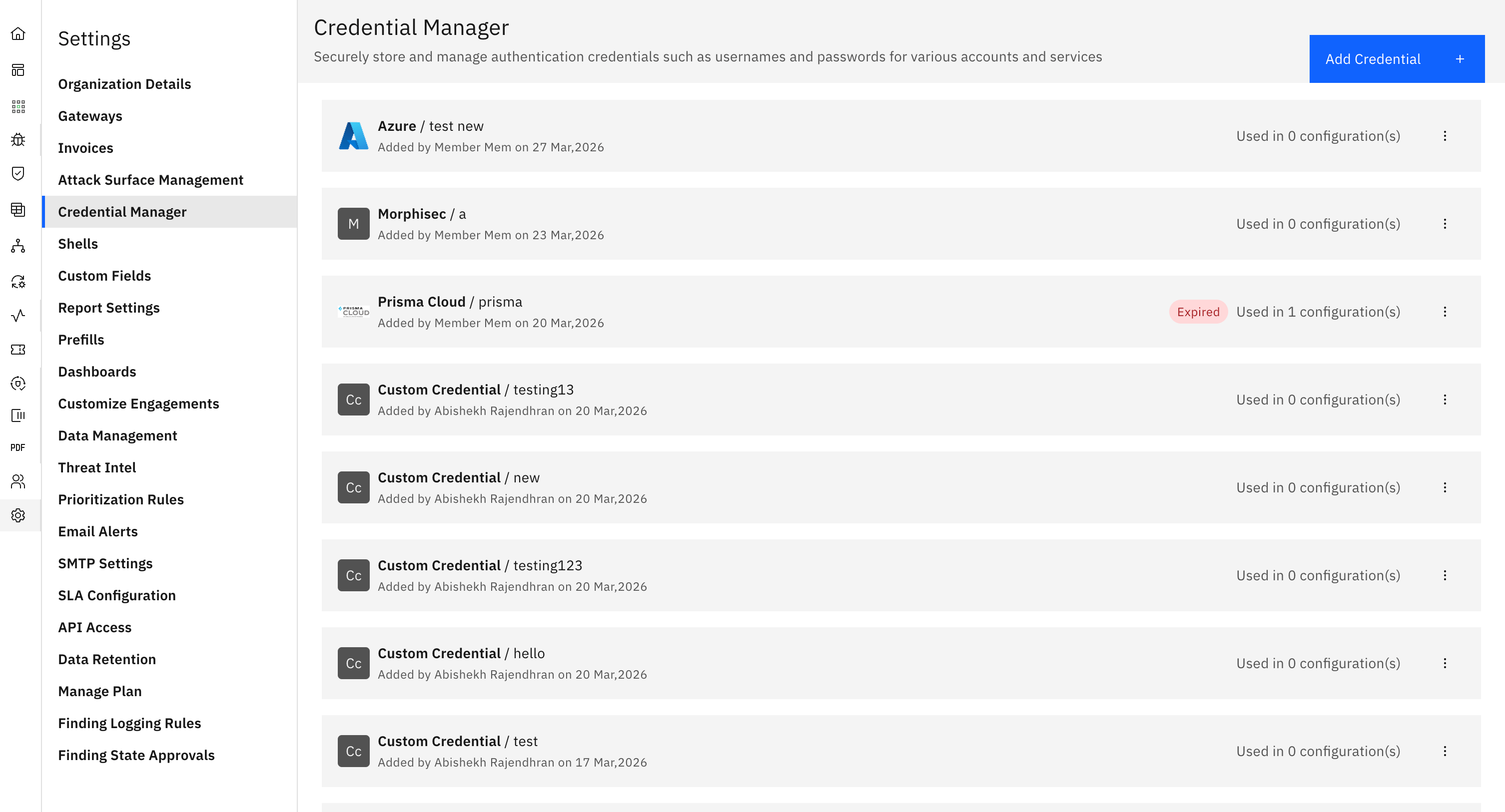
- Click on 'Add Credential'.
- Now select your connector as 'Docker'.
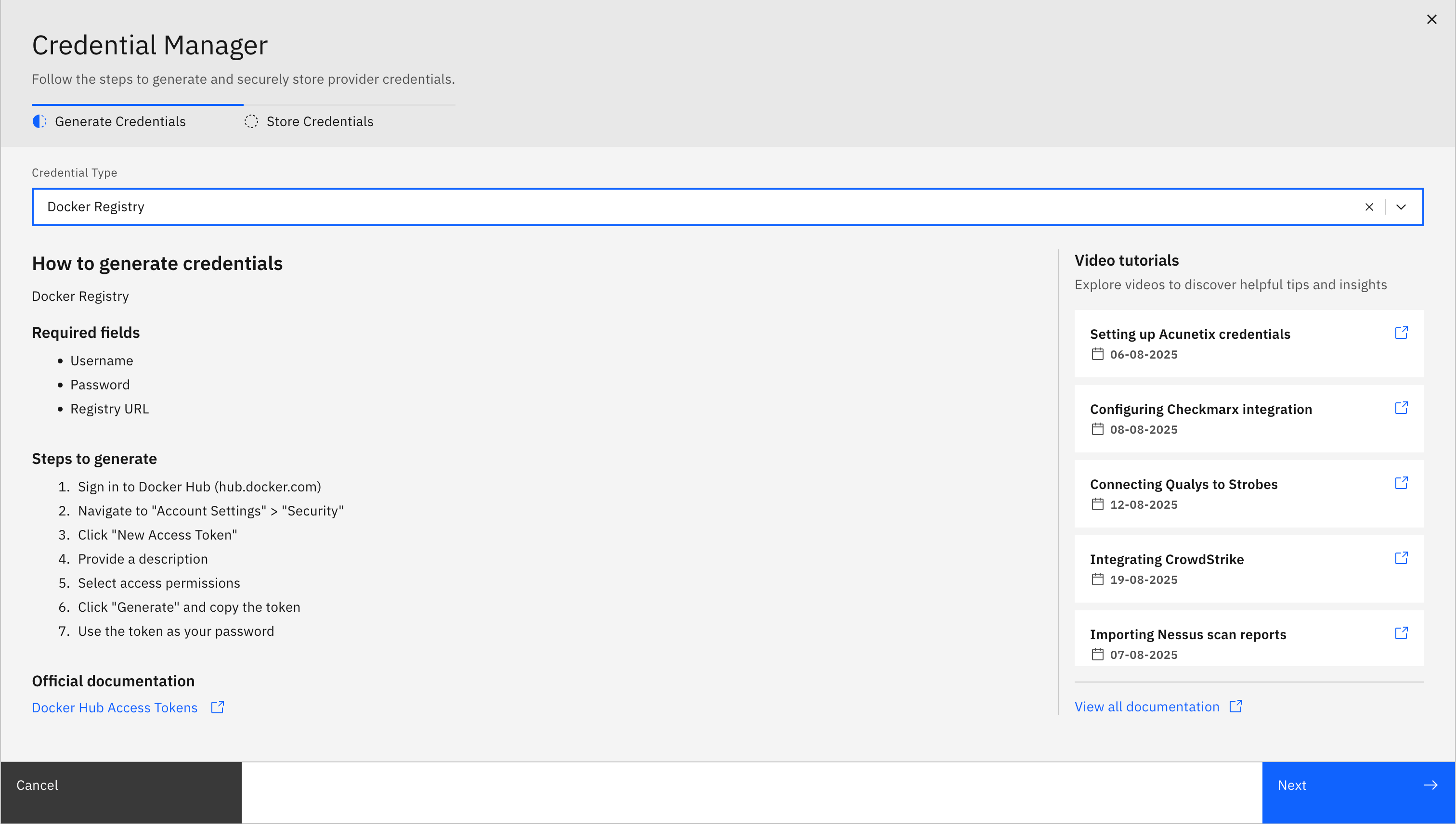
- Enter the 'Name' for your configuration, your 'Username', 'Password' and the 'Registry URL'.
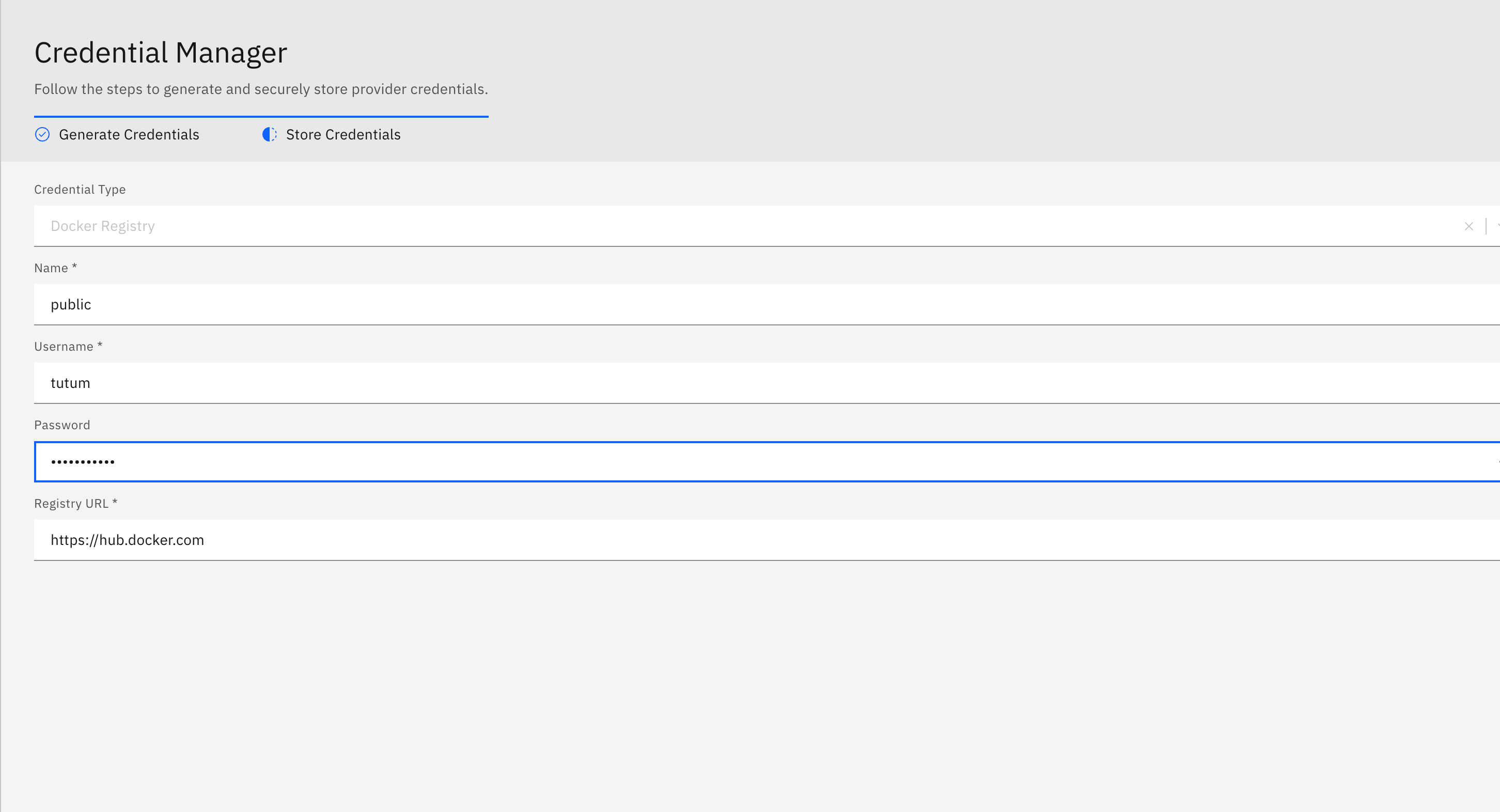
- Click on 'Save' and your docker hub credentials will get saved.
Configuring ECR Credential Manager
- Navigate to 'Settings' and click on 'Credential Manager'.
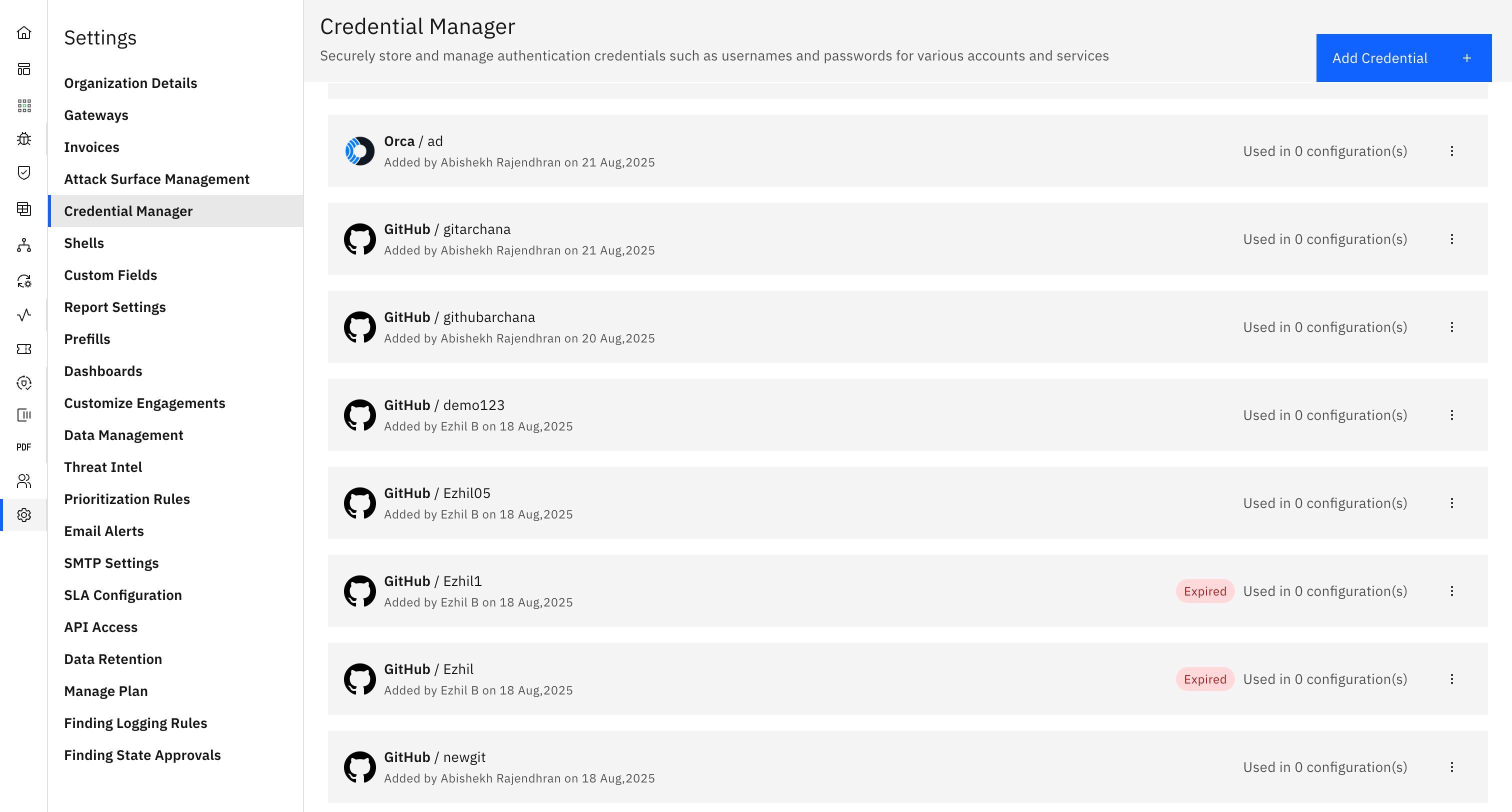
- Click on 'Add Credential'.
- Now select your connector as 'ECR'.
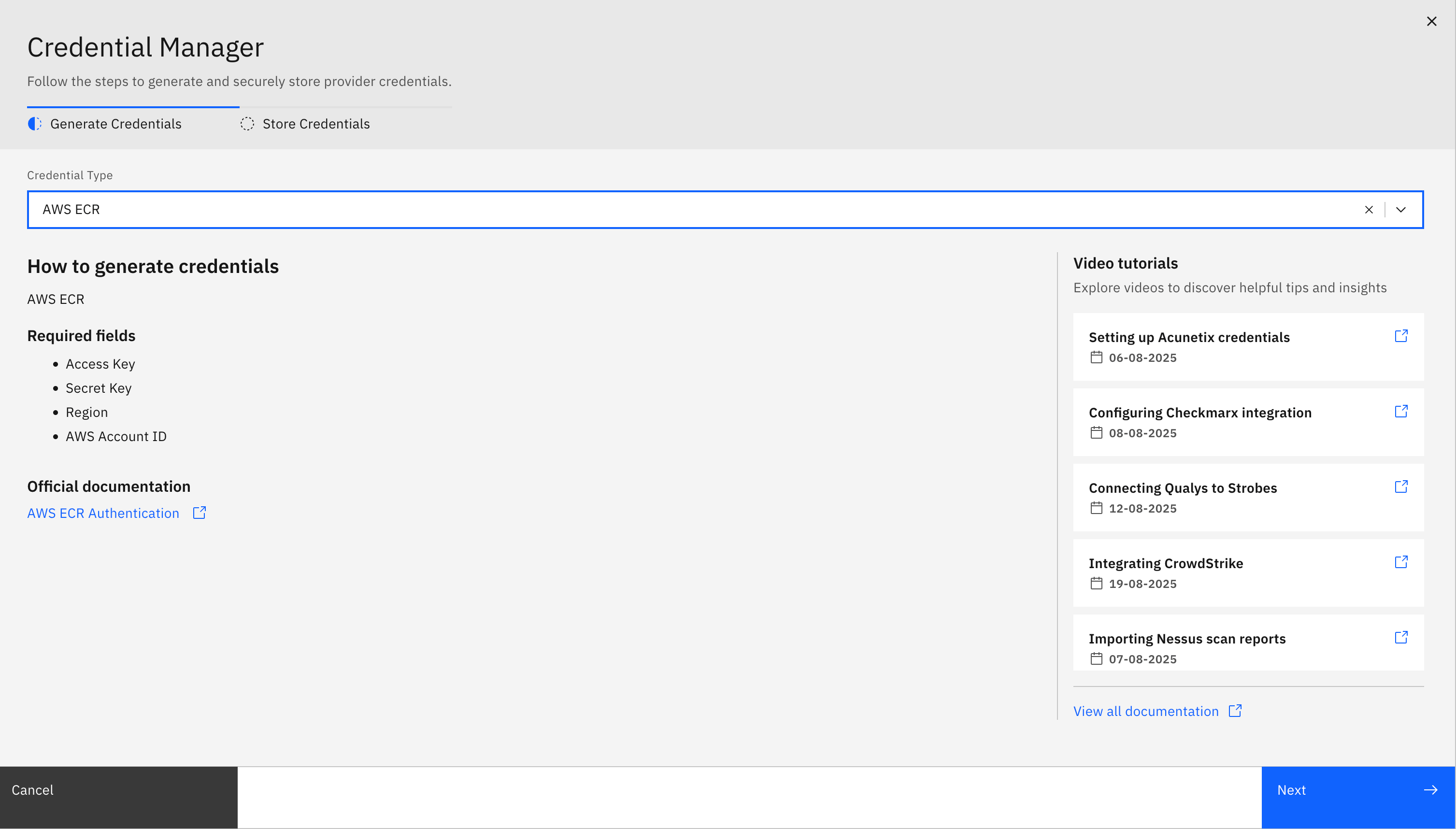
- Enter the 'Name' for your configuration, your 'AWS Access Key', 'AWS Secret Key', the 'Region' and your 'AWS Account ID'.
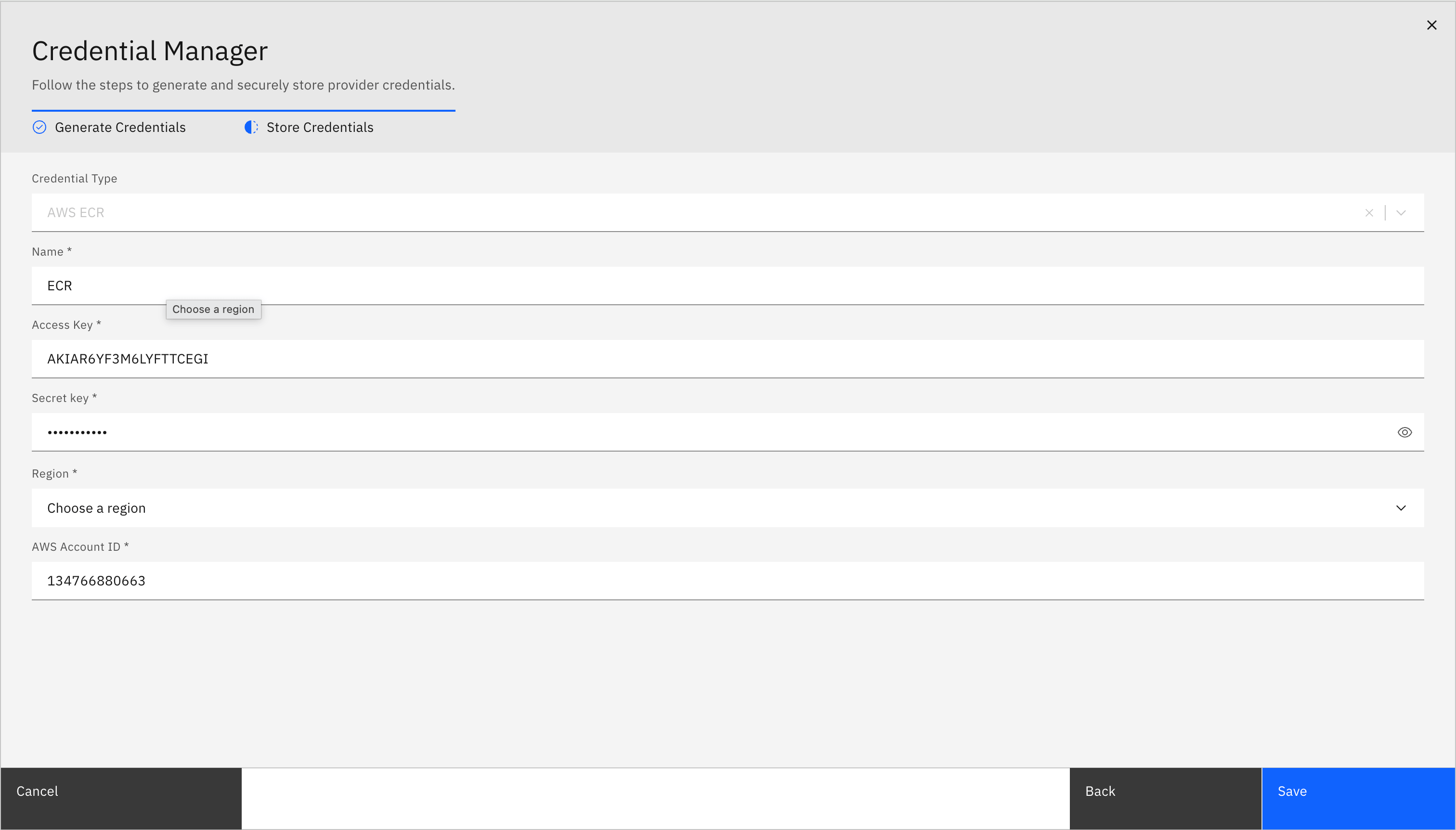
Click on 'Save' and your ECR credentials will get saved.
More in Scan workflows
Was this page helpful?