
Configuring Azure Boards credentials
1 min readEdit
On this page⌄
Prerequisites
- Access to your Azure DevOps account with permission to create Personal Access Tokens (PATs)
- Access to the Strobes platform with appropriate permissions to manage credentials
Step 1: Generate a Personal Access Token (PAT) in Azure DevOps
To allow Strobes to securely connect to your Azure Repos, you'll first need to generate a PAT in your Azure DevOps account.
1. Log into your Azure DevOps organization.
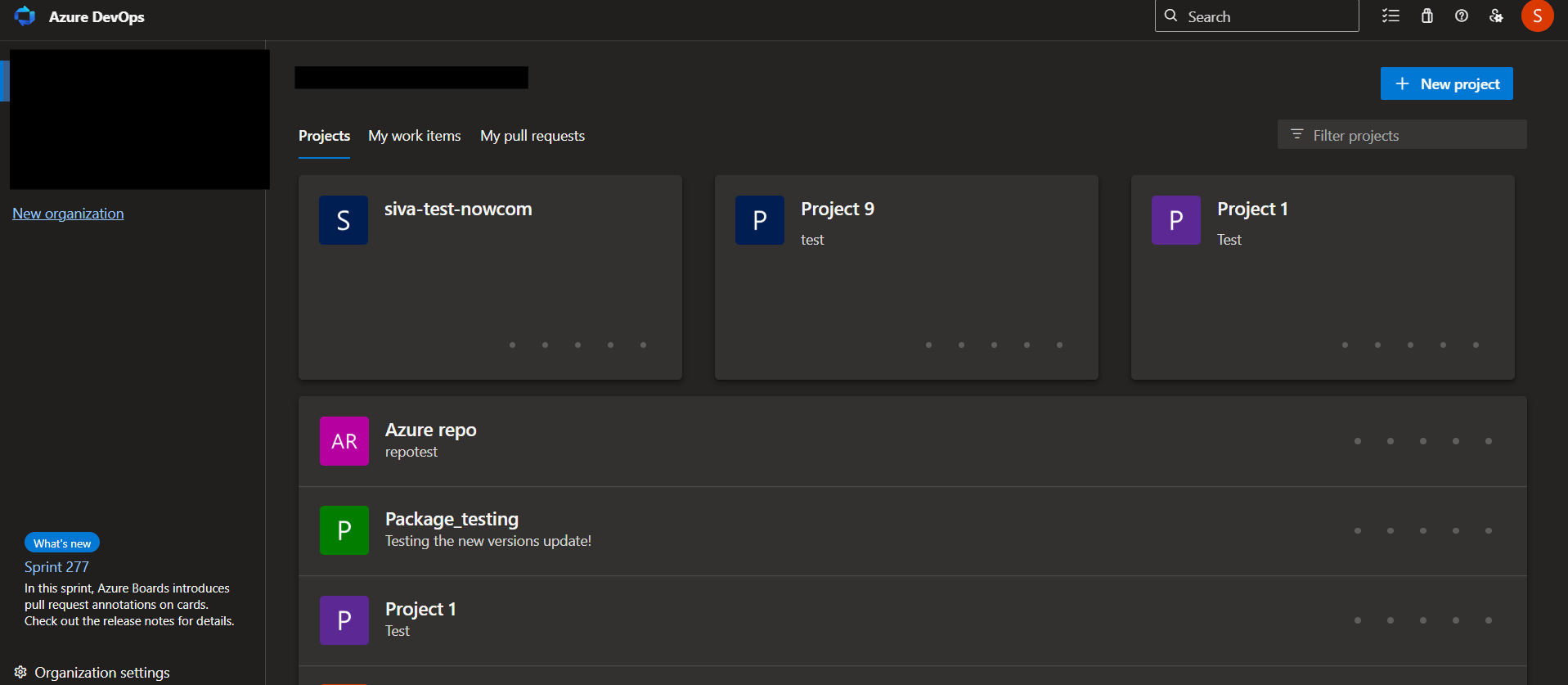
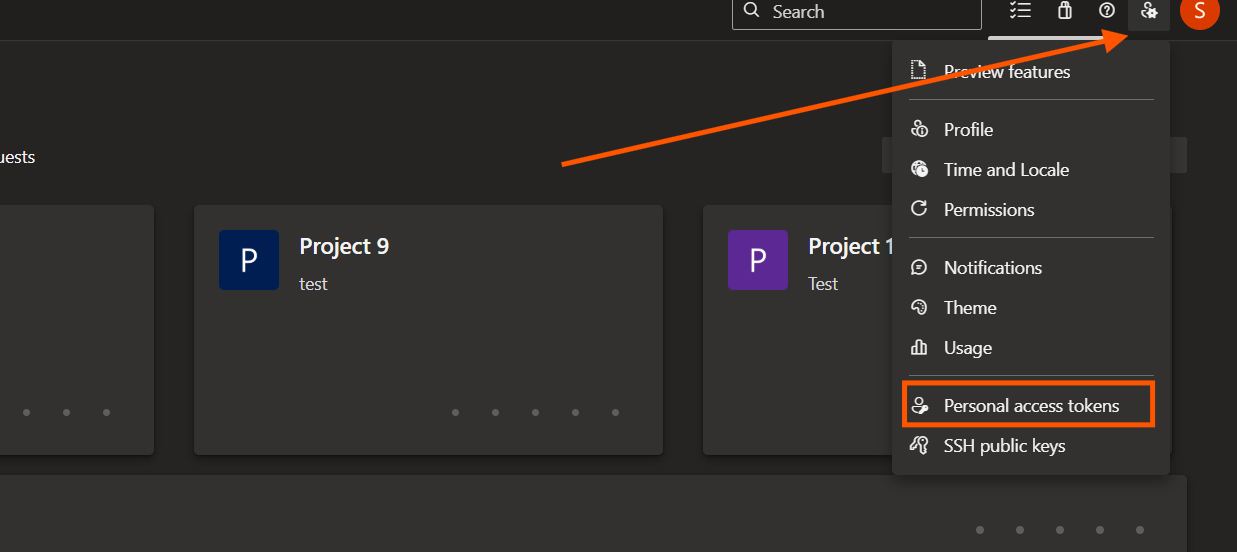
2. In the top-right corner, click on your profile avatar and select "User Settings" > "Personal Access Tokens".
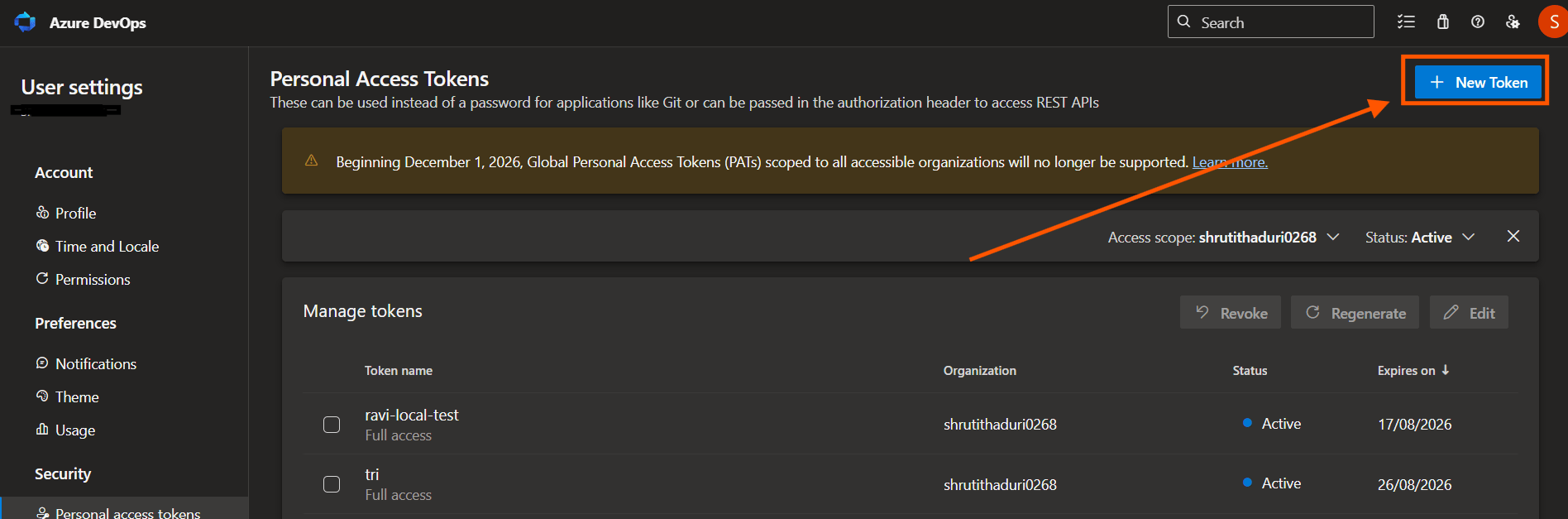
3. Click the "New Token" button.
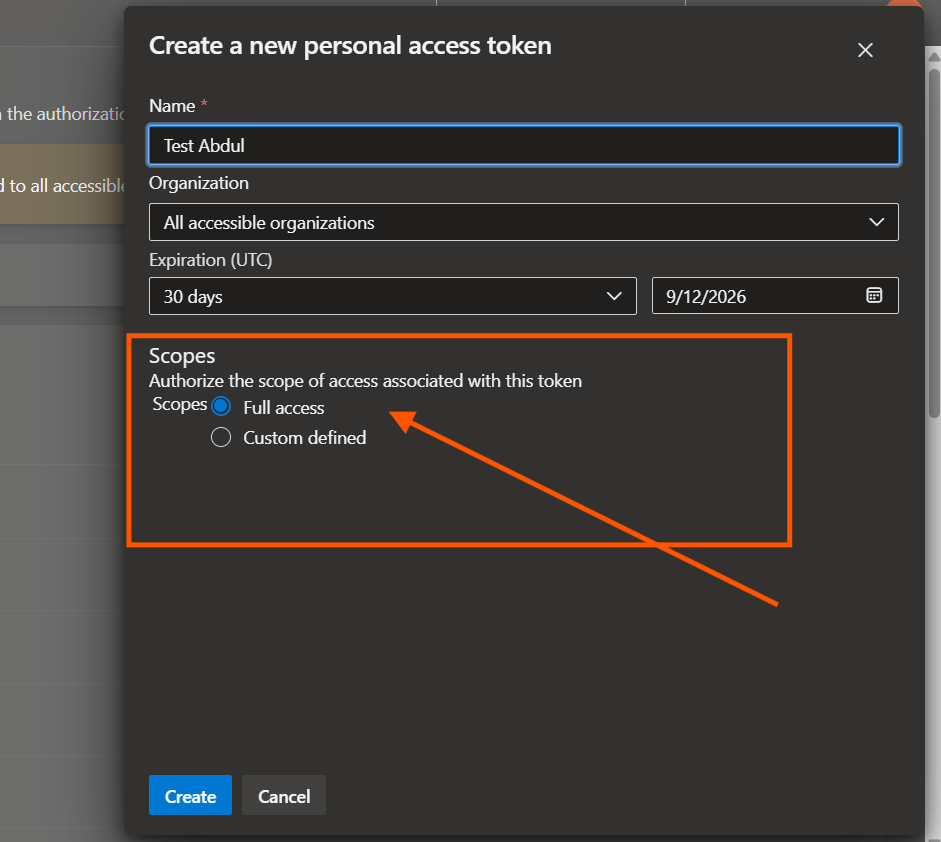
4. In the Create a new personal access token screen:
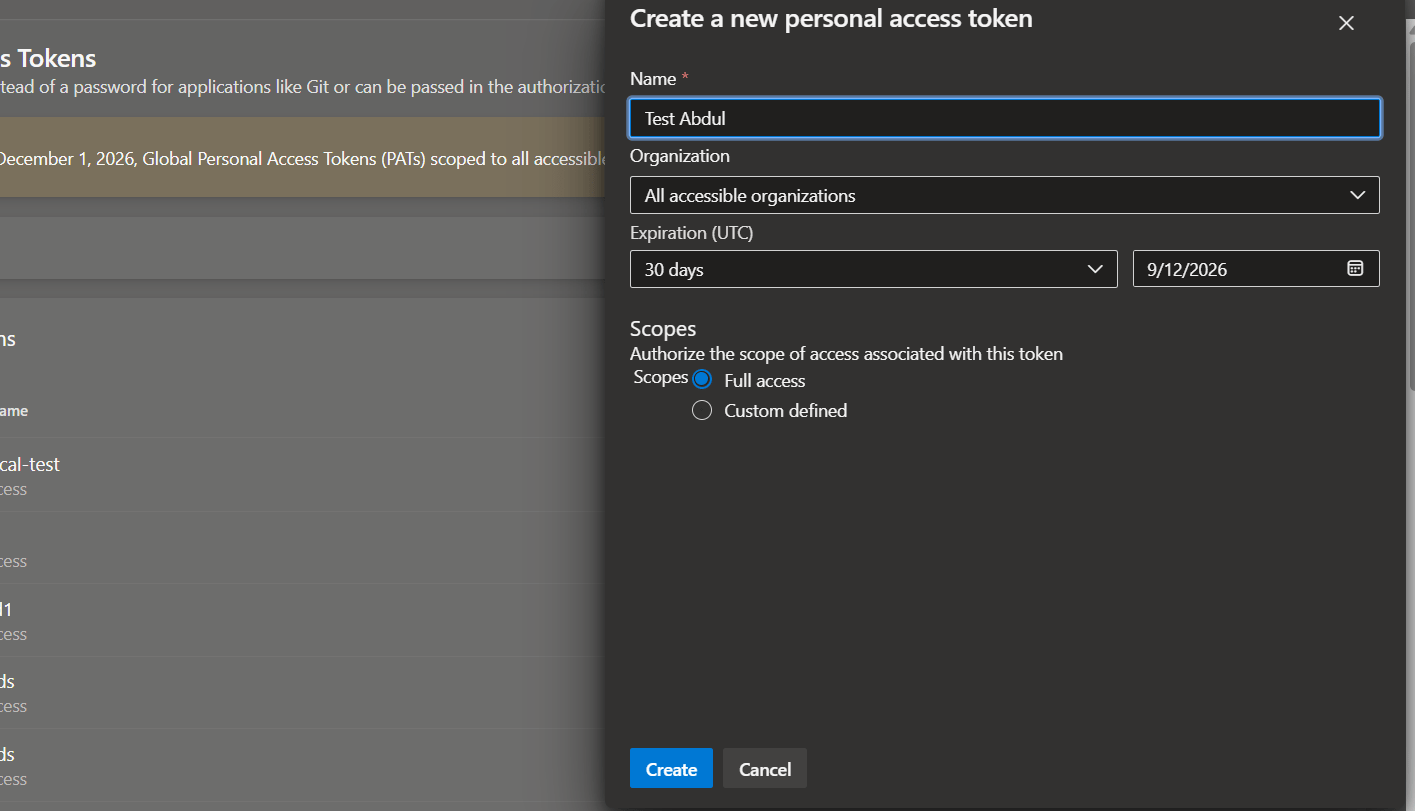
- Name: Provide a meaningful name for your token (e.g., Strobes Integration Token)
- Organization: Select the relevant organization
- Expiration: Choose an expiration period (e.g., 30 days, 90 days). You’ll need to regenerate this token after expiry.
5. Under Scopes:
- Choose "Full Access"
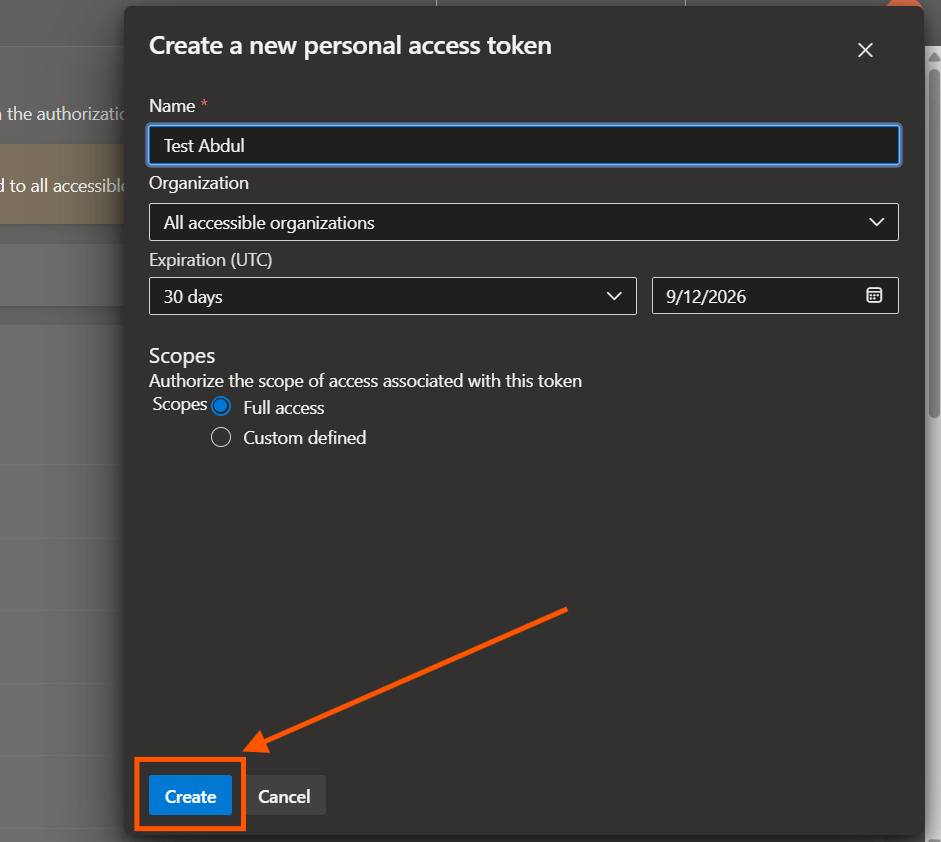
6. Click "Create".
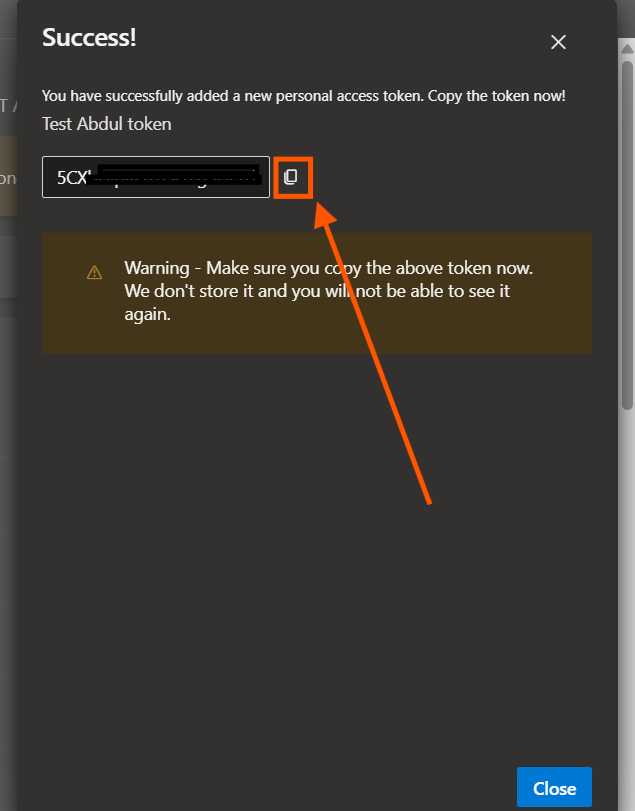
7. Once the token is generated, copy and securely save the token immediately. You won’t be able to retrieve it again once the modal is closed.
Step 2: Configure Azure Repos Credentials in Strobes
With your PAT ready, now you can integrate Azure Repos into Strobes.
- Log into the Strobes platform.
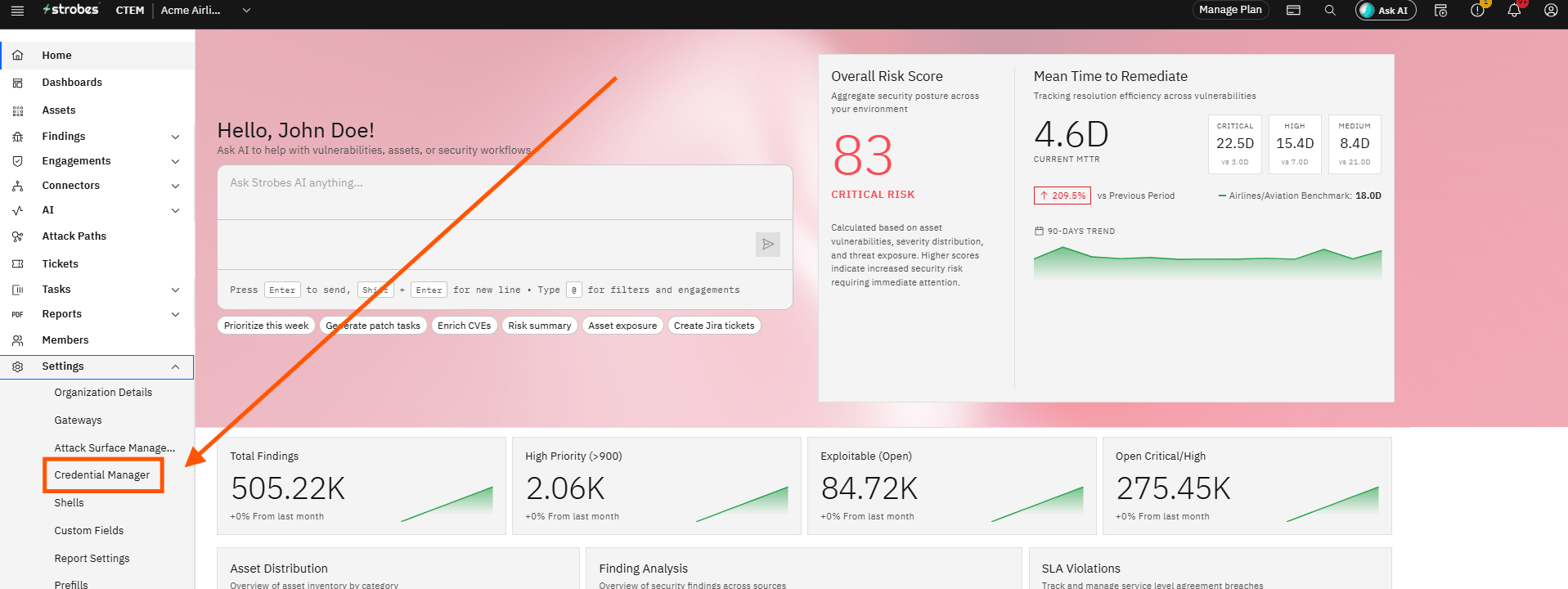
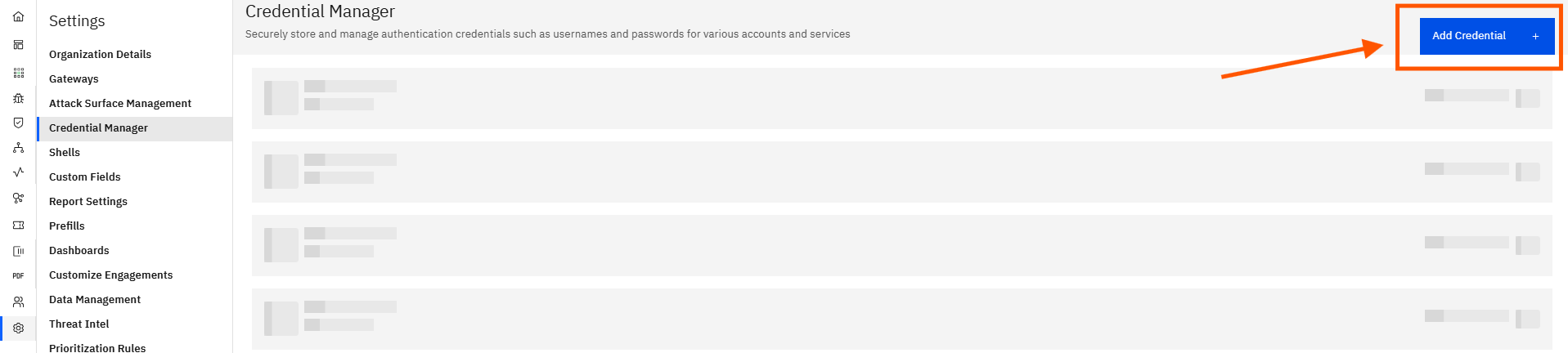
- Navigate to Settings > Credential Manager from the left-side menu.
- Click the "Add Credential" button.
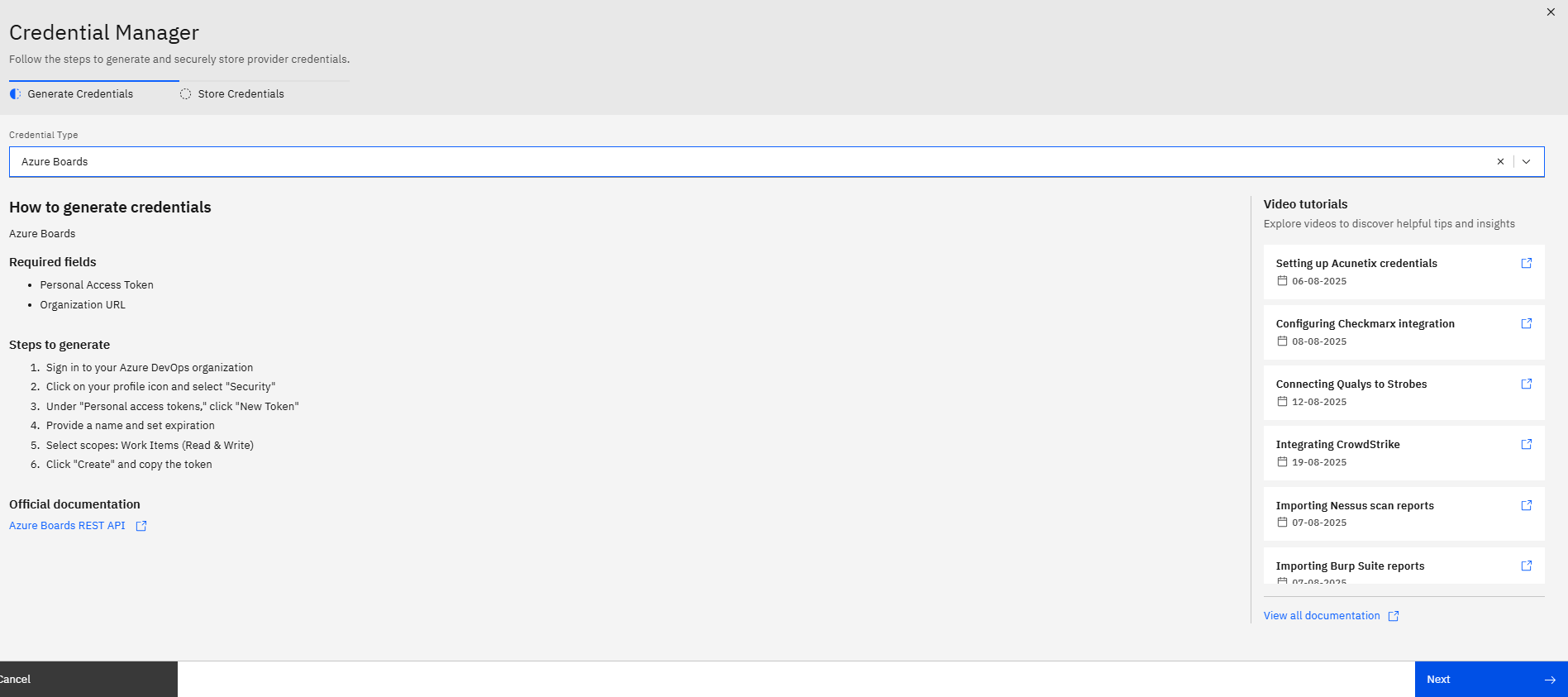
- In the Credential setup form:
- Connector: Select Azure Boards from the dropdown
- Name: Enter a label for this integration (e.g., Azure Repos - Dev Team)
- Organization URL: Paste your Azure DevOps organization URL. Format: https://dev.azure.com/your-org-name/
- Personal Access Token: Paste the PAT you generated in the earlier step
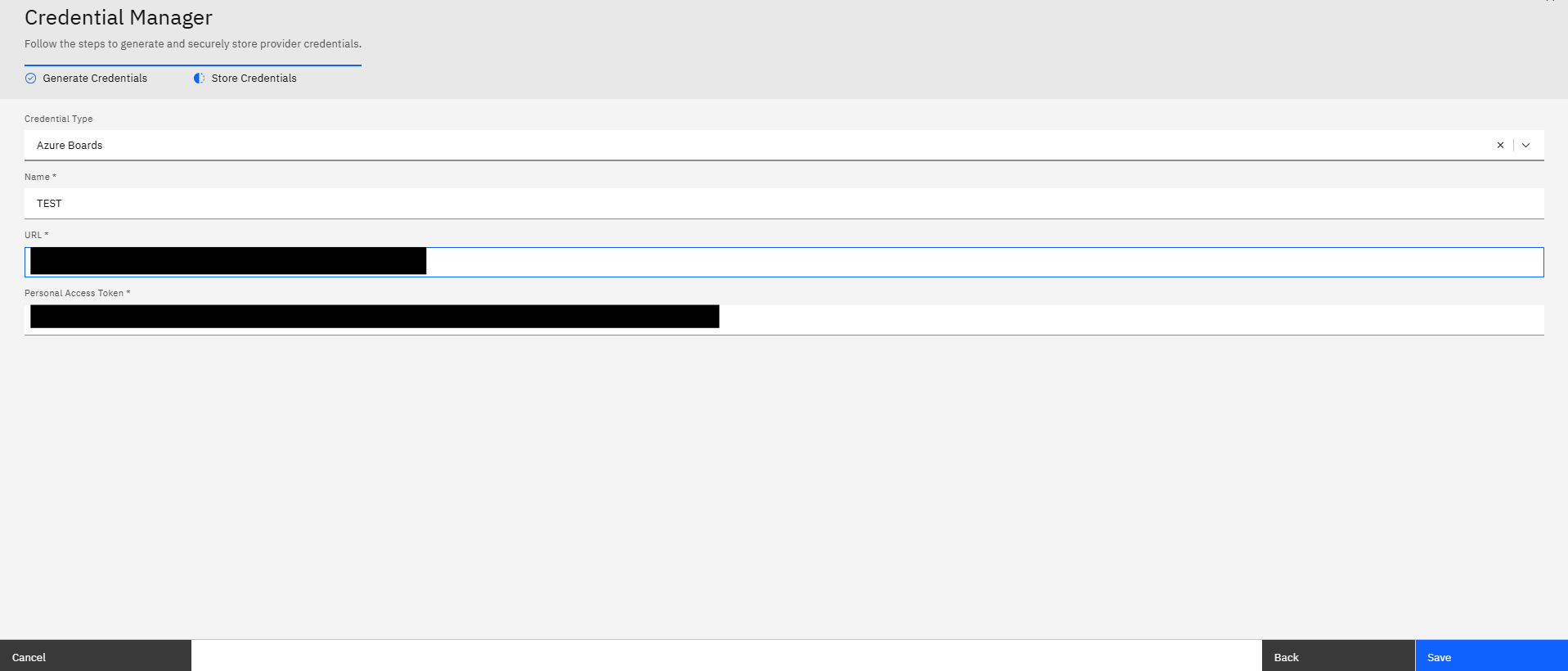
- Click "Save".
Once saved, your Azure Boards credentials will be securely stored, and the integration will be ready for use in your workflows. Check out the video for more info
More in Ticketing & ITSM
Was this page helpful?