
Configuring the Jira Integration in Strobes OAuth 2.0
7 min readEdit
On this page⌄
- Overview
- Before You Start
- Part 1 — Add the Jira Credential in Strobes
- Step 1 — Click Settings in the Left Sidebar
- Step 2 — Click Credential Manager
- Step 3 — Click Add Credential
- Step 4 — Select Jira from the Credential Type Dropdown
- Part 2 — Enter the Credential Details
- Step 5 — Enter a Name for the Credential
- Step 6 — Enter Your Jira Instance URL
- Step 7 — Click Save
- Part 3 — Authorize with Atlassian
- Step 8 — Sign In to Your Atlassian Account in the Popup
- Step 9 — Click Accept
- Step 10 — Confirm the Credential Is Active
- Part 4 — Configure the Jira Connector
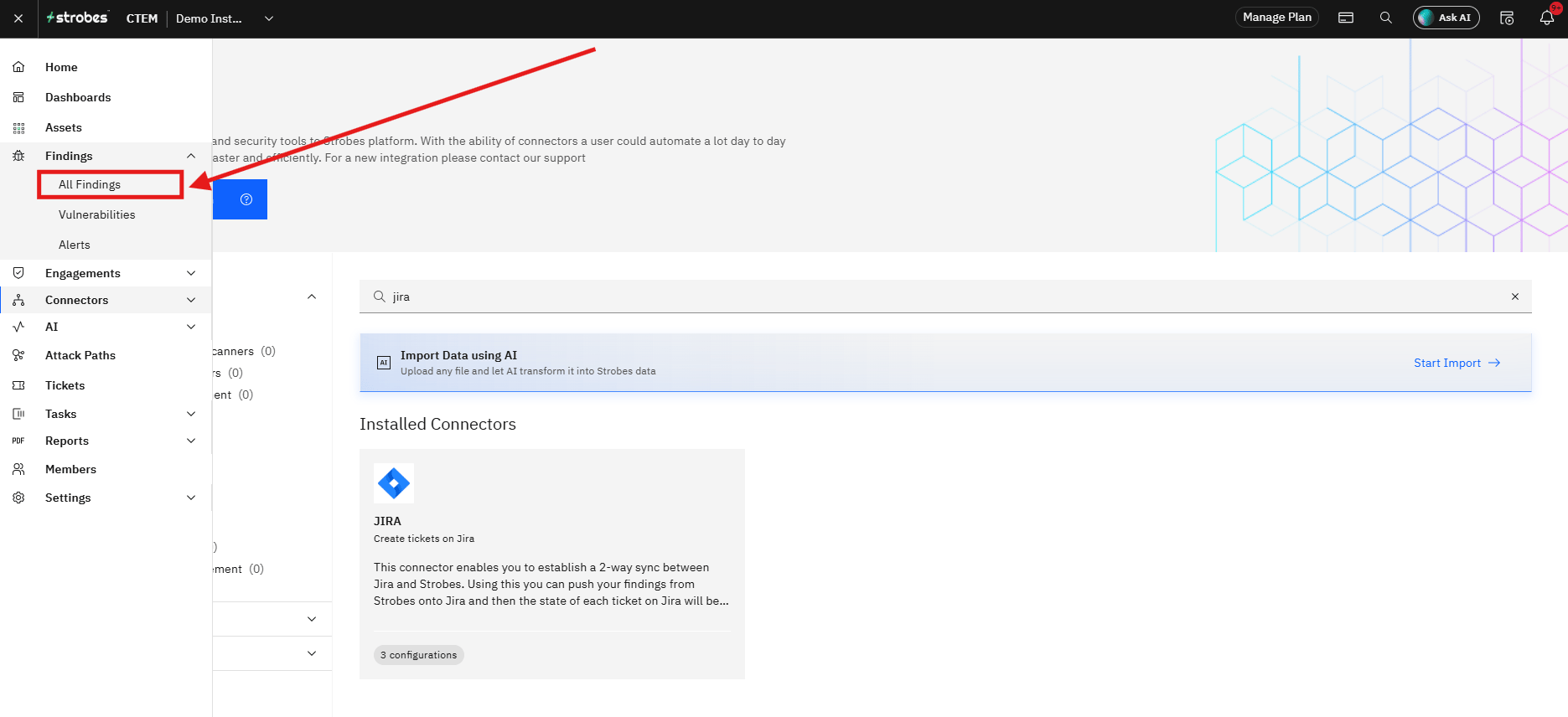
- Step 11 — Navigate to Connectors
- Step 12 — Search for the Jira Connector
- Step 13 — Open the Jira Connector
- Step 14 — Enter a Configuration Name (Step One)
- Step 15 — Select the Jira Credential
- Step 16 — Advance to Step Two
- Step 17 — Select the Jira Project
- Step 18 — Select the Issue Type
- Step 19 — Map Strobes Statuses to Jira Statuses
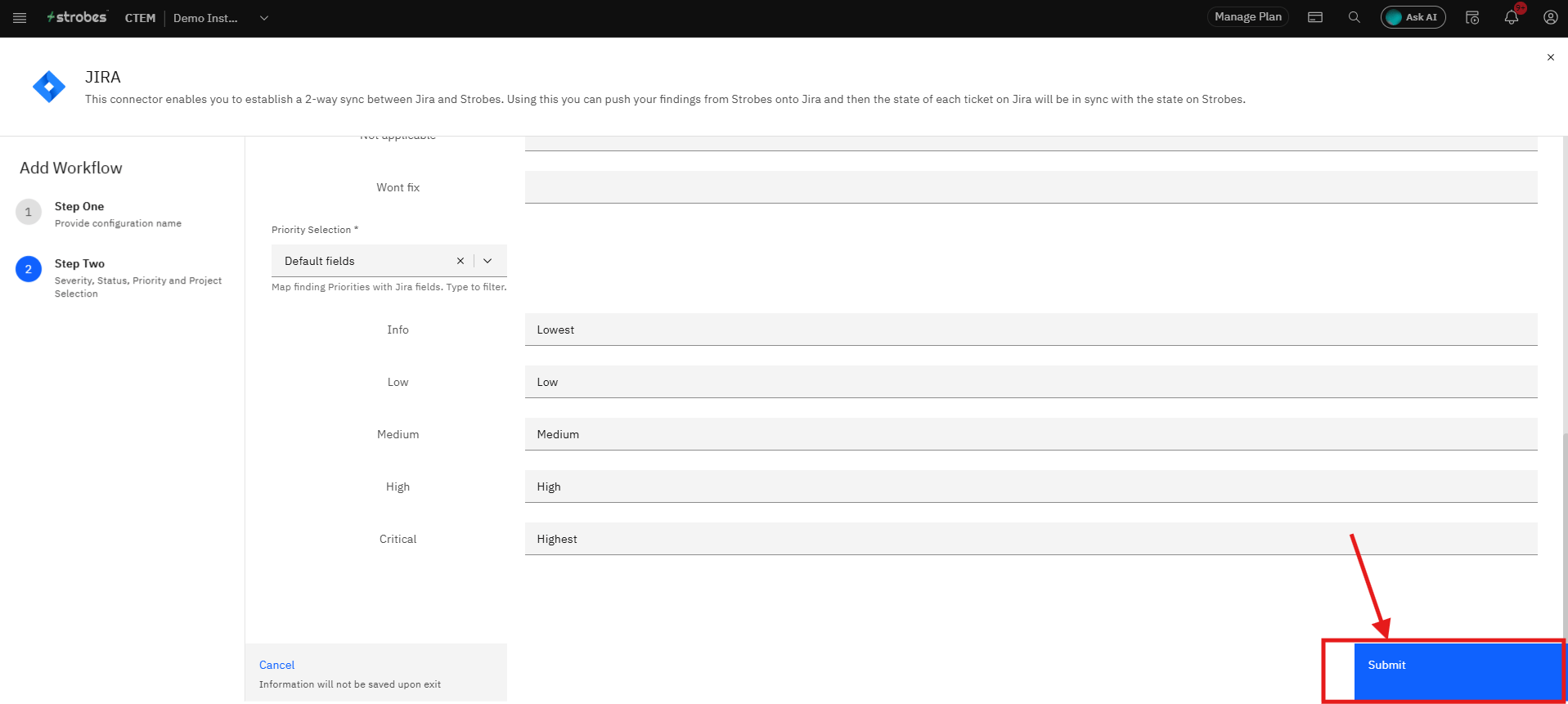
- Step 20 — Map Strobes Severity to Jira Priority
- Step 21 — Click Submit
- Part 5 — Send a Finding to Jira
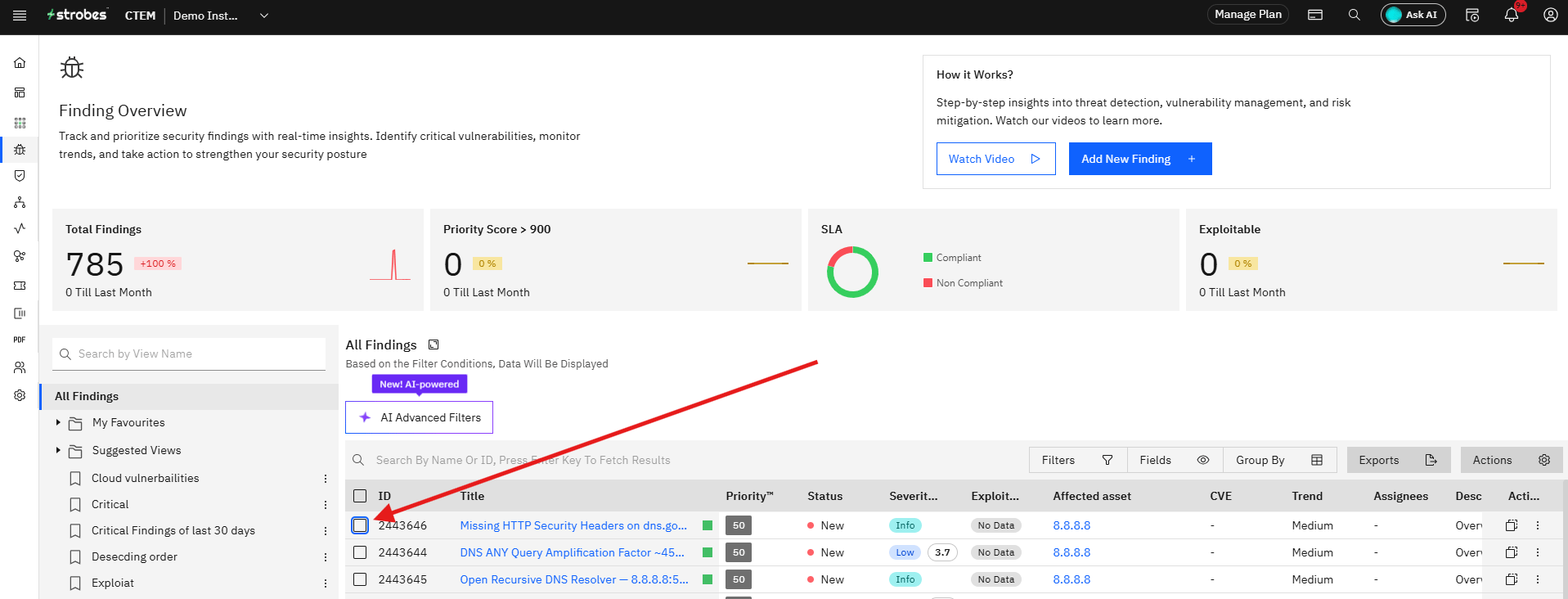
- Step 22 — Open a Finding
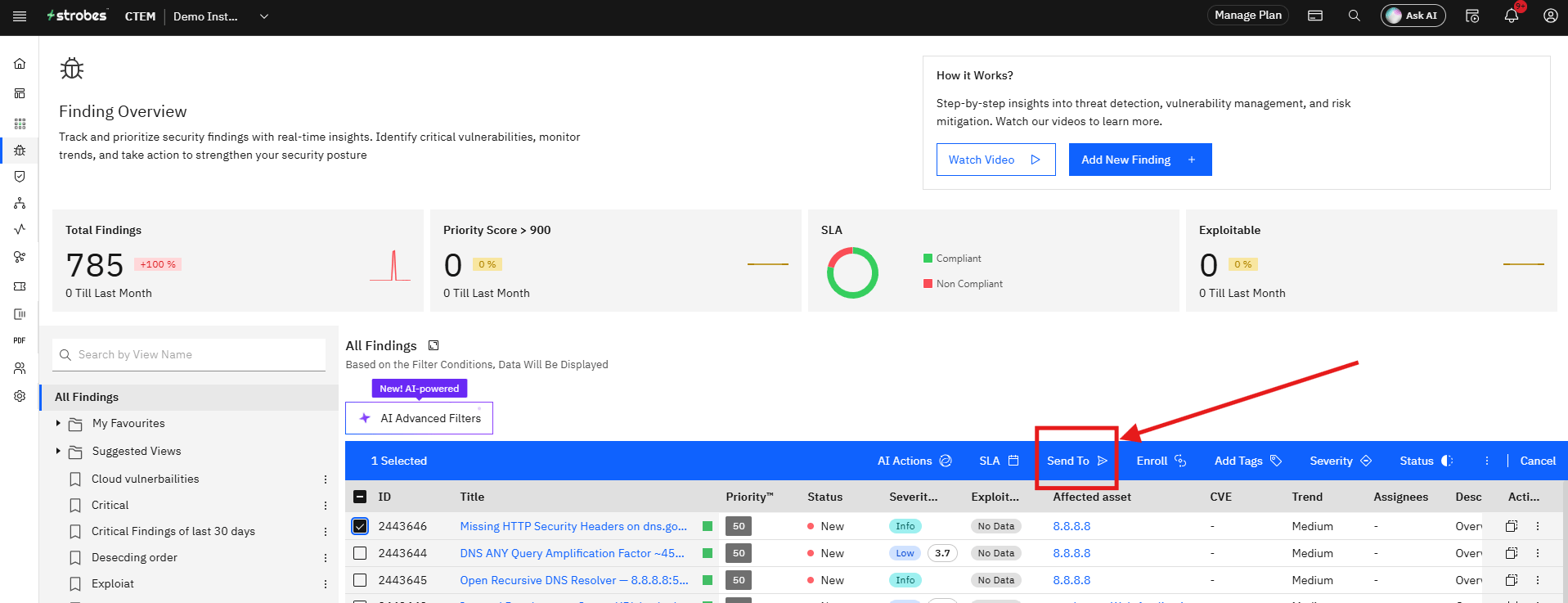
- Step 23 — Click Send To
- Step 24 — Select JIRA
- Step 25 — Select the Configuration
- Step 26 — Click Submit
- Two-Way Sync
- Tips
Overview
Strobes connects to Jira Cloud using OAuth 2.0 (3-Legged OAuth). This is a simpler and more secure method than the older OAuth 1.0 application-link approach — there is no configuration required on the Jira side. No Application Links, no public keys, no consumer keys. You add a credential in Strobes, sign in with your Atlassian account, and the integration is active.
Once connected, you can push findings from Strobes directly to Jira as tickets and keep both systems in sync automatically through a two-way sync.
Before You Start
- Jira Cloud only. OAuth 2.0 is available for Jira Cloud instances only (URLs in the format
https://your-company.atlassian.net). It is not supported for Jira Server or Jira Data Center. - Atlassian account access. The Atlassian account you use to authorize must have access to the Jira projects you plan to integrate with.
- Browser popups. Allow popups from the Strobes domain in your browser. The Atlassian authorization screen opens in a popup window.
Part 1 — Add the Jira Credential in Strobes
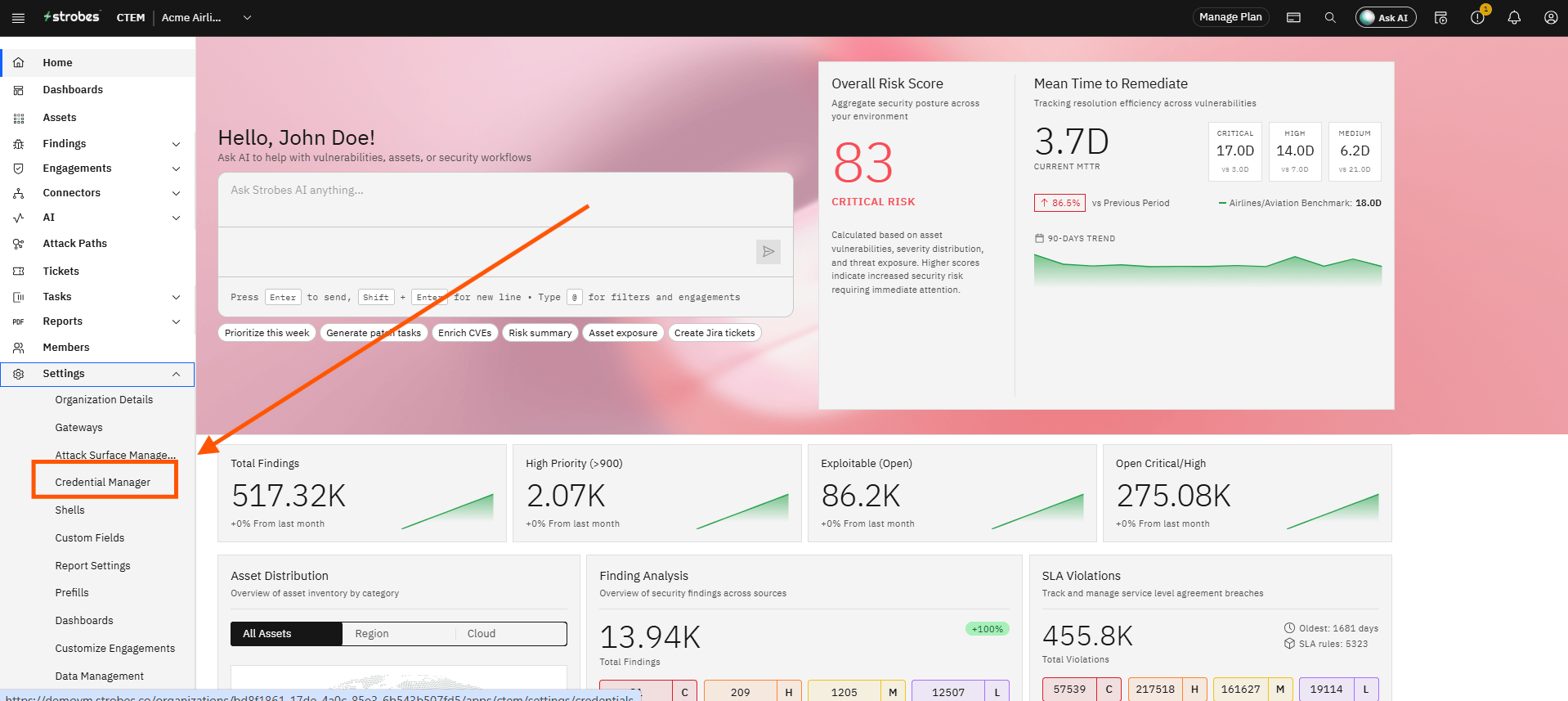
Step 1 — Click Settings in the Left Sidebar
Click Settings in the left sidebar. The Settings section opens with a submenu of configuration options.
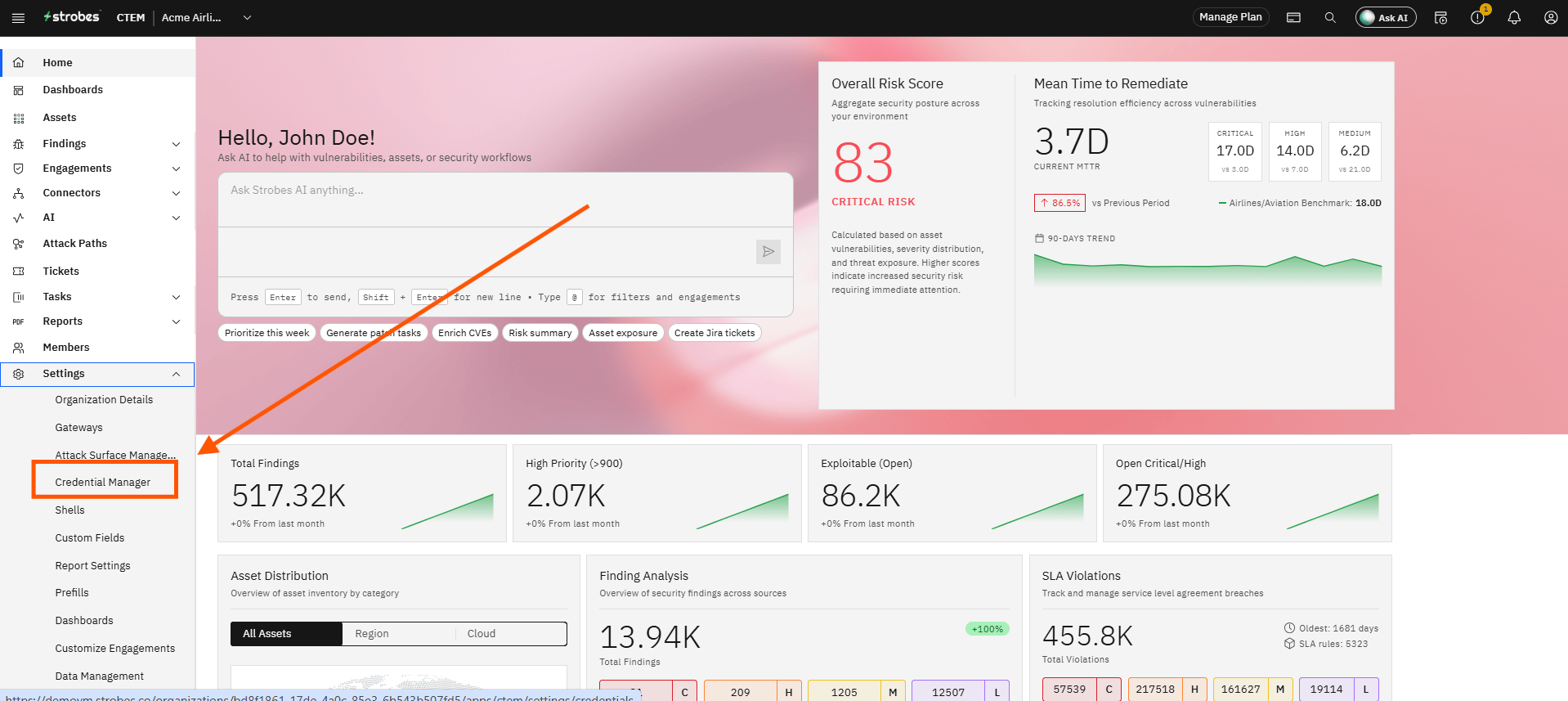
Step 2 — Click Credential Manager
Click Credential Manager in the Settings sidebar. The Credential Manager page opens, showing existing credentials and options to add new ones.
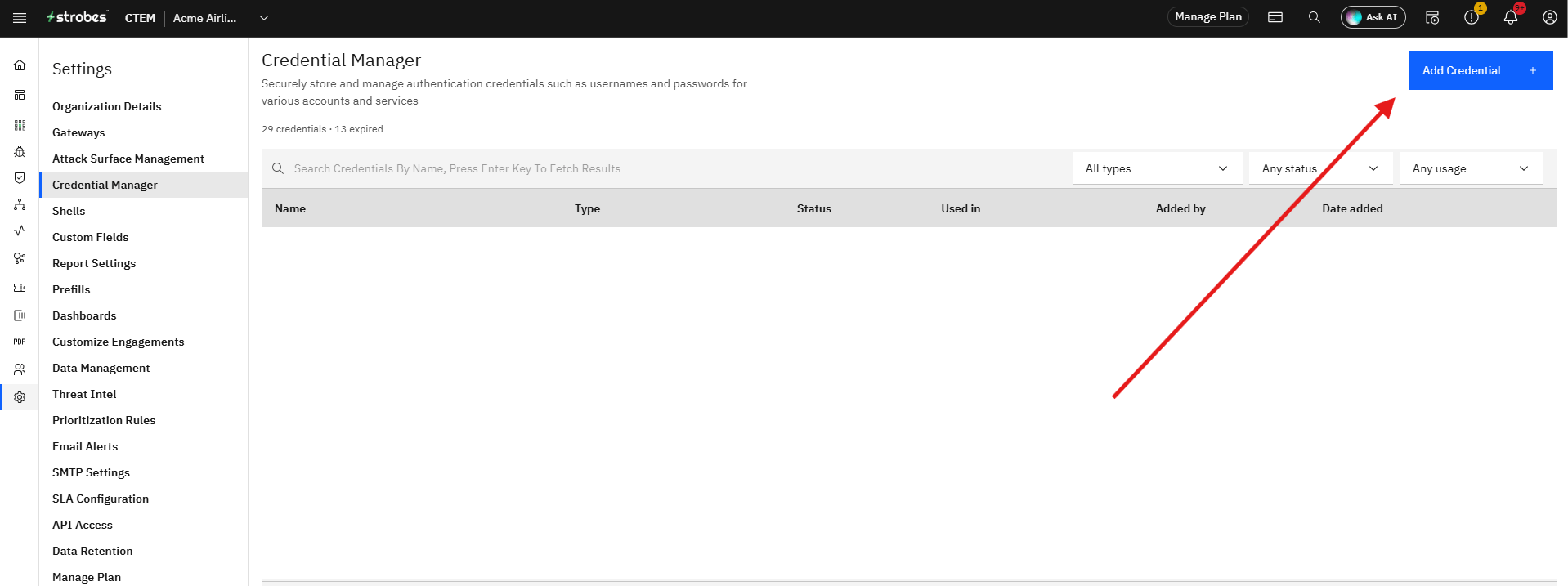
Step 3 — Click Add Credential
Click the Add Credential button. The Add Credential panel opens with two tabs: Generate Credentials and Store Credentials.
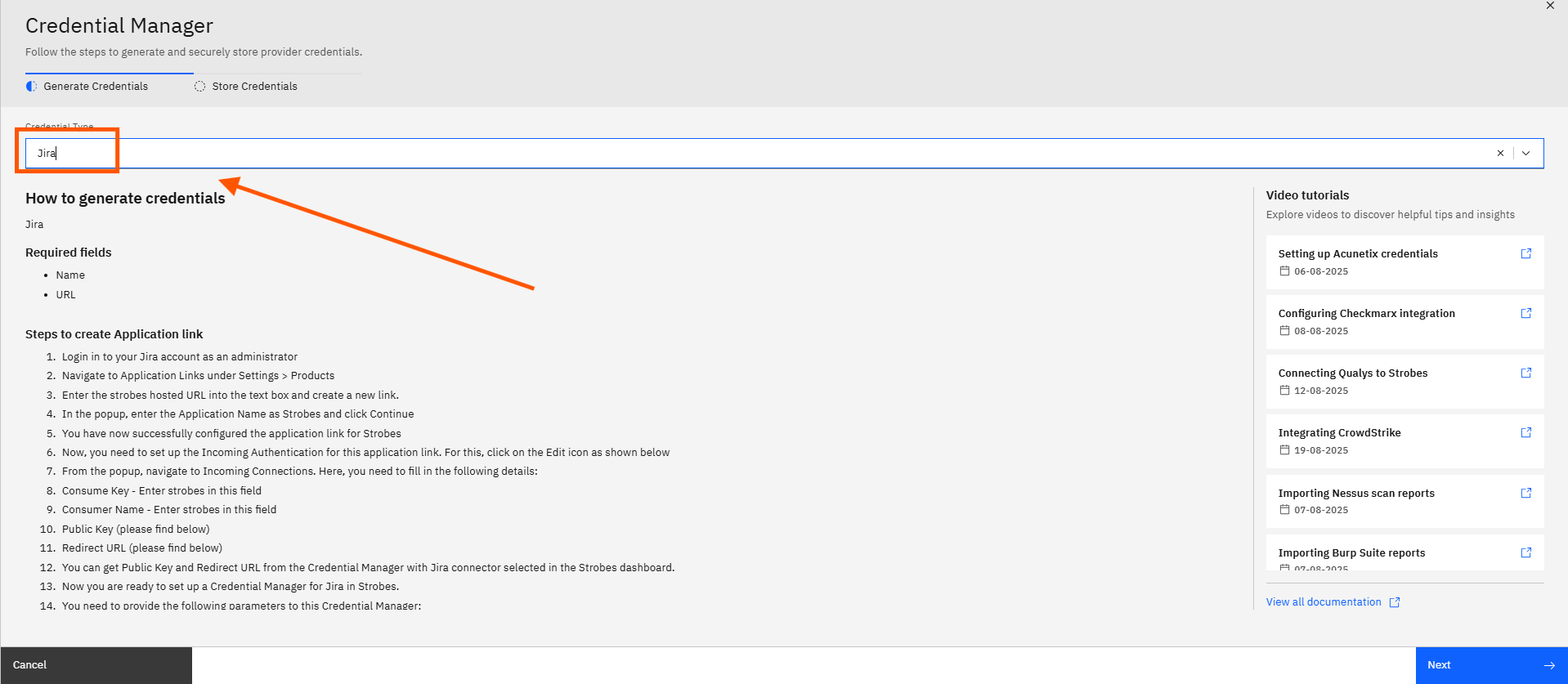
Step 4 — Select Jira from the Credential Type Dropdown
Click the Credential Type dropdown and select Jira. The form updates to show the fields specific to the Jira OAuth 2.0 credential.
Part 2 — Enter the Credential Details
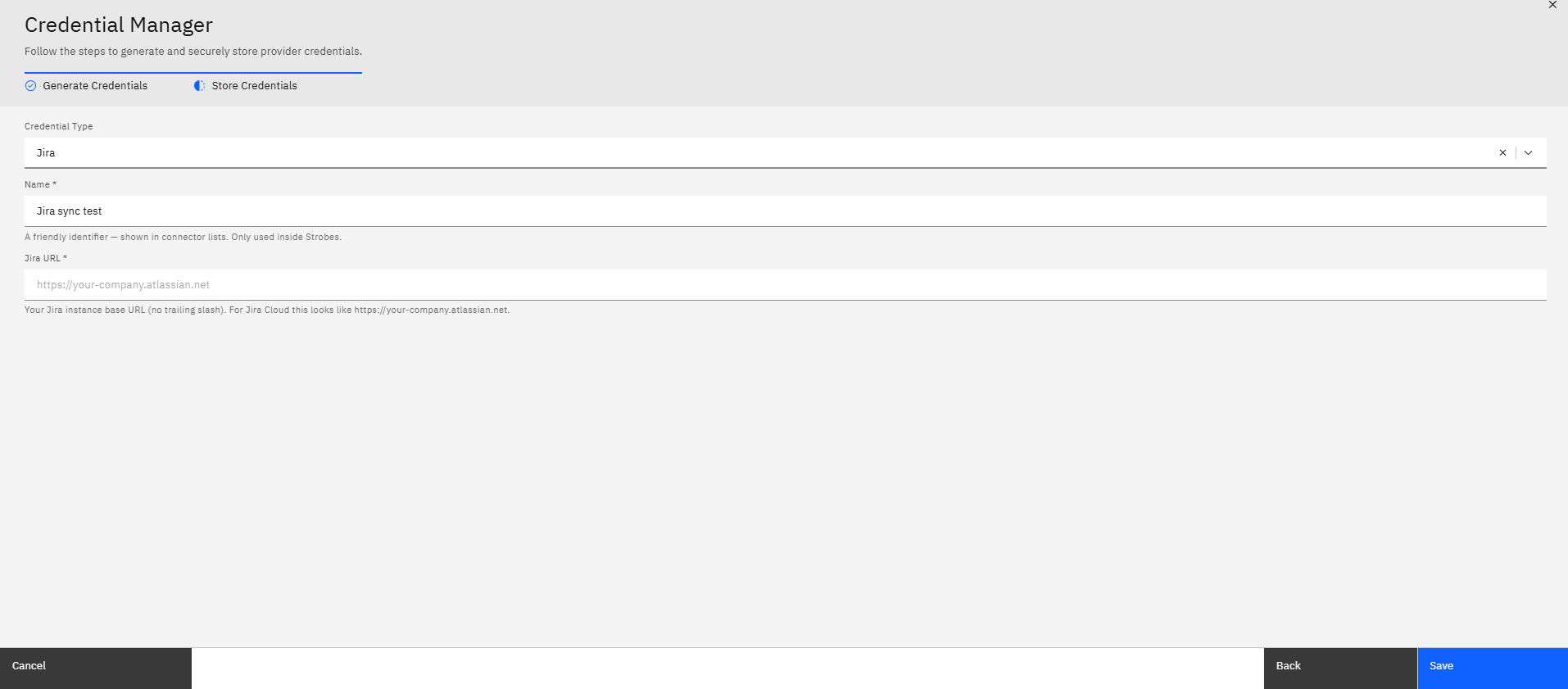
Step 5 — Enter a Name for the Credential
Click the Name field and type a name for this credential. This name is only used inside Strobes to identify the credential — for example, Jira OAuth2 or Prod Jira. It appears in connector configuration dropdowns so choose something recognizable.
Step 6 — Enter Your Jira Instance URL
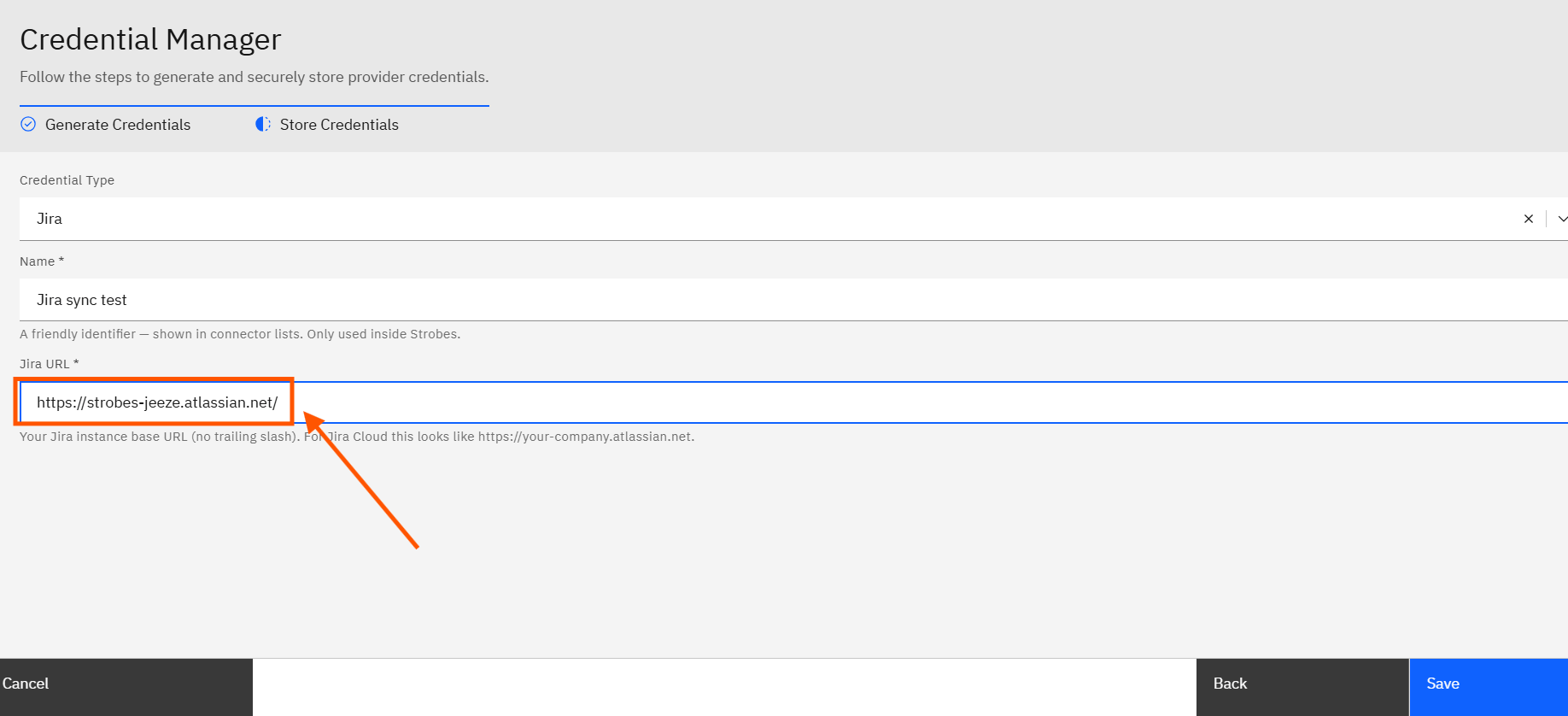
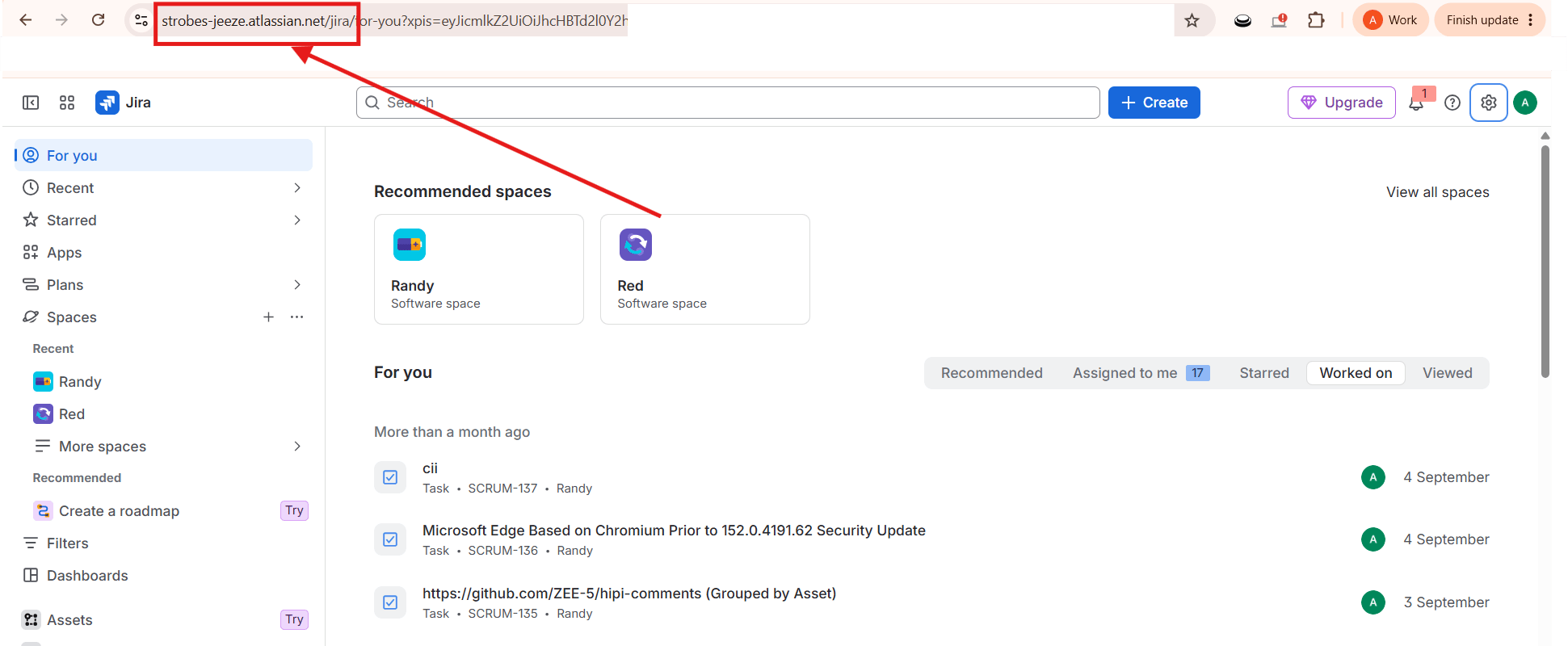
Click the Jira URL field and type your Jira Cloud base URL. For example: https://your-company.atlassian.net. Do not include a trailing slash at the end of the URL.
Step 7 — Click Save
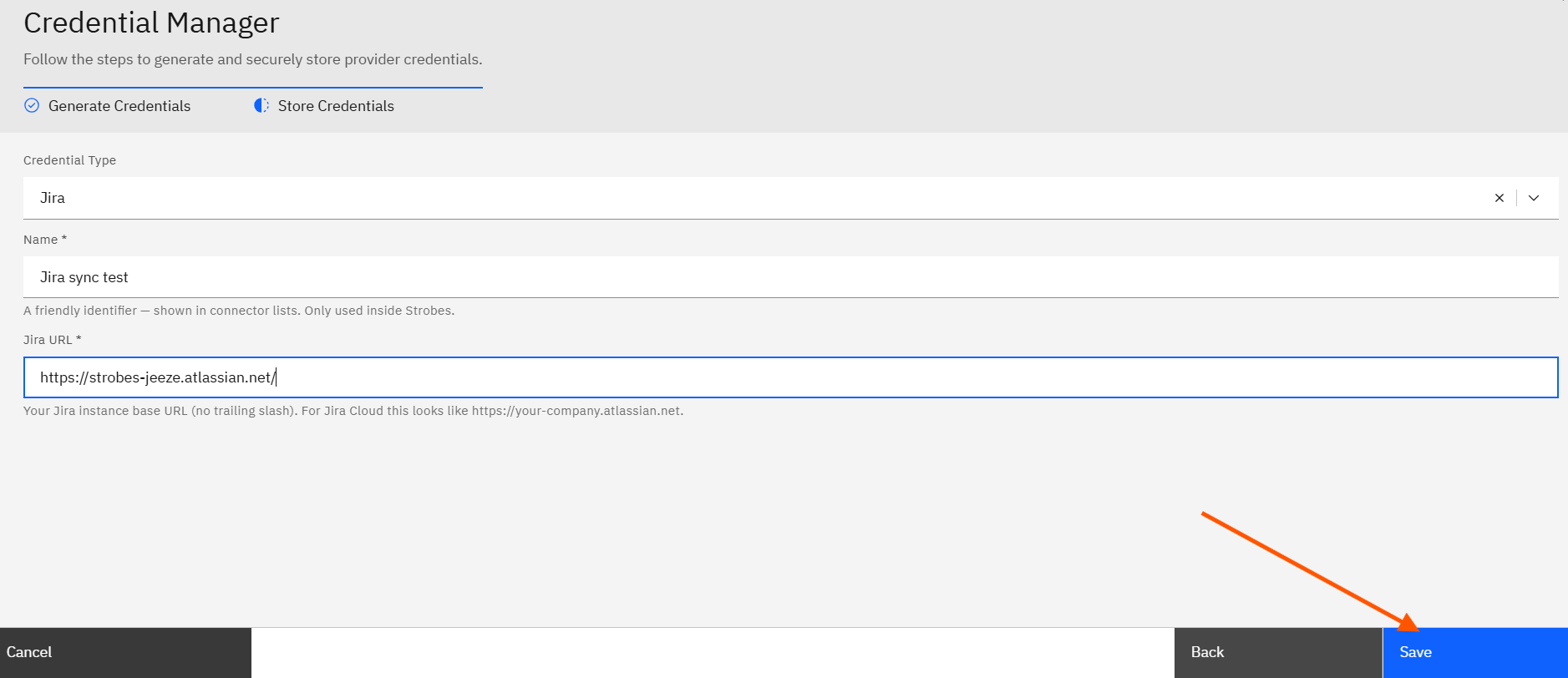
Click Save. Strobes saves the credential details and immediately opens the Atlassian authorization popup.
Part 3 — Authorize with Atlassian
Step 8 — Sign In to Your Atlassian Account in the Popup
A popup window opens on auth.atlassian.com. Sign in with the Atlassian account that has access to the Jira projects you want to integrate with. If you are already signed in to Atlassian in your browser, the authorization screen may appear immediately without asking for credentials.
The popup shows a permissions consent screen titled "Strobes is requesting access to your Atlassian account." It lists the Jira permissions being requested — including the ability to View and Update Jira work items.
Step 9 — Click Accept
Click the Accept button in the Atlassian authorization popup. Strobes is granted access to your Jira instance. The popup closes automatically.
Step 10 — Confirm the Credential Is Active
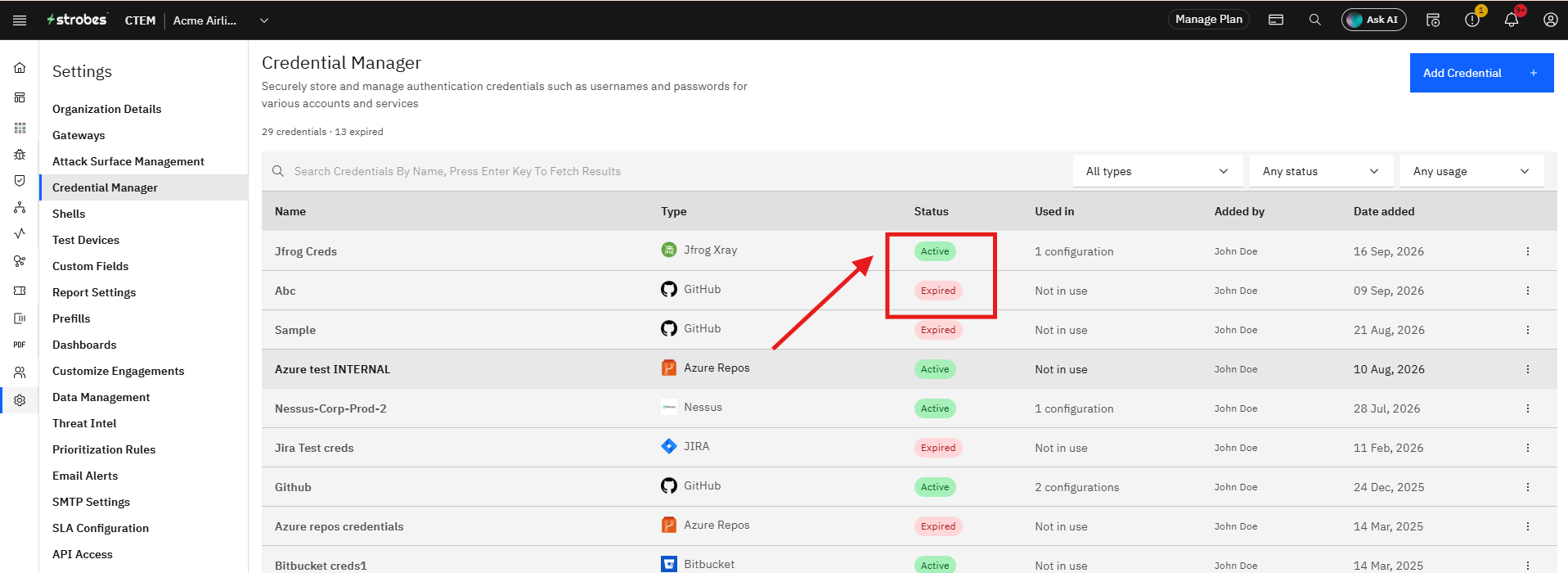
Return to the Credential Manager and confirm the Jira credential now shows an Active status. The credential row displays the credential name, type (JIRA), and an Active badge. No further configuration is required on the Jira side — the integration is now authenticated.
Part 4 — Configure the Jira Connector
Step 11 — Navigate to Connectors
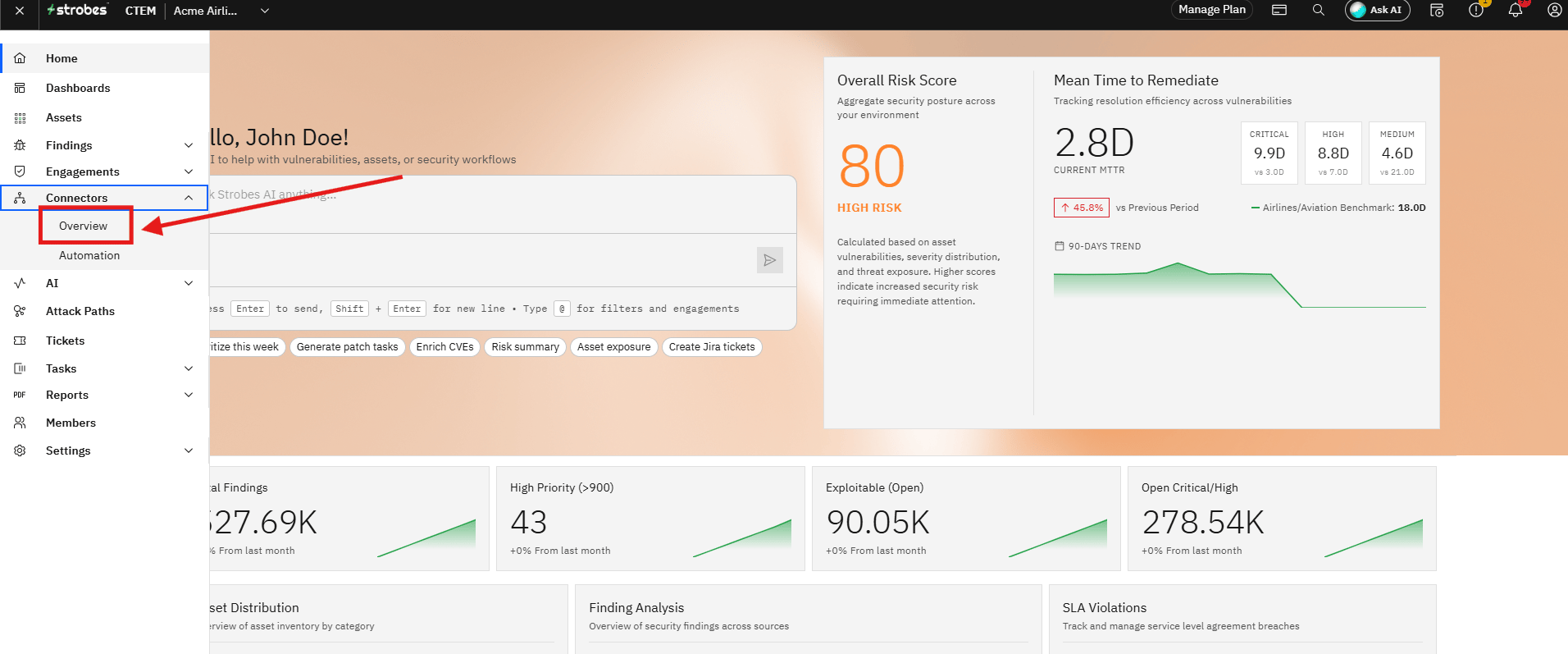
Click Connectors in the left sidebar. The Connectors page opens, showing all available and installed connectors.
Step 12 — Search for the Jira Connector
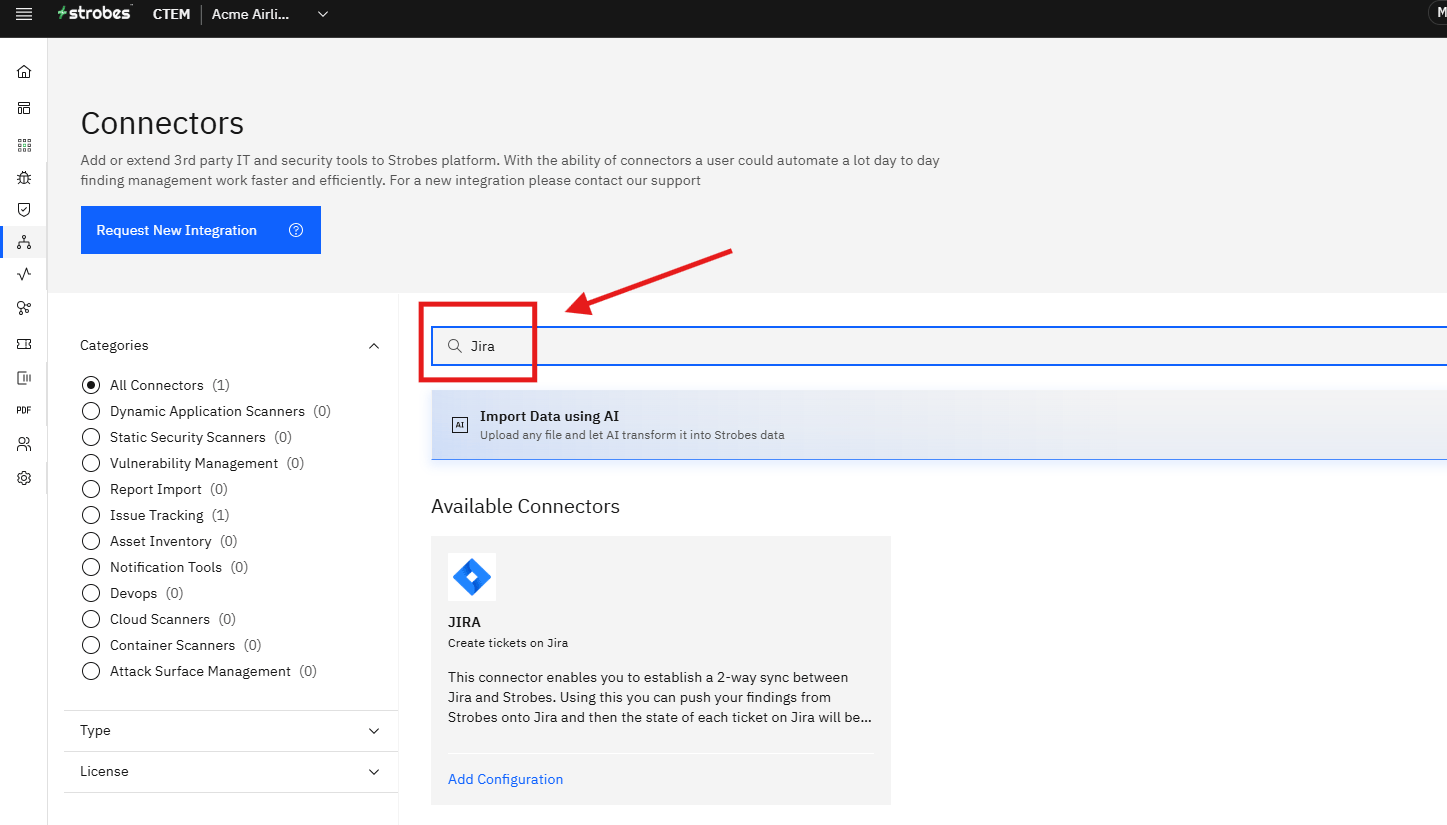
Click the search field and type Jira. The Jira connector appears under Installed Connectors. The connector description reads: "This connector enables you to establish a 2-way sync between Jira and Strobes. Using this you can push your findings from Strobes onto Jira and then the state of each ticket on Jira will be in sync with the state on Strobes."
Step 13 — Open the Jira Connector
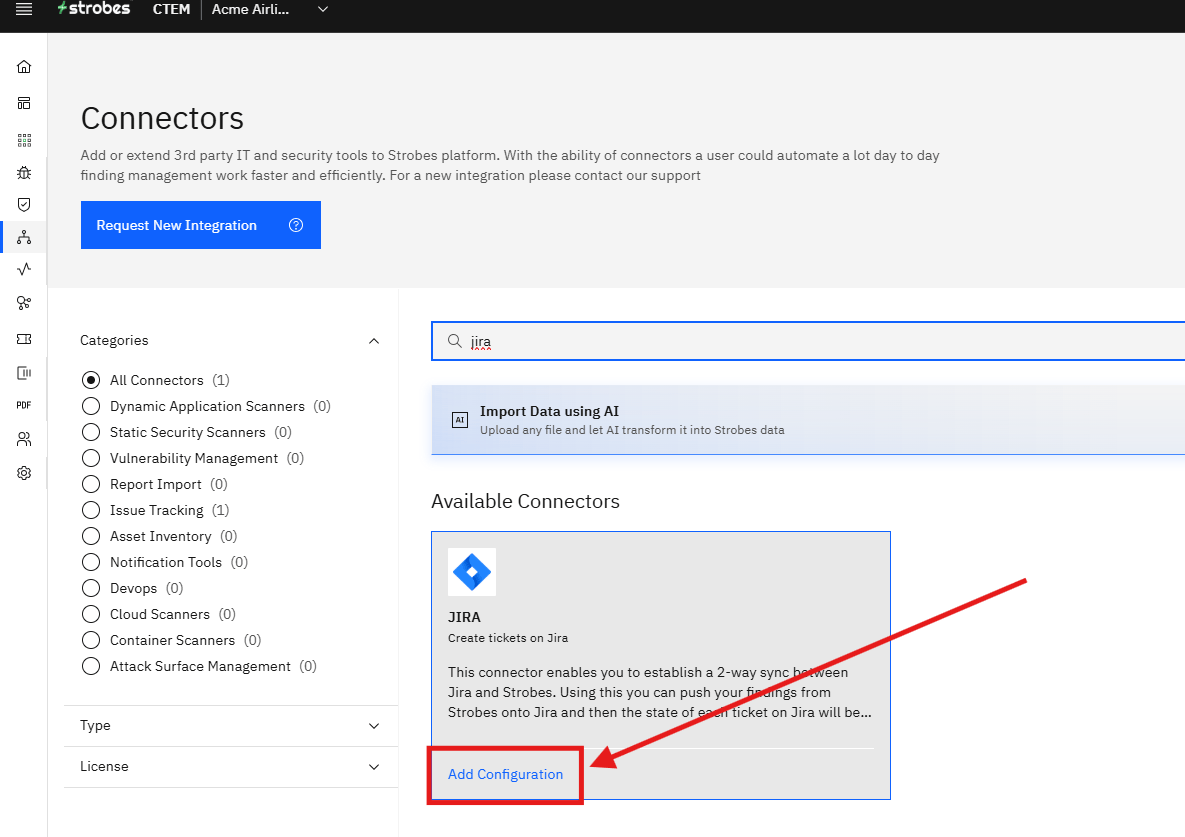
Click the Jira connector card to open it. The connector detail page opens, showing the Workflows section.
Step 14 — Enter a Configuration Name (Step One)
In Step One, click the Configuration Name field and type a name for this workflow configuration. For example: Jira Prod Workflow. A green confirmation message "Config name is available!" appears below the field once a valid name is entered.
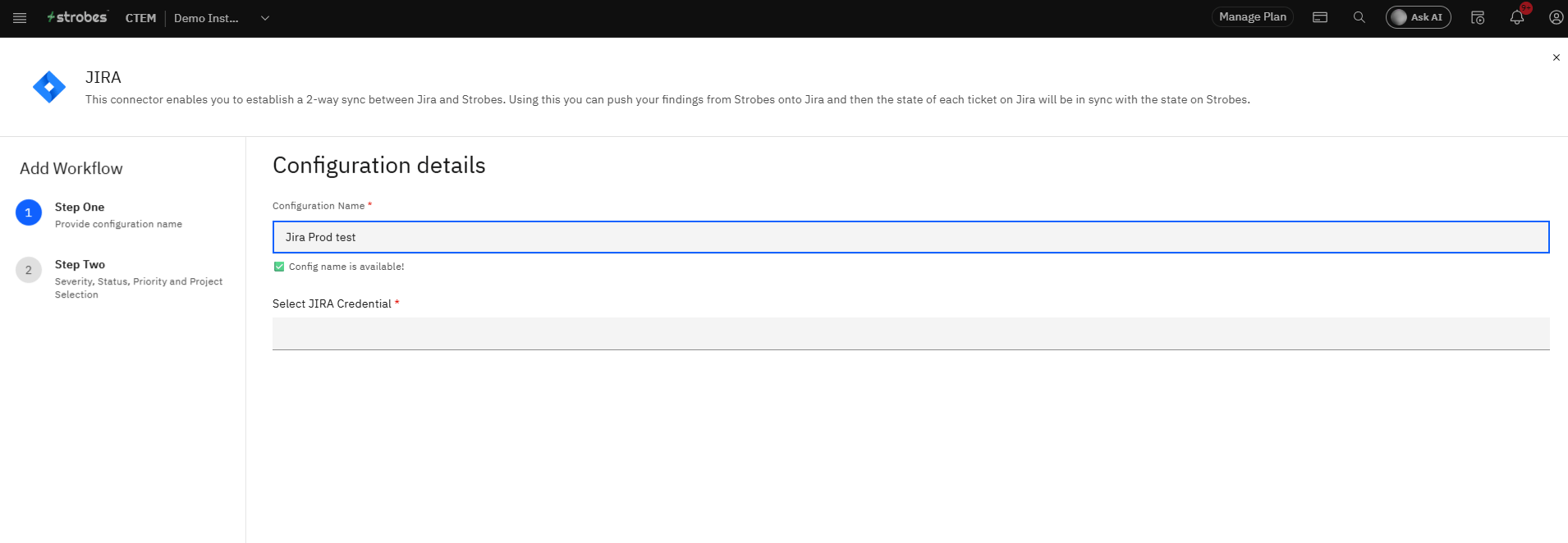
Step 15 — Select the Jira Credential
Click the Select Jira Credential dropdown and select the credential you created in Part 1. The dropdown lists all active Jira credentials. Select the one you just authorized.
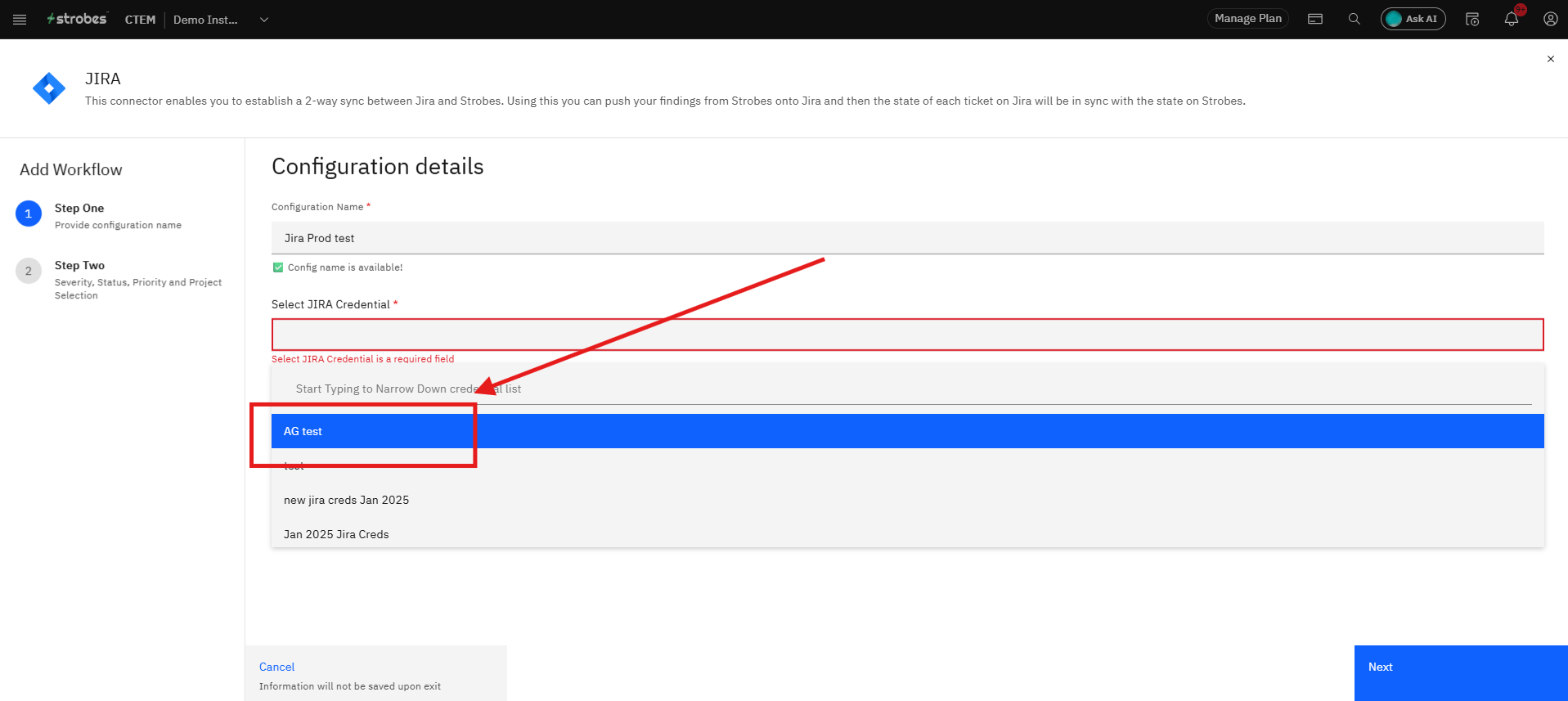
Step 16 — Advance to Step Two
Click Step Two in the panel sidebar or click Next. The panel advances to the Jira Project Selection and Strobes ↔ Jira Mapping section.
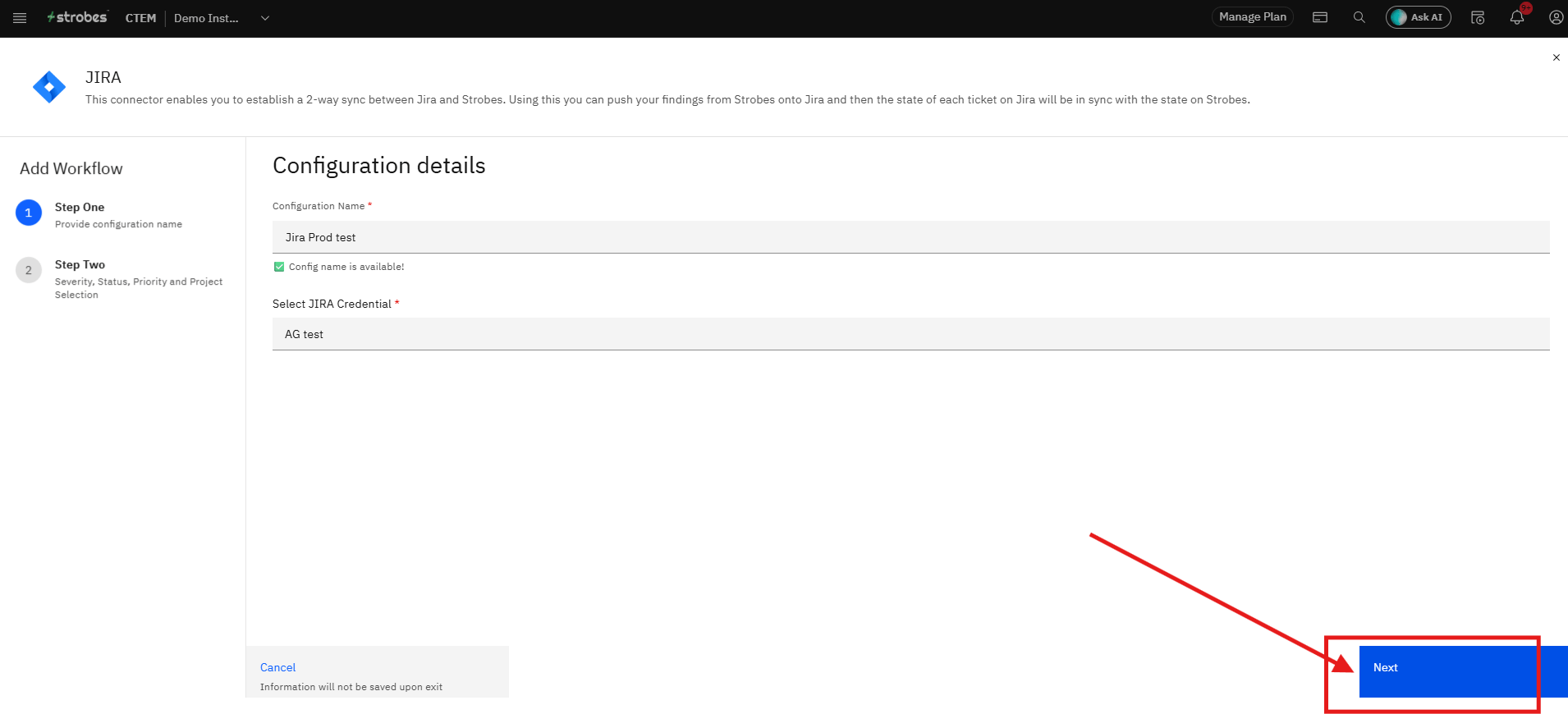
Step 17 — Select the Jira Project
Click the Projects field and select the Jira project where findings should be created as tickets. The dropdown lists all projects accessible to the authorized Atlassian account.
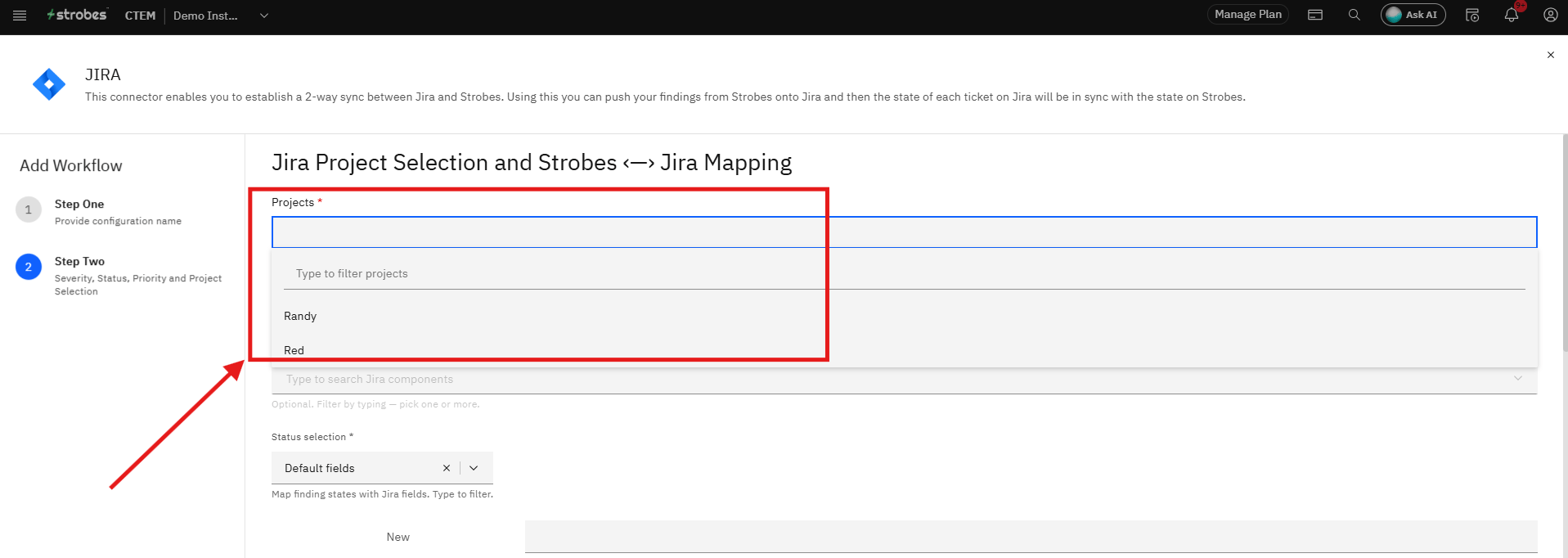
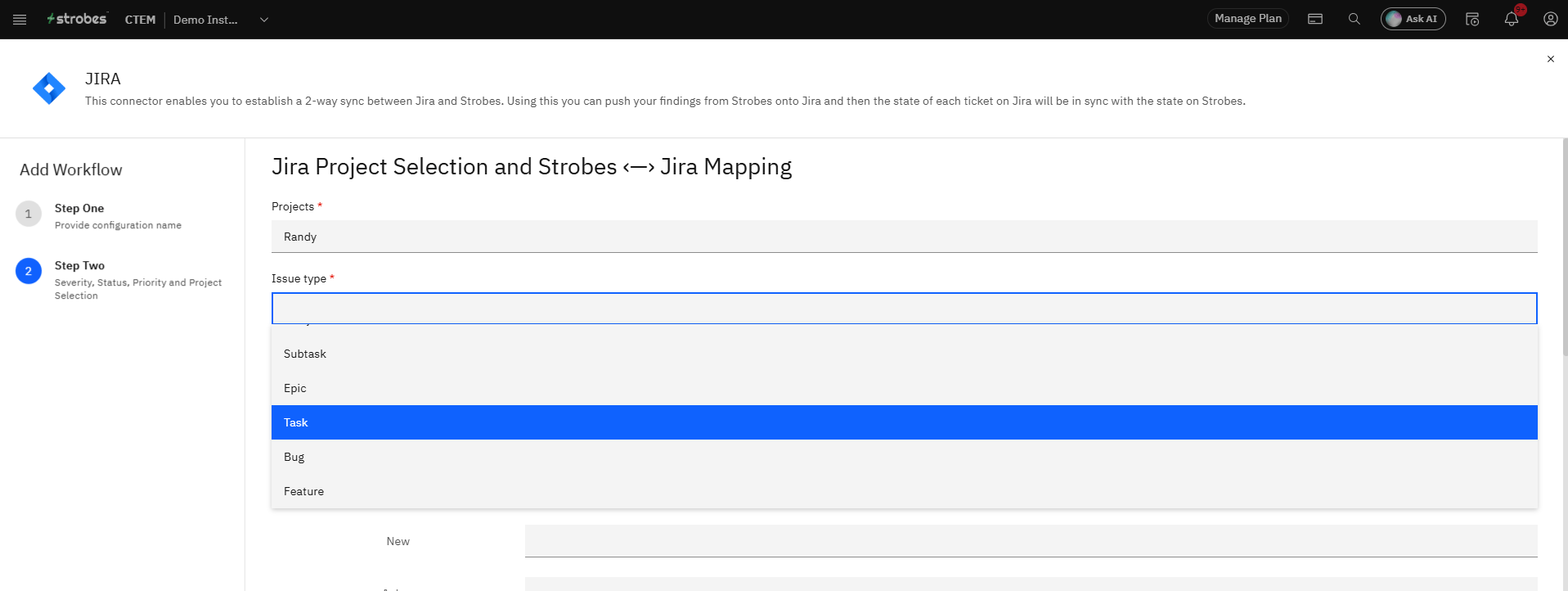
Step 18 — Select the Issue Type
Click the Issue type field and select the Jira issue type to use when creating tickets — for example, Task, Bug, or Story. This determines the ticket type that Strobes creates in Jira for each finding.
Step 19 — Map Strobes Statuses to Jira Statuses
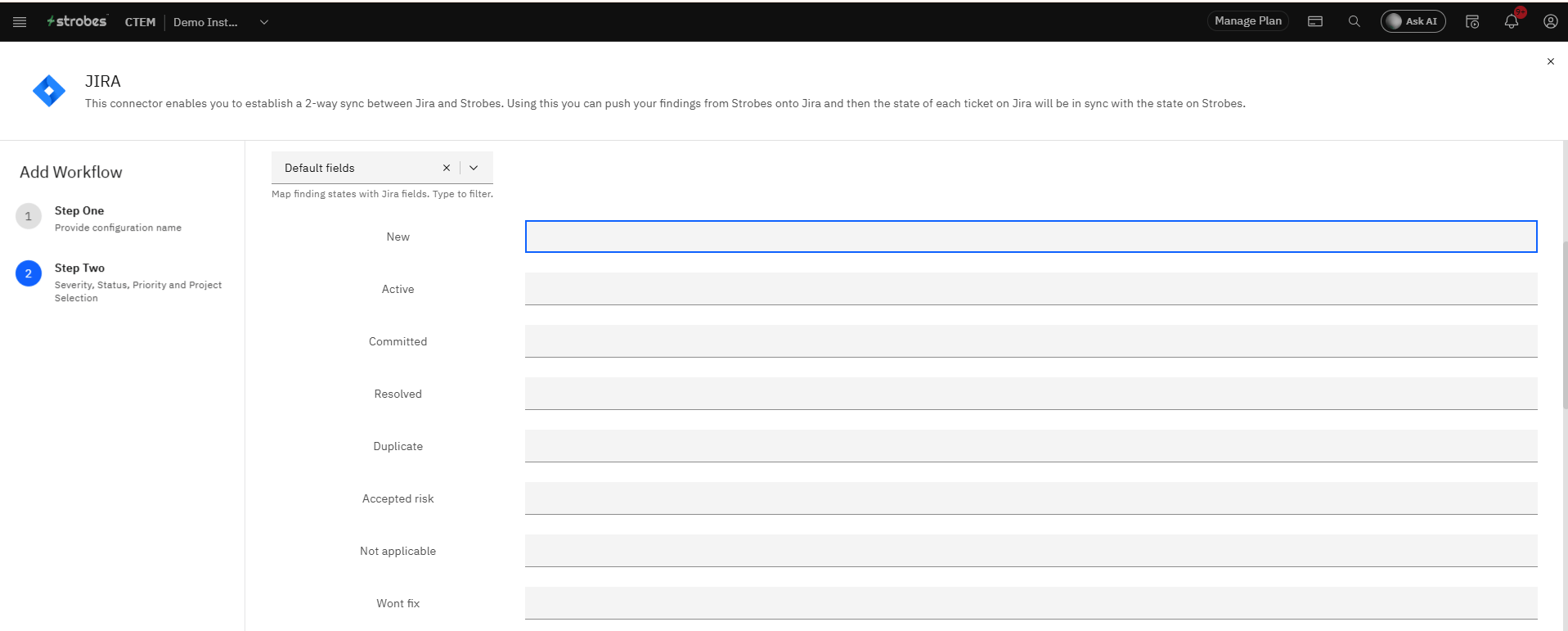
In the Status selection section, map each Strobes finding status to its corresponding Jira status. For each Strobes status, click the field on the right and type or select the matching Jira workflow status. The default mapping is:
- New → In Review
- Active → In Progress
- Committed → To Do
- Resolved → Done
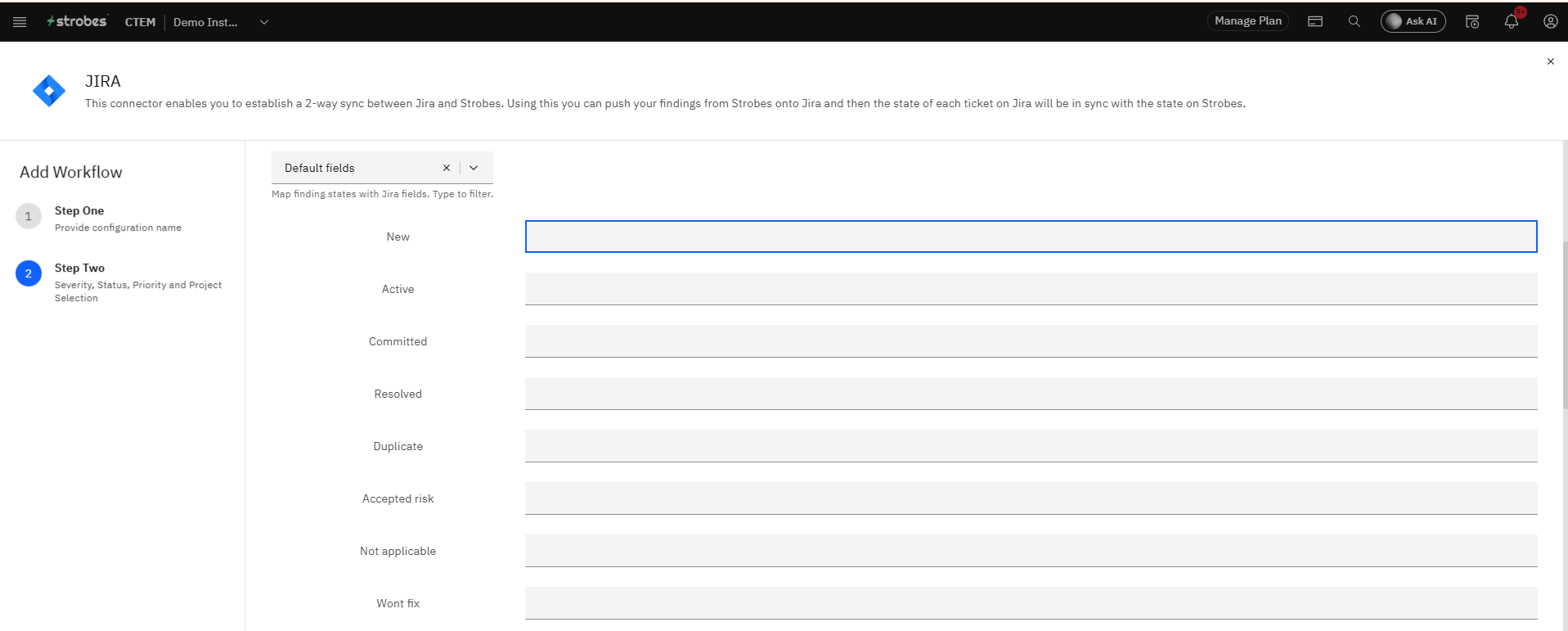
Adjust these mappings to match your Jira project's workflow states.
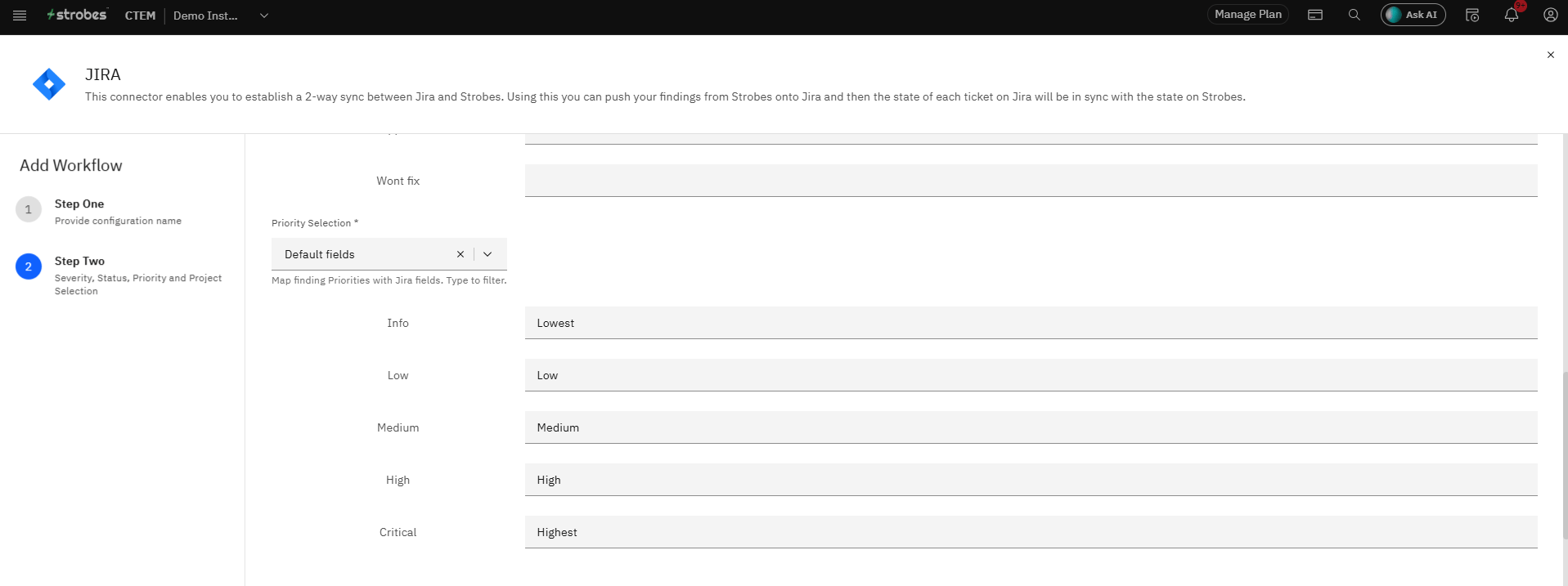
Step 20 — Map Strobes Severity to Jira Priority
Map each Strobes severity level to the corresponding Jira priority. Click the field next to each severity and enter the Jira priority name that best corresponds. Strobes severity levels are Info, Low, Medium, High, and Critical.
Step 21 — Click Submit
Click Submit. The workflow configuration is saved. The Jira connector is now fully configured and ready to receive findings from Strobes.
Part 5 — Send a Finding to Jira
Step 22 — Open a Finding
Navigate to Findings in the left sidebar and open the finding you want to push to Jira. Click the finding name to open its full detail view.
Step 23 — Click Send To
Click the Send To button in the action bar at the top of the finding detail page. A dropdown appears with the available integrations.
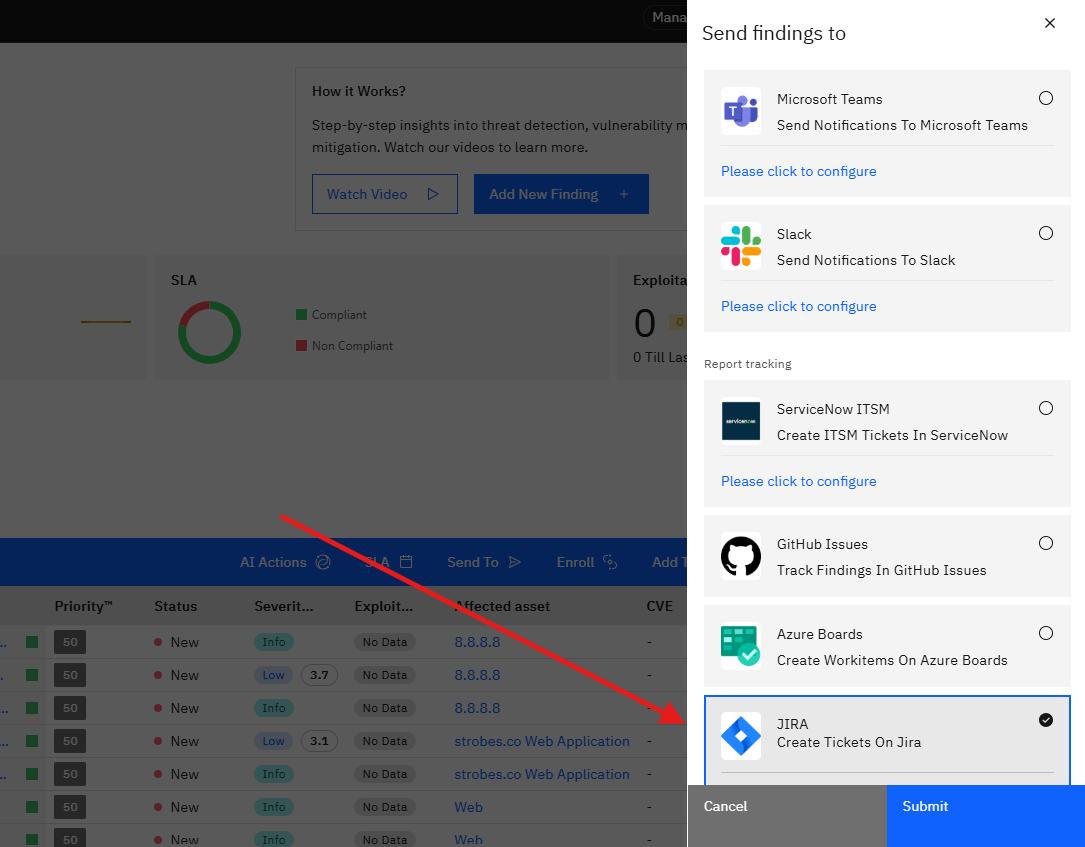
Step 24 — Select JIRA
Click JIRA in the Send To dropdown. A panel opens showing the Jira connector with the heading "Create Tickets On Jira."
Step 25 — Select the Configuration
Click the Configuration dropdown and select the workflow configuration you created in Part 4. This determines which Jira project and mapping settings are used for this ticket.
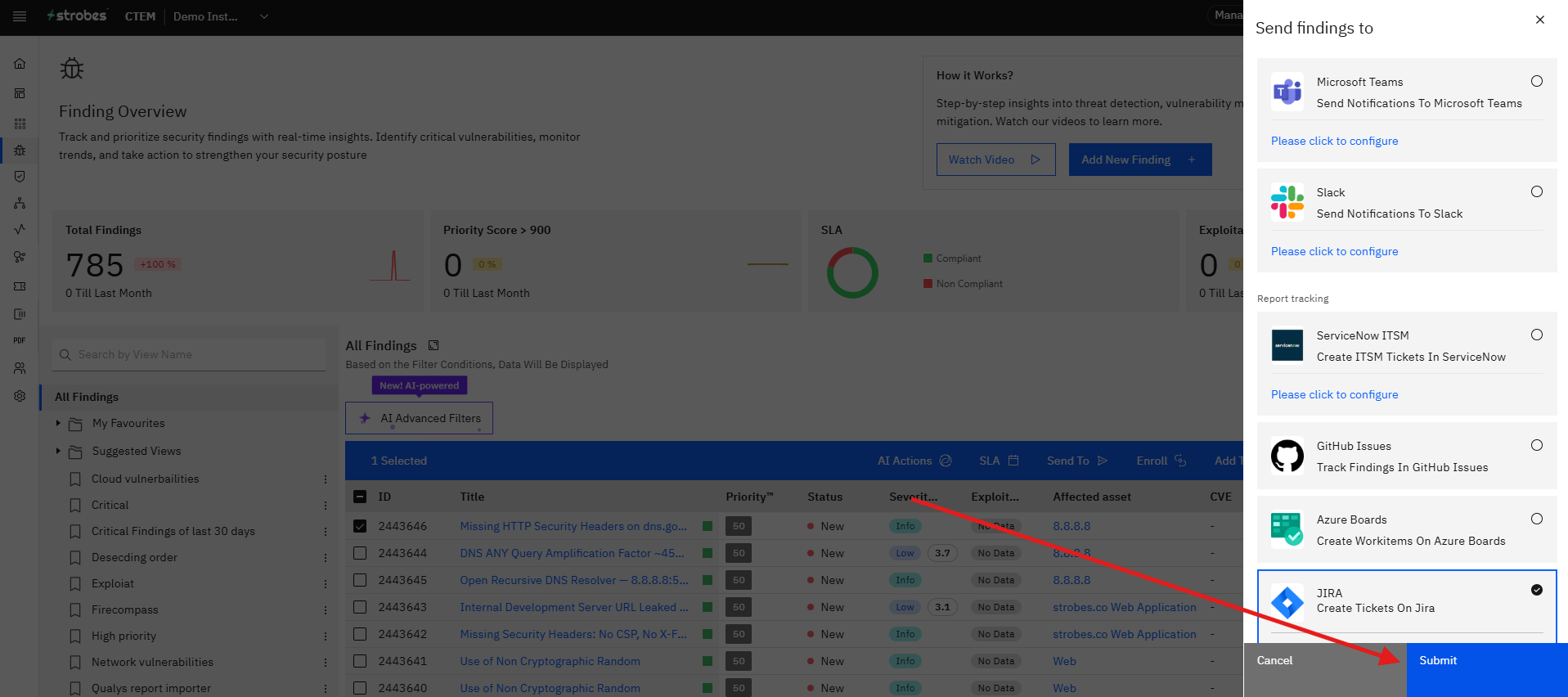
Step 26 — Click Submit
Click Submit. Strobes creates a ticket in Jira using the finding details and the mapping settings defined in the connector configuration.
Two-Way Sync
Once a finding is linked to a Jira ticket, the two stay in sync automatically in both directions:
- Strobes → Jira: Status and priority changes made on the finding in Strobes are pushed to the linked Jira ticket.
- Jira → Strobes: Status changes made on the Jira ticket are reflected back on the corresponding Strobes finding.
To trigger an immediate sync at any time, click Sync Now → in the Report Tracking section of the finding.
Tips
OAuth 2.0 requires no Jira-side configuration. Unlike the older OAuth 1.0 method, there are no Application Links, consumer keys, or public keys to set up in Jira. Everything is handled through the Atlassian authorization popup in Strobes.
The Atlassian account used to authorize determines which projects are accessible. If a Jira project does not appear in the Project dropdown during connector configuration, the authorizing account may not have access to it. Authorize with an account that has the required project permissions.
Allow popups in your browser before adding the credential. The Atlassian authorization screen opens in a popup. If your browser blocks popups from the Strobes domain, the authorization window will not open and the credential will remain inactive.
Strobes refreshes the access token automatically. You do not need to re-authorize periodically under normal use. If the integration stays completely unused for 90 days, Atlassian expires the authorization grant. To reconnect, click the three-dot menu on the credential row in the Credential Manager, select Edit, and complete the authorization again.
You can create multiple workflow configurations for different Jira projects. Each configuration maps to a specific project, issue type, and status mapping. This allows you to route different findings to different Jira projects depending on team or product ownership.
Use Sync Now to force an immediate sync. The two-way sync runs automatically, but if you need the latest status reflected immediately, click Sync Now in the Report Tracking section of any linked finding.
More in Ticketing & ITSM
Was this page helpful?