
Generating PDF Reports
1 min readEdit
On this page⌄
Strobes allows you to export vulnerability reports in the PDF format. You can export all the vulnerabilities at once, apply filters and export only the resulting vulnerabilities of the applied filters, create views and export reports or export reports directly from within the asset page.
Exporting PDF Reports Directly from the Asset Page
- Select the asset for which you need to generate a report.
- Click on 'Export'
- Click on 'Generate with Template'
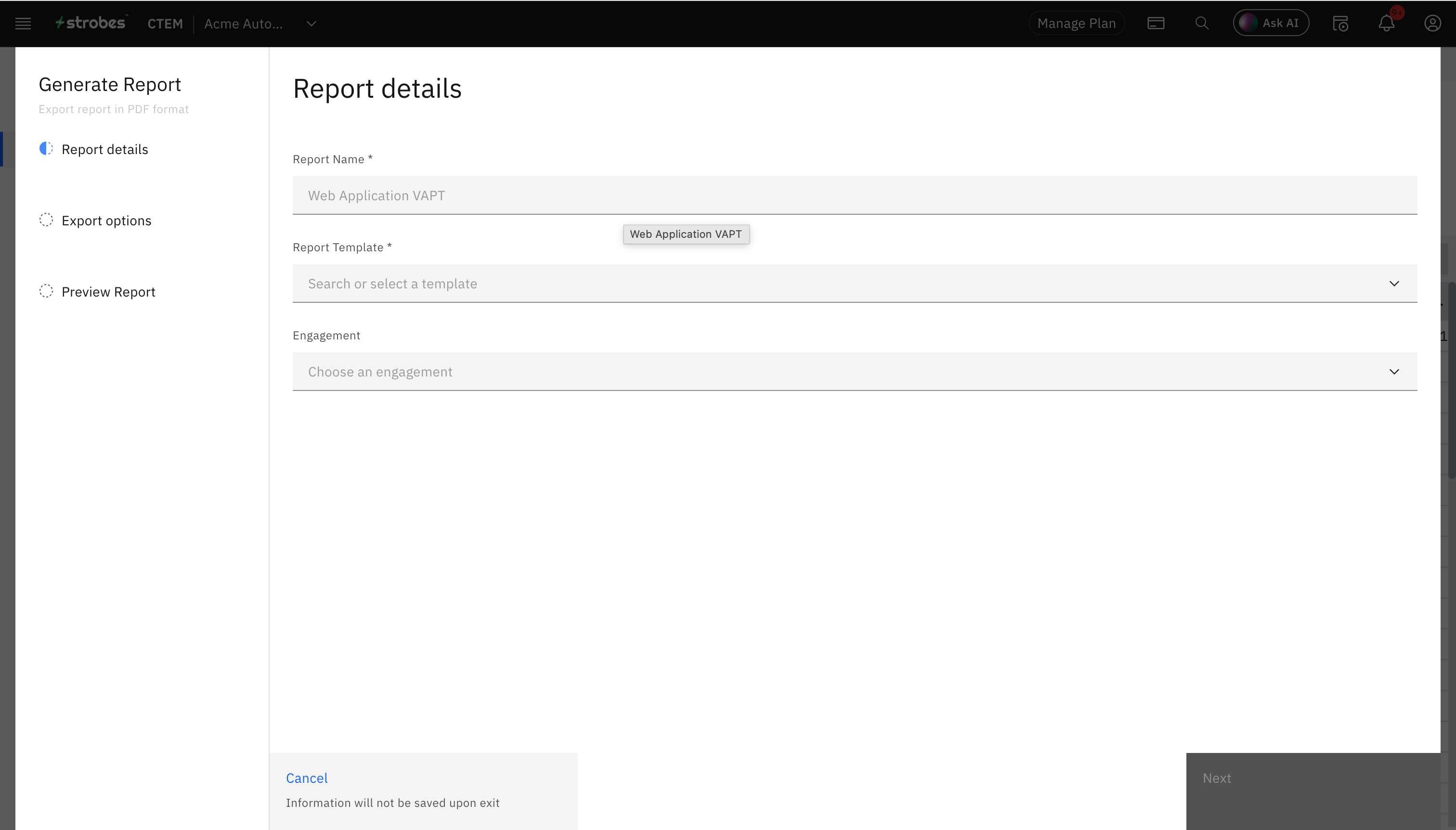
- Provide the 'Report Name'
- Select the template as 'Default Template'
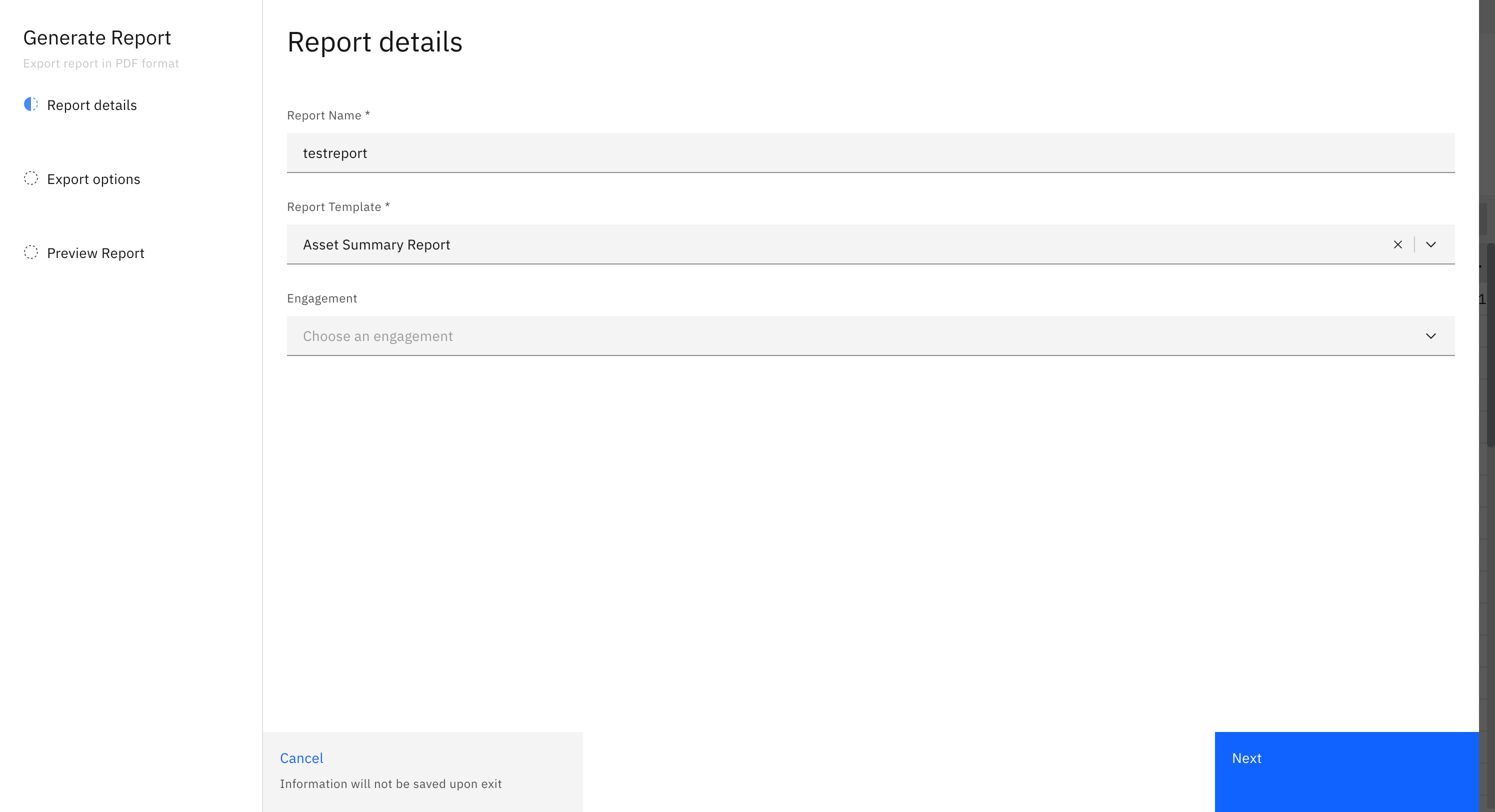
- Click on 'Next'
- In the 'Preview Report' section click on 'Finish'
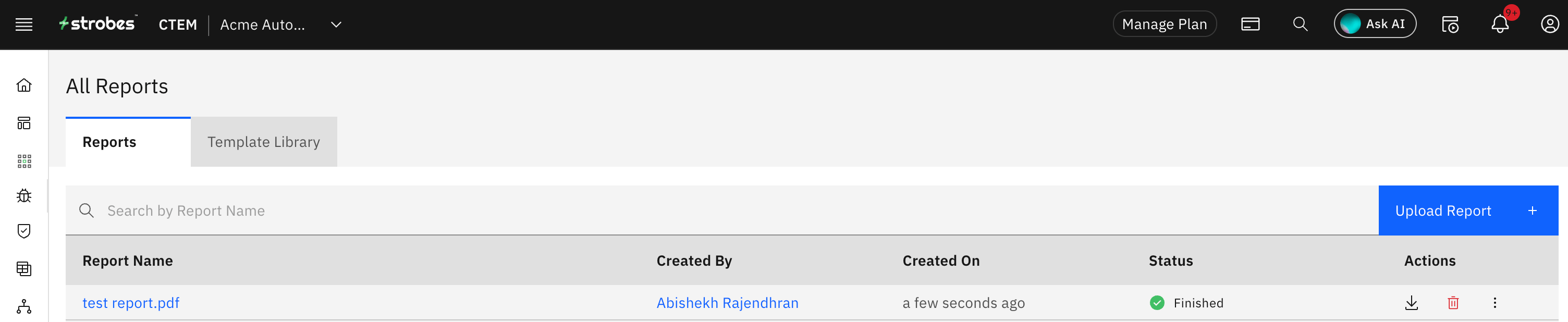
- The generated report will now be available under the 'Reports' section in the 'Reports' page

Exporting PDF Reports from the Vulnerabilities Page
- Navigate to the Vulnerabilities page
- If you need to export vulnerabilities based on a specific criteria (like exporting only critical vulnerabilities) then you can apply filters, or select the created views
- Click on 'Actions'
- Click on 'Generate with Template'
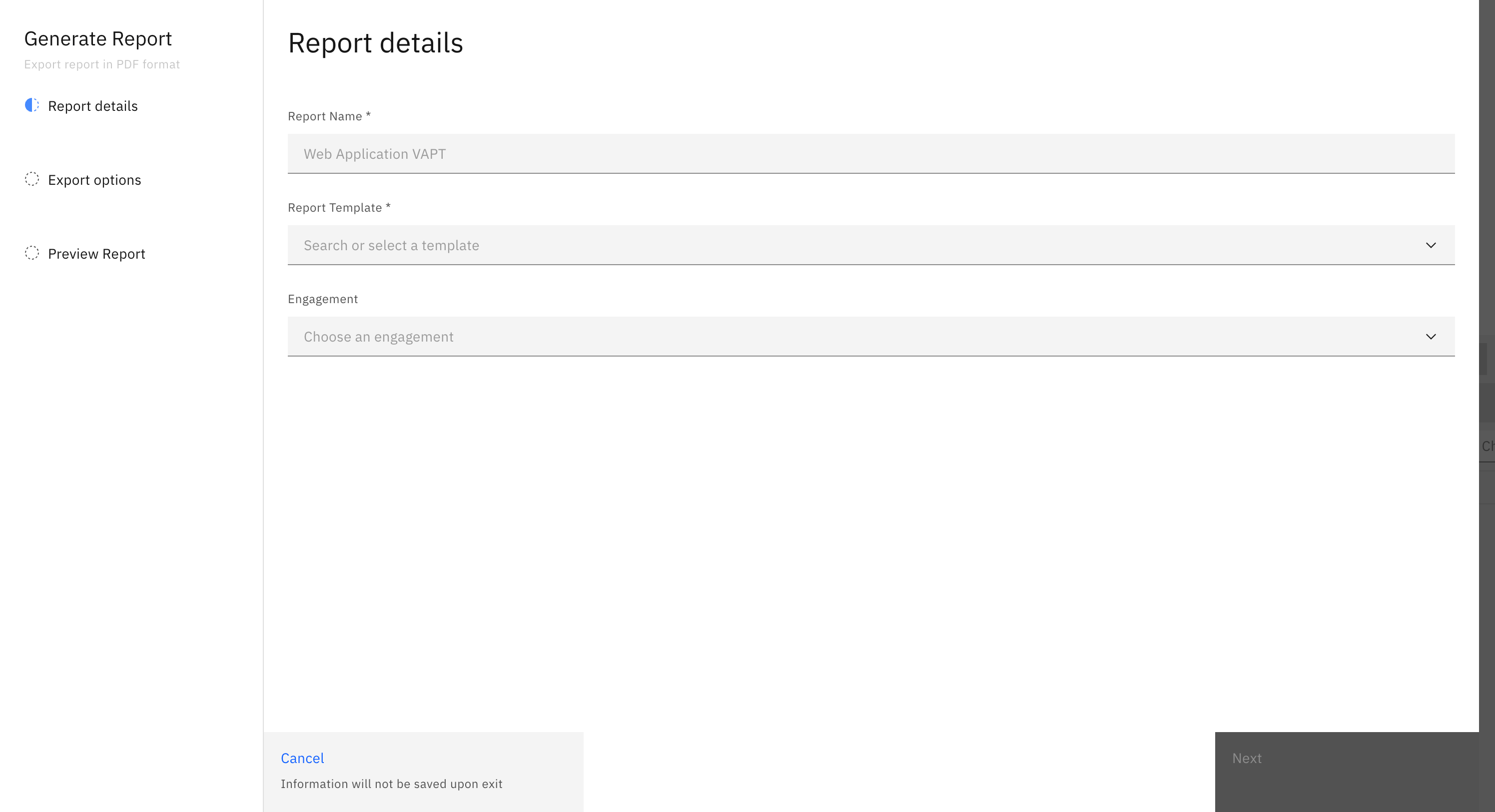
- Provide the 'Report Name'
- Select the template as 'Default Template'
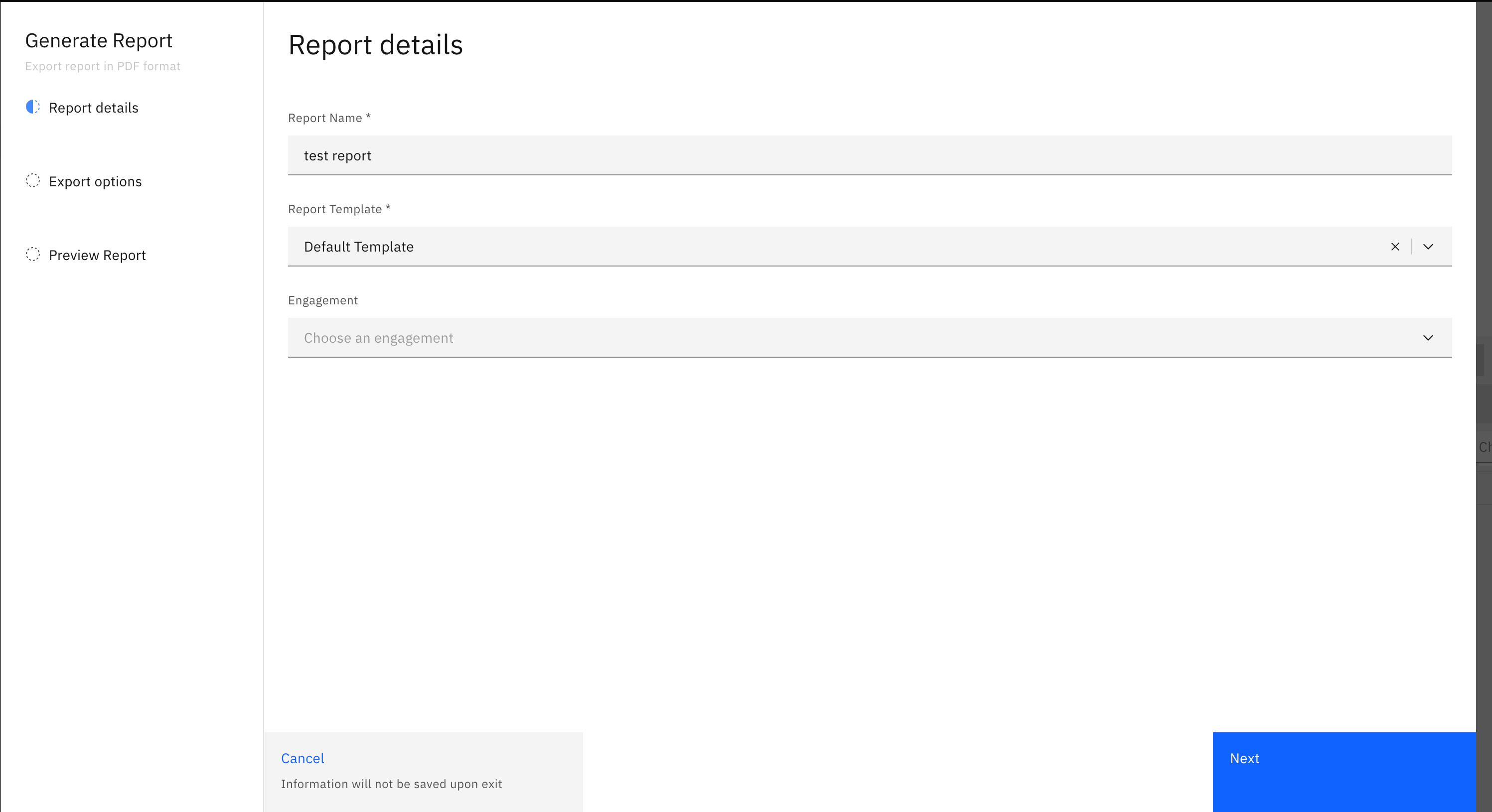
- Click on 'Next'
- In the 'Preview Report' section click on 'Finish'
- The generated report will now be available under the 'Reports' section in the 'Reports' page
NOTE: The maximum number of vulnerabilities that you can export in a PDF report is 1500
More in Reports
Was this page helpful?