
Running a secure code review assessment using Strobes AI
7 min readEdit
On this page⌄
- Overview
- Why Is It Needed?
- Available Assessment Templates
- Which Template Should I Choose?Which Template Should I Choose?
- Prerequisites
- Configuring the Repository Scope
- Step 1: Provide a Workspace Name
- Step 2: Choose Where the Code Is
- Step 3: Select a Source Code Platform
- Step 4: Enter the Repository URL
- Step 5: Upload Source Code or Configuration Files (Optional)
- Step 6: Add Other Credentials (Optional)
- Step 7: Add Custom Instructions (Optional)
- Step 8: Proceeding to Configuration
- Step 9: Select an AI Model
- Step 10: Select an Agent Shell
- Step 11: Select a Browser
- Step 12: Select the Execution Mode
- Step 13: Review the Schedule
- Step 14: Click Next to Review the Configuration
- Step 15: Continue to Review and Launch
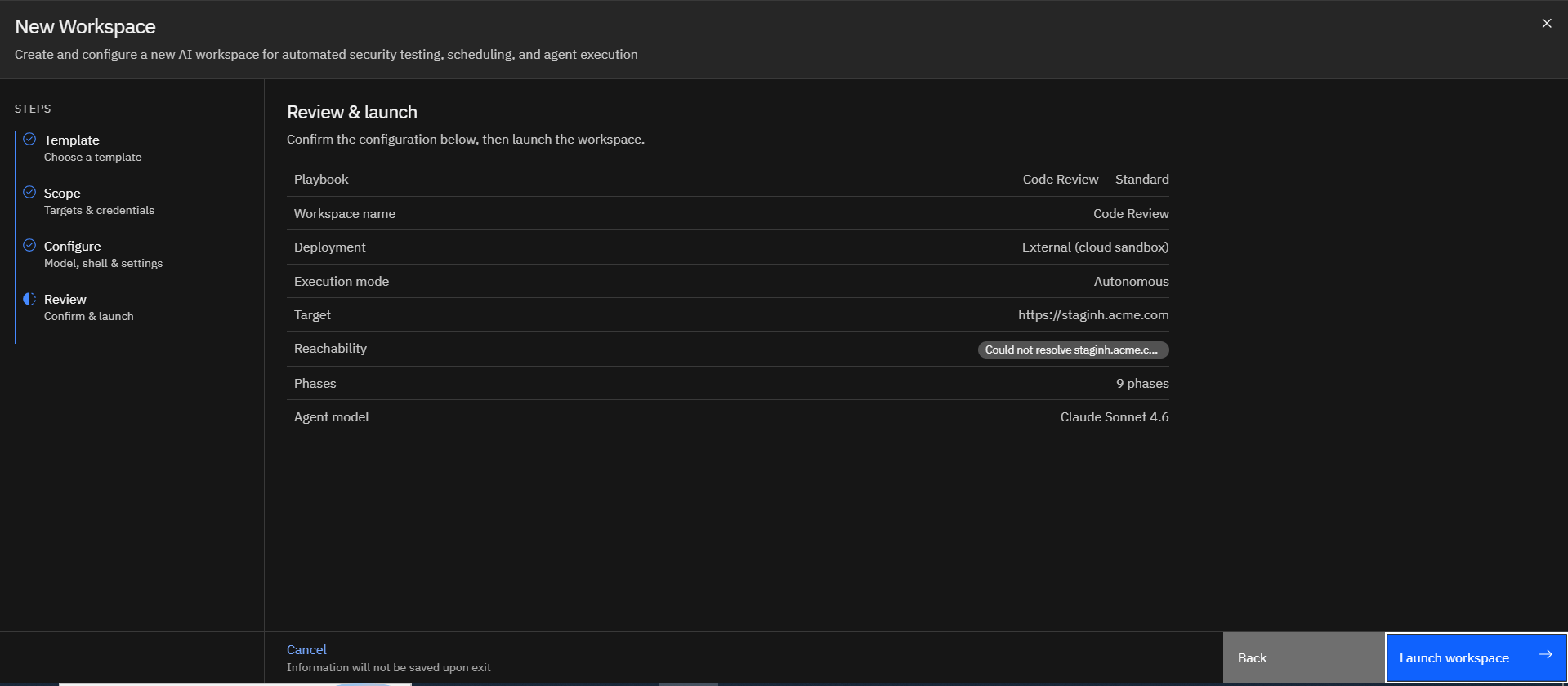
- Step 16: Review and Launch the Workspace
- Tips
Overview
A Code Review in Strobes helps identify security vulnerabilities in your application's source code. An AI agent scans the code, traces how data flows to risky operations such as database queries and file access, verifies what it finds, and provides evidence and remediation guidance to help teams address the risks. It's available in three levels: Fast, Standard, and Deep, so you can choose the right balance of speed, coverage, and assurance.
Why Is It Needed?
Security flaws in source code can reach production unnoticed and give attackers a way into your application. Reviewing your code regularly helps you find and fix vulnerabilities before they're deployed. Because the agent verifies findings before reporting them, your team spends time on genuine issues instead of scanner noise.
Available Assessment Templates
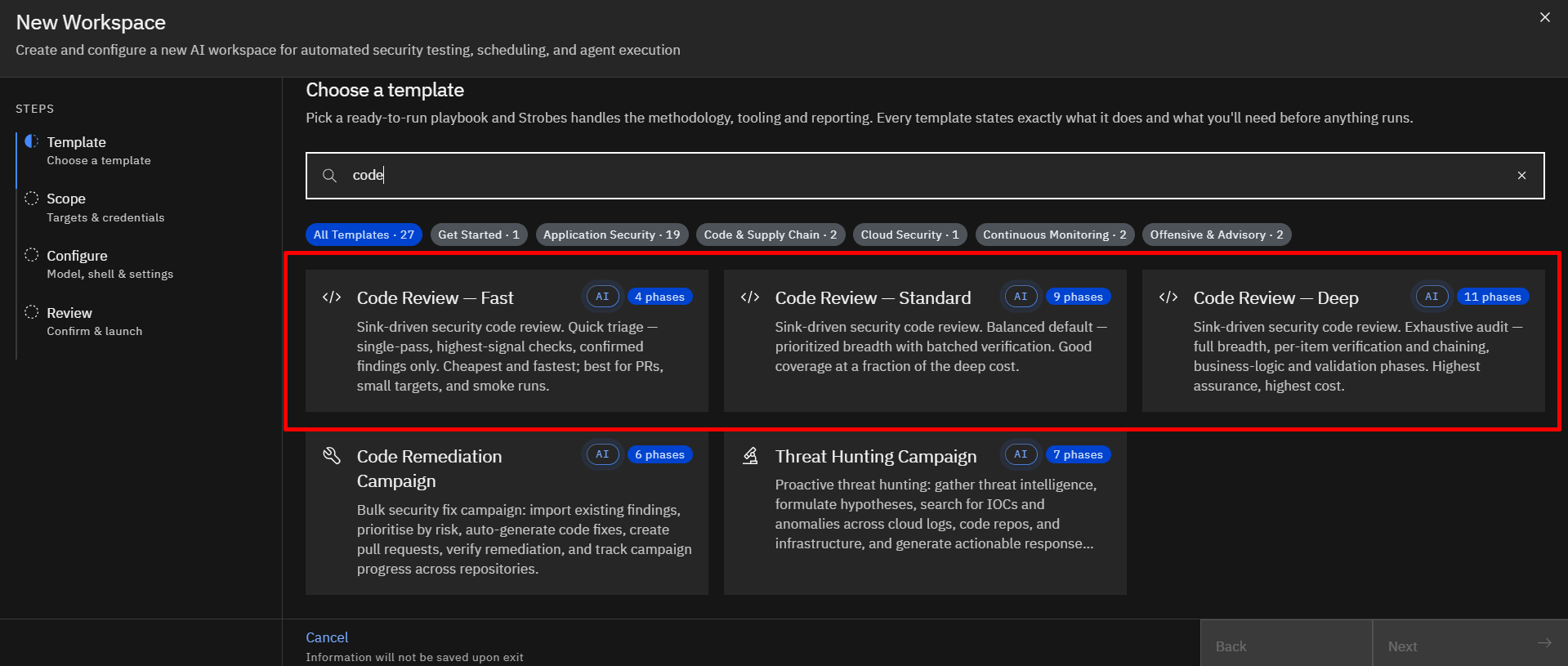
Strobes offers three Code Review templates: Fast, Standard, and Deep. All three report only confirmed findings. They differ in review depth, run time, and AI credit usage.
Code Review - Fast: A quick scan of your code that finds the most critical security issues.
Code Review - Standard: A balanced, in-depth review that finds and verifies common vulnerabilities in most applications.
Code Review - Deep: The most complete review, which adds secrets detection and business logic checks for critical applications.
Which Template Should I Choose?Which Template Should I Choose?
Feature | Fast | Standard | Deep |
|---|---|---|---|
Phases | 4 | 9 | 11 |
Review Style | One focused pass | Structured, prioritized | Exhaustive |
Strobes SAST, SCA, and Secret Scans | Included | Included | Included |
Attack Surface Mapping | Basic | Included | Included |
Vulnerability Categories | Key areas only | 11 | 11, with a wider search |
Exploitability Check | During the review | Included | Included, for each issue |
Dependency CVE Audit | Scanner only | Included | Included |
Secrets Detection | Scanner only | Scanner only | Scanner + AI review |
Business-Logic Review | Not included | Not included | Included |
Finding Validation | Not included | Included | Included |
Cost | Lowest | Moderate | Highest |
Best For | Pull requests, small repositories, and quick checks | Regular reviews of most applications | Critical applications and in-depth security audits |
Prerequisites
Before you start, make sure you have:
- Access to Strobes AI Workspaces: You must have access to AI Workspaces in your organization.
- Enough AI Credits: Make sure your organization has enough AI credits for the selected template. Fast uses the fewest credits and Deep uses the most.
- Access to Your Source Code: Provide the code in one of the following ways:
- Private Repository: A GitHub, Bitbucket, or Azure DevOps repository URL and an account with read access. You can connect your account while creating the workspace or use saved credentials.
- Public Repository: The repository URL. No credentials are required.
- Upload: Your codebase as a .zip, .tar.gz, .tgz, or .tar file.
Note: Strobes SAST, SCA, and secret scans run only when you provide a repository URL. If you upload your code as an archive, these scans are skipped, but the AI review still runs and reports findings.
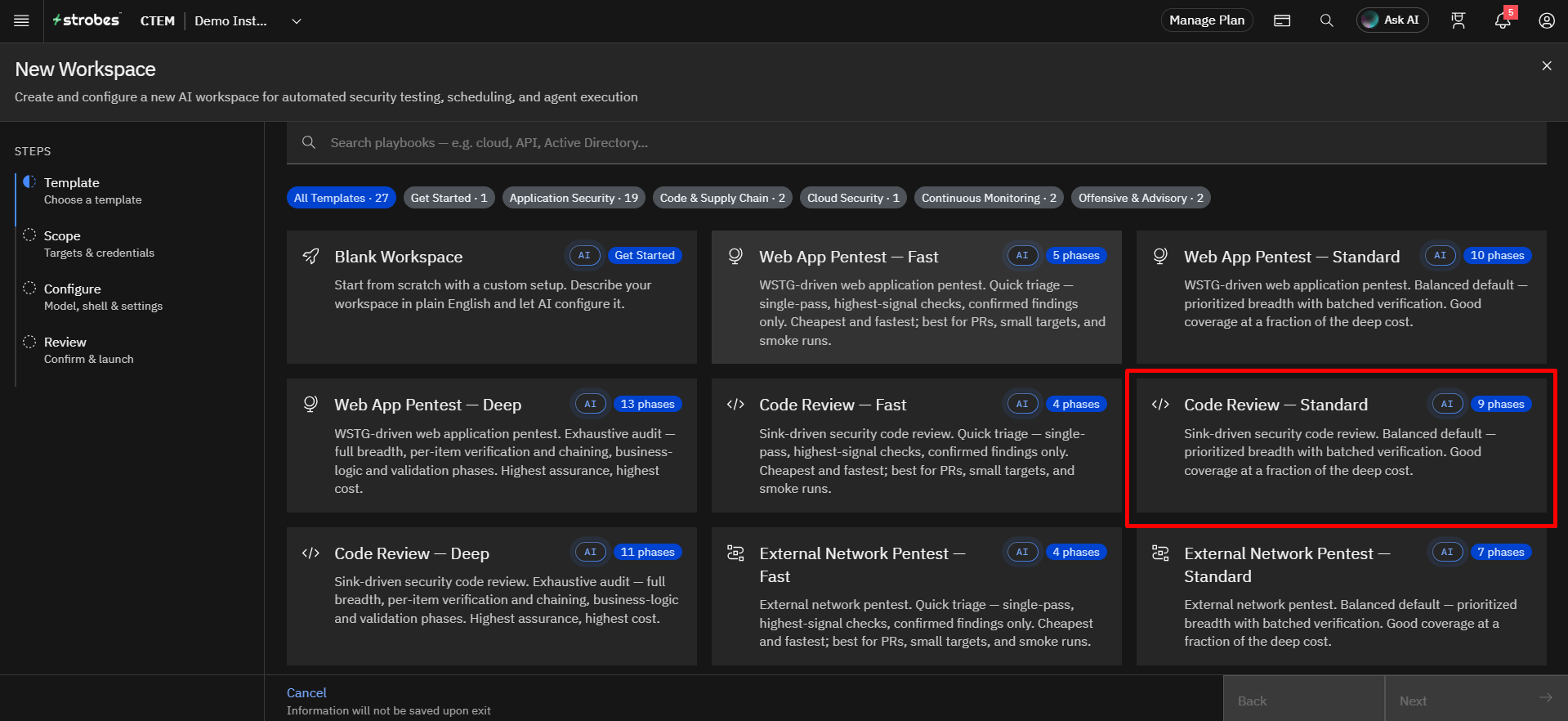
Strobes offers different Code Review templates based on the required level of security analysis. For this guide, we will use the Standard Assessment, which provides a thorough review suitable for most applications.
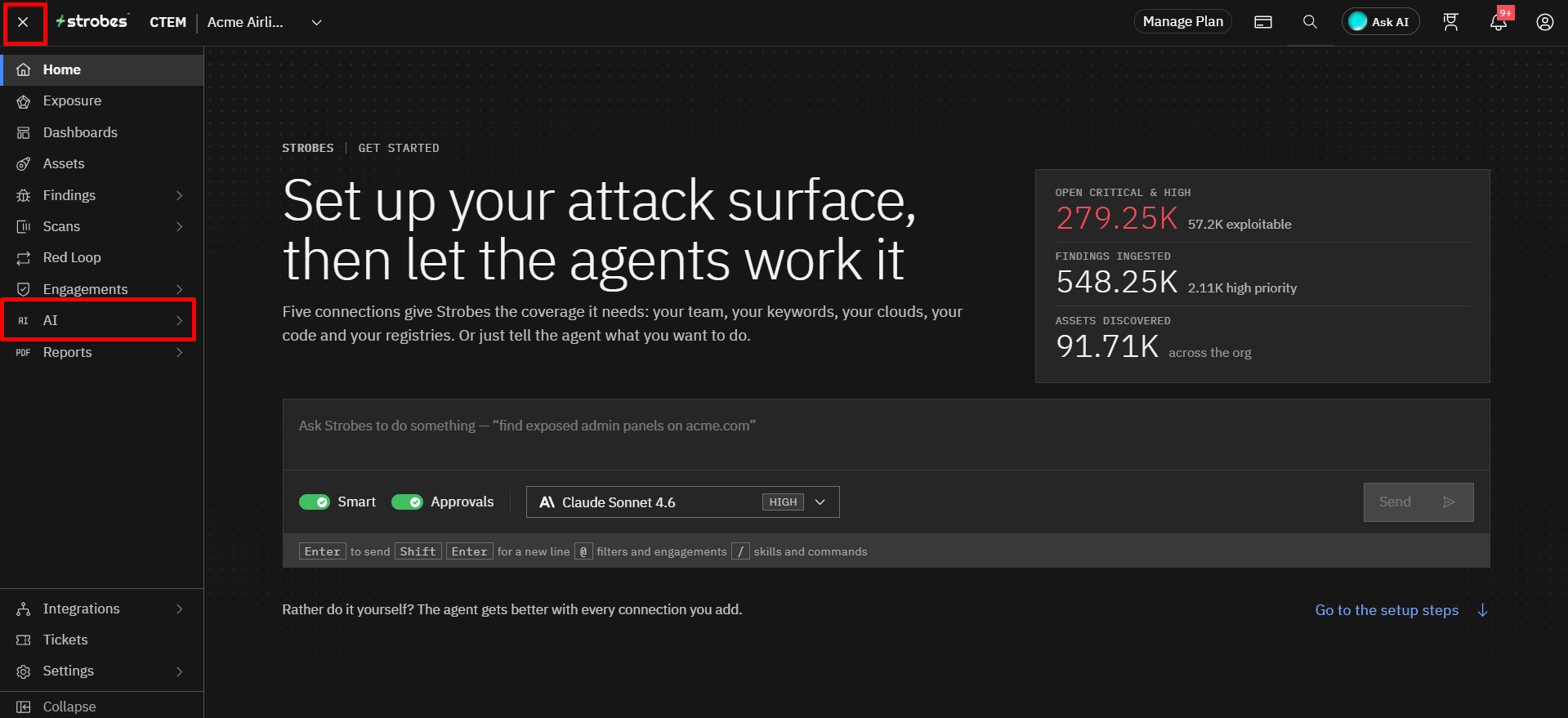
- Navigate to AI from the main navigation menu.
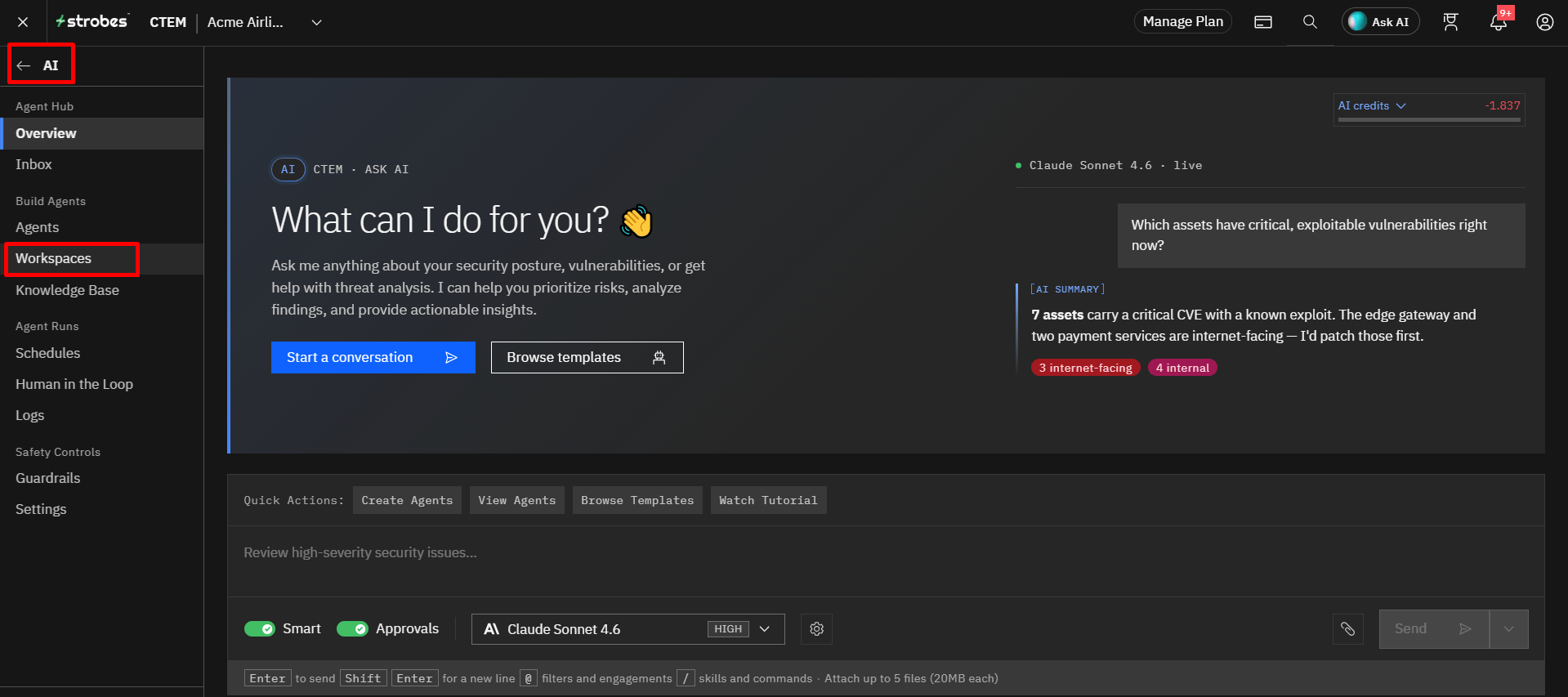
- Open the Workspaces page.
- Click New Workspace.
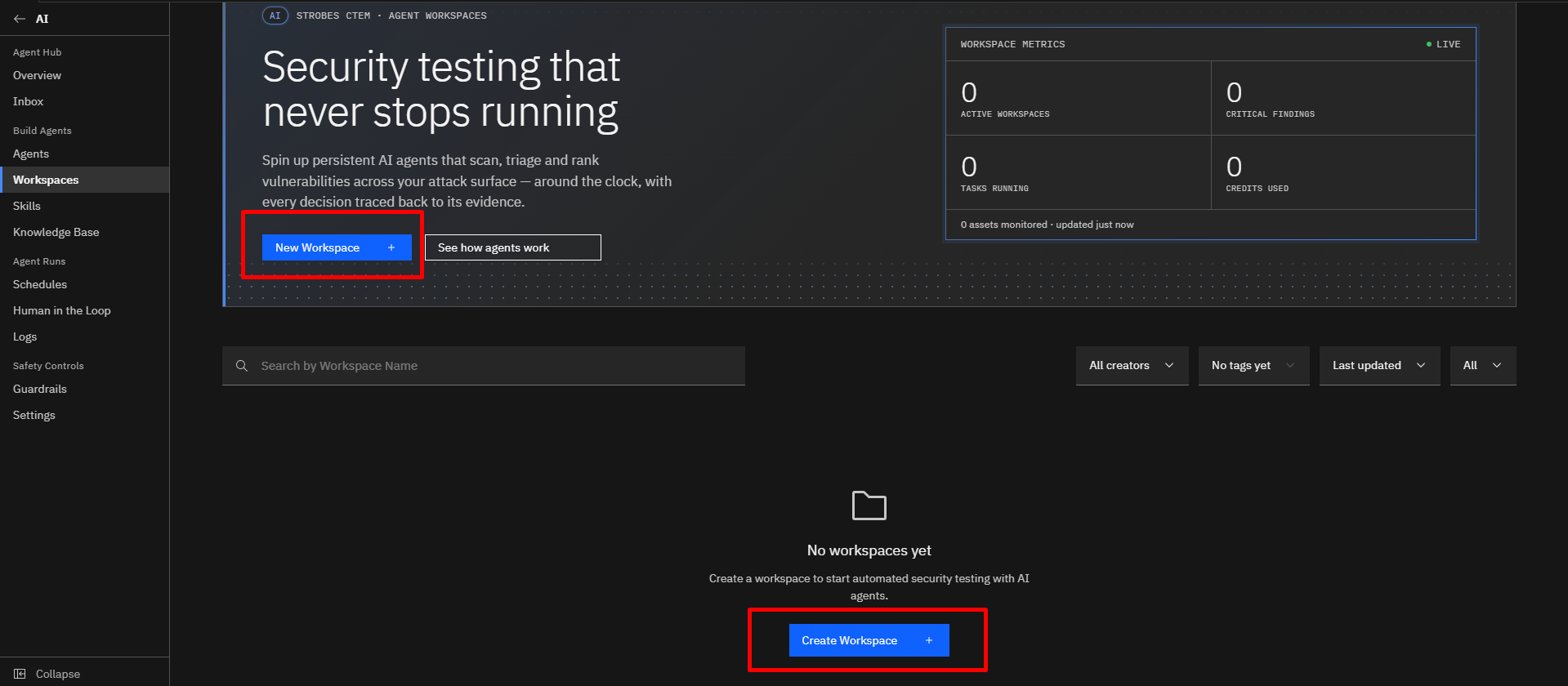
- Select the Code Review - Standard template.
- Review the template details
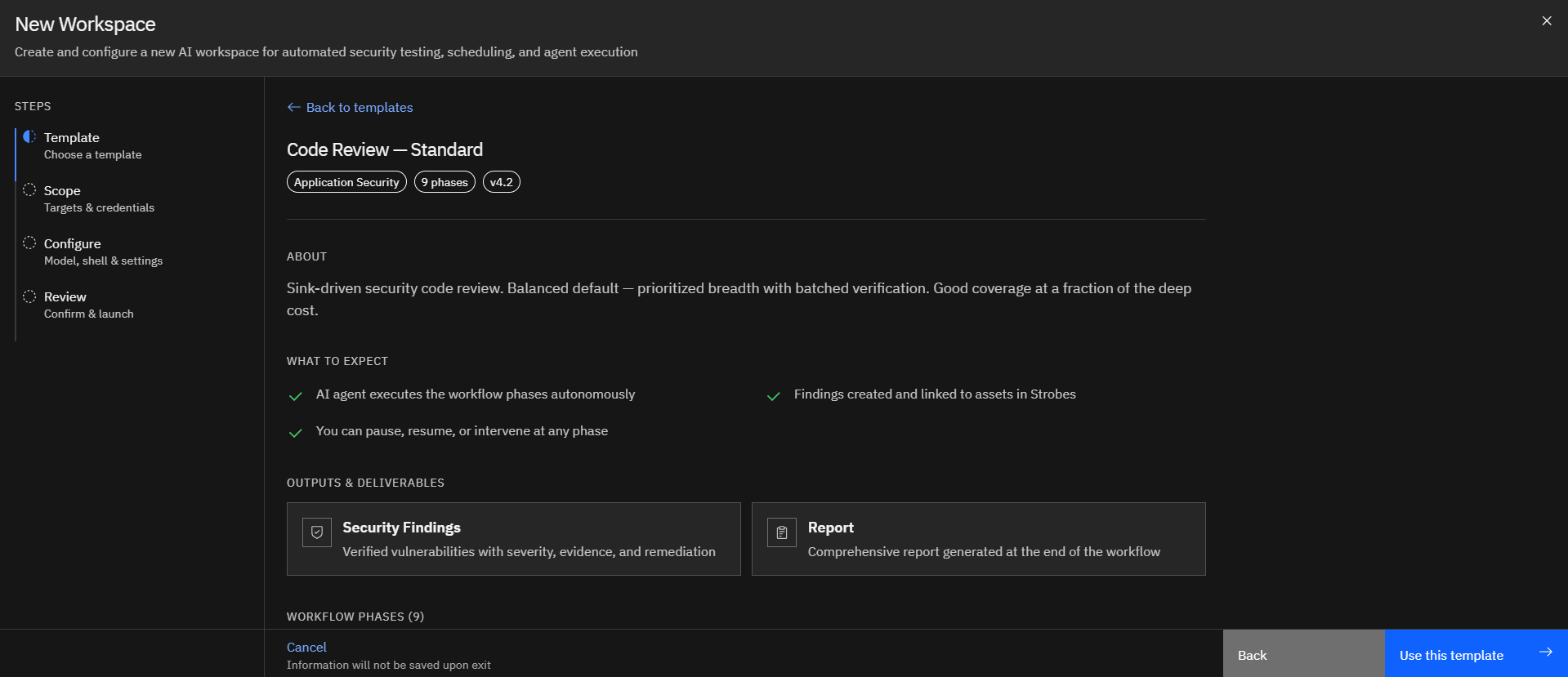
Selecting a template opens its details page, which shows:
- Tags: The category, number of phases, and version.
- About: What the template does.
- What to expect: How the AI agent runs the workflow. You can pause, resume, or step in at any phase.
- Outputs & deliverables: Verified security findings and a final report.
- Workflow phases: The phases the template runs, in order. For example, Code Review - Standard runs 9 phases, from repository setup and code scans to finding validation and reporting.
To continue, select Use this template. To choose a different template, select Back or Back to templates.
- Click Use this template.
Configuring the Repository Scope
After selecting the template, the wizard automatically moves to the Scope step.
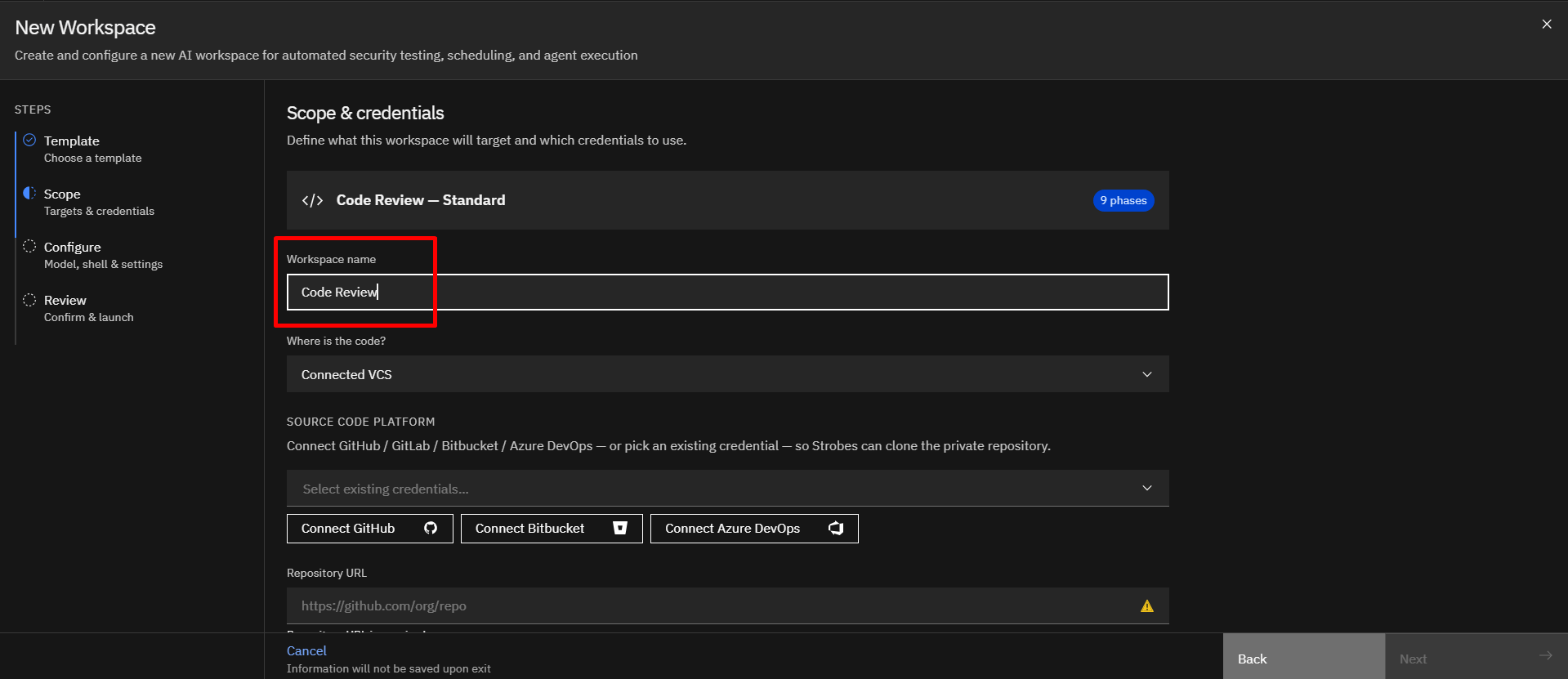
Step 1: Provide a Workspace Name
Enter a meaningful name for the assessment.
Step 2: Choose Where the Code Is
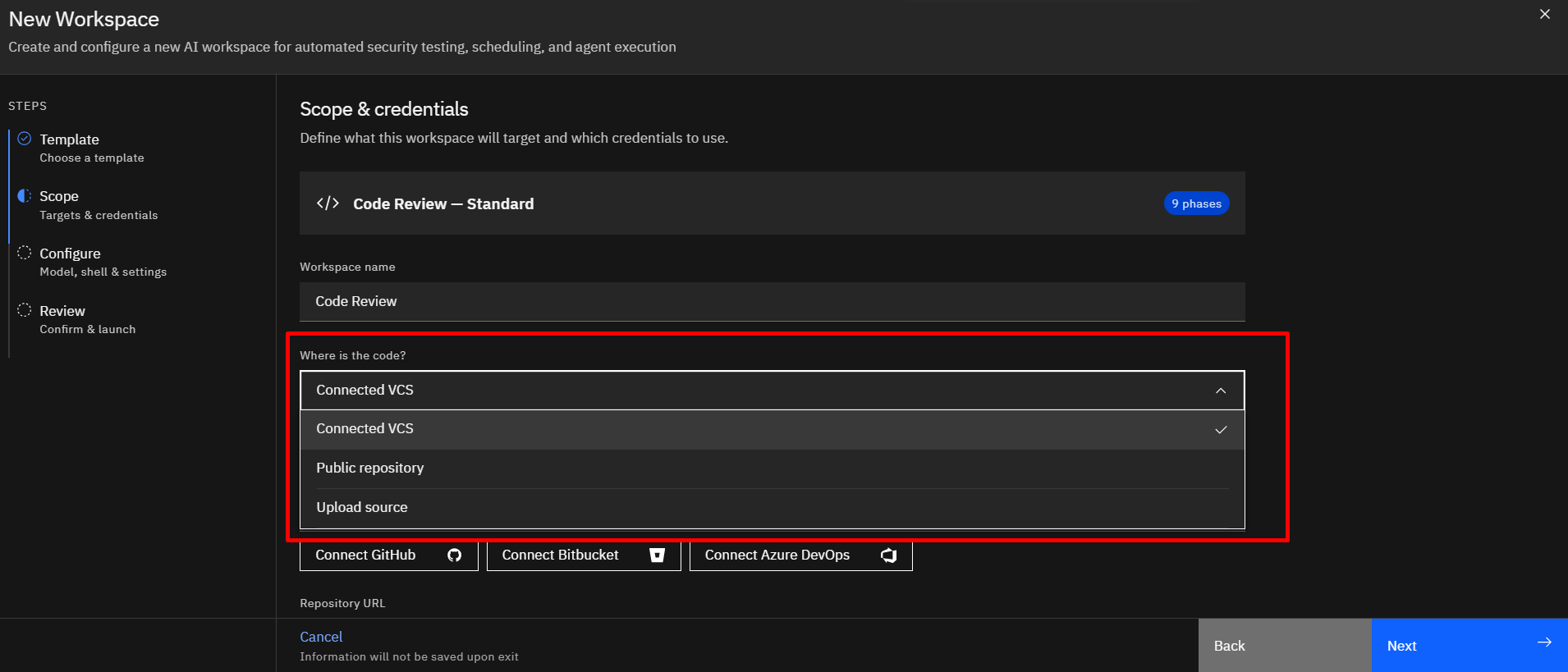
Under Where is the code?, select how Strobes should get the source code:
- Connected VCS: Review a private repository from a connected platform such as GitHub, Bitbucket, or Azure DevOps. Connect the platform or select an existing credential, then enter the Repository URL.
- Public repository: Enter the URL of a public repository. No credentials are required.
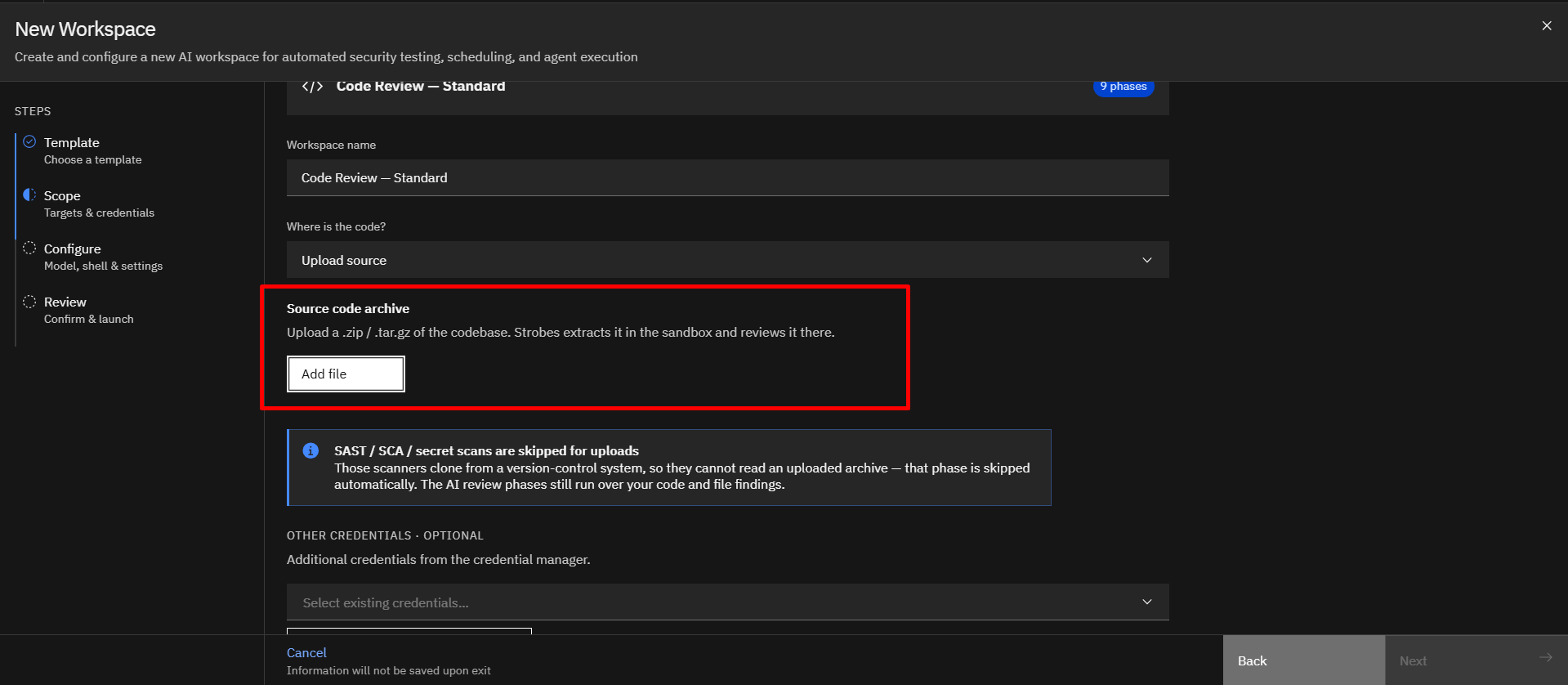
- Upload source: Upload the code as a
.zip,.tar.gz,.tgz, or.tarfile.
Note: If you upload the code, the Strobes SAST, SCA, and secret scans are skipped, because they can only read code from a version-control system. The AI review phases still run on the uploaded code and report findings.
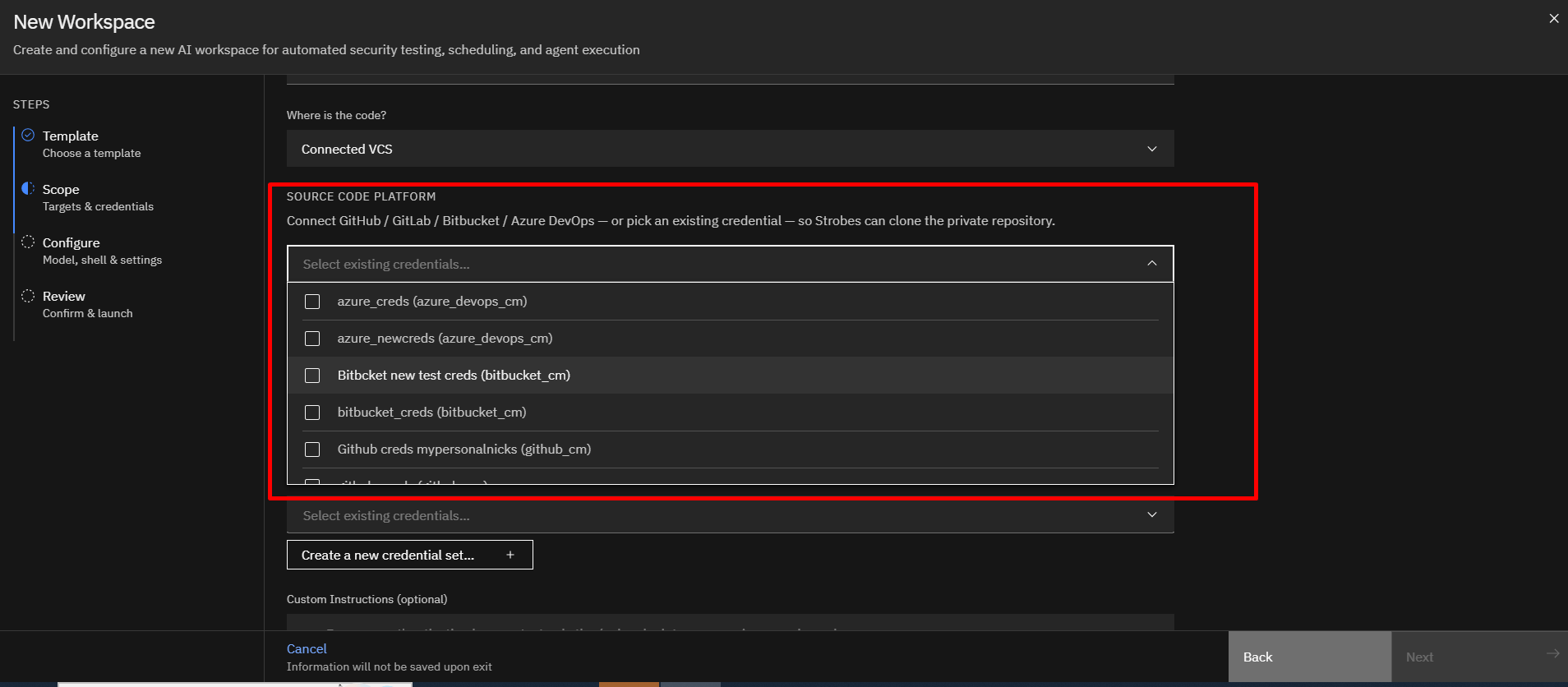
Step 3: Select a Source Code Platform
If you select Connected VCS, connect GitHub, Bitbucket, or Azure DevOps, or select an existing credential from the available list.
Ensure the selected credentials have access to the repository you want to review.
Step 4: Enter the Repository URL
In the Repository URL field, enter the full URL of the repository you want to review.
- For Connected VCS, use a repository that the selected credentials can access.
- For Public repository, enter the public repository URL. No credentials are required.
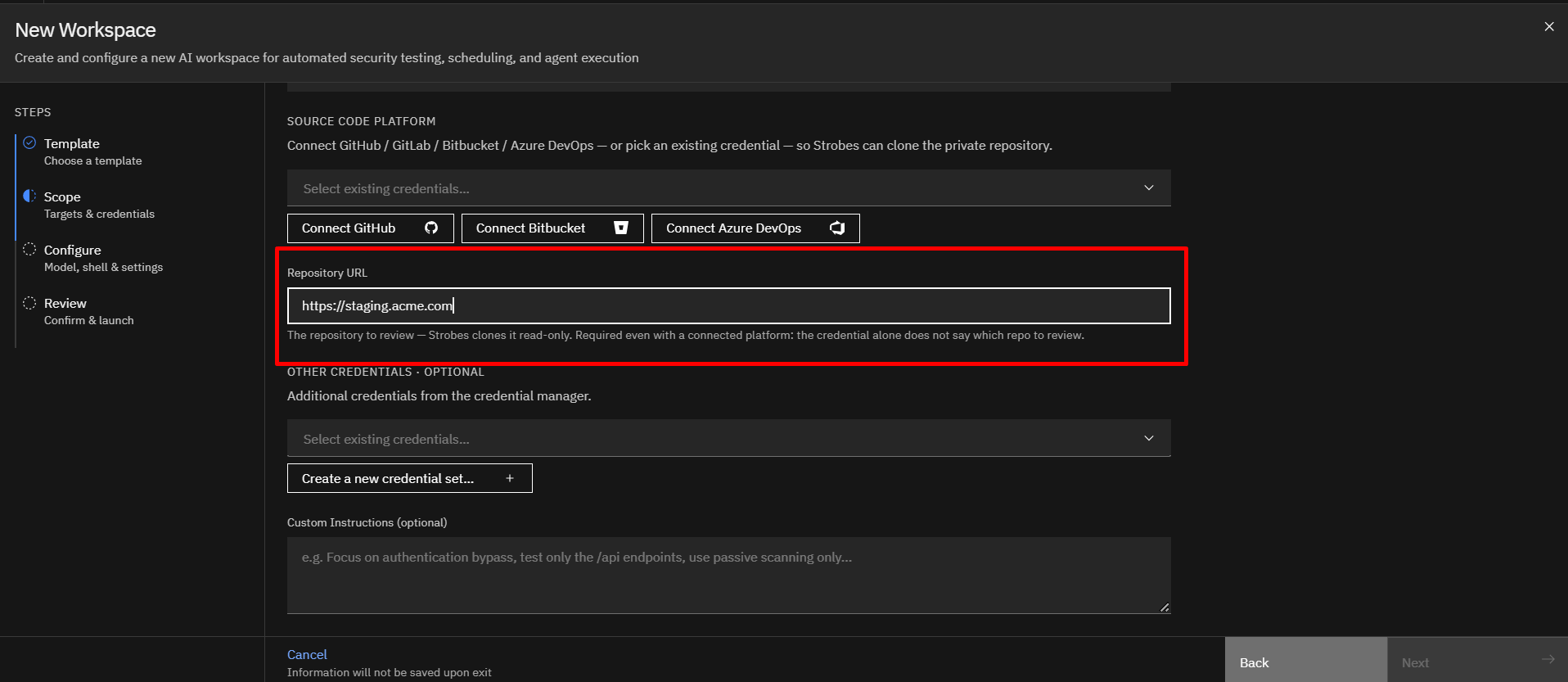
The platform uses this URL to identify the repository that will be analyzed.
Step 5: Upload Source Code or Configuration Files (Optional)
If you selected Upload source, click Add file and upload your codebase as a .zip, .tar.gz, .tgz, or .tar file.
Note: SAST, SCA, and secret scans are skipped for uploaded archives, but the AI review still runs and reports findings
To upload files:
- Click Choose Files.
- Select the required files.
- Wait for the upload to complete.
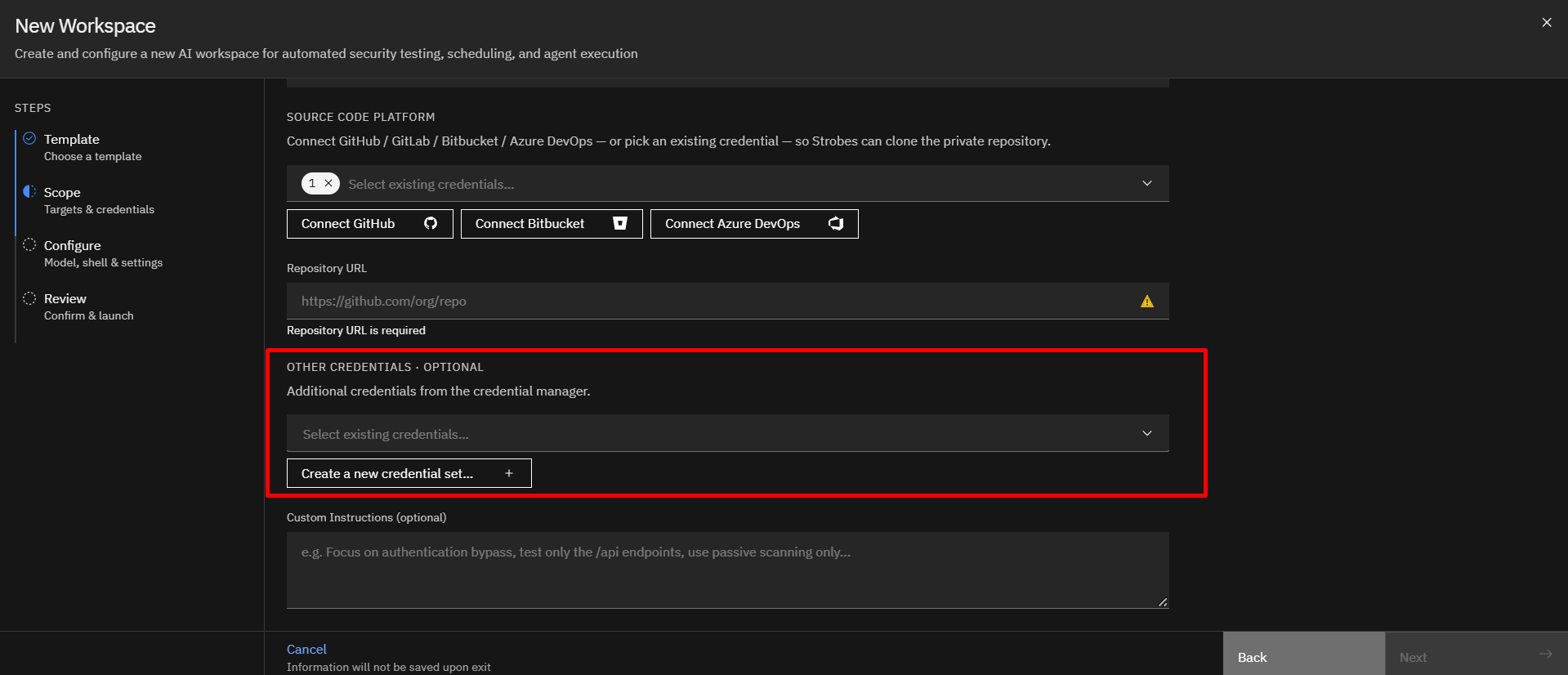
Step 6: Add Other Credentials (Optional)
Select additional credentials from the credential manager or click Create a new credential set to add credentials if required.
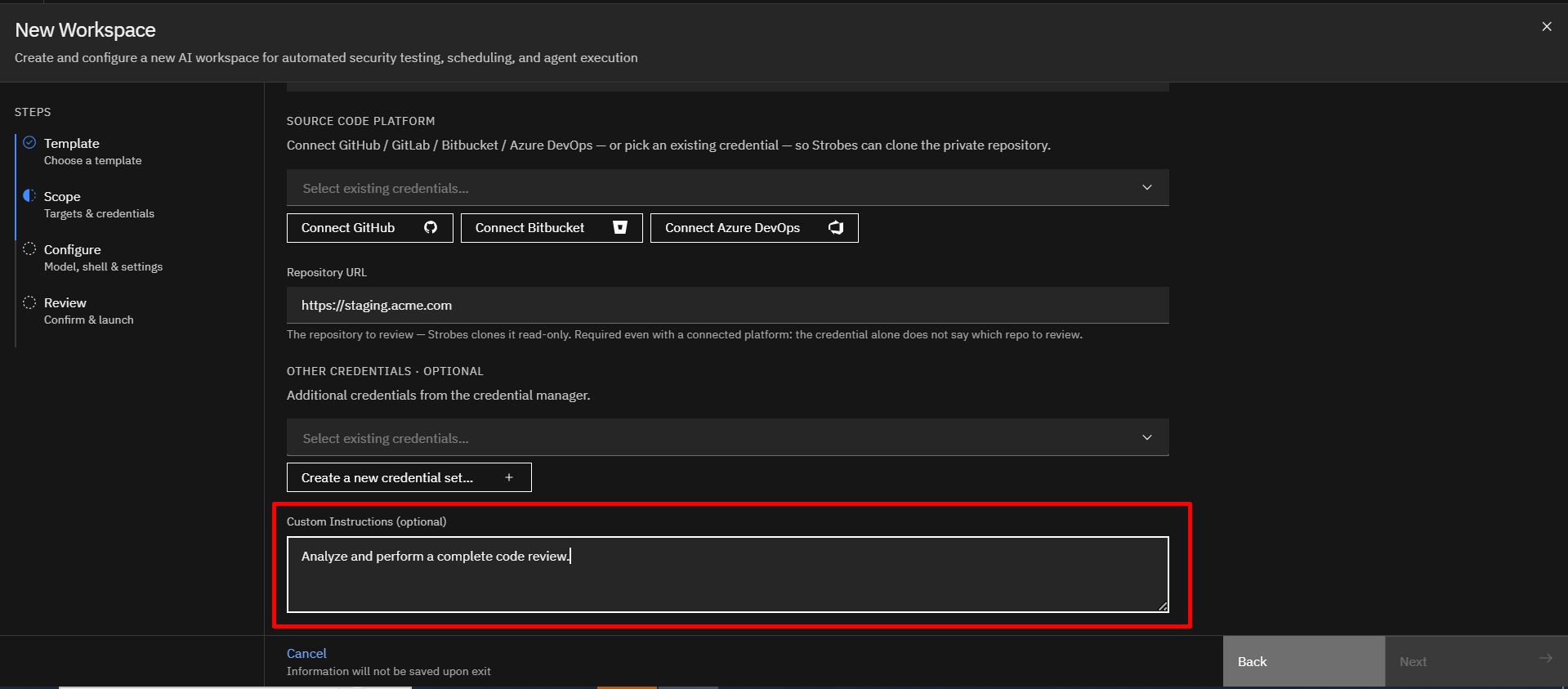
Step 7: Add Custom Instructions (Optional)
Use the Custom Instructions field to guide the assessment.
Example instructions:
- Focus on authentication bypass vulnerabilities.
- Review only API endpoints.
- Analyze payment processing workflows.
- Prioritize business logic flaws.
- Restrict testing to specific modules.
These instructions help tailor the AI analysis to specific objectives.
Step 8: Proceeding to Configuration
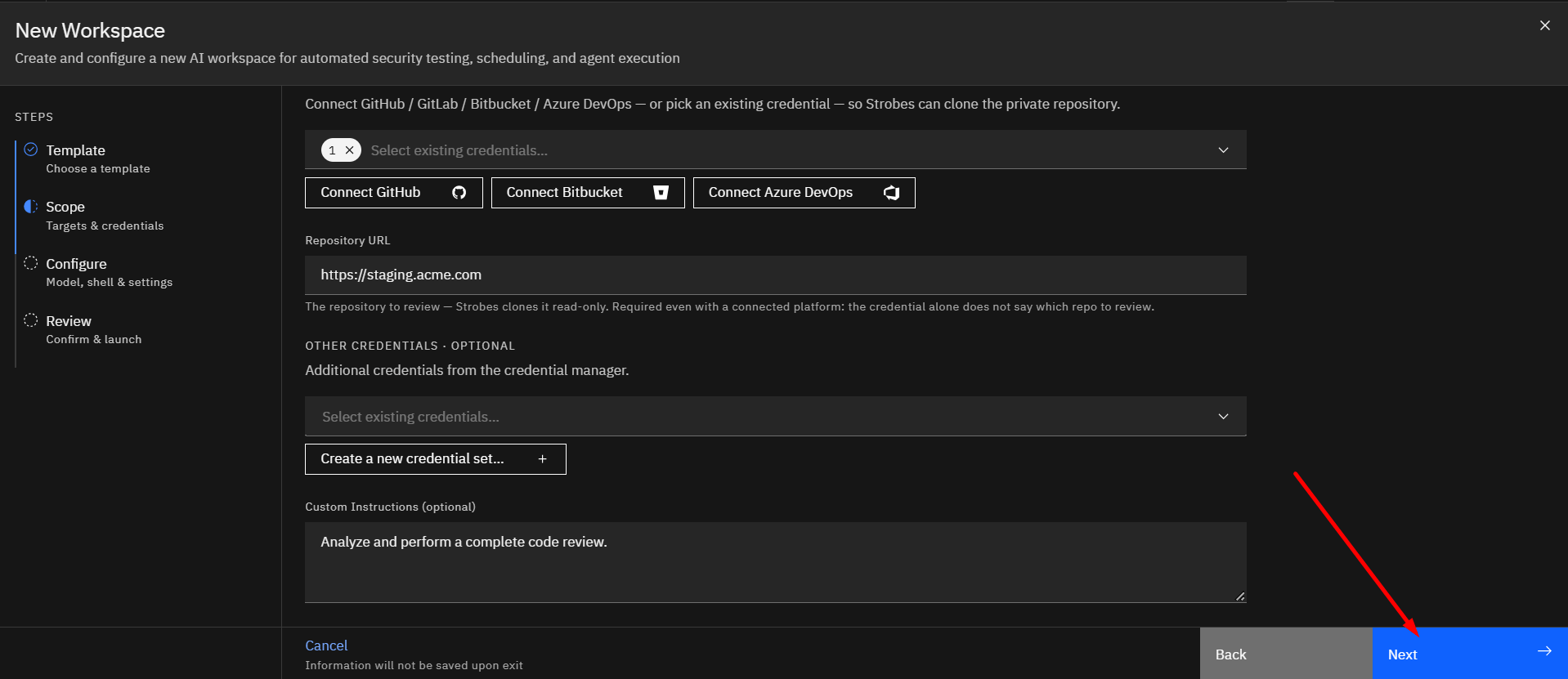
After completing the scope details:
- Verify the selected repository.
- Review uploaded files and instructions.
- Click Next.
The wizard proceeds to the Configure step, where model, shell, and execution settings can be customized.
Step 9: Select an AI Model
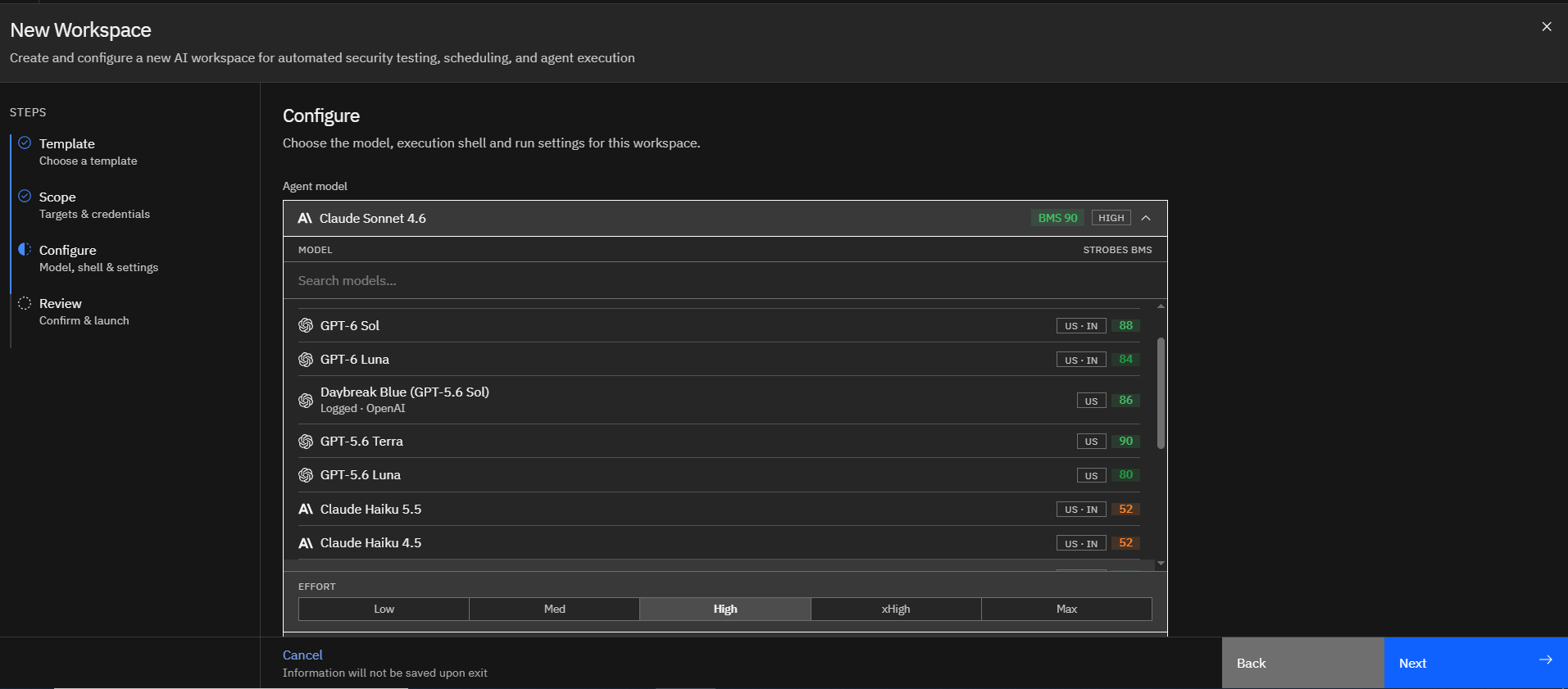
The AI Model determines the Large Language Model (LLM) used during the assessment.
To select a model:
- Open the Agent model dropdown.
- Review the available models and their Strobes BMS scores.
- Select the model that best fits your assessment requirements.
Strobes BMS (Benchmarking Score): Each model shows a score that rates how well it performs real security tasks, balanced against how efficiently it runs. A higher score means better overall value for security assessments.
Smart Router: If you're not sure which model to choose, select Smart Router. It automatically picks the best model for each task during the assessment.
The selected model influences:
- Analysis depth
- Reasoning capabilities
- Response quality
- Assessment speed
Step 10: Select an Agent Shell
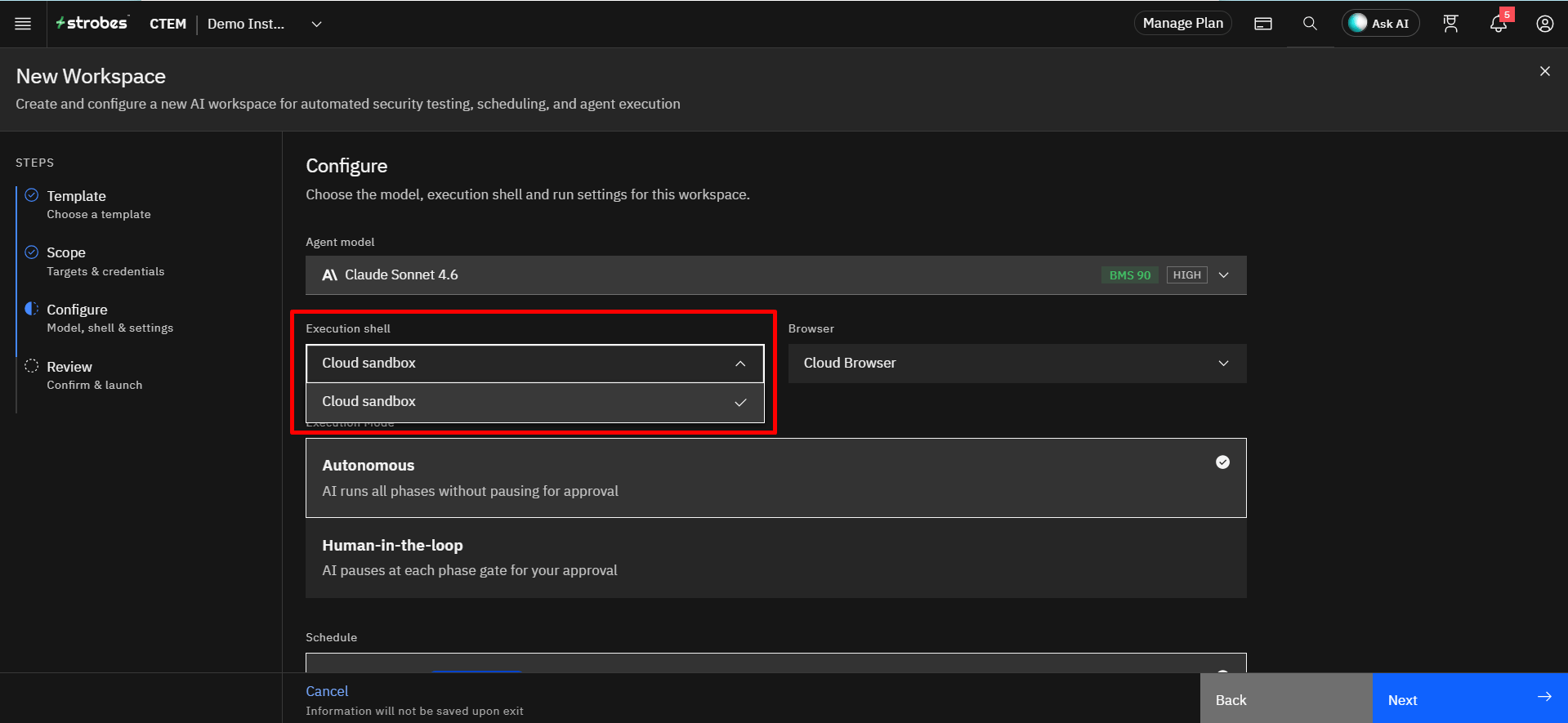
The Shell defines the execution environment used by the AI agent.
To select a shell:
- Open the Shell dropdown.
- Review the available shell options.
- Select the shell that supports your code review workflow.
The shell determines:
- Available tools
- Repository access methods
- Workflow execution capabilities
- Analysis environment
Step 11: Select a Browser
The Browser defines where the AI agent opens web pages during an assessment.
To select a browser:
- Open the Browser dropdown.
- Keep the default Cloud Browser.
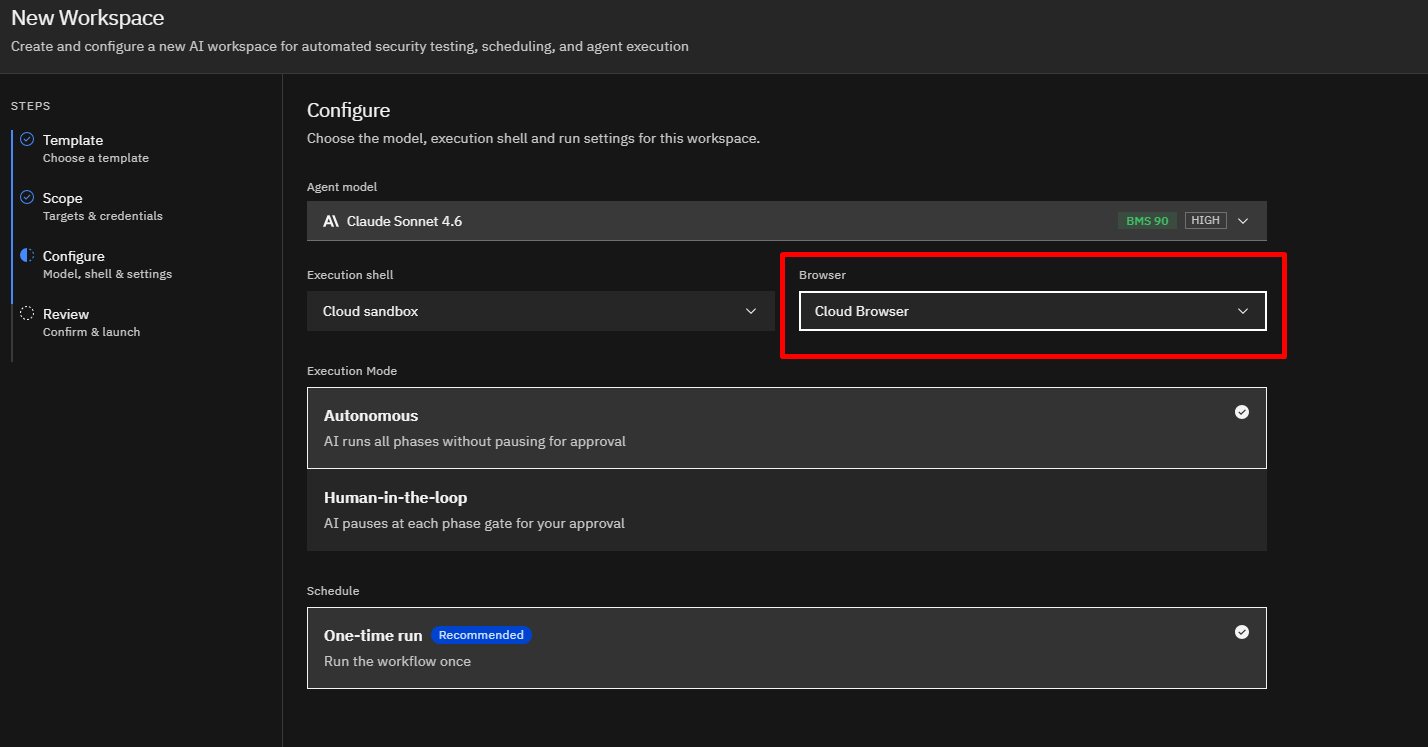
This assessment doesn't require a browser, so no changes are needed.
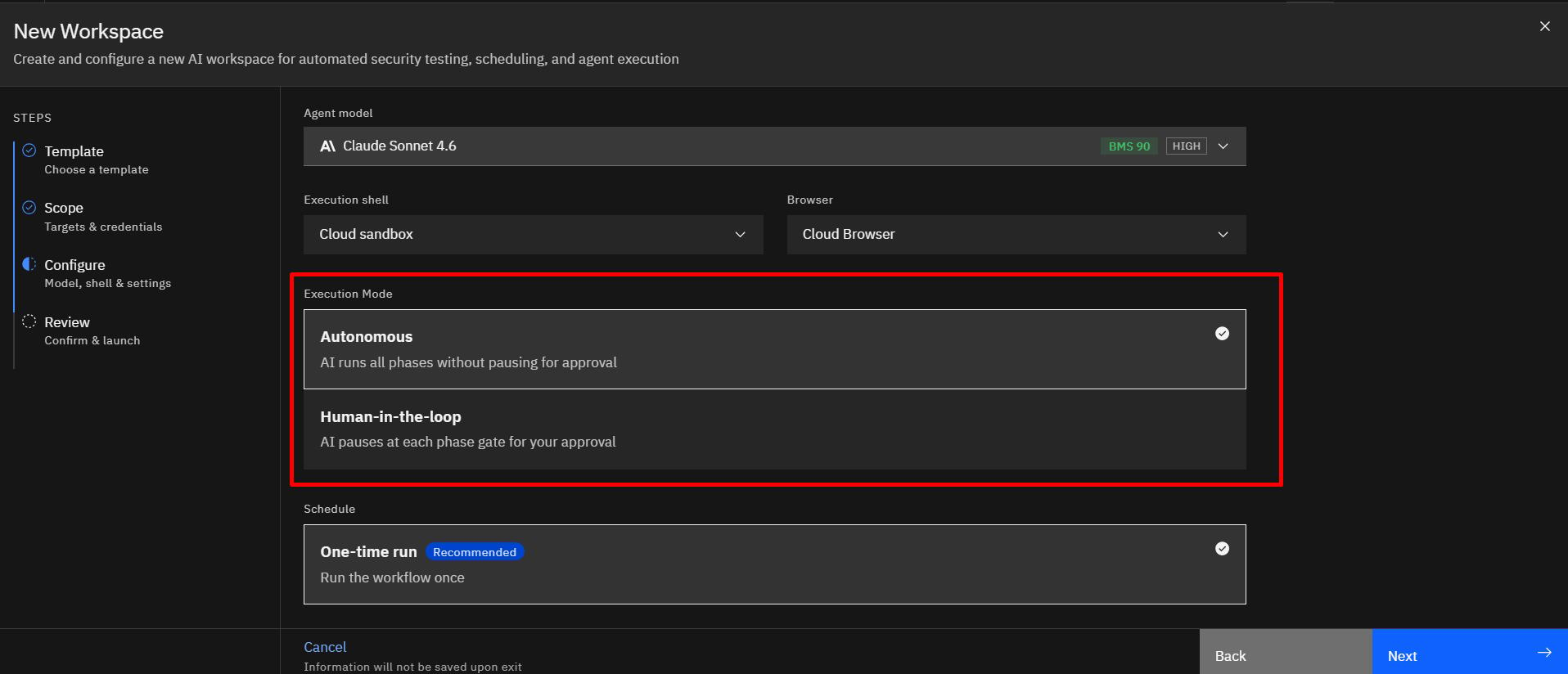
Step 12: Select the Execution Mode
Choose how the AI runs the scan. Autonomous is selected by default.
- Autonomous: The AI runs all phases without pausing for approval.
- Human-in-the-loop: The AI pauses at each phase gate and waits for your approval before continuing.
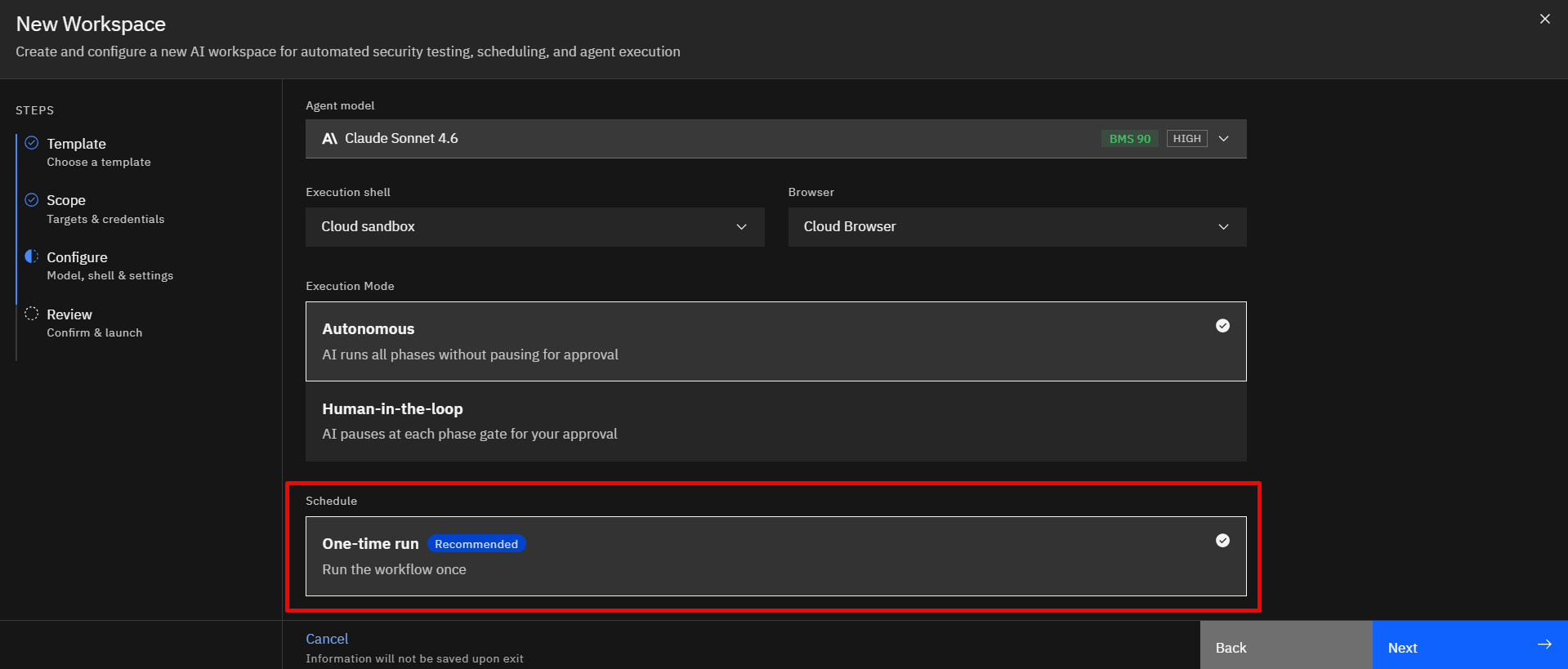
Step 13: Review the Schedule
The workflow is set to One-time run by default, so it runs once.
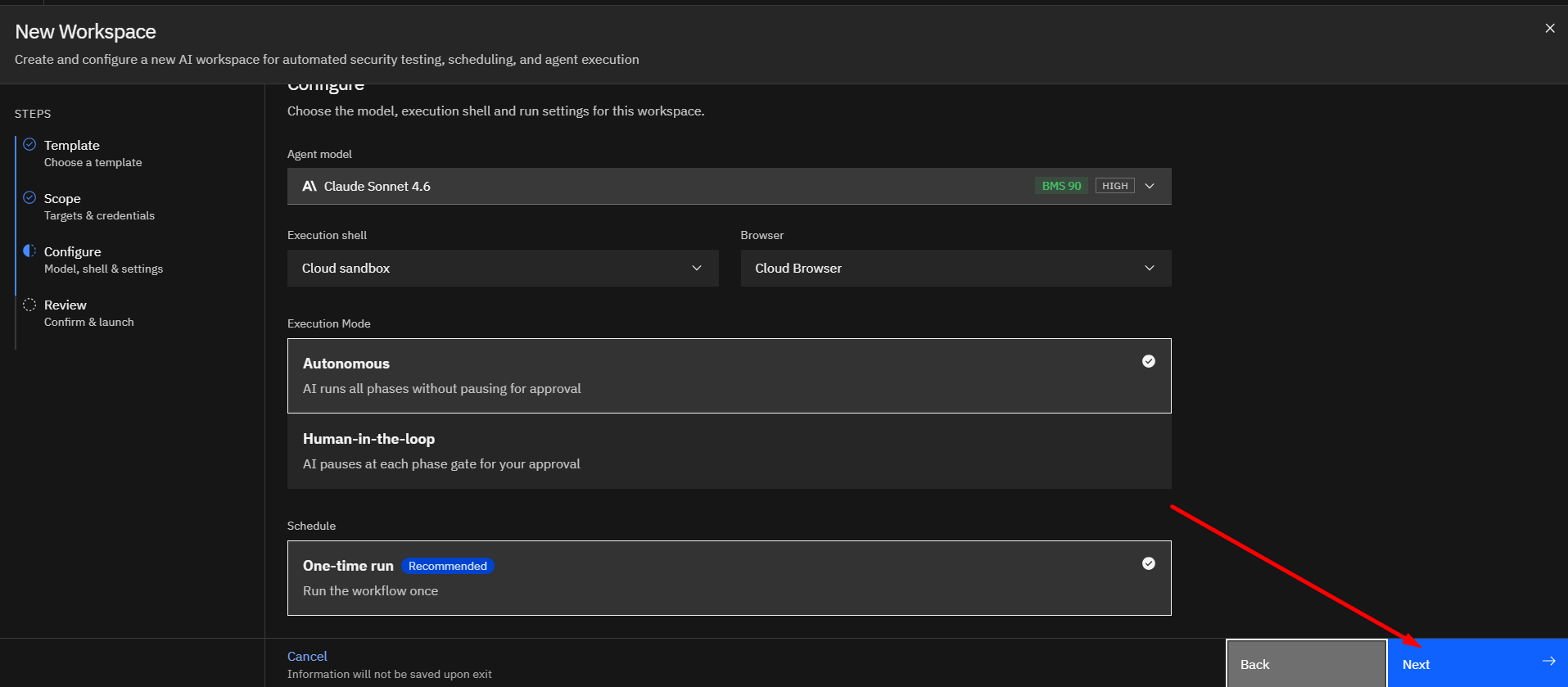
Step 14: Click Next to Review the Configuration
Once all configuration settings have been verified:
- Click Next.
Step 15: Continue to Review and Launch
Once all configuration settings have been verified:
- The wizard opens the Review page.
- Review the complete assessment configuration before launching the Code Review assessment.
Step 16: Review and Launch the Workspace
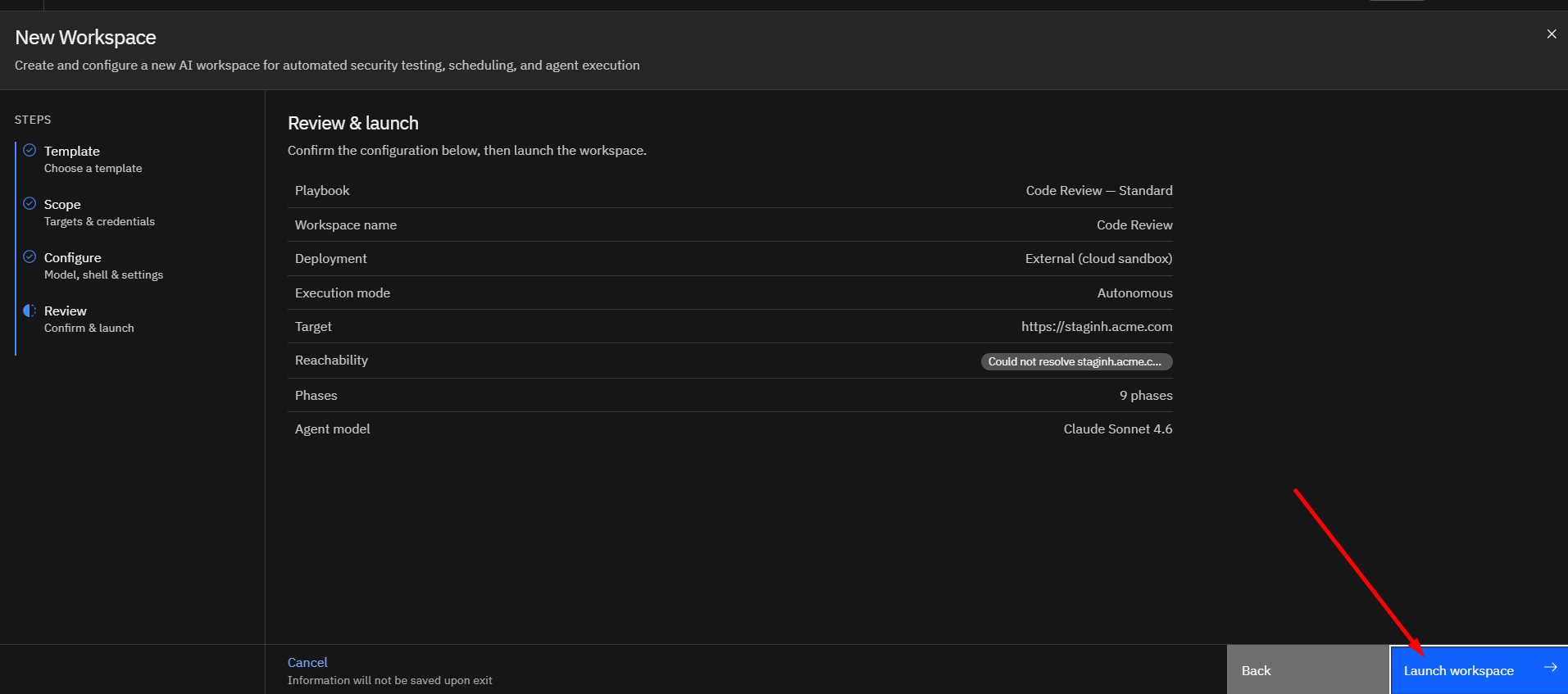
Review the configuration summary, including the playbook, workspace name, deployment, execution mode, target, phases, and agent model.
Strobes automatically checks whether the target is reachable. Once everything looks correct, click Launch workspace to start the scan.
Tips
- Repository access credentials must be configured before starting the assessment.
- The repository URL must be accessible using the selected credential.
- Uploading dependency manifests can improve dependency analysis results.
- Custom instructions are optional but can help focus the assessment on specific security concerns.
- The assessment duration varies based on repository size and complexity.
More in Pentest templates
Was this page helpful?