
Network Internal Pentest
2 min readEdit
On this page⌄
Running a Network Internal Pentest
This article shows how to run an internal network pentest on Strobes using the Network Internal Pentest template. Because internal pentests run from inside your network, they require a registered Shell — an execution endpoint that lives on a host inside your environment.
Prerequisites
Before launching a Network Internal Pentest, ensure the following:
- You have an online Shell registered under Settings → Shells (see Step 1 below).
- You have a Target IP / Range representing your internal network (e.g.,
10.0.0.0/16). - You have any Active Directory or SSH credentials you want the agent to use, saved as Strobes credentials.
- You have identified VLANs or hosts that should be out of scope (e.g., production database VLANs).
- Your organization has sufficient AI credits.
Steps to run a Network Internal Pentest
Step 1: Set up a Shell
- Go to Settings → Shells (or the Shells page under AI).
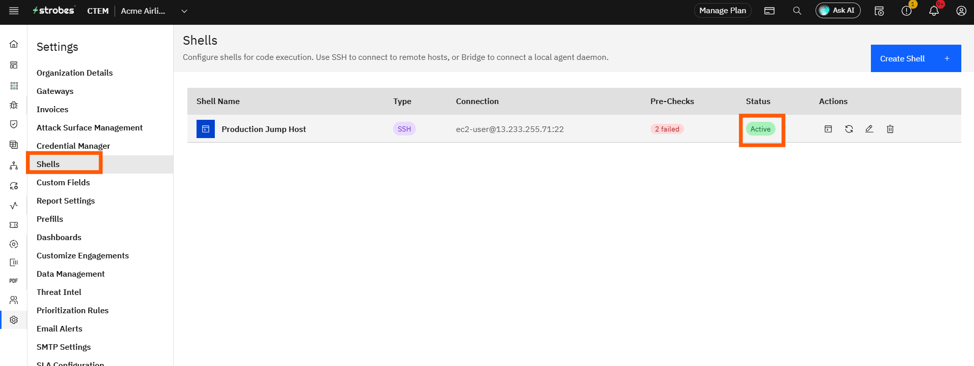
- Click Add Shell and follow the install instructions to register a host inside your network.
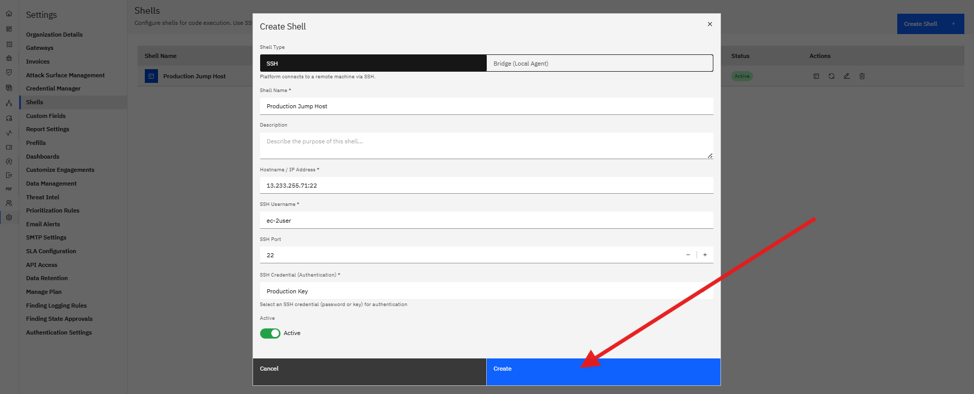
- Wait for the shell status to flip to Online.
Step 2: Open the wizard and pick the template
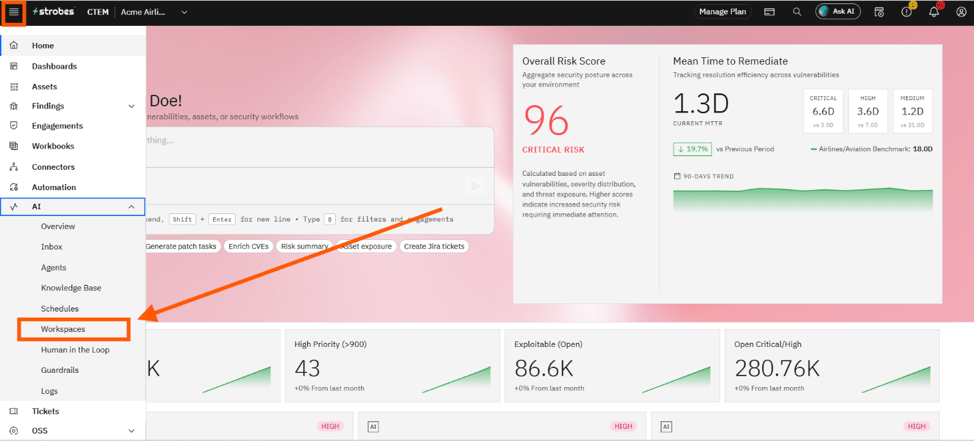
- Open AI → Workspaces and click New Workspace.
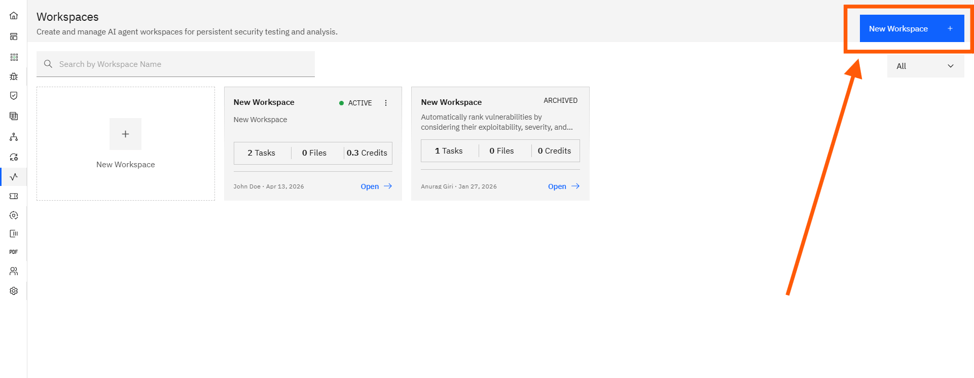
- On the Template step, click the Network Internal Pentest card.
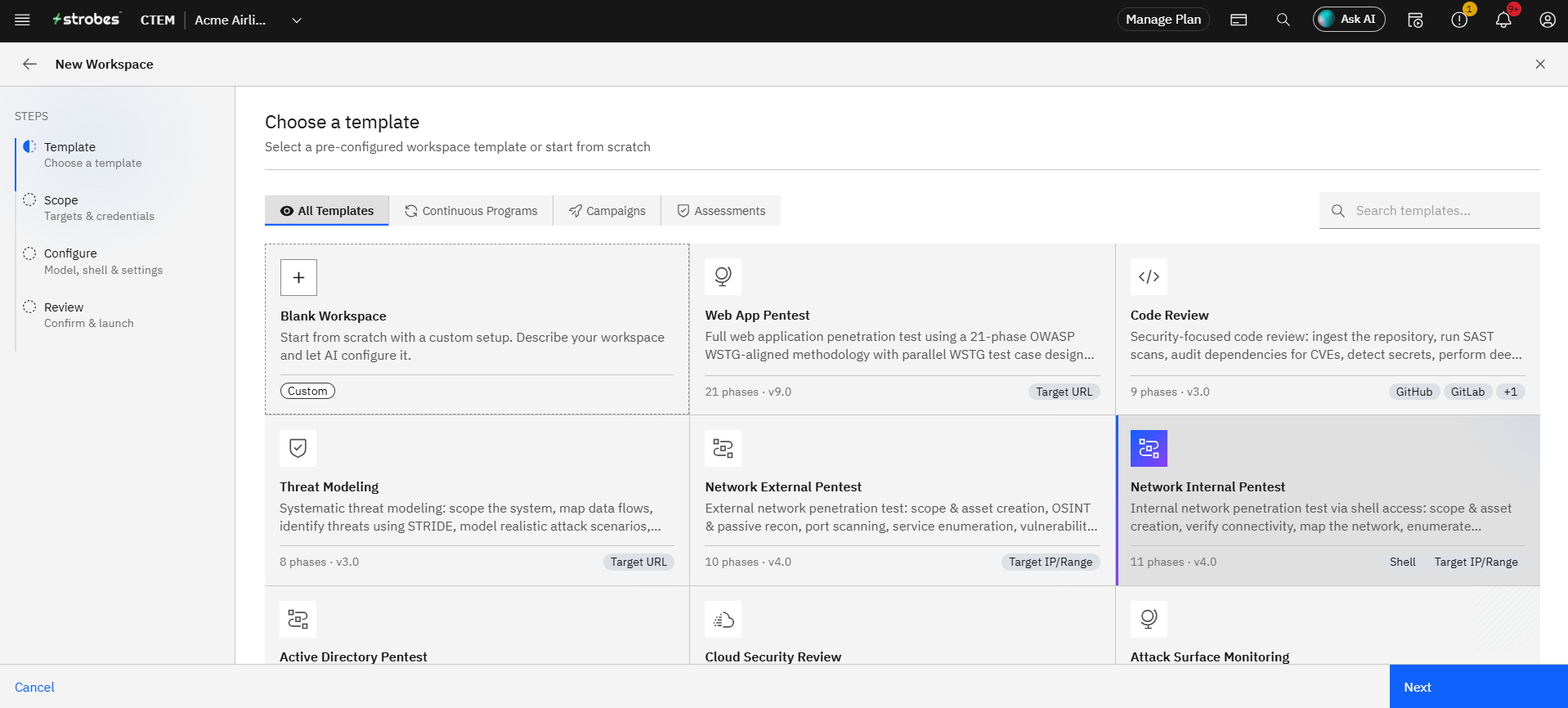
- Click Use This Template.
Step 3: Define the scope
- Workspace Name: e.g.,
Acme — Corp Internal — Monthly. - Target IP / Range: Internal CIDR (e.g.,
10.0.0.0/16). - Credentials: Optionally provide a domain user account for AD recon, or an SSH key for lateral movement testing.
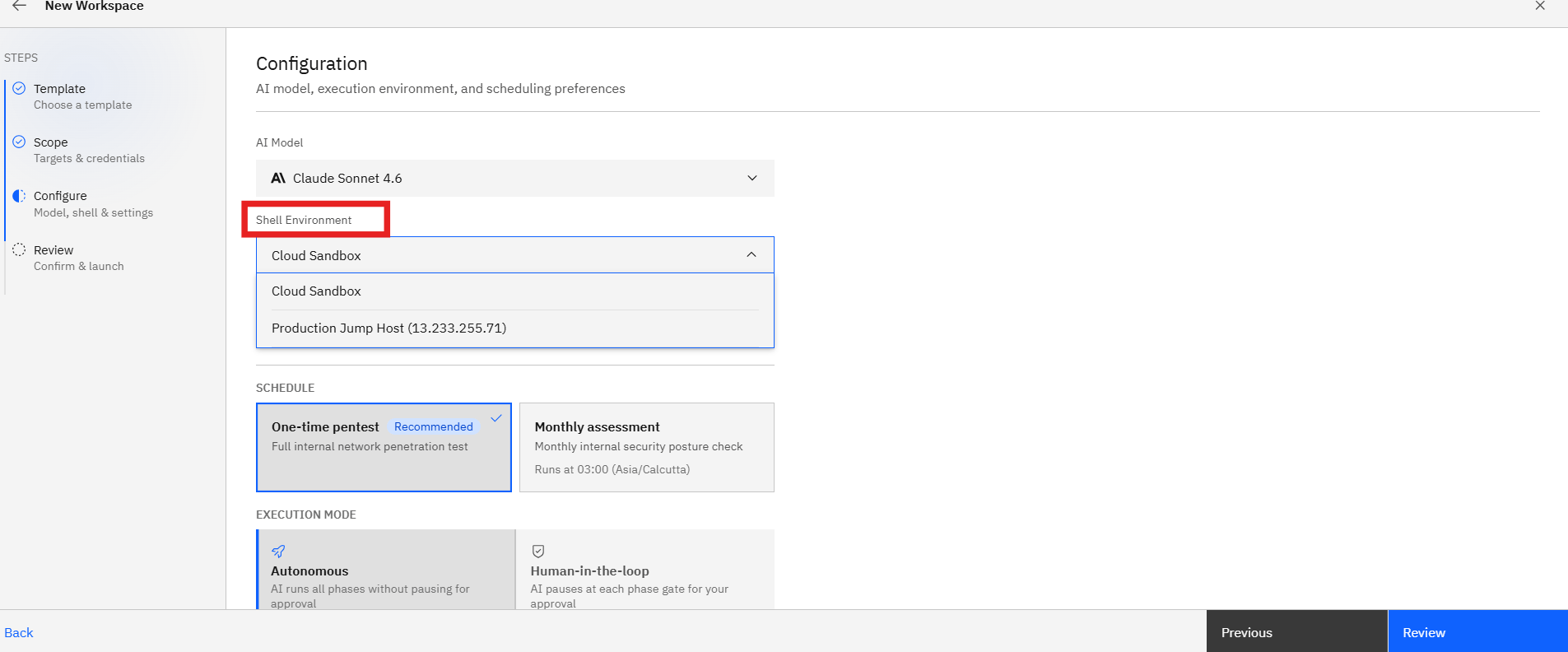
- Shell: Pick the online shell from your list. This field is required for this template.
Step 4: Add Custom Instructions
Internal networks usually have sensitive boundaries. Use Custom Instructions to spell them out:
Text
AD enumeration is in scope.
Out of scope: 10.0.50.0/24 (production database VLAN).
Stop before any password-spray exceeding 3 attempts per account.
Step 5: Configure runtime
- Model: Standard.
- Schedule: Monthly or Quarterly is typical for internal infrastructure.
Step 6: Review and launch
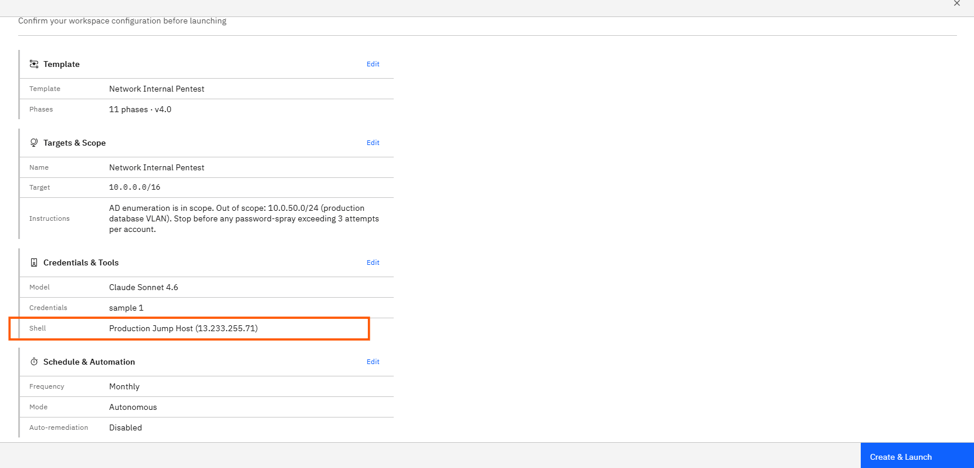
- Verify the Shell, target range, and credentials on the Review step.
- Click Launch Assessment.
- The agent performs network mapping, service enumeration, AD recon (if credentialed), and lateral movement testing — all routed through the shell.
Where Can This Be Used?
The Network Internal Pentest template is suited to:
- Corporate / cloud network assessments where the agent needs to operate from inside the perimeter.
- Active Directory health checks combined with credentialed enumeration.
- Lateral movement testing to validate segmentation between VLANs.
- Post-incident network reviews that require pivoting from a known foothold.
Troubleshooting Tips
- If the Shell dropdown is empty, your shell hasn't reached Online status. Check the shell host and the install instructions under Settings → Shells.
- If AD enumeration returns no results, verify the domain user credential has at least read access to AD.
- If the agent triggers an alert in your SIEM, you can pause the workflow mid-step from the dashboard. Resume after notifying the security team.
More in Pentest templates
Was this page helpful?