
Configuring Burp Suite Enterprise credentials
1 min readEdit
On this page⌄
To integrate Burp Suite Enterprise with Strobes, you'll first need to add your Burp credentials to the Credential Manager. Follow the steps below to get started.
Step-by-Step Instructions
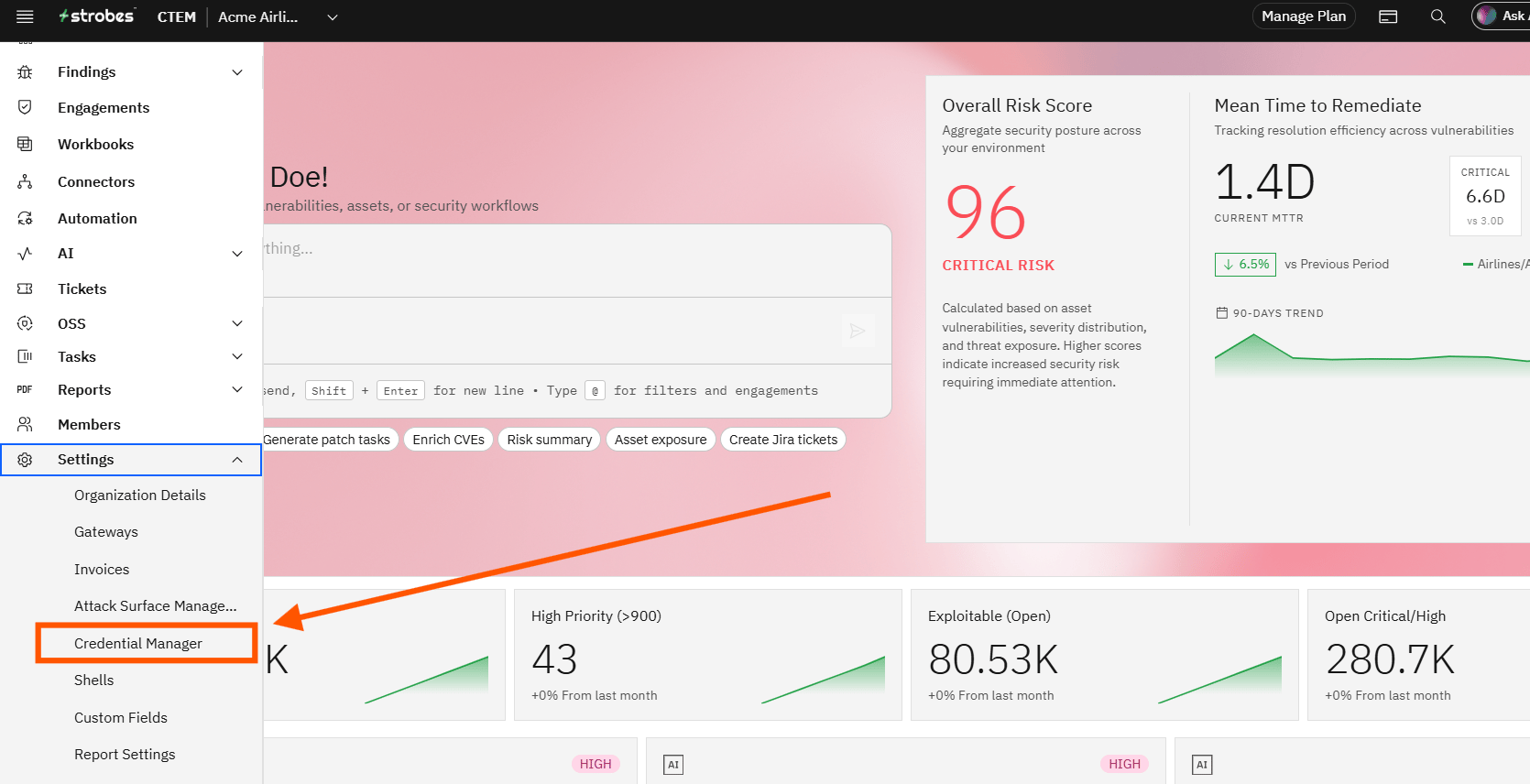
1. Go to Credential Manager
- From the left-hand navigation panel, click on Settings.
- Select Credential Manager.
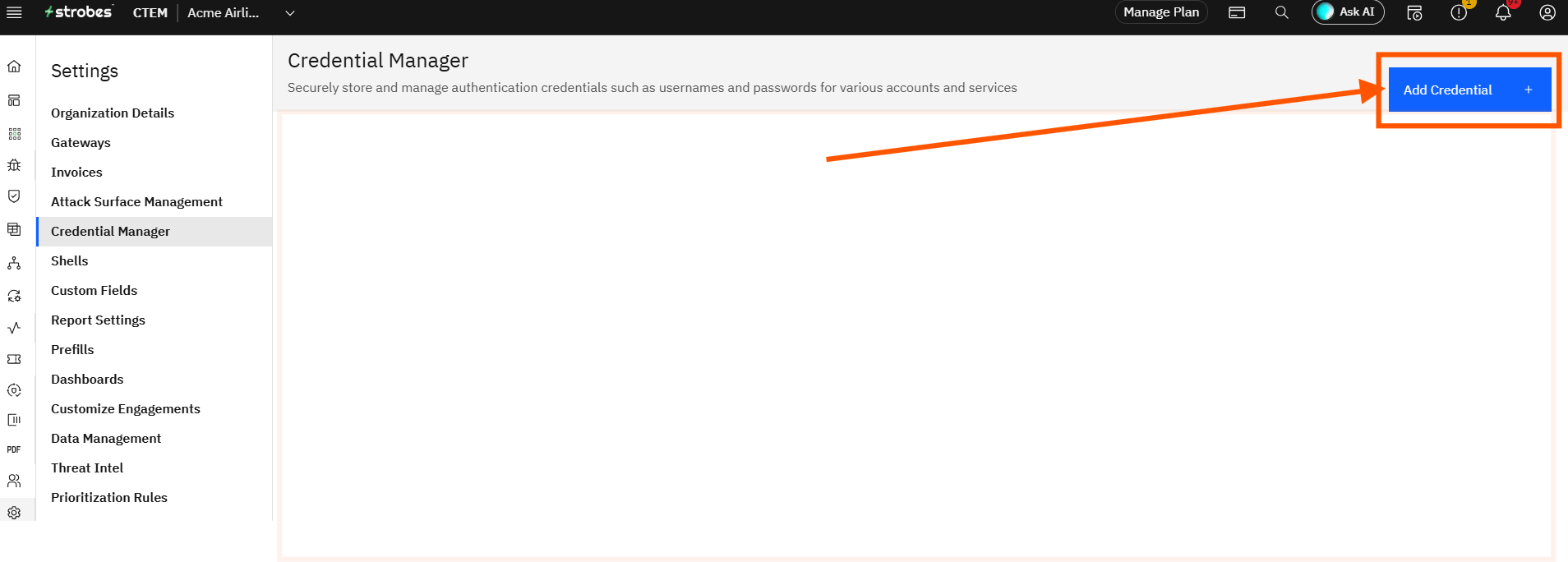
2. Add a New Credential
- Click on the Add Credential button.
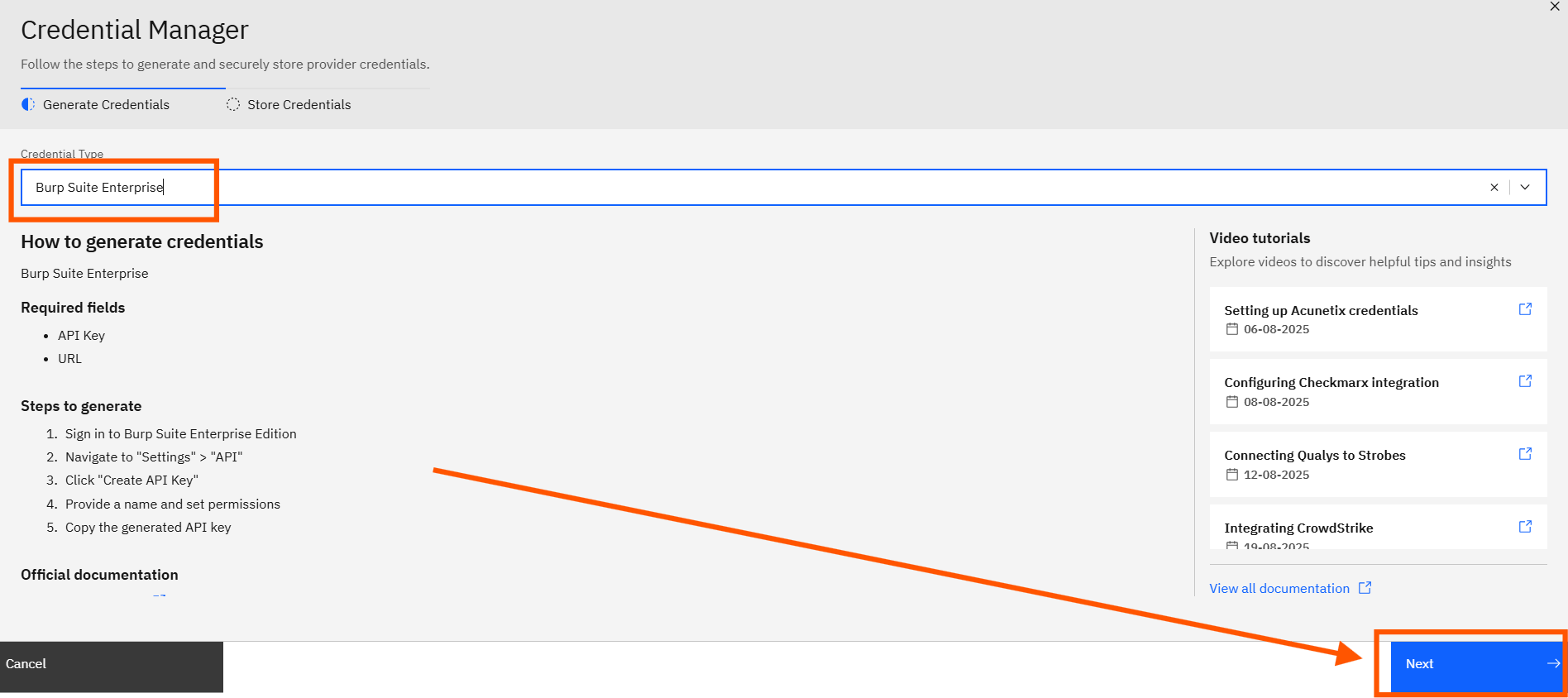
3. Select Connector Type
- From the dropdown menu, choose Burp Suite Enterprise as your connector type.
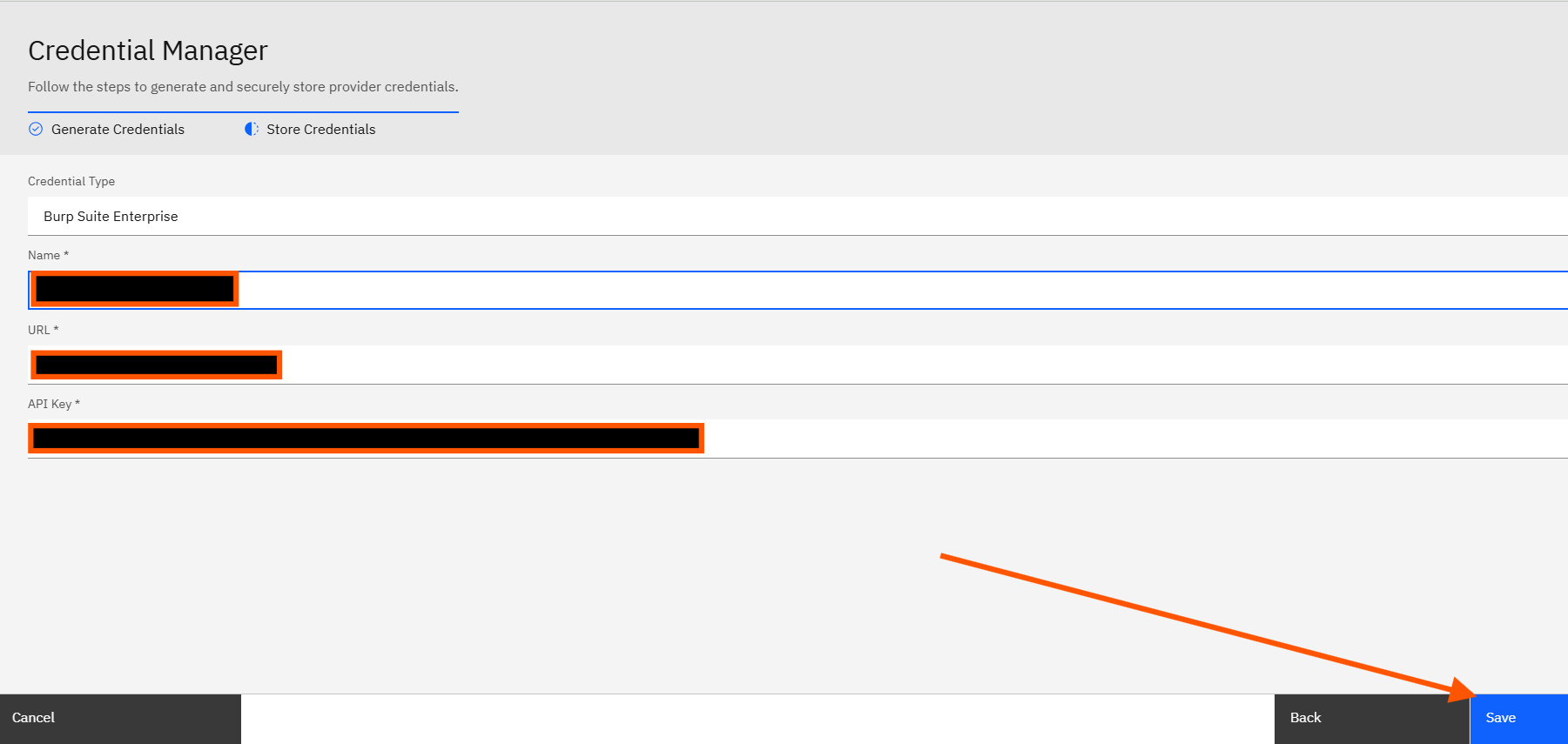
4. Enter Credential Details
- Name: Provide a name for your credential configuration (e.g., Burp Prod Instance).
- URL: Enter the Burp Suite Enterprise instance URL.
- API Key: Paste the API Key generated from your Burp instance.
5. Save Your Configuration
- Click Save to store your credential details securely.
Once saved, your Burp Suite Enterprise credentials will be available for use in scan configurations and integrations within the platform.
If you face any issues, feel free to reach out to our support team from the Help section in your dashboard.
More in Application security tools
Was this page helpful?