
Creating a Blank Workspace
2 min readEdit
On this page⌄
This article shows how to create a Blank Workspace — a free-form, chat-driven pentest engagement where you describe the task in plain English and let the AI agent plan the methodology.
Prerequisites
Before starting a Blank Workspace, ensure the following:
- You have a clear description of what you want the agent to investigate.
- You have any reference files ready (scope docs, prior pentest reports, screenshots,
.pdf,.docx,.txt,.md,.html, or.csvfiles). - You have any credentials the agent might need saved under Settings → Credentials (you can also attach them later in chat).
- Your organization has sufficient AI credits.
Steps to start a Blank Workspace
Step 1: Pick the Blank Workspace template
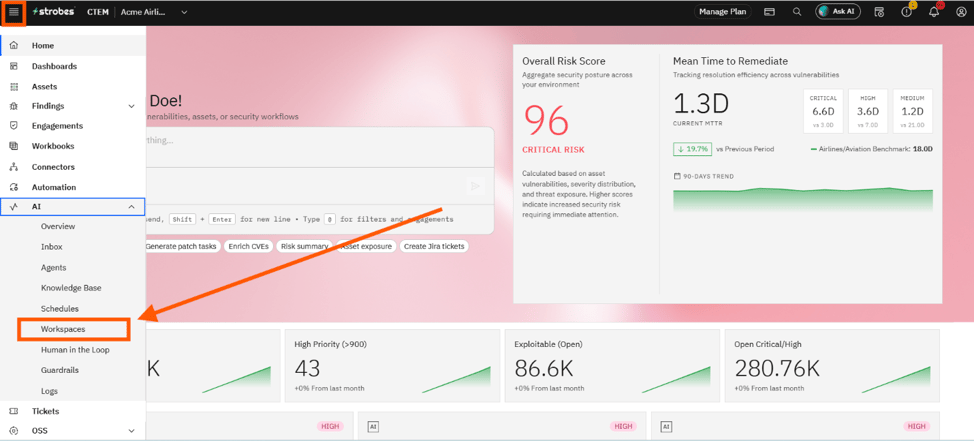
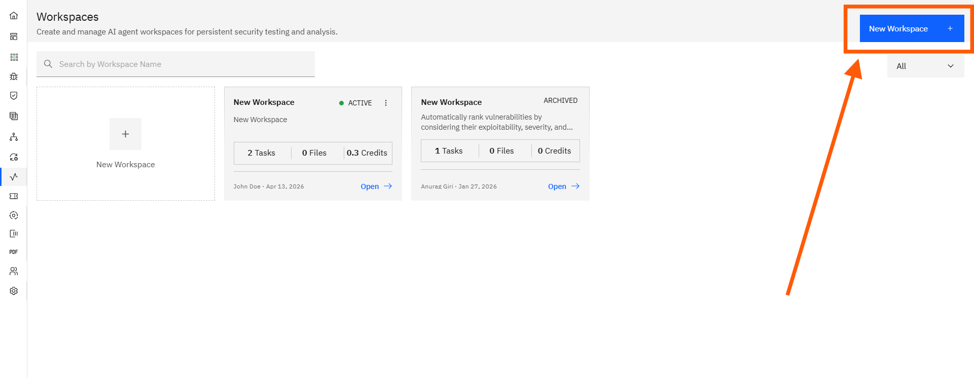
- Open AI → Workspaces and click New Workspace.
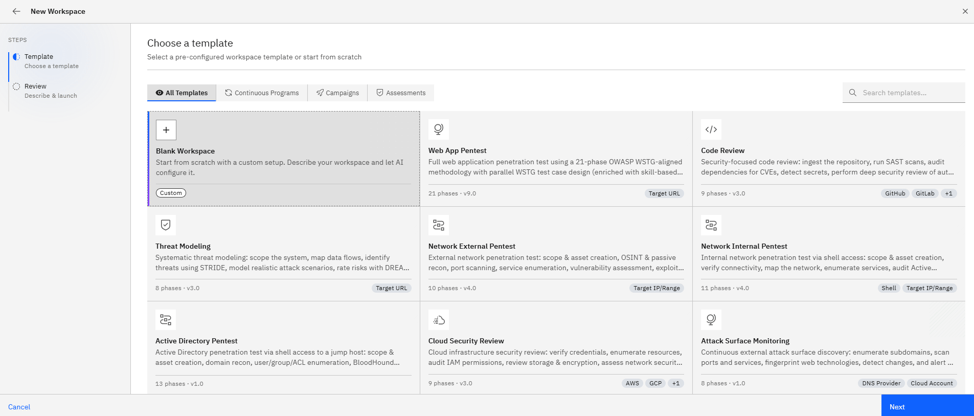
- On the Template step, click the Blank Workspace card (the first card, tagged Custom).
Step 2: Describe the task
- A composer appears with a free-form textarea.
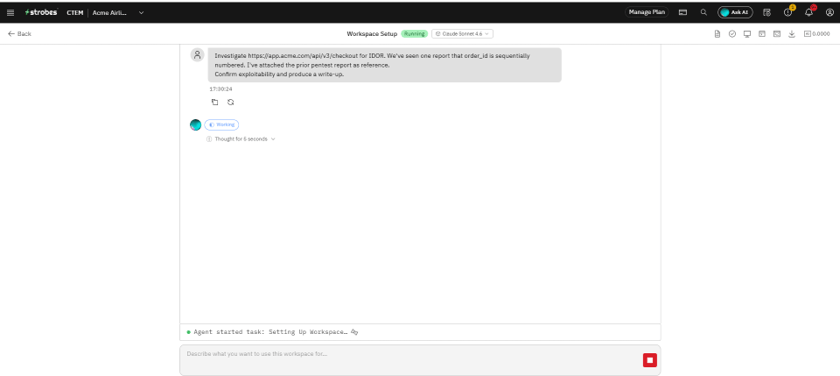
- Describe what you want the agent to do, in plain English. Example:
Text
Investigate https://app.acme.com/api/v3/checkout for IDOR.
We've seen one report that order_id is sequentially numbered.
I've attached the prior pentest report as reference.
Confirm exploitability and produce a write-up.
Step 3: Attach reference files
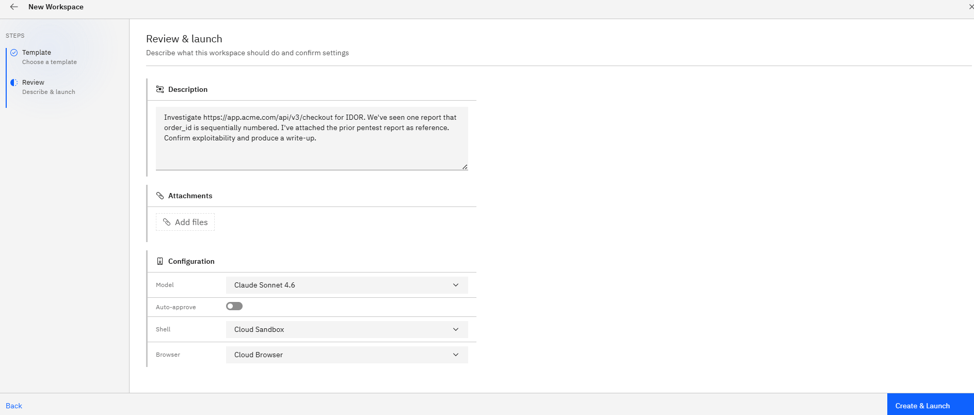
Use Add files to drop in scope docs, screenshots, prior reports, or any supporting material. Supported formats include .pdf, .docx, .txt, .md, .html, and .csv.
Step 4: Configure runtime
- Model: Pick the LLM tier — Standard, Advanced, or Lite.
- Browser: Cloud Browser (default) or Connected Browser.
- Shell: Optional. Attach if your task requires internal-network access.
- Auto-approve: Toggle on to let the agent run autonomously without pausing for confirmations.
Step 5: Launch
- Click Create & Launch.
- You're routed straight into the AI Chat for the new Workspace. The agent reads your description, plans the steps, and begins.
- Continue to guide the agent from chat as needed.
Where Can This Be Used?
Blank Workspaces are best for:
- Custom investigations that don't fit a standard template (e.g., "validate this CVE PoC against our staging server").
- Targeted exploit confirmation when a single bug needs deeper validation.
- Exploratory work where you want the AI to design the methodology itself.
- Chat-first engagements where you prefer a conversational workflow over a structured assessment.
Note: A Blank Workspace can always be promoted into a more structured assessment by asking the agent in chat — for example, "Save this as an Engagement and produce a formal Web App Pentest report."
Troubleshooting Tips
- If the agent immediately asks for clarifying questions, your description was likely too vague — re-state the goal, target, and what success looks like.
- If the agent can't reach the target, attach a Connected Browser or Shell depending on whether the target is a web app or an internal-network service.
- If your reference file contains sensitive credentials, scrub them before attaching — files become part of the Workspace context.
More in Agentic Pentesting
Was this page helpful?