
Configuring Snyk credentials
1 min readEdit
This article explains how to configure Snyk credentials within the Strobes platform. Setting up your Snyk integration allows you to sync vulnerabilities and assets directly from your Snyk environment into Strobes for streamlined security operations.
Steps to Configure Snyk Credentials
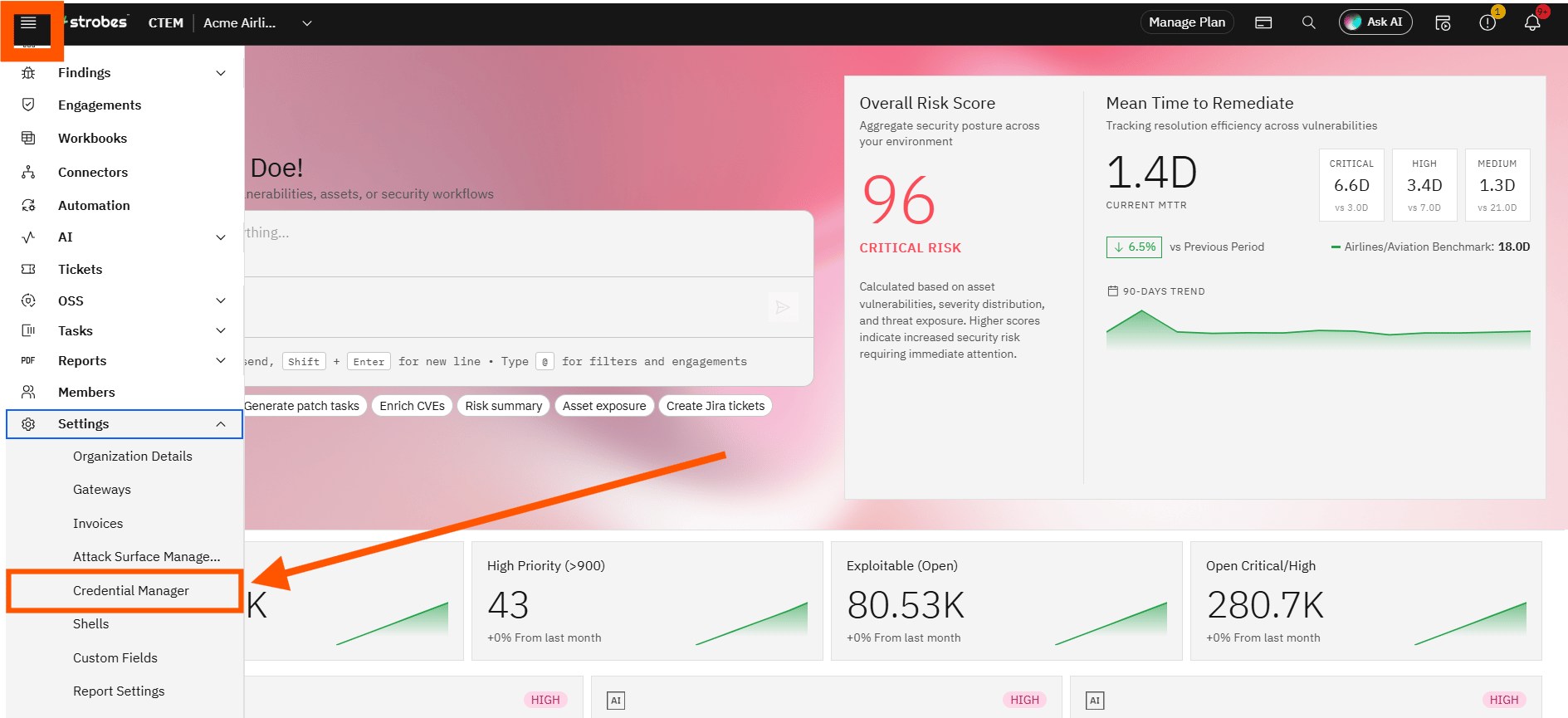
1. Go to Credential Manager
- Navigate to the Settings section from the left-hand sidebar.
- Click on Credential Manager.
2. Add a New Credential
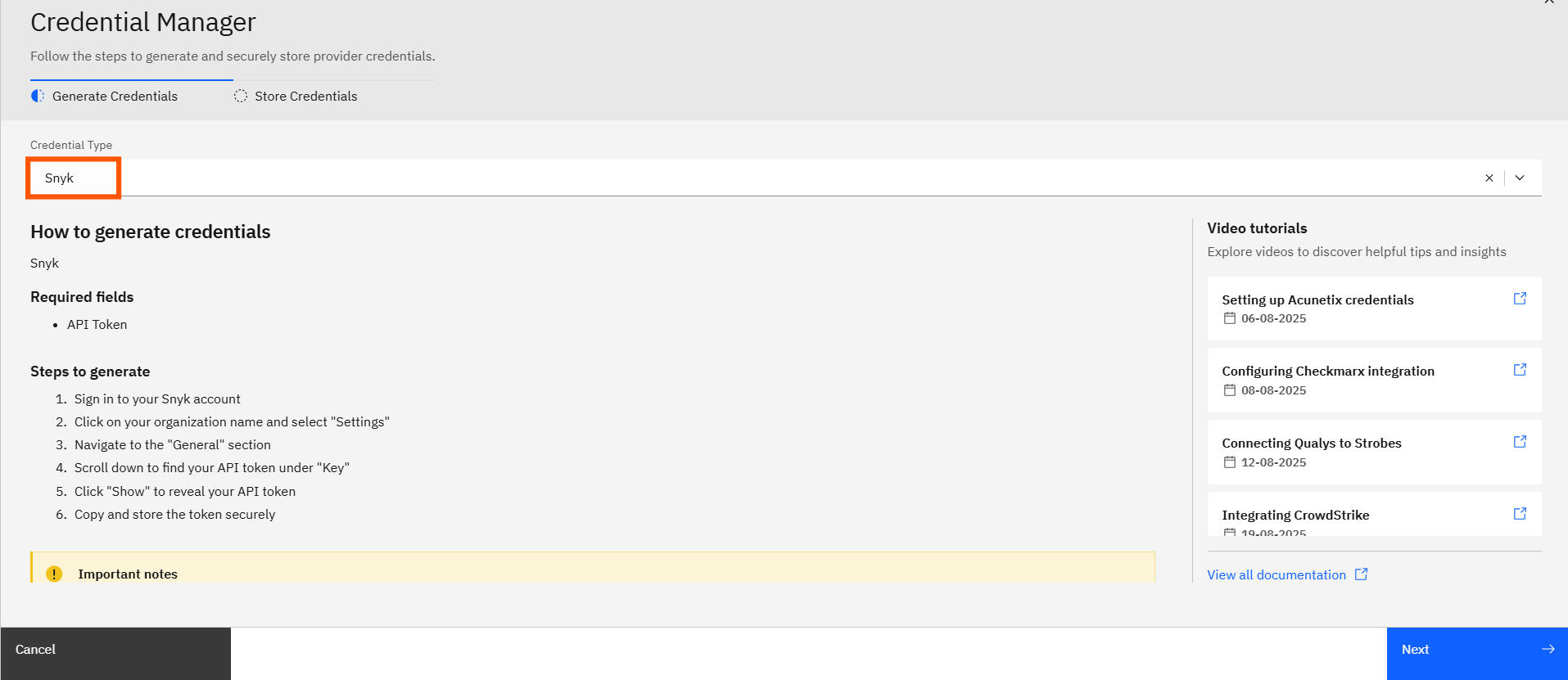
- Click on the Add Credential button.
- From the list of connectors, select Snyk.
3. Enter Configuration Details
In the configuration form:
- Enter a Name for your Snyk configuration (e.g., Snyk-Prod).
- Paste your Snyk API Key into the relevant field.
4. Save the Configuration
- Click on Save.
- Your Snyk credential is now securely stored in Strobes and ready to be used for setting up integrations.
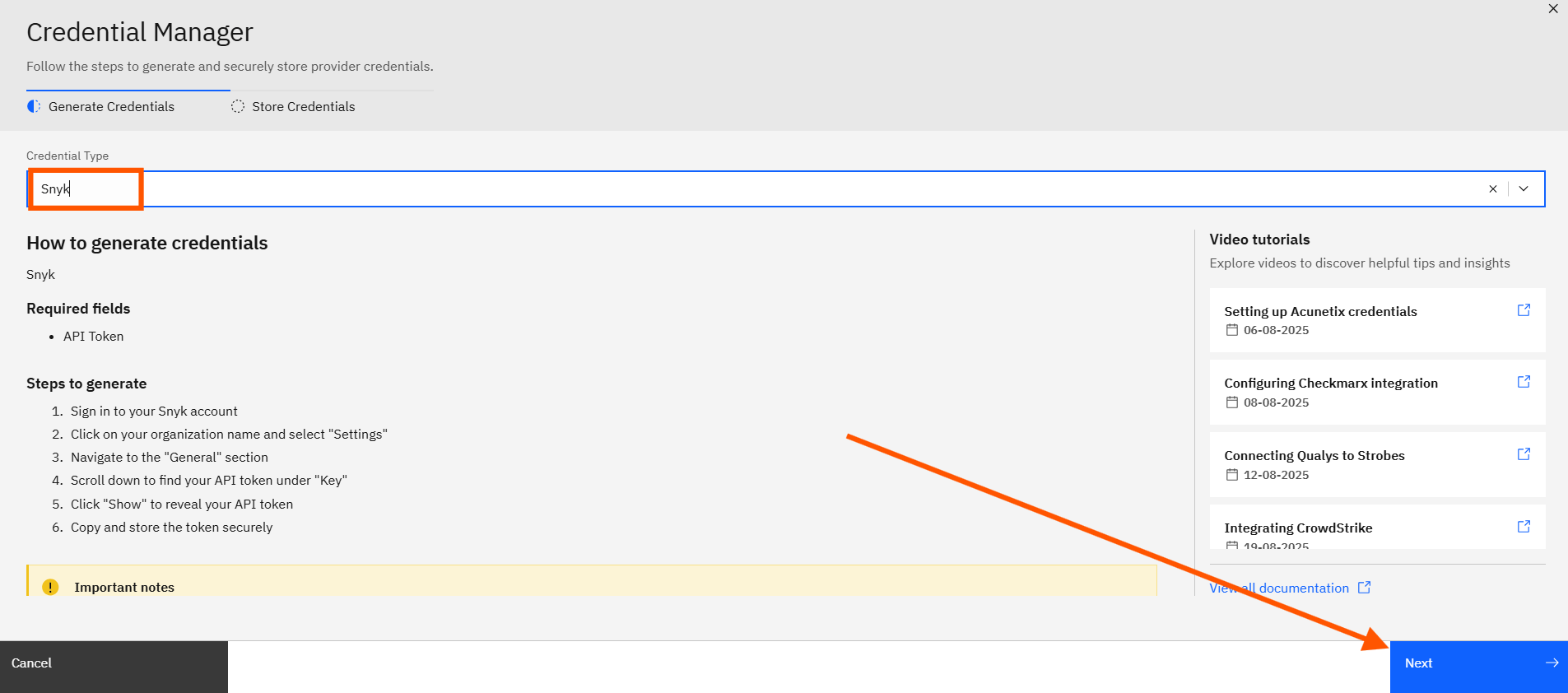
Once credentials are saved, you can proceed to sync assets and vulnerabilities from your Snyk account. Refer to this guide to set up the Snyk connector and start pulling data into Strobes.
Interactive walkthroughClick through it
More in Application security tools
Was this page helpful?