
Editing and Archiving Vulnerabilities
1 min readEdit
You can easily modify or archive vulnerability records in Strobes based on your current assessment needs. Follow the steps below to edit details or archive unnecessary vulnerabilities.
How to Edit a Vulnerability
If you need to update details for an existing vulnerability:
1. Go to the Vulnerabilities section from the left-hand menu.
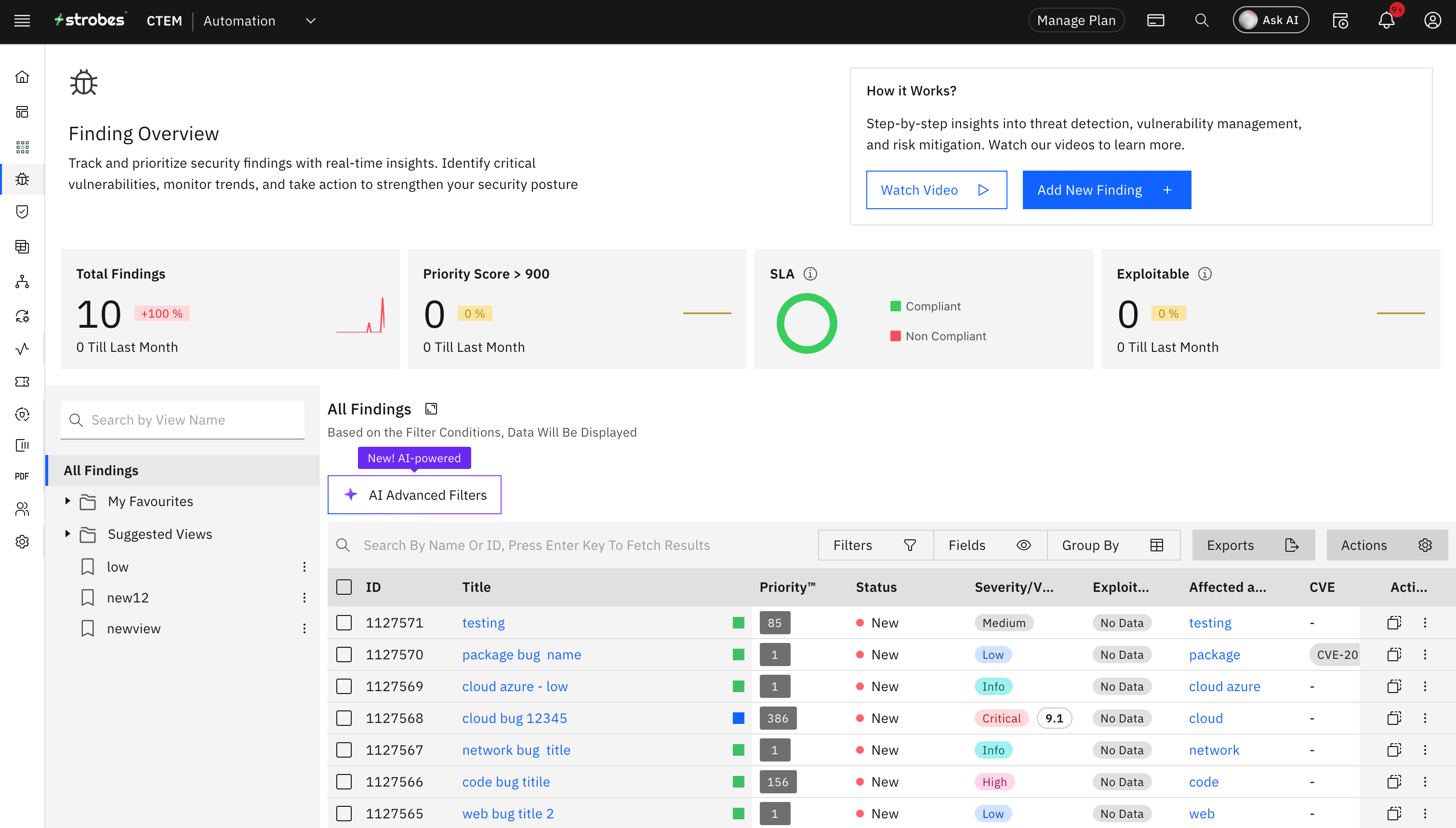
2. Locate and select the vulnerability you want to edit.
3. Click on the Edit option at the top right.
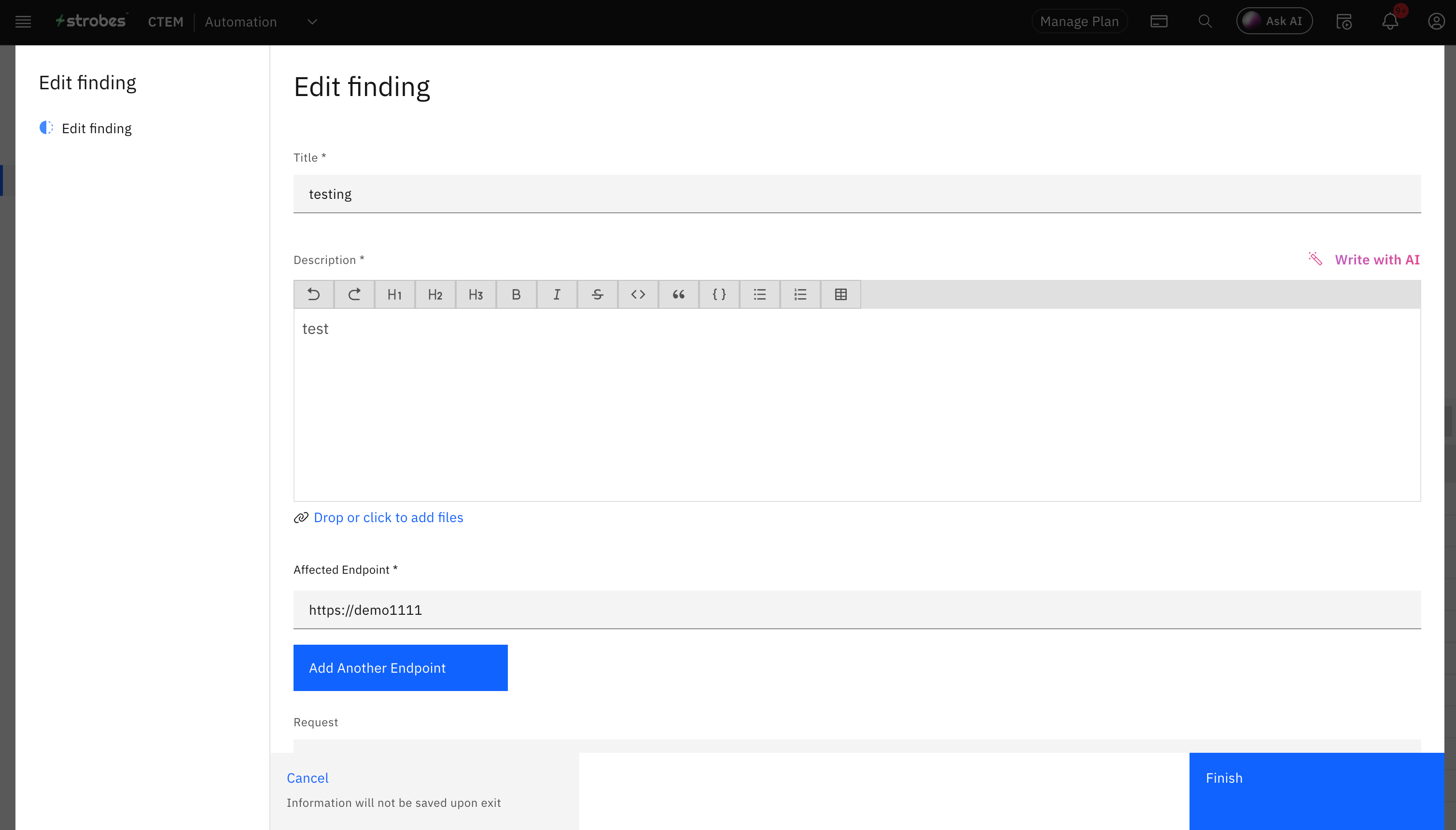
4. A form will appear with editable fields based on the type of vulnerability (application, network, etc.).
5. Make the required changes, then click Finish to save your updates.
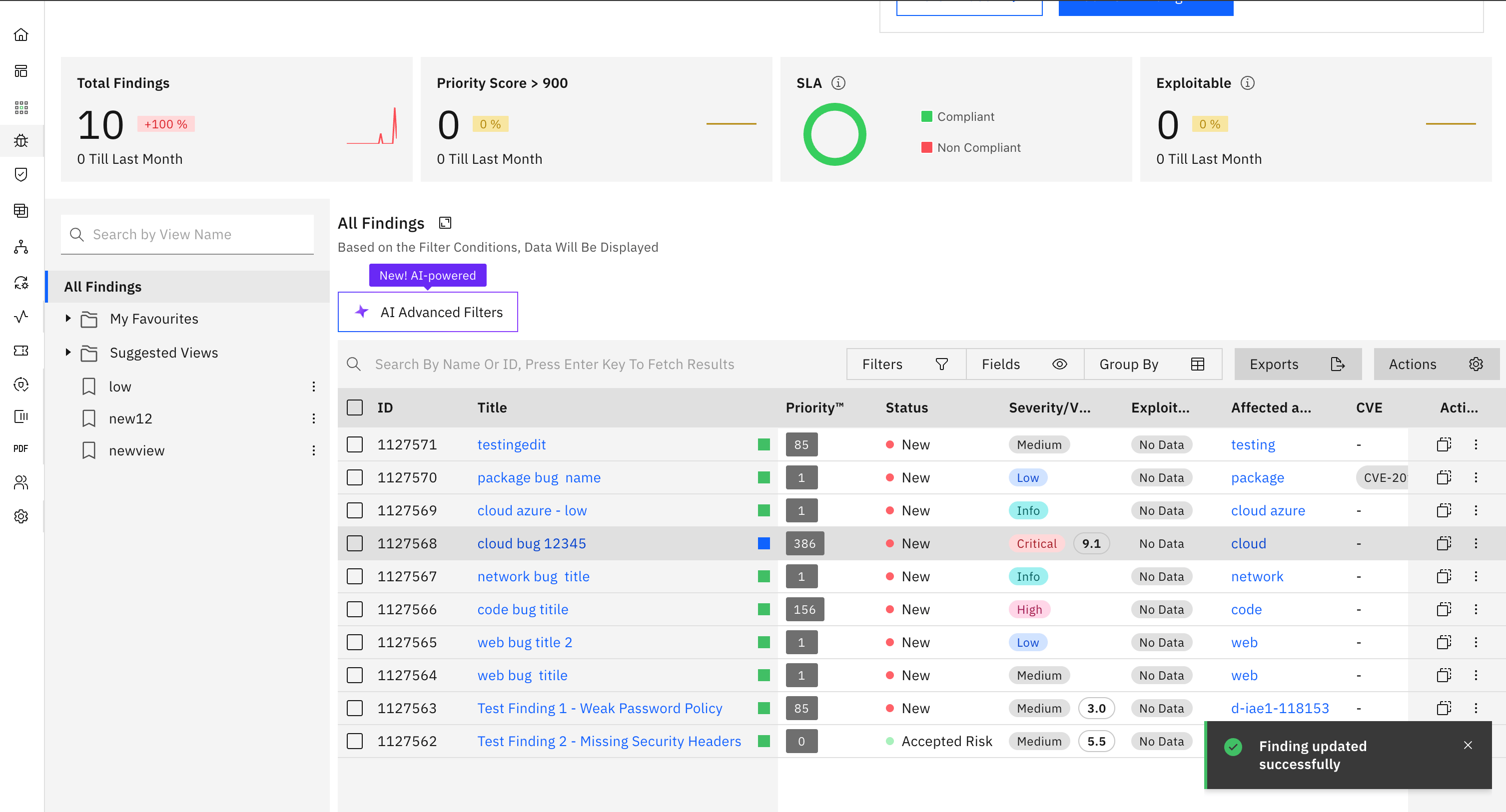
Tip: You can update fields like severity, description, remediation steps, asset mapping, and more depending on your permissions.
How to Archive a Vulnerability
If a vulnerability is no longer relevant or needs to be removed from active tracking:
- Navigate to the Vulnerabilities section.
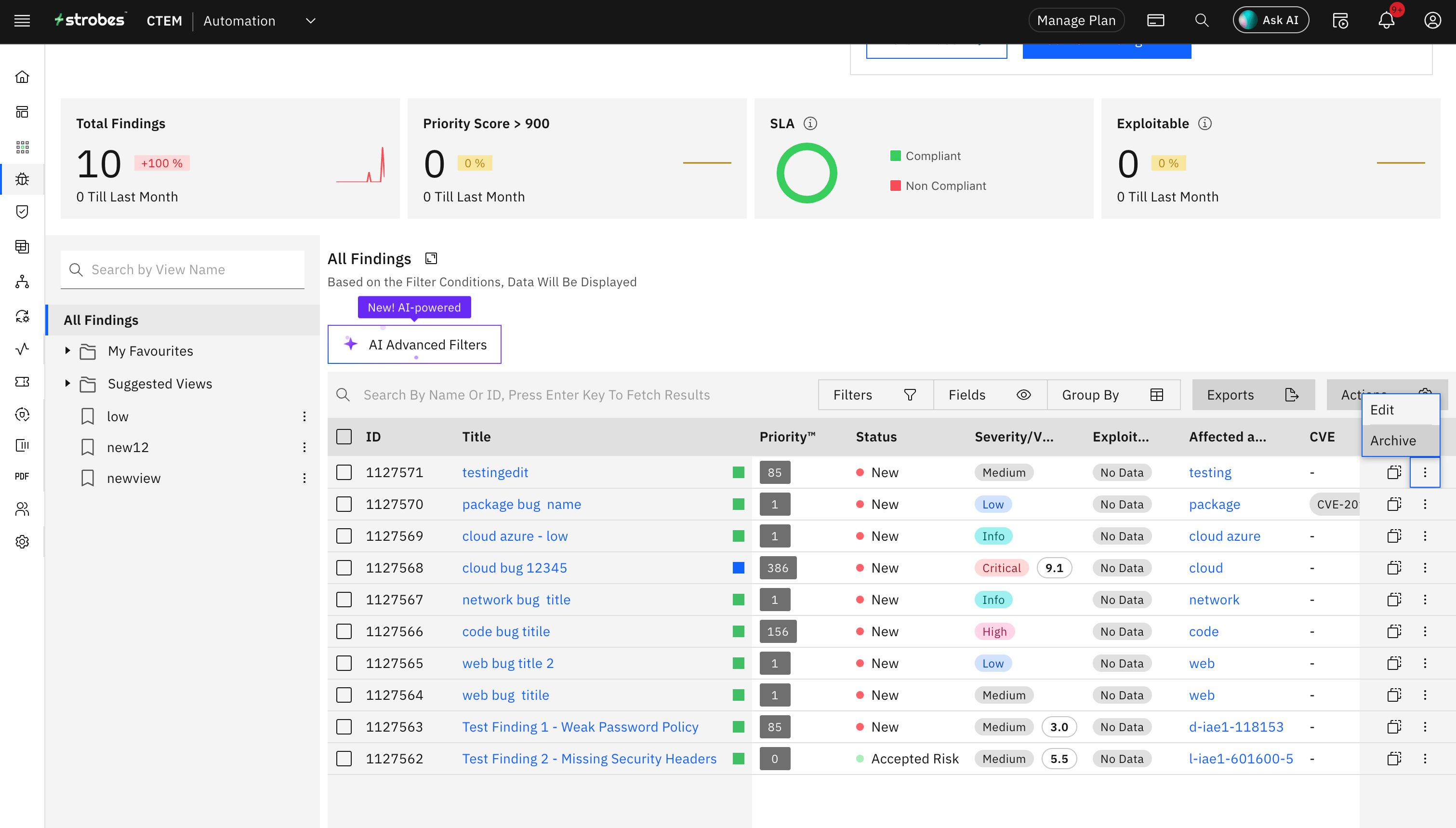
- Select the vulnerability you want to archive.
- Click on the Archive button.
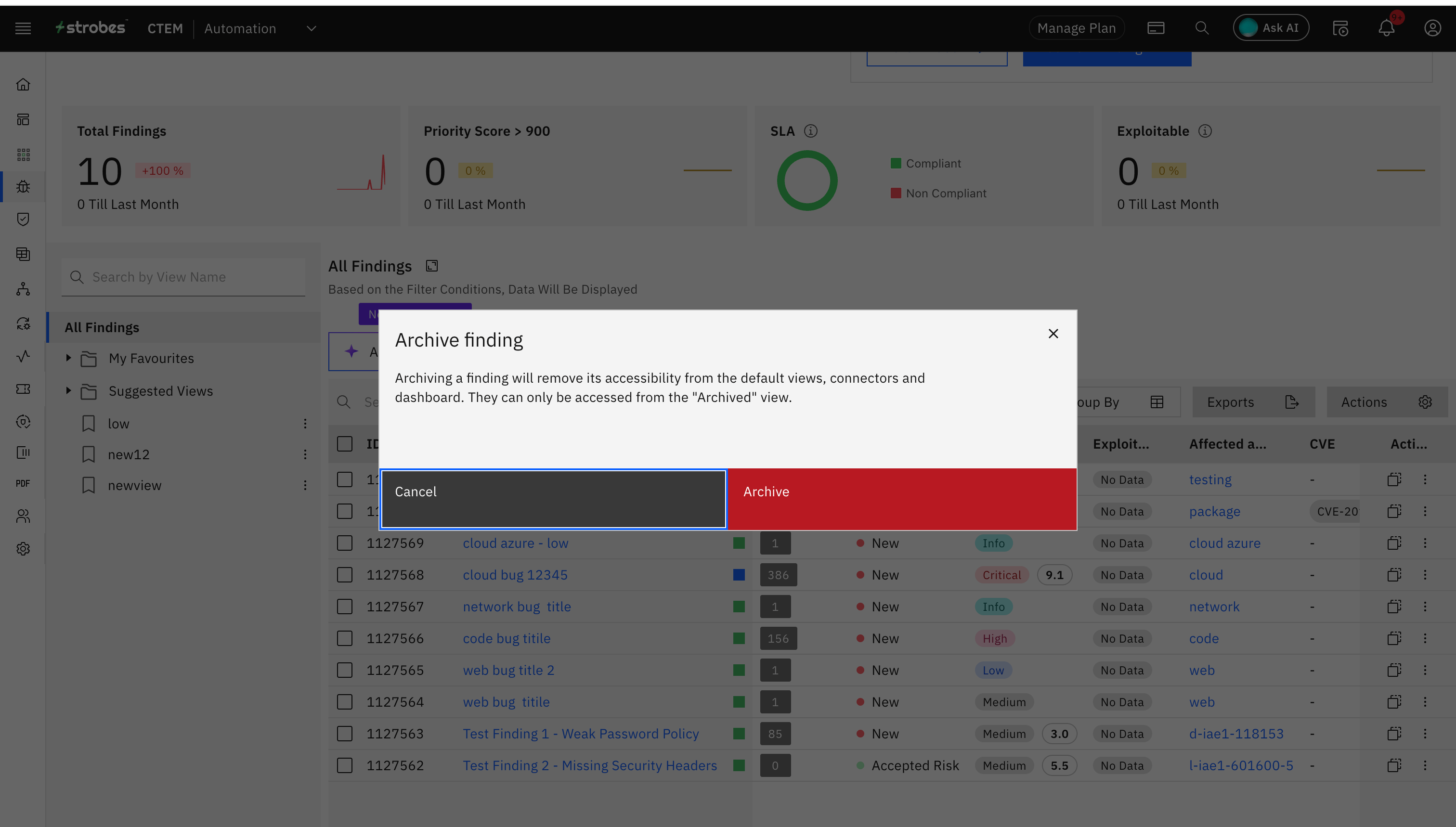
Once archived, the vulnerability will be moved out of the active list.
Note: Archived vulnerabilities are retained based on your configured data retention policy. You can review or update this policy under Settings > Data Retention.
More in Findings
Was this page helpful?