
Bulk actions on findings
3 min readEdit
On this page⌄
There are certain actions which you can perform in bulk for vulnerabilities instead of updating that data individually for all the vulnerabilities. The following are the bulk actions that you can carry out on vulnerabilities:
- SLA
- Send to
- Add Tags
- Severity
- State
- Assignee
- Archive
- Add Comment
- Edit Fields
- Add to Engagement
SLA Bulk Action
If you need to bulk update the SLA for multiple vulnerabilities at once, you can use this option.
- Select the vulnerabilities for which you need to update the SLA.
- Click on 'SLA'.
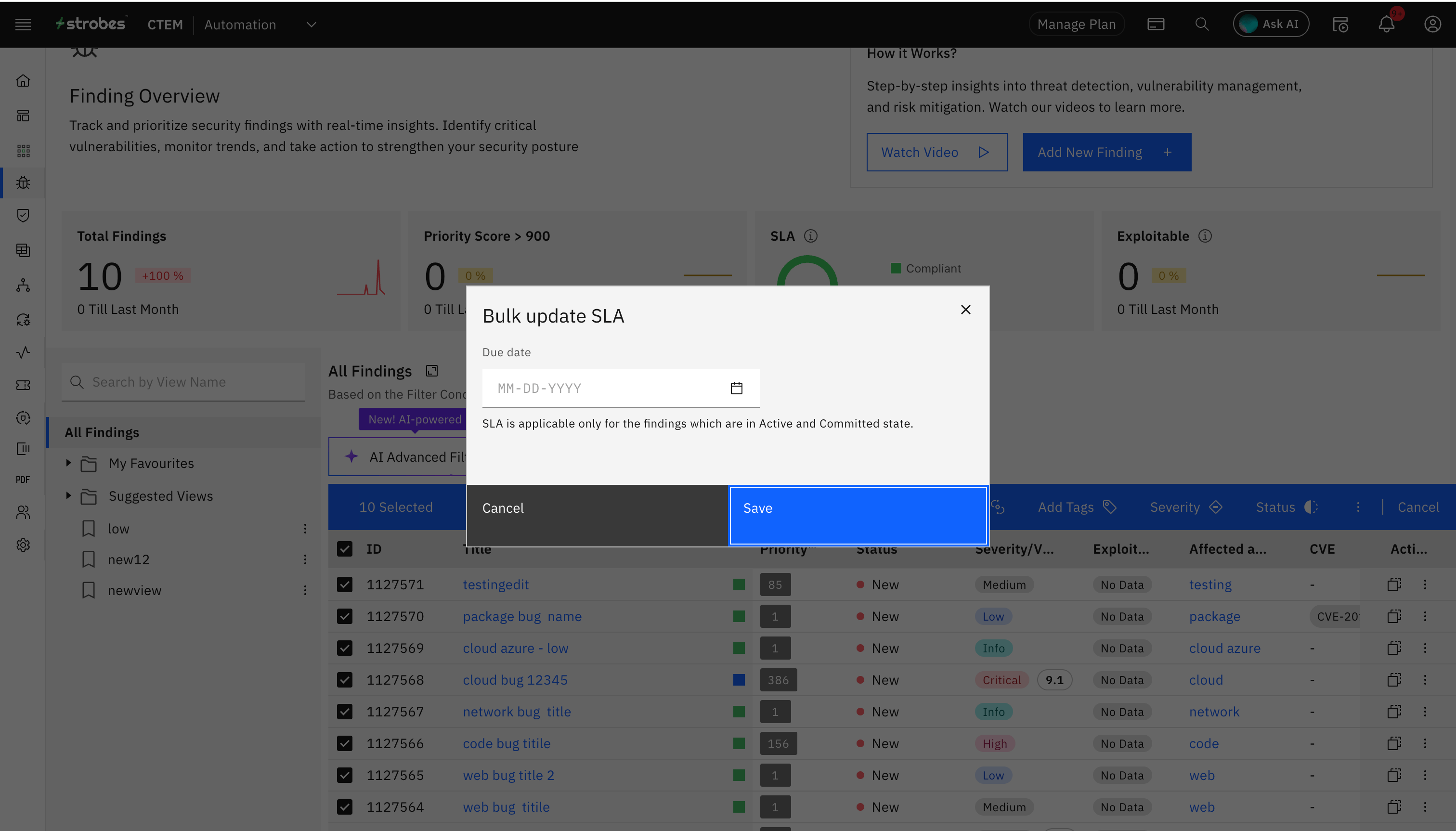
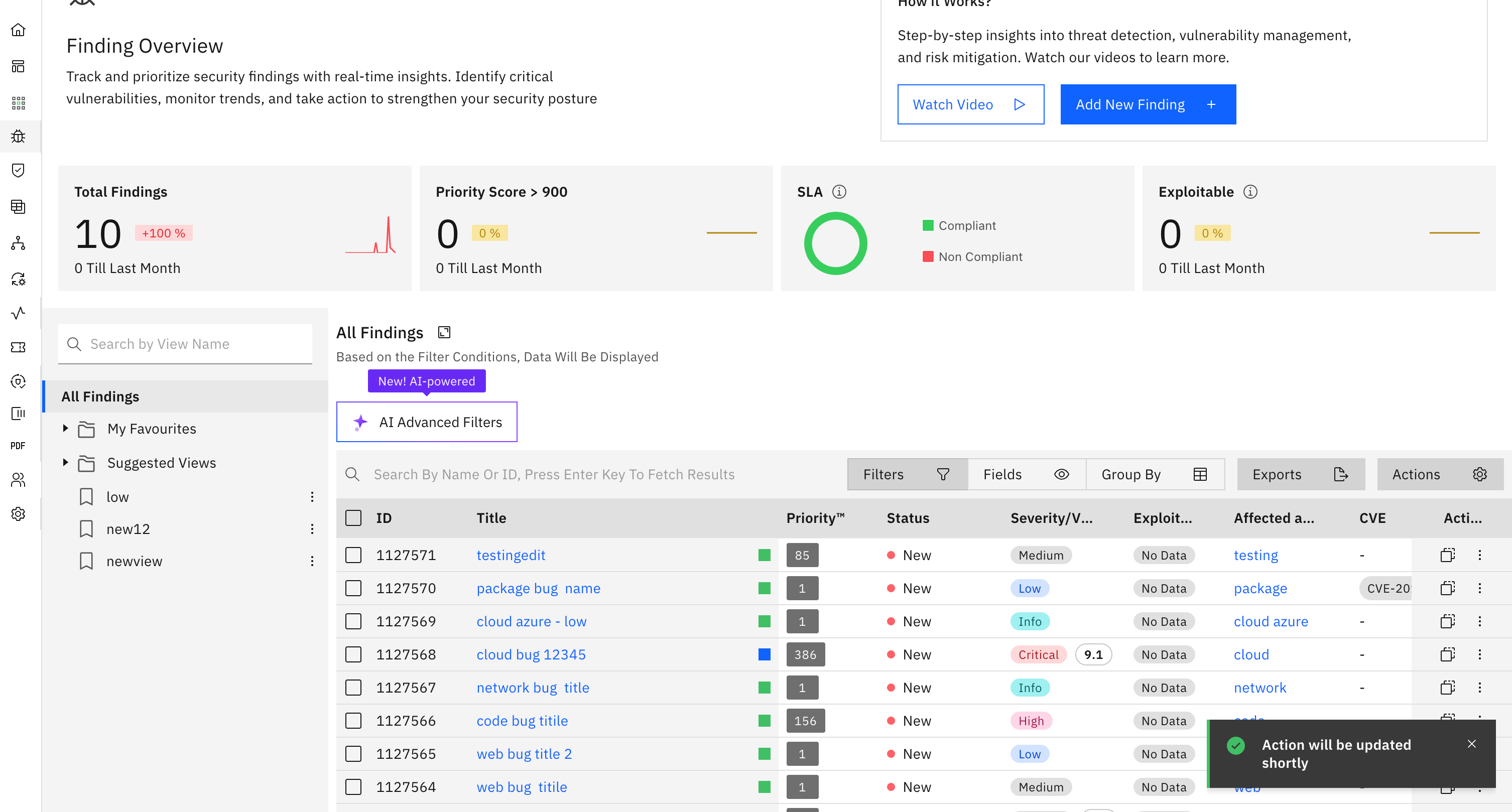
- Select the due date and click on 'Save'.
Send to Bulk Action
If you need to send details about multiple vulnerabilities to Microsoft Teams or Slack at once, you can use this option. You can also use this option if you need to create Jira tickets for multiple vulnerabilities at once.
- Select the vulnerabilities for which you need to bulk send notifications or bulk create jira tickets.
- Click on 'Send to'.
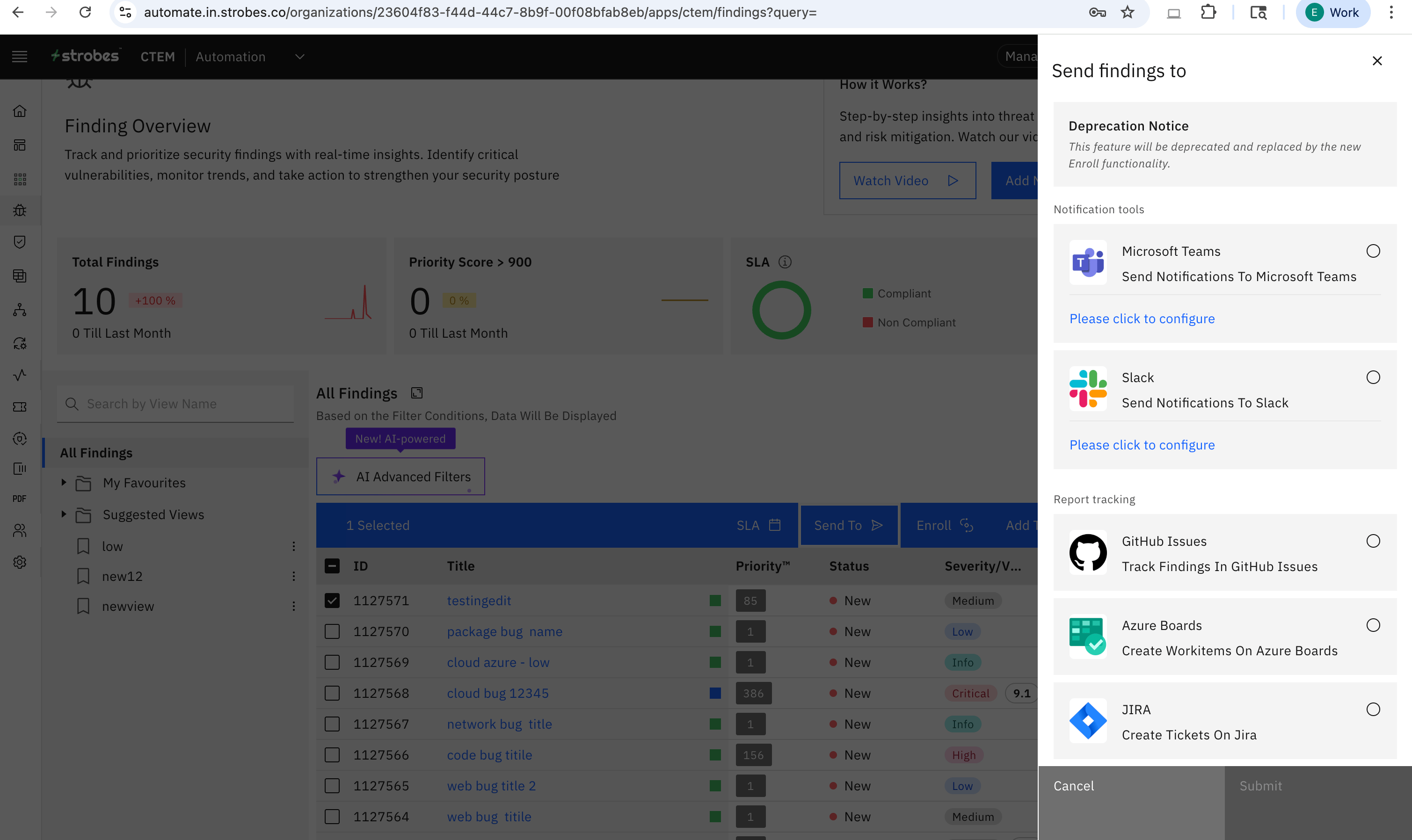
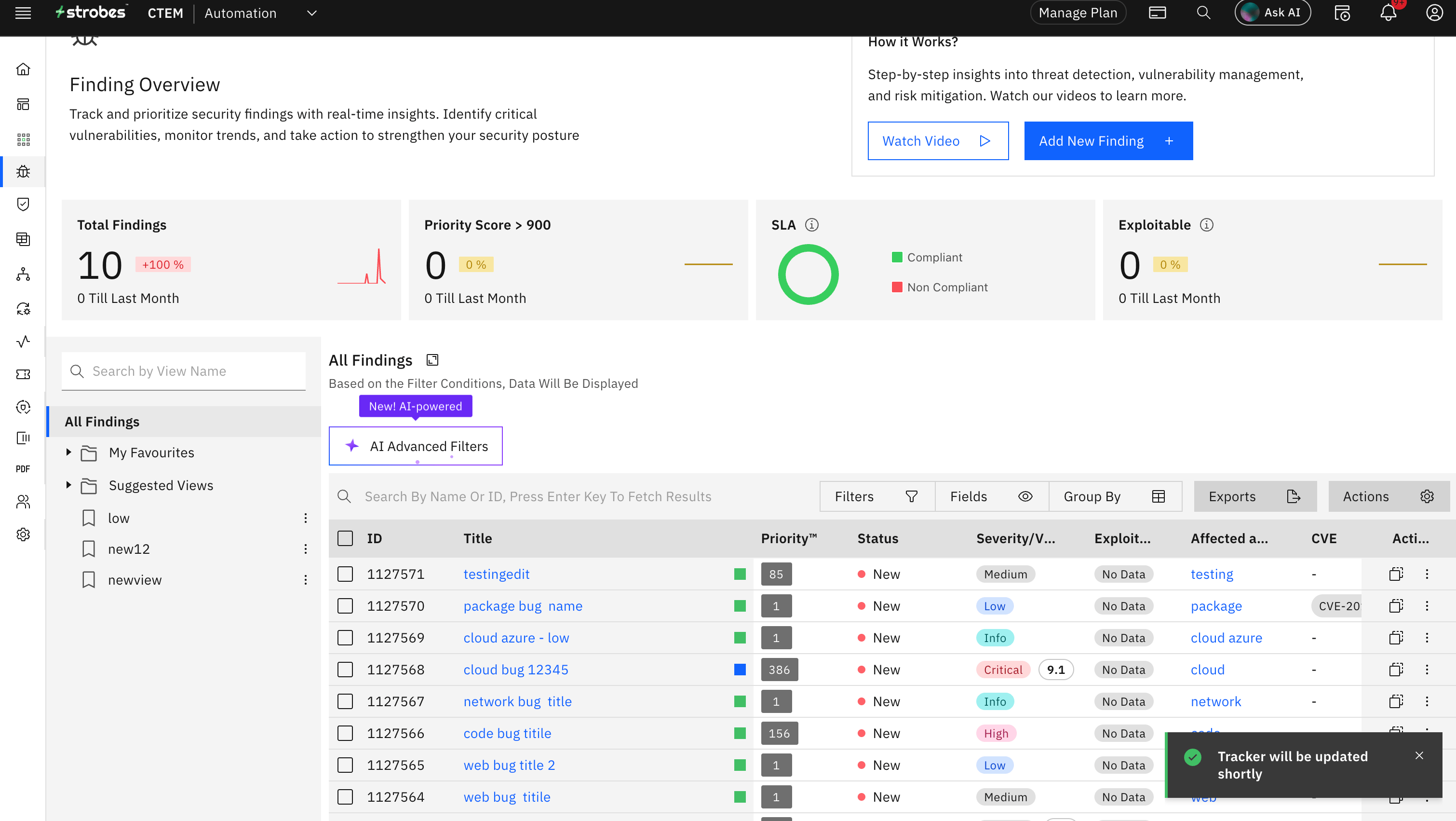
- Select the Notification tool or Issue tracking tool and click on 'Submit'.
Add Tags Bulk Action
If you need to add a tag to multiple vulnerabilities at once, you can use this option.
- Select the vulnerabilities for which you need to add a tag.
- Click on 'Add tags'.
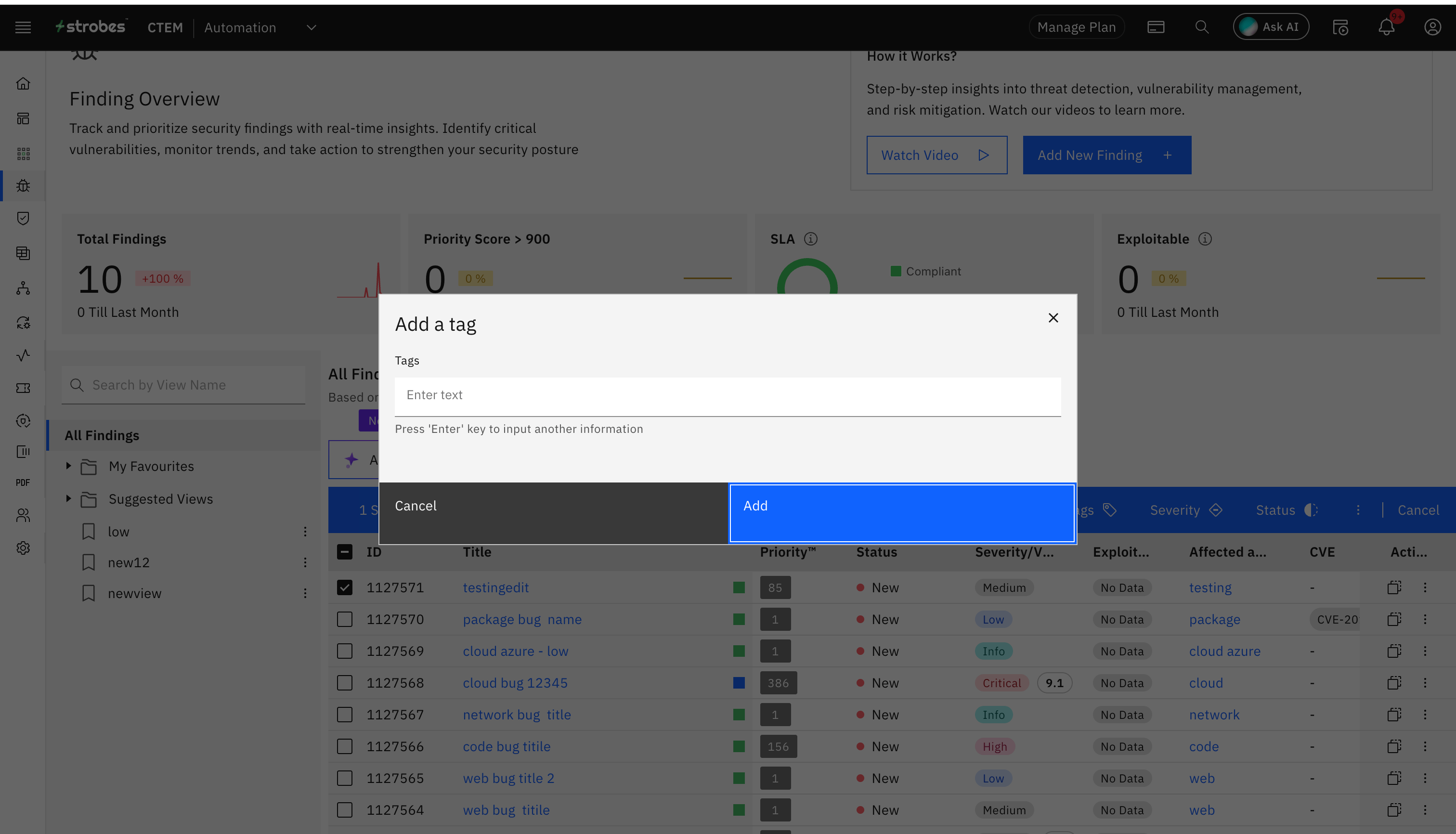
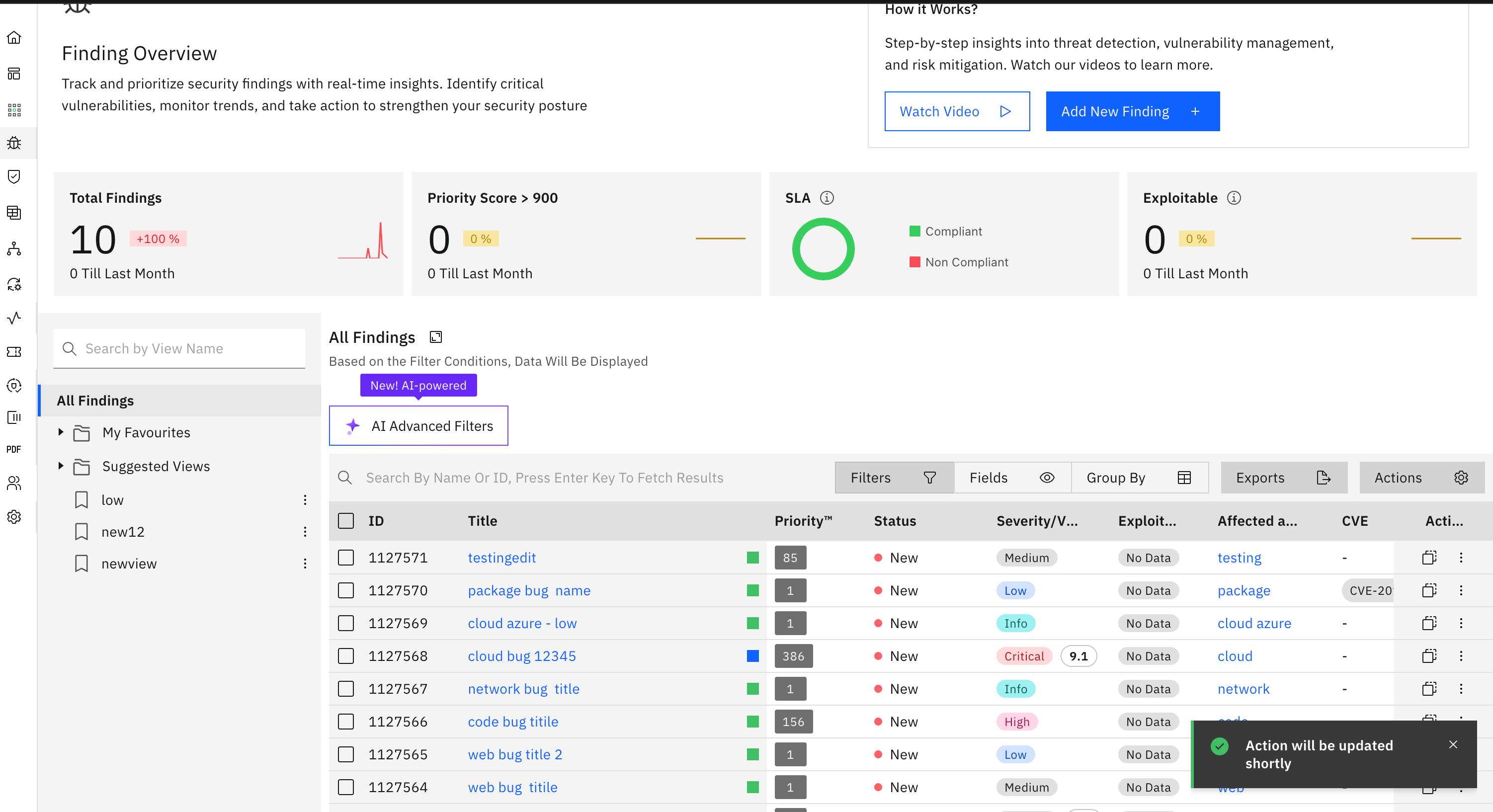
- Enter your tags and click on 'Add'.
Severity Bulk Action
If you need to update the severity of multiple vulnerabilities at once, you can use this option.
- Select the vulnerabilities for which you need to update the severity.
- Click on 'Severity'.
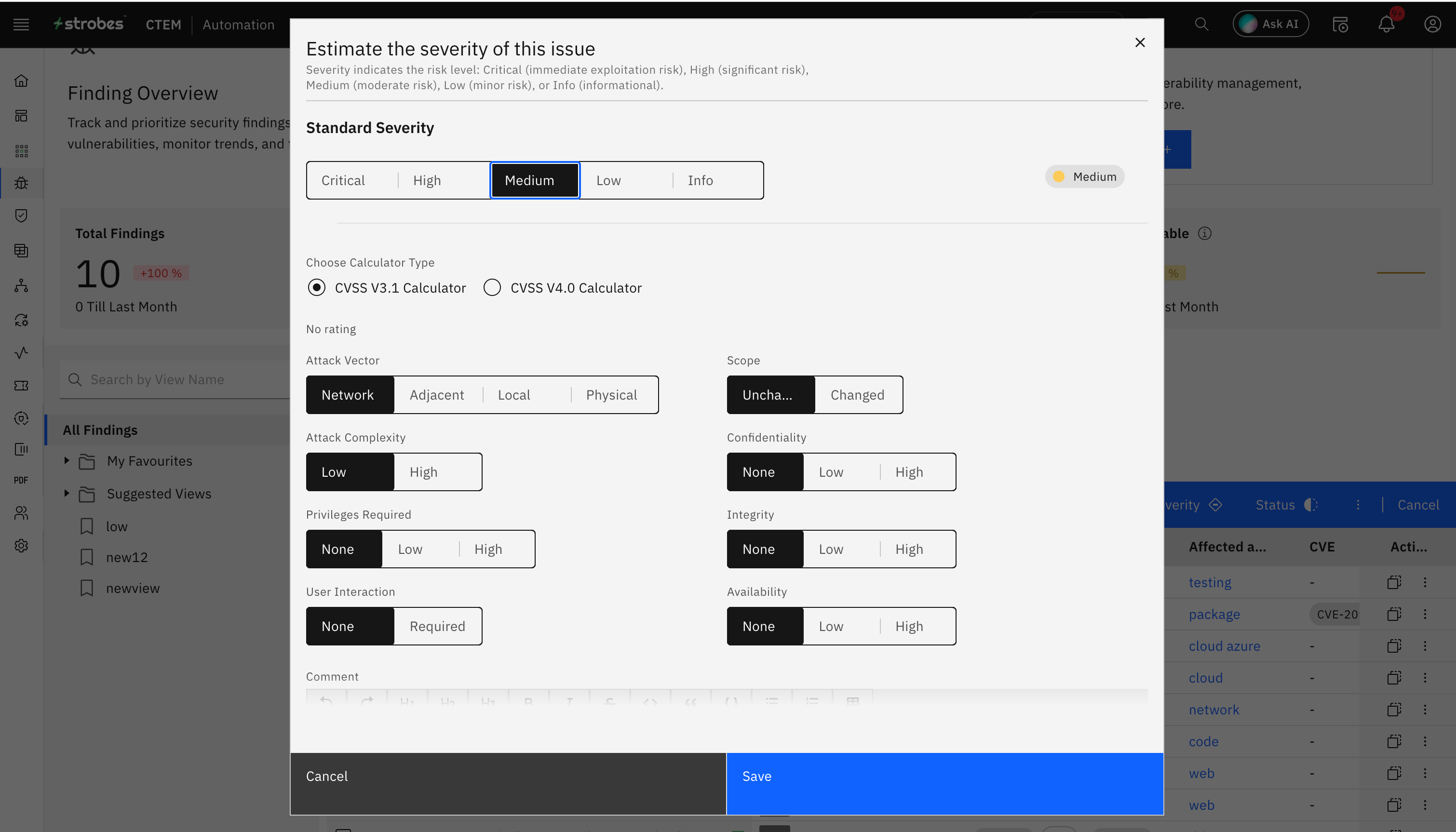
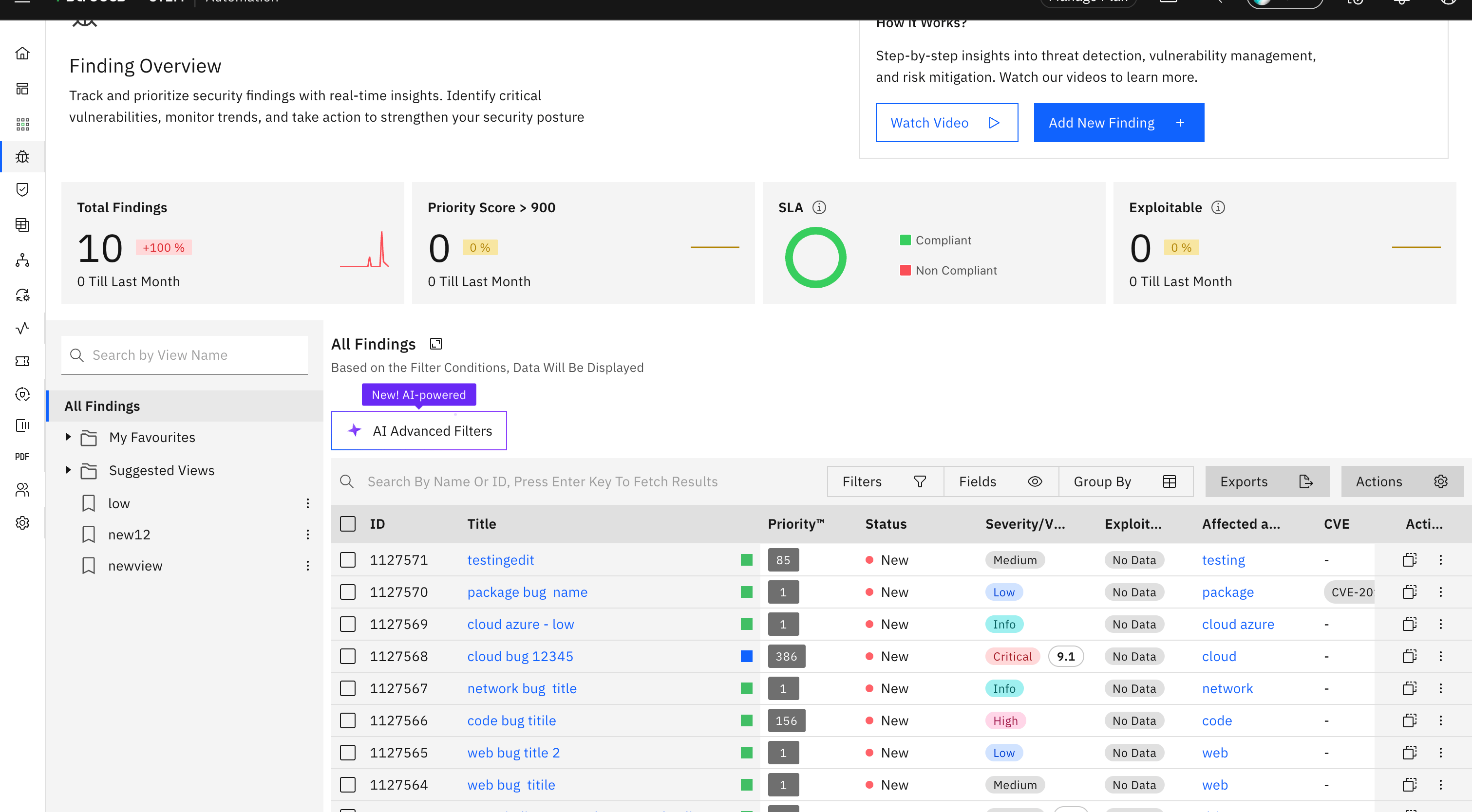
- Update the severity and click on 'Save'.
State Bulk Action
If you need to update the state of multiple vulnerabilities at once, you can use this option.
- Select the vulnerabilities for which you need to update the state.
- Click on 'State'.
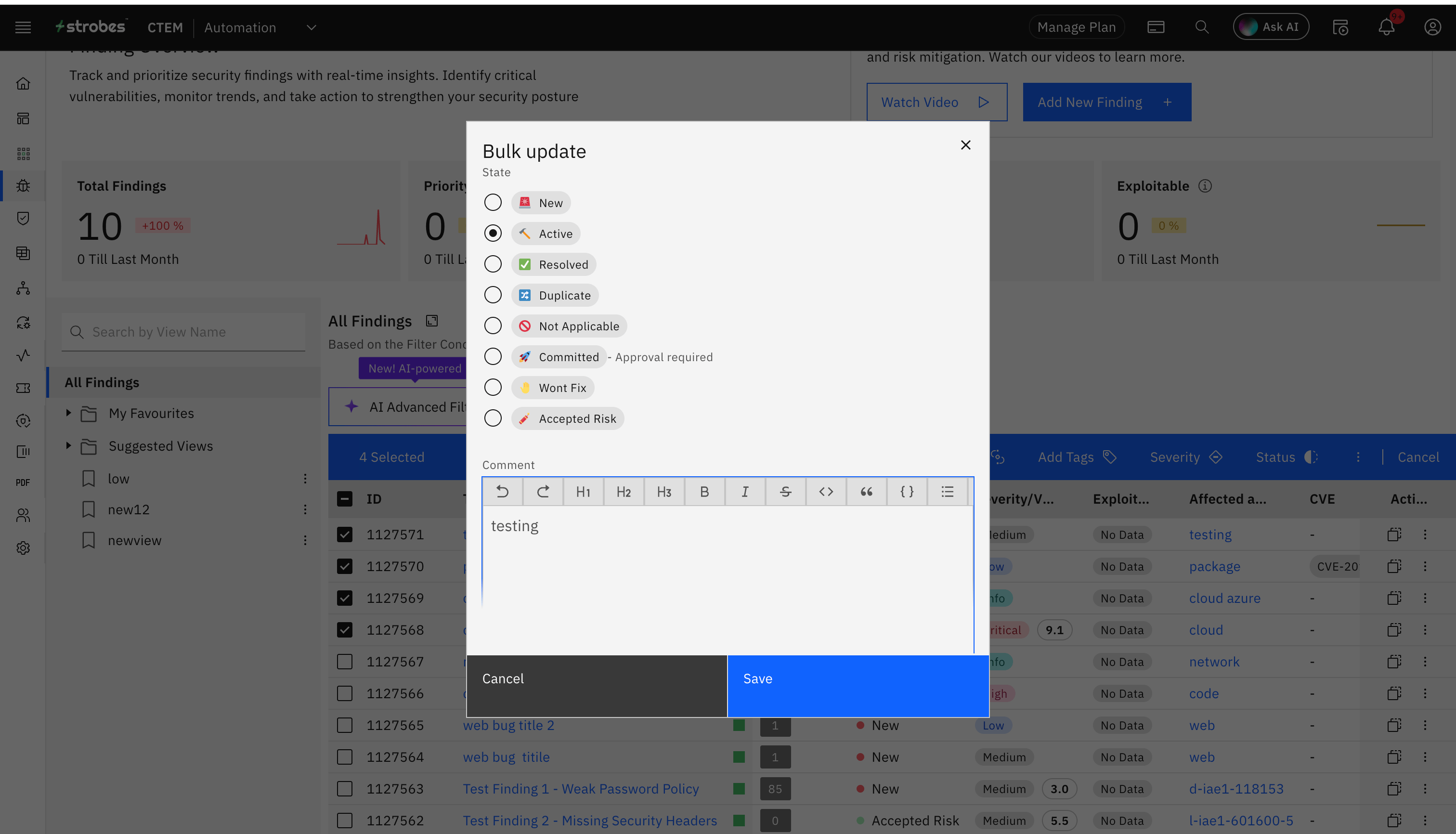
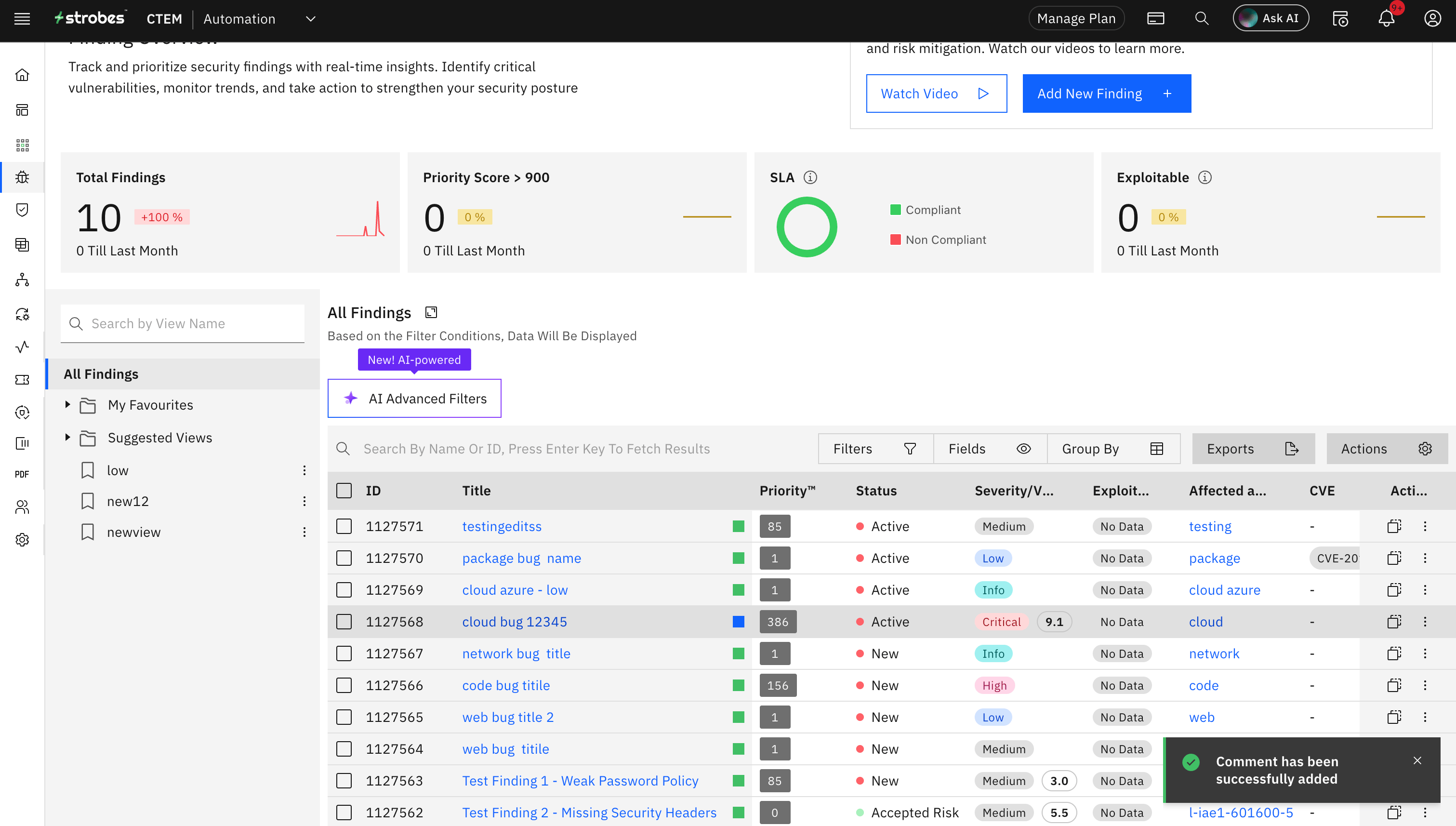
- Select the state and click on 'Save'. You can also leave any comments if needed.
Asignee Bulk Action
If you need to assign multiple vulnerabilities to one or more users, you can use this option. You can also use this option if you need to unassign multiple vulnerabilities for one or more users.
- Select the vulnerabilities for which you need to assign/unassign users.
- Click on options and click on 'Assignee'.
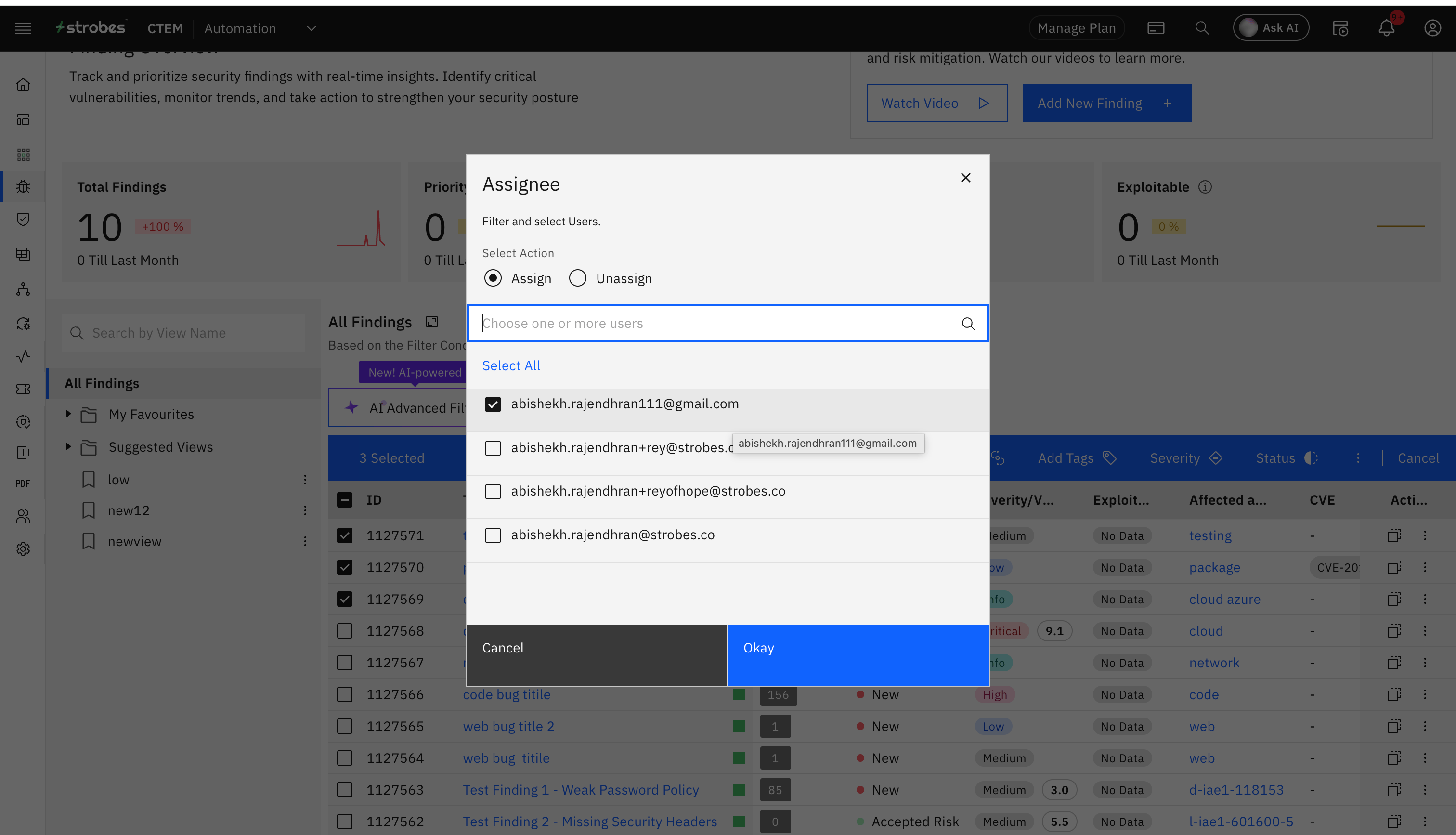
- Select whether you need to 'Assign' or 'Unassign' users.
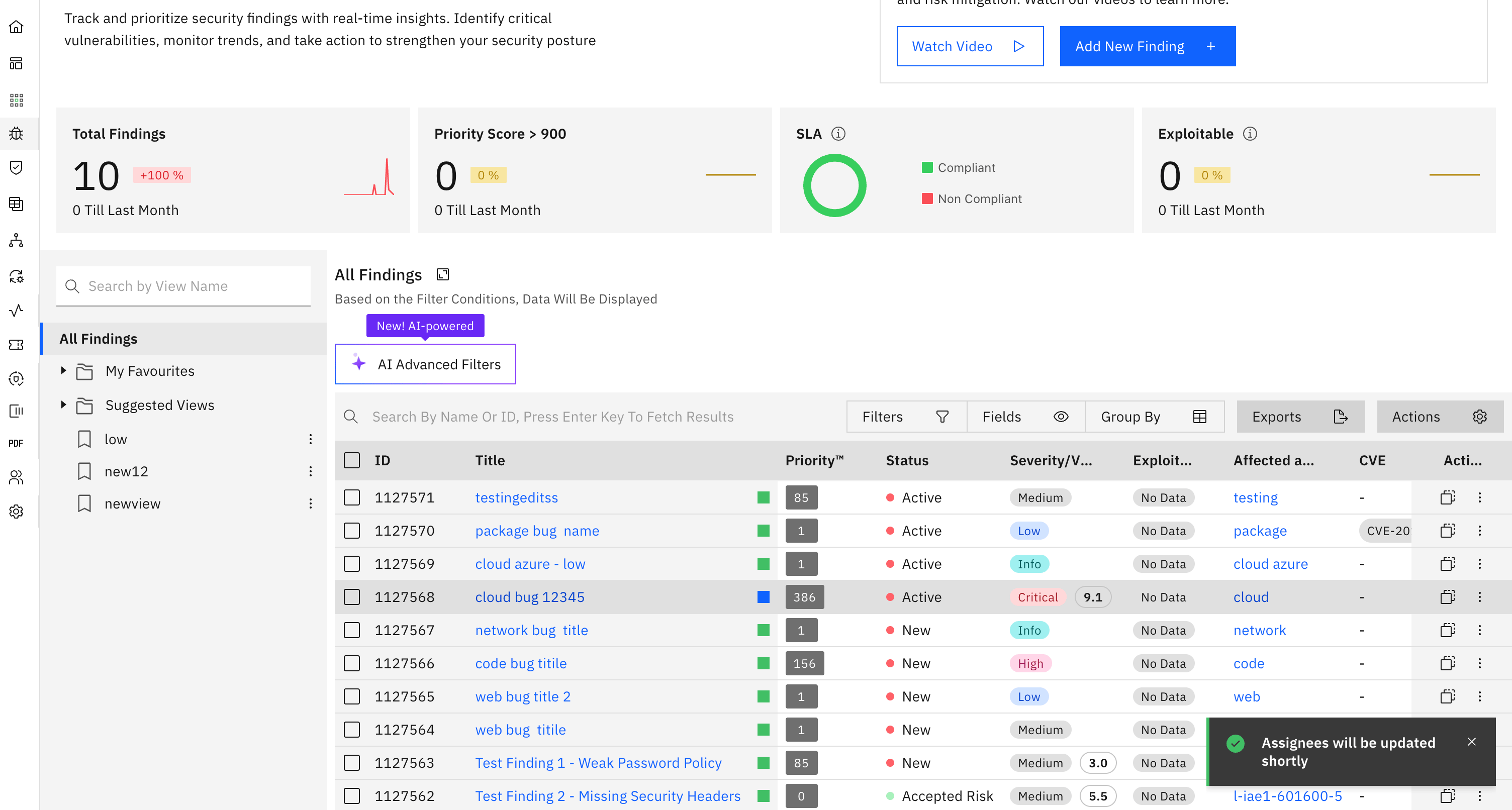
- Select the users and click on 'Okay', depending on the action you have selected users will either be assigned or unassigned.
Archive Vulnerabilities Bulk Action
If you need to archive multiple vulnerabilities at once, you can use this option.
- Select the vulnerabilities which you need to archive.
- Click on options and click on 'Archive'.
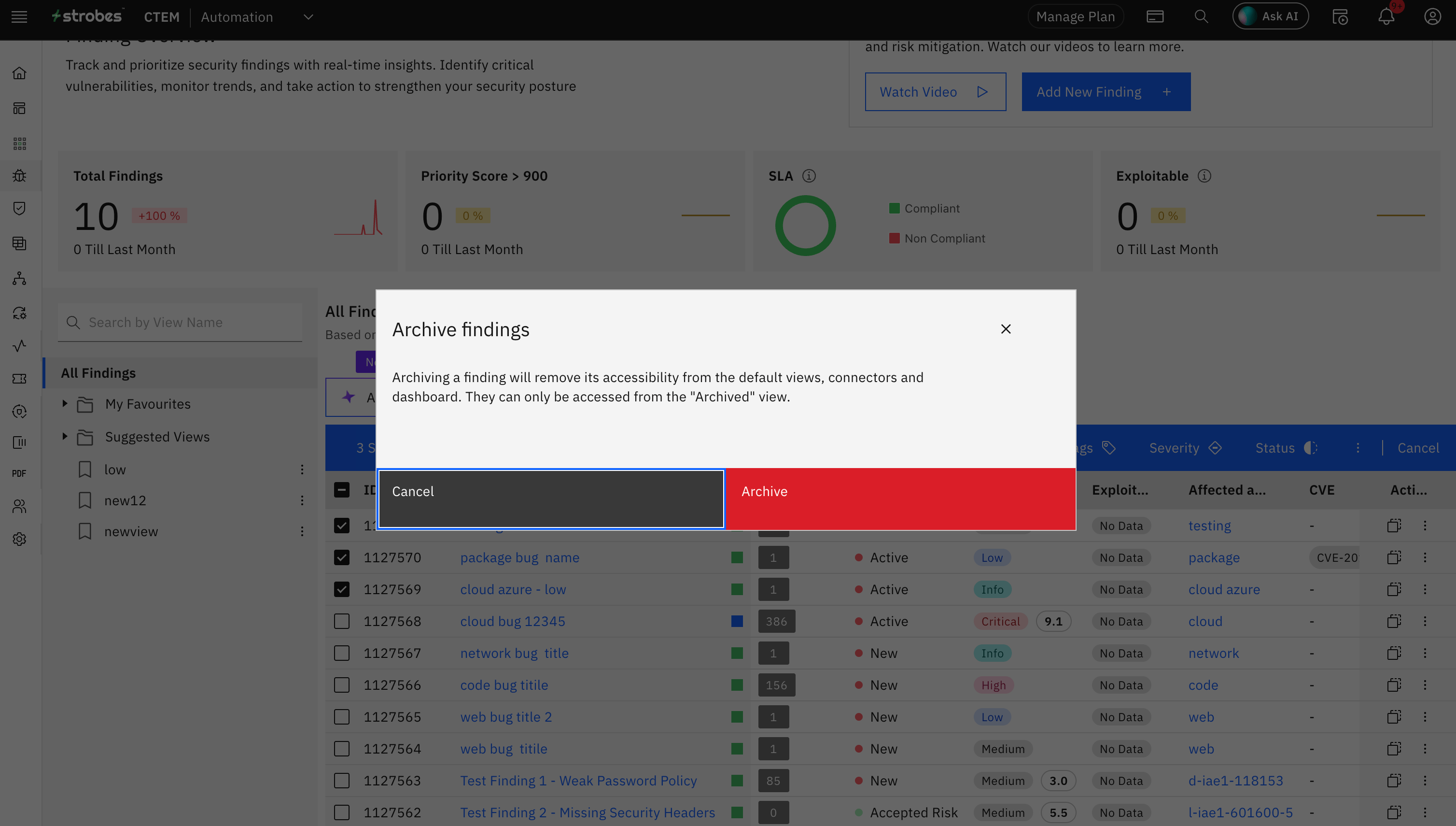
- You will be presented with a confirmation pop up. If you wish to go ahead and archive the vulnerabilities, click on 'Archive'.
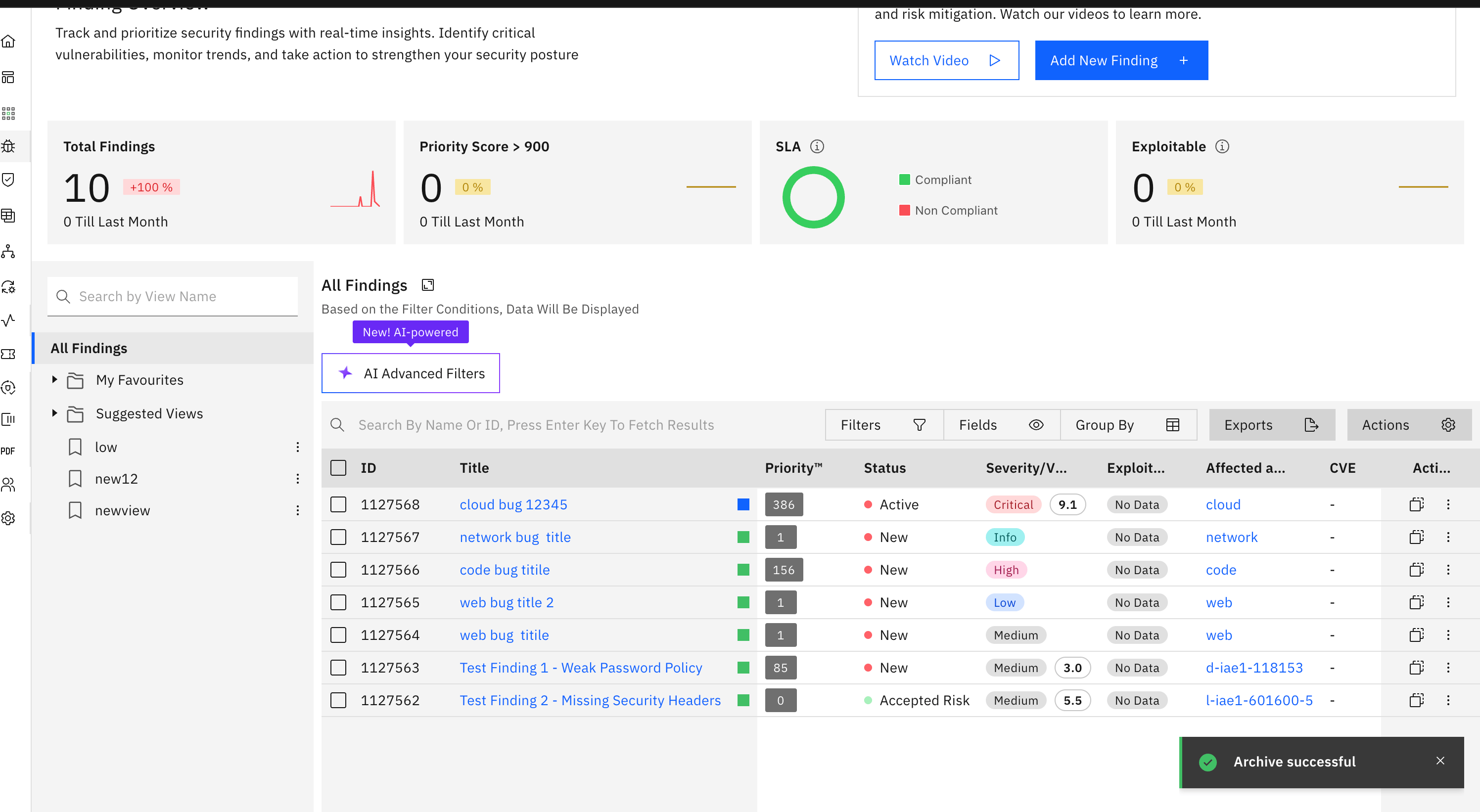
NOTE: The archived vulnerabilities will be stored on strobes according to the data retention policy which you have set up. More about data retention here.
Add Comment Bulk Action
If you need to bulk add comment to multiple vulnerabilities at once, you can use this option.
- Select the vulnerabilities for which you need to bulk add comment.
- Click on options and click on 'Add Comment'
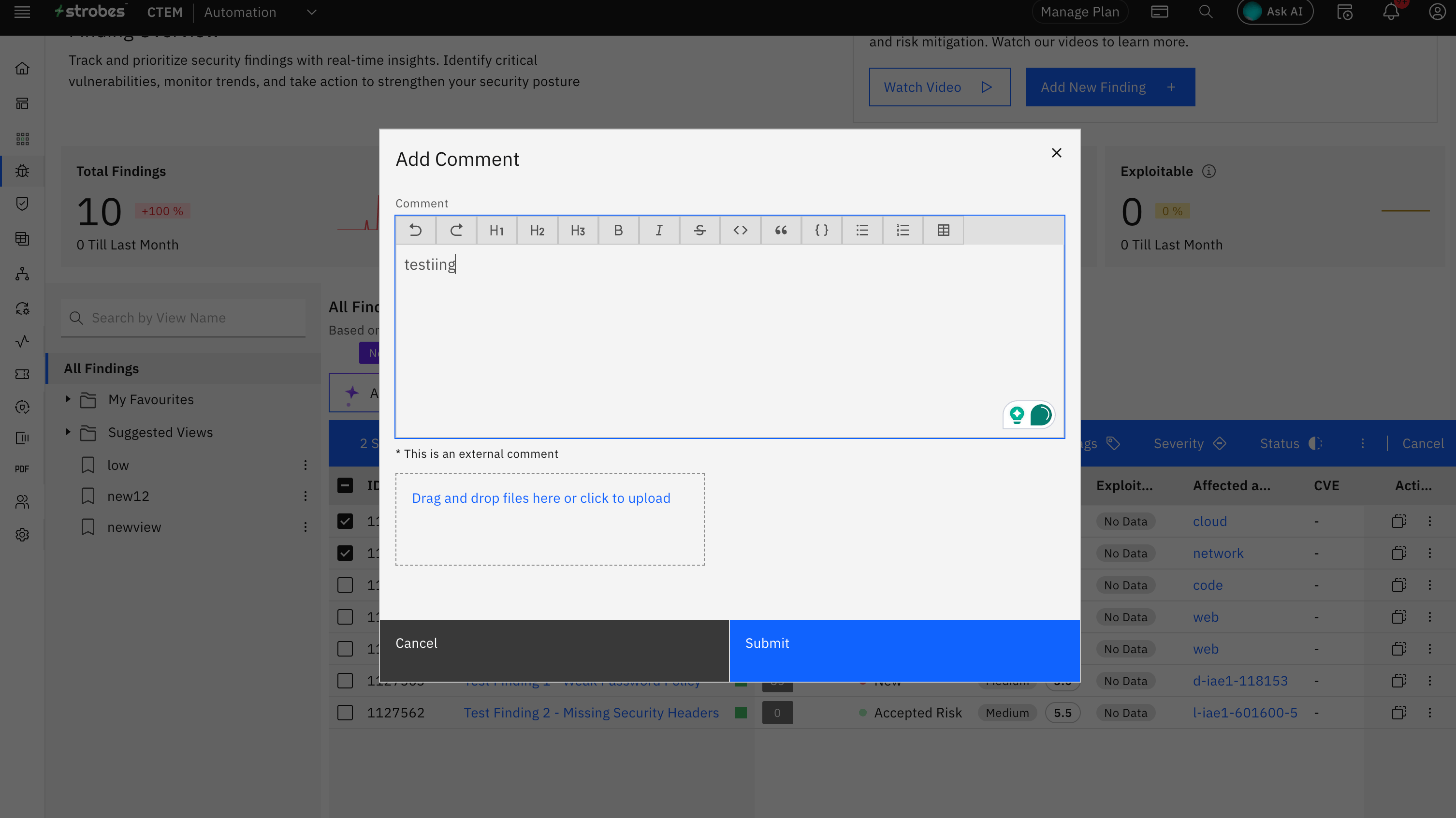
- Enter the comment, upload any files if you need to and click on 'Submit'
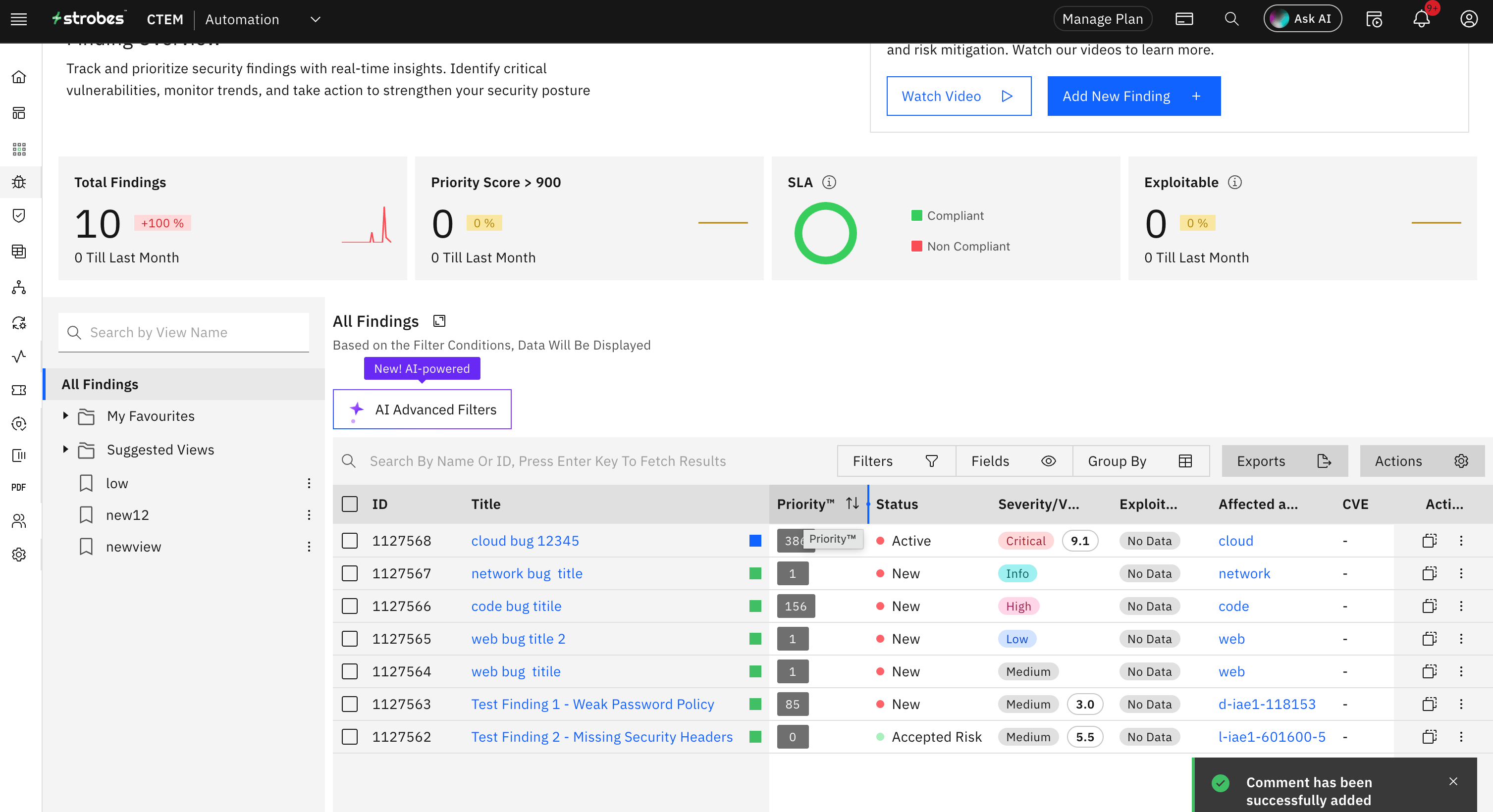
- The comment will be added to all the selected vulnerabilities.
Edit Fields Bulk Action
The following are the fields that can be edited in bulk:
- Title
- Description
- Mitigation
- Steps to Reproduce
- Any custom fields that are added. More about custom fields here.
If you need to bulk update any of these fields, you can use this option.
- Select the vulnerabilities for which you need to bulk edit the above mentioned fields.
- Click on options and click on 'Edit Fields'
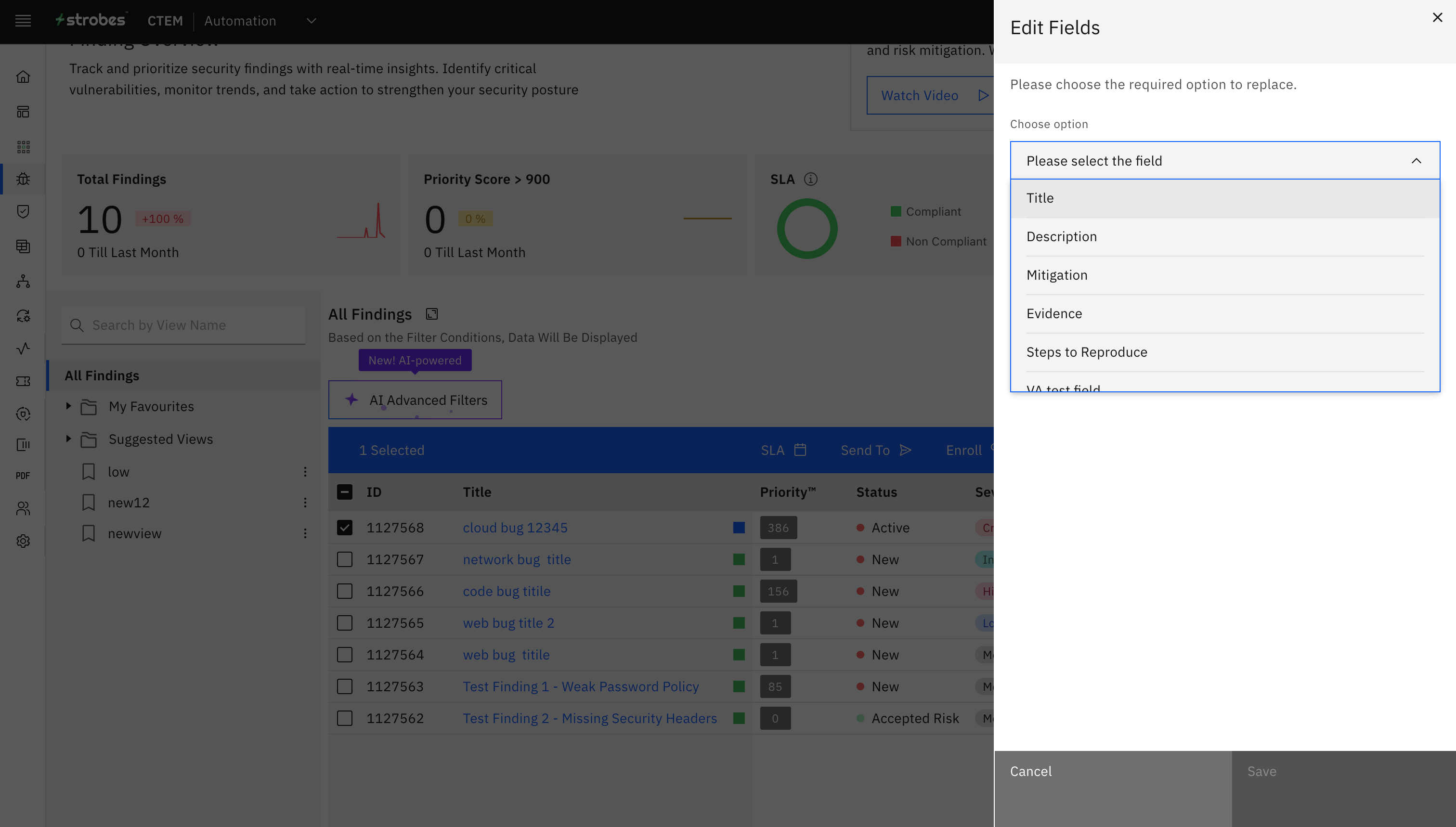
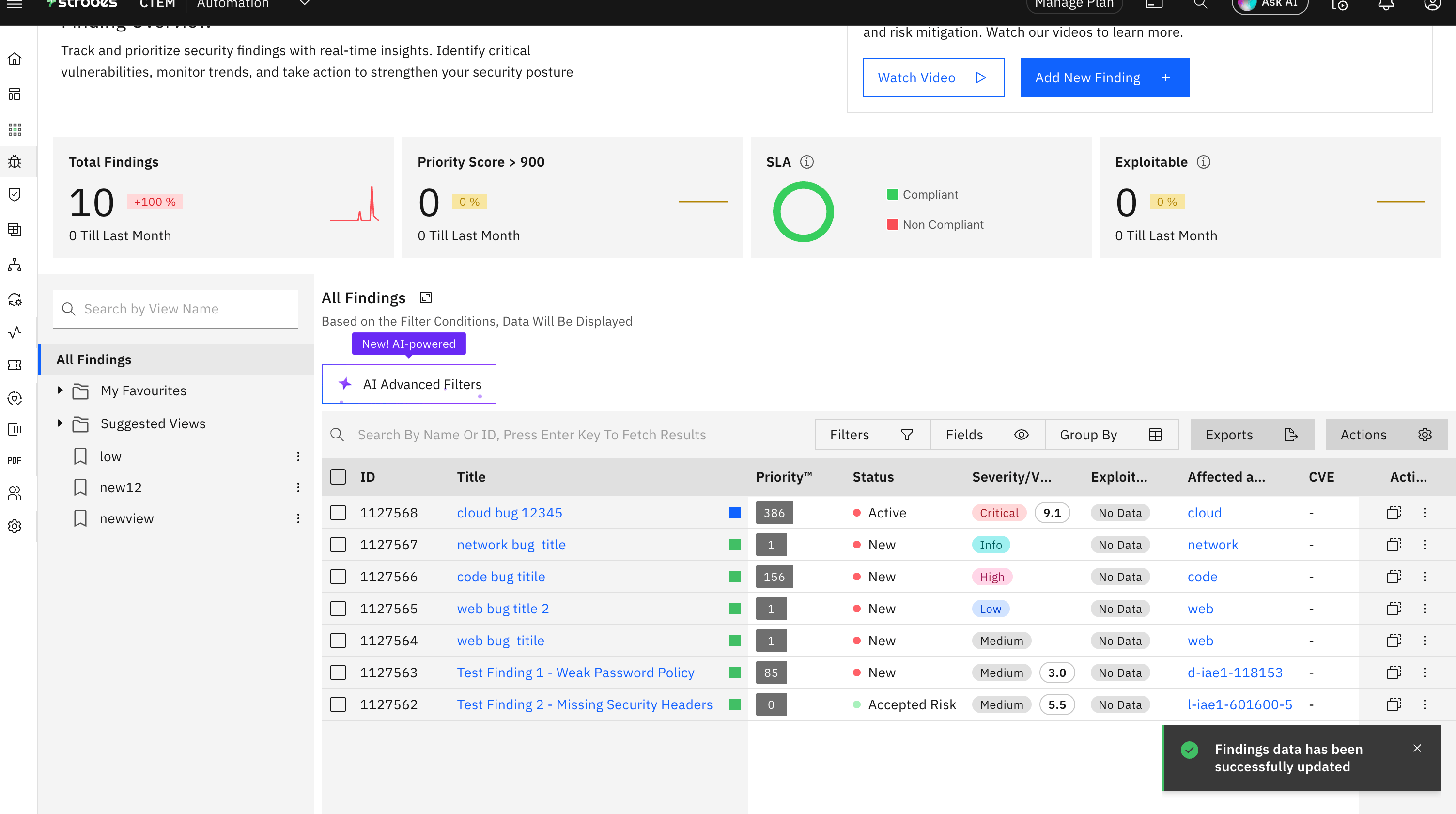
- Choose the field for which you need to perform the action, enter the relevant details and click on 'Save'.
Add to Engagement Bulk Action
If you need to add multiple vulnerabilities to an engagements at once, you can use this option.
- Select the vulnerabilities which you need to add to an .
- Click on options and click on 'Add to Engagement'
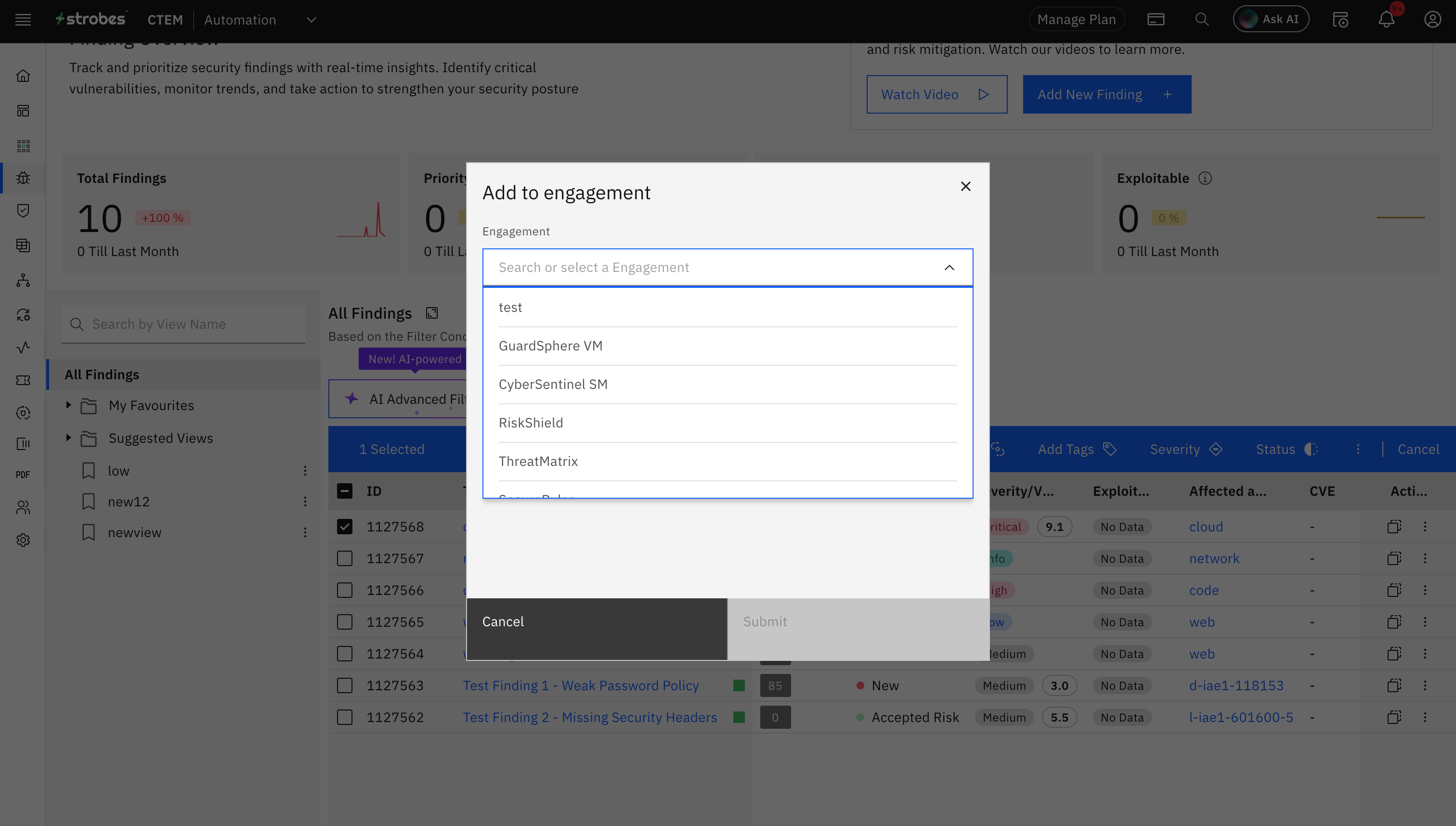
- Select the engagement for which you need to add the vulnerabilities and click on 'Submit'.
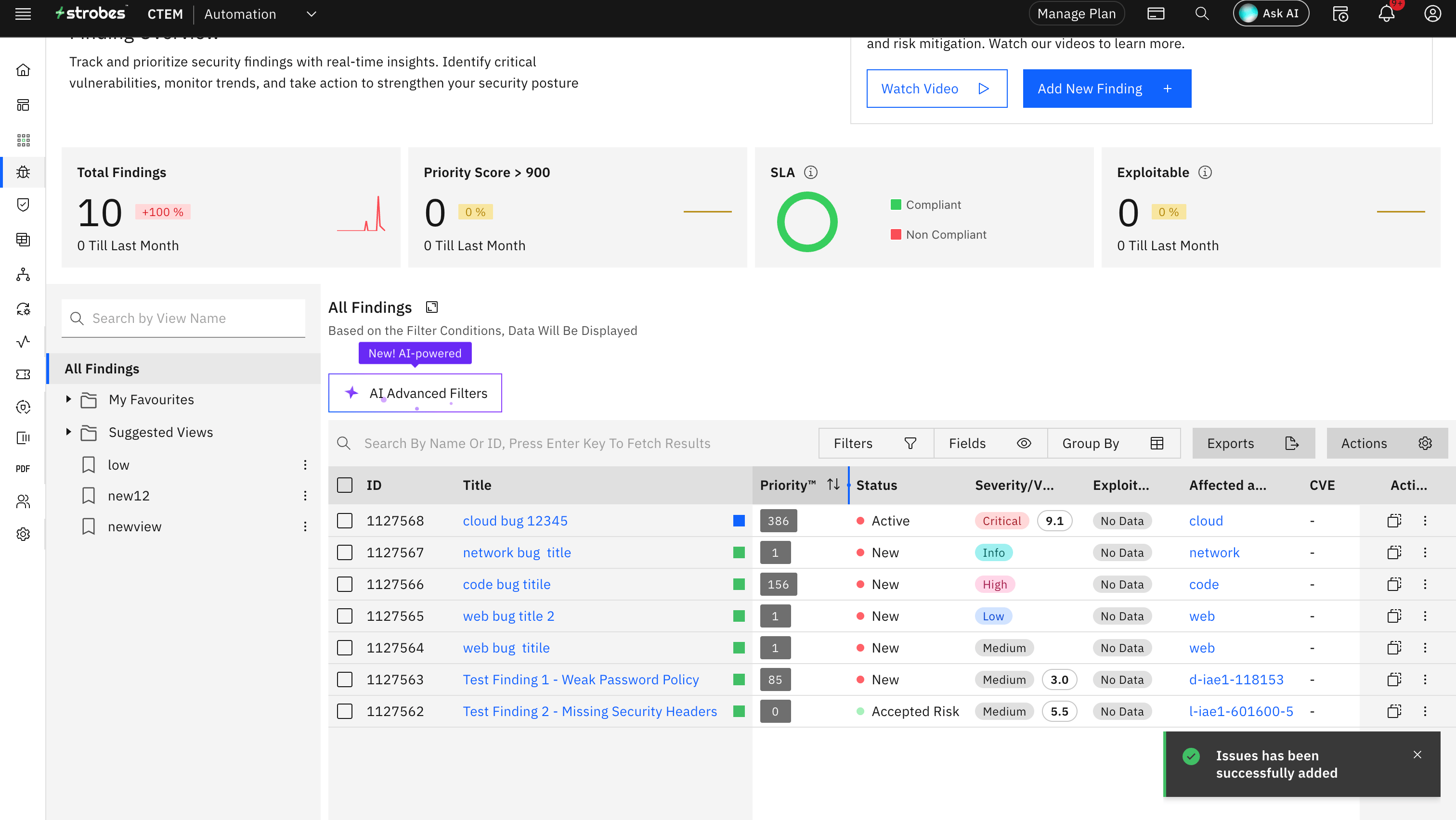
NOTE: Make sure that the vulnerability belongs to an asset which is a part of the engagement selected.
More in Findings
Was this page helpful?