
Running AWS Cloud Security Review using Strobes AI
6 min readEdit
On this page⌄
- Overview
- Why Is It Needed?
- Workflow Phases
- Outputs and Deliverables
- Prerequisites
- Accessing the AWS Cloud Security Review Template
- Review the template details
- Configuring the Cloud Account Scope
- Step 1: Provide a Workspace Name
- Step 2: Select the AWS Cloud Account
- Step 3: Connect AWS (If You Do Not Have a Saved Credential)
- Step 4: Select the Scope
- Step 5: Add Other Credentials (Optional)
- Proceeding to Configuration
- Step 6: Select an AI Model
- Step 7: Review the Execution Shell and Browser
- Step 8: Select the Execution Mode
- Step 9: Select the Schedule
- Step 10: Continue to Review and Launch
- Step 11: Review and Launch the Workspace
- Tips
Overview
An AWS Cloud Security Review in Strobes helps identify security misconfigurations and risks in your AWS environment. An AI agent runs the Strobes Cloud Security Posture Management (CSPM) scan, which is powered by Prowler, triages the findings, discovers additional issues, validates them, and produces a report with rule-based attack paths, evidence, and remediation guidance. The review typically takes 1 to 3 hours.
Why Is It Needed?
Cloud environments change constantly, and a single misconfiguration, such as an over-permissive IAM role or an exposed storage bucket, can put data and services at risk. Reviewing your AWS accounts regularly helps you find and fix these gaps early and check your posture against CIS Benchmarks, AWS Well-Architected, SOC 2, and ISO 27001. The review starts from a CSPM scan, so results are reproducible. Because the agent triages and validates findings before reporting them, your team spends time on genuine issues instead of noise.
Workflow Phases
Phase | Name | What it does |
|---|---|---|
1 | Workspace Setup | Prepares the workspace and verifies your cloud credentials and permissions. |
2 | Strobes CSPM Scan | Runs the Strobes CSPM (Prowler) scan against your AWS account. |
3 | Triage Findings | Triages the findings ingested from the scan. |
4 | Prove Tier 1 | Proves the highest-priority findings. |
5 | Validate | Validates the findings before they are reported. |
6 | Report | Produces the final report, with rule-based attack paths. |
Outputs and Deliverables
- Cloud Findings: Misconfigurations, exposed resources, IAM issues, and compliance gaps with severity ratings.
- Cloud Inventory: EC2 instances, S3 buckets, databases, IAM roles, and VPCs mapped as assets.
- Cloud Security Report: Posture assessment, compliance status, and prioritized remediation steps.
Best for: Regular security reviews of AWS accounts, compliance checks, and validating your cloud configuration after major changes.
Prerequisites
Before you start, make sure you have:
- Access to Strobes AI Workspaces in your organization.
- Enough AI credits. Each run uses AI credits.
- A read-only AWS credential (Access Key ID and Secret Access Key) for the CSPM scan. You can create one while setting up the workspace or use a saved credential.
- Authorization to review the AWS account.
Note: The review uses a read-only AWS account, so it only reads your configuration and never changes your resources. Use IAM roles instead of access keys where possible, and never share your secret access key.
Accessing the AWS Cloud Security Review Template
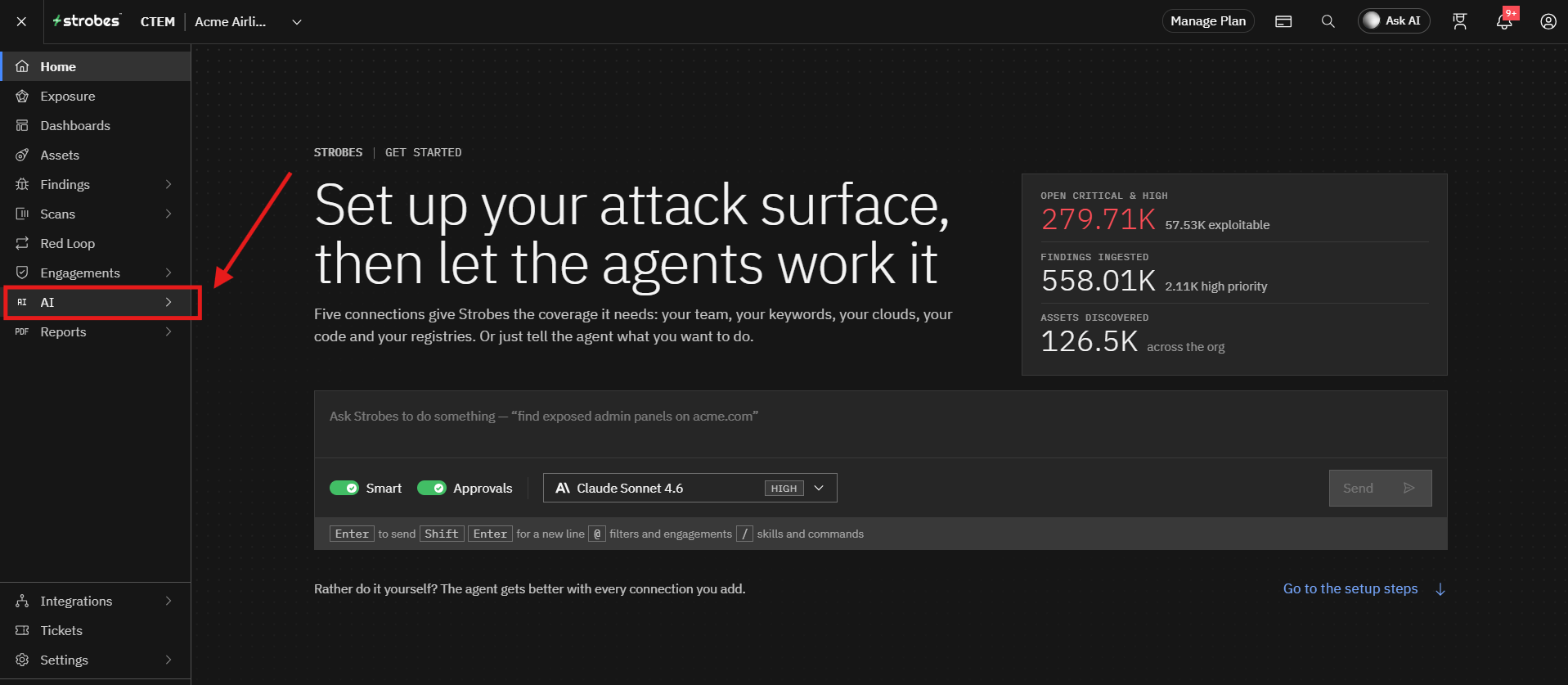
- Navigate to AI from the main navigation menu.
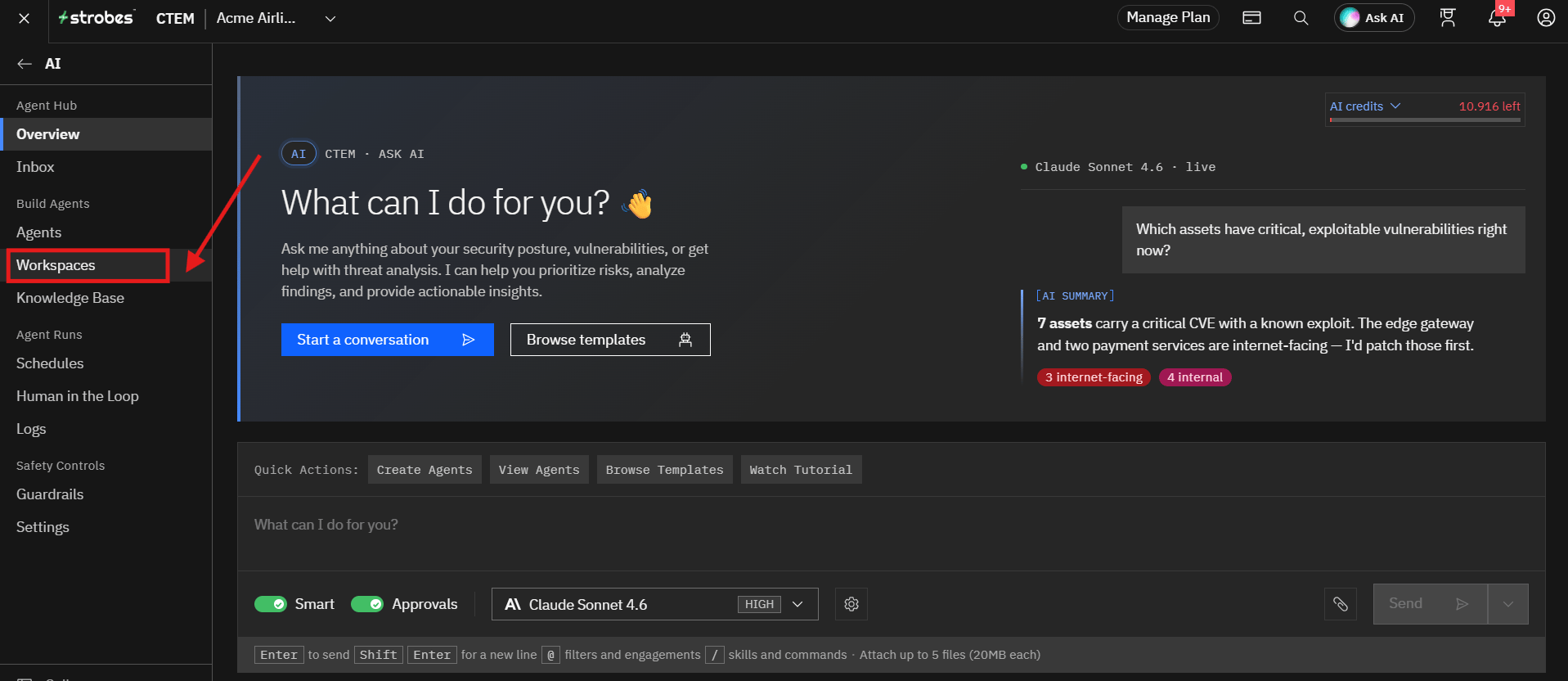
- Open the Workspaces page.
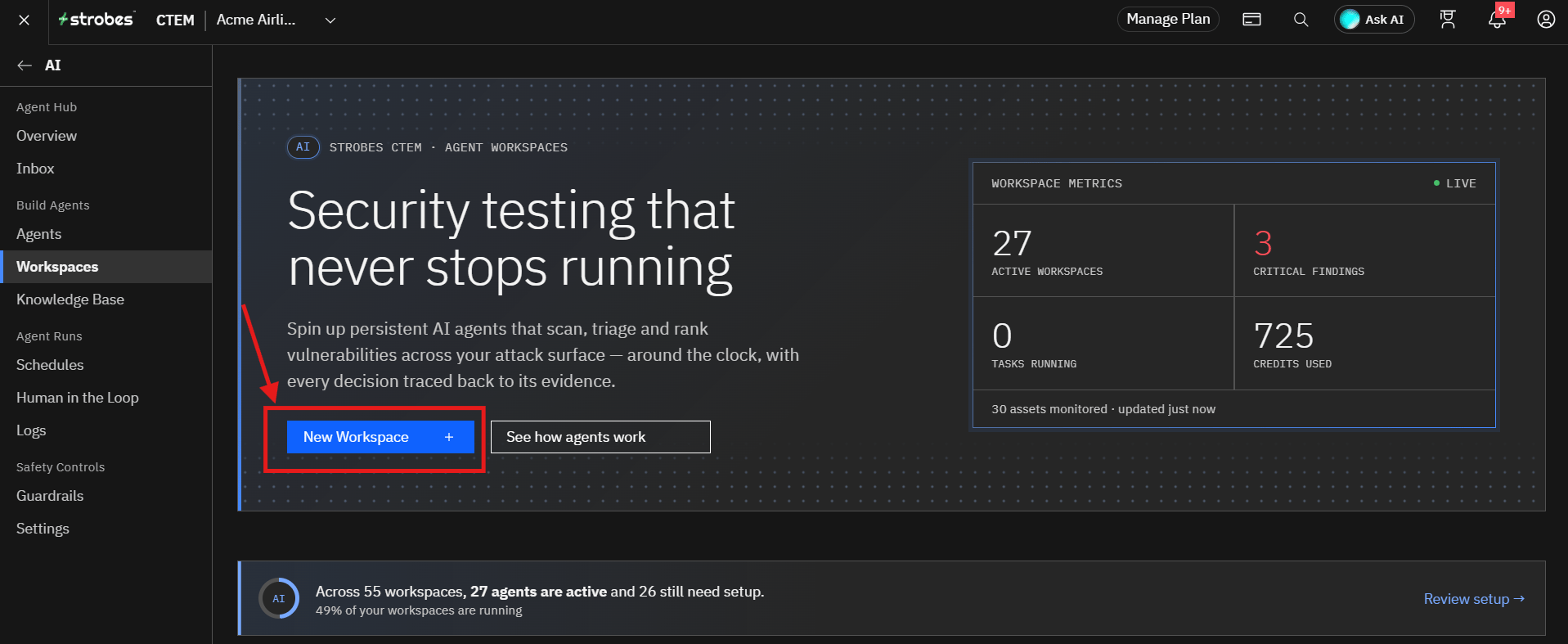
- Click New Workspace.
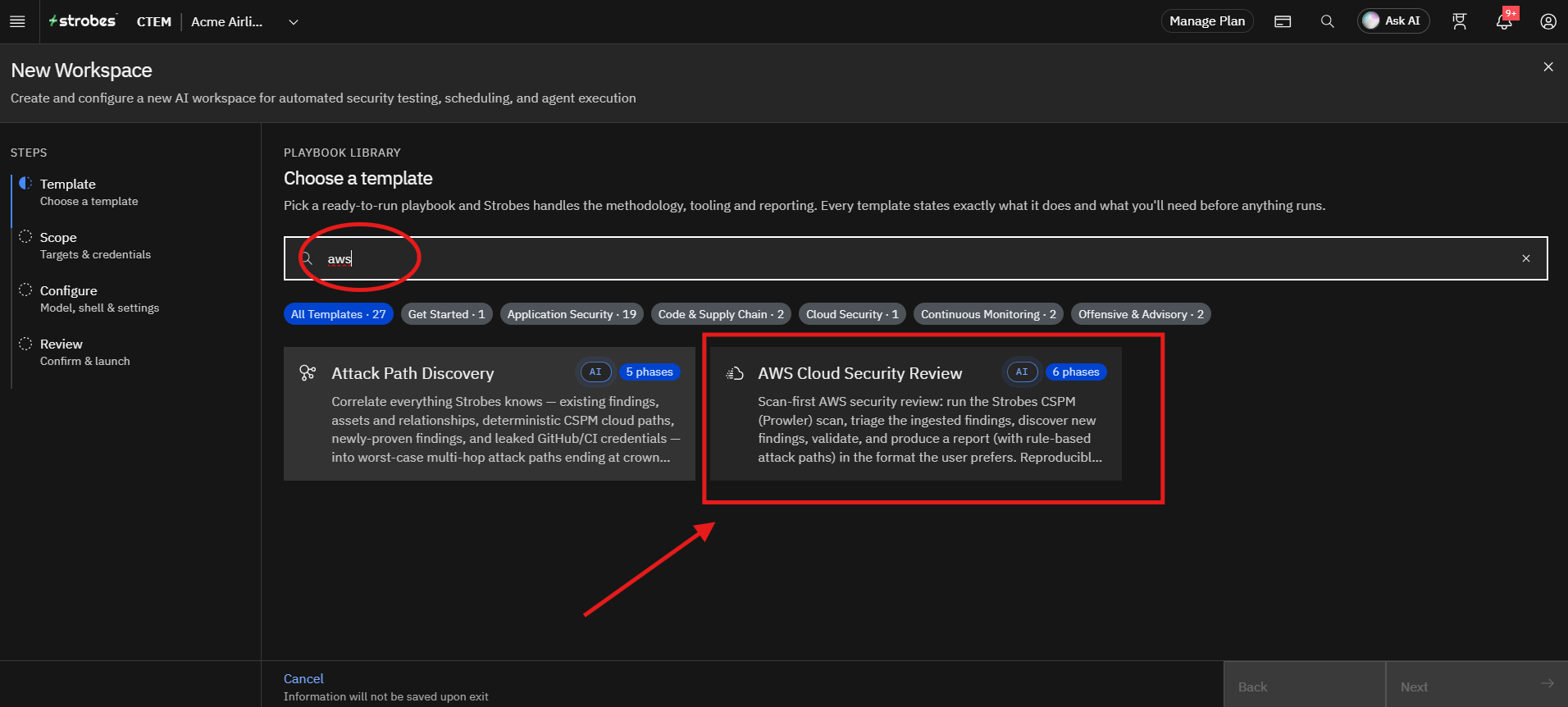
- In the Playbook Library, search for
awsand select the AWS Cloud Security Review template.
Review the template details
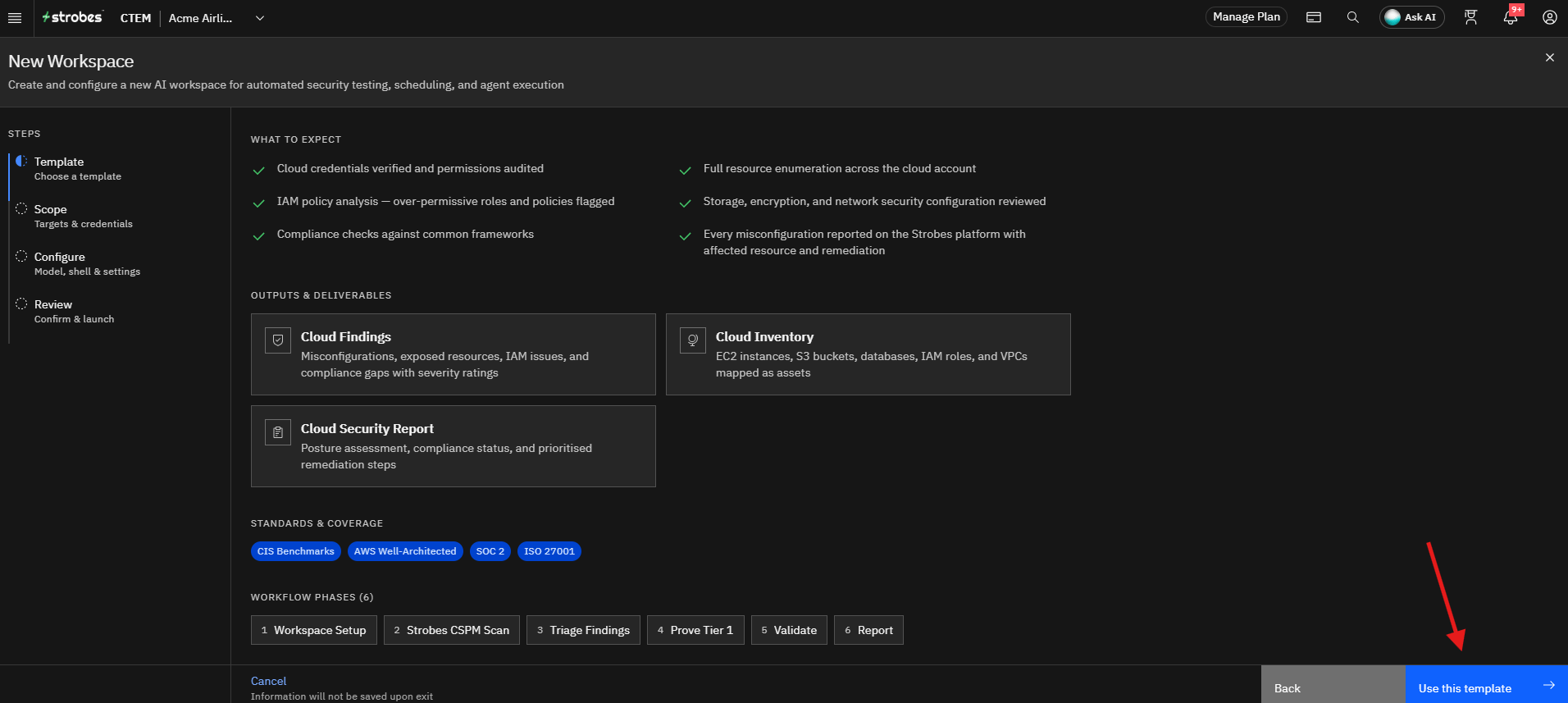
Selecting the template opens its details page, which shows:
- Tags: The category, number of phases, version, and expected duration.
- About: What the template does.
- What you'll need: The cloud provider credentials.
- What to expect: Cloud credentials verified and permissions audited, IAM policy analysis, compliance checks against common frameworks, full resource enumeration, storage, encryption, and network security configuration reviewed, and every misconfiguration reported in Strobes with the affected resource and remediation.
- Outputs & deliverables: Cloud Findings, Cloud Inventory, and a Cloud Security Report.
- Standards & coverage: CIS Benchmarks, AWS Well-Architected, SOC 2, and ISO 27001.
- Workflow phases: Workspace Setup, Strobes CSPM Scan, Triage Findings, Prove Tier 1, Validate, and Report.
To continue, select Use this template. To choose a different template, select Back or Back to templates.
- Click Use this template.
Configuring the Cloud Account Scope
After selecting the template, the wizard automatically moves to the Scope step.
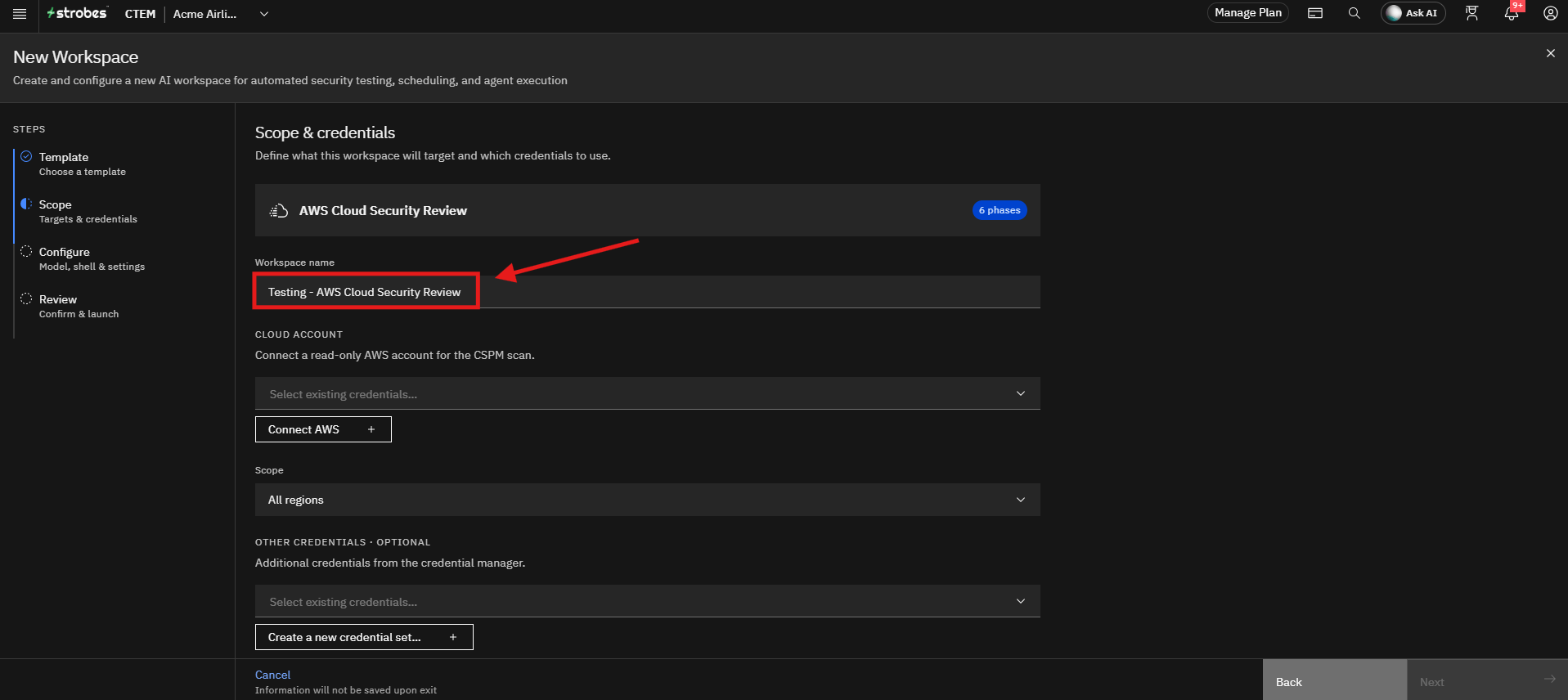
Step 1: Provide a Workspace Name
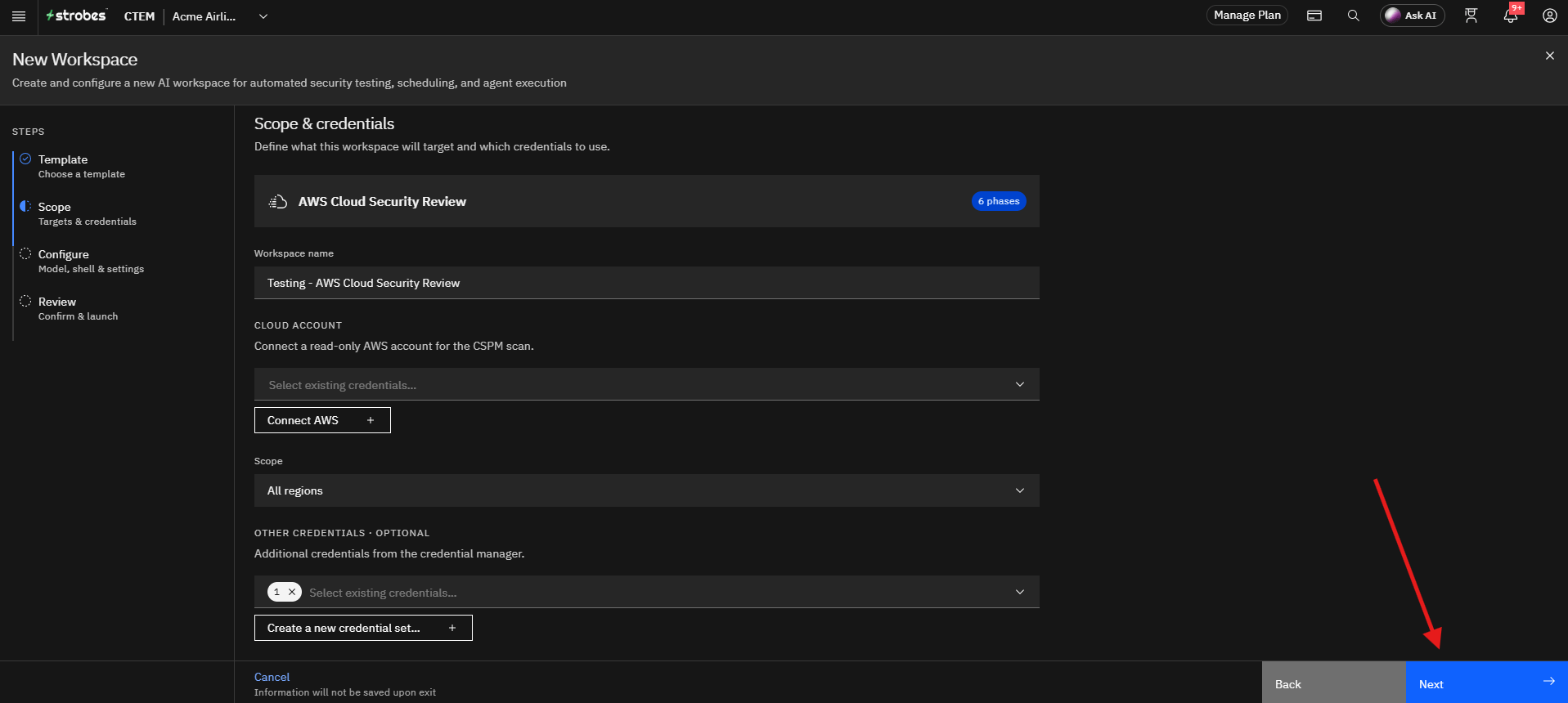
The Workspace name is pre-filled with the template name. Enter a more meaningful name for the assessment if you want, such as the account name or environment.
Step 2: Select the AWS Cloud Account
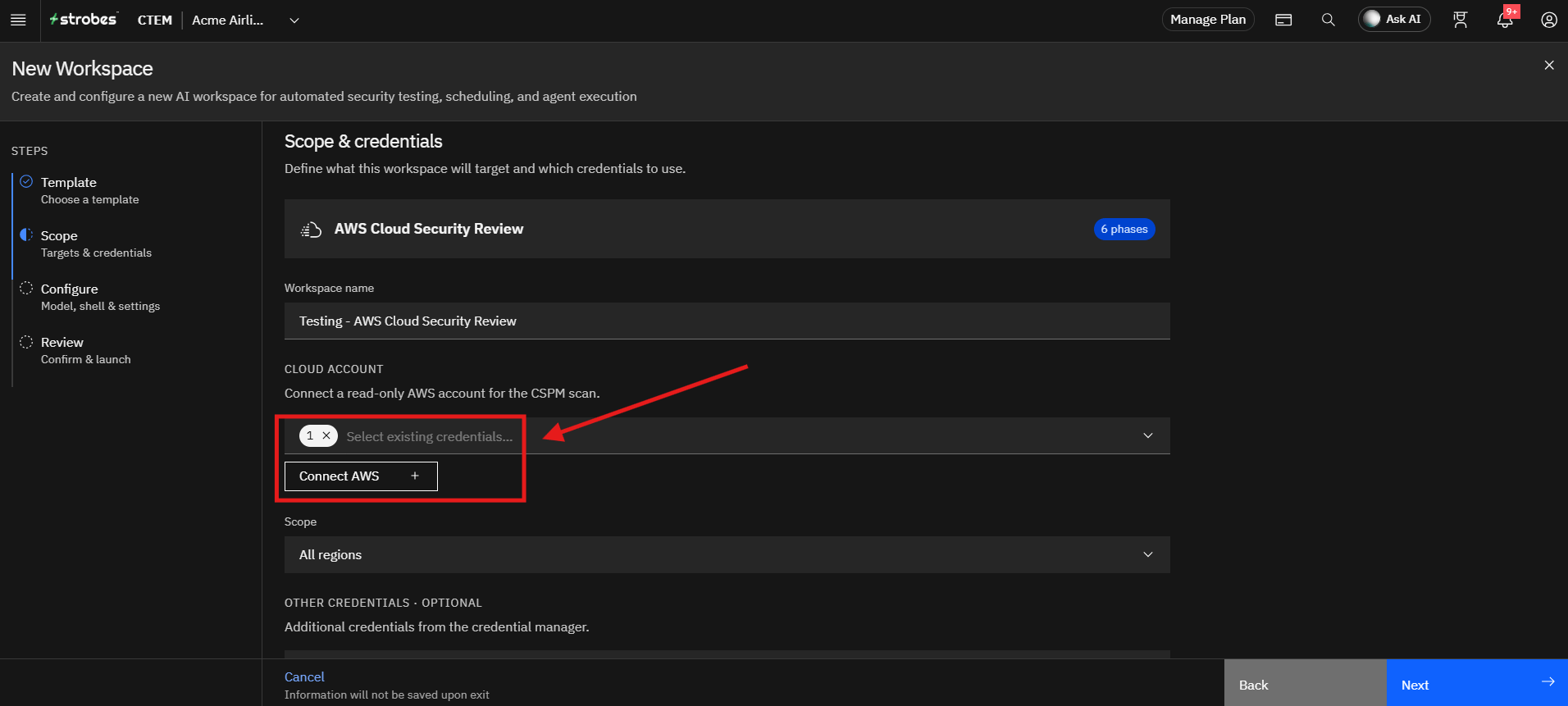
Under Cloud Account, open the Select existing credentials dropdown and select the read-only AWS credential to use for the CSPM scan. If you do not have a saved credential, follow Step 3 to add one.
Step 3: Connect AWS (If You Do Not Have a Saved Credential)
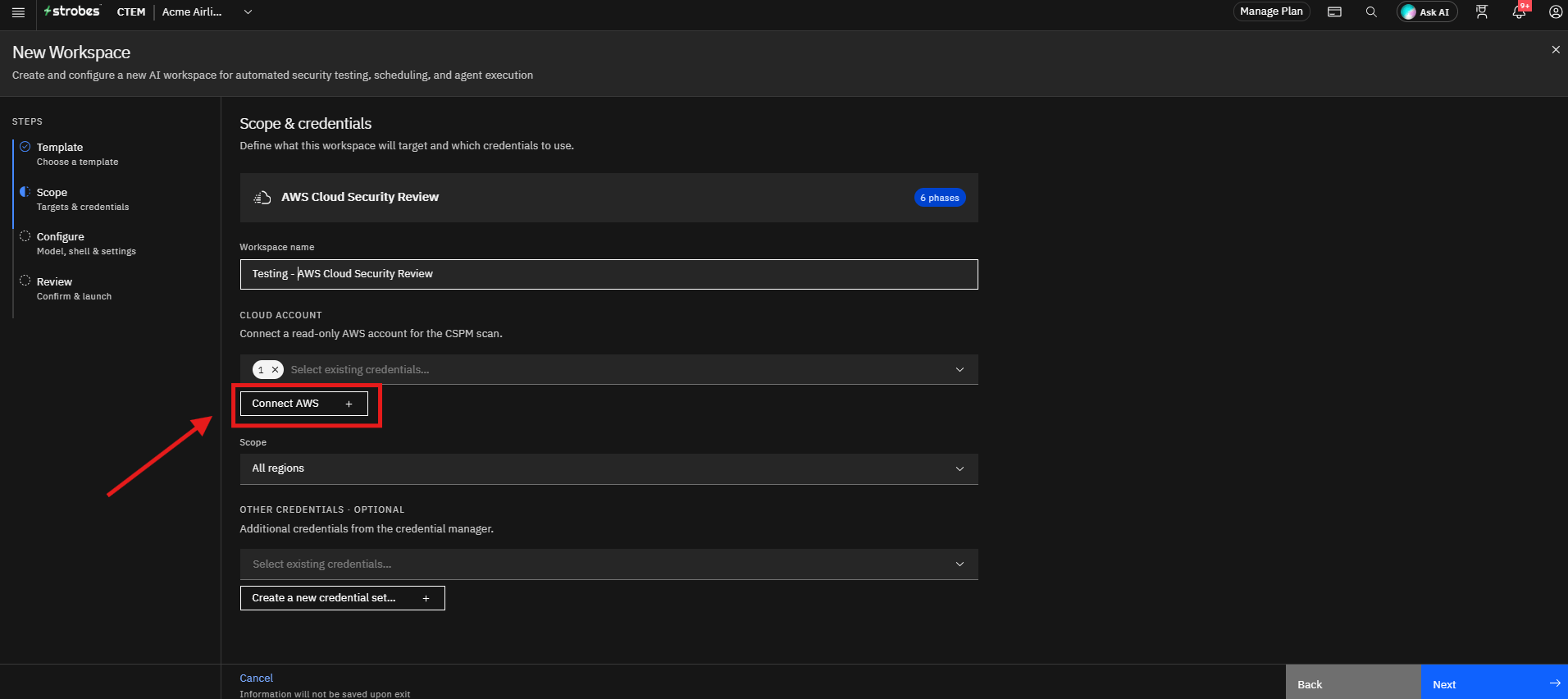
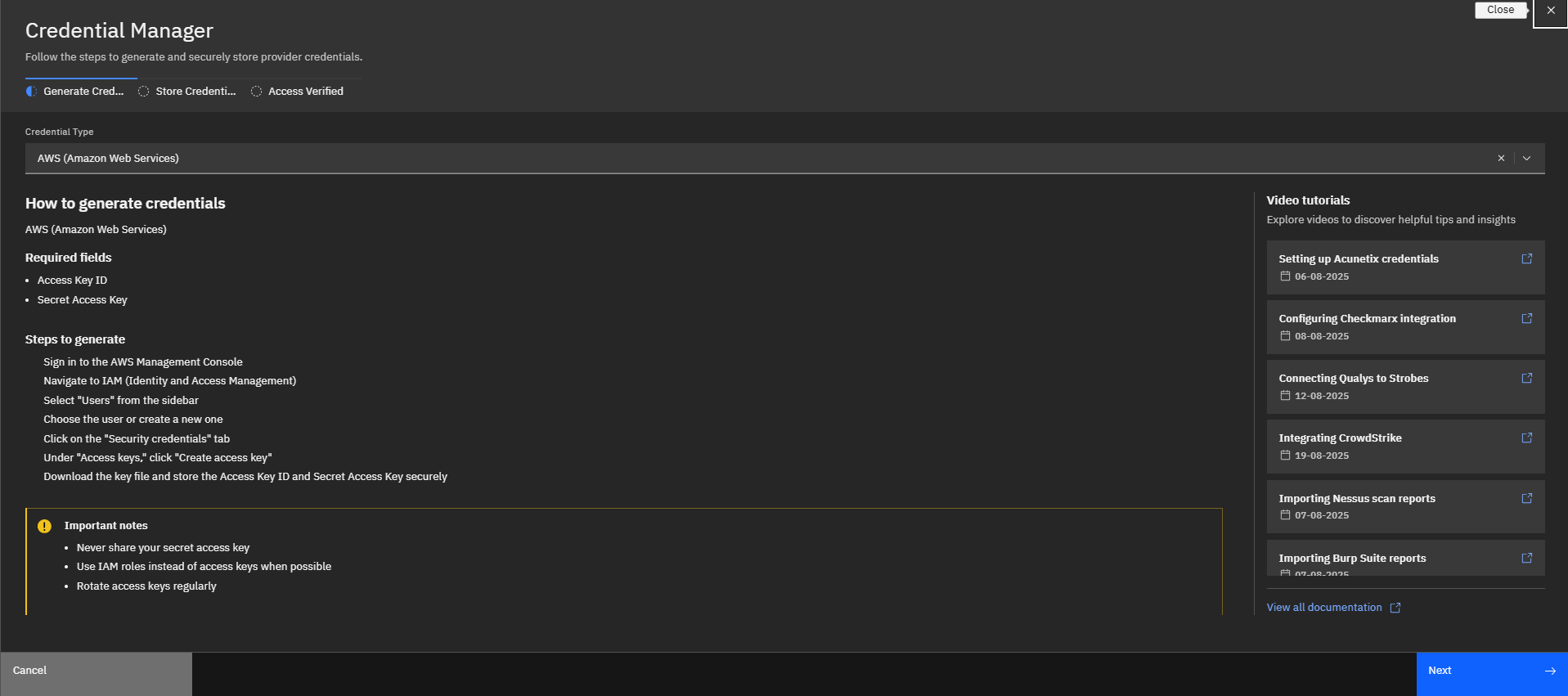
Click Connect AWS. The Credential Manager opens with the credential type set to AWS (Amazon Web Services). It guides you through three tabs: Generate Credentials, Store Credentials, and Access Verified.
- On the Generate Credentials tab, review the steps to generate an AWS access key. The required fields are the Access Key ID and the Secret Access Key.
- Click Next to continue to the Store Credentials tab.
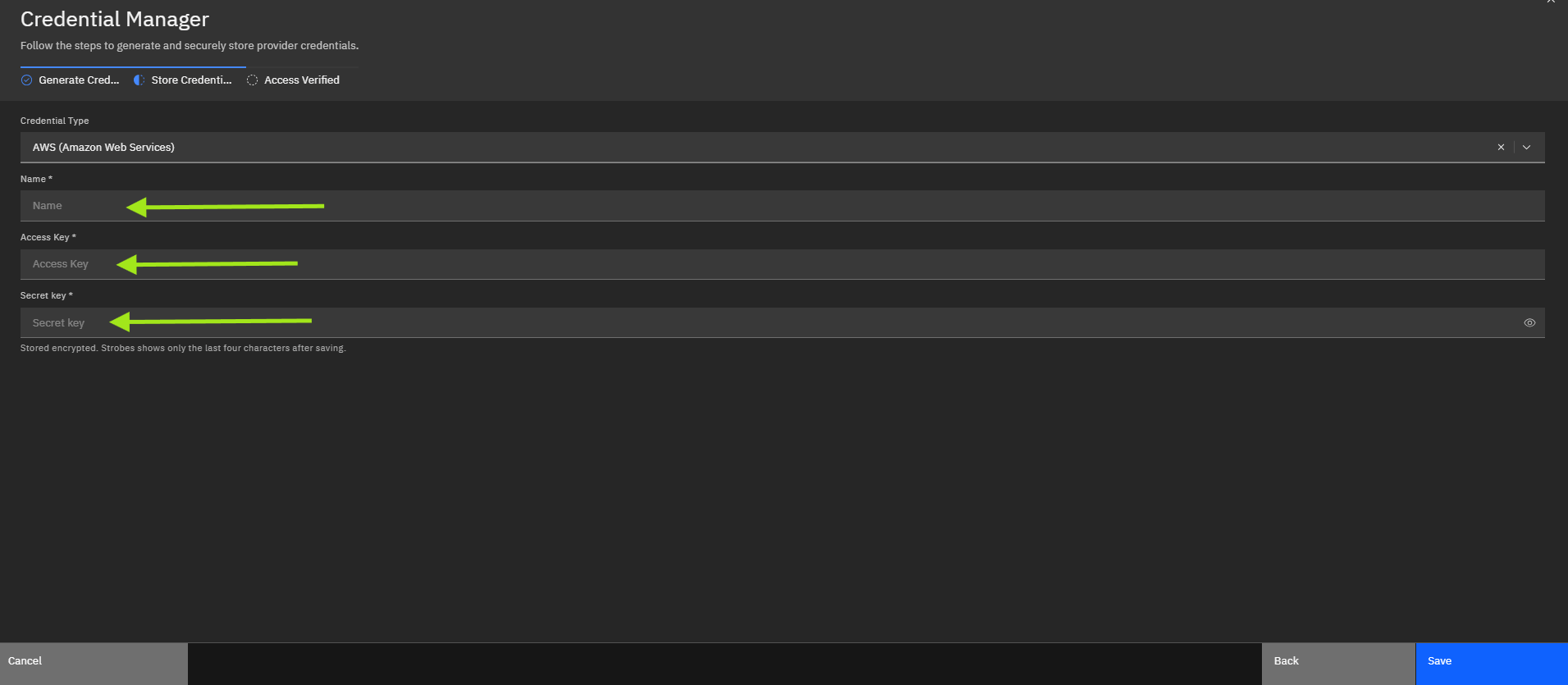
- Enter a Name for the credential, the Access Key, and the Secret key. Strobes stores them encrypted and shows only the last four characters after saving.
- Click Save. The credential is verified and becomes available in the Cloud Account dropdown.
Step 4: Select the Scope
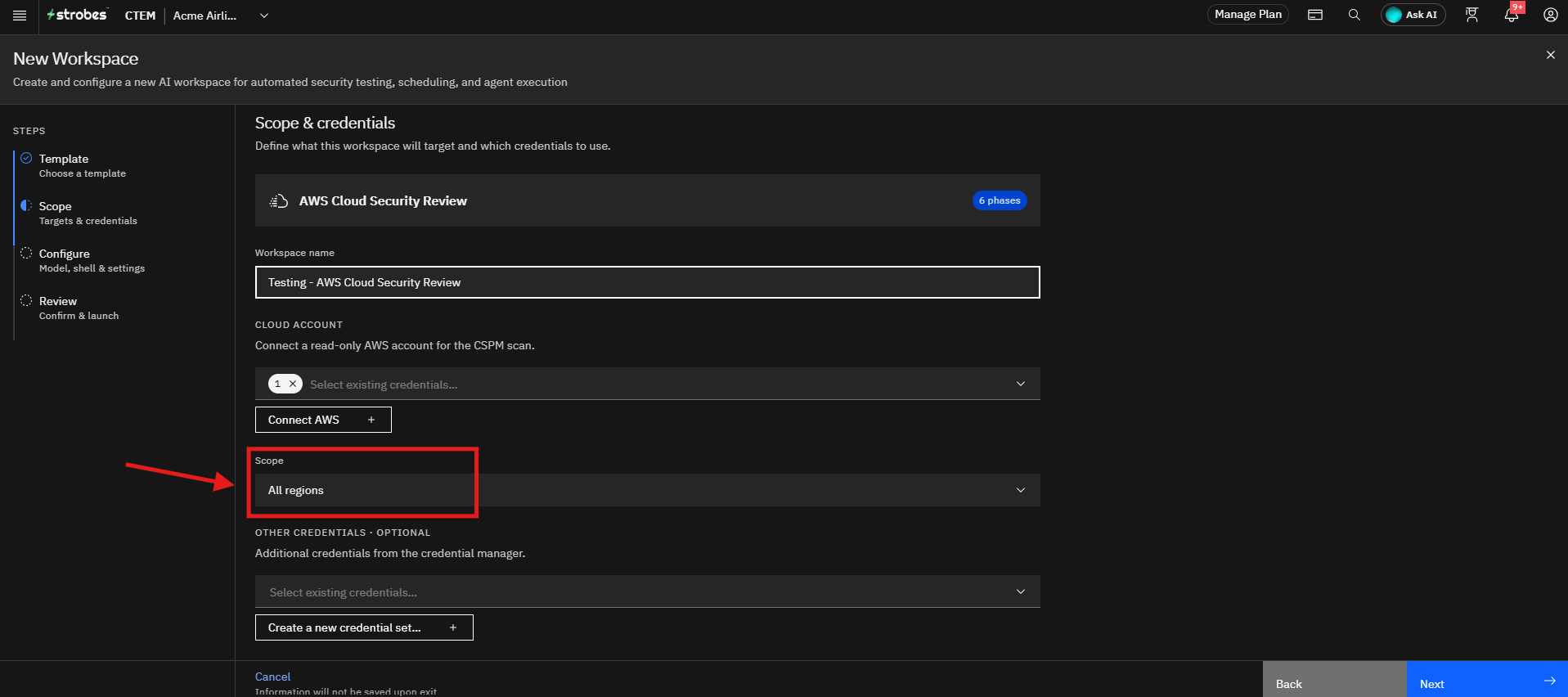
In the Scope dropdown, choose which AWS regions to review:
- All regions: Reviews every region. This is selected by default.
- Custom: Reviews only the regions you enter. In the Region(s) field, enter one region, or a comma-separated list of regions, for example
us-east-1orus-east-1, eu-west-1.
Step 5: Add Other Credentials (Optional)
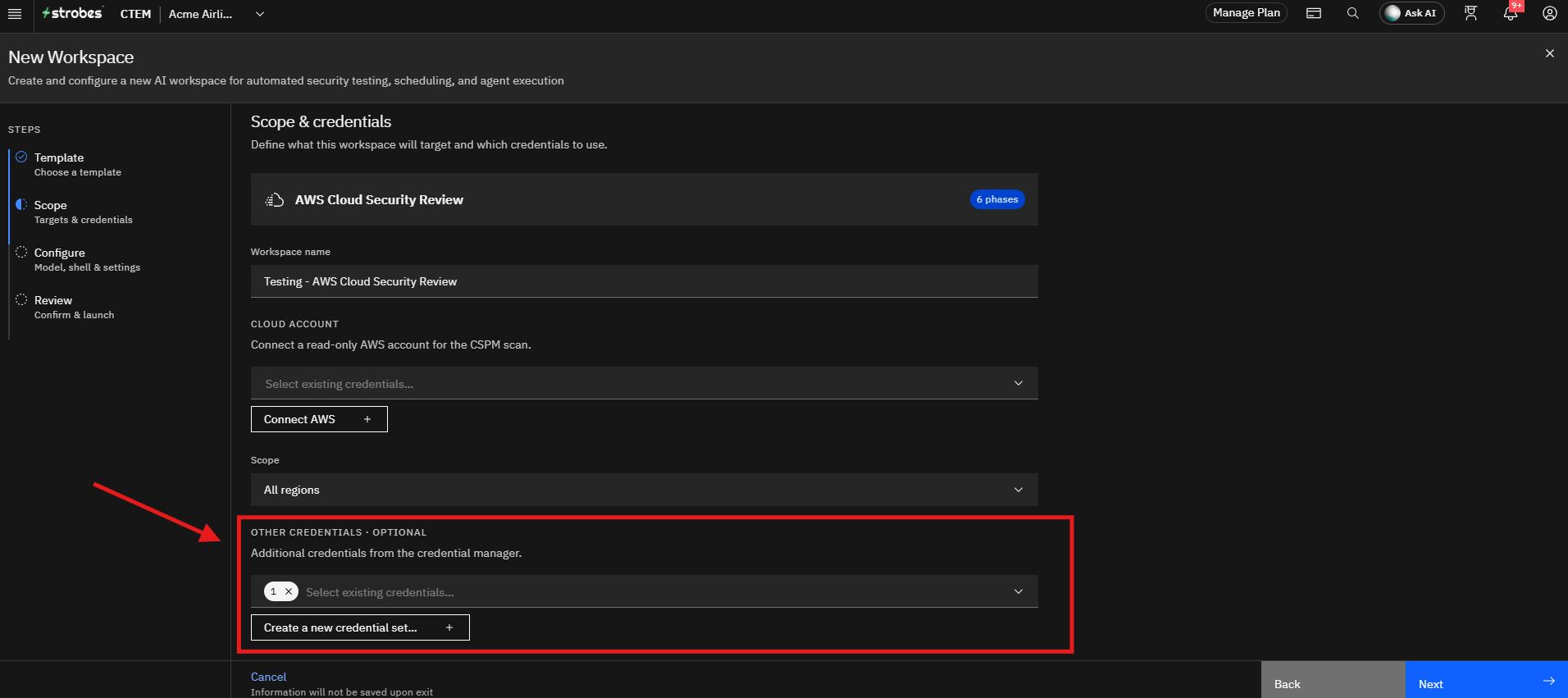
Under Other Credentials, select additional credentials from the credential manager, or click Create a new credential set to add them.
Proceeding to Configuration
After completing the scope details:
- Verify the selected AWS credential and scope.
- Click Next.
The wizard proceeds to the Configure step, where the model, shell, and execution settings can be customized.
Step 6: Select an AI Model
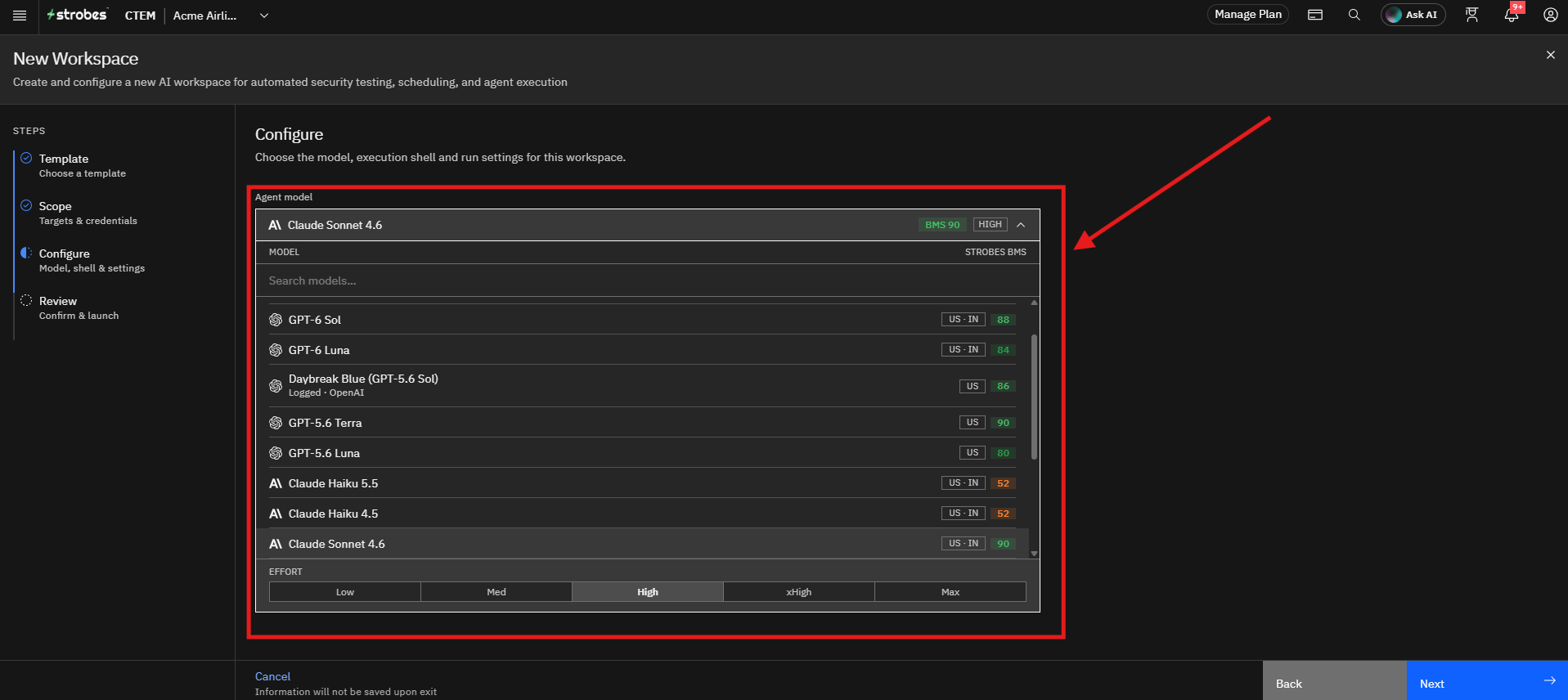
The Agent model determines the Large Language Model (LLM) used during the assessment.
To select a model:
- Open the Agent model dropdown.
- Review the available models and the effort level.
- Select the model that best fits your assessment requirements.
The selected model influences analysis depth, reasoning capabilities, response quality, and assessment speed.
Step 7: Review the Execution Shell and Browser
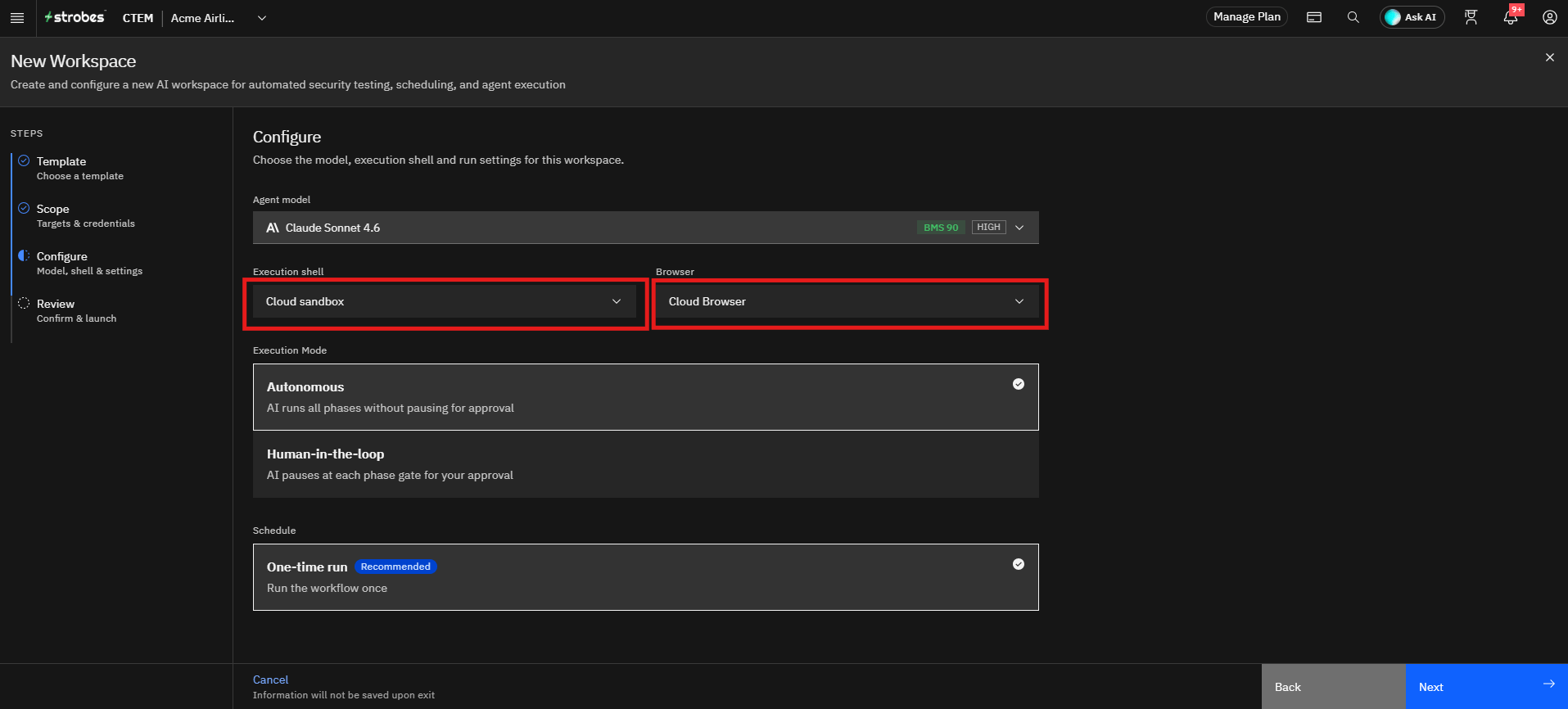
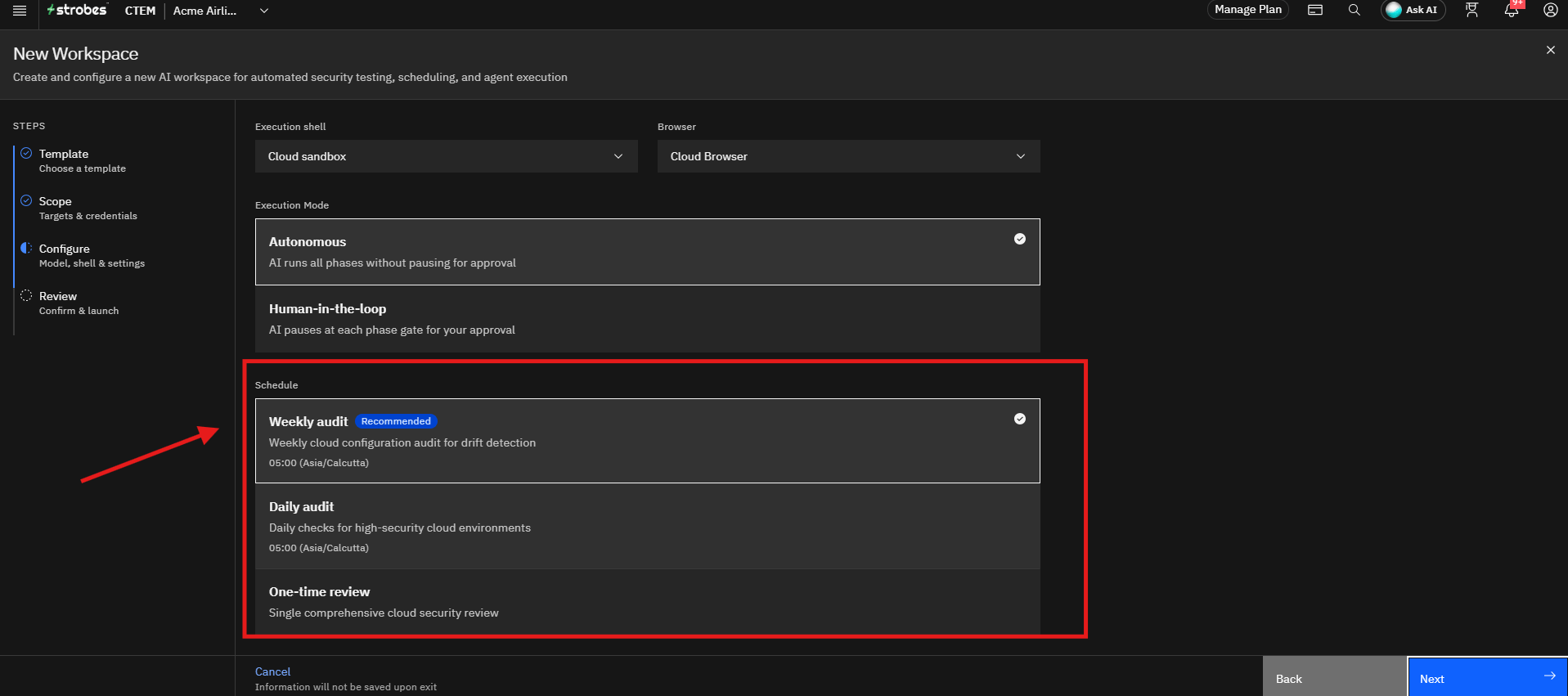
The Execution shell is Cloud sandbox and the Browser is Cloud Browser by default. This is the recommended setup for this template.
Step 8: Select the Execution Mode
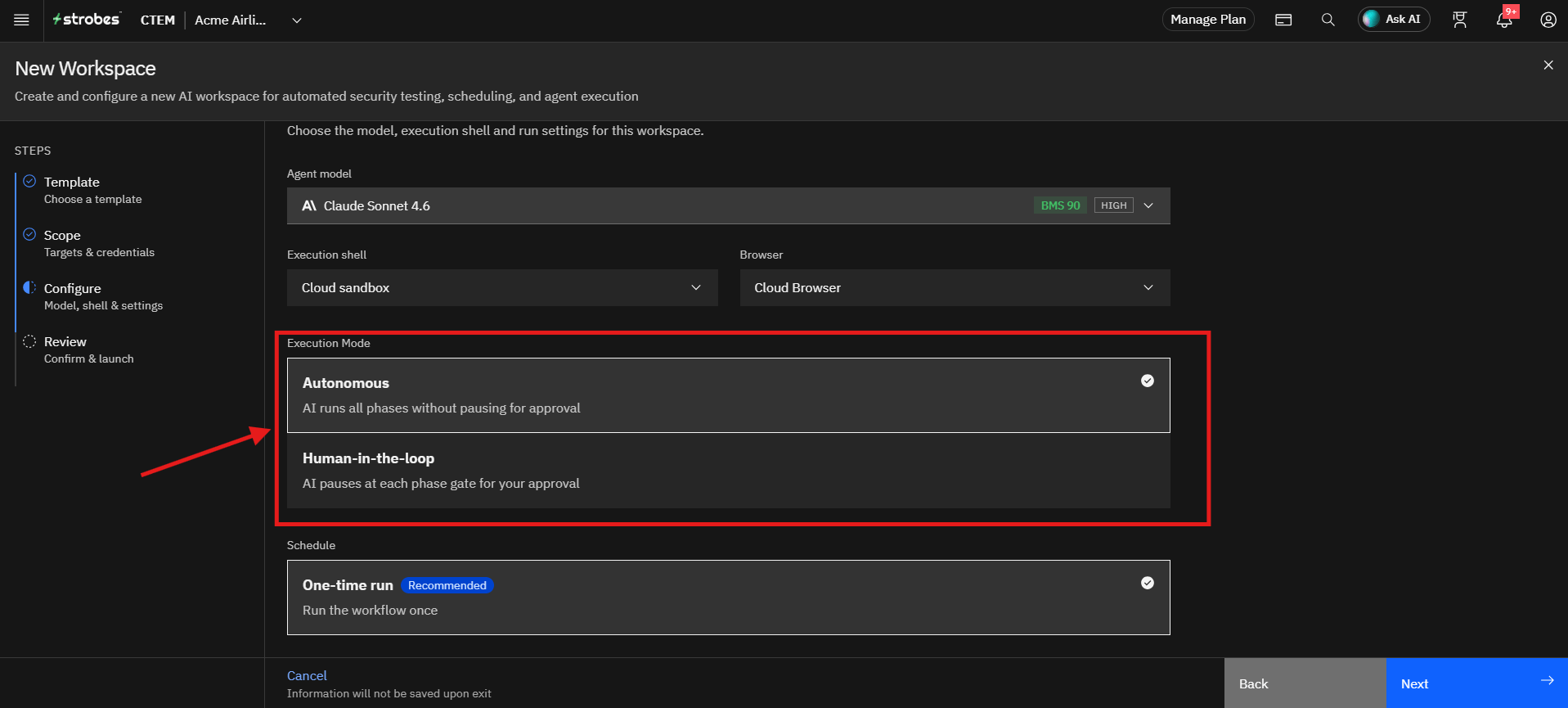
Choose how the AI runs the assessment. Autonomous is selected by default.
- Autonomous: The AI runs all phases without pausing for approval.
- Human-in-the-loop: The AI pauses at each phase gate and waits for your approval before continuing.
Step 9: Select the Schedule
Choose how often the review runs:
Option | Behaviour |
|---|---|
Weekly audit (Recommended) | A weekly cloud configuration audit for drift detection. |
Daily audit | Daily checks, suited to high-security cloud environments. |
One-time review | A single, comprehensive cloud security review. |
Click the option you want. Weekly audit is selected by default.
Step 10: Continue to Review and Launch
Once all configuration settings have been verified:
- Click Next.
- The wizard opens the Review page.
Step 11: Review and Launch the Workspace
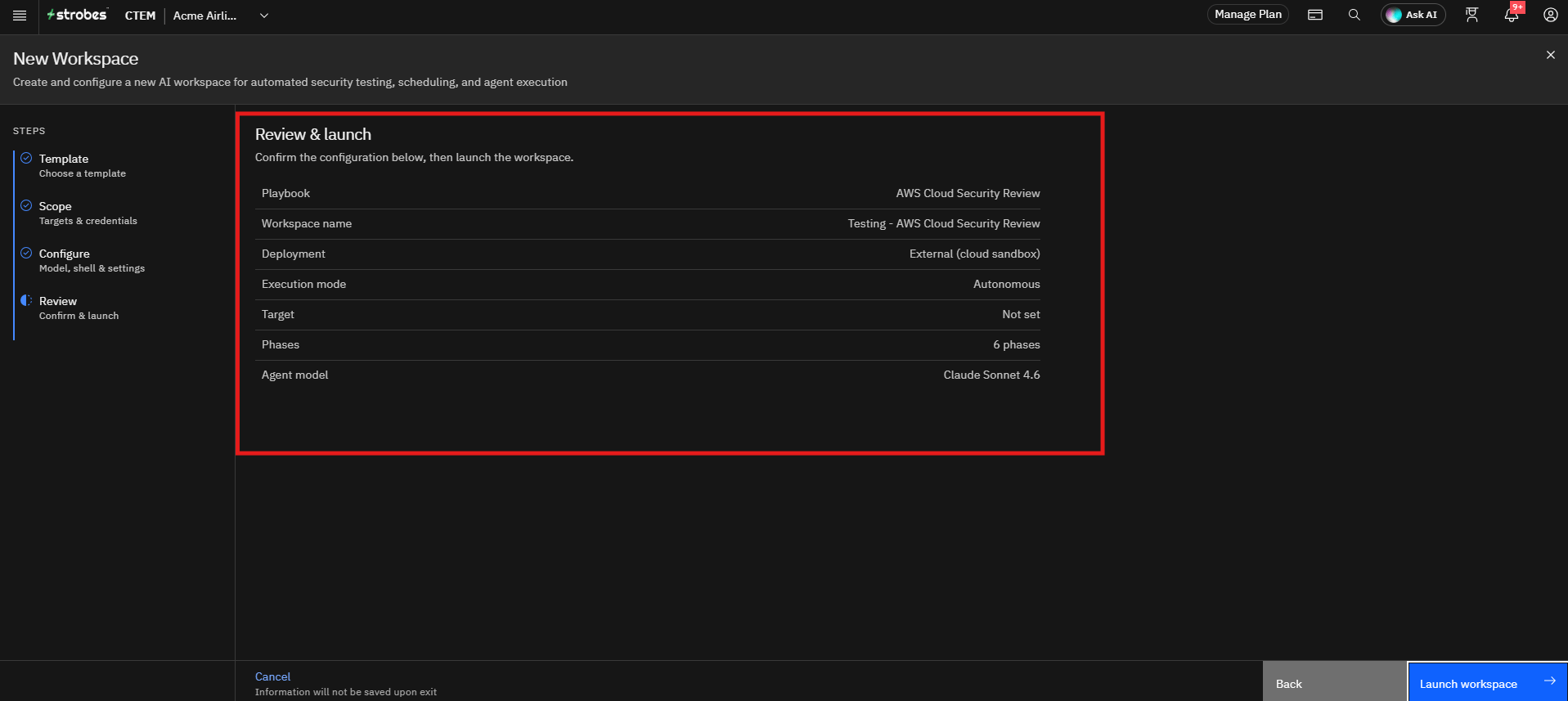
Review the configuration summary, including the playbook, workspace name, deployment, execution mode, phases, and agent model.
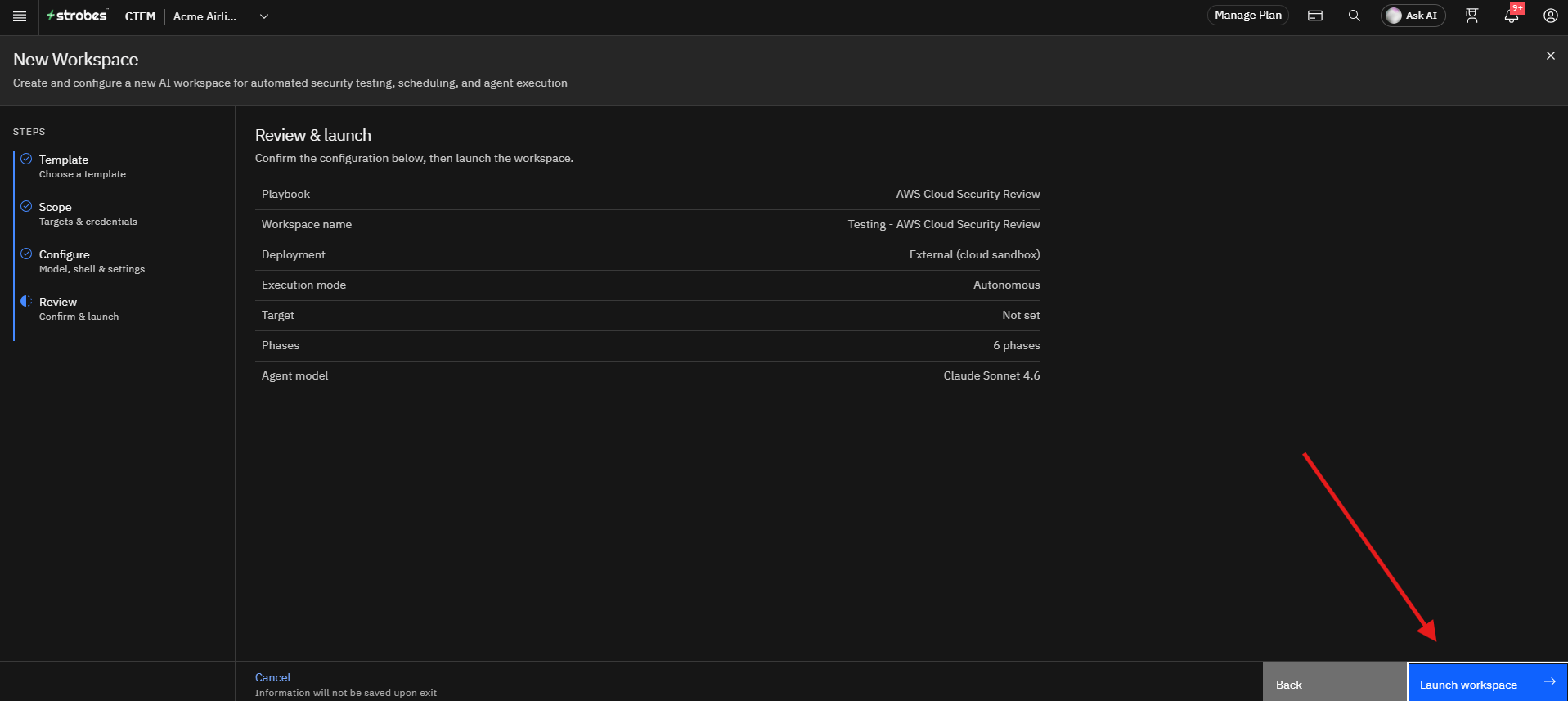
Once everything looks correct, click Launch workspace to start the assessment. When the run completes, findings and cloud inventory appear in Strobes, and the report is available in the workspace.
Tips
- Connect a read-only AWS account. The scan only needs to read your configuration.
- Prefer IAM roles over access keys where possible, rotate access keys regularly, and never share your secret access key.
- The Next button stays unavailable on the Scope step until a cloud account is selected.
- Keep the Scope on All regions for full coverage, or use Custom to limit the review to the regions you actually use.
- Choose Weekly audit to detect configuration drift over time, Daily audit for high-security environments, or One-time review for a single assessment.
- Use Human-in-the-loop if you want to approve each phase before it continues.
- The CSPM scan is the source of truth for the review, so results are reproducible.
- The review typically takes 1 to 3 hours, depending on the size of your AWS environment.
- Only review AWS accounts you are authorized to review.
More in Workspace configuration
Was this page helpful?