
Running Mobile App Pentest (Android) using Strobes AI
6 min readEdit
On this page⌄
- Overview
- Why Is It Needed?
- Workflow Phases
- Prerequisites
- Accessing the Mobile App Pentest Template
- Review the template details
- Configuring the App Scope
- Step 1: Provide a Workspace Name
- Step 2: Upload the APK File
- Step 3: Enter a Play Store URL (Optional)
- Step 4: Connect Source Code (Optional)
- Step 5: Add Test Account Credentials (Optional)
- Step 6: Add Other Credentials (Optional)
- Step 7: Add Custom Instructions (Optional)
- Proceeding to Configuration
- Step 8: Select an AI Model
- Step 9: Review the Execution Shell and Browser
- Step 10: Select the Execution Mode
- Step 11: Review the Schedule
- Step 12: Continue to Review and Launch
- Step 13: Review and Launch the Workspace
- Tips
Overview
A Mobile App Pentest (Android) in Strobes helps identify security vulnerabilities in an Android application. An AI agent follows a 5-phase methodology aligned with the OWASP Mobile Application Security Verification Standard (MASVS). It analyzes the app, tests it dynamically on a device emulator, verifies what it finds, and provides evidence and remediation guidance to help teams address the risks.
Why Is It Needed?
Mobile apps run on devices you do not control, and they often store data and talk to backend APIs in ways that attackers can inspect. Testing your Android app before release helps you find insecure storage, weak network protections, and exploitable flaws early. Because the agent validates its testing environment first and tags findings to OWASP MASVS and MASTG with per-check verdicts, your team gets results it can act on and map to a recognized standard.
Workflow Phases
Phase | Name | What it does |
|---|---|---|
1 | Static Analysis & App Understanding | Analyzes the app and builds a structured map of its screens and features, along with a pre-planned bypass catalog. |
2 | Dynamic Environment Readiness & Bypass Validation | Checks that the test environment works before the full run, for example whether traffic interception works and what is blocked. |
3 | App Crawl & Flow Discovery | Crawls the app systematically to compare the real endpoint surface against what static analysis found. |
4 | Dynamic MASVS Testing & DAST | Runs the full dynamic pass, covering MASVS checks, DAST, and CVE testing. |
5 | Report All Bugs | Produces the final bug report with MASVS and MASTG-tagged findings. |
Best for: Android apps before release, regular mobile security testing, and standards-based assessments such as OWASP MASVS.
Prerequisites
Before you start, make sure you have:
- Access to Strobes AI Workspaces in your organization.
- Enough AI credits. Each run uses AI credits.
- One of the following for the app you want to test:
- APK file: A signed
.apkfile. Strobes decompiles it and drives it on a device emulator. - Play Store URL: The Google Play Store link to the app.
- APK file: A signed
- Authorization to test the app.
- (Optional, recommended) Access to your source code through GitHub, Bitbucket, or Azure DevOps.
- (Optional) Test account logins, so the app can be tested in an authenticated state.
Note: Source code is optional, but with it Strobes corroborates dynamic findings against your code for a far higher true-positive rate and broader coverage.
Accessing the Mobile App Pentest Template
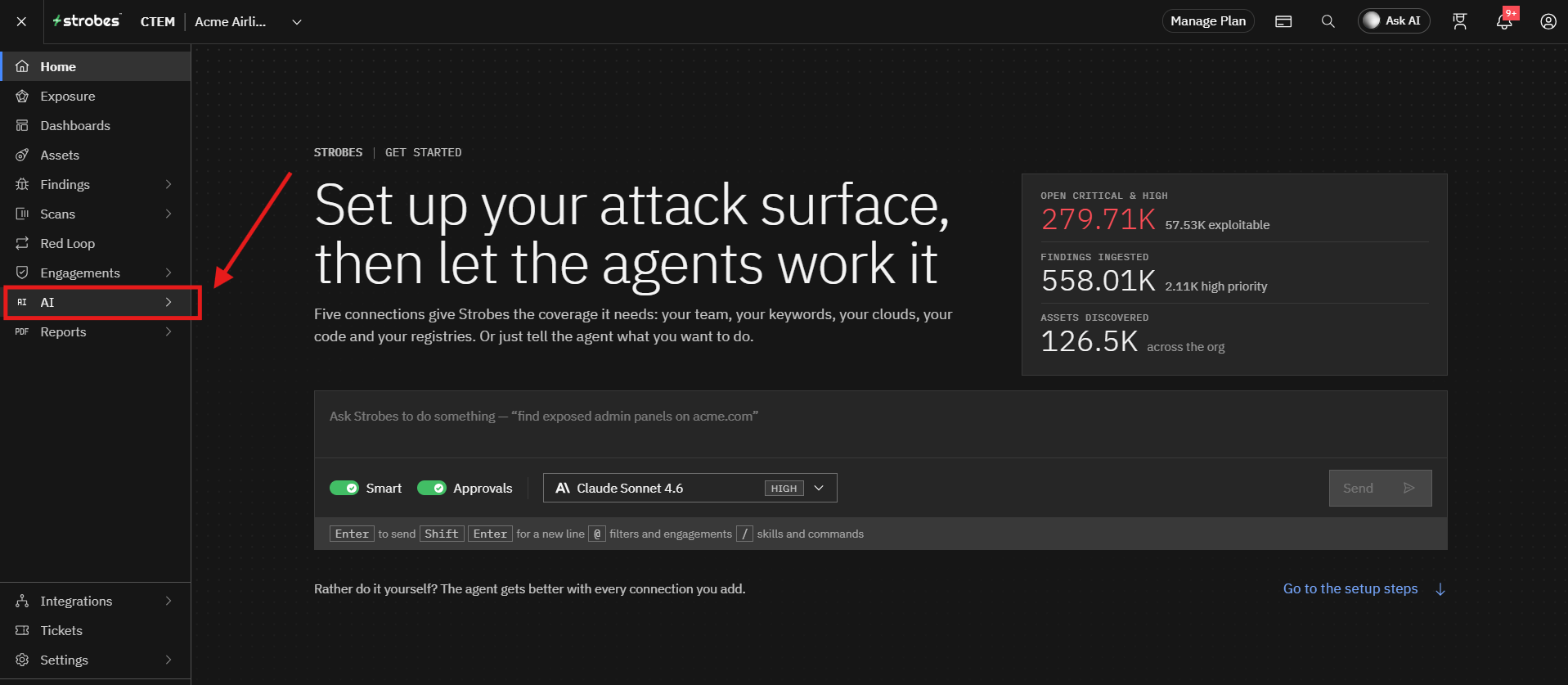
- Navigate to AI from the main navigation menu.
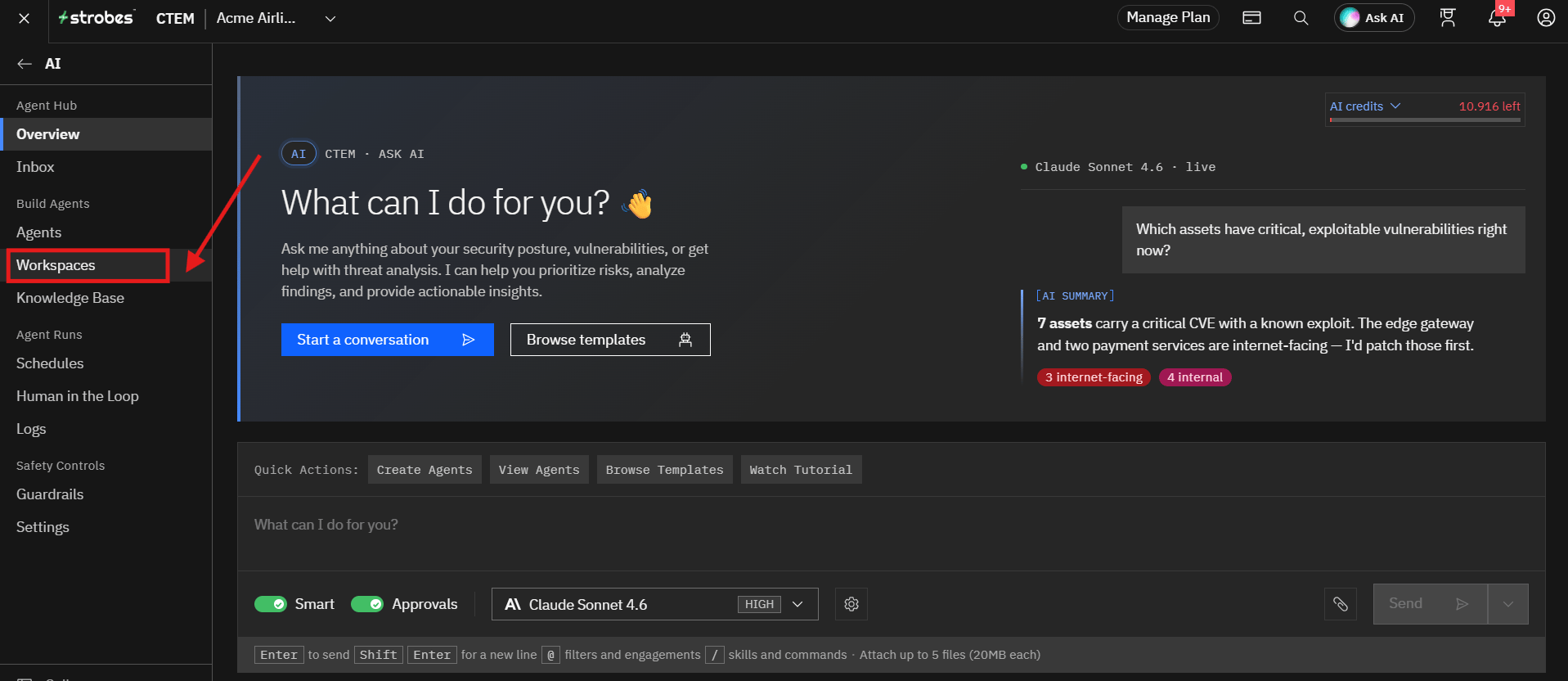
- Open the Workspaces page.
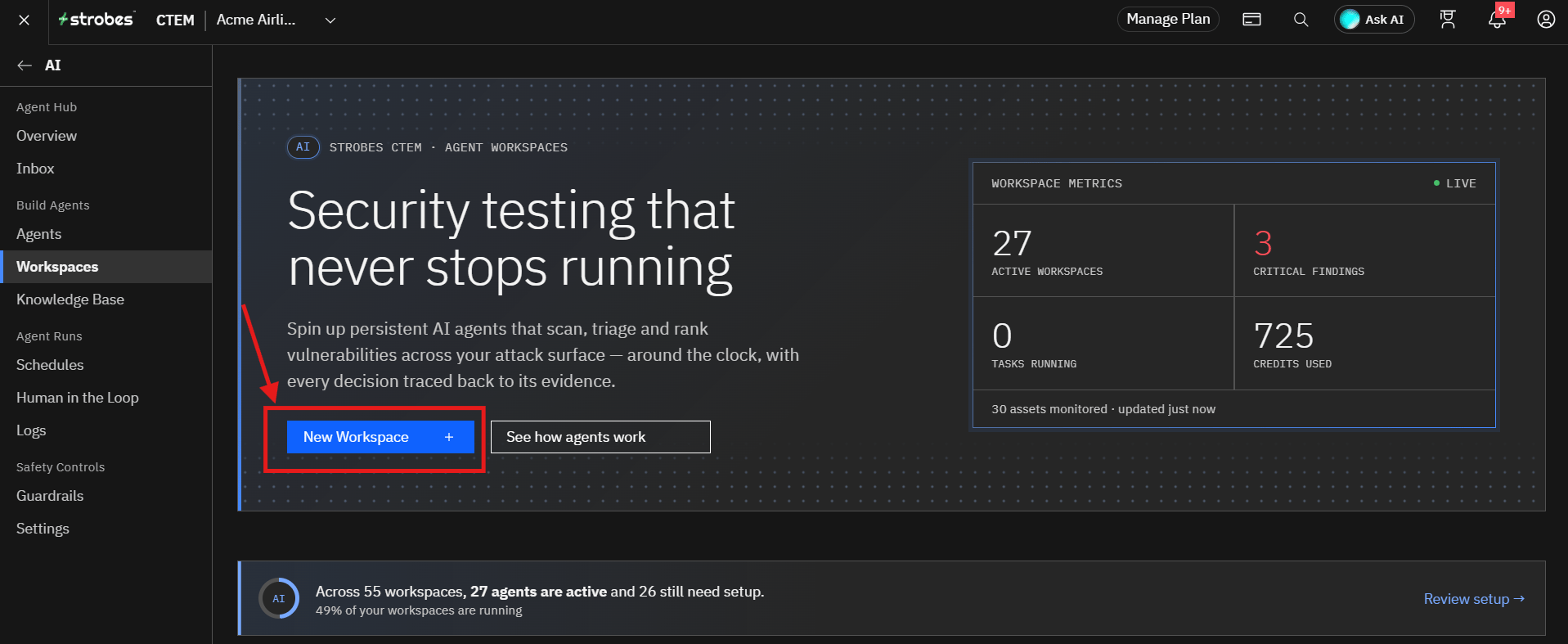
- Click New Workspace.
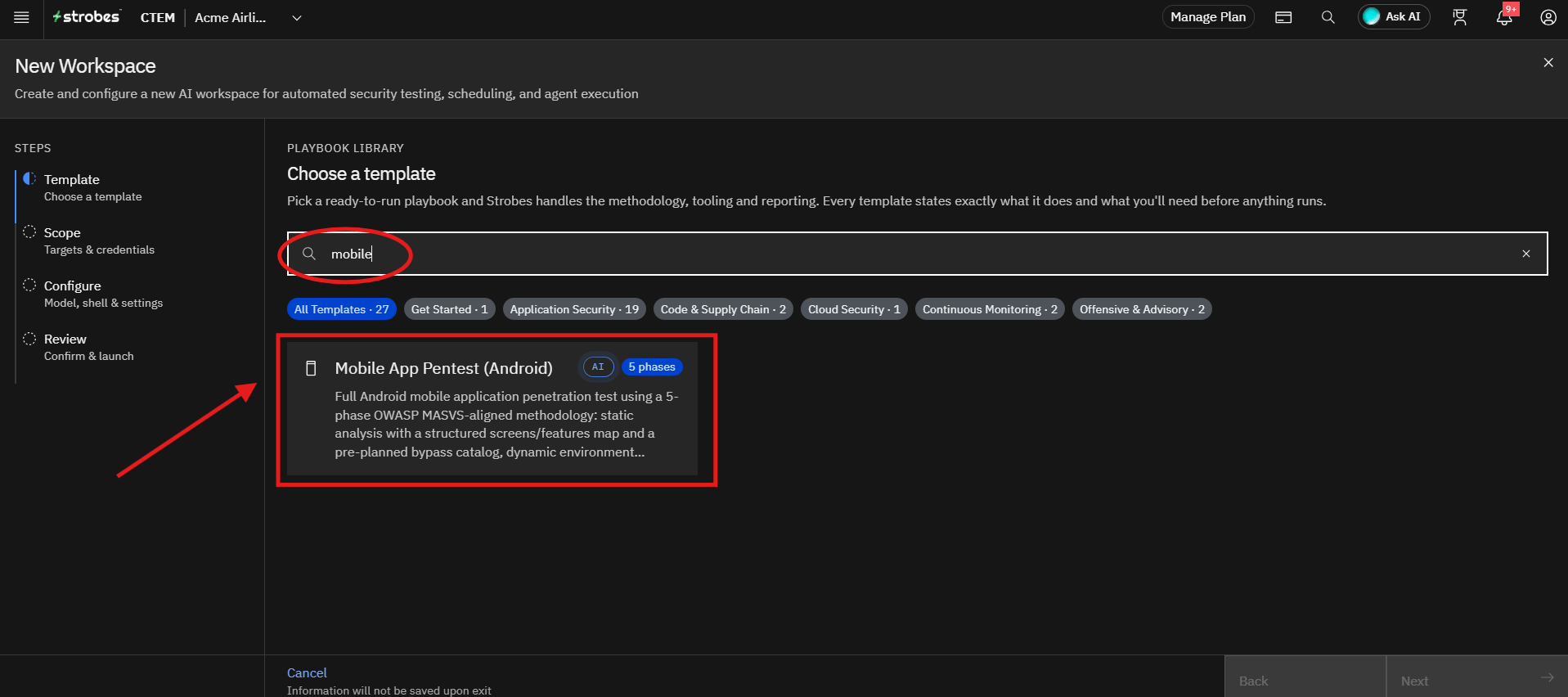
- In the Playbook Library, search for
mobileand select the Mobile App Pentest (Android) template.
Review the template details
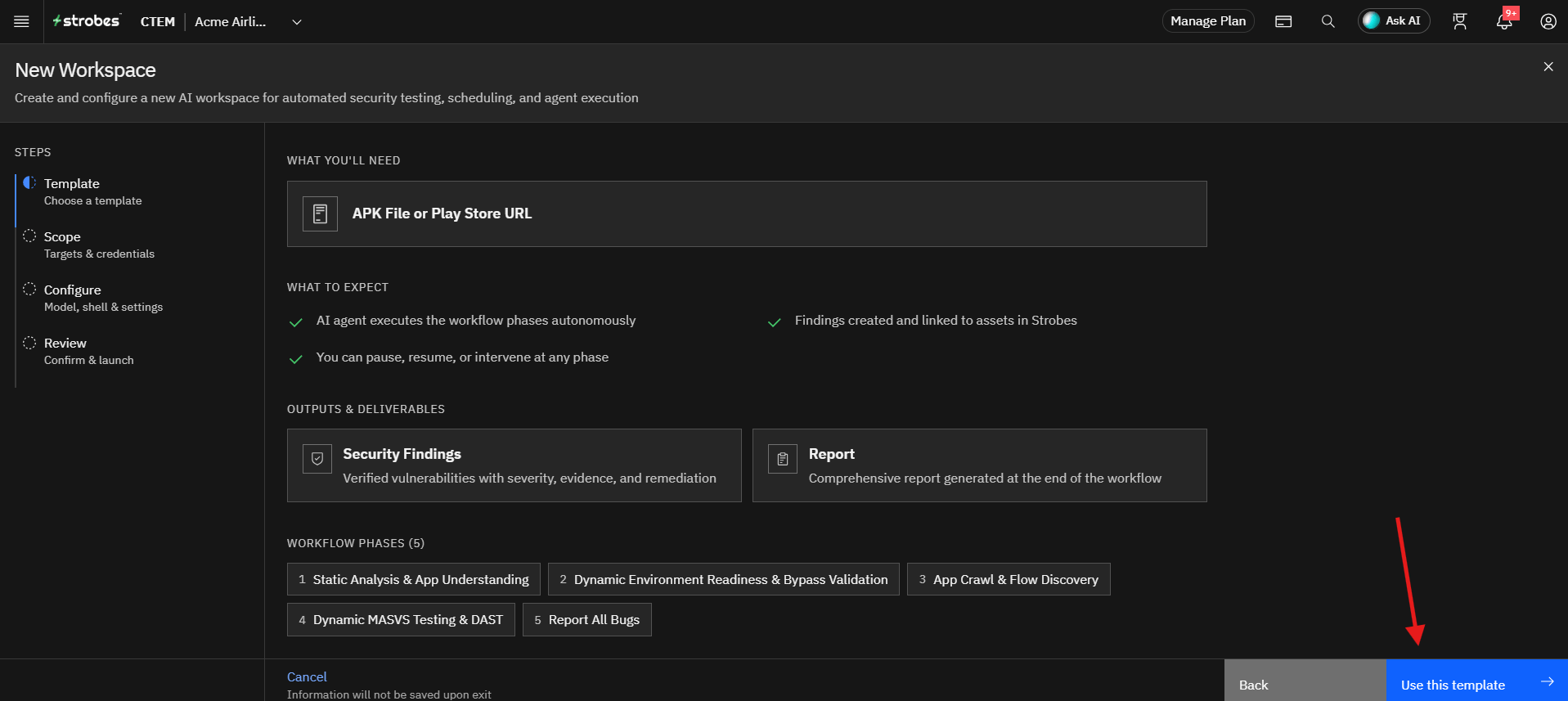
Selecting the template opens its details page, which shows:
- Tags: The category, number of phases, and version.
- About: What the template does.
- What you'll need: An APK file or Play Store URL.
- What to expect: The AI agent executes the workflow phases autonomously, findings are created and linked to assets in Strobes, and you can pause, resume, or intervene at any phase.
- Outputs & deliverables: Security Findings and a Report.
- Workflow phases: Static Analysis & App Understanding, Dynamic Environment Readiness & Bypass Validation, App Crawl & Flow Discovery, Dynamic MASVS Testing & DAST, and Report All Bugs.
To continue, select Use this template. To choose a different template, select Back or Back to templates.
- Click Use this template.
Configuring the App Scope
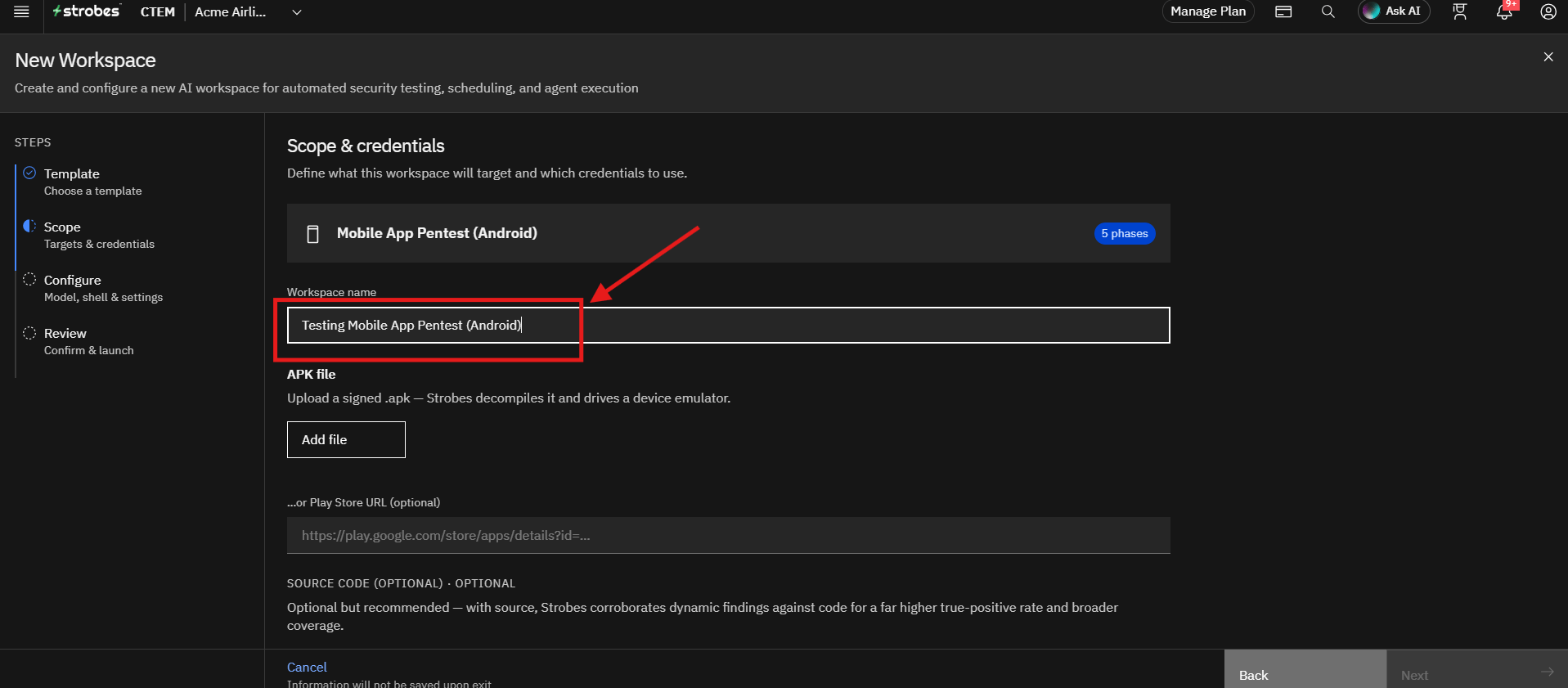
After selecting the template, the wizard automatically moves to the Scope step.
Step 1: Provide a Workspace Name
The Workspace name is pre-filled with the template name. Enter a more meaningful name for the assessment if you want, such as the app name and version.
Step 2: Upload the APK File
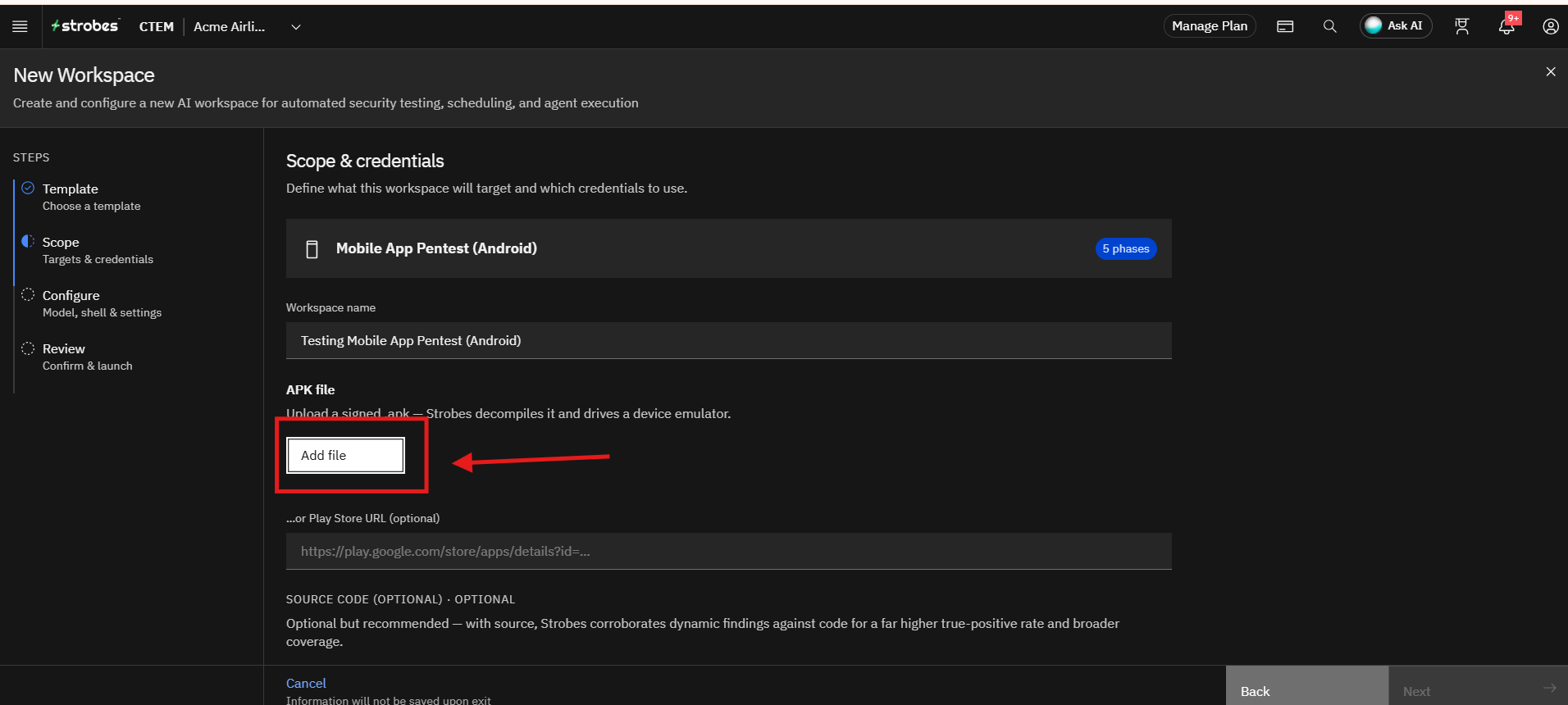
Under APK file, click Add file and select your signed .apk file. Strobes decompiles it and drives it on a device emulator. After the upload, the file name appears below the button.
Step 3: Enter a Play Store URL (Optional)
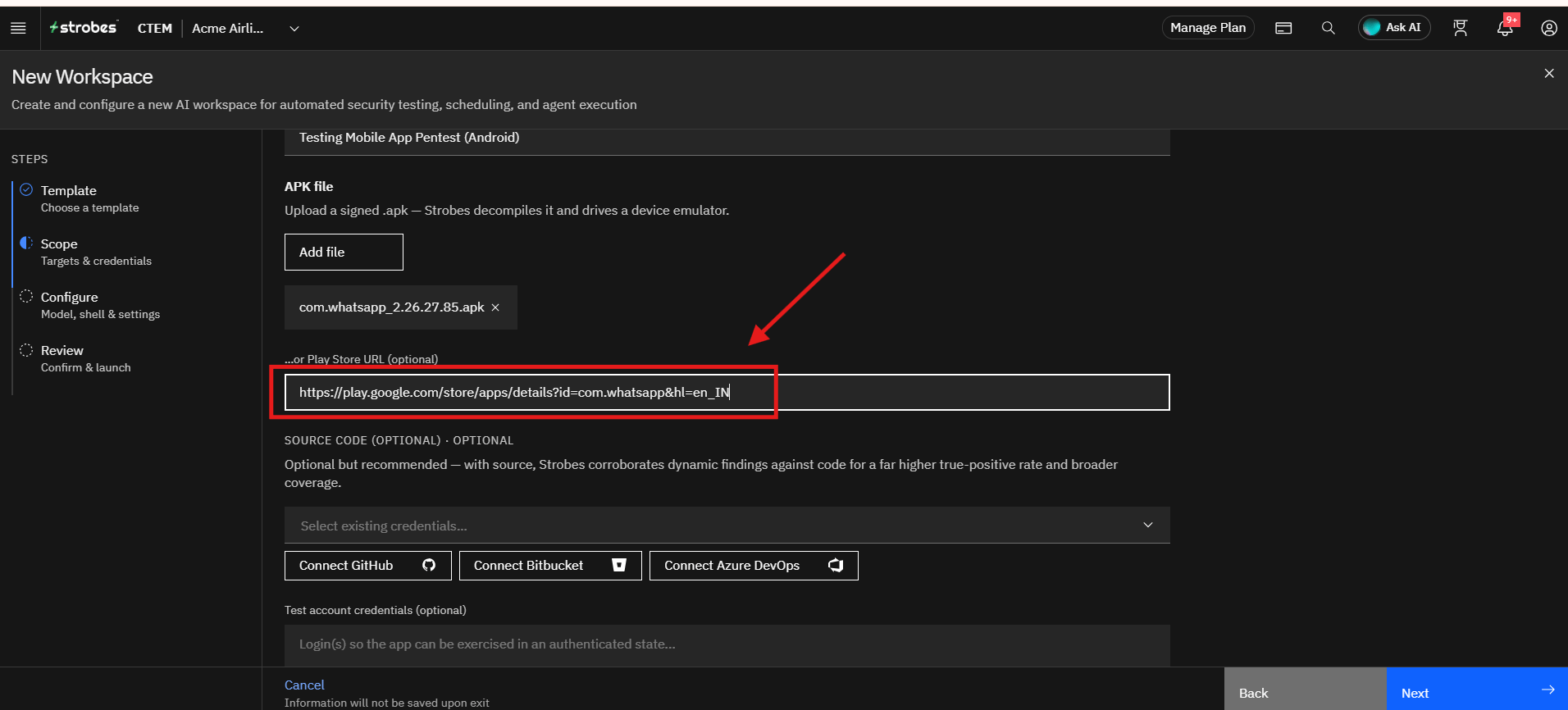
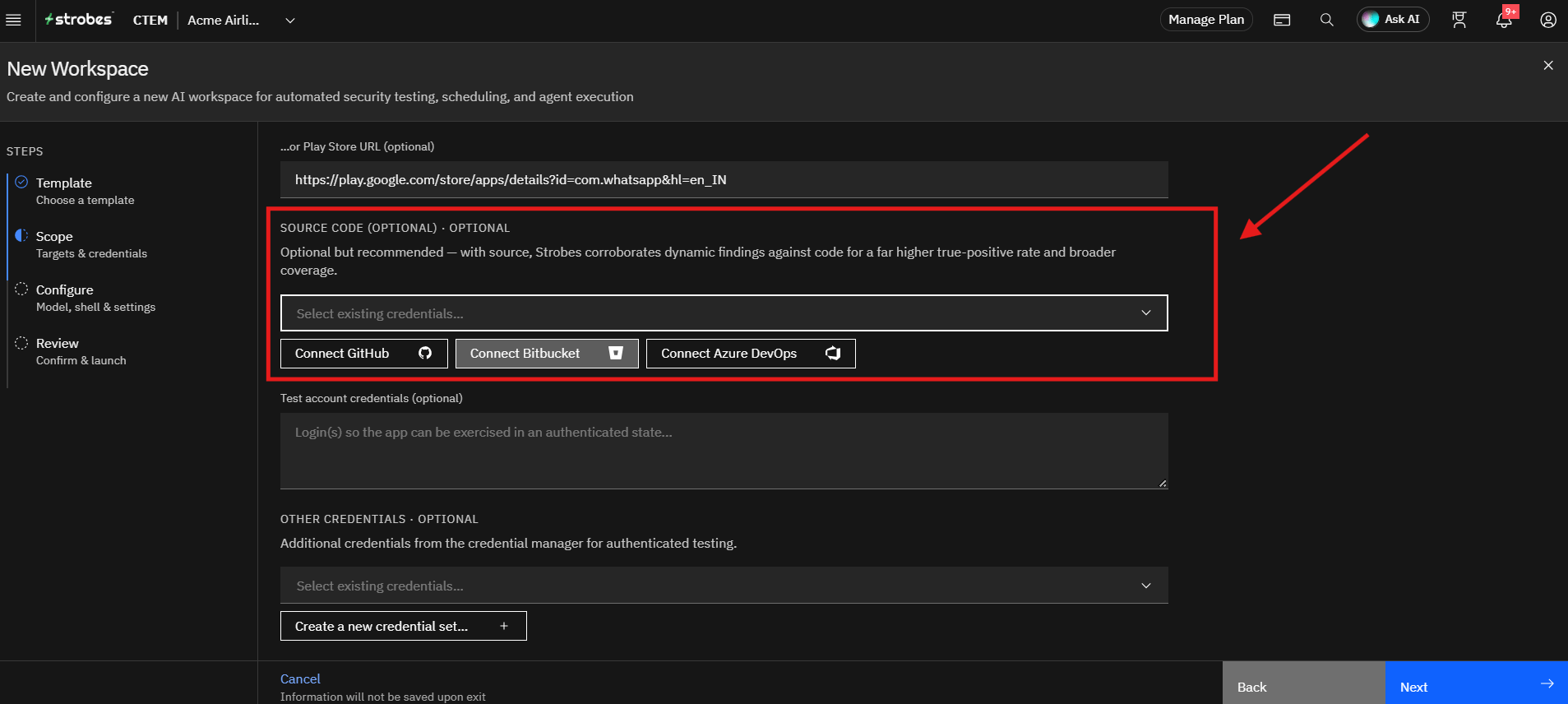
If you do not have an APK file, enter the app's Google Play Store link in the Play Store URL field, for example
Step 4: Connect Source Code (Optional)
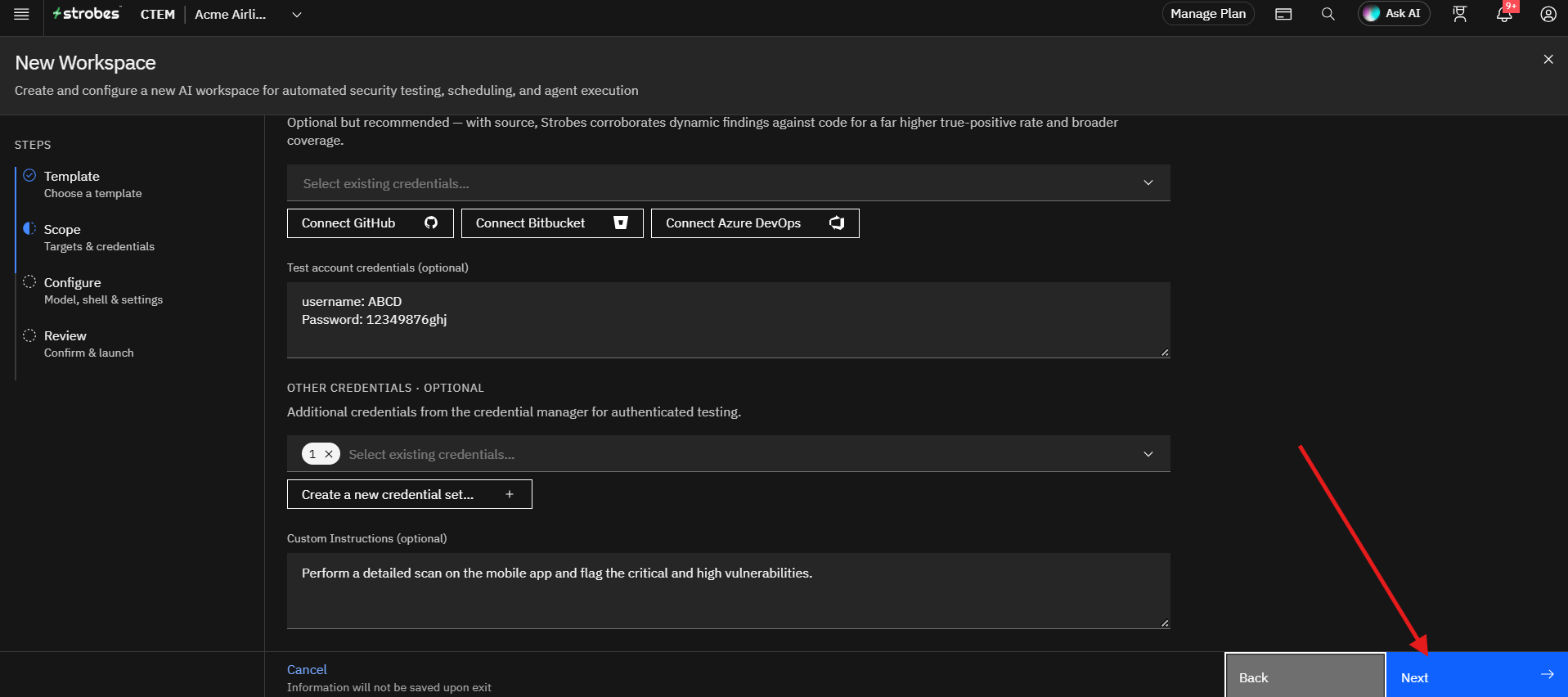
Under Source Code, select an existing credential from the list, or click Connect GitHub, Connect Bitbucket, or Connect Azure DevOps to add a new one. Ensure the selected credentials have access to the repository.
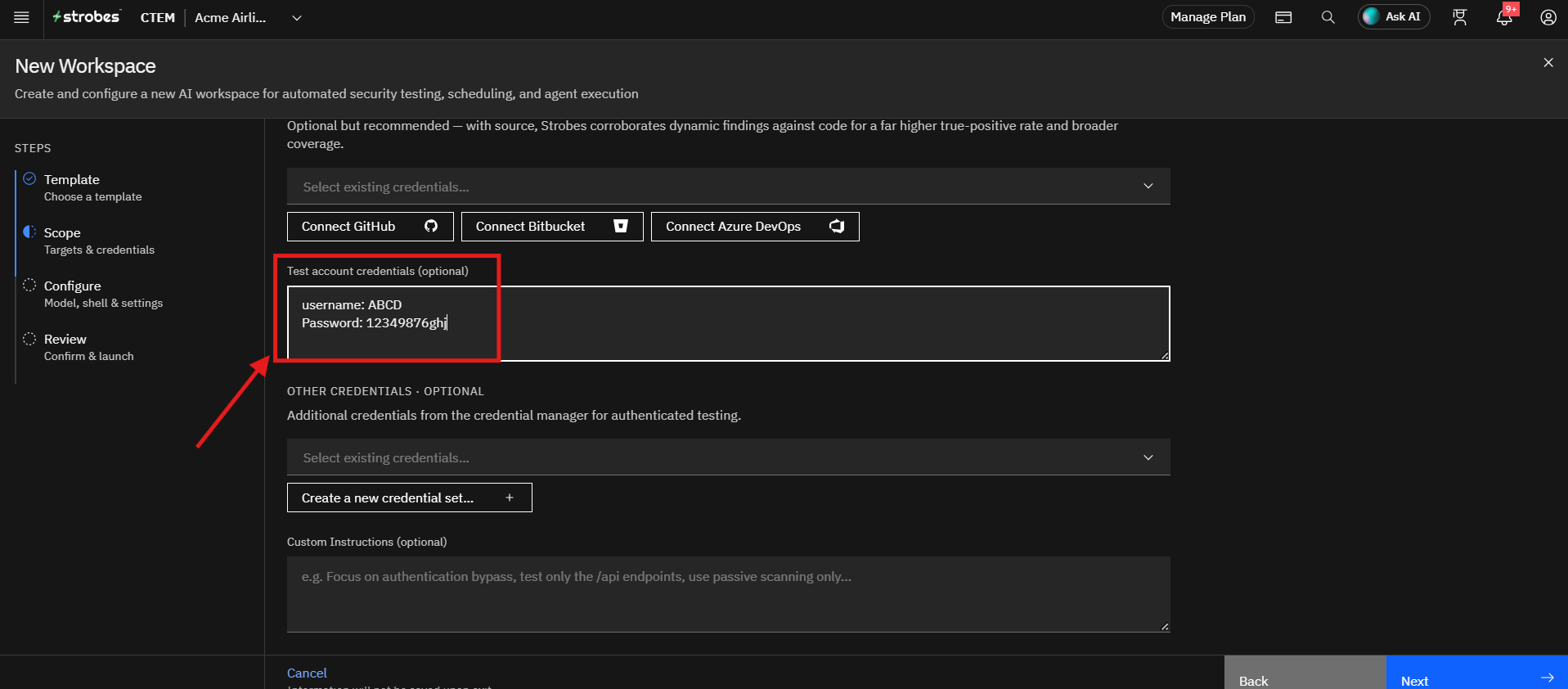
Step 5: Add Test Account Credentials (Optional)
In the Test account credentials field, enter the login details the app needs, so it can be tested in an authenticated state.
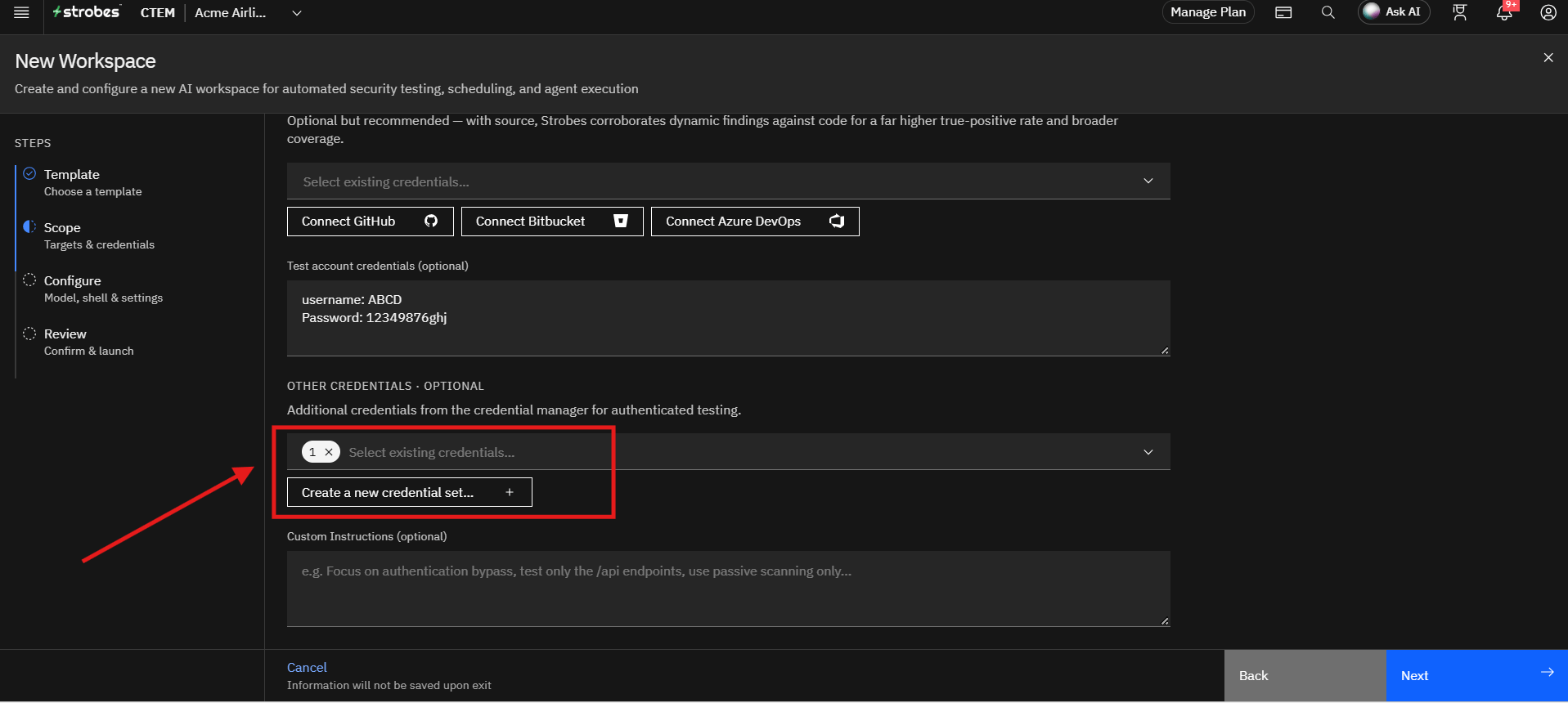
Step 6: Add Other Credentials (Optional)
Under Other Credentials, select additional credentials from the credential manager for authenticated testing, or click Create a new credential set to add them.
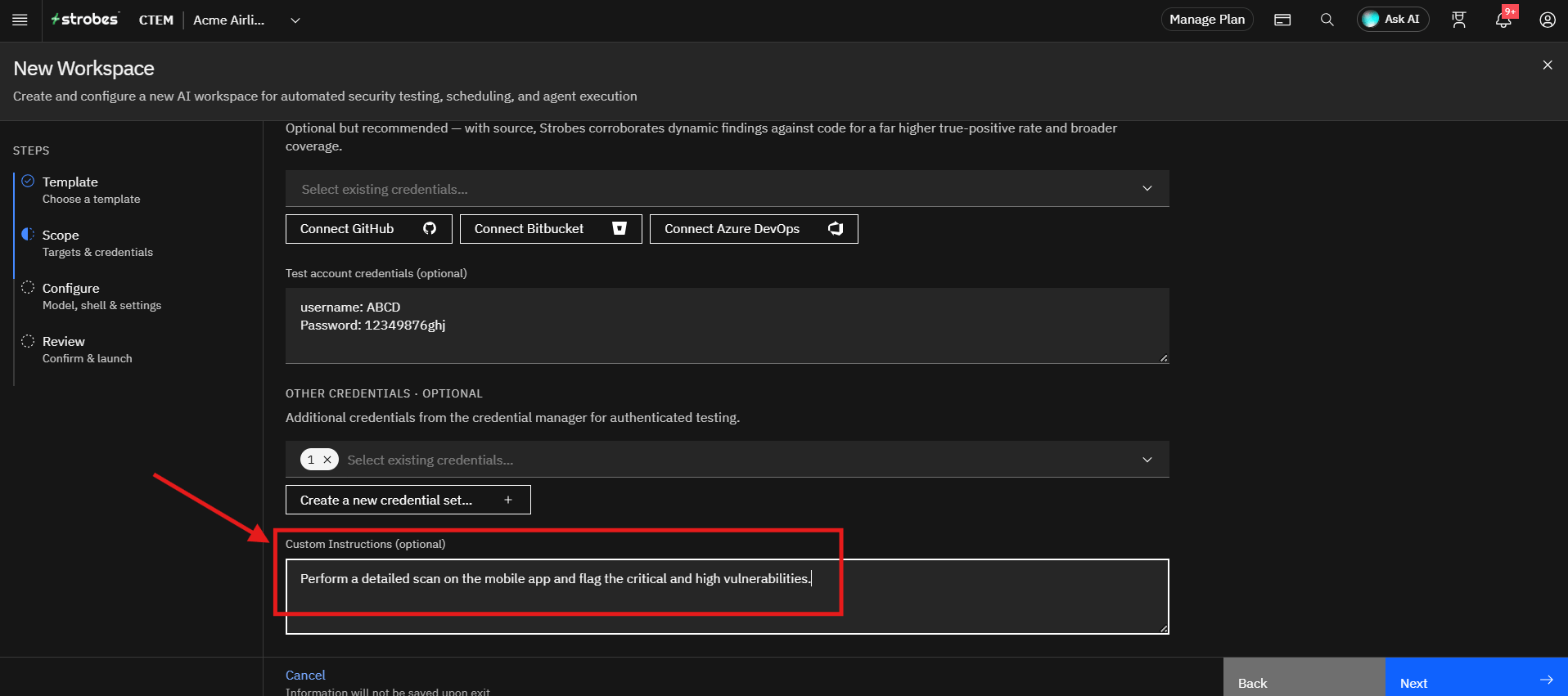
Step 7: Add Custom Instructions (Optional)
Use the Custom Instructions field to guide the assessment.
Example instructions:
- Perform a detailed scan on the mobile app and flag the critical and high vulnerabilities.
- Focus on insecure data storage.
- Focus on authentication and session handling.
- Test only the API calls made by the app.
These instructions help tailor the AI analysis to specific objectives.
Proceeding to Configuration
After completing the scope details:
- Verify the uploaded APK file or Play Store URL.
- Review the credentials and instructions.
- Click Next.
The wizard proceeds to the Configure step, where the model, shell, and execution settings can be customized.
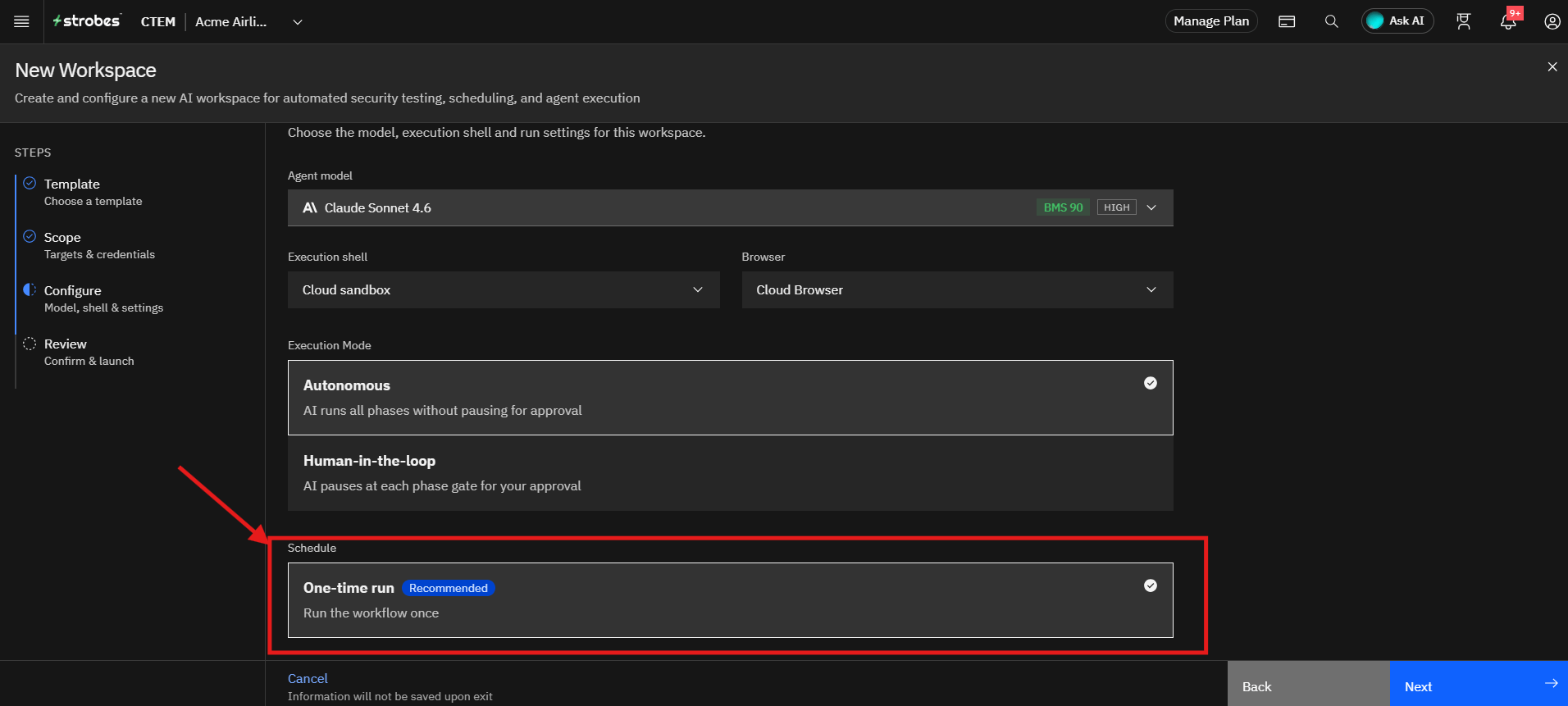
Step 8: Select an AI Model
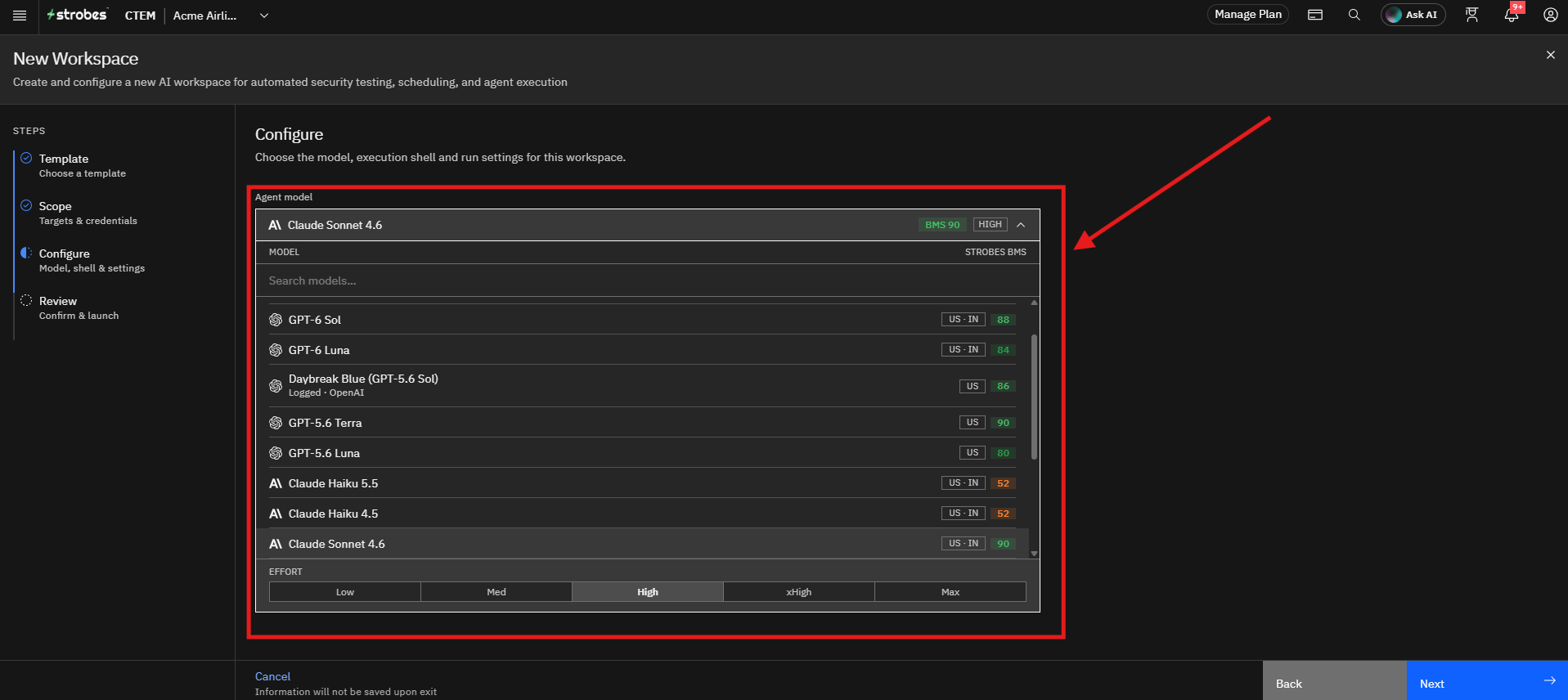
The Agent model determines the Large Language Model (LLM) used during the assessment.
To select a model:
- Open the Agent model dropdown.
- Review the available models and the effort level.
- Select the model that best fits your assessment requirements.
The selected model influences analysis depth, reasoning capabilities, response quality, and assessment speed.
Step 9: Review the Execution Shell and Browser
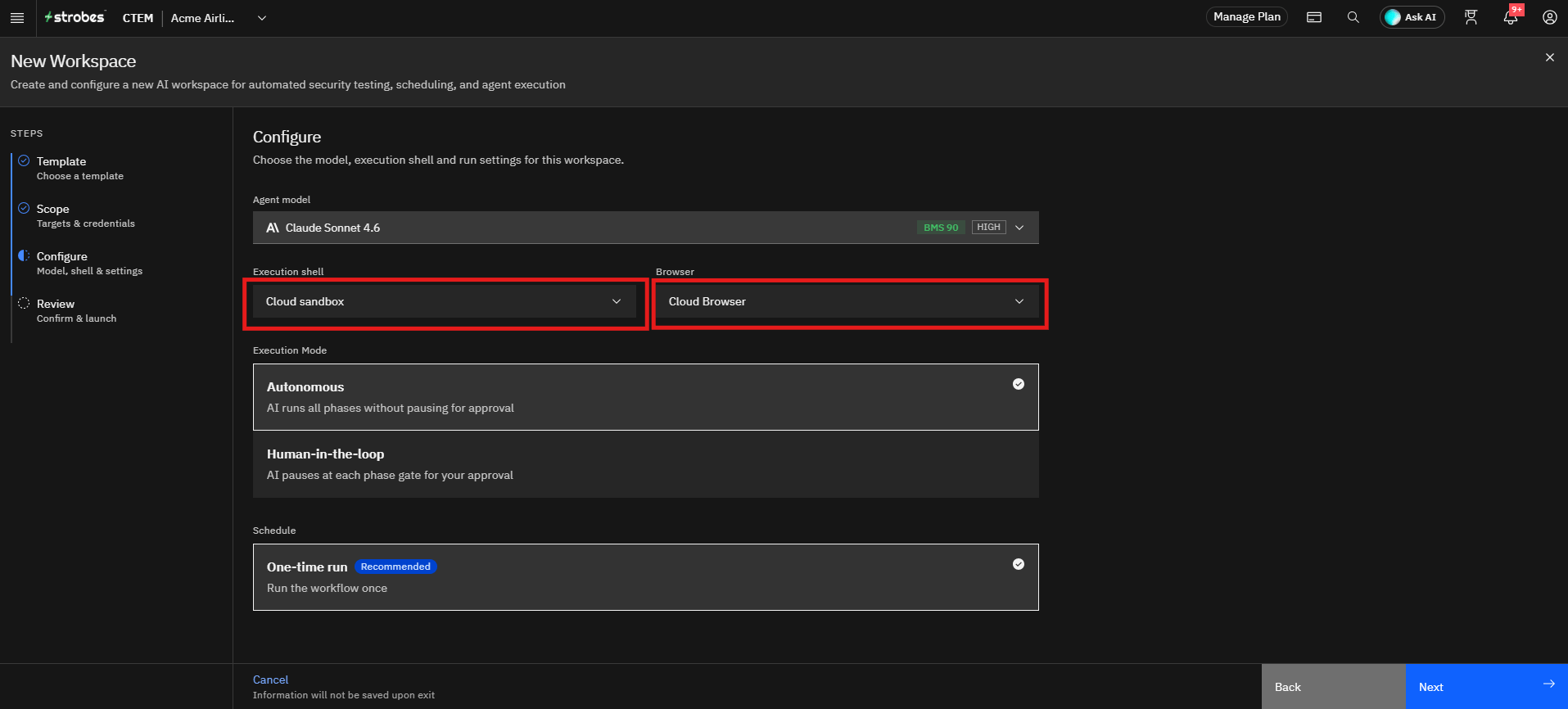
The Execution shell is Cloud sandbox and the Browser is Cloud Browser by default. This is the recommended setup for this template.
Step 10: Select the Execution Mode
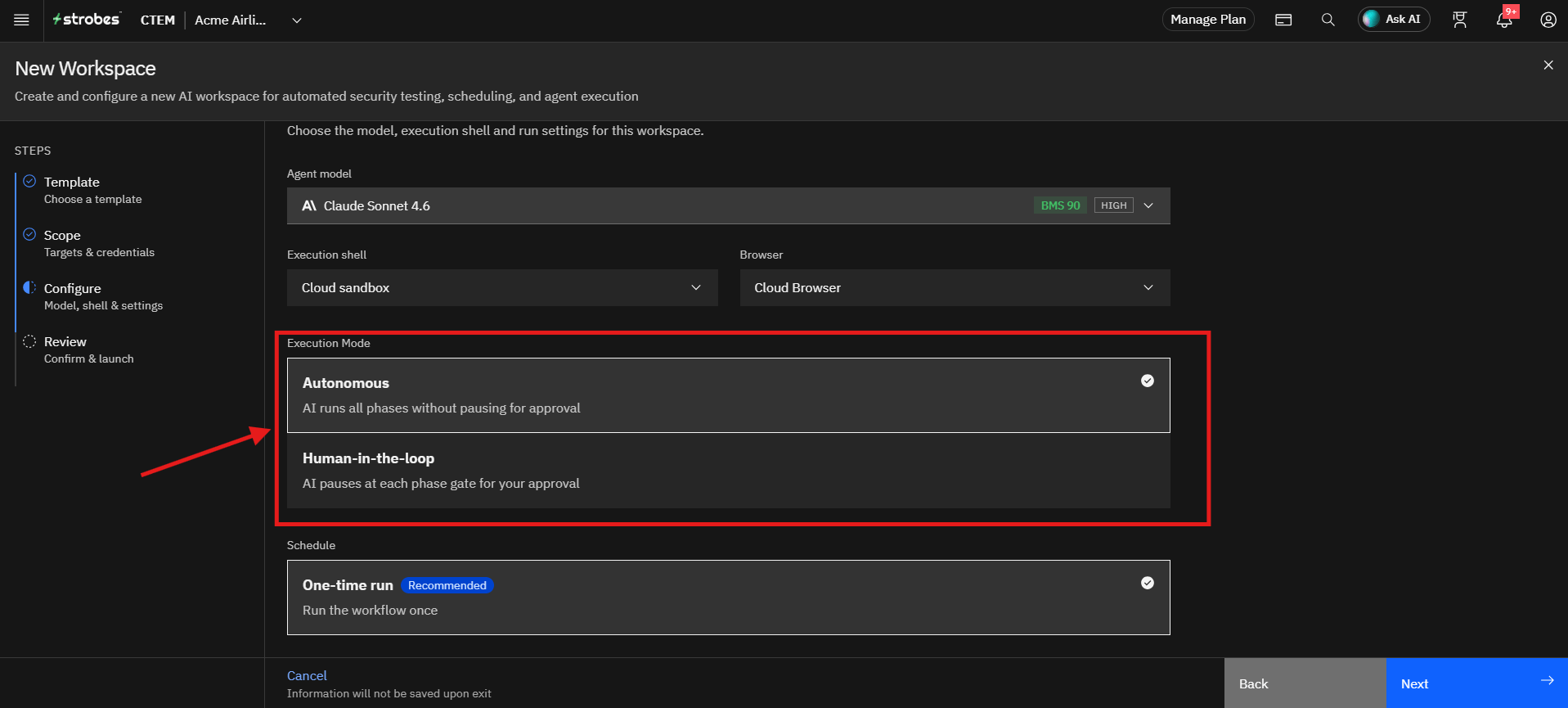
Choose how the AI runs the assessment. Autonomous is selected by default.
- Autonomous: The AI runs all phases without pausing for approval.
- Human-in-the-loop: The AI pauses at each phase gate and waits for your approval before continuing.
Step 11: Review the Schedule
The workflow is set to One-time run by default, so it runs once.
Step 12: Continue to Review and Launch
Once all configuration settings have been verified:
- Click Next.
- The wizard opens the Review page.
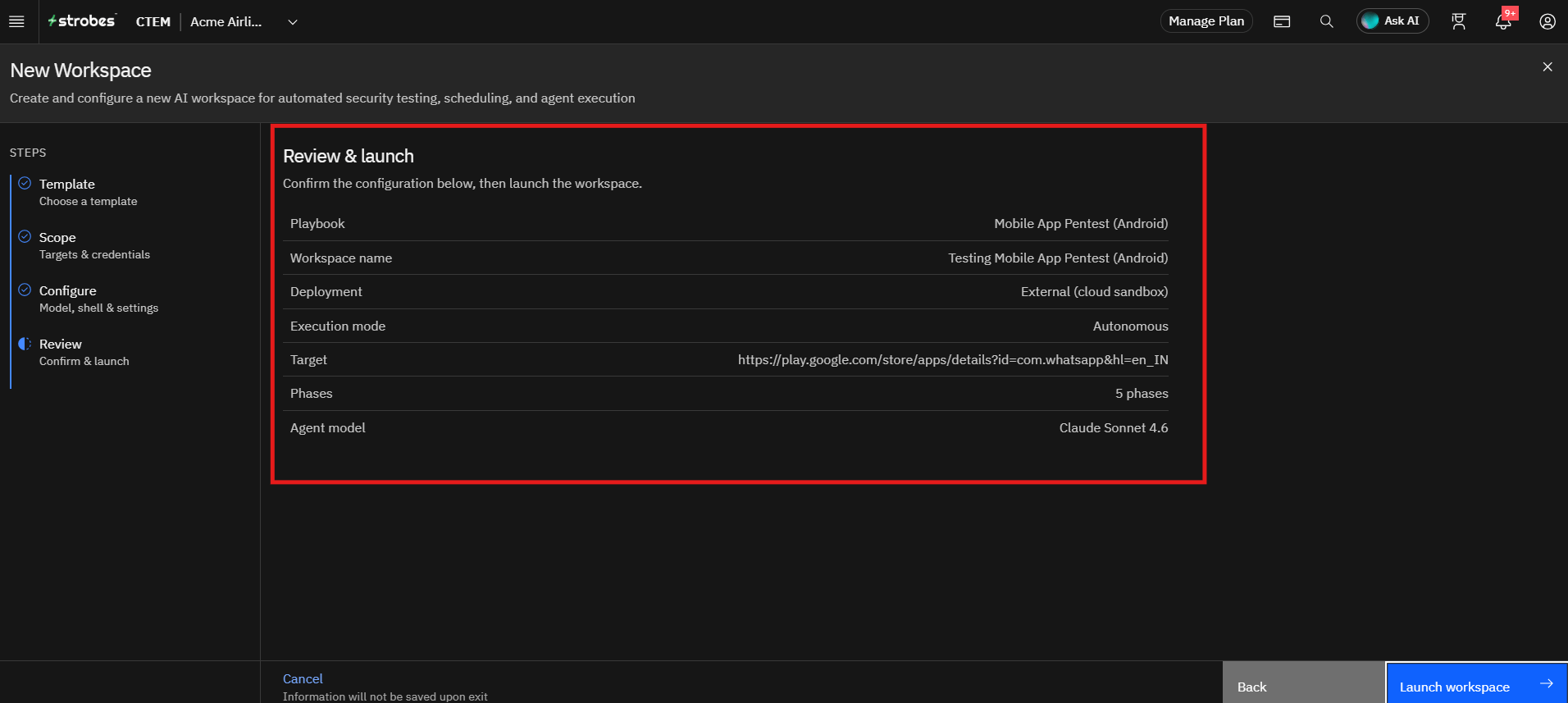
Step 13: Review and Launch the Workspace
Review the configuration summary, including the playbook, workspace name, deployment, execution mode, phases, and agent model.
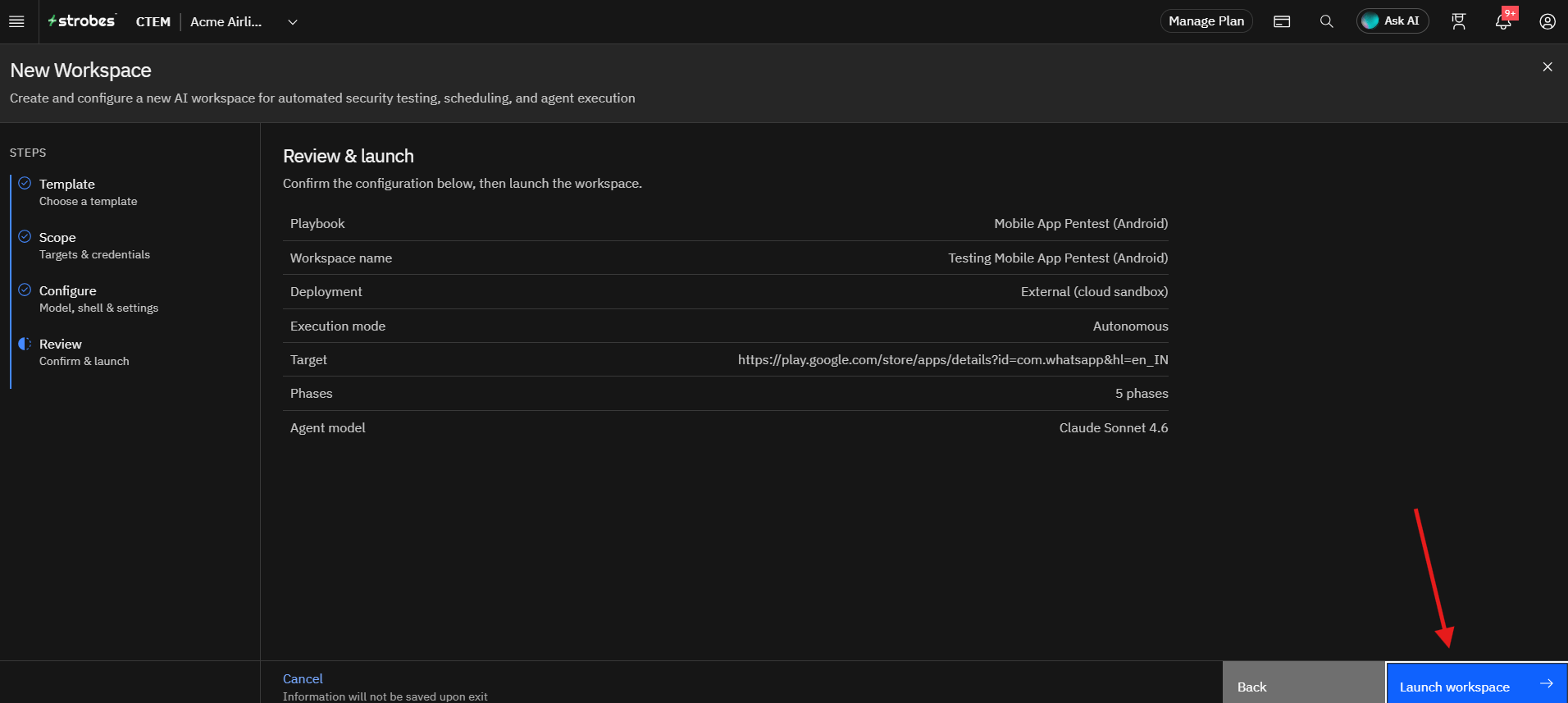
Once everything looks correct, click Launch workspace to start the assessment. When the run completes, findings appear in Strobes linked to your assets, and the report is available in the workspace.
Tips
- Upload a signed
.apkfile, or provide a Play Store URL. One of the two is needed before you can continue. - Connect source code whenever you can. It improves the true-positive rate and widens coverage.
- Provide test account credentials so the app can be exercised in an authenticated state.
- Use Human-in-the-loop if you want to approve each phase before it continues.
- Use Custom Instructions to focus the test, for example on data storage, authentication, or specific API calls.
- The dynamic environment readiness phase checks that the test setup works before the full run, so the main testing time is not wasted.
- The assessment duration varies based on the size and complexity of the app.
- Only test apps you are authorized to test.
More in Workspace configuration
Was this page helpful?