
Managing credentials for AI Workspaces
2 min readEdit
This article explains how to add, manage, and attach credentials that the AI agent will use during pentests. Credentials are reusable across every Workspace you create — set them up once, attach them many times.
Prerequisites
Before adding credentials, ensure the following:
- You're an Owner/Manager user within your Strobes platform.
- You have the actual credential values on hand (username/password, API key, AWS access key, GCP service account JSON, etc.).
- You have decided on a clear naming convention so credentials are easy to identify in the wizard.
Steps to add a credential
Step 1: Open the Credentials page
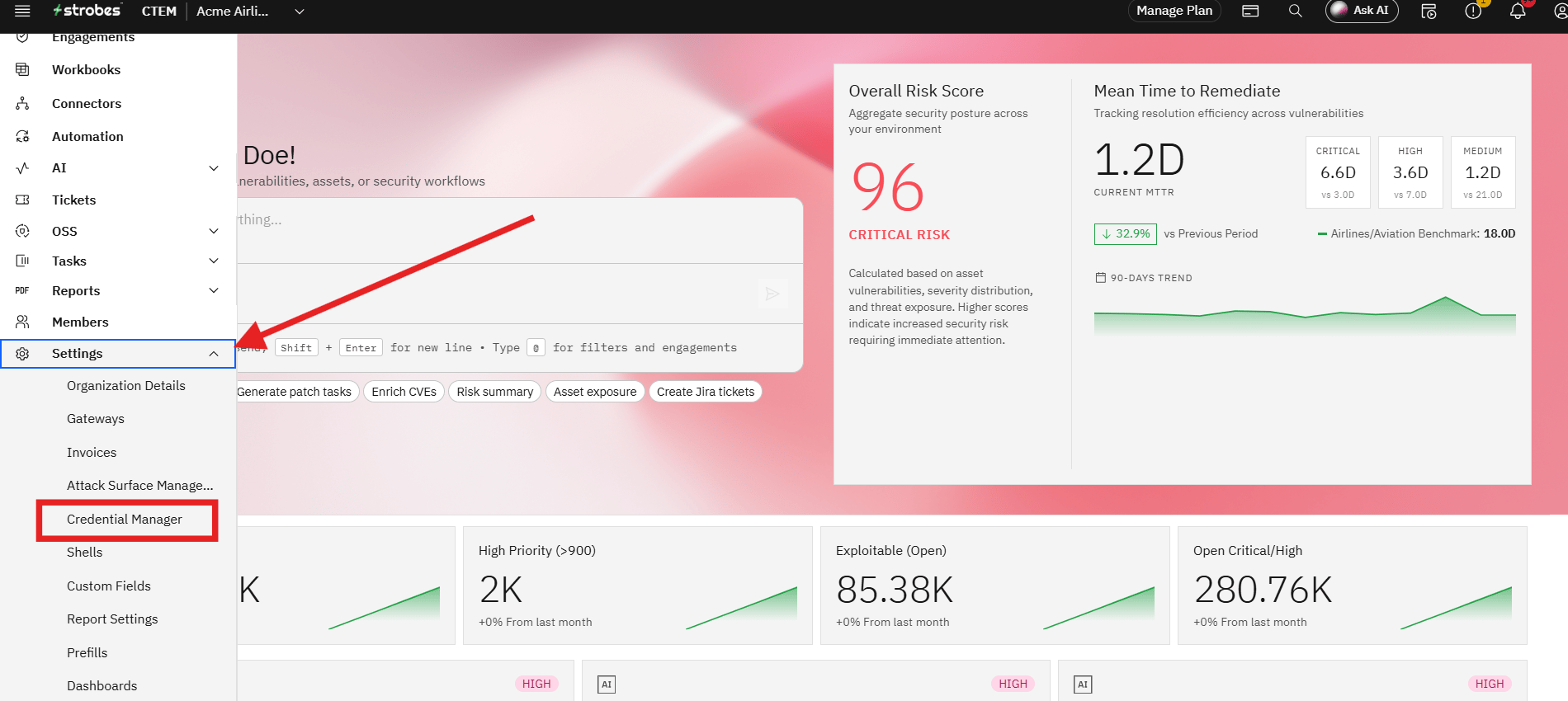
- Go to Settings → Credential Manager
Step 2: Add a new credential
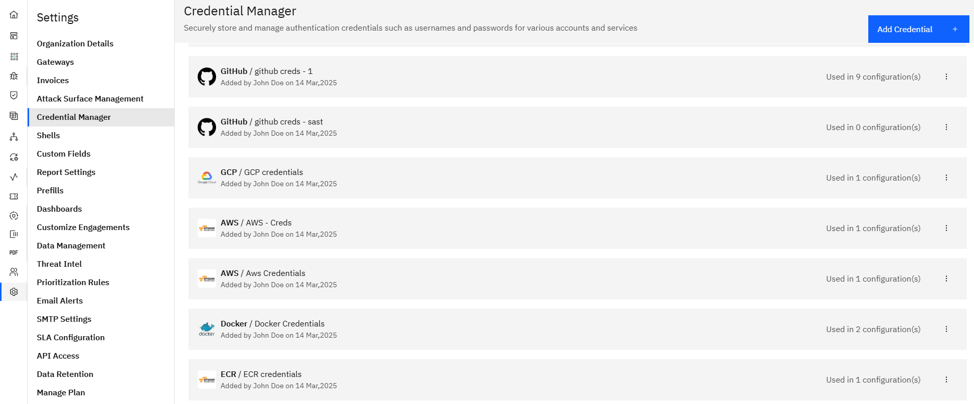
- Click the Add Credential button.
- Pick the credential type from the dropdown — Username/Password, API Key, AWS, GCP, Azure, GitHub, GitLab, Bitbucket, Jira, OAuth, and others.
Step 3: Fill in credential details
- Name: Give the credential a meaningful, scoped name (e.g.,
qa-readonly-aws,pentest-test-user,github-acme-readonly). - Fill in the type-specific fields (access key + secret, username + password, token, etc.).
Step 4: Save
- Click Save. The credential is now available in every Workspace's Scope step.
Where Can This Be Used?
Credentials configured here can be selected in:
- Workspace Scope step: For authenticated pentests (web app test users, API keys, AD accounts, cloud roles).
- Code Review templates: For accessing private GitHub / GitLab / Bitbucket repositories.
- Cloud Review templates: For read-only audits of AWS, GCP, or Azure environments.
- Connector setup: For ongoing sync jobs that import assets and findings from external scanners.
Tip: Use scoped, read-only credentials wherever possible. Tag them clearly so the right one is easy to pick in the wizard.
Troubleshooting Tips
- If a credential doesn't appear in the wizard, refresh the Scope step — it picks up newly added credentials when the page reloads.
- If a scan fails with a permissions error, verify the credential's role or token has the scopes the template requires (most templates run with read-only access).
- If a credential expires (e.g., a rotated AWS Access Key), edit the credential entry and replace the value — running Workspaces will pick up the update automatically on their next run.
More in Workspace configuration
Was this page helpful?