
Running a Web Application Pentest by Strobes AI
7 min readEdit
On this page⌄
- Overview
- Why Is It Needed?
- Benefits
- Available Assessment Templates
- Web App Pentest - Fast
- Web App Pentest - Standard
- Web App Pentest - Deep
- Which Template Should I Choose?
- Prerequisites:
- Before you start, make sure you have:
- Accessing the Web App Pentest Template
- Review the template details
- Configuring the Target Scope
- Step 1: Choose the Deployment Type
- Step 2: Provide a Workspace Name
- Step 3: Enter the Target URL
- Step 4: Connect Source Code (Optional)
- Step 5: Add Per-Role Test Accounts (Optional)
- Step 6: Add Custom Instructions (Optional)
- Proceeding to Configuration
- Step 7: Select an AI Model
- Step 8: Select an Execution Shell
- Step 9: Review the Browser Setting
- Step 10: Select the Execution Mode
- Step 11: Review the Schedule
- Step 12: Continue to Review and Launch
- Step 13: Review and Launch the Workspace
- Tips
Overview
A Web Application Pentest in Strobes helps identify security vulnerabilities in a running web application. An AI agent follows the OWASP Web Security Testing Guide (WSTG), discovers endpoints, tests them, verifies what it finds, and provides evidence and remediation guidance to help teams address the risks.
Why Is It Needed?
Web applications are exposed to the internet and are a common target for attackers. Testing them regularly helps you find exploitable issues before attackers do. Because the agent verifies findings before reporting them, your team spends time on genuine issues instead of scanner noise.
Benefits
- On-Demand Testing: Run a pentest whenever you need it, without waiting for a manual engagement.
- Verified Findings: Focus on confirmed vulnerabilities with severity, evidence, and remediation guidance.
- Nothing to Install: For internet-facing targets, Strobes tests from its cloud sandbox.
- Findings in Strobes: Findings are created and linked to assets automatically.
- Report Included: A comprehensive report is generated at the end of the workflow.
- Full Control: Pause, resume, or step in at any phase.
Available Assessment Templates
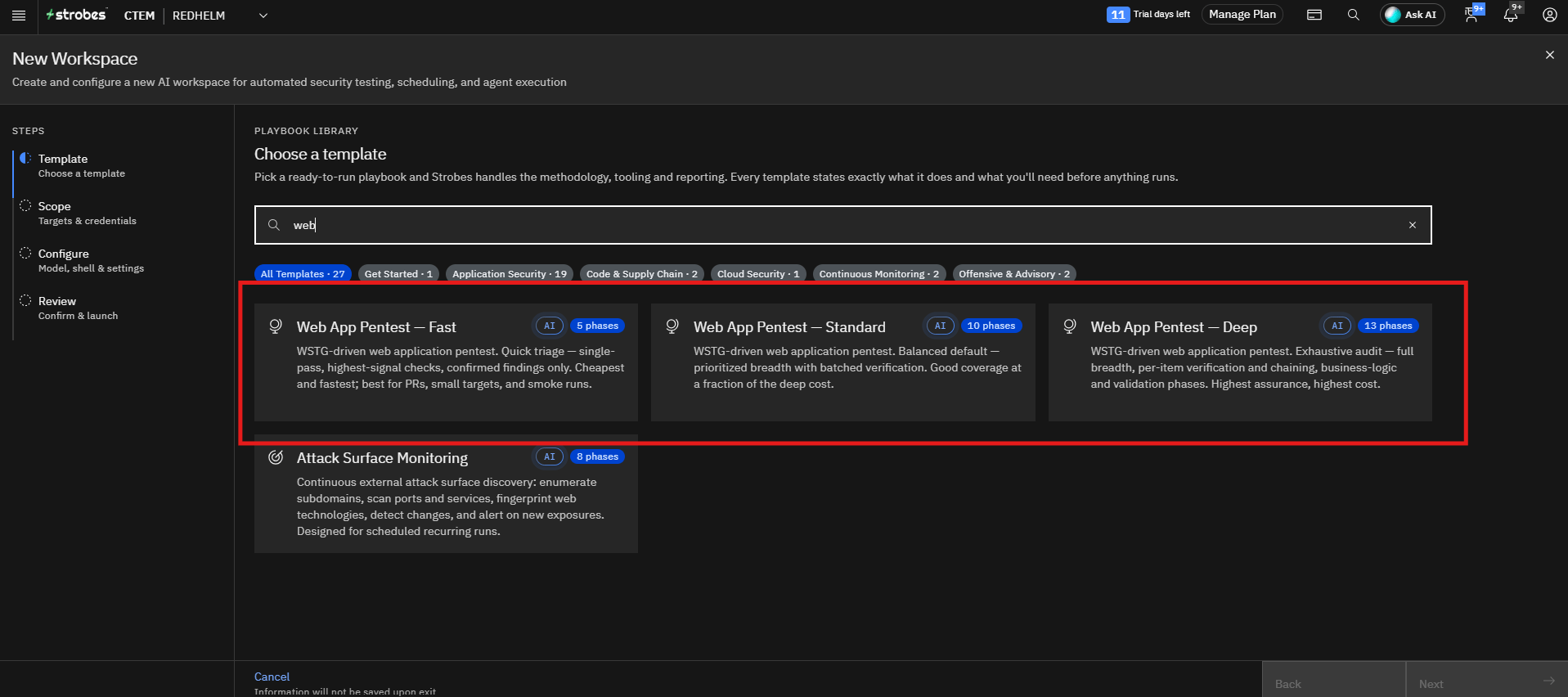
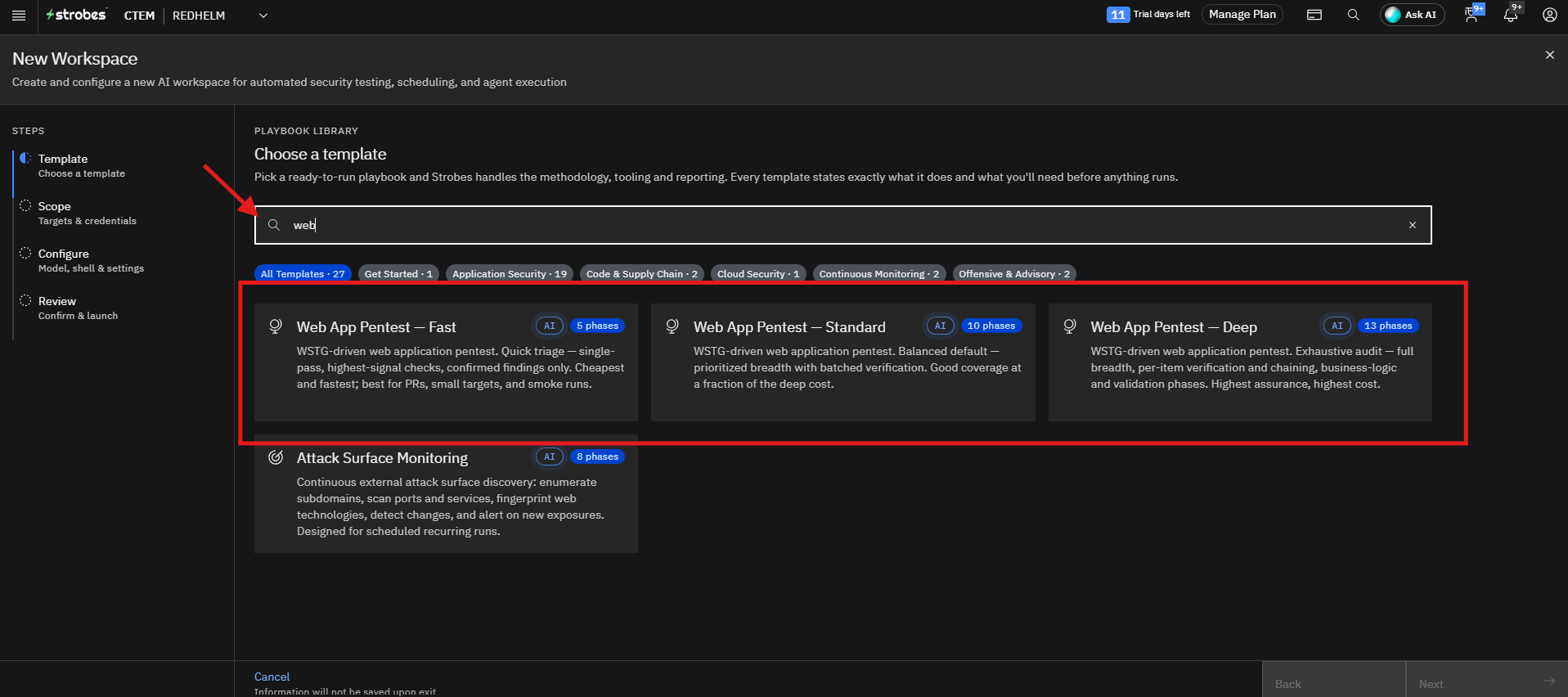
Strobes offers three Web App Pentest templates, Fast, Standard, and Deep, so you can choose the level of security analysis that best suits your application.
Web App Pentest - Fast
A quick triage focused on the highest-signal issues.
- Runs 5 phases in a single pass.
- Reports confirmed findings only, and generates a report.
- Cheapest and fastest option.
Best for: Pull requests, small targets, and smoke runs.
Web App Pentest - Standard
A balanced pentest that suits most applications.
- Runs 10 phases.
- Prioritizes breadth with batched verification.
- Gives good coverage at a fraction of the Deep cost.
Best for: Regular security testing of most applications.
Web App Pentest - Deep
The most complete pentest, designed for the highest level of assurance.
- Runs 13 phases, including attack surface analysis, business flow modeling, WSTG test case design, finding chaining, vulnerable component and CVE testing, and finding validation.
- Performs per-item verification and chaining, with business logic and validation phases.
- Highest assurance and highest cost.
Best for: Critical applications, applications that handle sensitive data, and in-depth security audits.
Which Template Should I Choose?
Feature | Fast | Standard | Deep |
|---|---|---|---|
Number of Phases | 5 | 10 | 13 |
Testing Approach | Single pass, highest-signal checks | Prioritized breadth with batched verification | Exhaustive audit with per-item verification |
Review Depth | Quick | Thorough | Most complete |
Attack Surface and Business Flow Analysis | Not included | Included | Dedicated phases |
WSTG Test Case Design | Not included | Included | Included, with de-duplication and gap-fill |
Business Logic and Validation Testing | Not included | Limited | Included |
Finding Chaining | Not included | Not included | Included |
Vulnerable Component and CVE Testing | Not included | Limited | Included |
Finding Validation | Confirmed findings only | Batched verification | Per-item verification |
Run Time and Credit Usage | Lowest | Moderate | Highest |
Prerequisites:
Before you start, make sure you have:
- Access to Strobes AI Workspaces in your organization.
- Enough AI credits. Each run uses AI credits. Deep uses the most, while Fast uses the least.
- The public base URL of the application you want to test, such as
https://example.com. - Authorization to test the target.
- For internal targets behind your firewall, a Bridge shell running inside your network.
- (Optional, recommended) Access to your source code through GitHub, Bitbucket, or Azure DevOps.
- (Optional, recommended) One test login per user role.
Note: Source code and per-role test accounts are optional, but they improve accuracy. With source code, Strobes corroborates dynamic findings against your code for a higher true-positive rate. With per-role accounts, Strobes can verify access-control boundaries with high confidence.
Accessing the Web App Pentest Template
Strobes offers different Web App Pentest templates based on the required level of security analysis. For this guide, we will use the Deep template. The steps are the same for Fast and Standard.
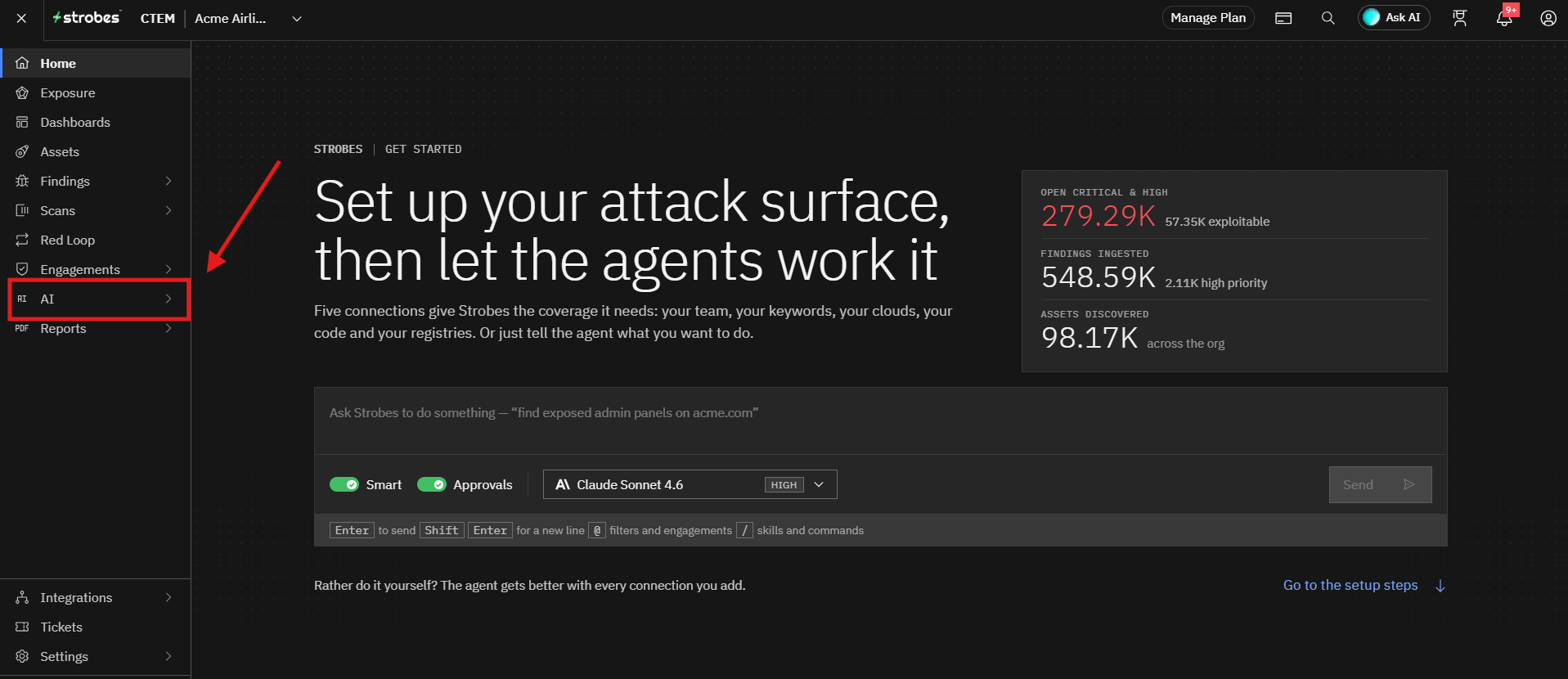
- Navigate to AI from the main navigation menu.
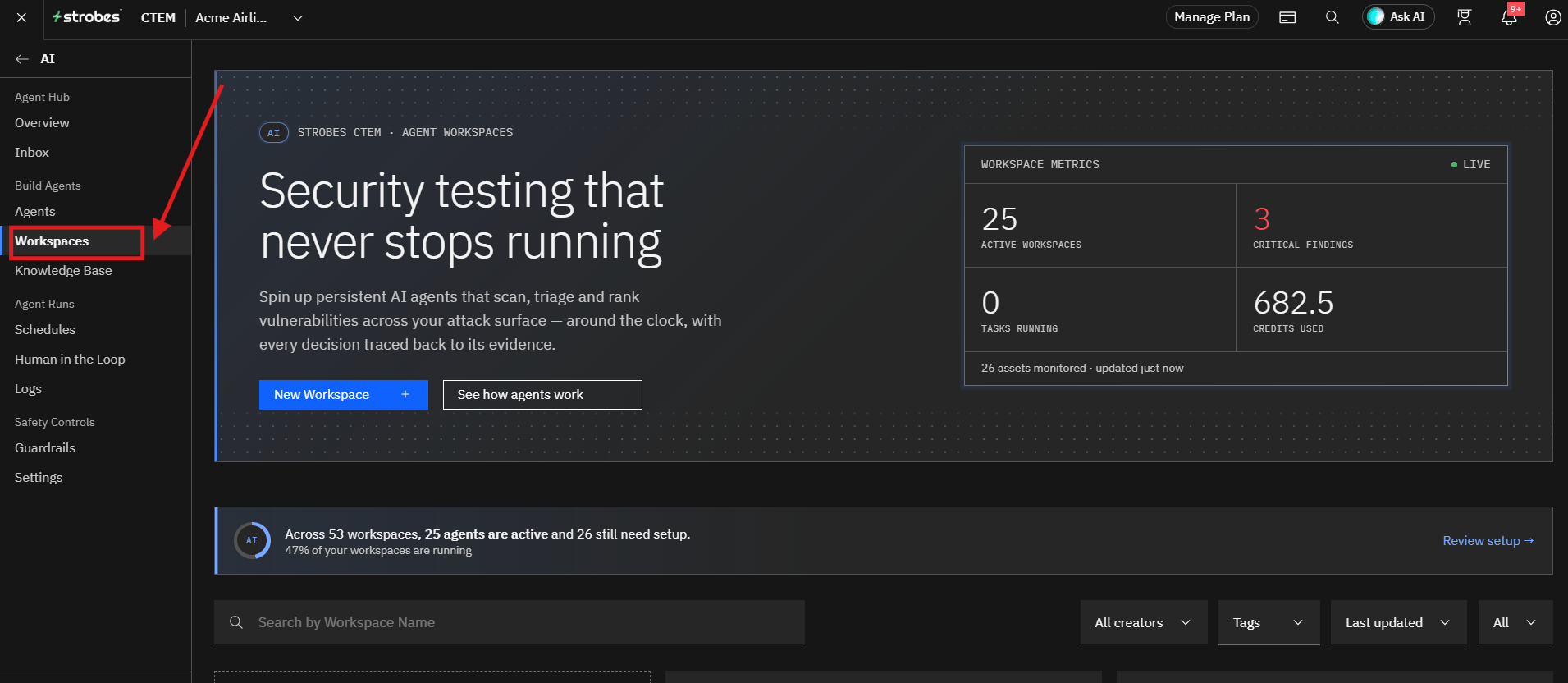
- Open the Workspaces page.
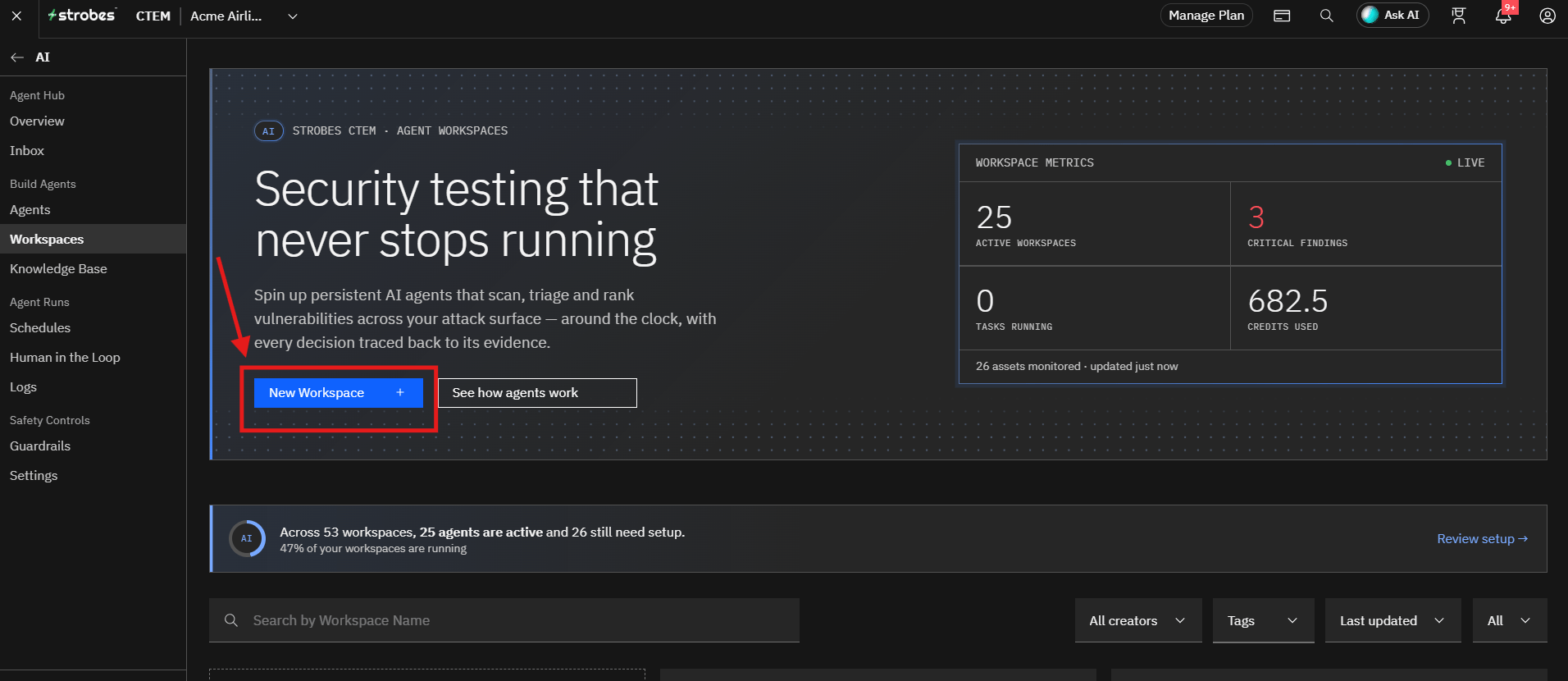
- Click New Workspace.
- In the Playbook Library, search for
weband select the Web App Pentest template you want.
Review the template details
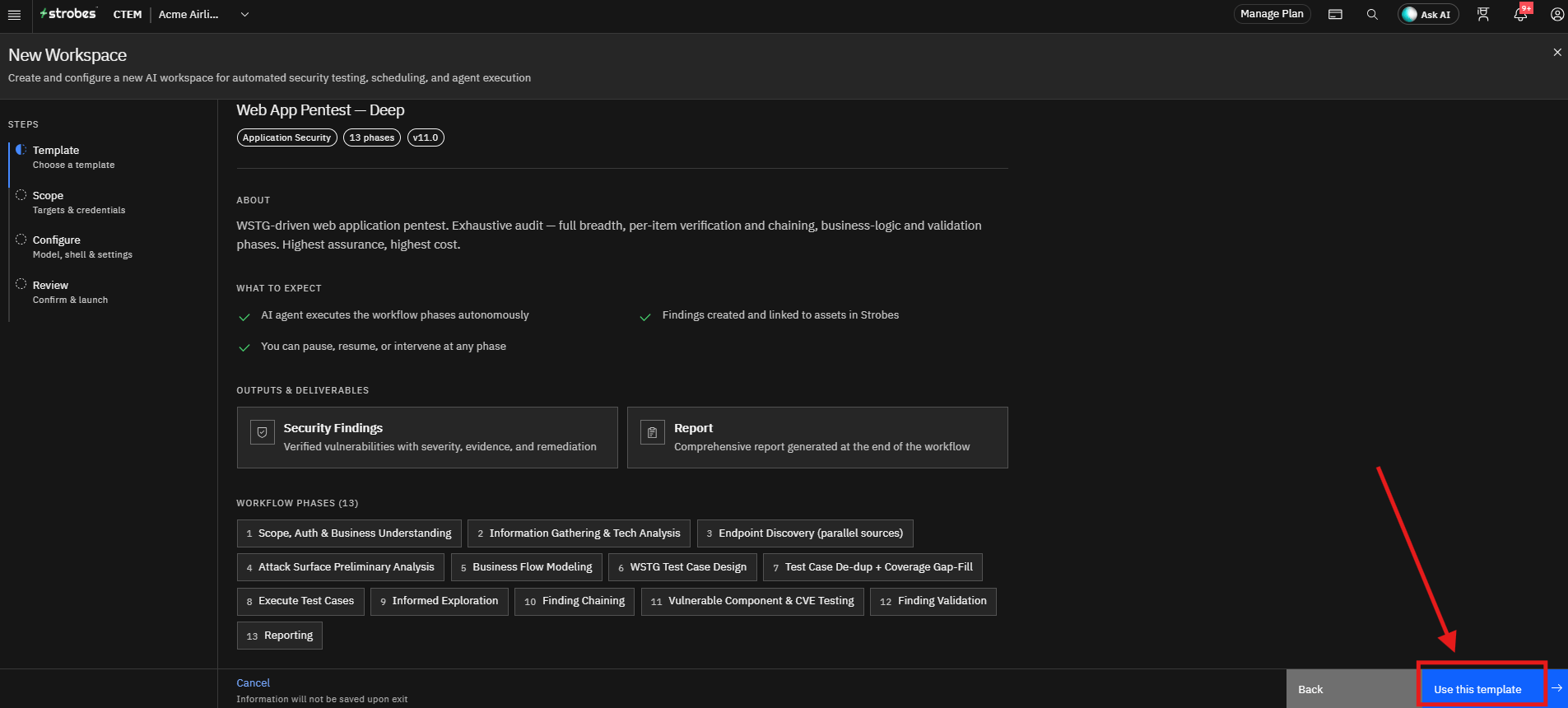
Selecting a template opens its details page, which shows:
- Tags: The category, number of phases, and version.
- About: What the template does.
- What to expect: The AI agent executes the workflow phases autonomously, findings are created and linked to assets in Strobes, and you can pause, resume, or intervene at any phase.
- Outputs & deliverables: Security Findings and a Report.
- Workflow phases: The phases the template runs, in order. For example, Web App Pentest - Deep runs 13 phases, from scope and business understanding to finding validation and reporting.
To continue, select Use this template. To choose a different template, select Back or Back to templates.
- Click Use this template.
Configuring the Target Scope
After selecting the template, the wizard automatically moves to the Scope step.
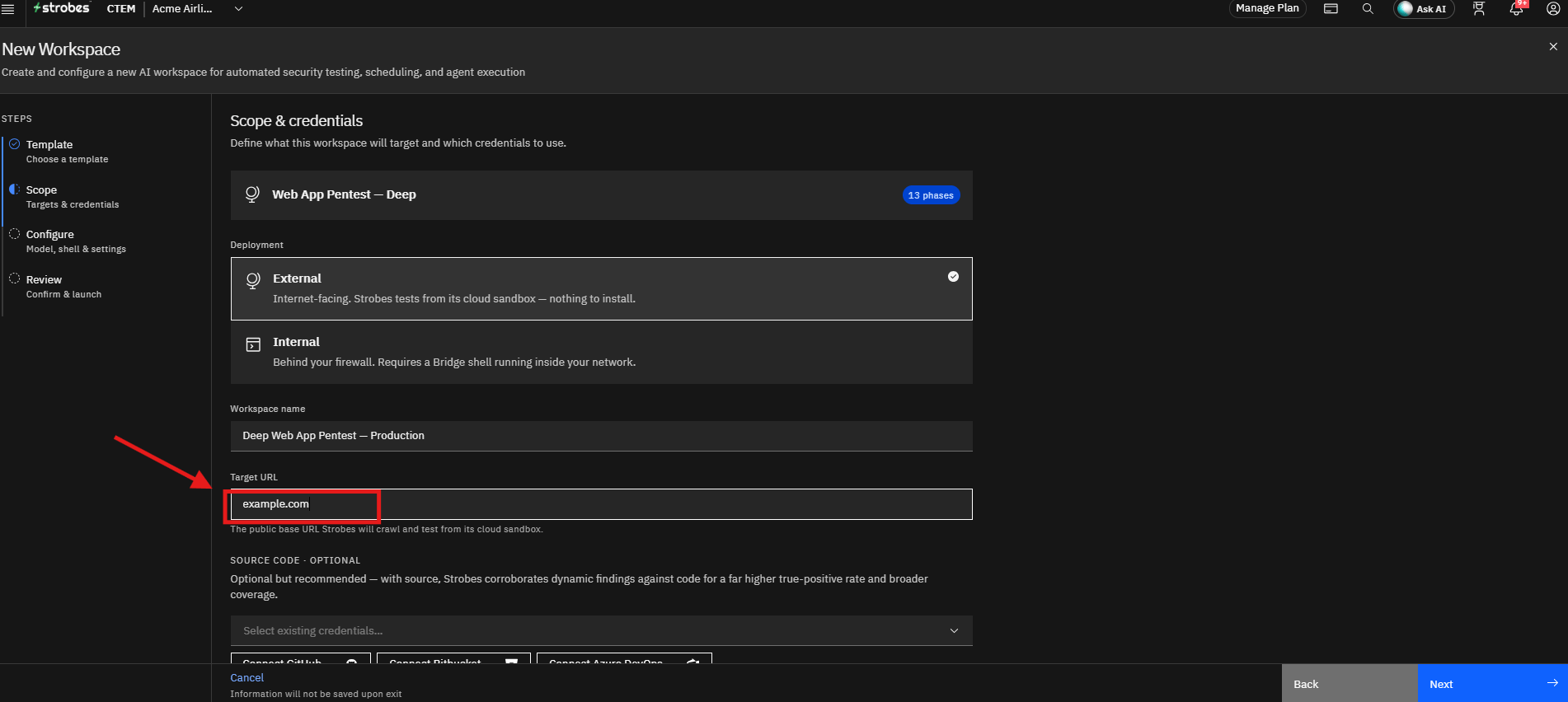
Step 1: Choose the Deployment Type
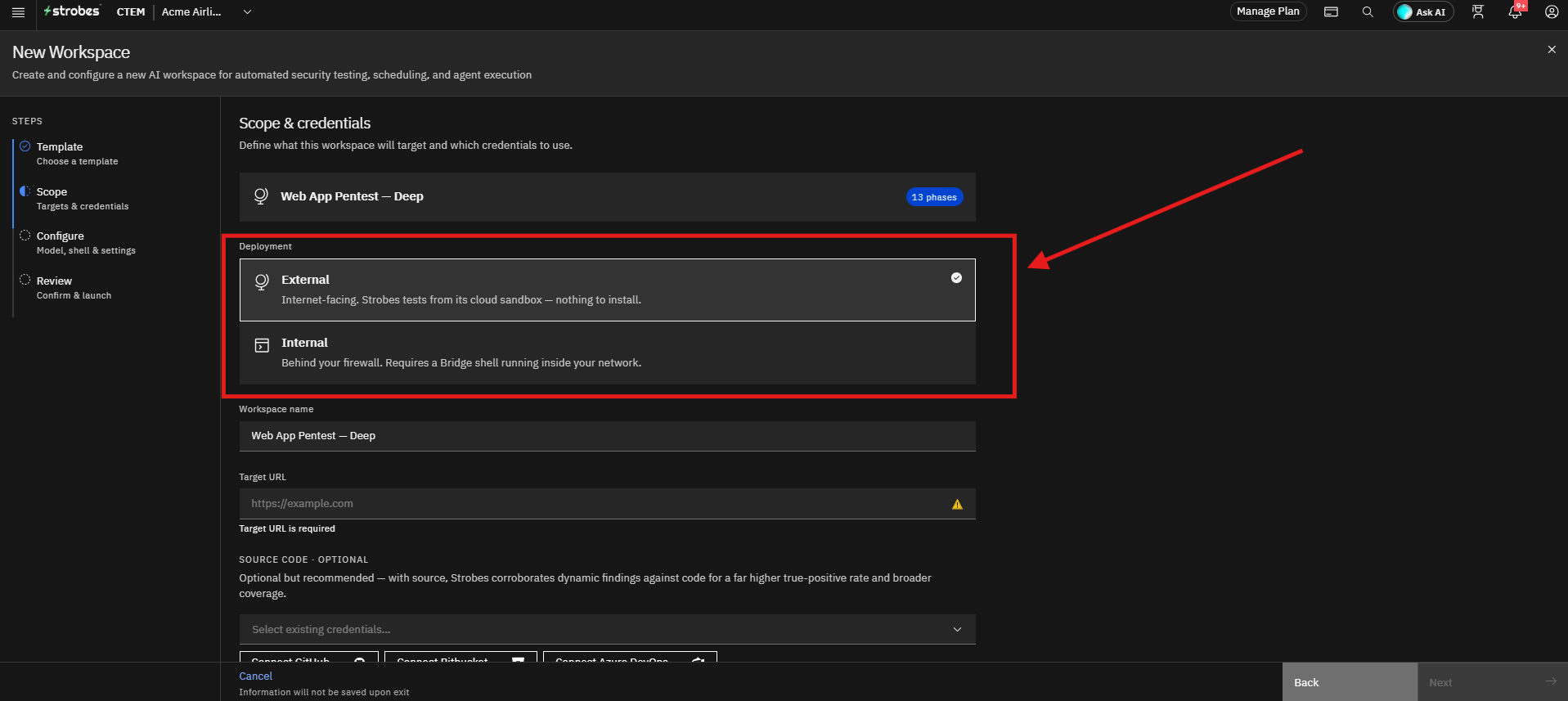
Under Deployment, select how your target is hosted:
- External: The target is internet-facing. Strobes tests from its cloud sandbox and nothing needs to be installed. This is selected by default.
- Internal: The target is behind your firewall. This requires a Bridge shell running inside your network.
Step 2: Provide a Workspace Name
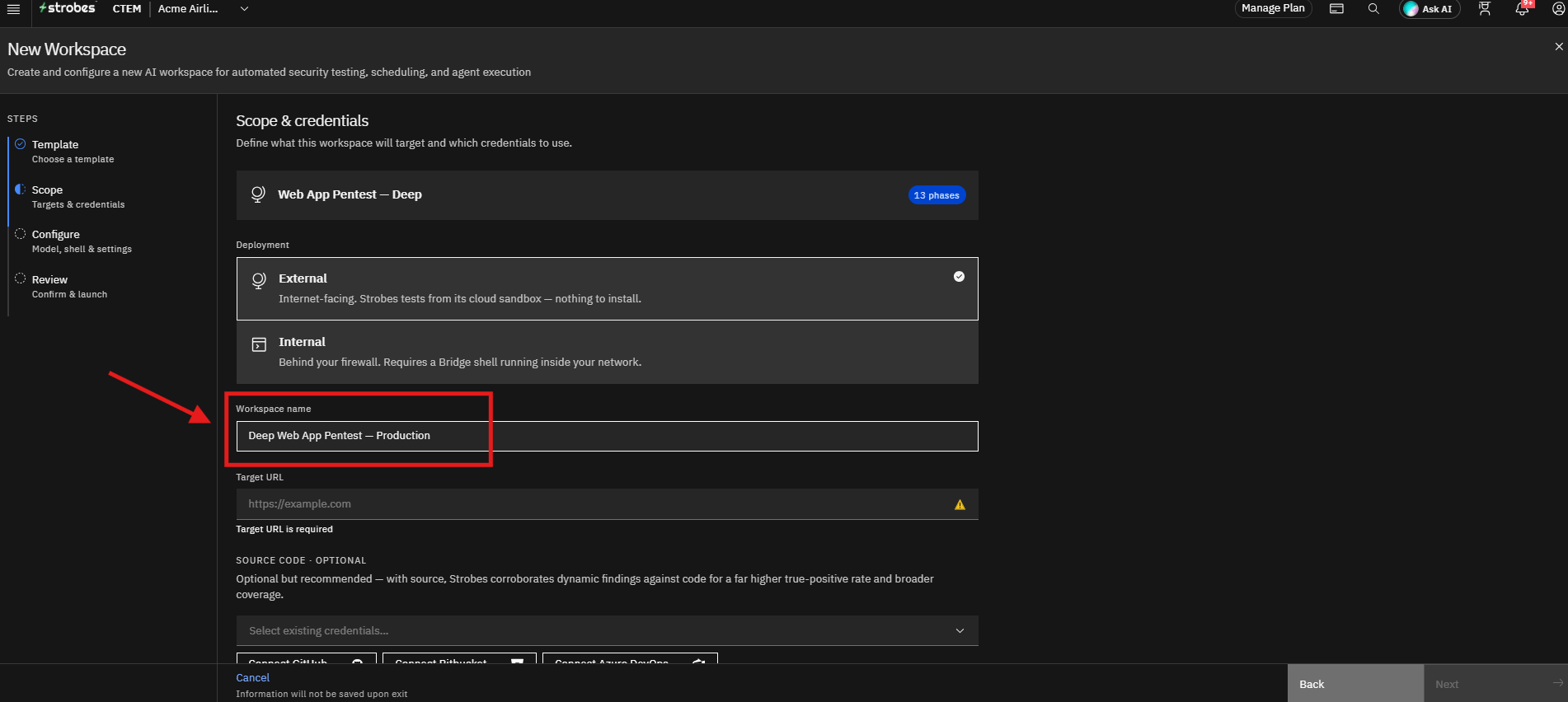
The Workspace name is pre-filled with the template name. Enter a more meaningful name for the assessment if you want, such as the application name.
Step 3: Enter the Target URL
In the Target URL field, enter the public base URL of the application you want to test, for example https://example.com. Strobes uses this URL to crawl and test the application.
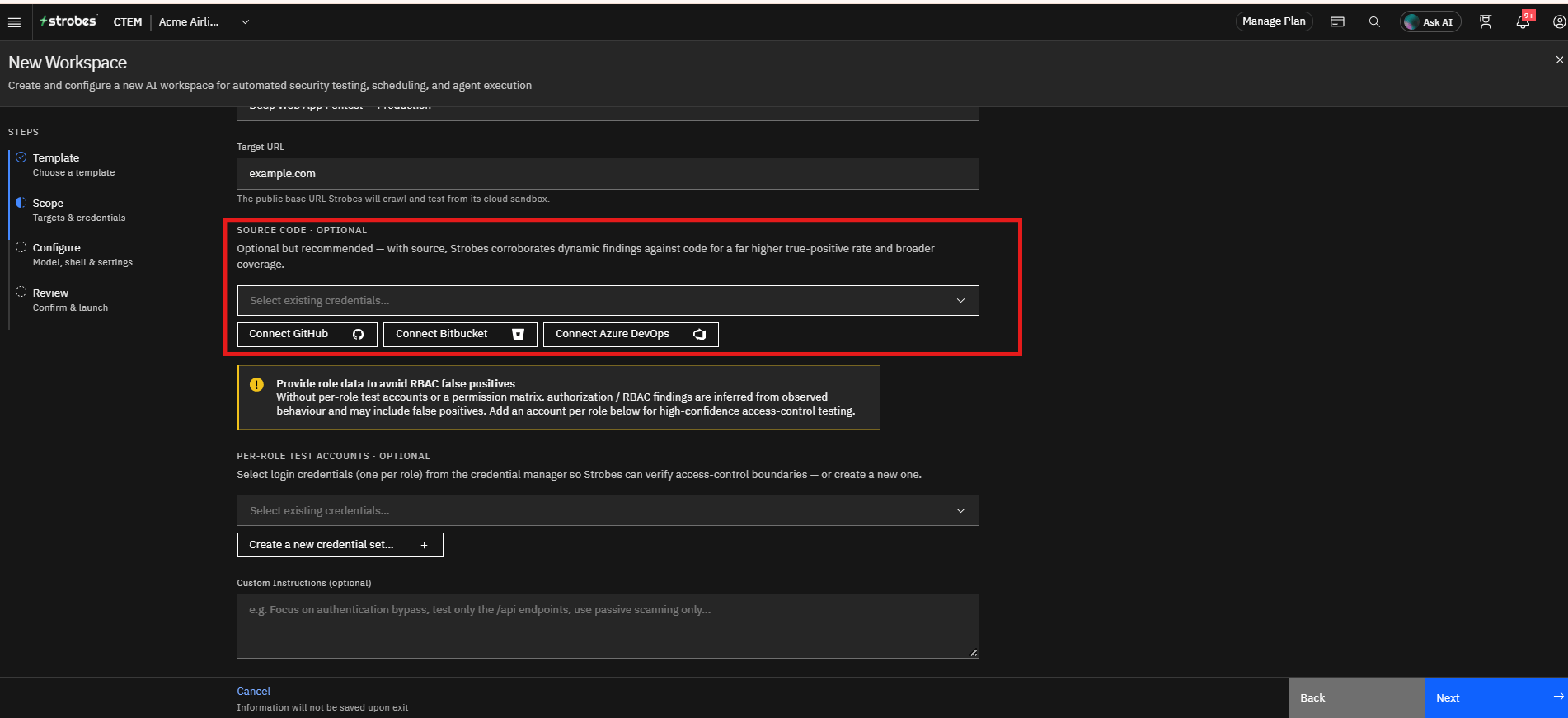
Step 4: Connect Source Code (Optional)
Under Source Code, select an existing credential from the list, or click Connect GitHub, Connect Bitbucket, or Connect Azure DevOps to add a new one. Ensure the selected credentials have access to the repository.
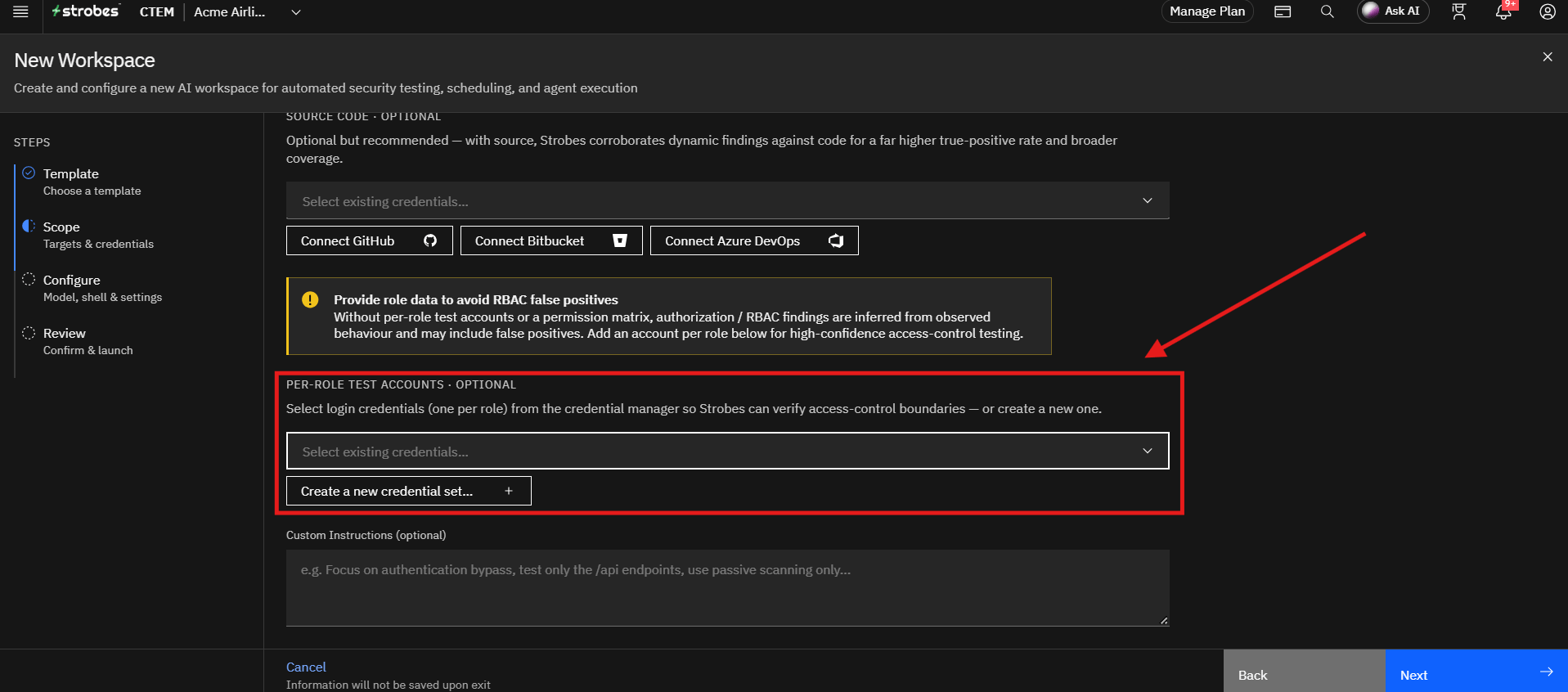
Step 5: Add Per-Role Test Accounts (Optional)
Under Per-Role Test Accounts, select existing credentials from the credential manager, or click Create a new credential set to add one login per user role. Without per-role accounts, authorization and RBAC findings are inferred from observed behavior and may include false positives.
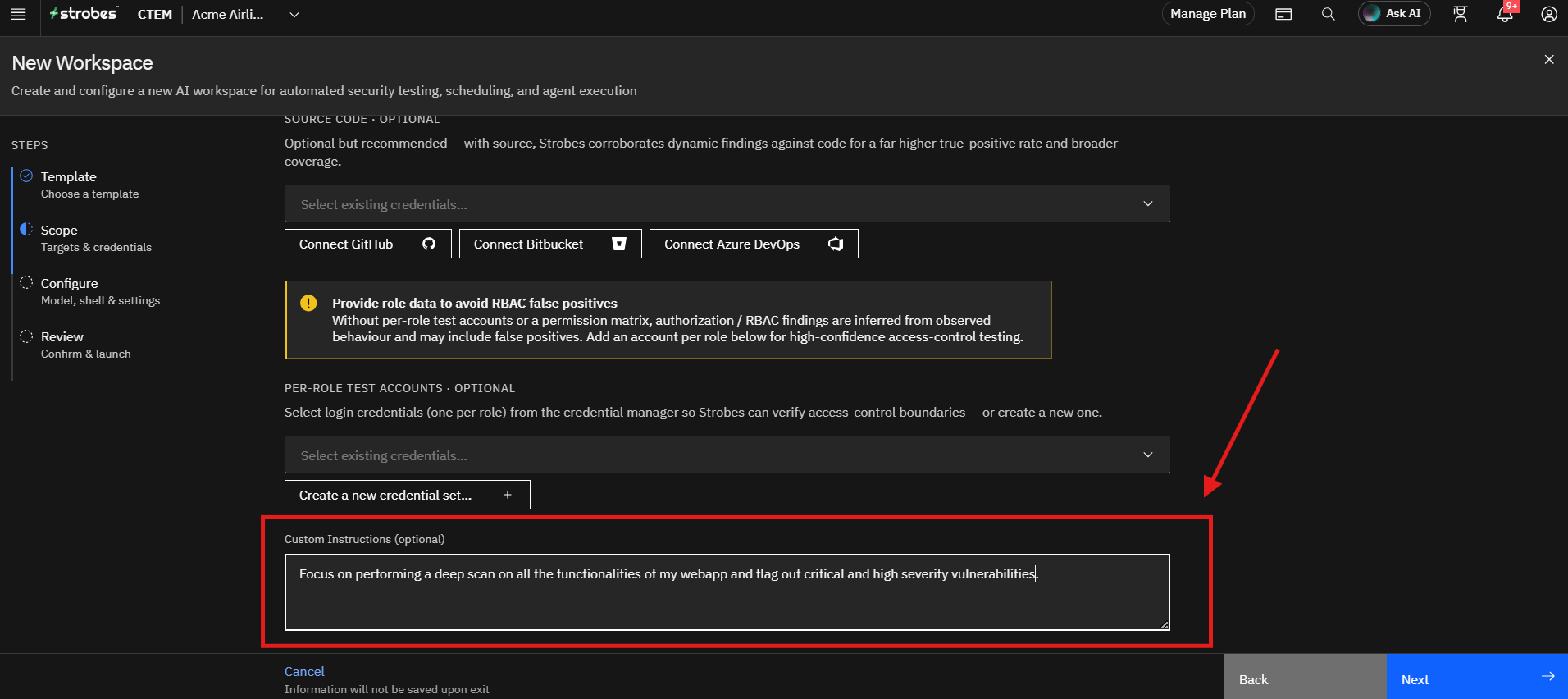
Step 6: Add Custom Instructions (Optional)
Use the Custom Instructions field to guide the assessment.
Example instructions:
- Focus on authentication bypass vulnerabilities.
- Test only the API endpoints.
- Use passive scanning only.
- Analyze payment processing workflows.
- Prioritize business logic flaws.
These instructions help tailor the AI analysis to specific objectives.
- Click Next.
Proceeding to Configuration
The wizard proceeds to the Configure step, where the model, shell, and execution settings can be customized.
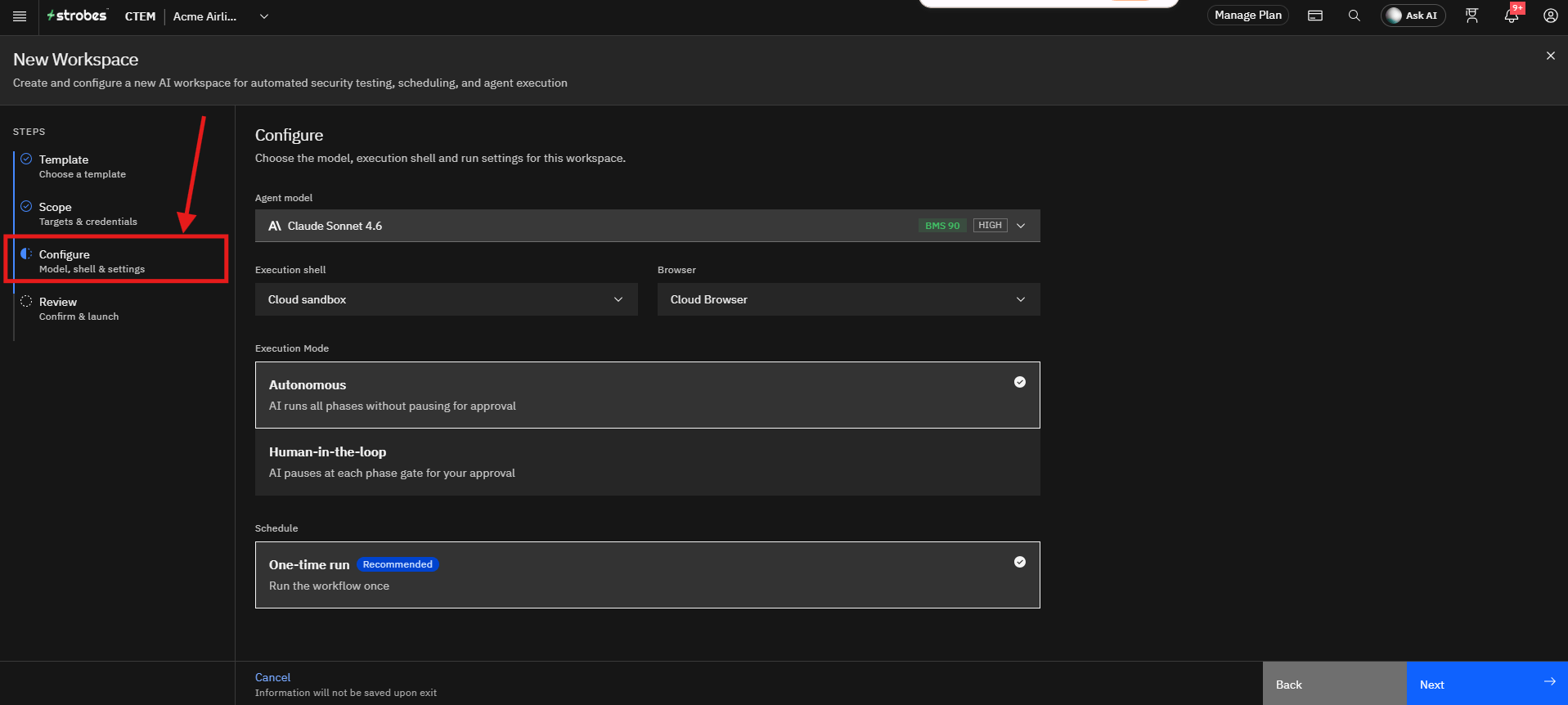
Step 7: Select an AI Model
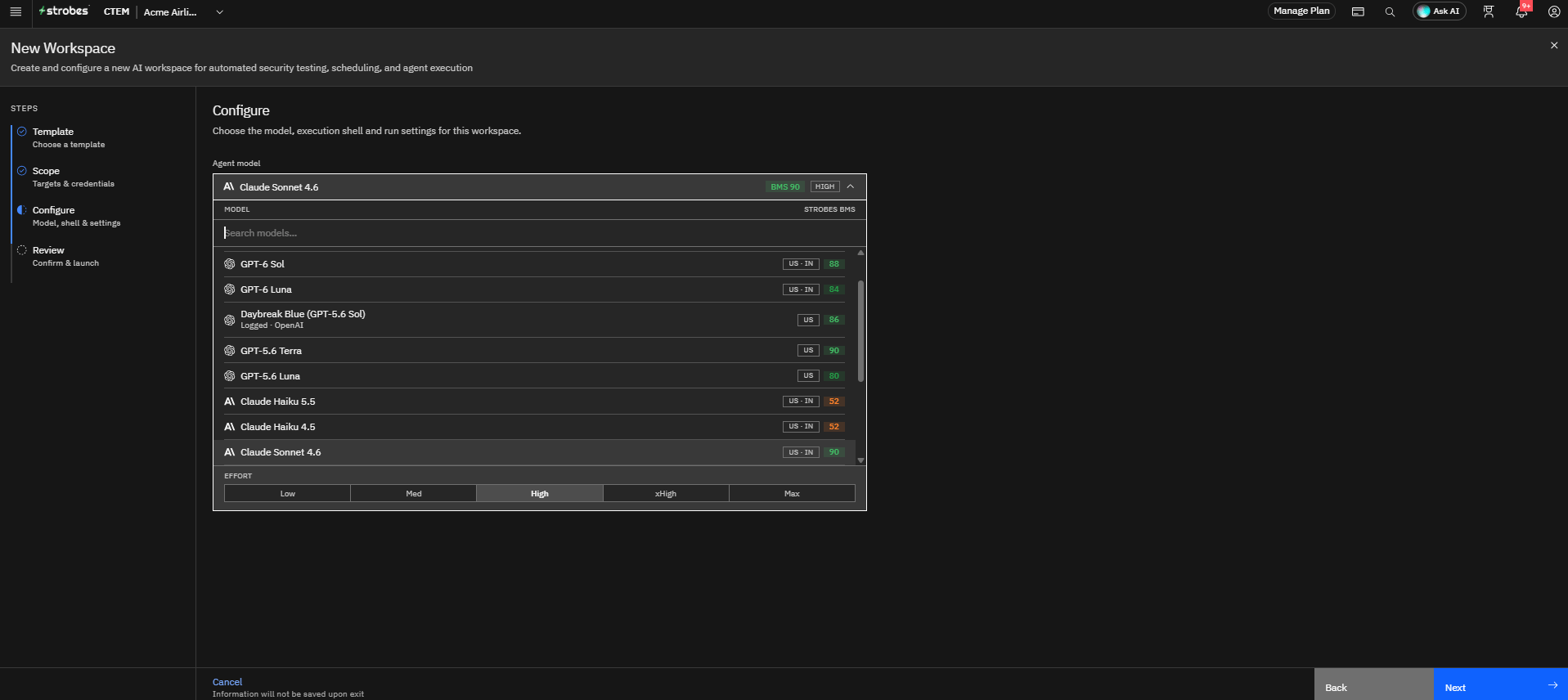
The Agent model determines the Large Language Model (LLM) used during the assessment.
To select a model:
- Open the Agent model dropdown.
- Review the available models and the effort level (Low, Med, High, xHigh, Max).
- Select the model that best fits your assessment requirements.
The selected model influences analysis depth, reasoning capabilities, response quality, and assessment speed.
Step 8: Select an Execution Shell
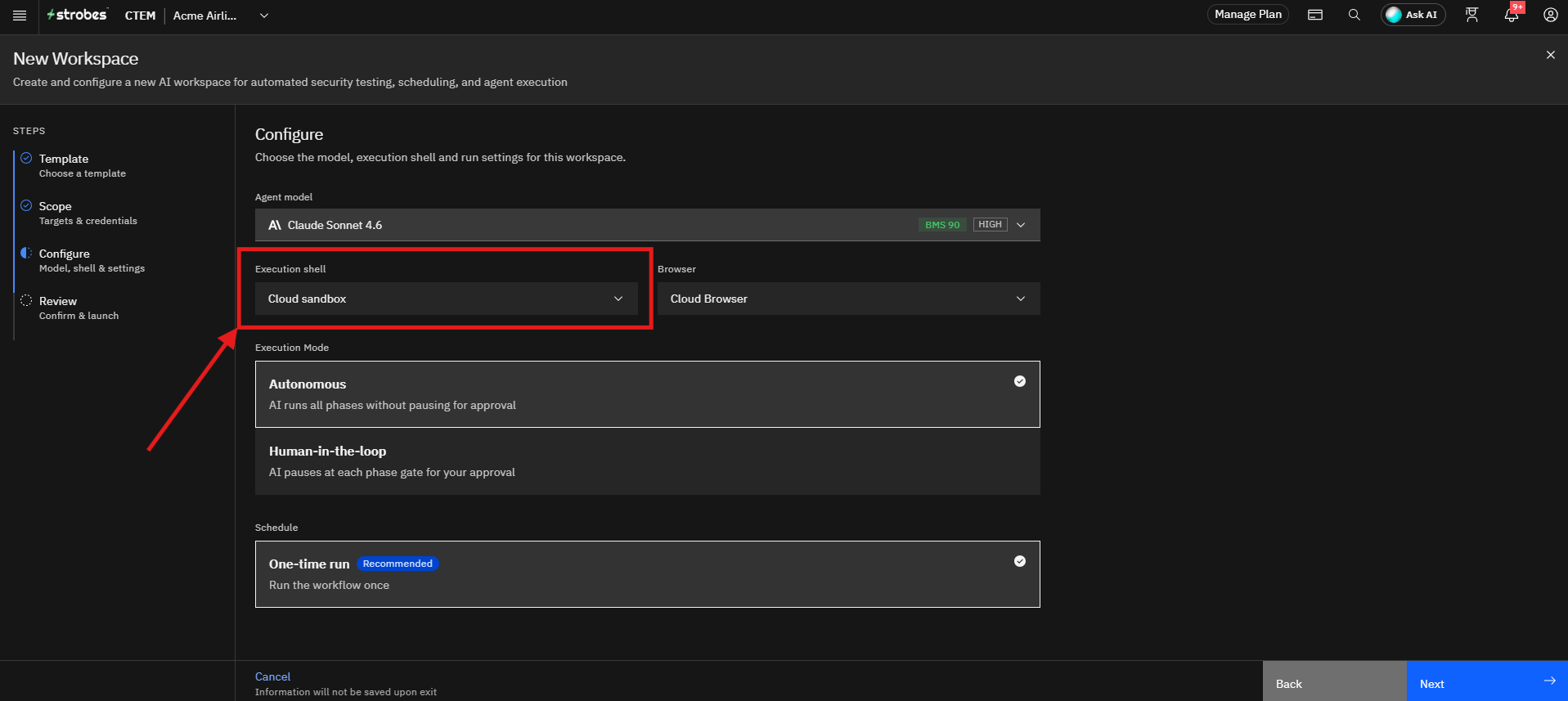
The Execution shell defines where the AI agent runs its commands.
To select a shell:
- Open the Execution shell dropdown.
- Select Cloud sandbox for External targets, or your Bridge shell for Internal targets.
Step 9: Review the Browser Setting
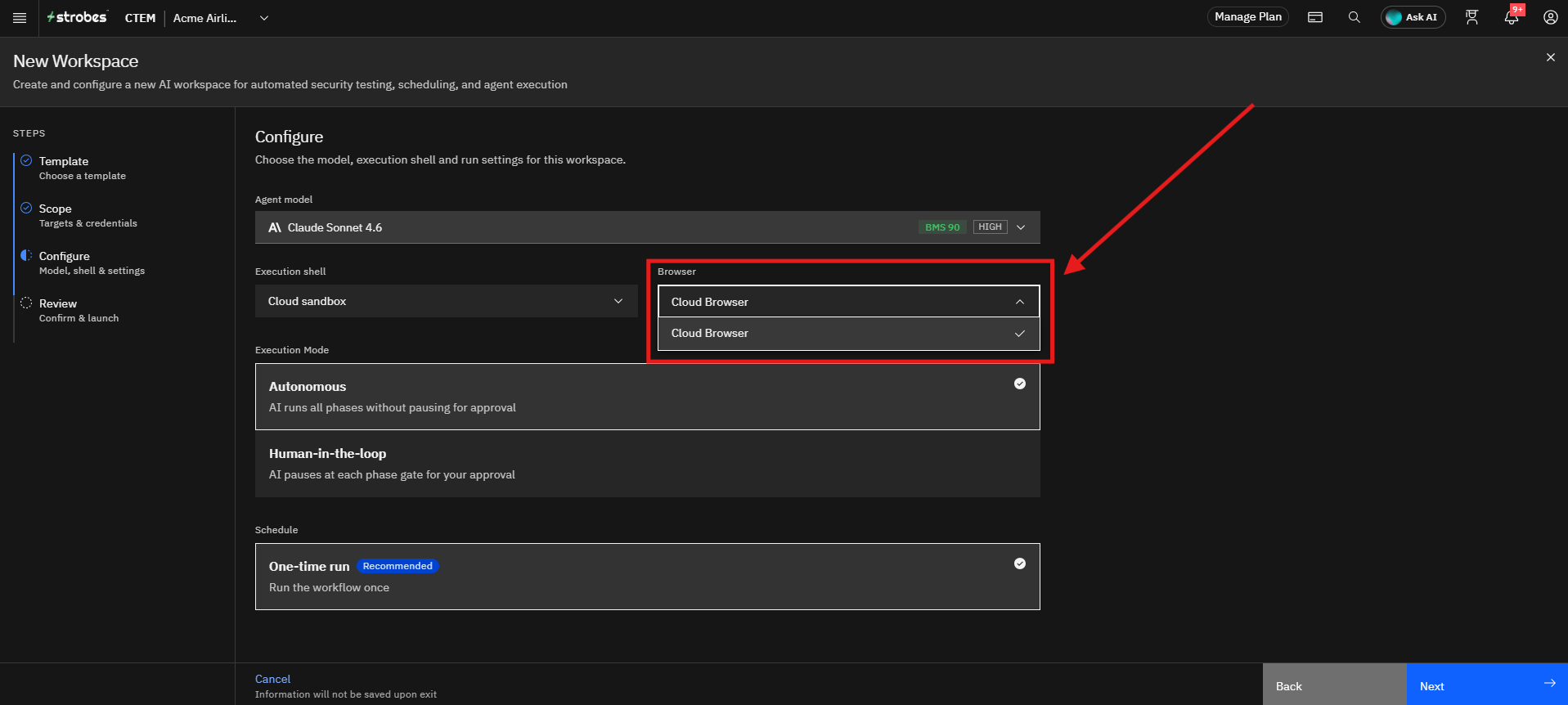
The Browser setting is Cloud Browser by default, which the agent uses for browser-based testing.
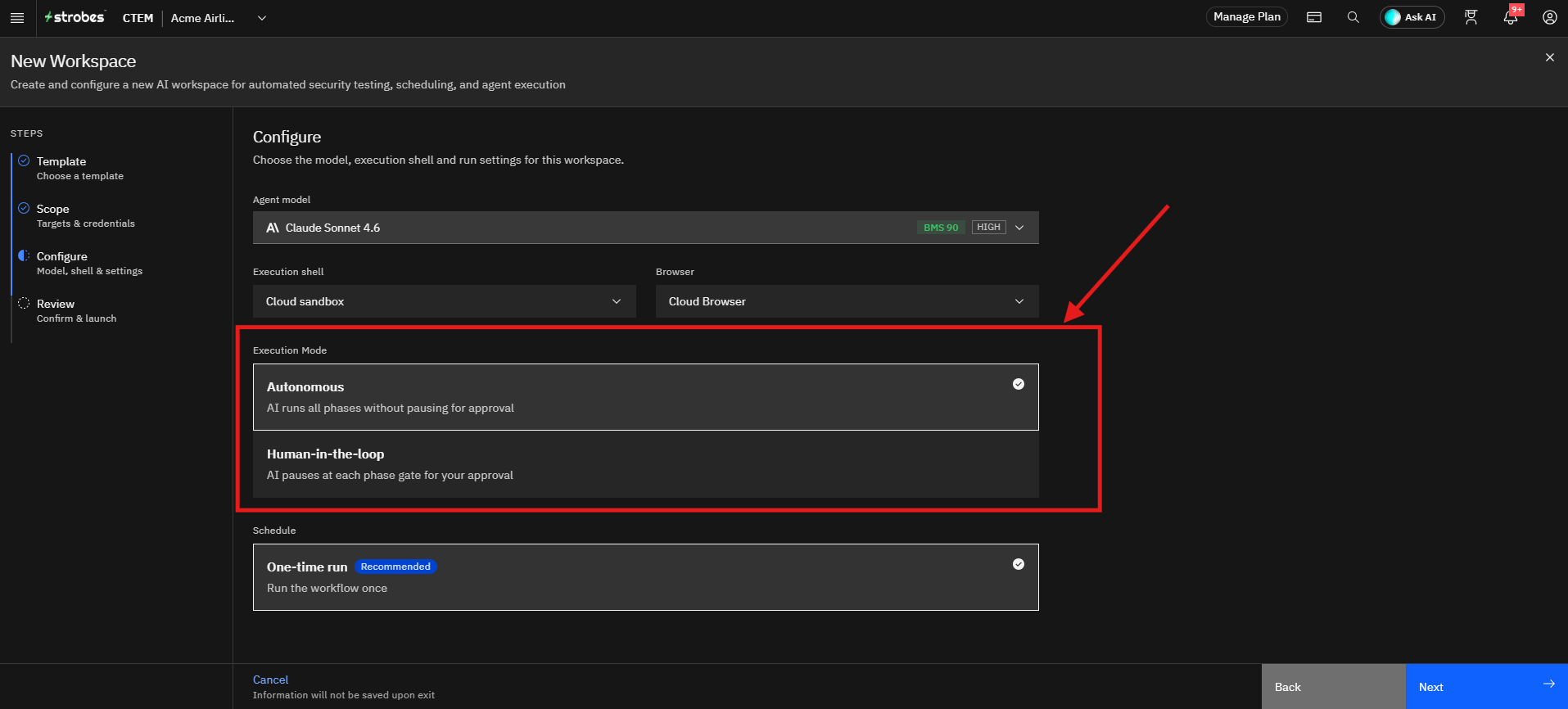
Step 10: Select the Execution Mode
Choose how the AI runs the assessment. Autonomous is selected by default.
- Autonomous: The AI runs all phases without pausing for approval.
- Human-in-the-loop: The AI pauses at each phase gate and waits for your approval before continuing.
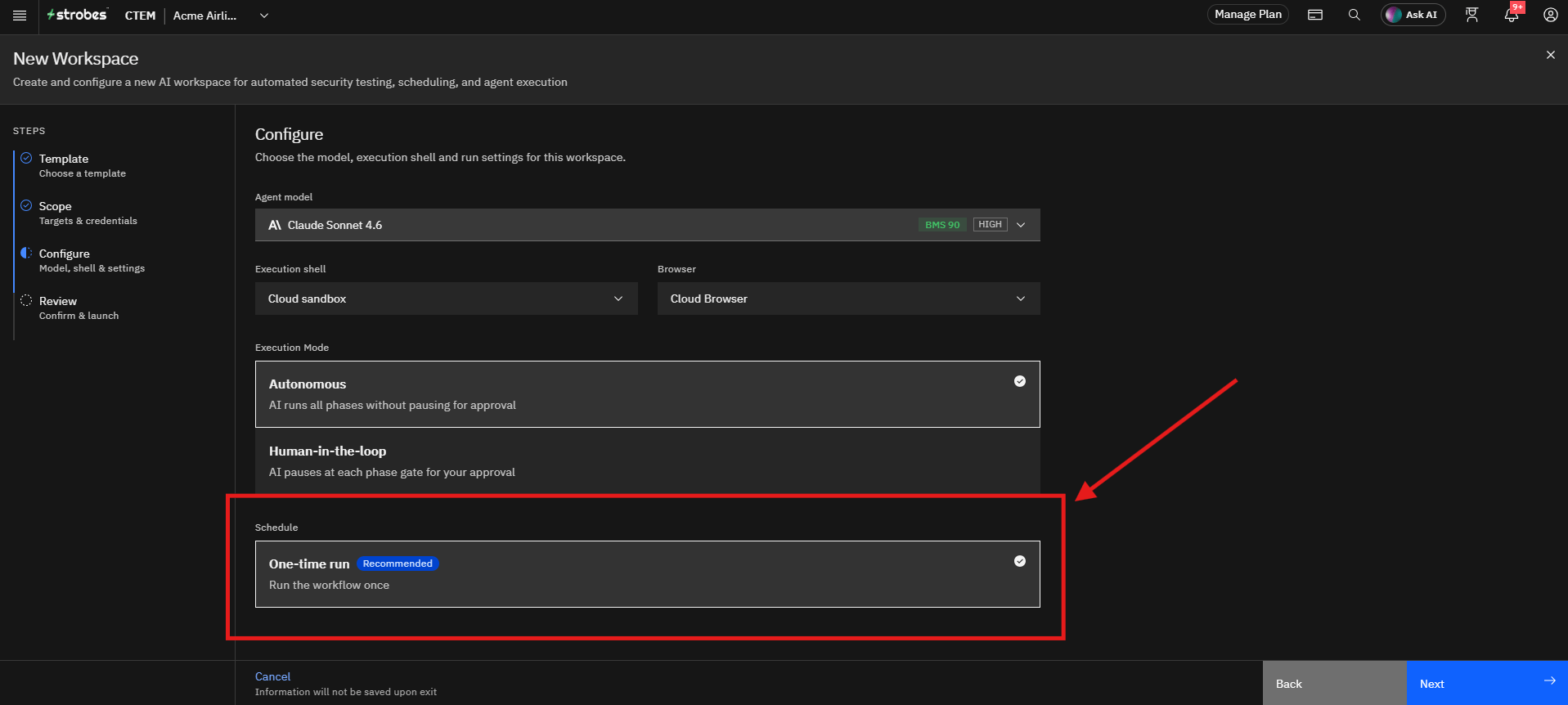
Step 11: Review the Schedule
The workflow is set to One-time run by default, so it runs once.
Step 12: Continue to Review and Launch
Once all configuration settings have been verified:
- Click Next.
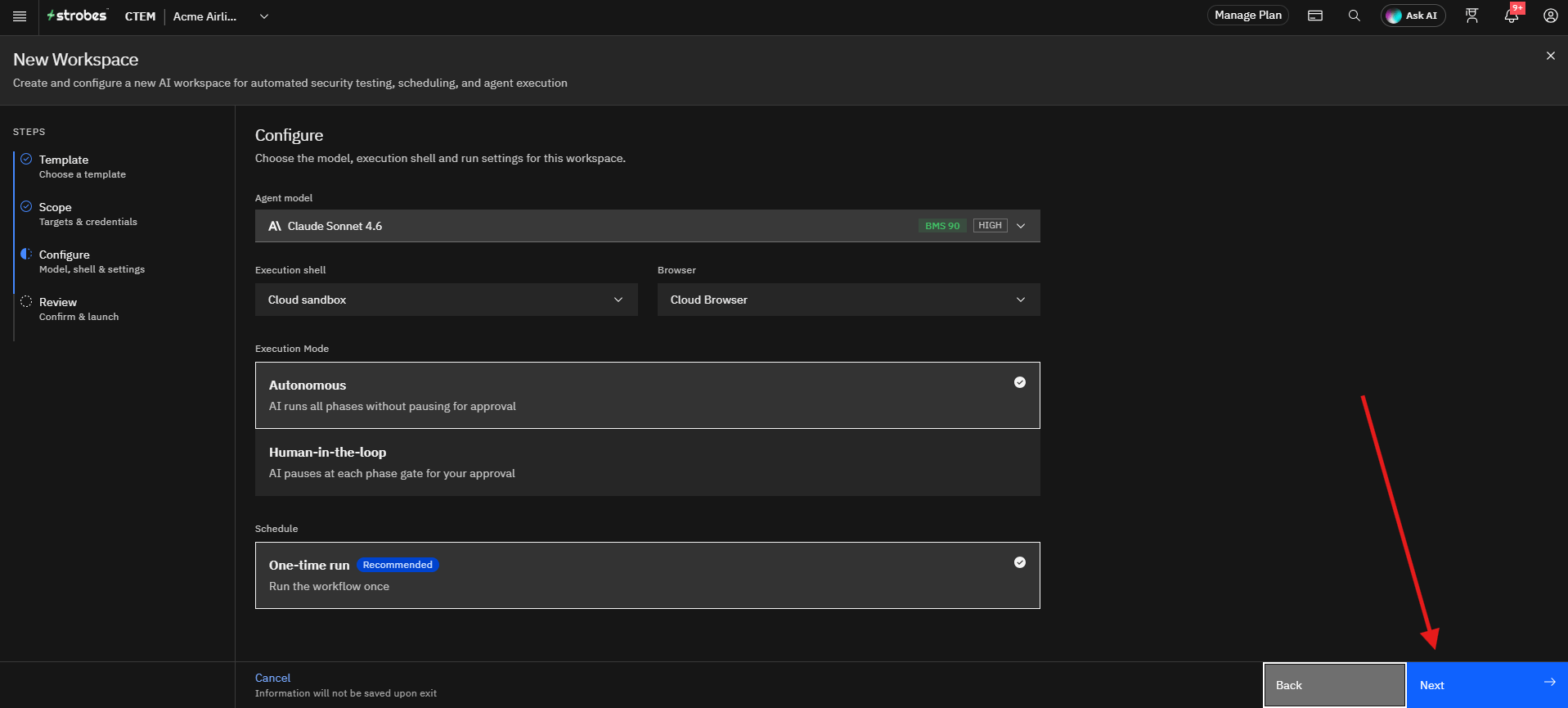
- The wizard opens the Review page.
Step 13: Review and Launch the Workspace
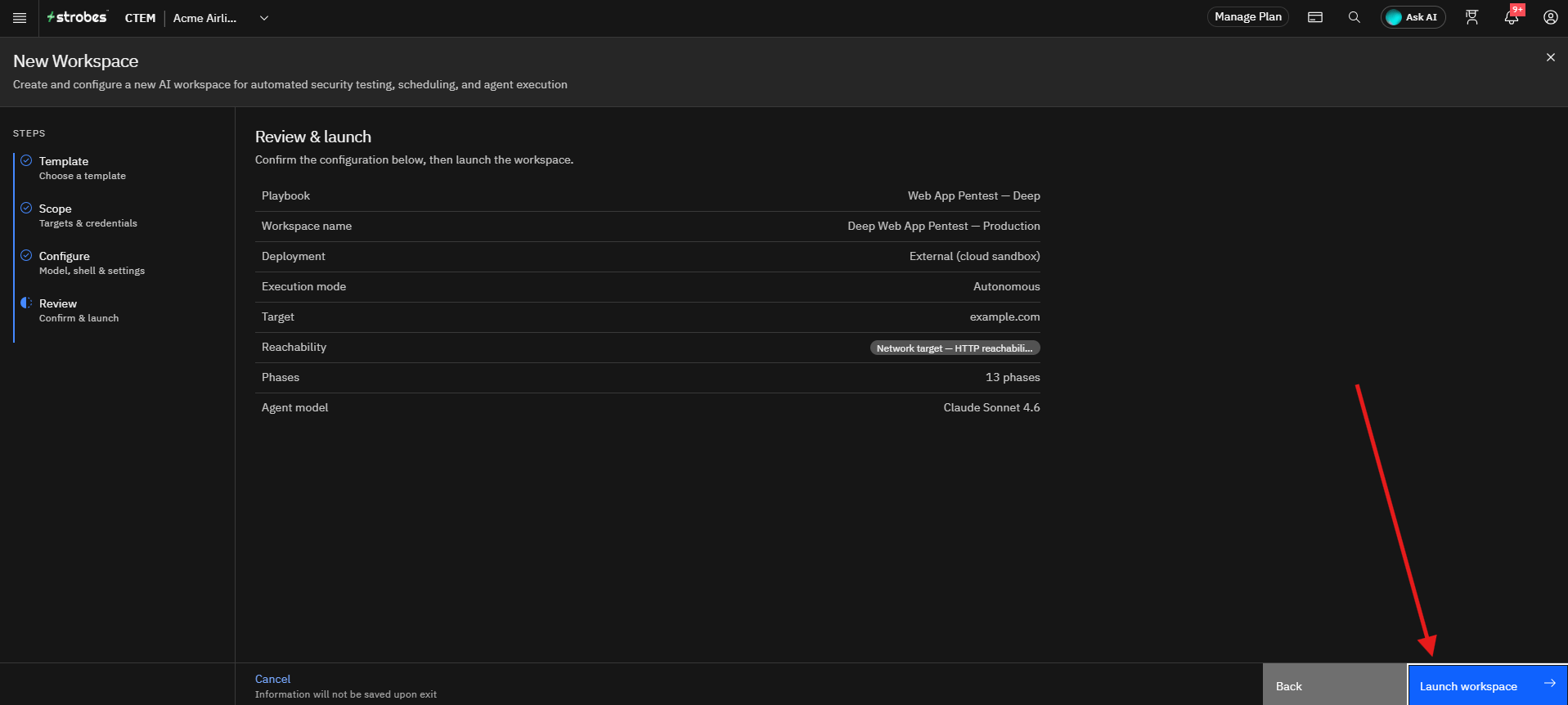
Review the configuration summary, including the playbook, workspace name, deployment, execution mode, target, phases, and agent model.
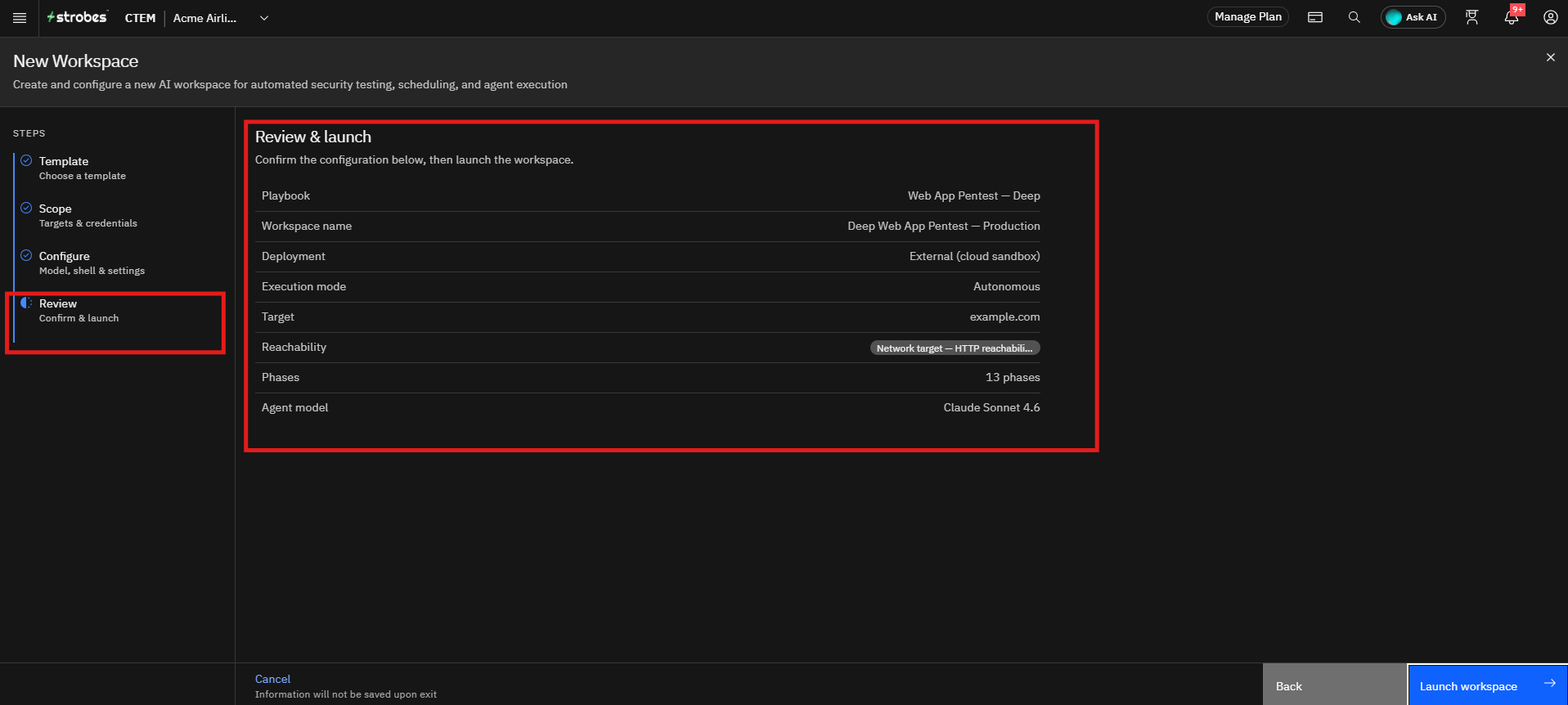
Strobes automatically checks whether the target is reachable. Once everything looks correct, click Launch workspace to start the assessment. When the run completes, findings appear in Strobes linked to your assets, and the report is available in the workspace.
Tips
- The Target URL is required. The Next button stays unavailable on the Scope step until a valid URL is entered.
- Start with Standard if you are unsure. Use Fast for quick checks between releases, and Deep for your most critical applications.
- Connect source code whenever you can. It improves the true-positive rate and widens coverage.
- Provide one test account per role to reduce false positives in authorization findings.
- Use Human-in-the-loop for sensitive targets, so you can approve each phase before it continues.
- For Internal targets, make sure the Bridge shell is running inside your network and select it as the Execution shell.
- Custom instructions are optional but can help focus the assessment, for example by limiting testing to API endpoints.
- The assessment duration varies based on the template and the size and complexity of the application.
- Only test applications you are authorized to test.
More in Workspace configuration
Was this page helpful?