
Configure Nessus Credential Manager
Integrating Nessus with Strobes via the Credential Manager allows you to securely store authentication details and streamline automated vulnerability scanning. Follow this step-by-step guide to configure your Nessus credentials in Strobes.
Prerequisites
Before you begin, ensure:
- You have admin access to the Strobes Platform
- Nessus is already set up and accessible via a valid URL
- You have valid Nessus credentials (username and password)
Step-by-Step Configuration Guide
Step 1: Access Credential Manager
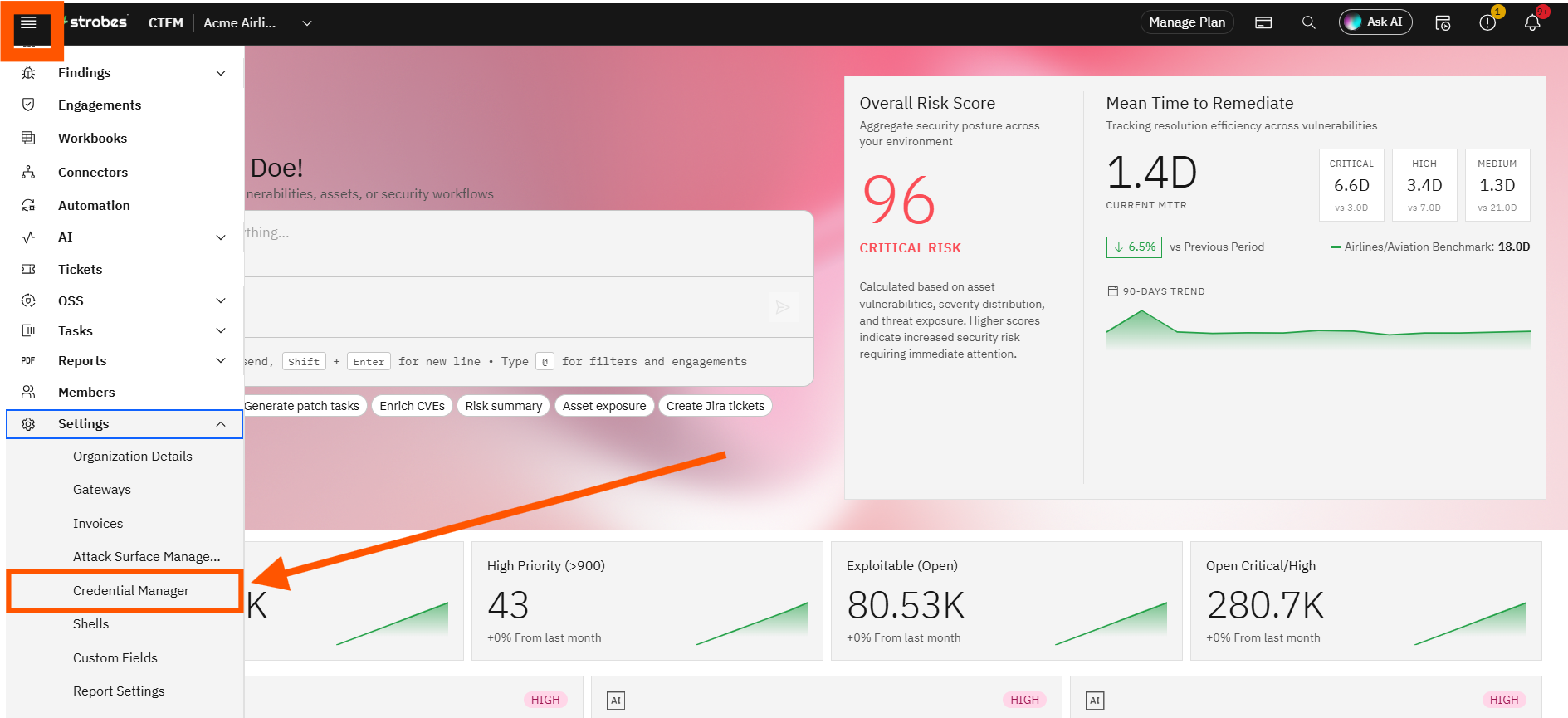
- Log in to your Strobes Dashboard.
- From the left-hand menu, navigate to Settings.
- In the settings submenu, click on Credential Manager.
Step 2: Add New Credential
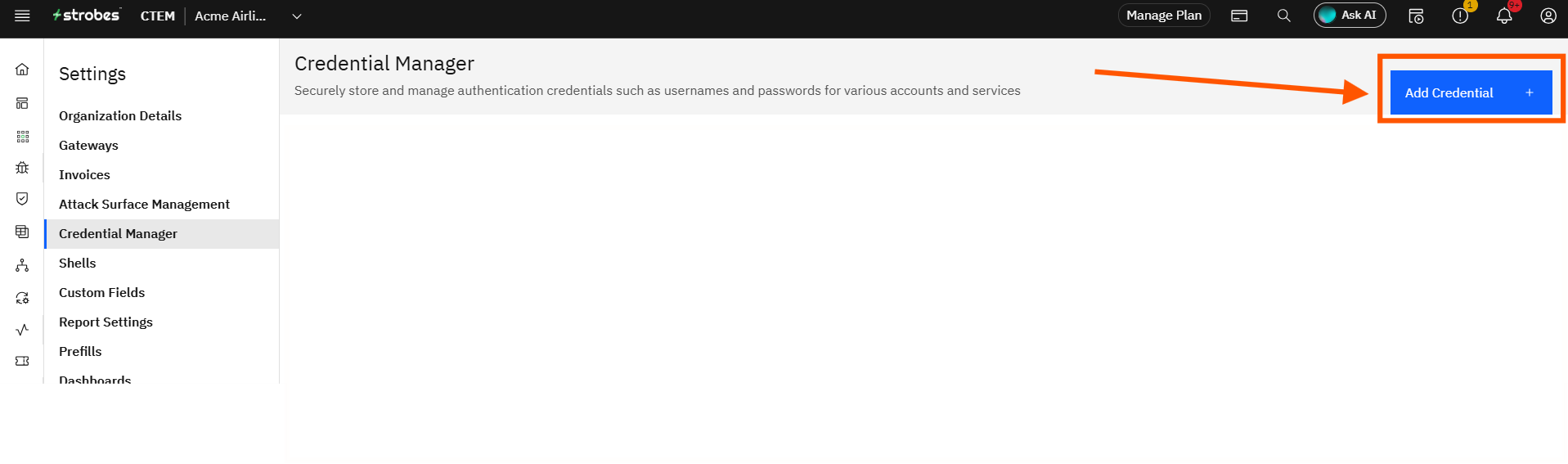
- On the Credential Manager screen, click the Add Credential button in the top-right corner.
Step 3: Select Nessus Connector
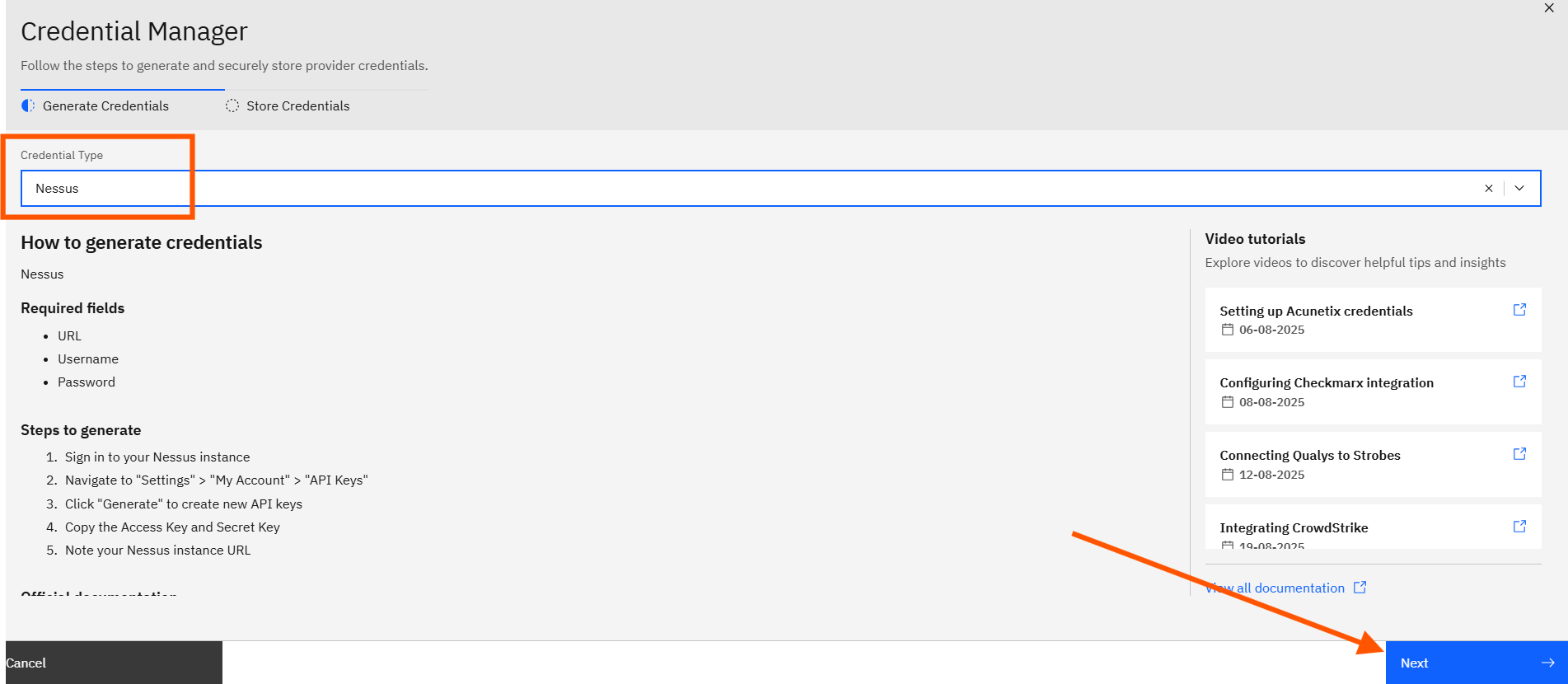
- In the Connector Type dropdown, select Nessus.
- This ensures the configuration fields match the authentication requirements of the Nessus scanner.
Step 4: Enter Credential Details
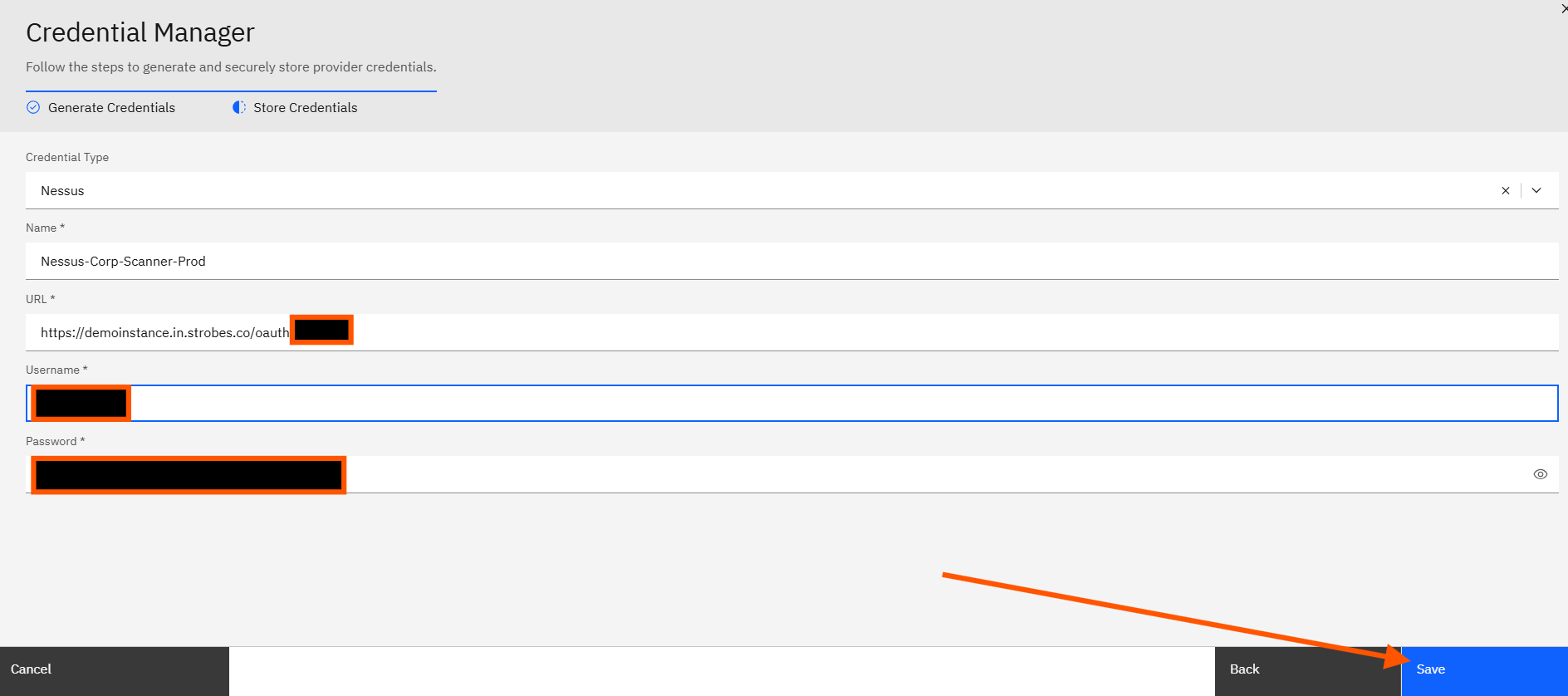
You will now see a form with the following fields:
- Name
Give your credential a meaningful name.
Example: Nessus-Corp-Scanner-Prod - URL
Enter the full URL where your Nessus instance is hosted.
Format: https://<your-nessus-domain>:8834 - Username
Enter the Nessus account username with appropriate privileges for scanning. - Password
Provide the password associated with the above username.
Note: Ensure that the user account has necessary access rights to initiate scans or pull data from Nessus.
Step 5: Save Your Configuration
Once all fields are filled out correctly:
- Double-check the information you entered.
- Click Save to securely store the credential in Strobes.
What Happens Next?
- Your Nessus credentials are now saved securely within the Strobes platform.
- These credentials can be used when setting up automated vulnerability scans or scheduling integrations involving the Nessus scanner.
Troubleshooting Tips
- Incorrect URL or port? Double-check that Nessus is accessible from the Strobes network and that port 8834 (default for Nessus) is open.
- Login failed? Verify that the username and password are active and have not expired.
Permission issues? Ensure the Nessus user account has scanning permissions for the relevant asset groups.
Last updated: 4/24/26, 10:13 AM