
Managing credentials for AI Workspaces
This article explains how to add, manage, and attach credentials that the AI agent will use during pentests. Credentials are reusable across every Workspace you create — set them up once, attach them many times.
Prerequisites
Before adding credentials, ensure the following:
- You're an Owner/Manager user within your Strobes platform.
- You have the actual credential values on hand (username/password, API key, AWS access key, GCP service account JSON, etc.).
- You have decided on a clear naming convention so credentials are easy to identify in the wizard.
Steps to add a credential
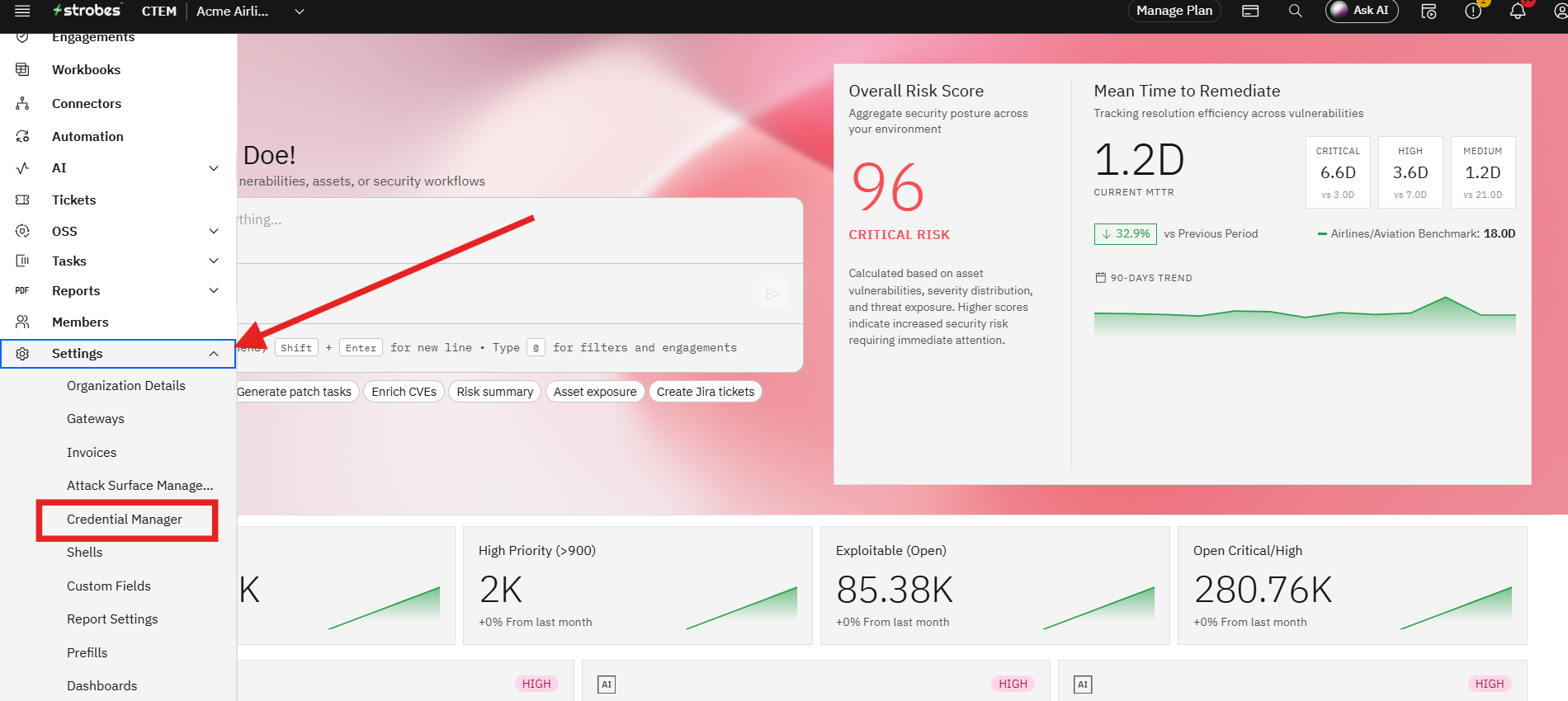
Step 1: Open the Credentials page
- Go to Settings → Credential Manager
Step 2: Add a new credential
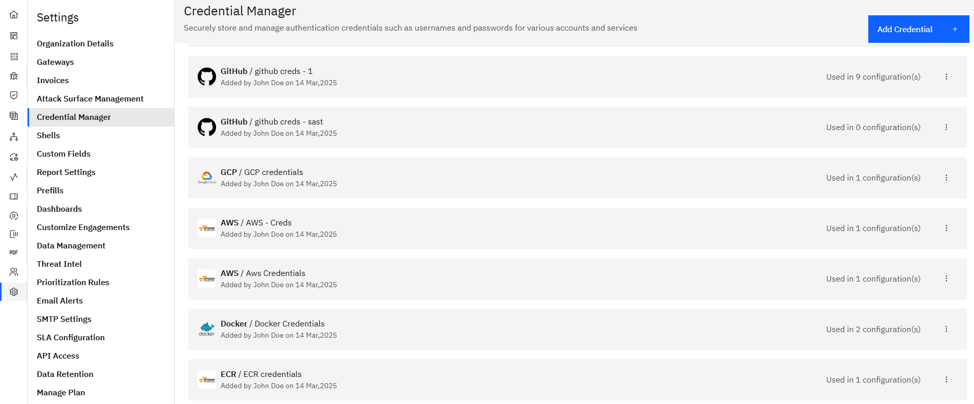
- Click the Add Credential button.
- Pick the credential type from the dropdown — Username/Password, API Key, AWS, GCP, Azure, GitHub, GitLab, Bitbucket, Jira, OAuth, and others.
Step 3: Fill in credential details
- Name: Give the credential a meaningful, scoped name (e.g.,
qa-readonly-aws,pentest-test-user,github-acme-readonly). - Fill in the type-specific fields (access key + secret, username + password, token, etc.).
Step 4: Save
- Click Save. The credential is now available in every Workspace's Scope step.
Where Can This Be Used?
Credentials configured here can be selected in:
- Workspace Scope step: For authenticated pentests (web app test users, API keys, AD accounts, cloud roles).
- Code Review templates: For accessing private GitHub / GitLab / Bitbucket repositories.
- Cloud Review templates: For read-only audits of AWS, GCP, or Azure environments.
- Connector setup: For ongoing sync jobs that import assets and findings from external scanners.
Tip: Use scoped, read-only credentials wherever possible. Tag them clearly so the right one is easy to pick in the wizard.
Troubleshooting Tips
- If a credential doesn't appear in the wizard, refresh the Scope step — it picks up newly added credentials when the page reloads.
- If a scan fails with a permissions error, verify the credential's role or token has the scopes the template requires (most templates run with read-only access).
- If a credential expires (e.g., a rotated AWS Access Key), edit the credential entry and replace the value — running Workspaces will pick up the update automatically on their next run.
Last updated: 5/9/26, 12:50 PM