
Workflow controls
Workflow controls — Pause, Resume, Cancel, and Restart
This article explains the workflow controls available from the Workspace dashboard. Use them to interrupt a run, recover from a problem, or start a workflow over from the beginning.
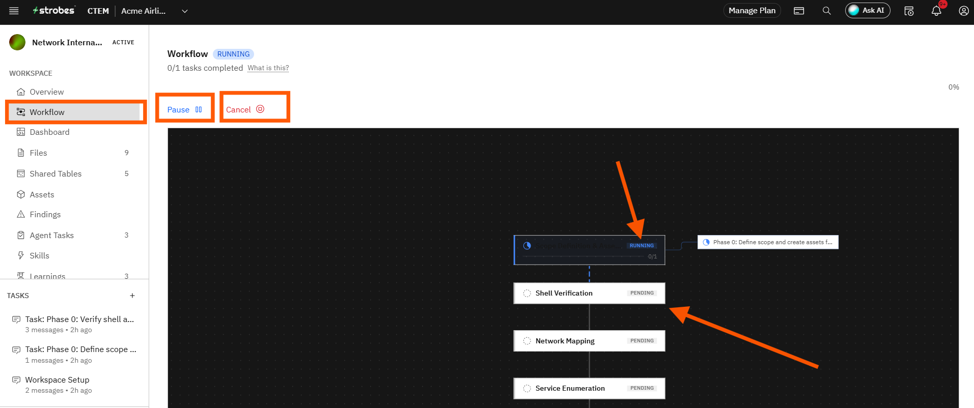
From the dashboard hero you can:
- Pause
- Resume
- Cancel
- Restart
Now, let's take a look at each.
Pause
Pause freezes the workflow mid-step. The agent finishes the current sub-action, then stops and waits.
Pause is useful when:
- You spot something that needs investigation before the agent continues.
- You're about to deploy a change to the target and want the agent to stop testing first.
- You need to update Custom Instructions or attach an additional credential.
Resume
Resume picks up from where you paused. The agent re-reads the latest Workspace context (including any updates you made while paused) and continues from the next step.
Cancel
Cancel stops the workflow permanently. Findings produced so far are kept and remain available in the Findings tab and any reports.
Cancel is the right choice when the run has gone in the wrong direction and starting over isn't worth the credit cost.
Restart
Restart begins the workflow over from the first phase. Warning: this consumes additional AI credits since the agent re-runs every phase from scratch.
Restart is useful when:
- The original target was wrong and you've corrected it.
- A scoping change makes the existing run mostly irrelevant.
- The agent encountered a confusing setup state that's faster to clear with a clean run.
Supervisor Mode and approvals
If Supervisor Mode is set to User, the agent will pause on its own and wait for explicit approval before each major step. Use the Approvals tab to approve or reject proposed actions. To switch to autonomous operation, set Supervisor Mode to Auto in the Workspace Settings panel.