
Schedules
Agent Schedules in Strobes let you run AI agent tasks on a recurring cadence — daily, weekly, monthly, or custom. Use them to put routine work (triaging fresh findings, generating weekly digests, recurring pentest validation) on autopilot. This article explains the Schedules page and how to create one.
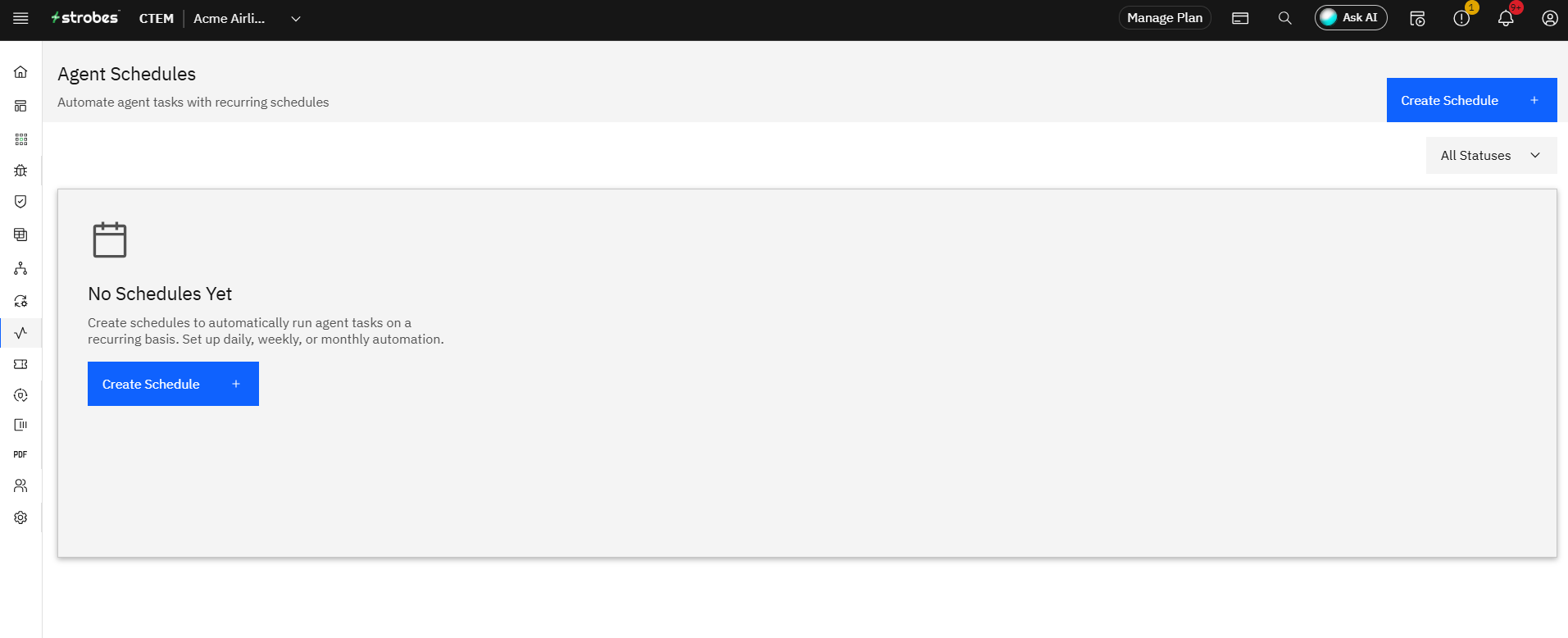
To open the page, expand AI in the left sidebar and click Schedules. The page shows the following:
- The schedules list
- Schedule status filter
- Create Schedule action
Now, let's take a look at each.
The schedules list
The main view lists every recurring agent schedule in your organization. When no schedules exist you'll see an empty state with a prompt to create one. Each schedule, once created, shows:
- Schedule Name — A human readable label (e.g., "Weekly triage of new criticals").
- Agent — the agent or template the schedule runs.
- Cadence — Daily / Weekly / Monthly / Custom.
- Next Run — When the schedule will fire next.
- Last Run — The most recent execution and its status.
- Status — Active, Paused, or Failed.
- Actions — Edit, pause, or delete.
Schedule status filter
The All Statuses dropdown at the top right lets you narrow the list to Active, Paused, or Failed schedules. It is useful when you have dozens of schedules and want to focus on the ones needing attention.
Create Schedule
Click Create Schedule to open the schedule form. You'll be asked for:
Step 1: Once you have Logged in to the Strobes Platform.
Click on AI > Schedule
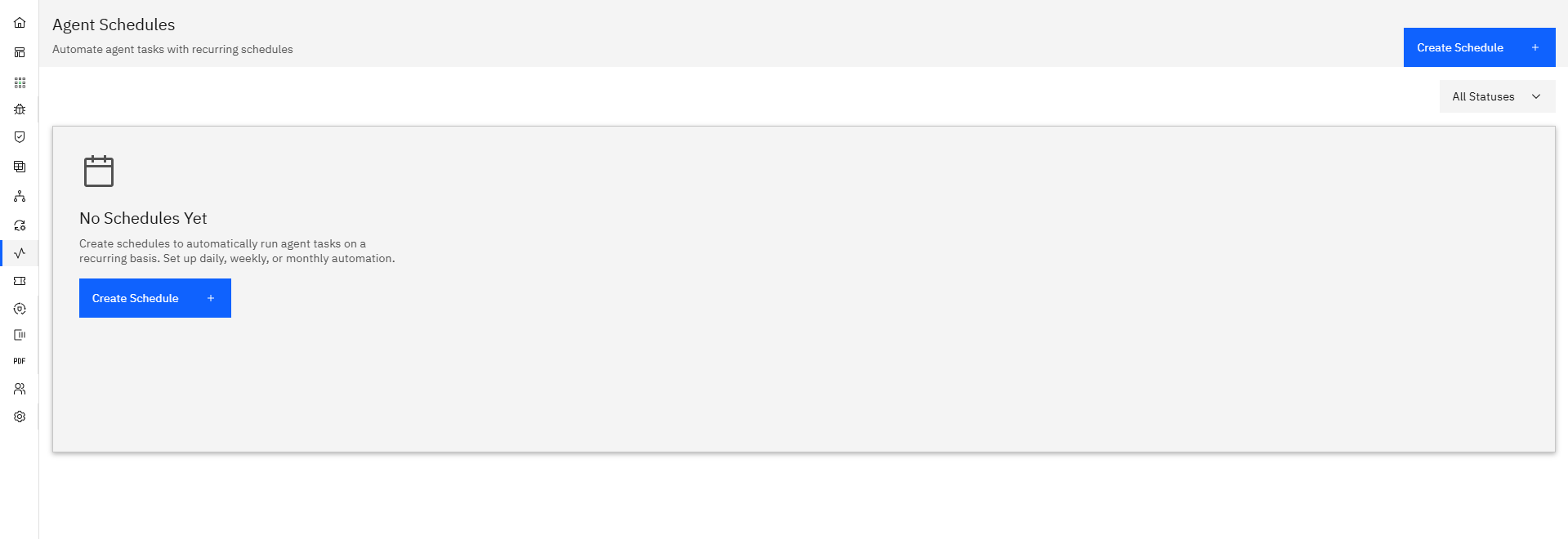
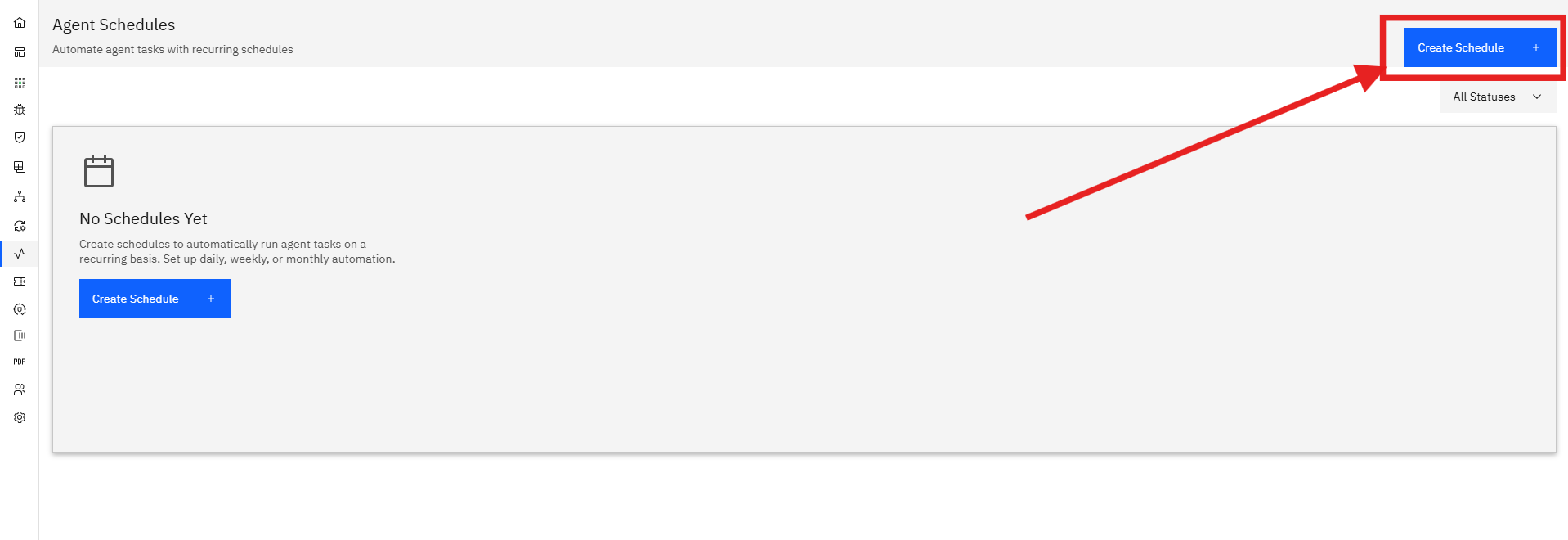
Step 2: Click on Create Schedule.
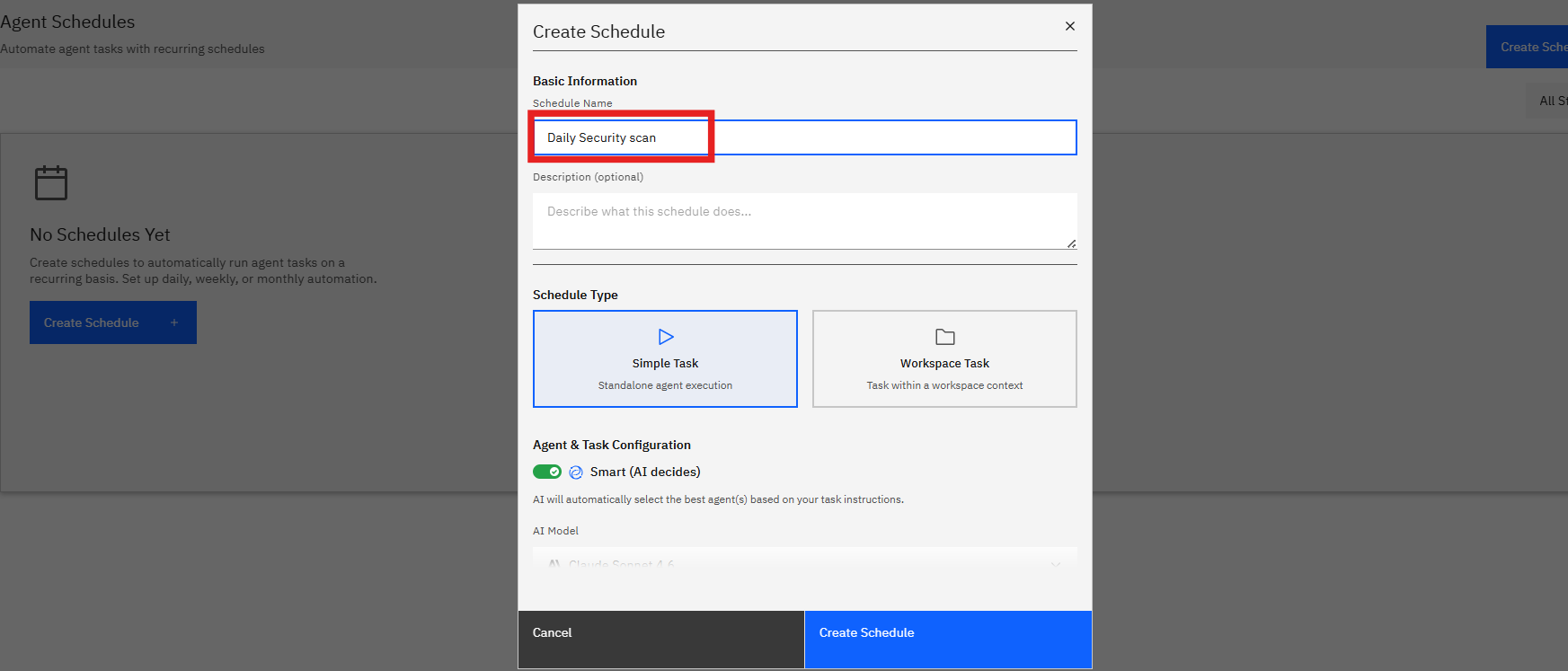
Step 3:
- Name — a meaningful label.
- Agent — pick an existing agent or a template.
- Task prompt — what you want the agent to do each run (e.g., "Triage all new High and Critical findings created since the last run and push them to Jira").
- Cadence — Daily, Weekly, Monthly, or a custom cron-like expression.
- Time and timezone — when the schedule should fire.
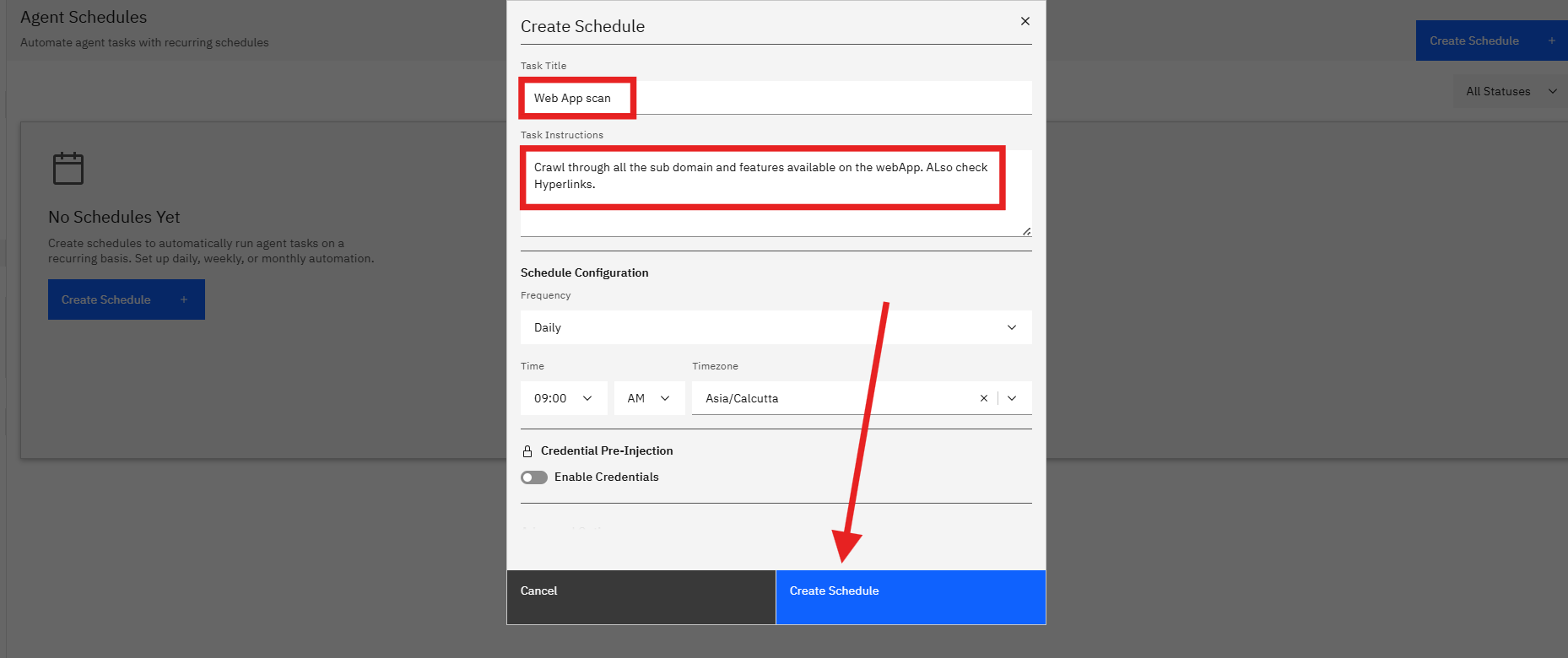
Step 4: Click Save and the schedule becomes active immediately.
Schedules vs Workspace recurring runs
Strobes has two ways to schedule recurring work, and they serve different jobs:
- Workspace recurring runs (configured in the Workspace wizard's Configure step) repeat the same pentest workflow on a cadence and compare findings between runs. Use these for "run the same Web App Pentest every month".
- Agent Schedules (this page) run a freeform agent task. Anything from triaging findings to drafting reports. Use these for "every Monday at 9am, ask the Triager agent what changed last week."
You can use both, schedule a Workspace to re-run monthly, and separately schedule a digest agent to summarize the results weekly.