
Schedule - Scheduling recurring pentests
This article explains how to set up a recurring schedule for a Workspace, what cadences are available, and how to manage schedules later. Recurring schedules turn a Workspace into an always-on program — the same workflow runs on a cadence and the AI compares findings between runs.
Prerequisites
Before scheduling a recurring pentest, ensure the following:
- You're using a Template Workspace (Blank Workspaces don't expose the schedule control in the wizard — see the note below).
- Your organization has enough AI credits budgeted for the chosen cadence.
- You've decided on the cadence based on the asset's criticality and rate of change.
Steps to schedule from the wizard
Step 1: Go to the Configure step
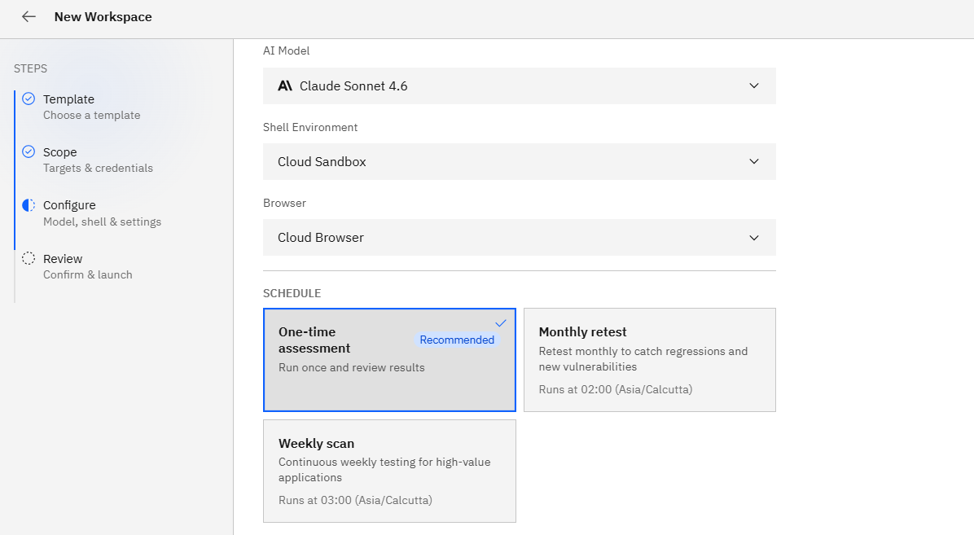
- In the Create Workspace wizard, navigate to the Configure step (Wizard Step 3 of 4).
Step 2: Pick a frequency
Under the Schedule section, pick one of the cadences:
- One-time (default): The Workspace runs once when you click Launch.
- Daily: Runs every 24 hours at the Workspace's scheduled time (default 09:00 in your browser timezone).
- Weekly: Runs once per week.
- Monthly: Runs once per month.
- Custom: Pick a custom cron-like cadence in the schedule form.
Step 3: Launch
- Continue to Review and click Launch Assessment.
- Strobes creates an Agent Schedule behind the scenes that re-triggers the workflow on the chosen cadence and compares findings against the previous run.
Recommended cadences
| Pentest type | Recommended cadence |
|---|---|
| Web App Pentest (production) | Monthly |
| Web App Pentest (staging) | Weekly |
| Network External | Weekly |
| Network Internal | Monthly or Quarterly |
| API Security Testing | Once after each major release + Monthly |
| Attack Surface Monitoring | Daily (continuous) |
| Code Review | On every merge to main (DevSecOps Pipeline template) |
Managing schedules later
To edit, pause, or delete a schedule after launch:
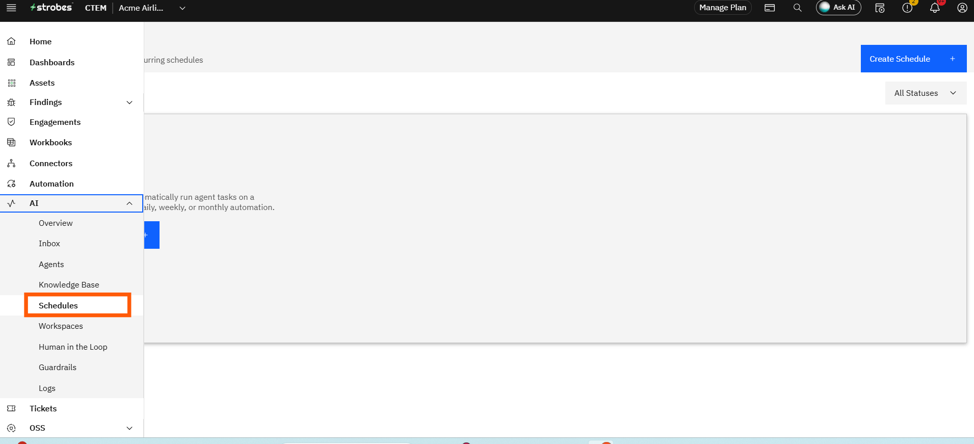
- Go to AI → Schedules.
- See all active schedules, last-run status, next-run time, and credit consumption.
- Use the row actions to Edit, Pause, or Delete a schedule.
Where Can This Be Used?
Recurring schedules are used for:
- Always-on perimeter assurance with weekly Network External Pentests.
- Continuous app testing with weekly or monthly Web App Pentests.
- Compliance assurance programs that require recurring assessments of record.
- Regression catches — schedules automatically diff findings between runs.
Troubleshooting Tips
- If a scheduled run doesn't fire, check the schedule status under AI → Schedules. A schedule may be paused or blocked by insufficient AI credits.
- If you want to change a Blank Workspace from one-time to recurring, go to AI → Schedules and click Create Schedule, then attach it to the Workspace's underlying workflow.
- If runs are firing at the wrong time, confirm the timezone shown next to the schedule (e.g.,
Asia/Calcutta) matches your expectation.
Note: Blank Workspaces don't have an inline schedule control in the 2-step wizard — set up a recurring schedule afterward from AI → Schedules.
Last updated: 5/9/26, 1:19 PM