
Setting up a Shell
This article explains how to register a Shell — an execution endpoint inside your network that the AI agent uses for internal pentests. A Shell is required for the Network Internal Pentest template and any other internal-network scenario.
Prerequisites
Before setting up a Shell, ensure the following:
- You have a host inside your target network that can run the Strobes shell daemon (typically a Linux jump host or similar).
- You have SSH access to that host (or local access if you're installing directly).
- You're an Admin user within your Strobes organization to access the Shells page.
- The host has outbound network access to the Strobes platform.
Steps to register a Shell
Step 1: Open the Shells page
- Go to Settings → Shells (or the Shells page under AI).
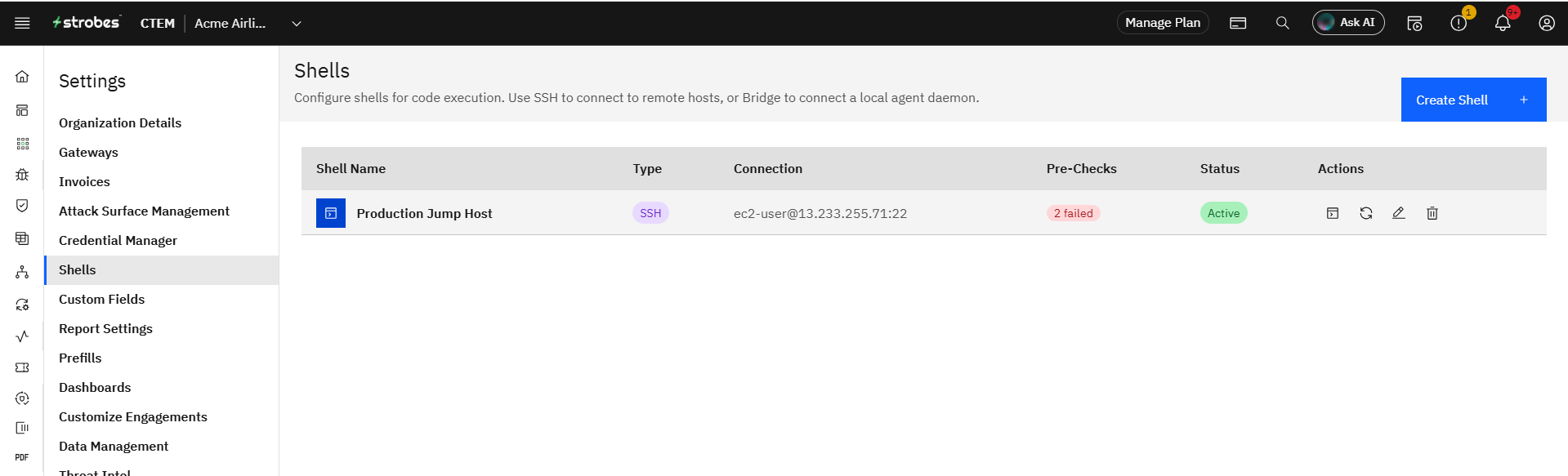
Step 2: Click Create Shell
- Click the Create Shell button at the top right.
- Pick the shell type: SSH (connect to a remote machine via SSH) or Bridge (connect to a local agent daemon).
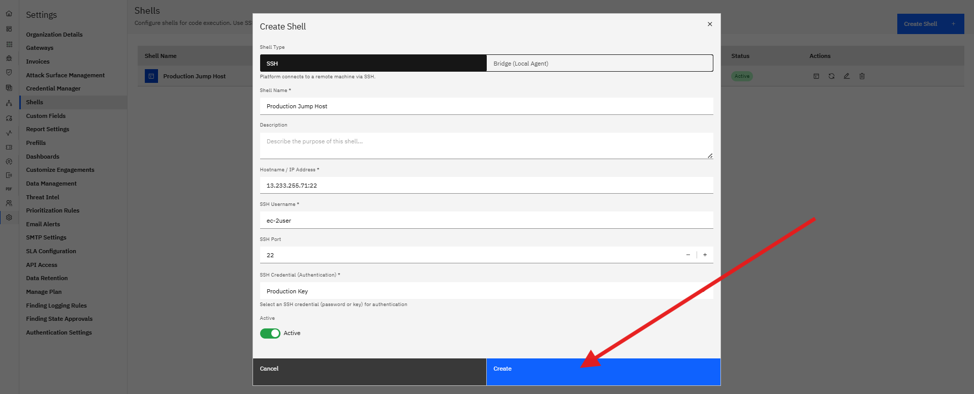
Step 3: Fill in the connection details
For an SSH shell:
- Shell Name: A meaningful name (e.g.,
Production Jump Host). - Description: Free-form note about the purpose of the shell.
- Hostname / IP Address: The host the agent will SSH into (e.g.,
13.233.255.71). - SSH Username: The user to log in as.
- SSH Port: Default
22. - SSH Credential Authentication: Pick a saved SSH credential (password or key) from the dropdown.
- Active: Toggle on.
Step 4: Save and wait for Online status
- Click Create.
- Strobes runs pre-checks against the host. The shell appears in the list with a status indicator.
- Wait for the status to flip to Online before using the shell in a Workspace.
Configure and choose Shell in the Workplace settings.
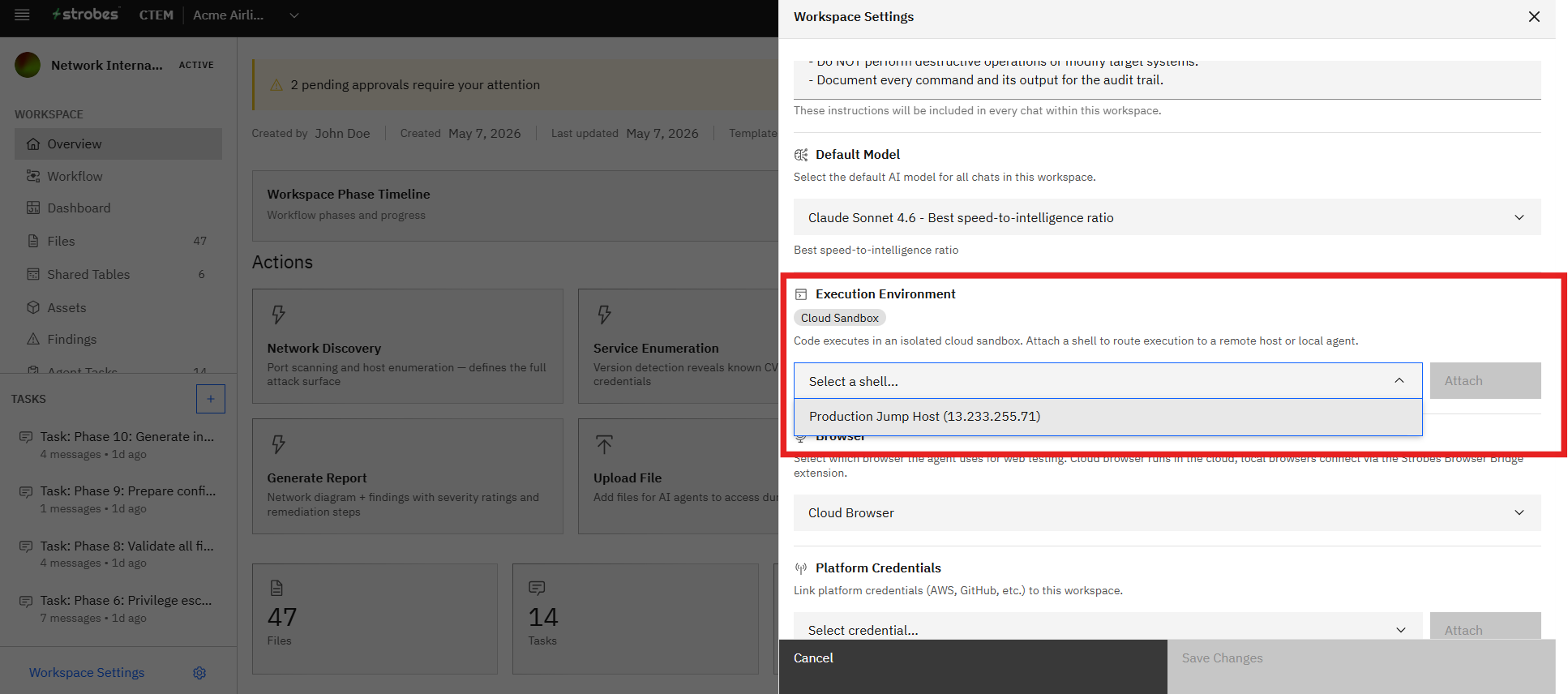
A Shell can be selected in the Configure step for:
- Network Internal Pentest — required.
- Active Directory Pentest — required.
- Blank Workspaces that need internal-network access for any reason.
- Any custom scenario where the agent must execute commands from inside your network perimeter.
Where Can This Be Used?
A Shell can be selected in the Configure step for:
- Network Internal Pentest — required.
- Active Directory Pentest — required.
- Blank Workspaces that need internal-network access for any reason.
- Any custom scenario where the agent must execute commands from inside your network perimeter.
Troubleshooting Tips
- If pre-checks fail, verify the hostname, port, and SSH credential are correct and the host is reachable.
- If the shell stays in Pending status, check the host's outbound firewall rules — it must reach the Strobes platform.
- If the shell goes Offline mid-engagement, the underlying host has likely lost network or been restarted. Pause the Workspace, restore the host, and resume from the dashboard.