
Choosing AI Model
Choosing an AI model for your Workspace
This article explains the AI Model dropdown in the Workspace wizard — what each tier is for, when to use which, and where the catalog is configured. The model you pick drives the agent's reasoning quality and credit consumption.
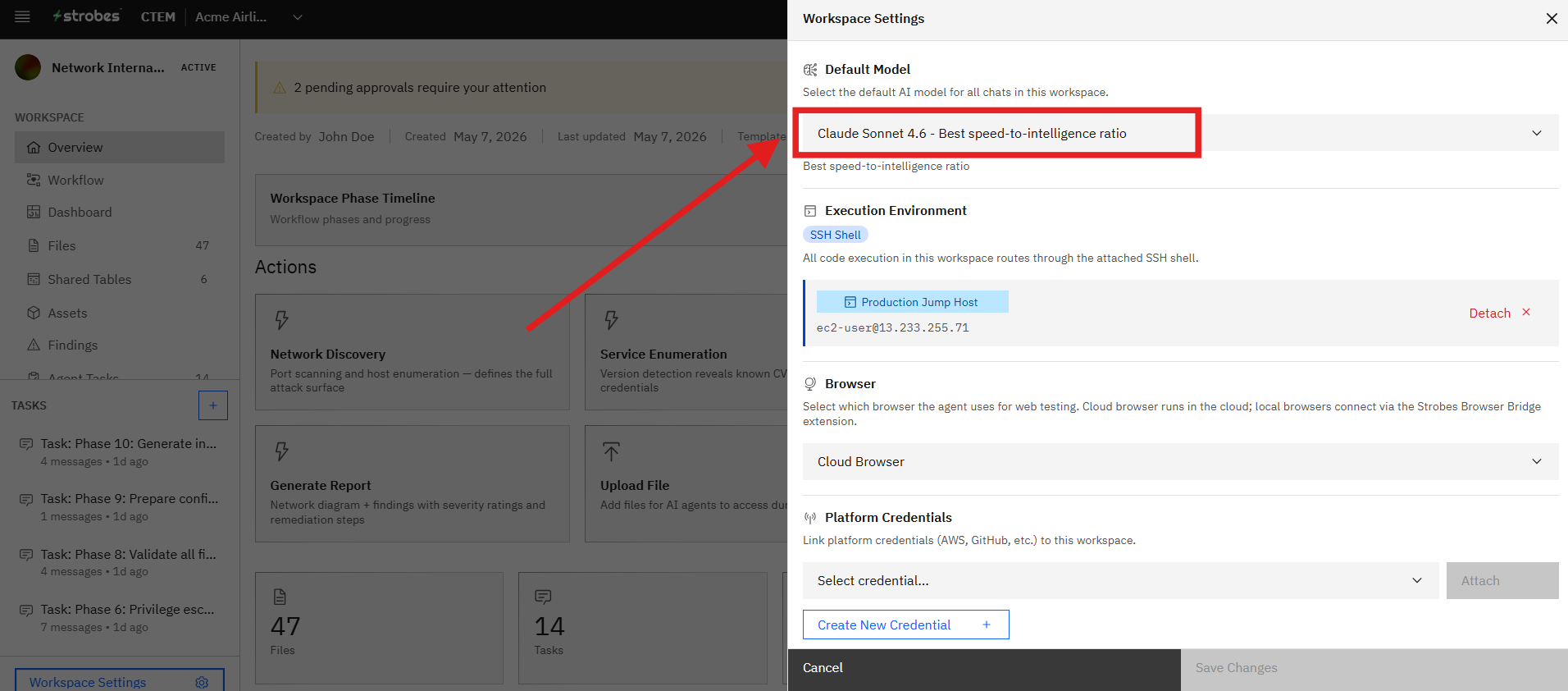
The AI Model dropdown surfaces the LLM tiers your organization is licensed for. Three tiers are typically available:
- Standard
- Advanced
- Lite
Now, let's take a look at each.
Standard
The default tier and the recommended choice for most pentests. Standard offers a good balance of cost and quality and is suitable for the majority of Web App Pentest, Network, API, and Code Review engagements.
Advanced
Use Advanced for the deepest reasoning on complex apps and long-running engagements. It's a better fit when:
- The target has many interconnected workflows (multi-tenant SaaS, deep authentication flows).
- The engagement is expected to run for days and benefits from richer planning.
- You're running a Red Team or Threat Hunting campaign that needs nuanced decision-making.
Advanced consumes more AI credits per run, so it's best reserved for the assessments where the extra reasoning pays off.
Lite
Use Lite for the fastest and cheapest runs. It's the right choice for:
- The Hello World template, when you just want a quick demo.
- Sanity-checking a Workspace setup before re-running with Standard or Advanced.
- Internal training or platform exploration.
Where the catalog is configured
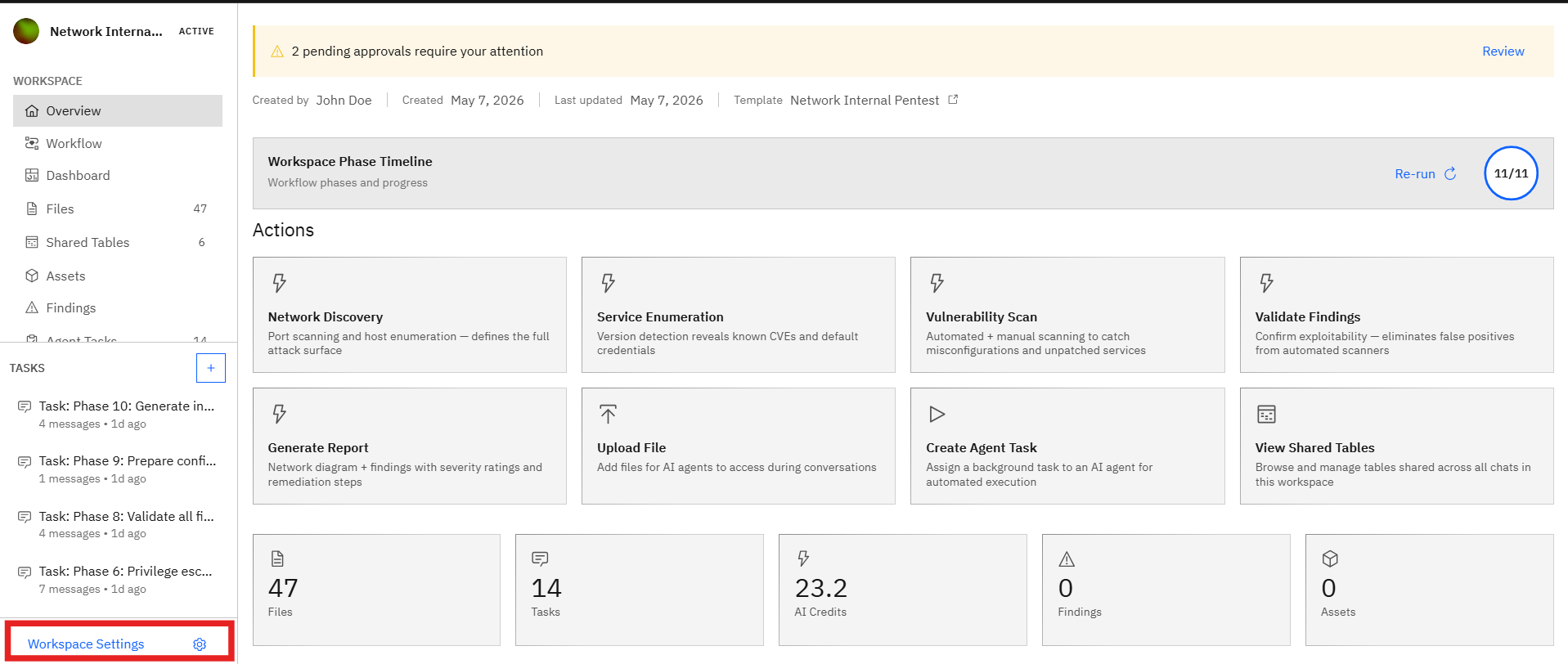
The catalog of available models is configured by your org admin under Workspace Settings → AI Models. If a tier you expect isn't visible, check with your admin to confirm it's enabled for your organization.
Note: You can change the model on a per-Workspace basis from the Workspace Settings panel even after launch — though for in-flight runs this only affects future agent steps.