
Report Template Access and Permissions
The Template Library in Strobes is where your organization's report templates live. To prevent unintended changes to a finalized template — especially ones tied to compliance reports or customer-facing deliverables — you can lock a template by managing its access. This article walks through how to do it.
Prerequisites
Before locking a template, ensure the following:
- You're logged in to Strobes.
- You're the owner or a co-editor of the template — only these roles can update template access.
- The template you want to lock already exists in the Template Library.
Steps to lock a template
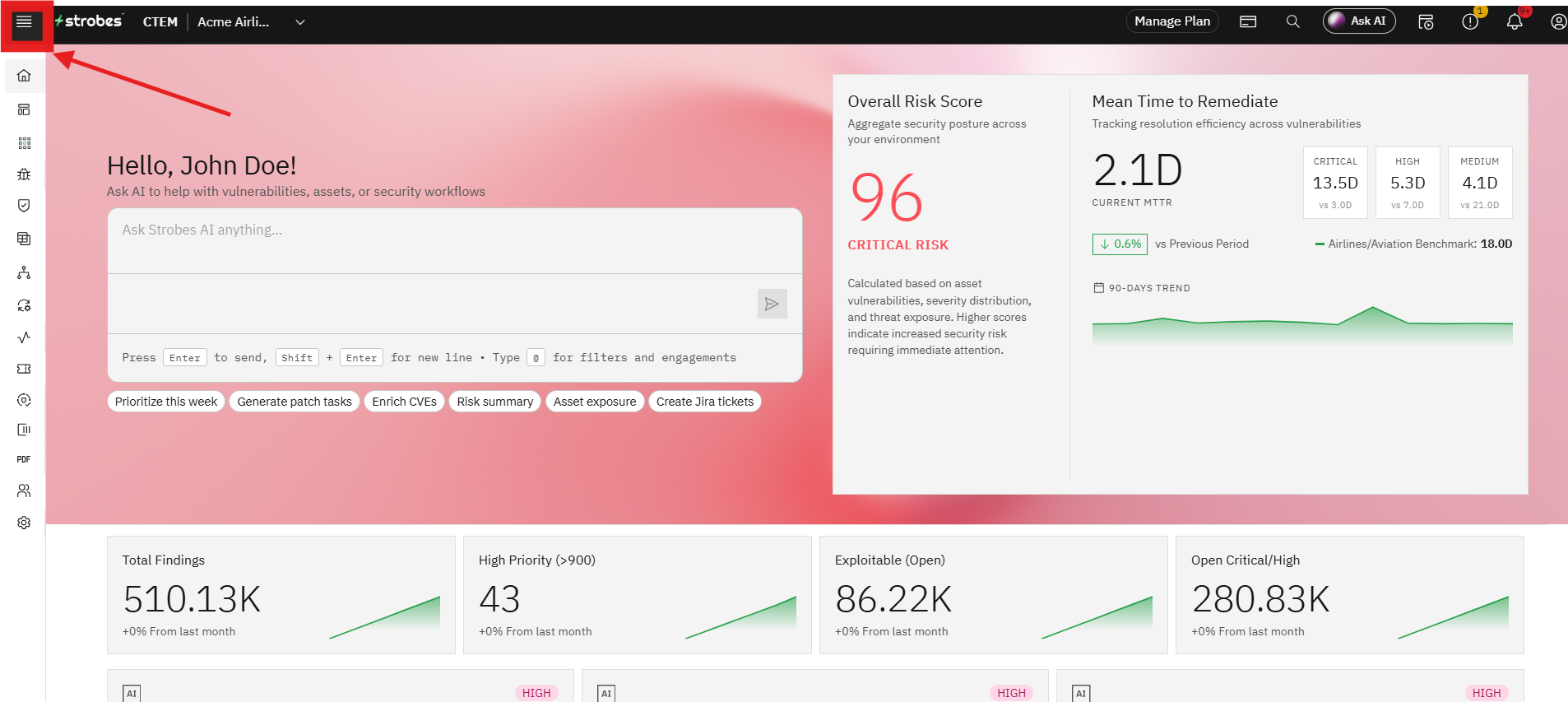
Step 1: Open the main menu
- Click on the Menu icon (☰) in the top-left corner of the page after logging in.
- The full left-hand navigation expands.
Step 2: Navigate to the Template Library
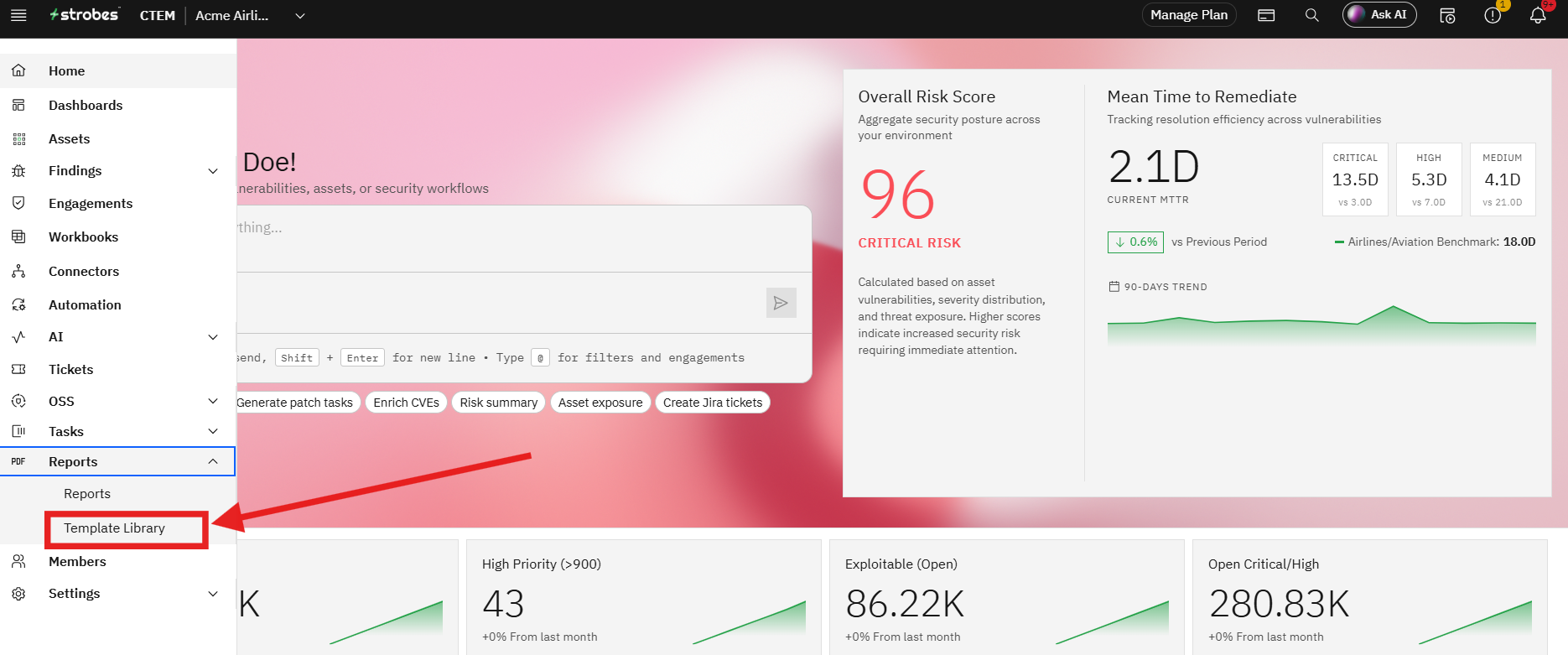
- Click on Reports in the expanded menu.
- Choose Template Library from the sub-menu.
- The Template Library page opens, listing every template available to your organization.
Step 3: Find the template you want to lock
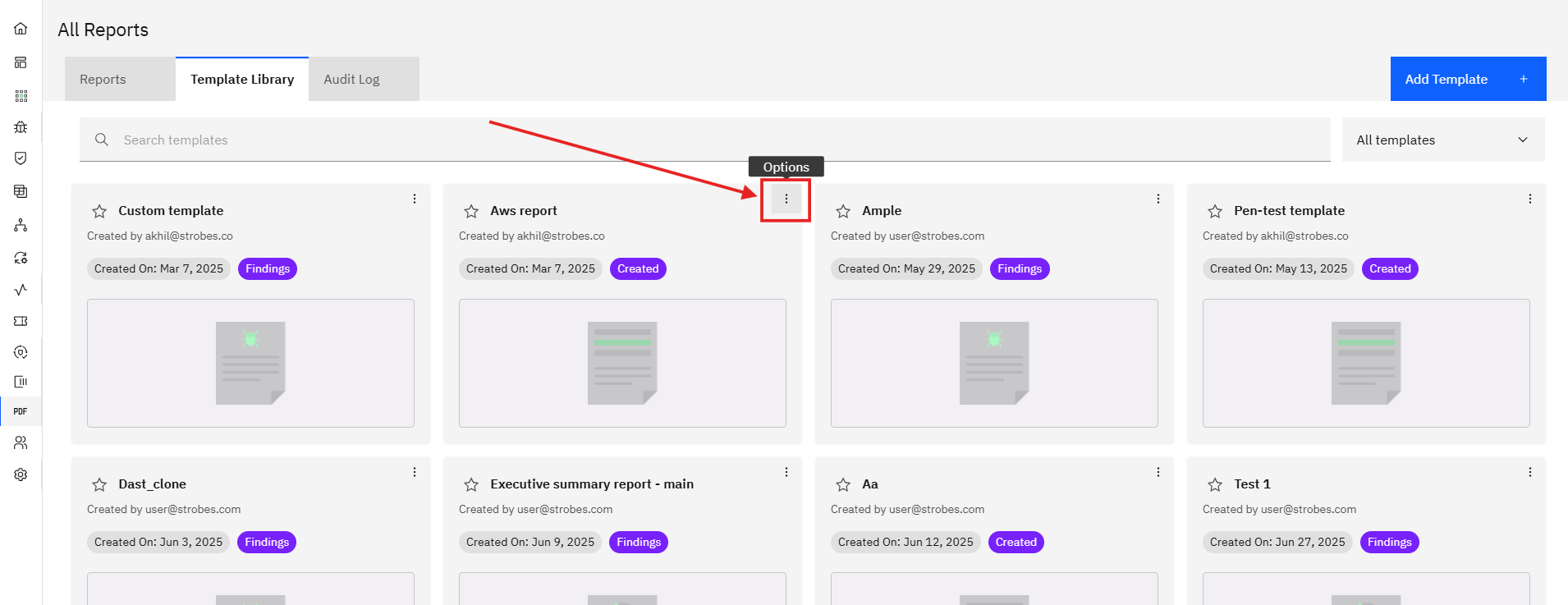
- Browse or search for the template you want to lock.
- Click the Options menu (the three-dots icon) on the template's row or card.
Step 4: Open Manage Access
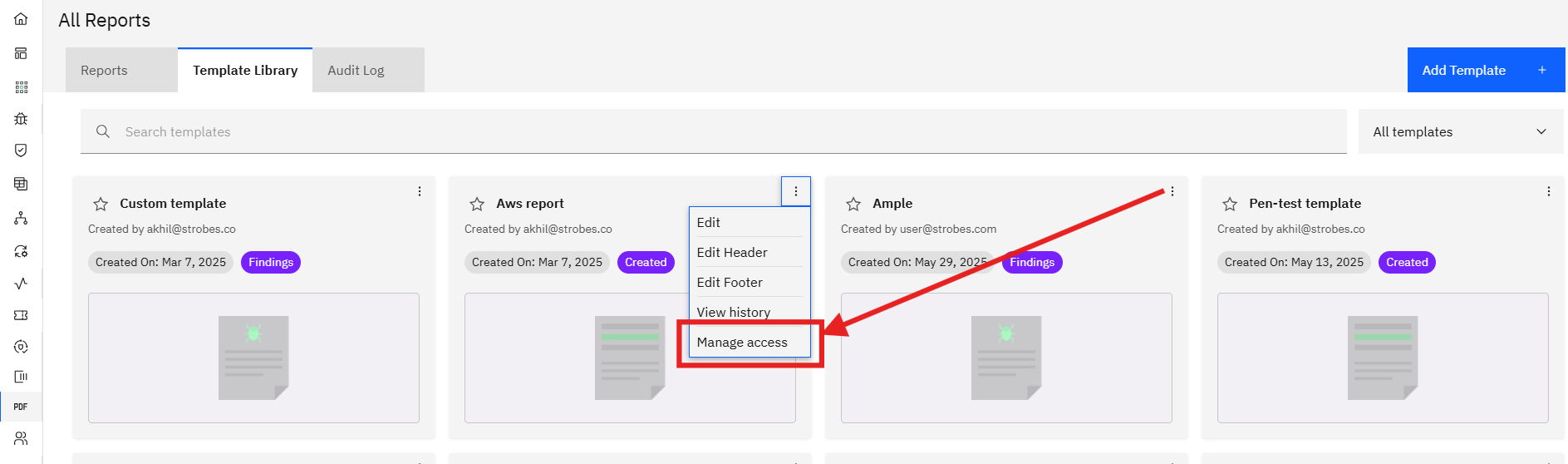
- From the Options menu, click Manage Access.
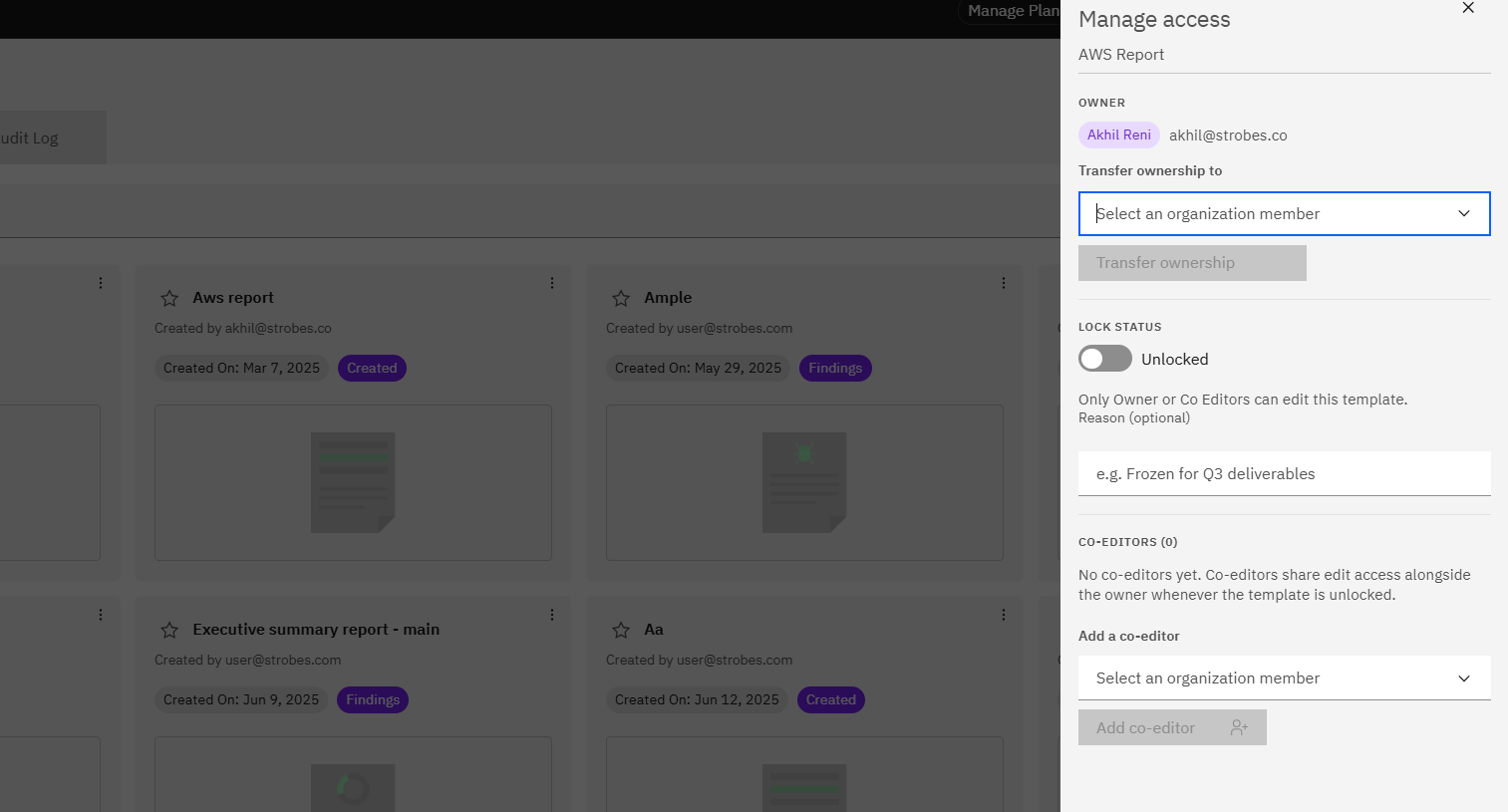
- The access management dialog opens, showing the template's owner, co-editors, and viewers.
Step 5: Update access and lock the template
- If you are the owner or a co-editor, you'll see edit controls in the dialog.
- Adjust who can edit, view, or use the template, then save your changes.
- The template is now locked to the access list you've defined — anyone without the right role can no longer modify it.
Note: If you're not the owner or a co-editor, the Manage Access controls will be read-only. Reach out to the current owner to either grant you co-editor access or update the locking themselves.
Last updated: 9/10/26, 12:45 PM