
Logs
The Logs page in Strobes is the audit trail for every AI agent action across your organization — every tool call, every run start and stop, every approval, every error. Use it to investigate what an agent did, when, and why.
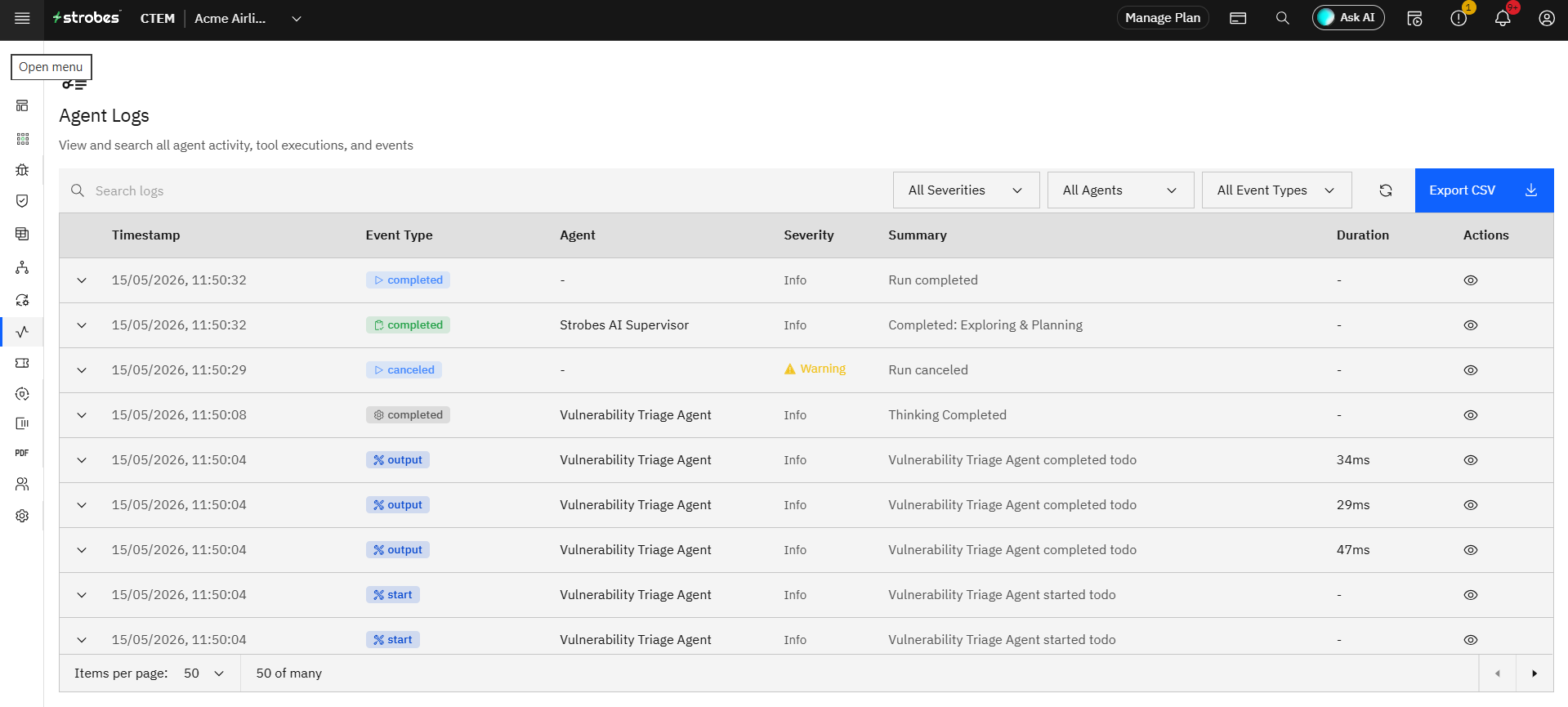
To open the page, expand AI in the left sidebar and click Logs. The page contains the following:
- The logs table
- Search and filters
- Event types
- Per-row details
- Export to CSV
Now, let's take a look at each.
The logs table
The main table is a high-cardinality, time-ordered list of every event AI agents have produced. Columns include:
- Timestamp — date and time of the event.
- Event Type — a pill showing the kind of event (e.g., completed, start, output, segment completed, canceled).
- Agent — the agent that produced the event (e.g., Strobes AI Supervisor).
- Severity — Info, Warning, or Error.
- Summary — a one-line description of what happened (e.g., "Strobes AI Supervisor completed search_skills").
- Duration — how long the action took (e.g., 96ms, 86ms).
- Actions — eye icon to drill into the full event detail.
The table refreshes automatically while you're viewing it.
Search and filters
The toolbar above the table lets you narrow what's shown:
- Search logs — free-text search across event summaries.
- All Severities — filter by Info, Warning, or Error.
- All Agents — filter to a specific agent.
- All Event Types — filter to a specific event class (start, completed, output, canceled, etc.).
- A refresh icon to force a reload.
Event types
Common event types you'll see in the logs:
- start — a tool call or sub-agent task is beginning.
- output — a tool call has returned a result.
- completed — a task or sub-task has finished successfully.
- segment completed — a message segment (chunk of a longer reply) has been generated.
- canceled — the run or task was canceled by the user.
- warning — something non-fatal happened that may need attention.
- error — the run or task stopped because of a failure.
Per-row details
Click the eye icon on a row (or the expand chevron on the left) to see the full event detail. Expanded events include the raw inputs, outputs, and any associated metadata — the same information that drove the agent's decision.
Export to CSV
Use the Export CSV button at the top right to download the current filtered view as a CSV. This is the canonical way to hand a slice of agent activity to your auditors or to load it into a separate analytics tool.