
Knowledge Base
The Knowledge Base in Strobes is where you upload your organization's documents — policies, runbooks, architecture docs, prior pentest reports, compliance evidence — so AI agents can reference them when answering questions or executing workflows. The platform indexes the documents and retrieves the relevant passages on demand. This article explains how it works and how to upload your first documents.
To open the page, expand AI in the left sidebar and click Knowledge Base. The page contains the following:
- How Knowledge Base Works
- Document upload
- Indexing pipeline
- Document list
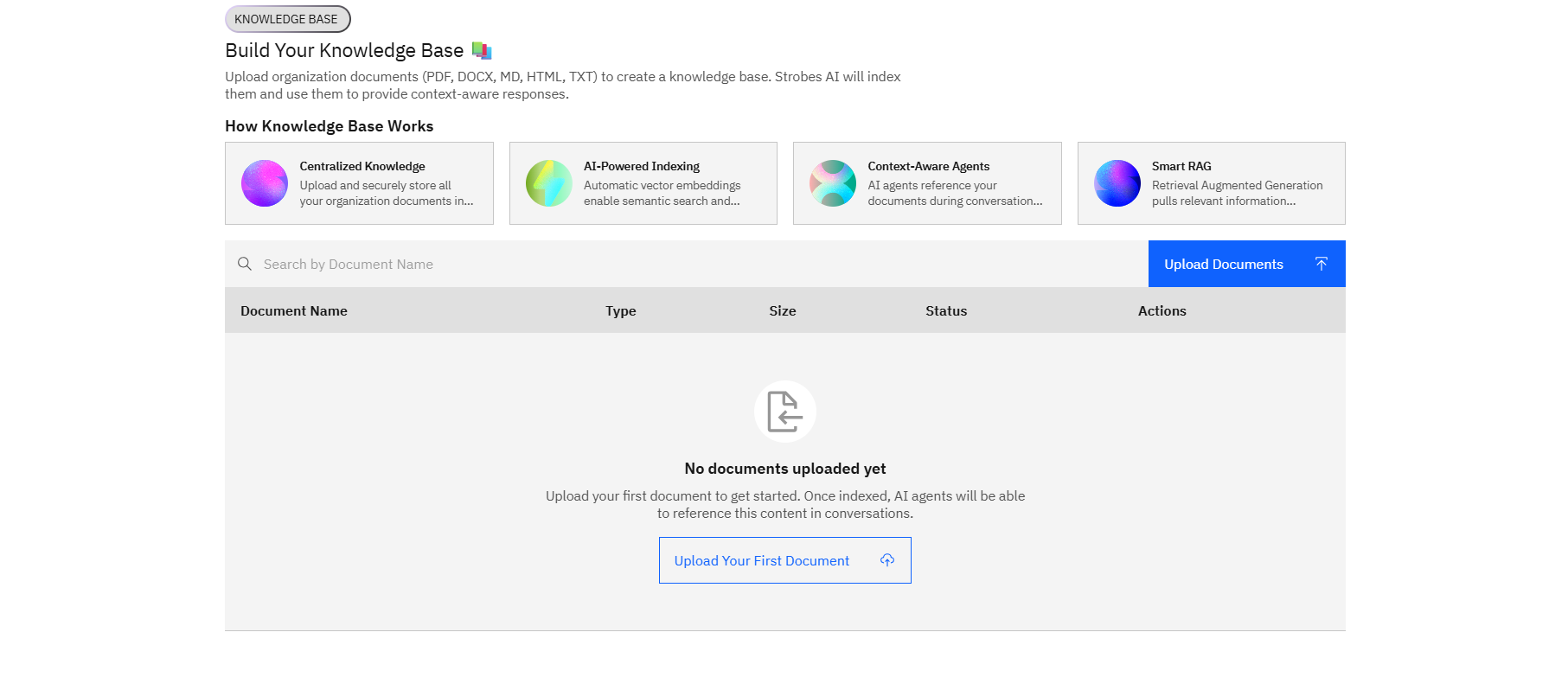
Now, let's take a look at each.F
How Knowledge Base Works
Four sections at the top explain the core capabilities:
- Centralized Knowledge — upload and securely store all your organization documents in one place.
- AI-Powered Indexing — automatic vector embeddings enable semantic search.
- Context-Aware Agents — AI agents reference your documents during conversations.
- Smart RAG — Retrieval Augmented Generation pulls the most relevant information into responses.
These sections are educational only — they describe how the platform uses your documents.
Document upload
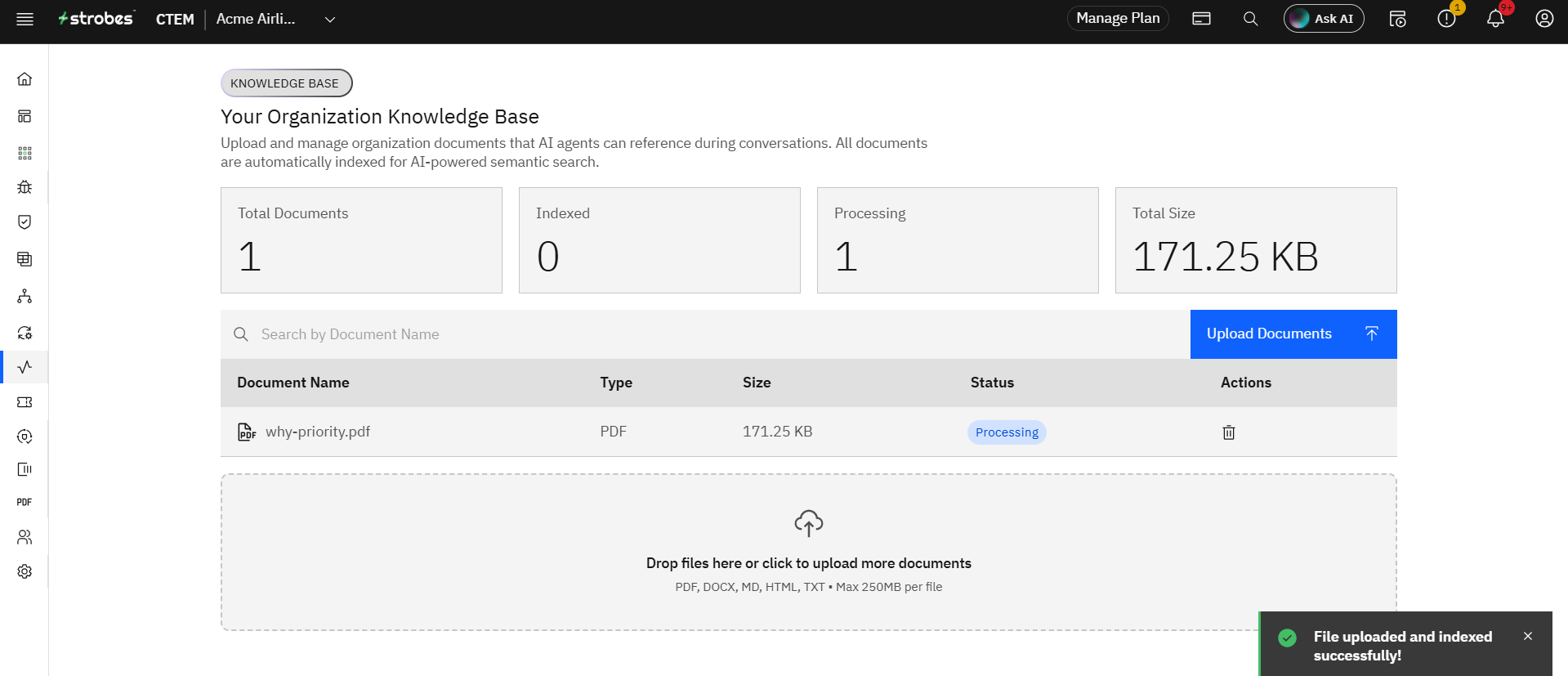
To add a document, click Upload Documents at the top right or Upload Your First Document on the empty state.
Supported formats:
- PDF — reports, policies, architecture diagrams.
- DOCX — Word documents.
- MD — Markdown.
- HTML — web pages saved as HTML.
- TXT — plain text.
Note: Sensitive documents are stored securely and scoped to your organization. They're not used to train any shared model. They only inform retrieval for your own AI agents.
Indexing pipeline
After upload, each document moves through an indexing pipeline:
- The document is parsed and split into chunks.
- Each chunk is converted into a vector embedding that captures its meaning.
- The embeddings are stored in your organization's private index.
- The document appears in the list with a Status of Indexed when ready.
Most documents finish indexing within a minute. Larger PDFs (hundreds of pages) may take longer.
The document list
The bottom of the page lists every document in your knowledge base. Columns include:
- Document Name — the original filename.
- Type — PDF / DOCX / MD / HTML / TXT.
- Size — file size.
- Status — Indexed, Indexing, or Failed.
- Actions — view, re-index, or delete.
Use the Search by Document Name field to filter the list.
Using the Knowledge Base from an agent
Once documents are indexed, any AI agent you build can reference them. In the agent's configuration, attach the relevant documents under the Knowledge Base section. The agent will automatically retrieve and cite passages in its responses without you having to write retrieval logic.