
Browsers
This article explains the Browser option in the Workspace wizard — when to use the default Cloud Browser, when to switch to a Connected Browser, and how to set one up.
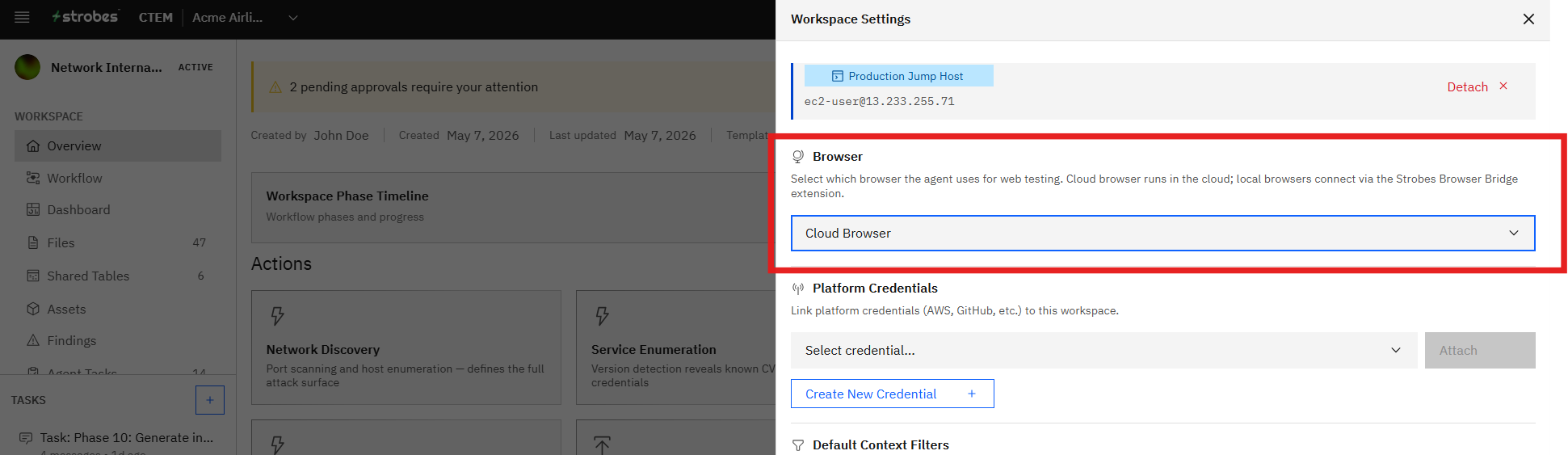
The agent drives a real browser to interact with web targets. You can choose between two options:
- Cloud Browser
- Connected Browser
Now, let's take a look at each.
Cloud Browser
The default option. The agent drives a headless browser inside the Strobes sandbox — no setup required. Use Cloud Browser when:
- The target is reachable from the public internet.
- Standard browser fingerprinting and headless behavior is acceptable.
- You don't need a custom browser profile (cookies, extensions, certificates).
This is the right choice for the vast majority of Web App Pentest, API Security Testing, and Threat Model engagements.
Connected Browser
Use Connected Browser when the target can only be reached from your network or requires a custom browser profile. Common scenarios:
- The target is on a VPN-only internal app or a corporate intranet.
- The target requires client certificates for TLS authentication.
- You need an existing session or cookie state from a logged-in browser.
- The application has IP-based allow-listing that excludes Strobes' Cloud Browser egress.
How to set up a Connected Browser
Set up under AI → Connected Browsers:
- Open the Connected Browsers page.
- Click Add Connected Browser and follow the install instructions.
- The setup installs a lightweight bridge in your browser that lets the Strobes agent drive your local Chrome/Edge instance.
- Once registered, the browser appears in the Browser dropdown of the Workspace wizard.
Note: Connected Browsers run locally and are scoped to a single user. For shared use, register a dedicated jump host's browser.
Switching browsers later
You can change the browser for a Workspace from Workspace Settings even after launch. For in-flight runs, the new browser takes effect on subsequent agent actions.