
Know what happens after Launch
This article describes what Strobes does in the seconds and minutes after you click Launch Assessment — so you know what to expect and where to look while the agent is starting up.
When you click Launch Assessment, the platform performs the following steps:
- Validates AI credits, target, and required fields
- Creates the Workspace, engagement, and workflow
- Uploads any files you attached
- Sends a setup message to the AI agent
- Redirects you to the AI chat
- Begins the pentest
Now, let's take a look at each.
Validates AI credits, target, and required fields
Strobes first checks that your target is well-formed, all required fields are filled, and your organization has enough AI credits for the assessment. If credits are below the assessment minimum (typically 200), you'll see a warning with the option to Proceed Anyway or top up.
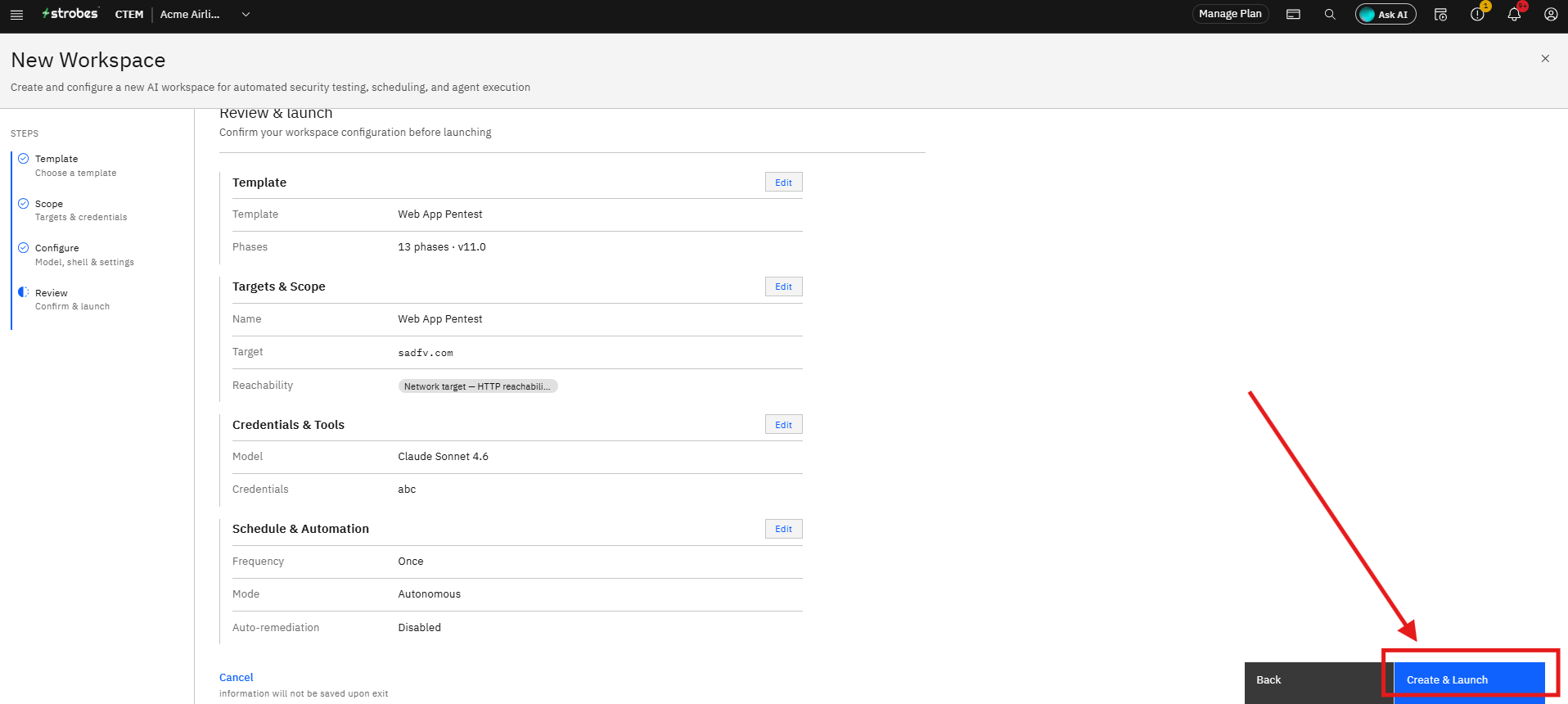
Creates the Workspace, engagement, and workflow
The Workspace, the underlying Engagement (for templates), and the workflow are all created at once.
The Workspace becomes visible in the Workspaces list with an Active status.
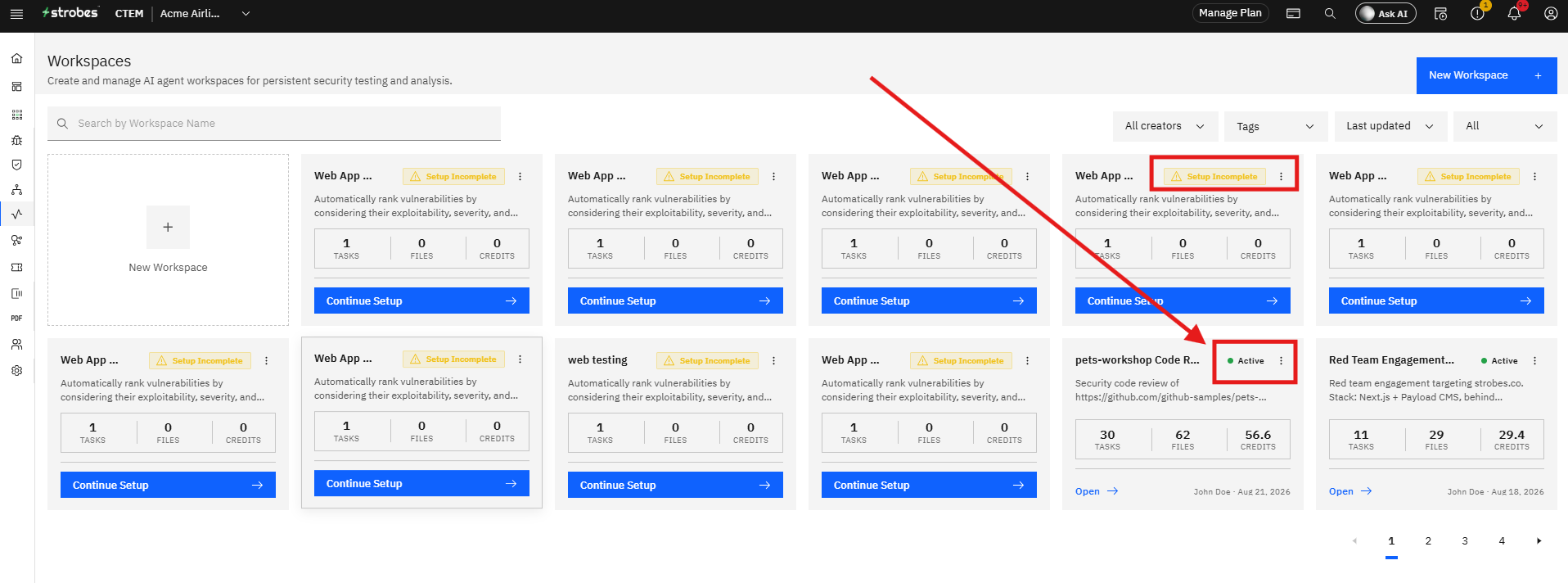
Uploads any files you attached
If you attached Workspace Files during the wizard (OpenAPI specs, scope PDFs, prior reports), they upload now and become part of the Workspace context.
Sends a setup message to the AI agent
The platform composes a setup message describing the assessment, the target, and your Custom Instructions, and posts it as the first message in the AI chat.
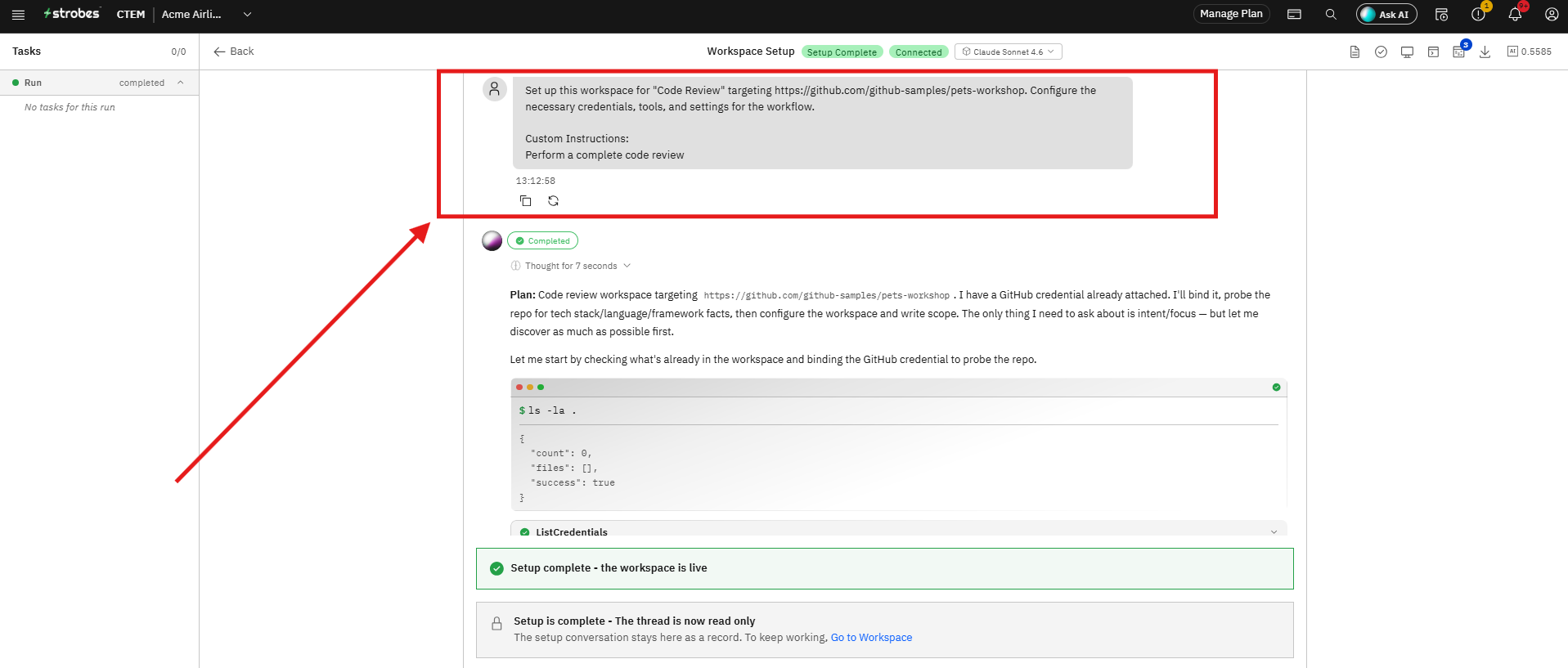
Redirects you to the AI chat
You're routed straight into the Workspace's AI Chat while the agent does its setup. You can watch the conversation from the chat panel as it builds.
Begins the pentest
The agent begins executing phases in order. Tasks fan out to sub-agents, and findings stream into the Workspace as they're confirmed.
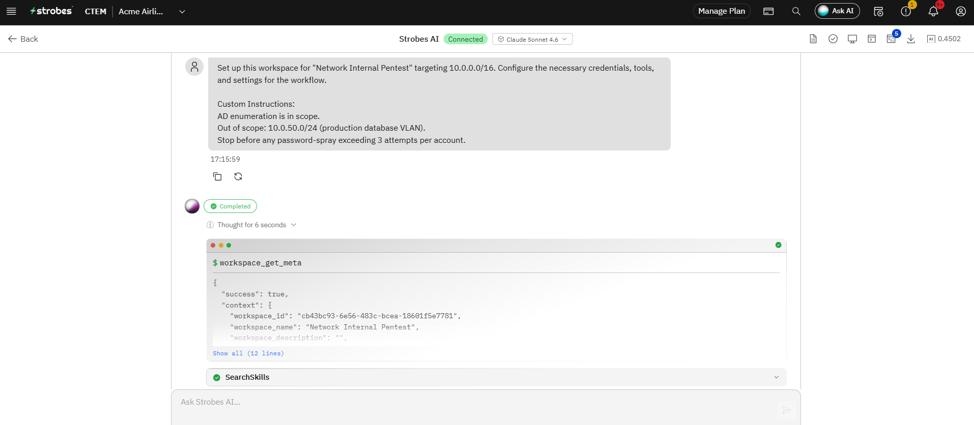
You'll know the run is working when:
- Phases on the dashboard start advancing.
- The activity panel scrolls with agent actions.
- Findings appear in the Findings tab as they're confirmed.