
Findings and generating reports
This article explains how to review findings produced by an AI pentest, mark their state, generate executive and technical reports, and re-test after a remediation cycle.
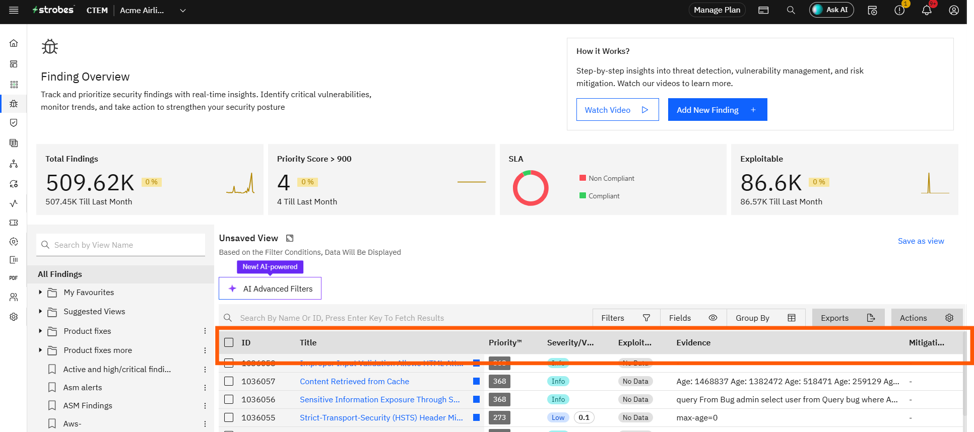
Findings
Each finding produced by the agent has the following:
- Title, severity, and category — e.g., Reflected XSS in
/search, High, Injection. - Description — what the issue is, in plain language.
- Evidence — request/response pairs, screenshots, exploitation steps.
- Affected assets — the URL, IP, or service the finding applies to.
- Mitigation — recommended fix.
- Compliance mapping — OWASP Top 10 reference, CWE, CVSS.
Marking finding state
From the Findings tab you can mark each finding as one of:
- Accepted Risk — the team has reviewed and chosen to accept the risk.
- False Positive — the finding doesn't reflect a real issue.
- Fixed — the issue has been remediated.
Re-testing a single finding
After your team patches a finding, click Re-test on the finding row. The agent re-runs the exploit against the same target and reports back Fixed or Still Vulnerable.
Linking findings to a tracker
To push a finding into your bug tracker, click Open Linked Bug and pick a tracker (Jira, GitHub Issues, etc.). You'll need to connect a tracker first under Settings → Integrations.
Generating reports
Reports are generated from the Reports tab or the Generate Report quick action on the dashboard.
Step 1: Click Generate Report
- Go to the Reports tab on the Workspace dashboard.
- Click Generate Report.
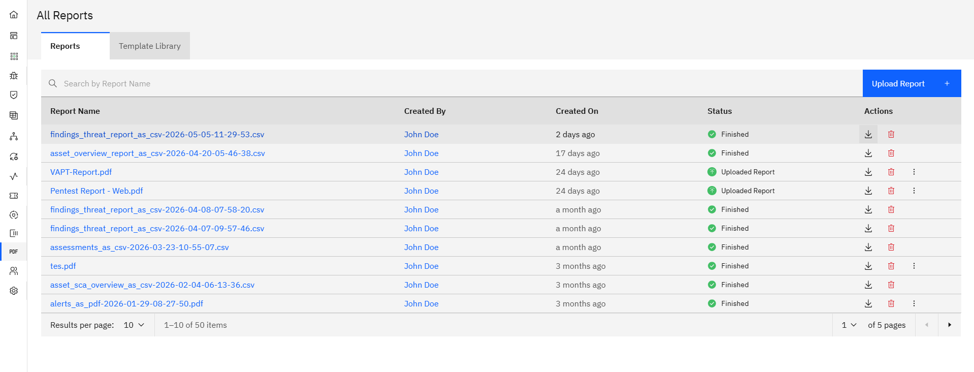
Step 2: Pick the report type
Choose one of:
- Executive Summary — high-level overview for non-technical stakeholders.
- Technical Report — detailed write-up with full evidence per finding.
- Both — generates both at once.
Step 3: Pick a brand template (optional)
If your organization has uploaded a brand template, pick it from the dropdown. Otherwise the default Strobes template is used.
Step 4: Wait for compilation
The agent compiles the document. Most reports finish in a minute or two.
Step 5: Download
Download the final report as PDF or DOCX.
Re-test all
Use the Re-test All quick action after a remediation cycle. The agent re-runs only the originally-failed checks against the same target and produces a delta report — Fixed, Still Vulnerable, or New.