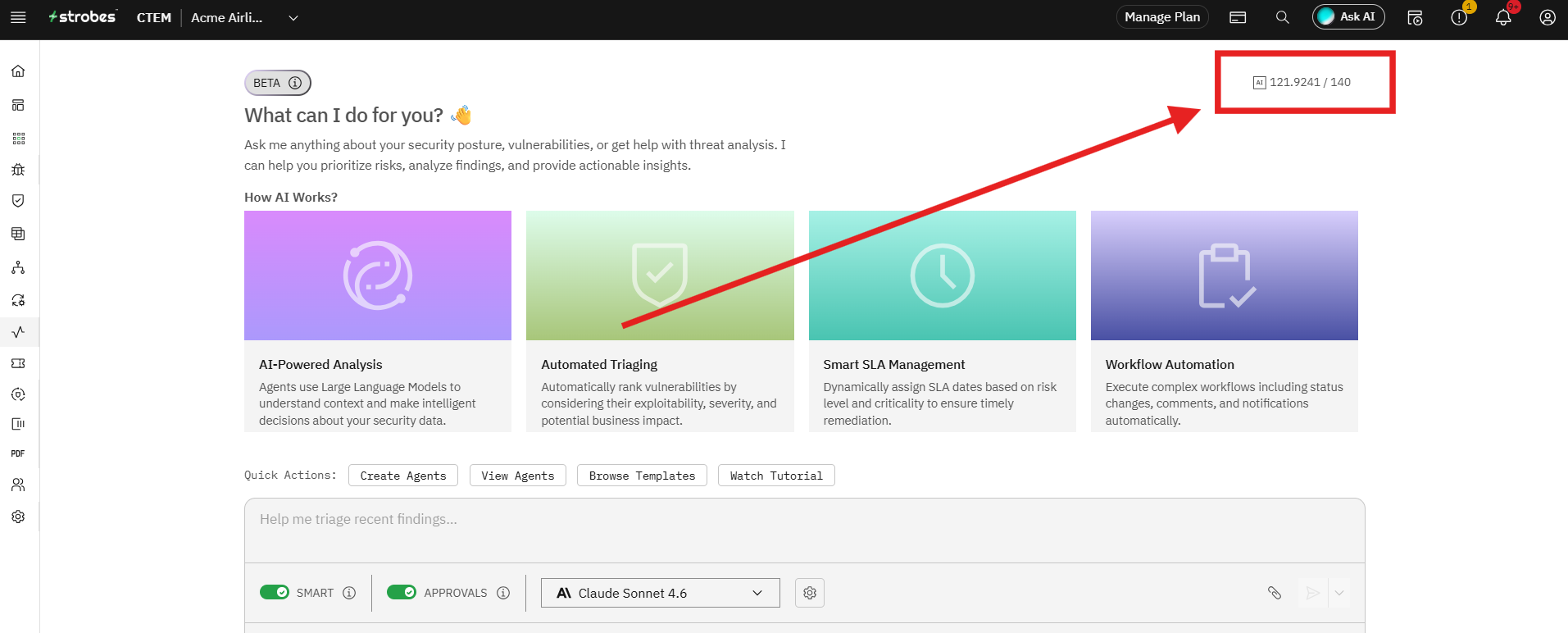
AI Overview page
The AI Overview page is the entry point to Strobes AI, a conversational assistant that can analyze your security posture, prioritize vulnerabilities, surface threat intelligence, and execute multi-step workflows on your behalf. This article explains what's on the page, how to use the composer, and how the settings affect agent behavior.
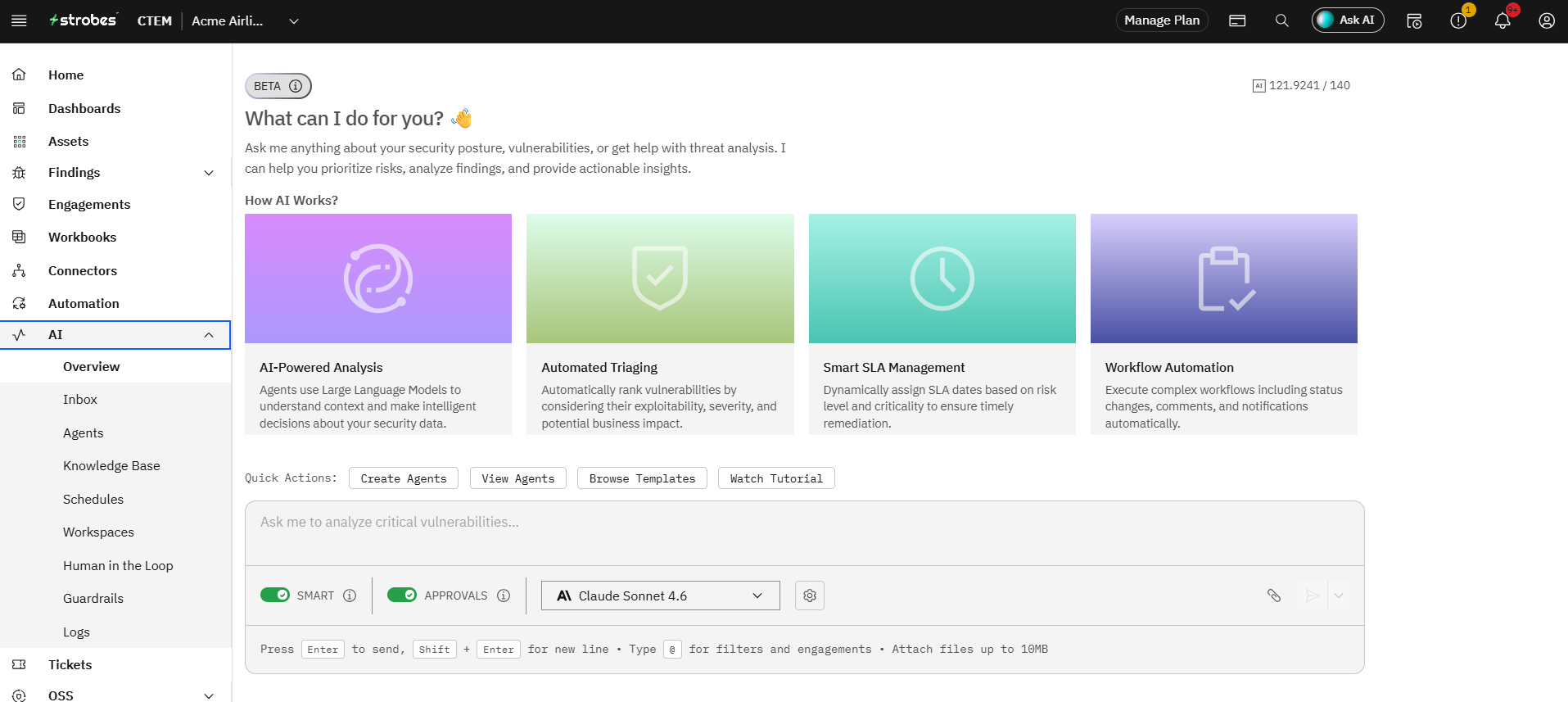
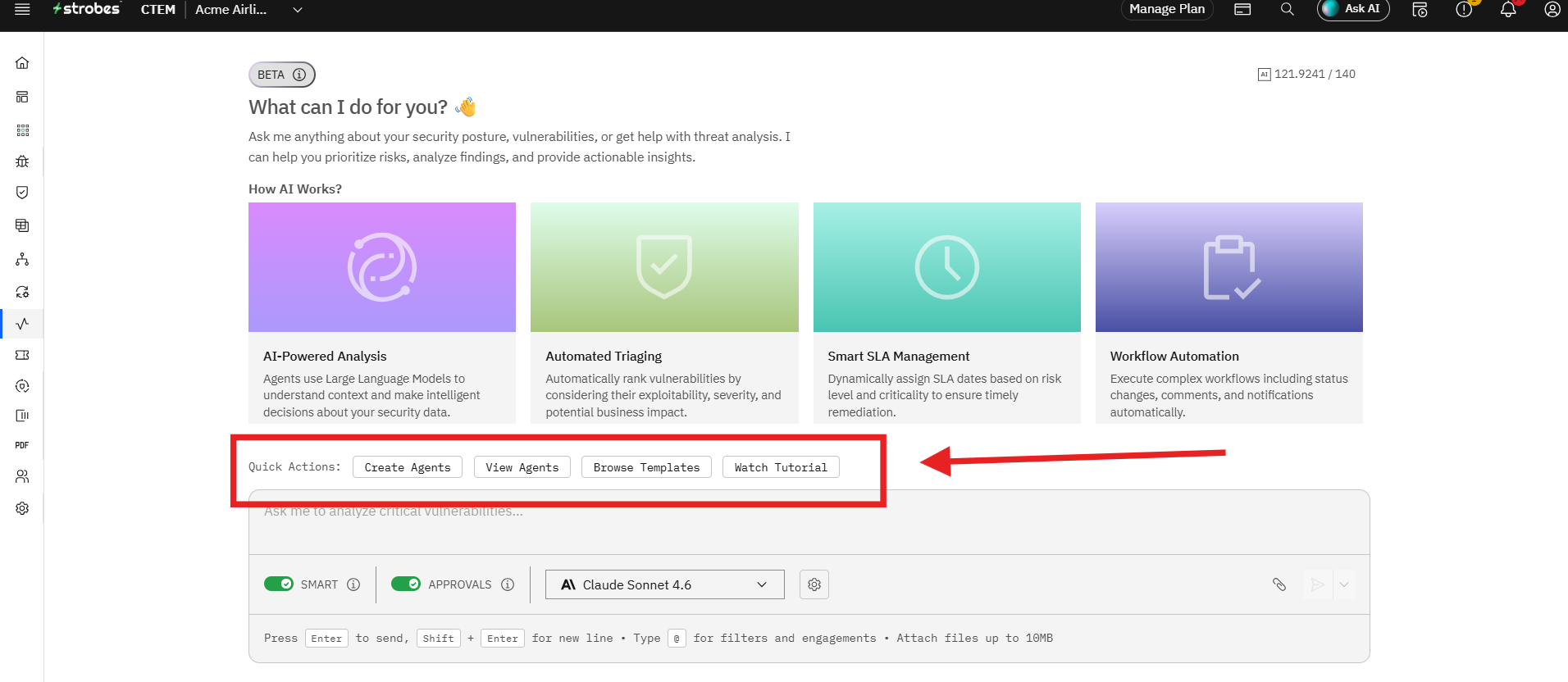
To open the page, expand AI in the left sidebar and click Overview. You'll land on a page that contains the following:
- A welcome composer
- How AI Works module
- Quick Actions
- Composer controls (Smart, Approvals, Model)
- Credit counter
Now, let's take a look at each.
The welcome composer
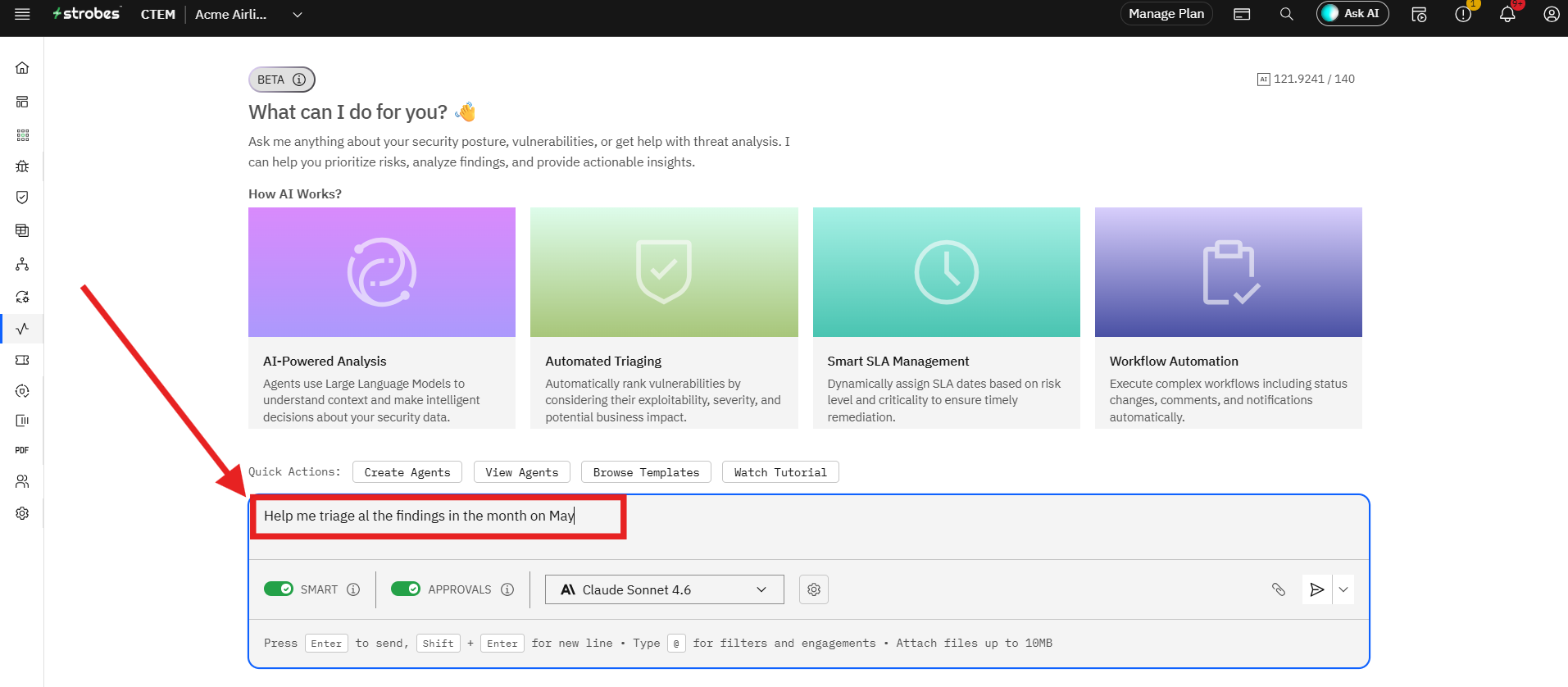
At the top of the page you'll see What can I do for you? followed by a short prompt — "Ask me anything about your security posture, vulnerabilities, or get help with threat analysis." The composer at the bottom of the page is where you type your request.
You can:
- Ask natural-language questions (e.g., "What security risks should I prioritize?").
- Trigger a workflow by phrasing it as a task (e.g., "Help me triage recent findings").
- Press Enter to send. Use Shift + Enter for a new line.
- Type @ to insert filters and engagements as structured references.
- Attach files up to 10 MB using the paperclip icon.
How AI Works Module
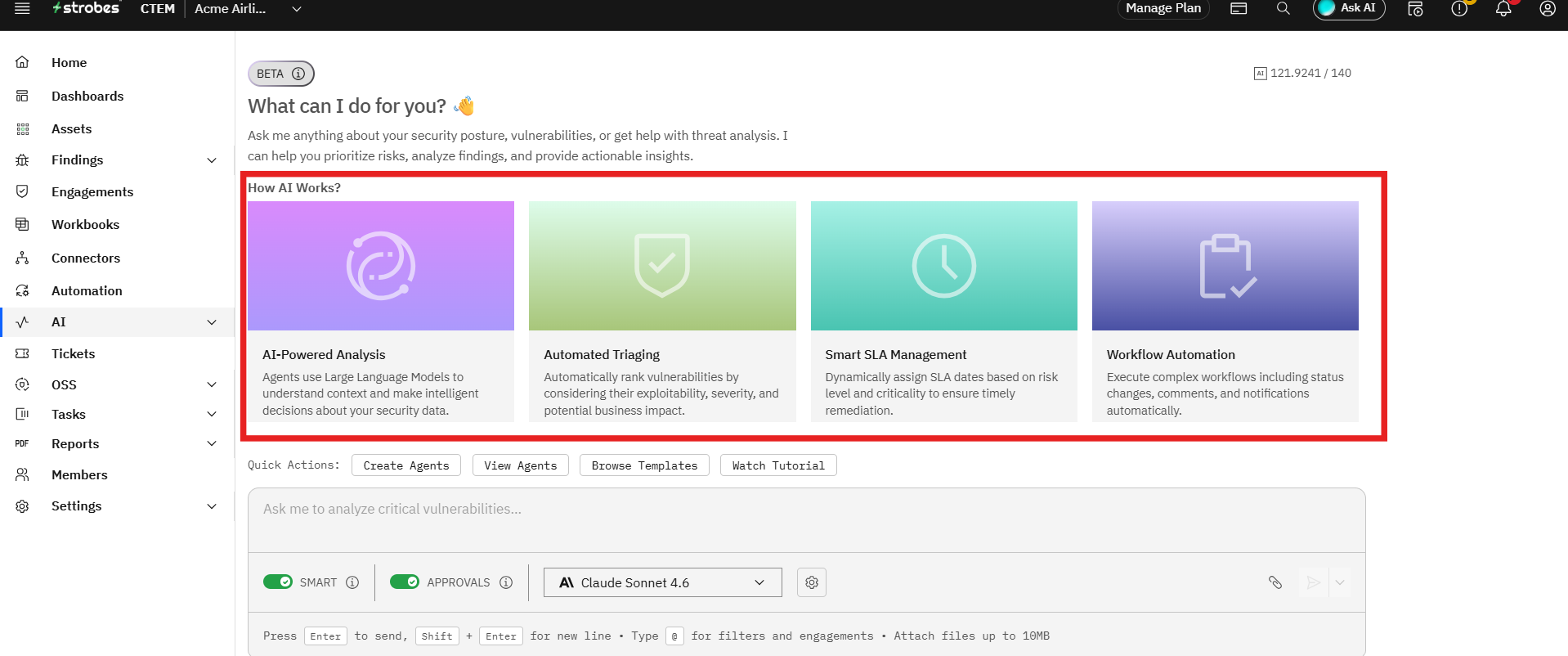
Four sections explain the core capabilities the AI offers:
- AI-Powered Analysis — Agents use Large Language Models to understand context and make intelligent decisions about your security data.
- Automated Triaging — Automatically rank vulnerabilities by considering their exploitability, severity, and potential business impact.
- Smart SLA Management — Dynamically assign SLA dates based on risk level and criticality to ensure timely remediation.
- Workflow Automation — Execute complex workflows including status changes, comments, and notifications automatically.
These sections are educational only — clicking them doesn't trigger an action. They're there to help first-time users understand what kinds of tasks the AI can handle.
Quick Actions
Below the shortcuts, the Quick Actions row contains shortcut buttons:
- Create Agents — jumps to the Agents page to define a new AI agent.
- View Agents — opens the existing agent list.
- Browse Templates — opens the Templates tab on the Agents page.
- Watch Tutorial — opens the onboarding tutorial in a side panel.
Composer controls > Smart, Approvals, Model
Two toggles and a dropdown sit immediately above the composer's input area:
- SMART (toggle): When enabled, the AI plans multi-step workflows automatically. Disable to keep the AI in single-turn conversational mode.
- APPROVALS (toggle): When enabled, the agent pauses and asks for your approval before each major action. When disabled, the agent runs autonomously and only pauses on explicit guardrail events.
- Model dropdown: Picks the LLM driving the agent. The default in most organizations is Claude Sonnet 4.6. Other tiers (Standard, Advanced, Lite) may be available depending on your organization's licensing.
Note: The model you pick on the Overview page only applies to this conversation. To set a default model for a specific Workspace, change it in Workspace Settings instead.
Credit counter
The top right of the page shows your AI credit balance in the format used / total or example, 121.9241 / 140. Credits are consumed as the AI does work; bigger models and longer multi-step runs consume more.
To top up credits, go to Settings → Billing → AI Credits, or ask your org admin.