Initiating an AI Pentest
Every AI pentest on Strobes follows the Five-action loop:
- Open the AI Workspaces page
- Create a new Workspace
- Pick a template (or a Blank Workspace)
- Fill in target, credentials, model, and (optionally) a schedule
- Launch the assessment
Now, let's take a look at each of these actions.
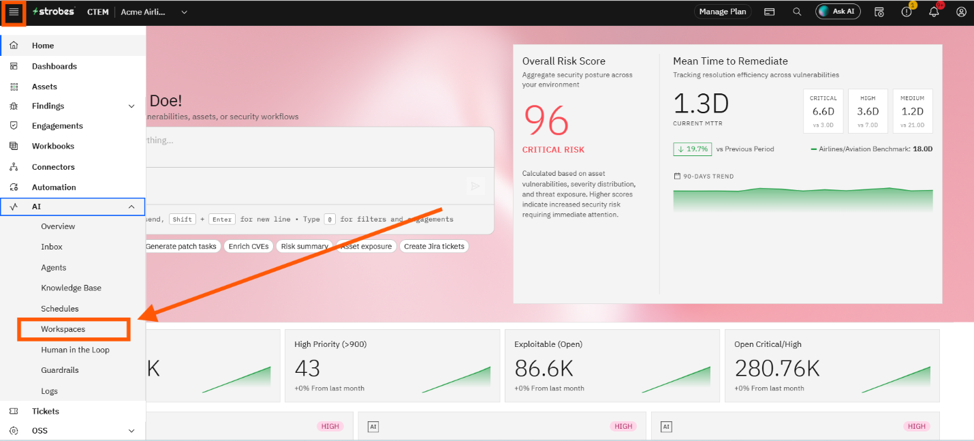
1. Open the AI Workspaces page
From the left-hand navigation, open AI → Workspaces. You'll land on the workspaces list, which shows all active and archived assessments for your organization.
2. Create a new Workspace
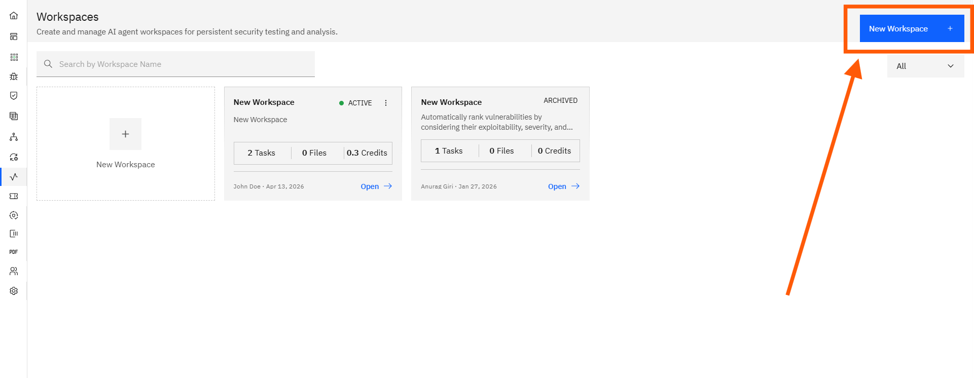
Click the New Workspace button at the top right (or the + Create Workspace card if the list is empty). This opens the Create Workspace wizard.
3. Pick a template or a Blank Workspace
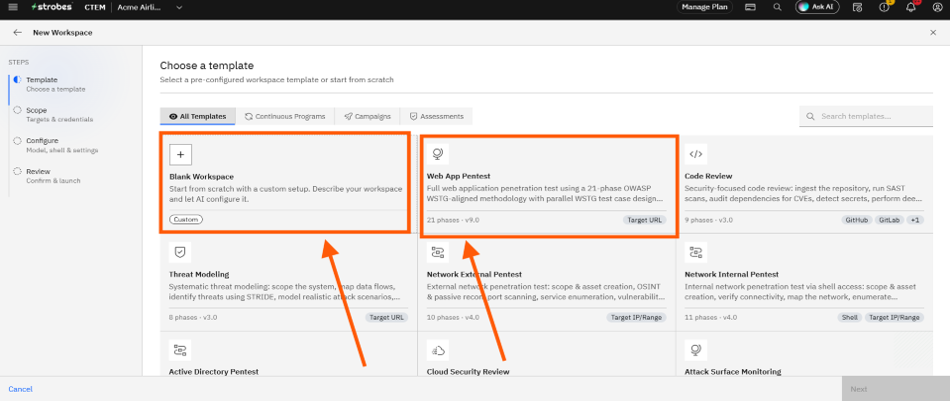
The wizard's first step is Template. Pick a pre-configured template (e.g., Web App Pentest) for a standard assessment with a defined methodology, or select Blank Workspace for a free-form, chat-driven run.
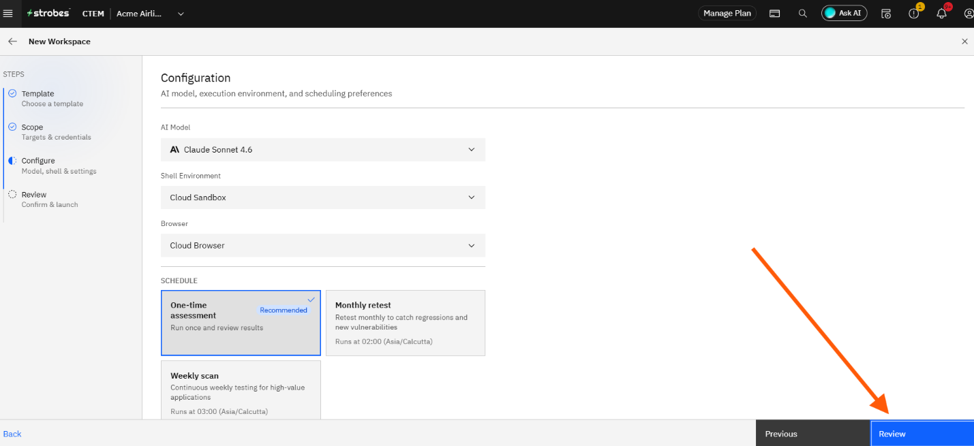
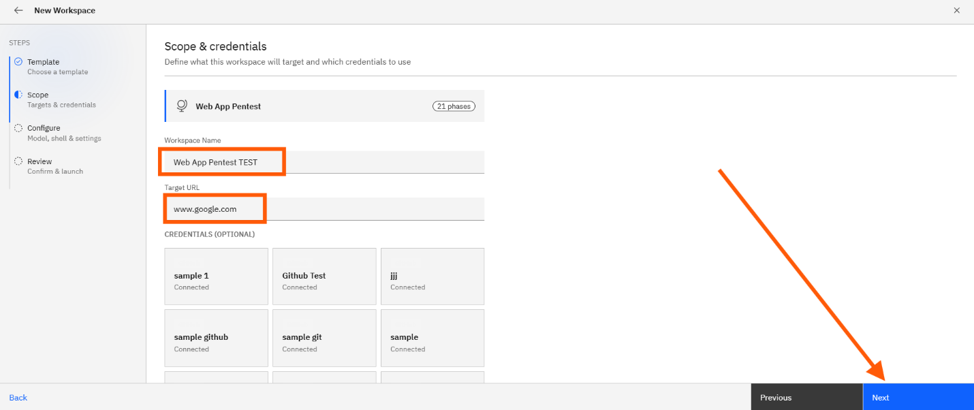
4. Fill in target, credentials, model, and schedule
Move through the Scope and Configure steps to define what the agent should test:
- Target — a URL, IP range, repository, or cloud account, depending on the template.
- Credentials (optional) — test accounts, API keys, SSH keys, or cloud roles the agent may use.
- AI Model — the LLM driving the agent (Standard, Advanced, or Lite).
- Schedule — One-time, Daily, Weekly, Monthly, or a custom cadence.
5. Launch the assessment
On the Review step, double-check your choices and click Launch Assessment (or Create & Launch). The AI agent takes over from there, and you can watch progress on the workspace dashboard.