
Deleting a Dashboard
You can delete any custom dashboard you no longer need from the Settings > Dashboards page.
Default template dashboards cannot be deleted.
Step 1: Navigate to Settings > Dashboards
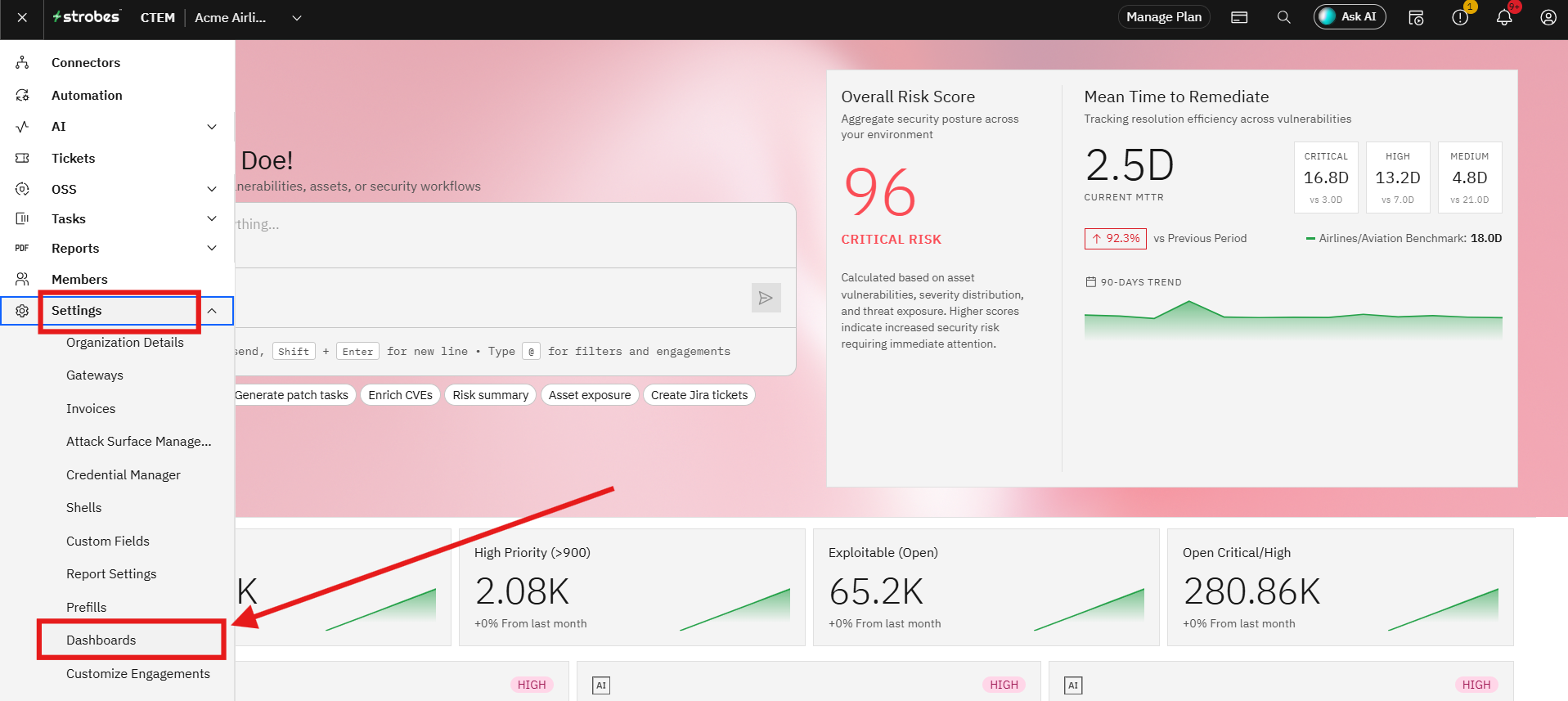
Click the Settings icon (gear) in the left sidebar, then select Dashboards from the Settings menu. This opens the Customize Dashboard page.
Step 2: Find the Dashboard to Delete
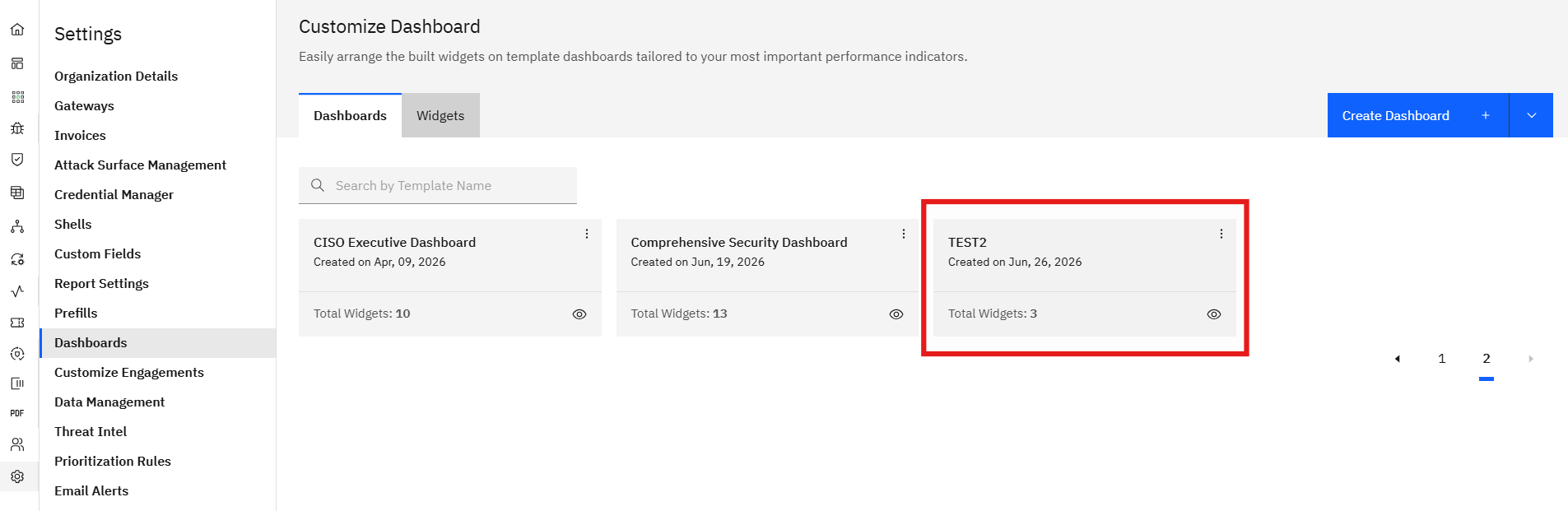
Make sure you are on the Dashboards tab. Locate the custom dashboard you want to delete in the list.
Step 3: Open the Dashboard Menu
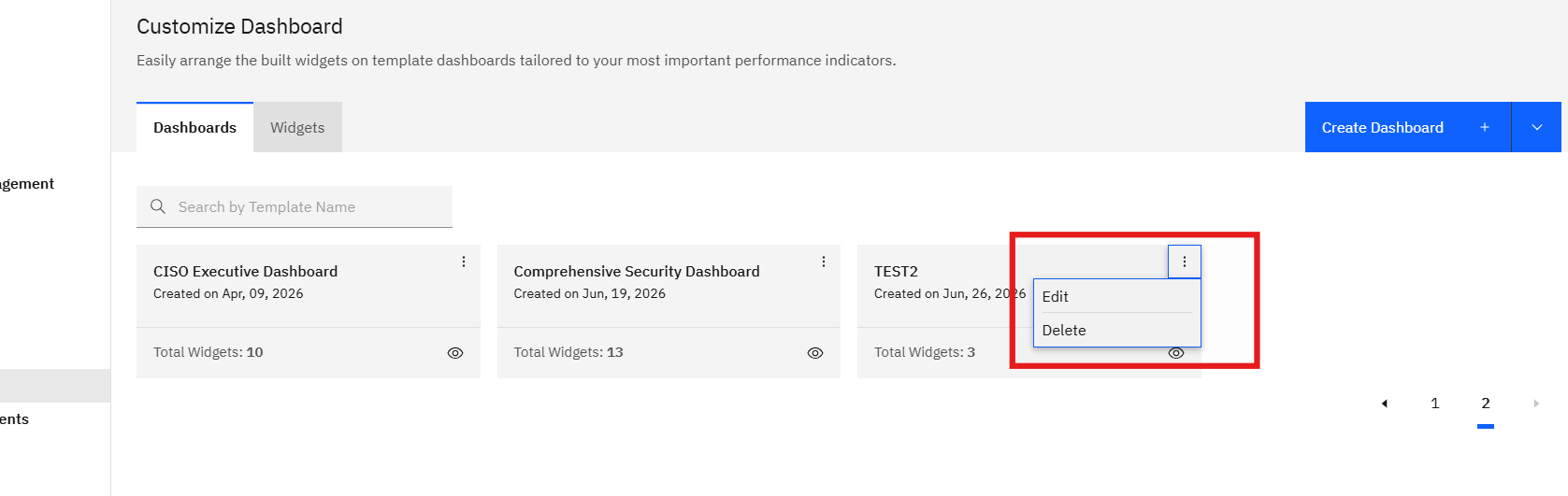
Click the ⋮ (three-dot) menu on the right side of the dashboard row. A dropdown appears with two options: Edit and Delete.
Step 4: Confirm Deletion
Click Delete. Confirm the action when prompted.
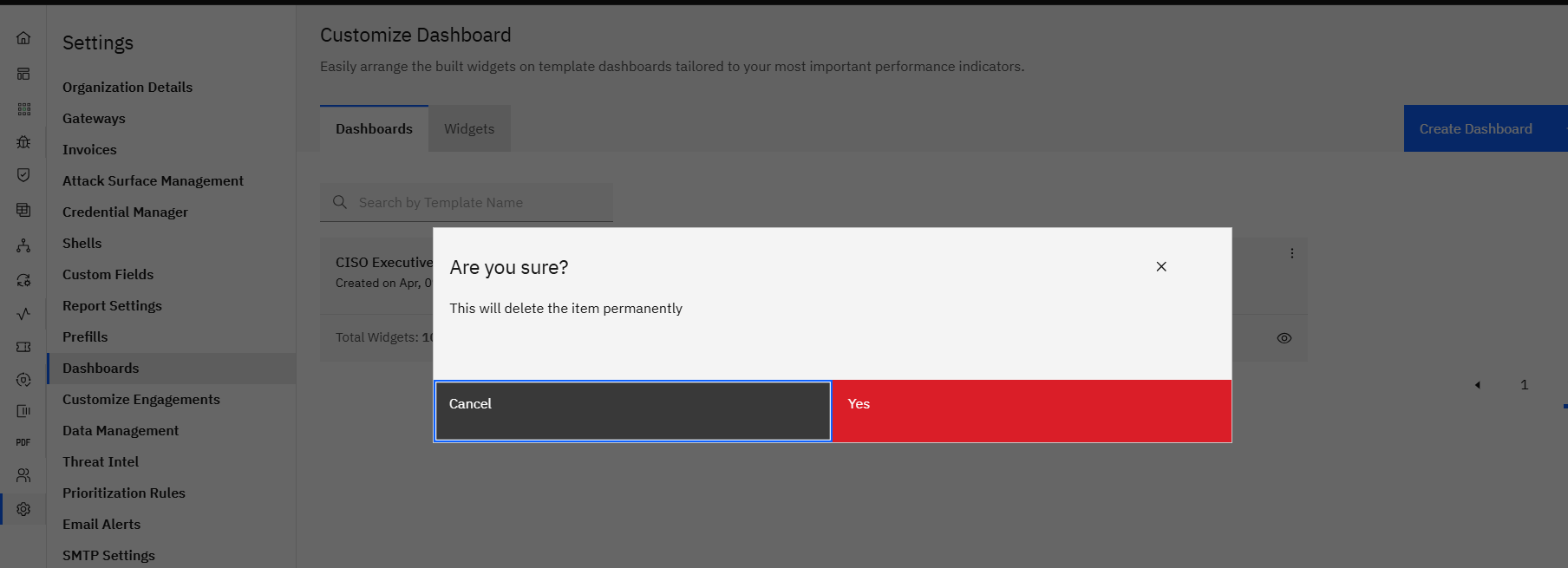
The dashboard is removed immediately and no longer appears in the Dashboards list or on the main Dashboards page.
Note: Deleting a dashboard does not delete the widgets used within it. Widgets remain available in the Widgets tab and can be reused in other dashboards.