
Managing Your Plan & Subscription
Overview
The Manage Plan page gives you a single place to monitor everything tied to your Strobes subscription — credit balances, resource usage across assets, findings, tasks, and users, your plan expiry and billing details, and the full list of modules your plan includes.
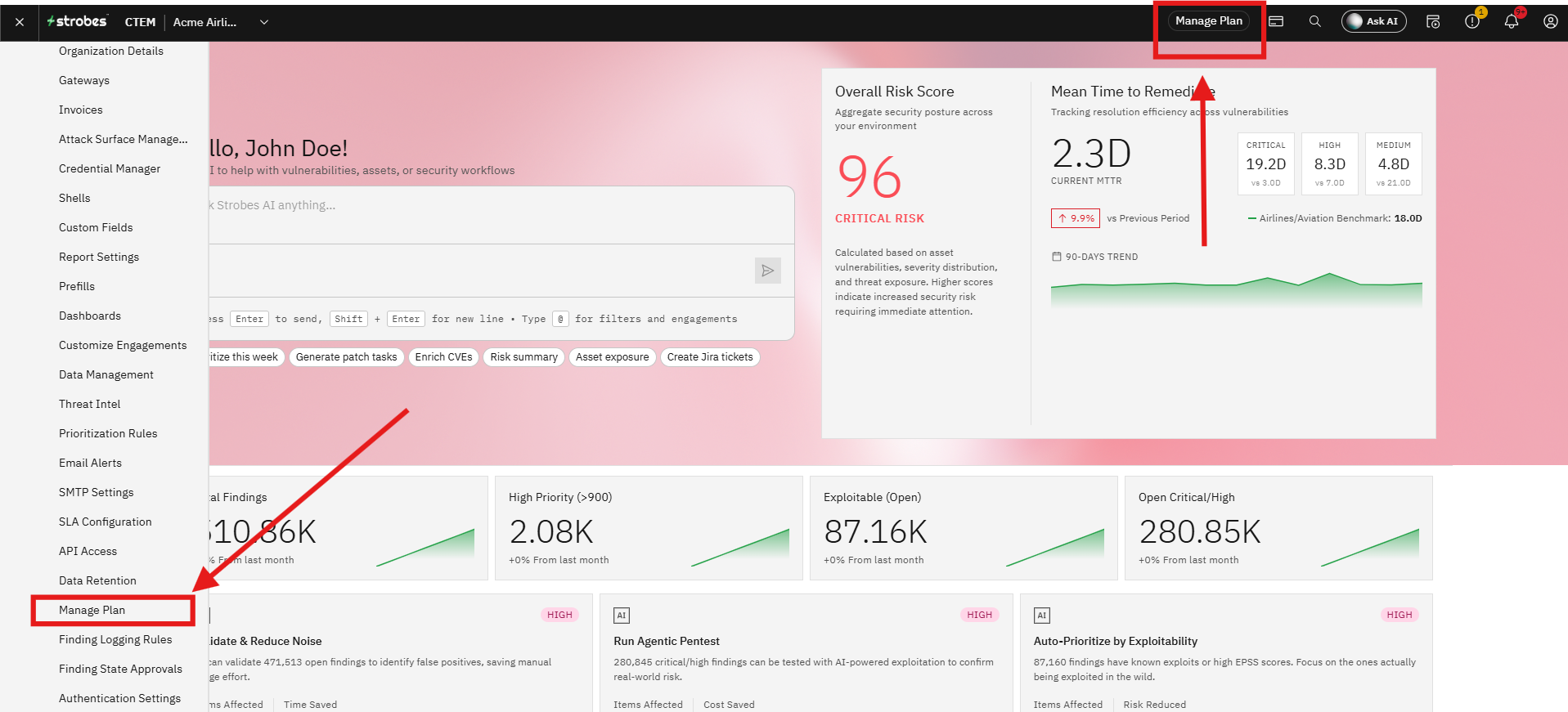
To get there: go to Settings → Manage Plan from the left navigation sidebar. Alternatively, click Manage Plan in the top-right header from anywhere in the platform.
Current Usage Plan
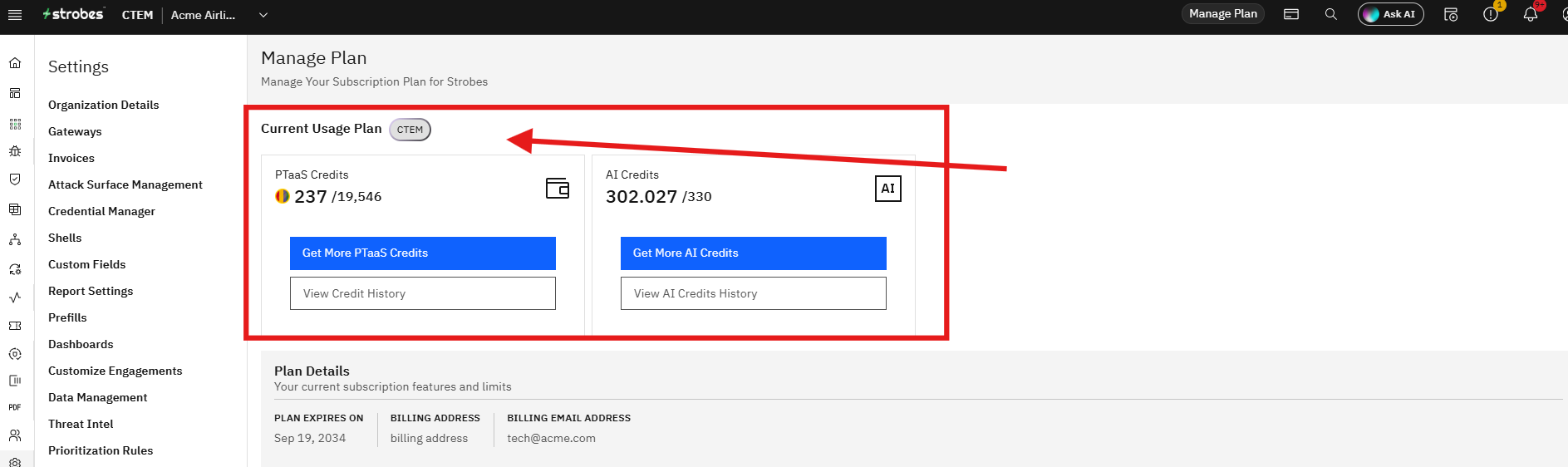
At the top of the page, a badge shows your active plan type. The plan shown in this guide is CTEM, which unlocks workspace-based AI security testing, attack surface management, and the full module set listed under Included Modules.
Credits
Your plan includes two separate credit pools, each displayed as a field with its current balance and quick-action buttons.
PTaaS Credits
PTaaS Credits are consumed when you run Pentest-as-a-Service engagements. The setion shows your remaining balance against your total allocation (e.g., 237 out of 19,546).
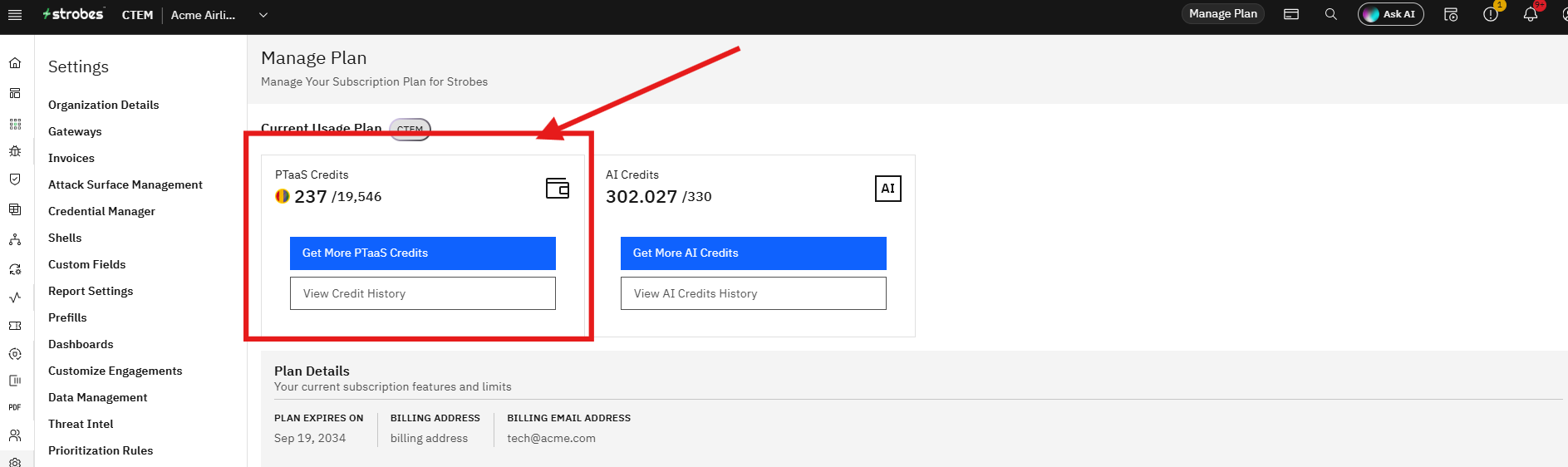
Two actions are available:
- Get More PTaaS Credits — opens the purchasing flow to top up your balance.
- View Credit History — opens a side panel showing every deduction against your PTaaS credit pool.
Credit History panel lists each deduction as a row with the engagement name, date created, and the number of credits consumed. You can search by engagement name, filter the list, and export the full history as a CSV. The panel shows the total record count for the selected period at the bottom.
AI Credits
AI Credits are consumed by AI Agents running workspace tasks — each agent action (tool call, reasoning step, phase execution) draws from this pool. The card shows your current balance against your total allocation.
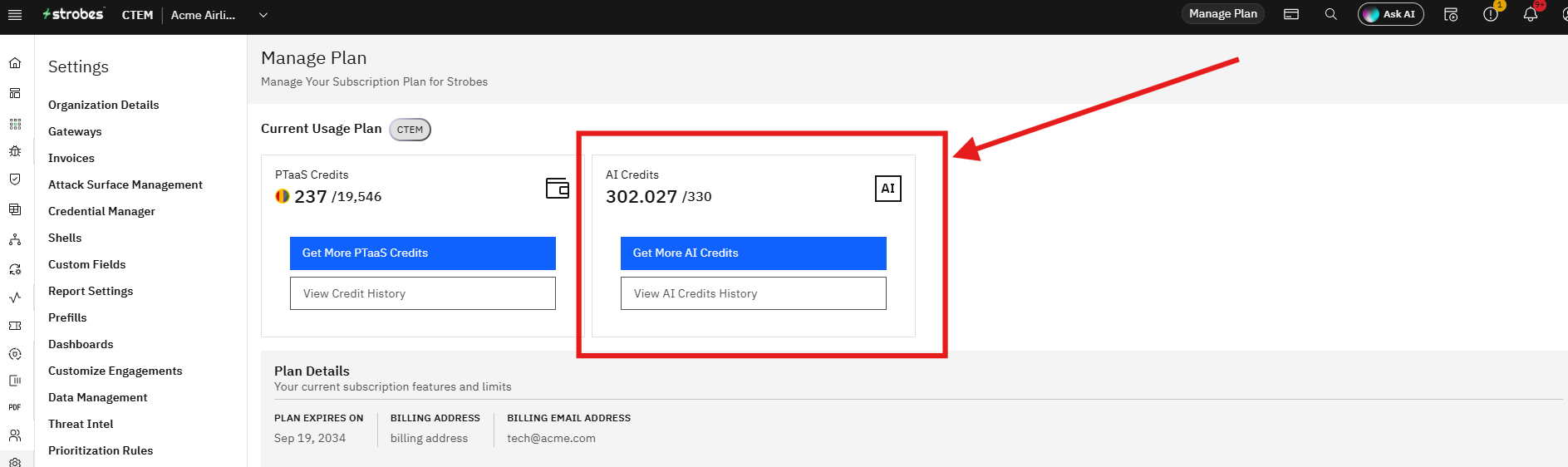
Two actions are available:
- Get More AI Credits — opens the purchasing flow to add more AI Credits.
- View AI Credits History — opens a detailed log of every AI credit consumption event.
AI Credits History panel shows a row per agent action with the agent name, date and time, the user who triggered it, the source task or workspace, token count, credits consumed, and a status badge. The log is paginated and covers all workspaces across your organization.
Plan Details
Below the credit fields, the Plan Details section shows your subscription metadata:
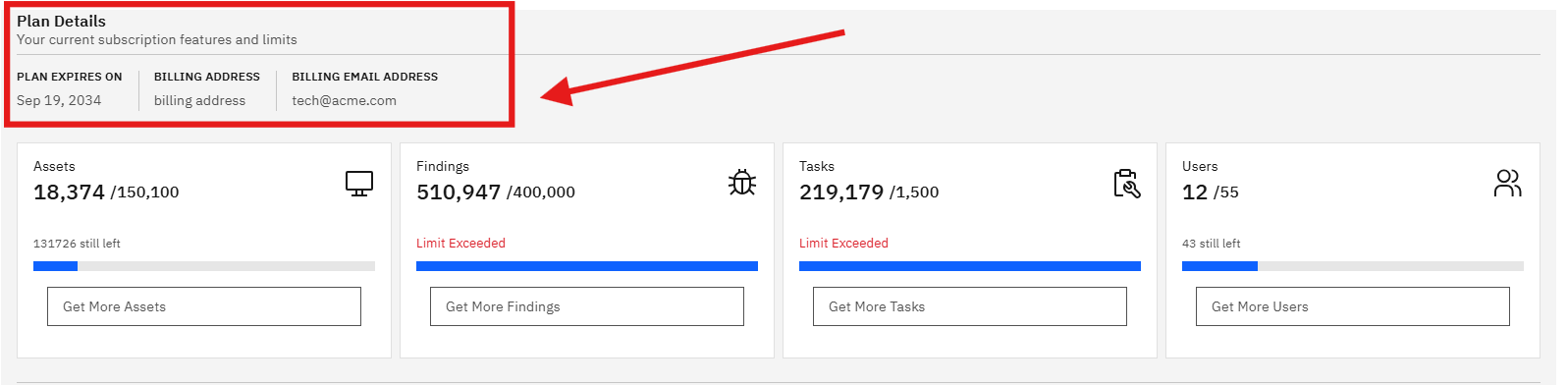
Field | What it means |
|---|---|
Plan Expires On | The date your current subscription term ends |
Billing Address | The address on file for invoices |
Billing Email Address | Where renewal notices and invoices are sent |
If any of this information needs updating, contact your Strobes account manager or reach out to support.
Resource Usage
Four usage meters sit below Plan Details, each tracking a different dimension of your subscription limits.
Assets
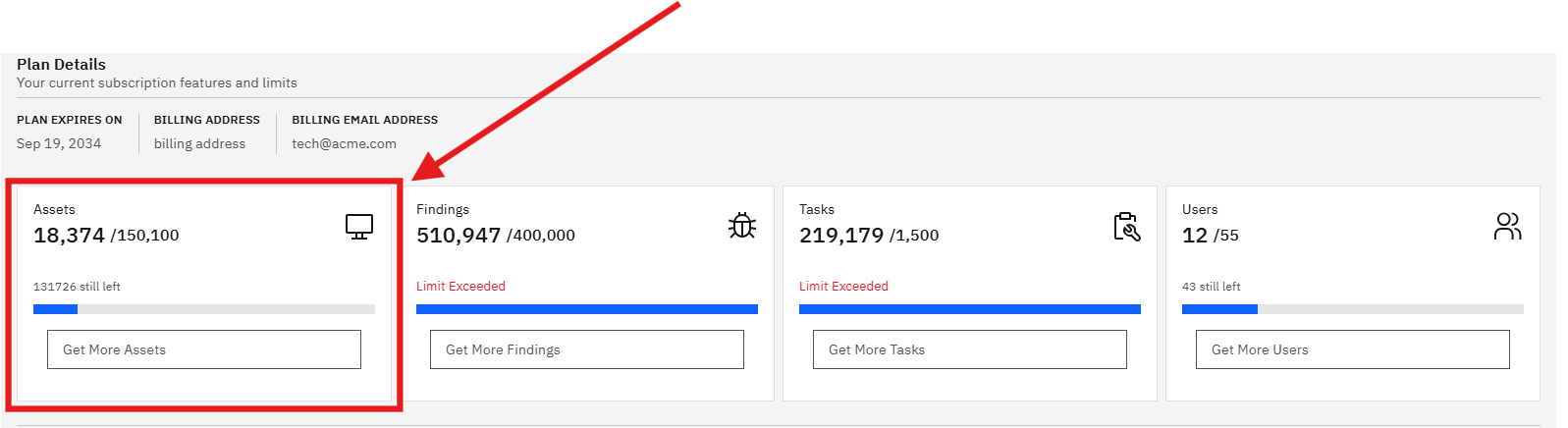
Shows the number of assets currently tracked in your workspace against your plan's asset ceiling. The progress bar fills left-to-right as you approach the limit. A "still left" count tells you exactly how much headroom remains.
If you're approaching the ceiling, connect with your account manager
Findings
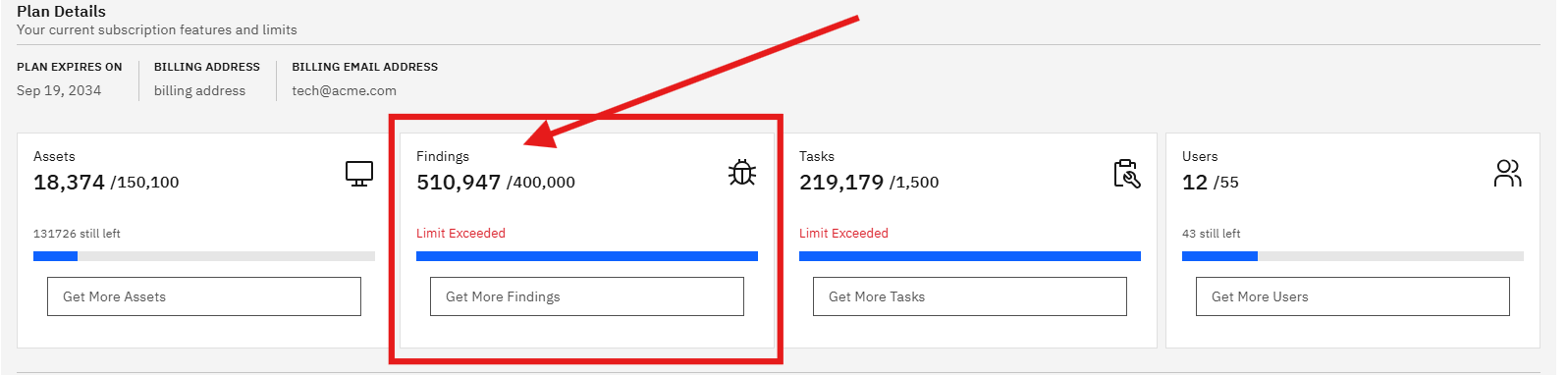
Shows the total number of findings logged across all engagements against your findings limit. When this counter exceeds the limit, the tile displays a Limit Exceeded badge in red and the progress bar turns solid blue, indicating the cap has been hit.
Click Get More Findings to expand your findings capacity and connect with your account manager.
Tasks
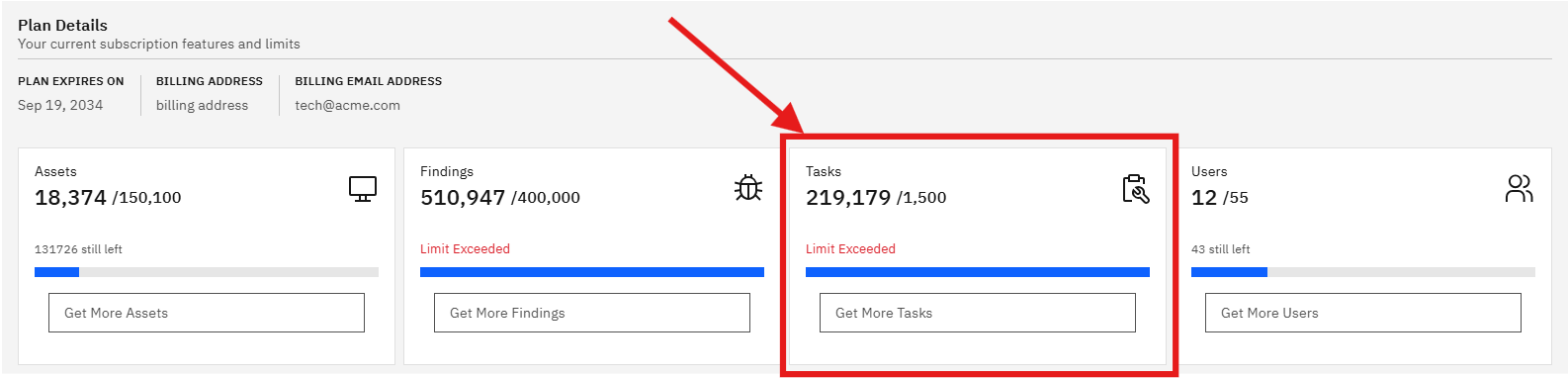
Tracks the number of tasks created (manually or by AI agents) against your plan's task limit. Like Findings, an exceeded limit surfaces a Limit Exceeded badge.
Users
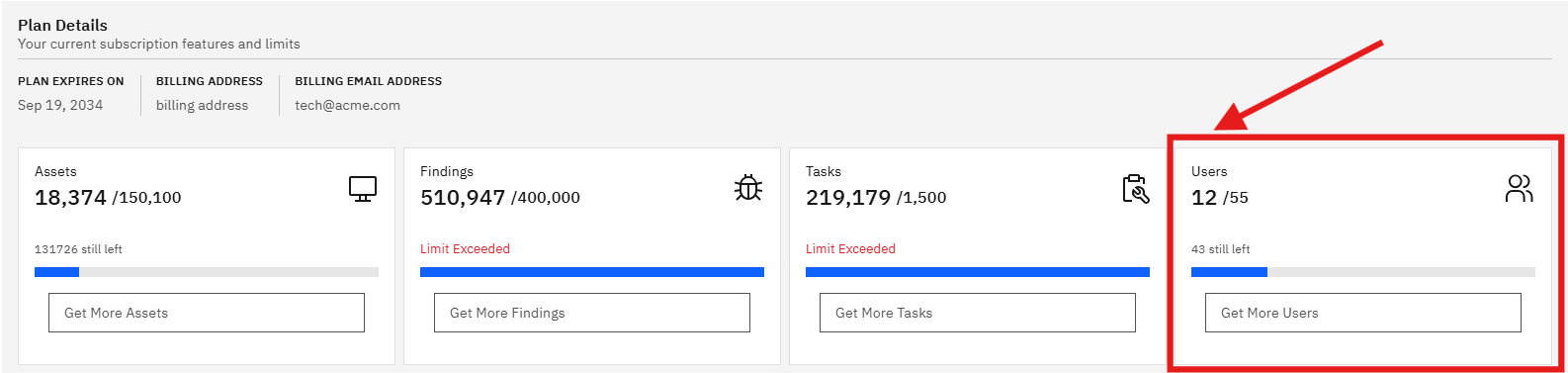
Shows the number of active user seats in use against the seats included in your plan. The "still left" count reflects available seats you can assign to new team members.
Included Modules
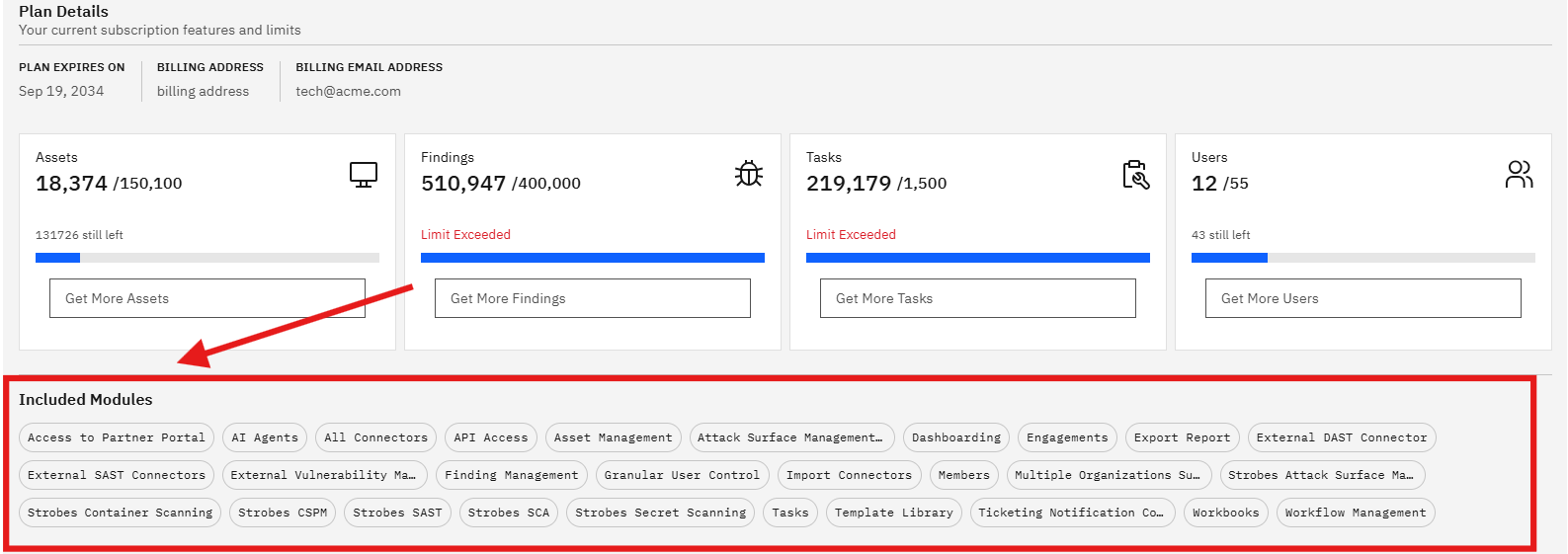
At the bottom of the page, the Included Modules section lists every feature and capability that is active on your current plan. Modules shown on the CTEM plan include:
If you need a module that is not listed here, contact your Strobes account manager to discuss a plan upgrade or add-on.
What to Do When a Limit Is Exceeded
When Findings or Tasks show Limit Exceeded, it means new items of that type may be blocked or queued depending on your plan's enforcement settings. Here's how to respond:
Short term — click the relevant "Get More" button to request a capacity increase. Your account manager will be notified and can provision additional capacity.
Review usage — open the Credit History or AI Credits History panels to identify which engagements or agent runs are consuming the most resources. This helps pinpoint whether usage is concentrated in a specific workspace or team.
Contact support — if you believe usage is unexpectedly high or the limit was hit in error, contact Strobes support with the exported history for review.
Tips
Check credit balances before starting a large engagement. PTaaS Credits are consumed at the point of engagement creation. If your balance is low, top up before launching a new pentest to avoid interruptions.
AI Credits are shared across the whole organization. Every workspace running agent tasks draws from the same AI Credits pool. If you run multiple concurrent workspaces, credits deplete faster than a single sequential run.
Plan expiry is not the same as credit expiry. Your plan's expiry date (shown in Plan Details) controls access to the platform. Credits have their own consumption model — unused credits do not necessarily carry over when a plan renews. Check with your account manager for credit rollover terms.
Billing email is separate from your login email. Make sure the billing email in Plan Details is monitored by your finance team so renewal notices don't go unnoticed.