
Code Review Assessment via Template
The Code Review template enables AI-powered security analysis of source code repositories. The assessment performs repository ingestion, SAST analysis, dependency auditing, secret detection, authentication review, data handling analysis, and business logic validation.
Accessing the Code Review Template
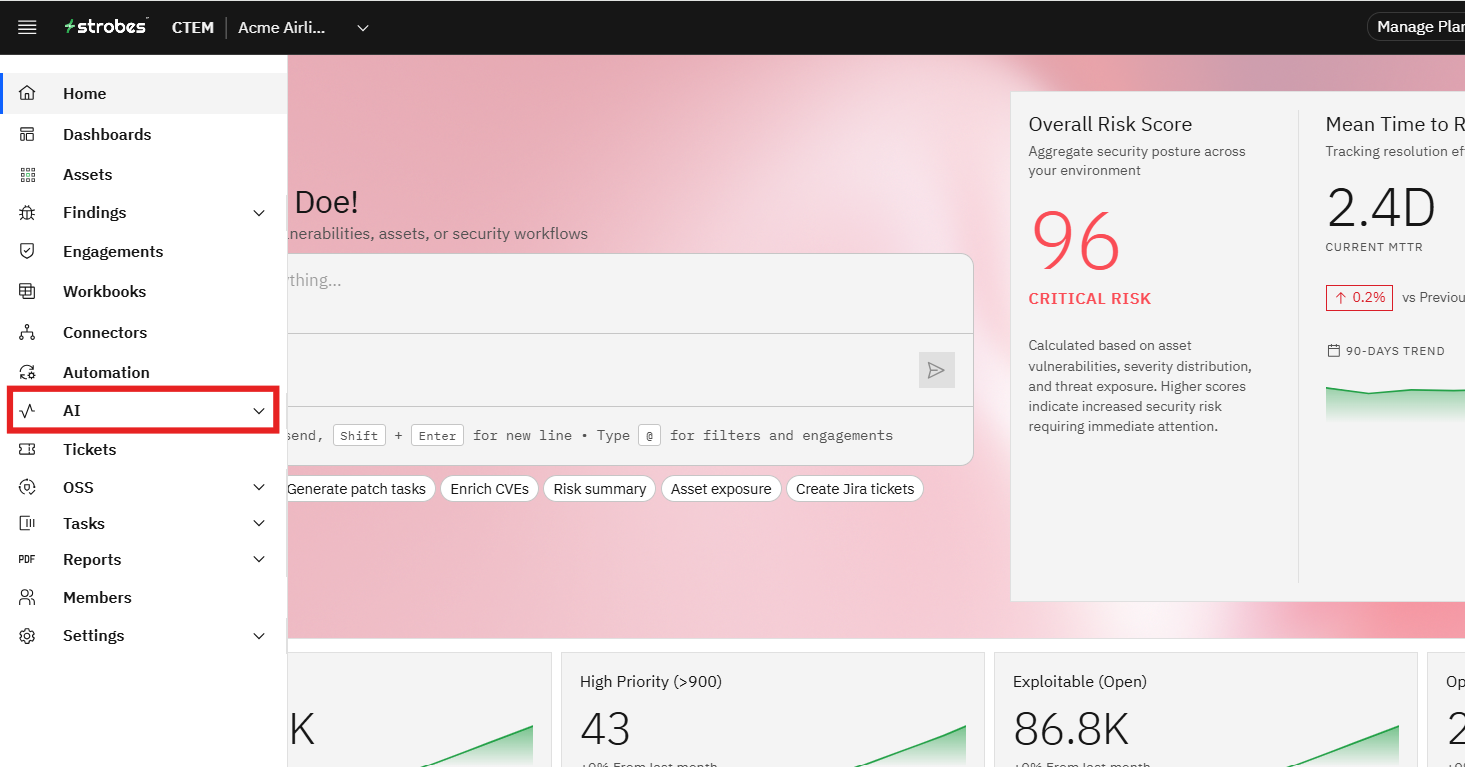
- Navigate to AI from the main navigation menu.
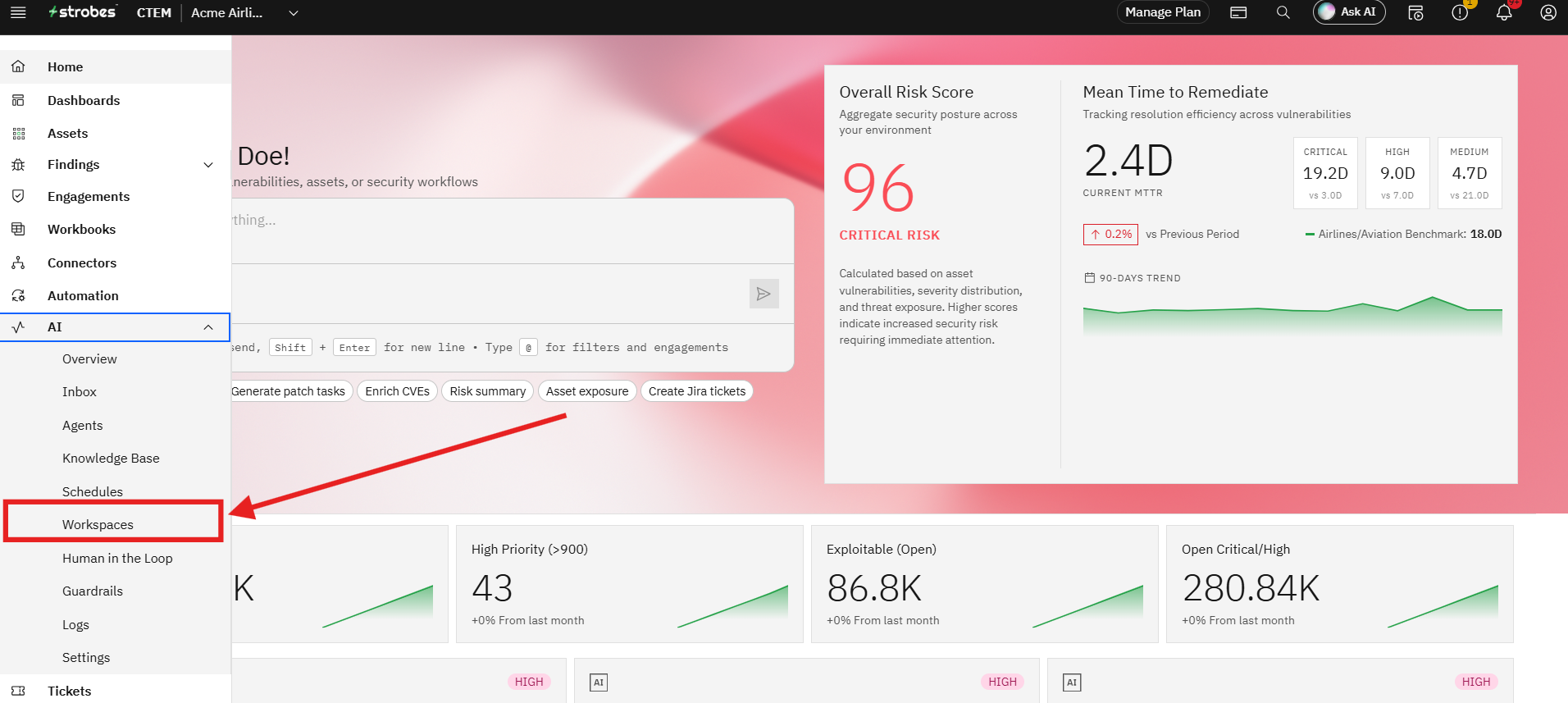
- Open the Workspaces page.
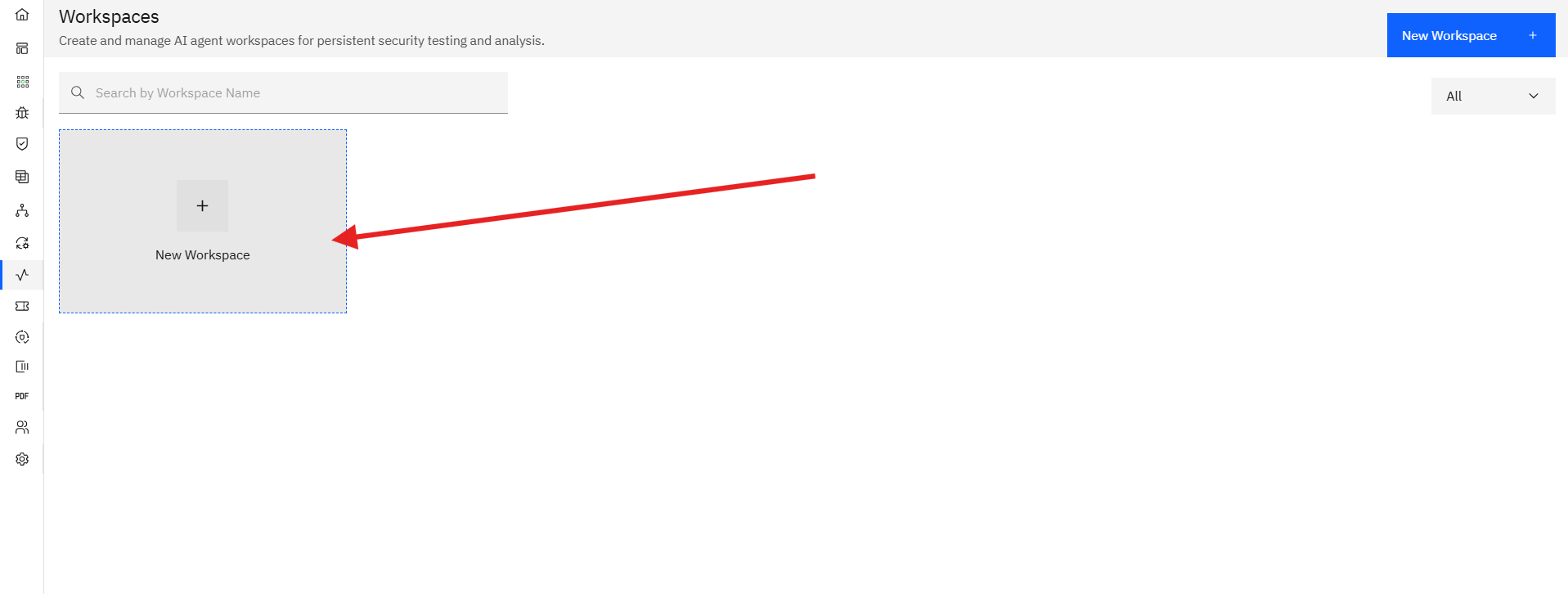
- Click New Workspace.
- Select the Code Review template.
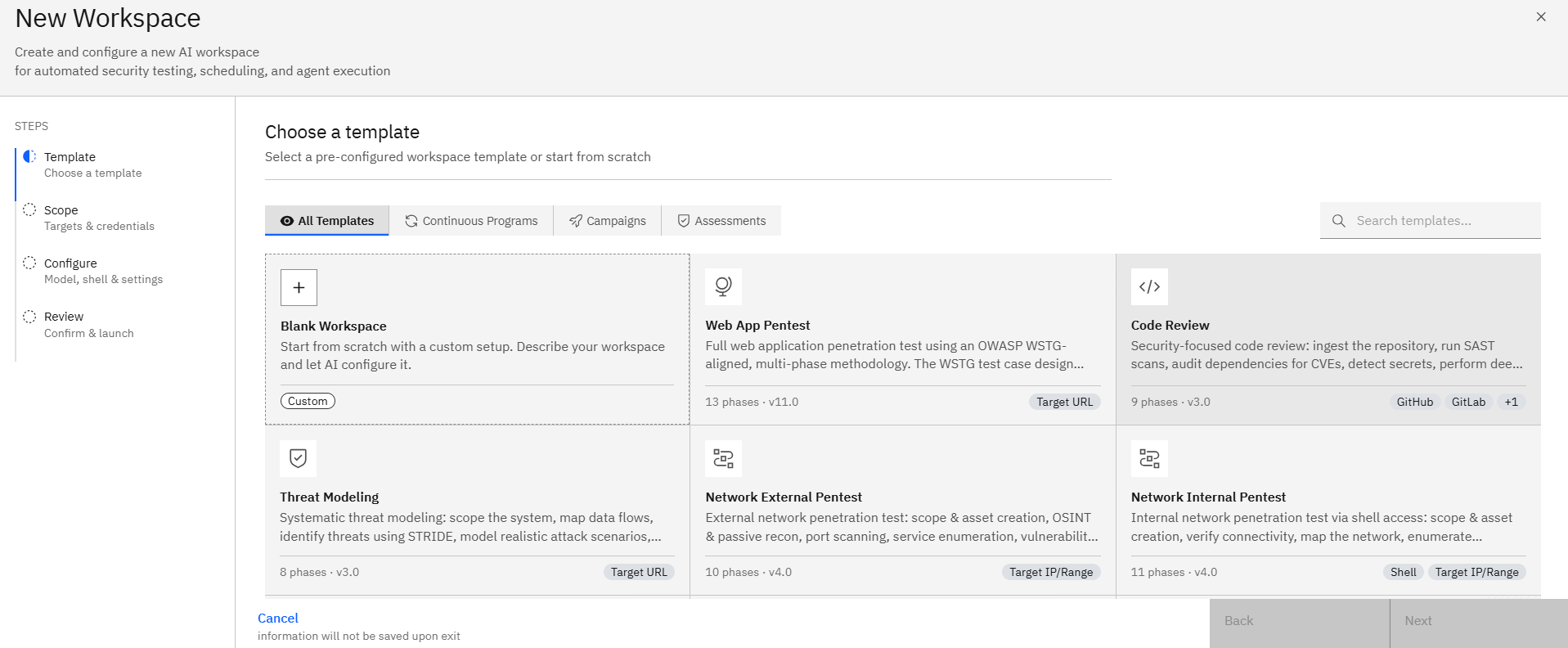
The template displays information about the assessment, including:
- Estimated duration
- Assessment phases
- Expected testing activities
- Assessment deliverables
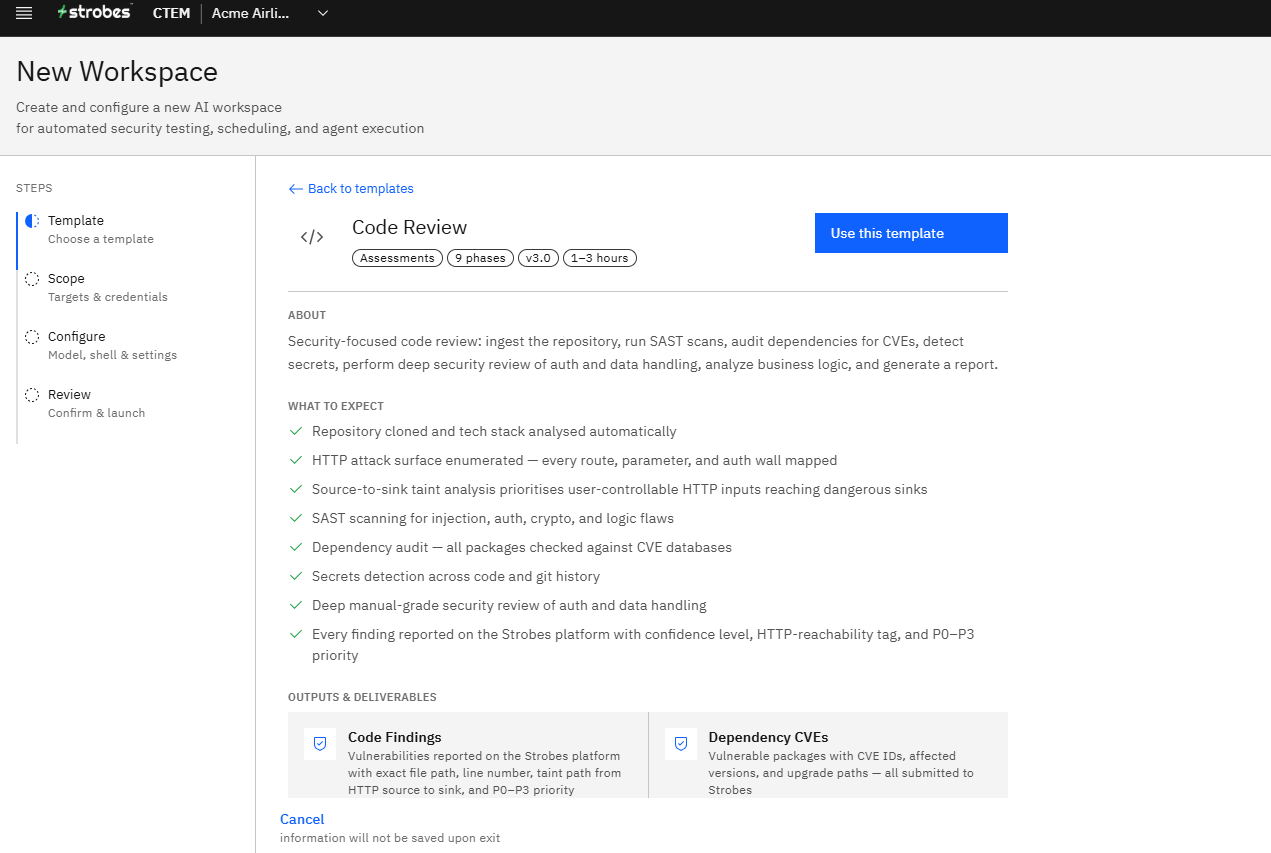
- Click Use this Template.
Understanding the Assessment Scope
The Code Review assessment performs the following activities:
- Repository cloning and technology stack identification
- HTTP attack surface enumeration
- Source-to-sink taint analysis
- Static Application Security Testing (SAST)
- Dependency vulnerability analysis
- Secret detection
- Authentication and authorization review
- Data handling and business logic analysis
- Automated report generation
Expected Outputs
The assessment generates findings with:
- Severity levels
- Confidence scores
- Priority ratings
- Reachability context
- Remediation recommendations
Configuring the Repository Scope
After selecting the template, the wizard automatically moves to the Scope step.
Step 1: Provide a Workspace Name
Enter a meaningful name for the assessment.
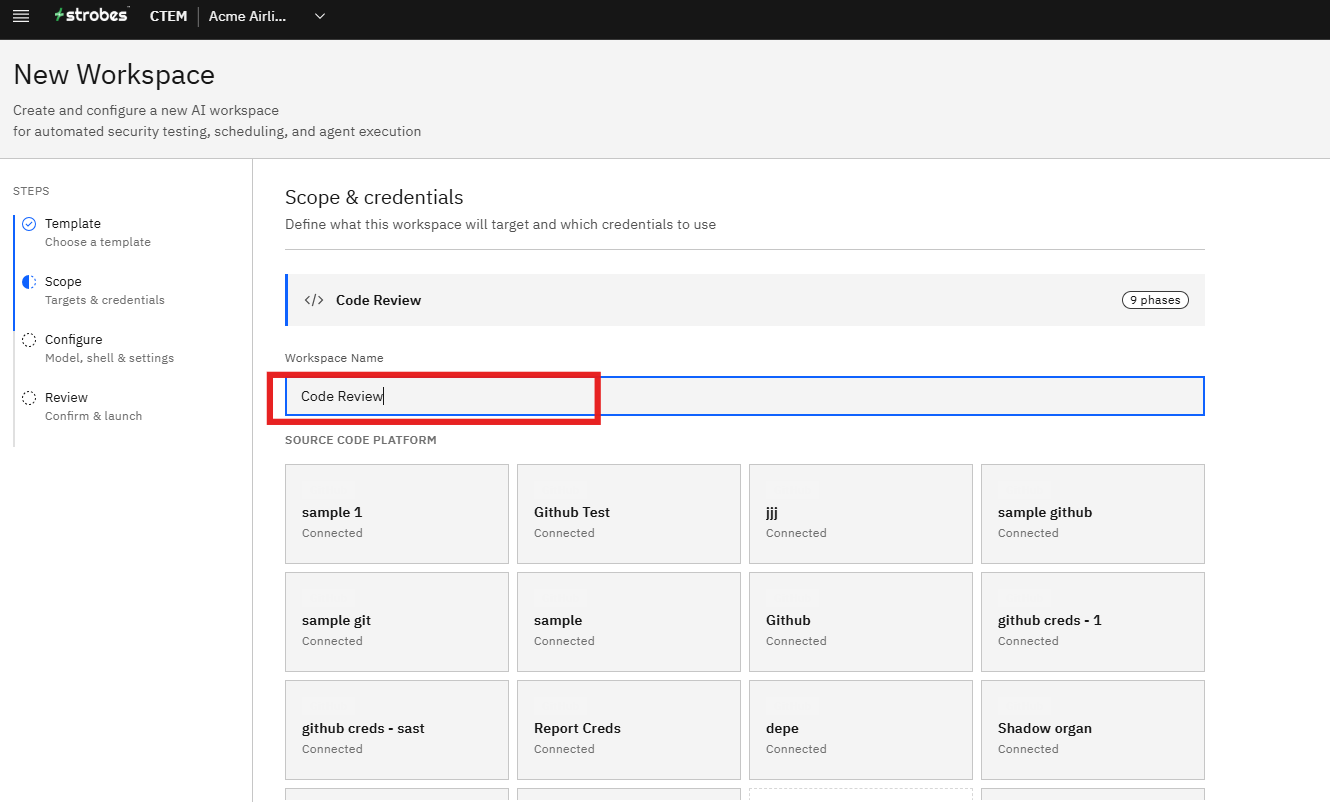
Step 2: Select a Source Code Platform
Choose the platform that hosts the repository.
Previously configured credentials are displayed as available connections.
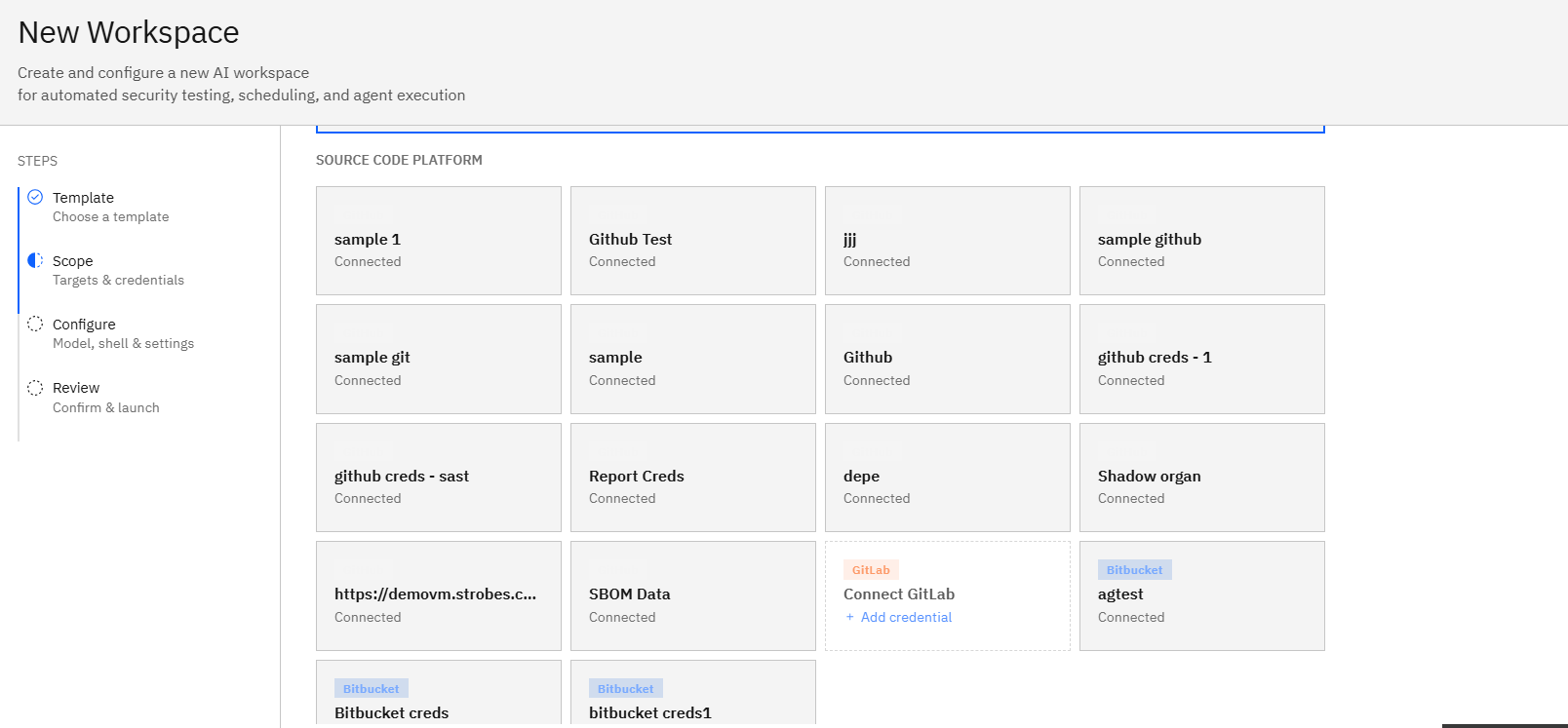
Step 3: Select Repository Credentials
Choose the credential that provides access to the target repository.
The selected credential must have permission to access the repository being reviewed.
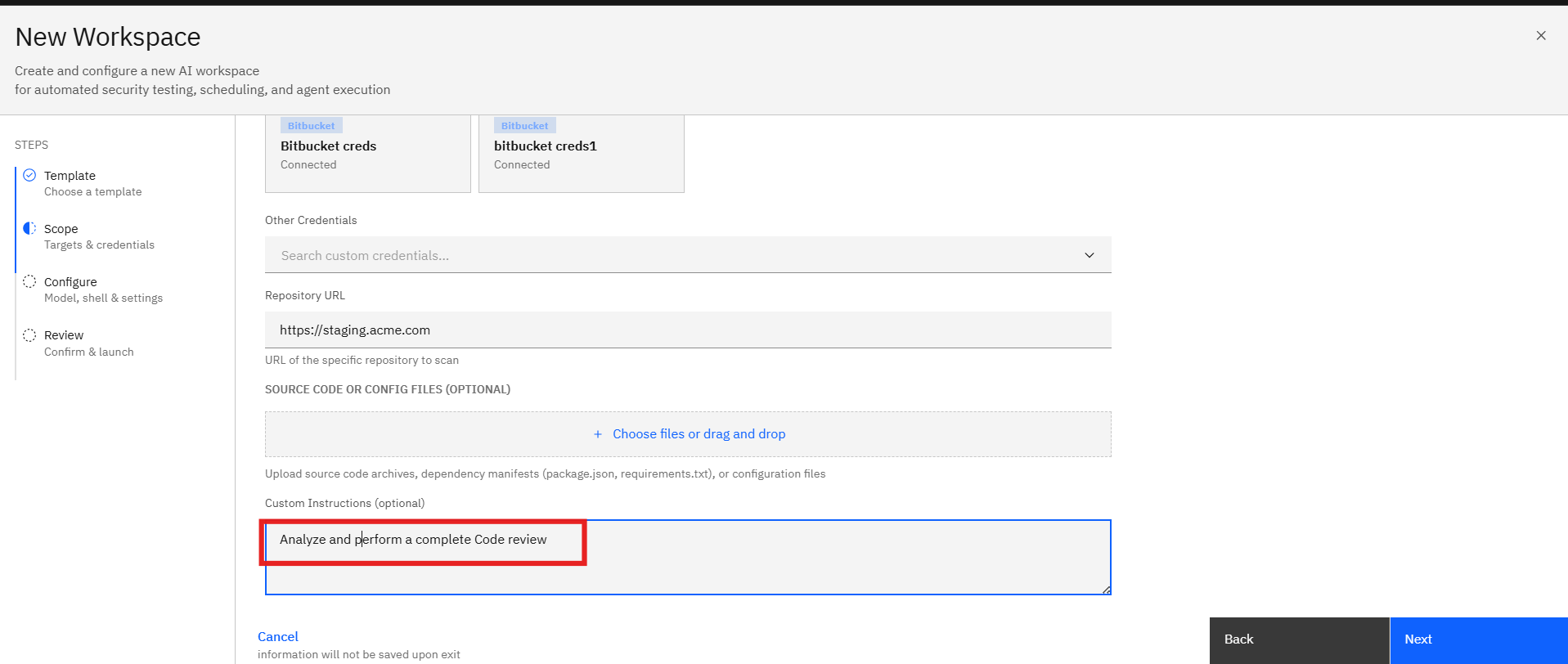
Step 4: Enter the Repository URL
In the Repository URL field, enter the full repository address.
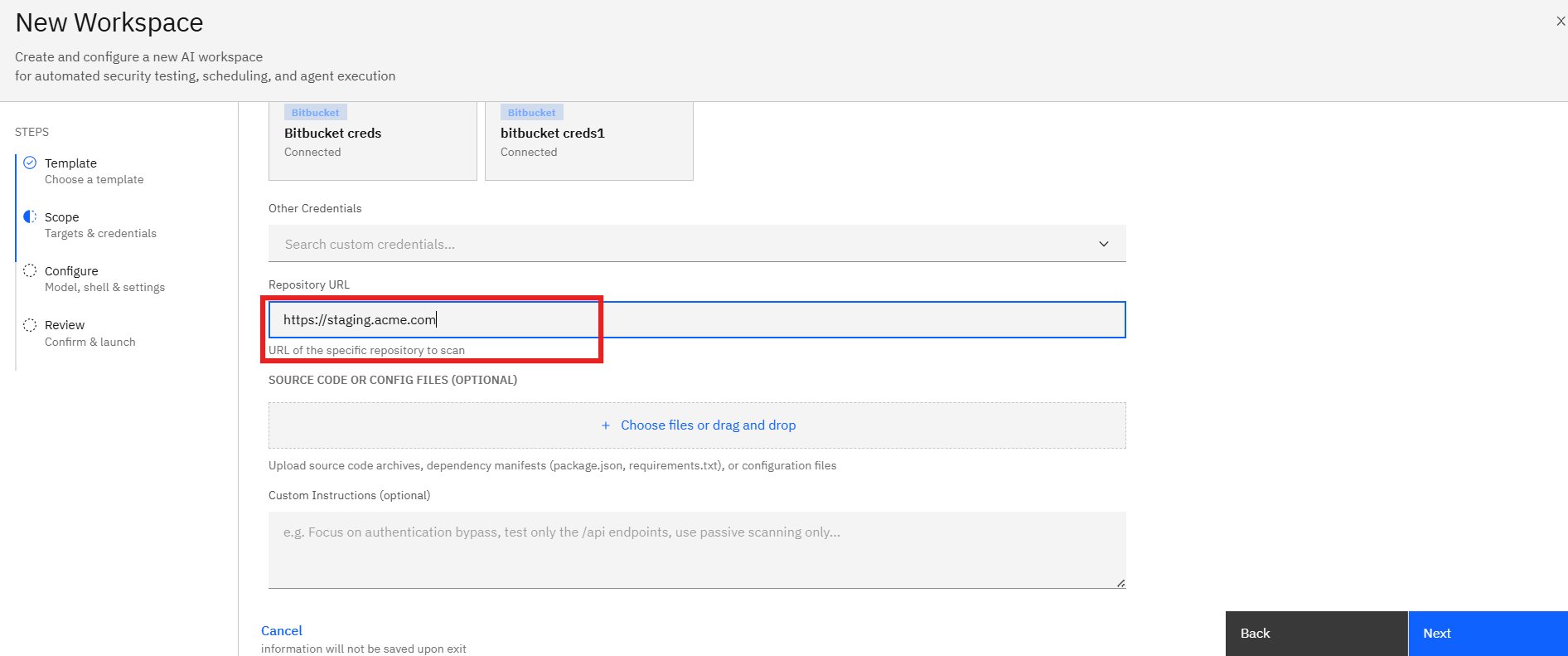
The platform uses this URL to identify the repository that will be analyzed.
Step 5: Upload Source Code or Configuration Files (Optional)
You may upload additional files to assist the assessment.
Supported examples include:
- Source code archives
- Configuration files
- Dependency manifests
- Package definitions
Examples:
- package.json
- requirements.txt
- pom.xml
- composer.json
To upload files:
- Click Choose Files.
- Select the required files.
- Wait for the upload to complete.
Step 6: Add Custom Instructions (Optional)
Use the Custom Instructions field to guide the assessment.
Example instructions:
- Focus on authentication bypass vulnerabilities.
- Review only API endpoints.
- Analyze payment processing workflows.
- Prioritize business logic flaws.
- Restrict testing to specific modules.
These instructions help tailor the AI analysis to specific objectives.
Proceeding to Configuration
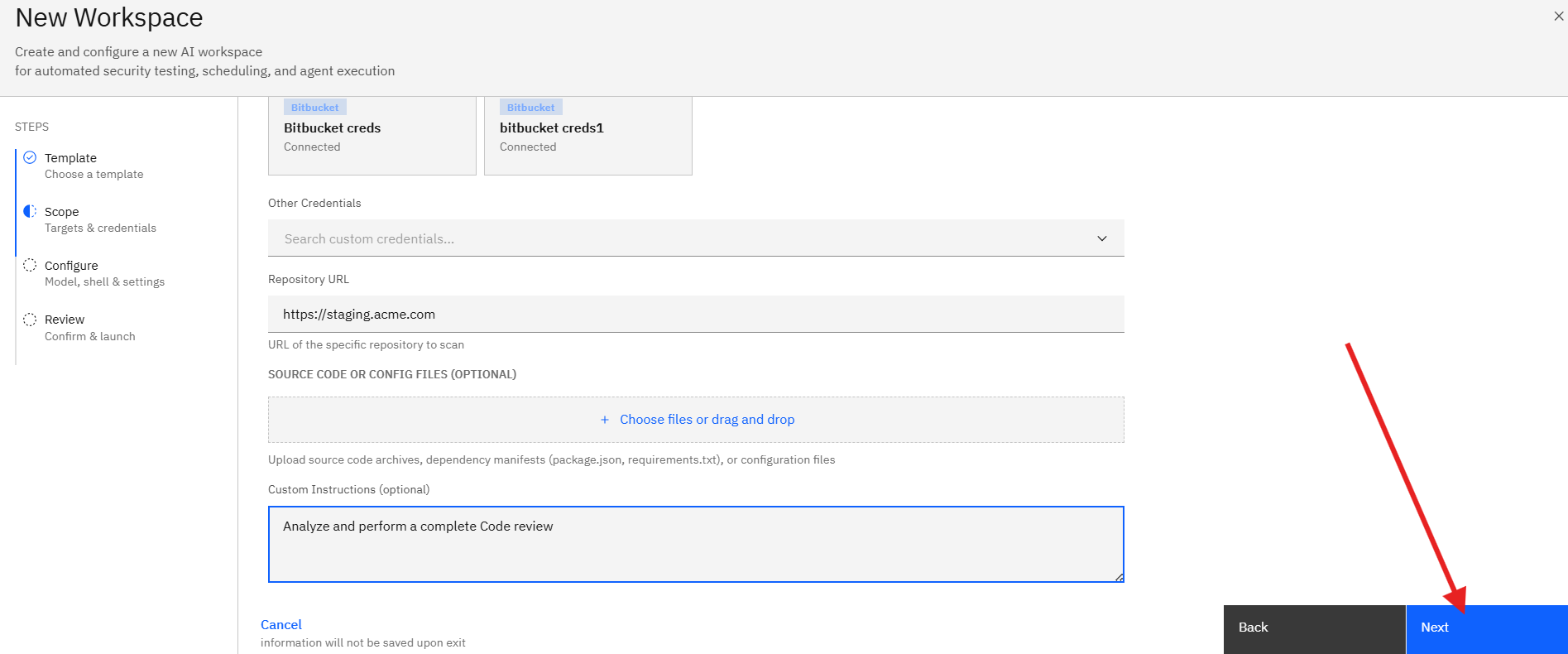
After completing the scope details:
- Verify the selected repository.
- Review uploaded files and instructions.
- Click Next.
The wizard proceeds to the Configure step, where model, shell, and execution settings can be customized.
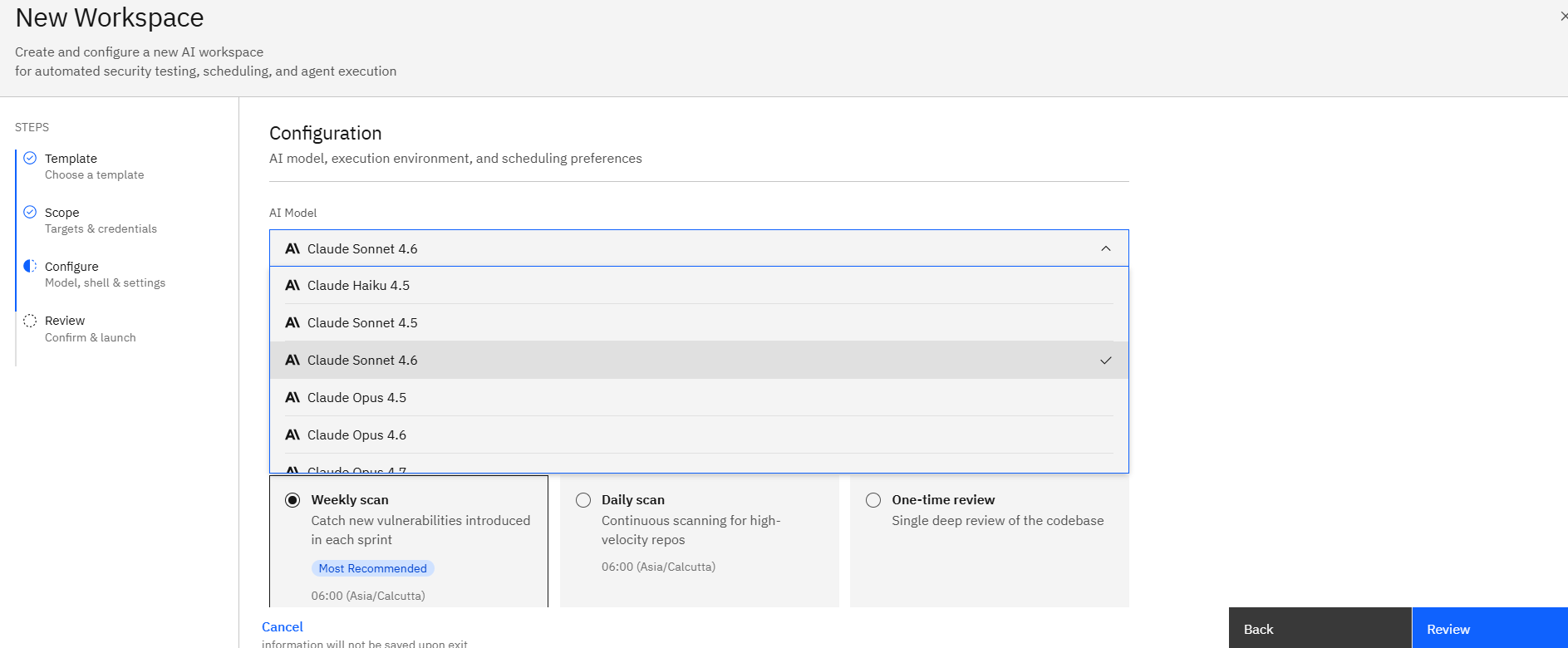
Step 7: Select an AI Model
The AI Model determines the Large Language Model (LLM) used during the assessment.
To select a model:
- Open the Model dropdown.
- Review the available models.
- Select the model that best fits your assessment requirements.
The selected model influences:
- Analysis depth
- Reasoning capabilities
- Response quality
- Assessment speed
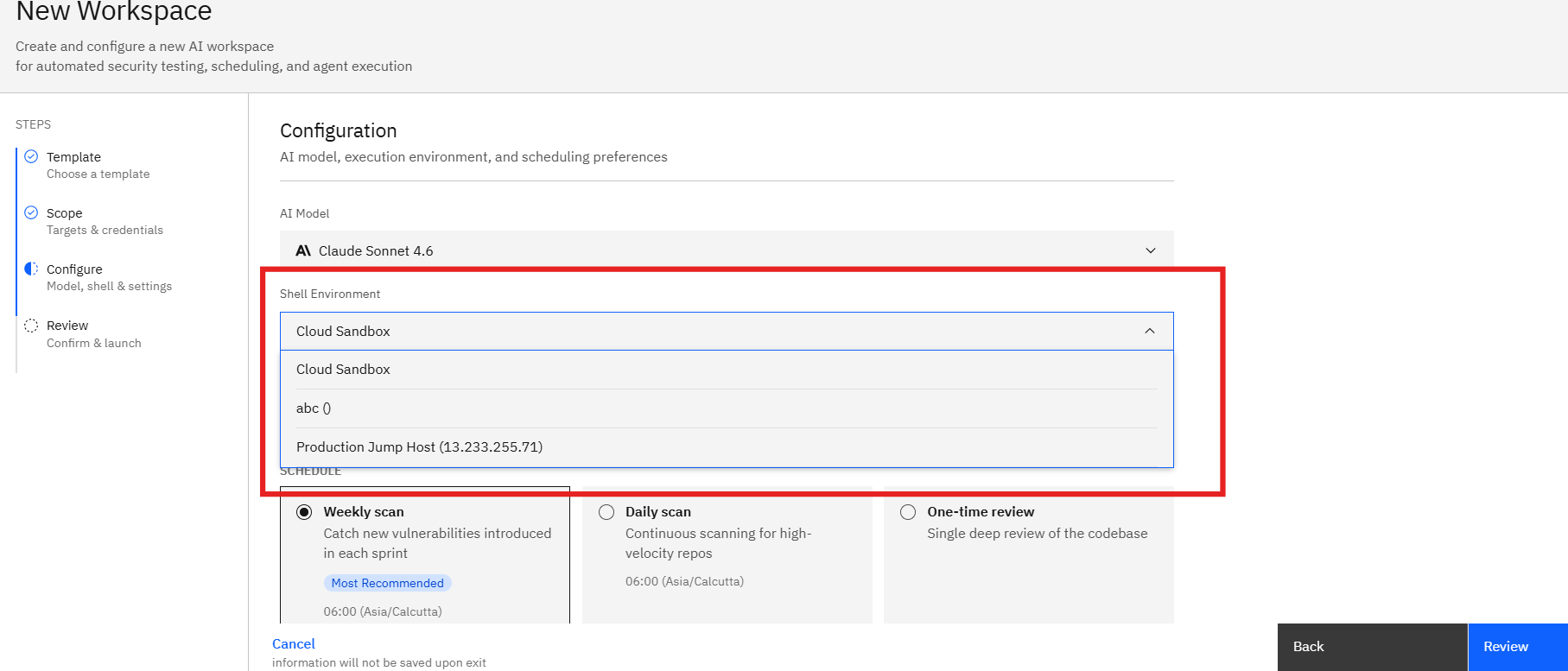
Step 8: Select an Agent Shell
The Shell defines the execution environment used by the AI agent.
To select a shell:
- Open the Shell dropdown.
- Review the available shell options.
- Select the shell that supports your code review workflow.
The shell determines:
- Available tools
- Repository access methods
- Workflow execution capabilities
- Analysis environment
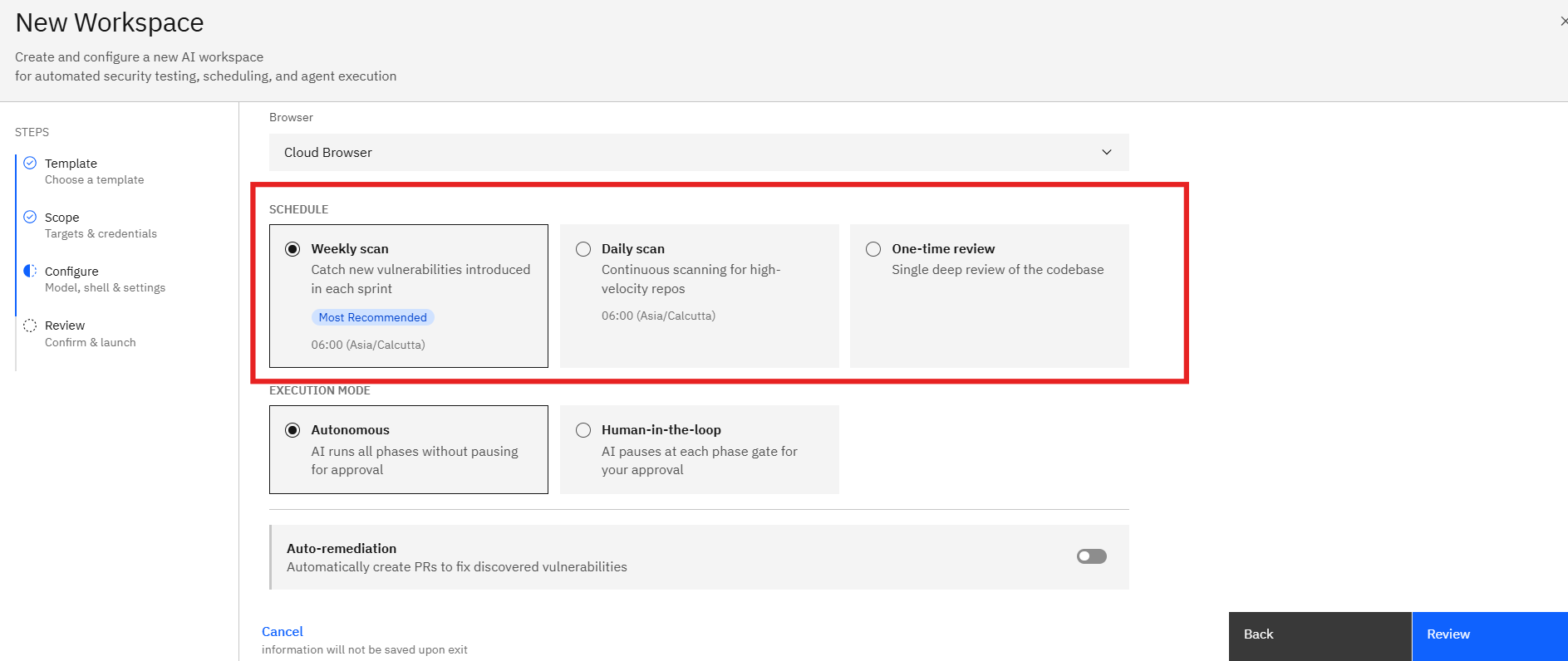
Step 9: Scan Schedule
Choose when you would like to repeat the scan.
Step 11: Continue to Review and Launch
Once all configuration settings have been verified:
- Click Next.
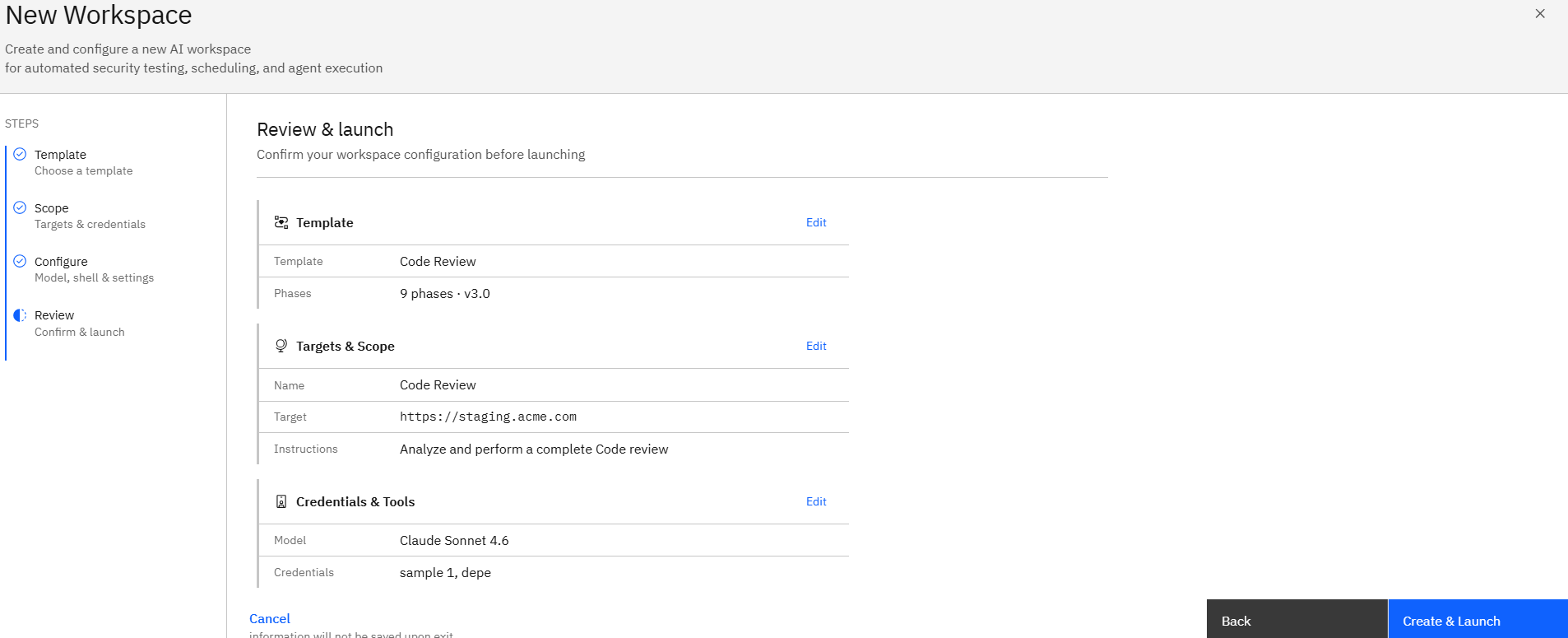
- The wizard opens the Review page.
- Review the complete assessment configuration before launching the Code Review assessment.
Notes
- Repository access credentials must be configured before starting the assessment.
- The repository URL must be accessible using the selected credential.
- Uploading dependency manifests can improve dependency analysis results.
- Custom instructions are optional but can help focus the assessment on specific security concerns.
- The assessment duration varies based on repository size and complexity.