
Configuring AI Alerts
The Alerts tab in AI Settings controls organization-wide notifications for AI agent activity — budget breaches, approvals that are taking too long, and runs that hit technical trouble. Each alert rule can be turned on independently, and once enabled, it notifies you through the SMTP and Slack connectors already configured at the organization level (there's nothing extra to set up for delivery — the rule reuses those existing connectors).
A couple of behaviors worth knowing going in: each rule fires once per breach, so you won't get repeated notifications for the same ongoing issue. Budget alerts re-arm automatically once spend drops back below the threshold. Approval and interrupt-type alerts re-arm as soon as you edit the rule.
Where to find it
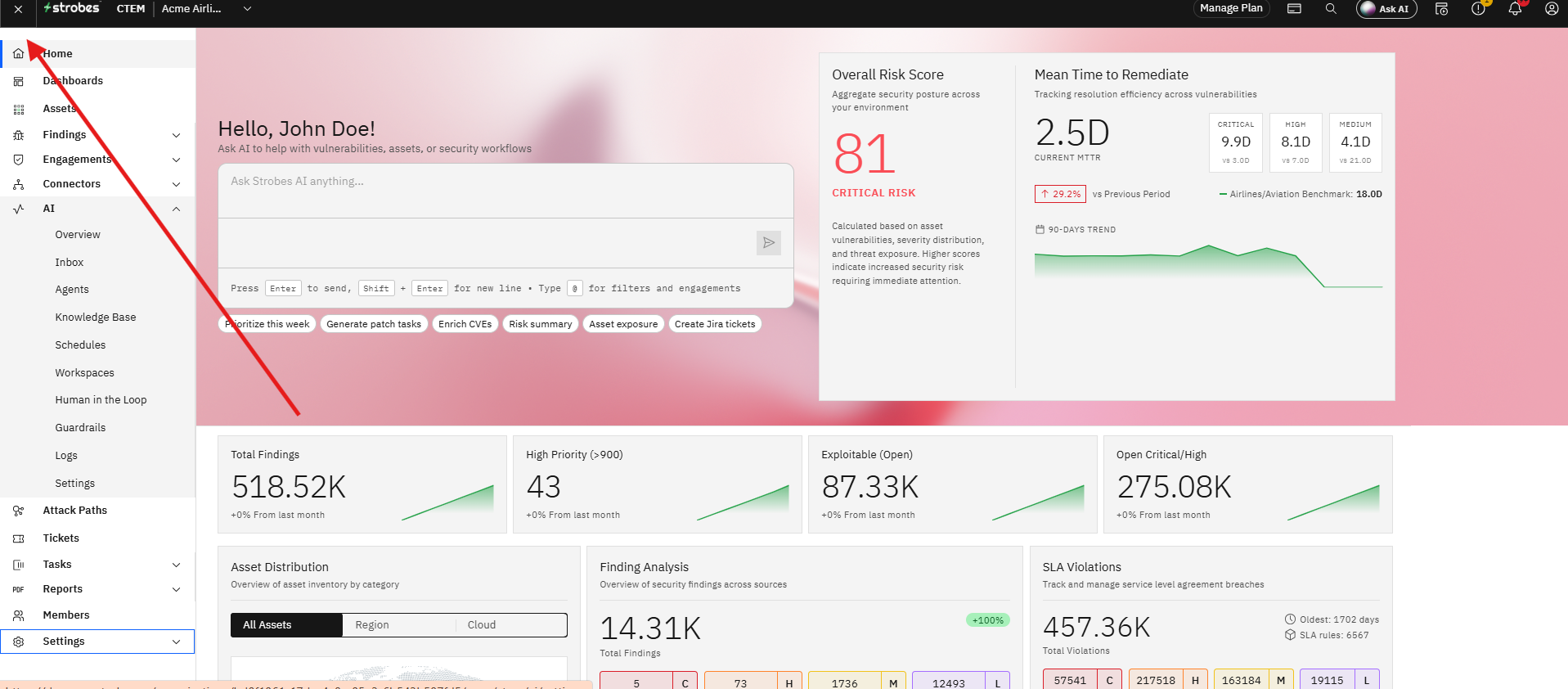
- Click the Main menu on the top left of the instance.
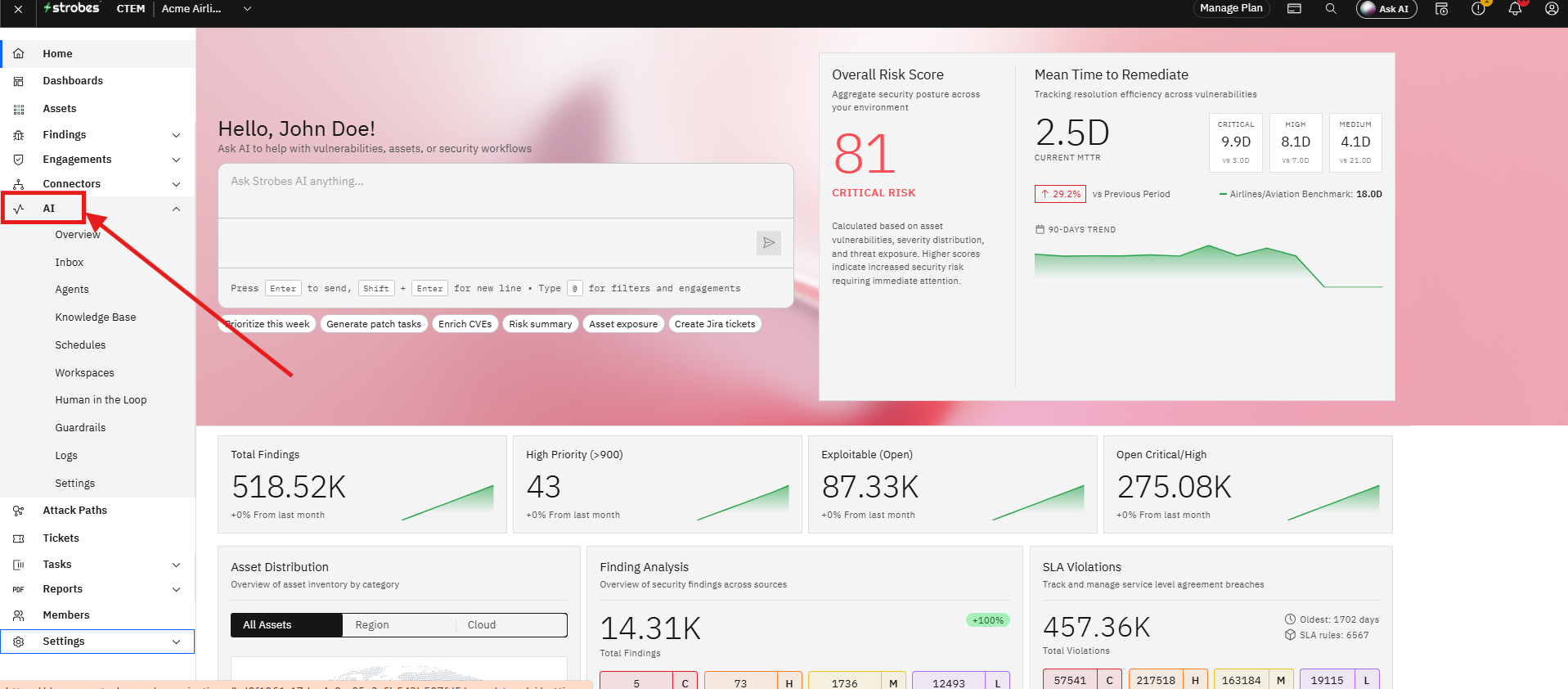
- Click AI.
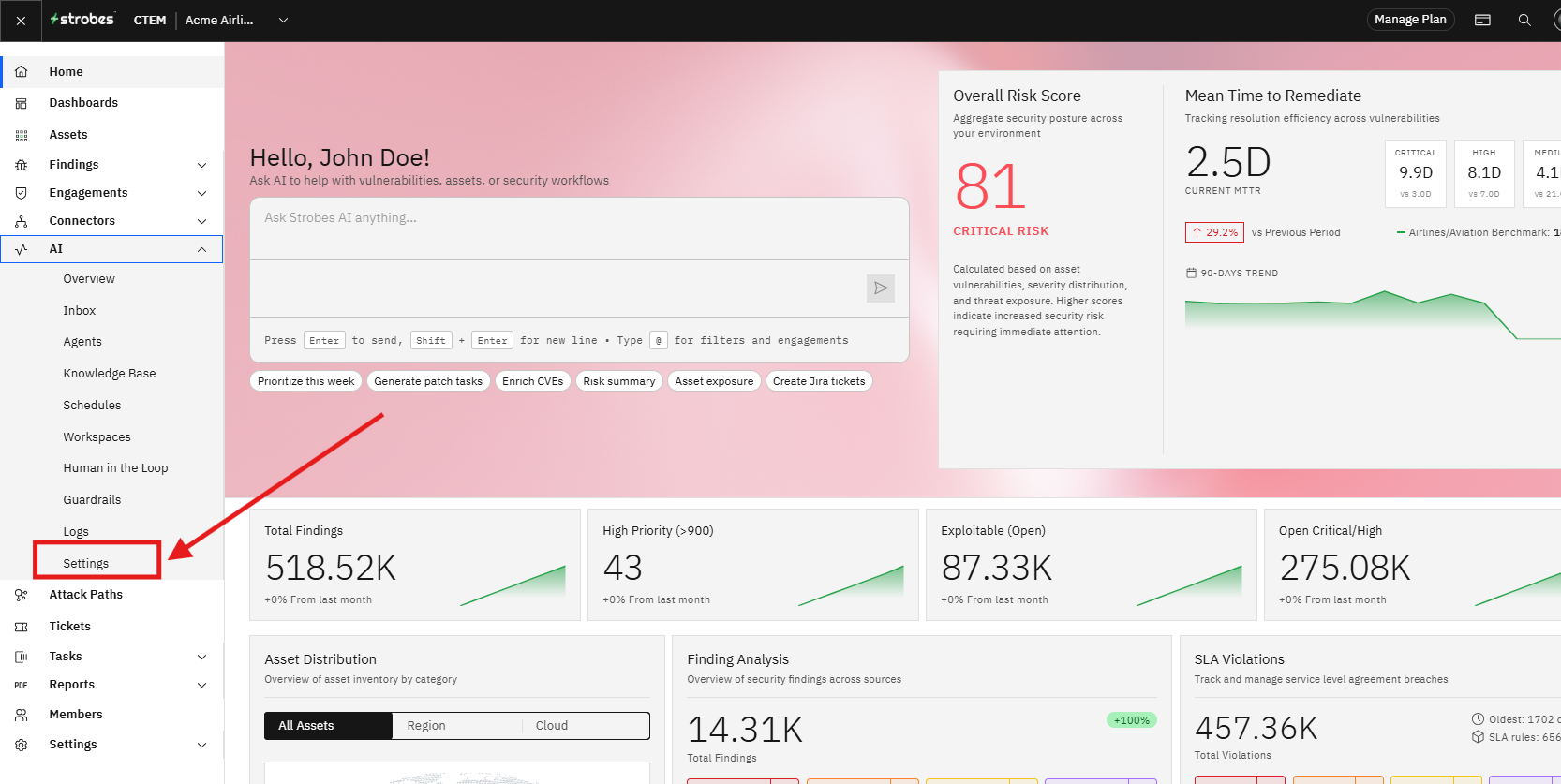
- Choose Settings under AI.
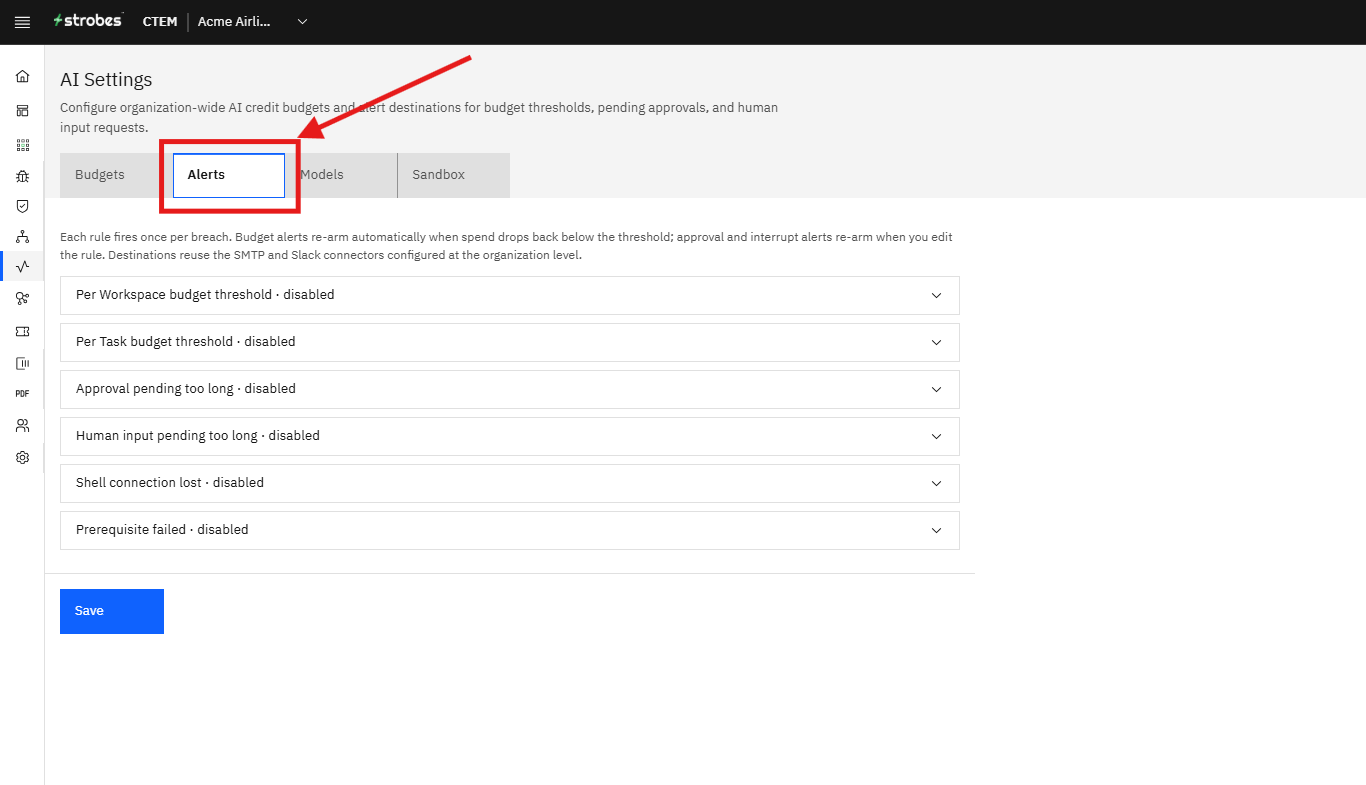
- Choose the Alerts tab.
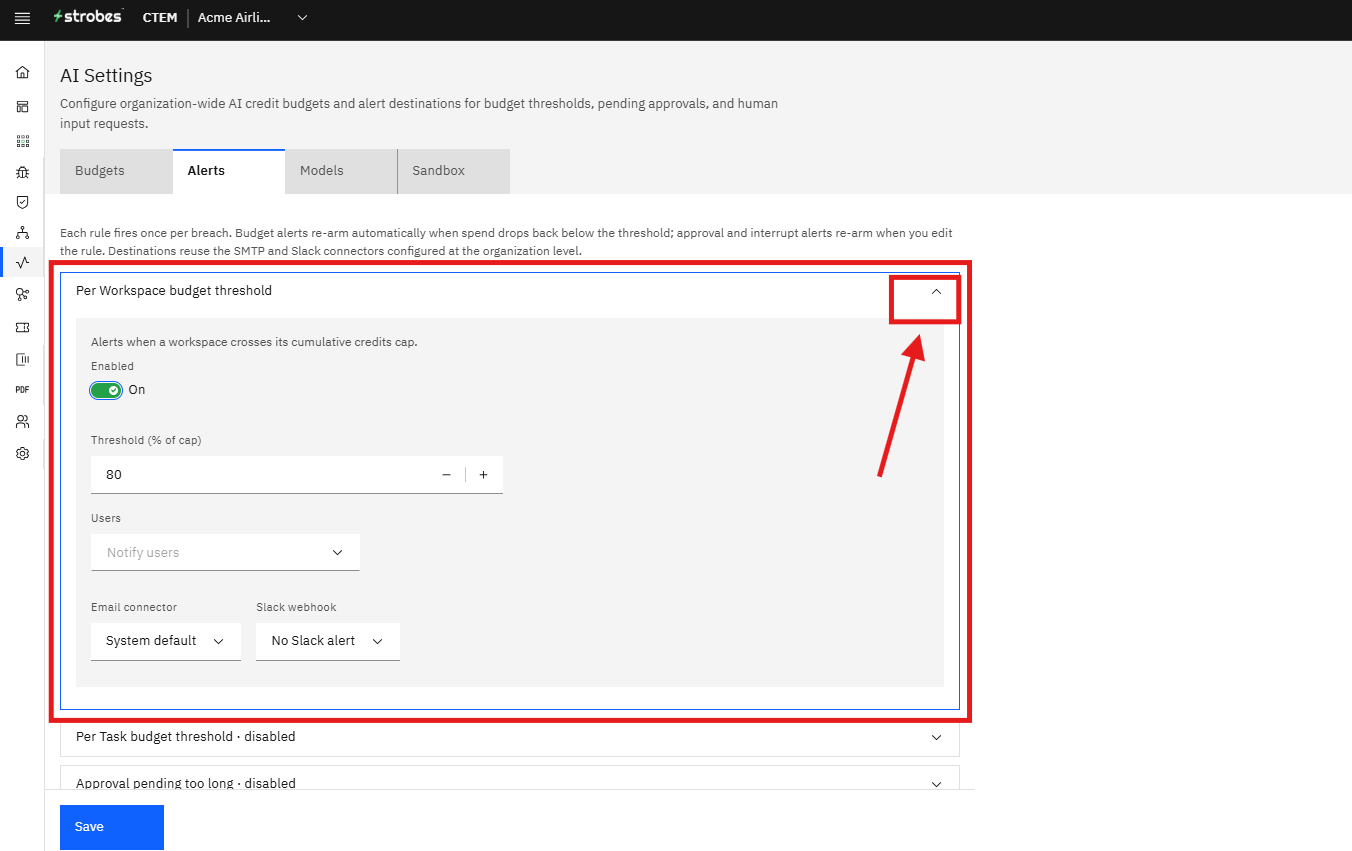
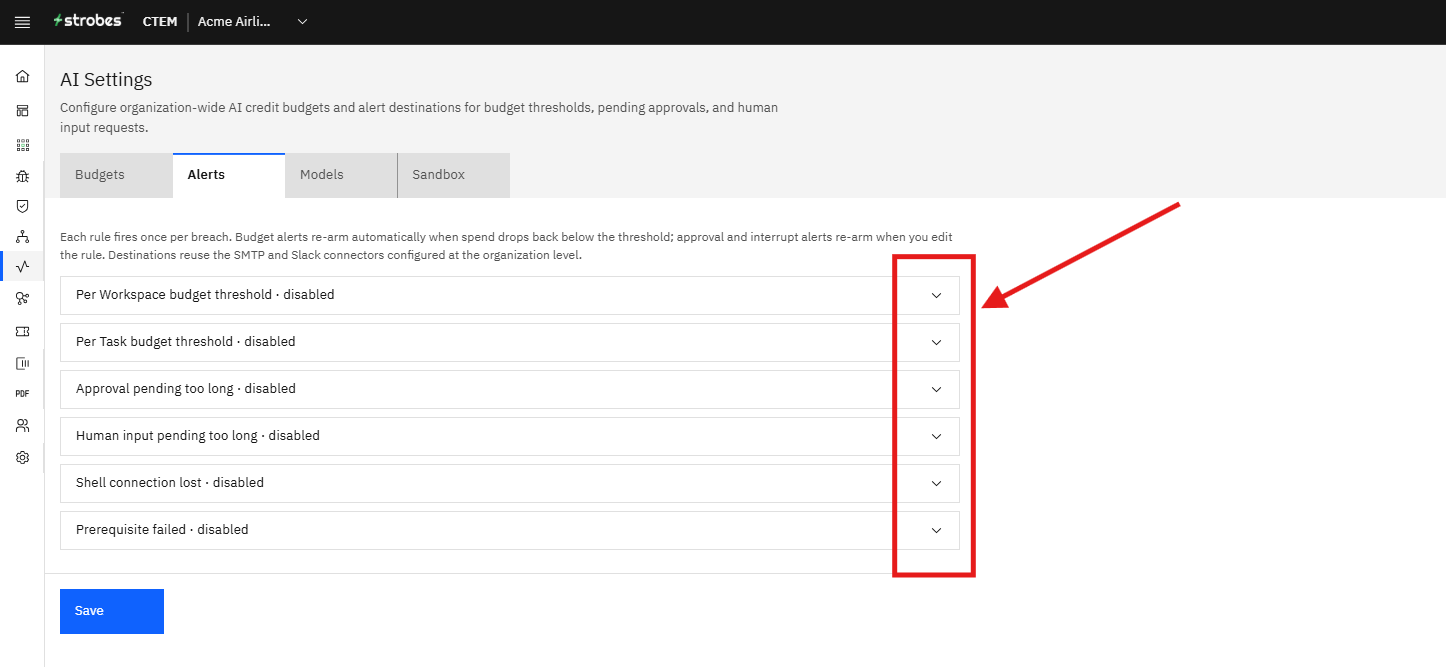
You'll see six alert rules, each collapsed by default and labeled with its current state (for example, "disabled"). Click any rule's row to expand it and reveal its description and Enabled toggle.
The six alert rules
Per Workspace budget threshold — fires when a workspace crosses its cumulative credits cap (the cap you configure on the Budgets tab).
Per Task budget threshold — fires when a single task crosses its credits cap.
Approval pending too long — fires when an action is still waiting on approval after your configured threshold, so nothing stalls silently waiting on a human.
Human input pending too long — fires when an agent has been waiting for human input for longer than expected.
Shell connection lost — fires when repeated bridge/SSH connectivity failures halt a run and pause its workflow, so you know a task has stalled for infrastructure reasons rather than a logic issue.
Prerequisite failed — fires when a workspace or task is blocked because a prerequisite check did not pass.
Enabling a rule
- Click a rule's row (for example, Per Workspace budget threshold · disabled) to expand it.
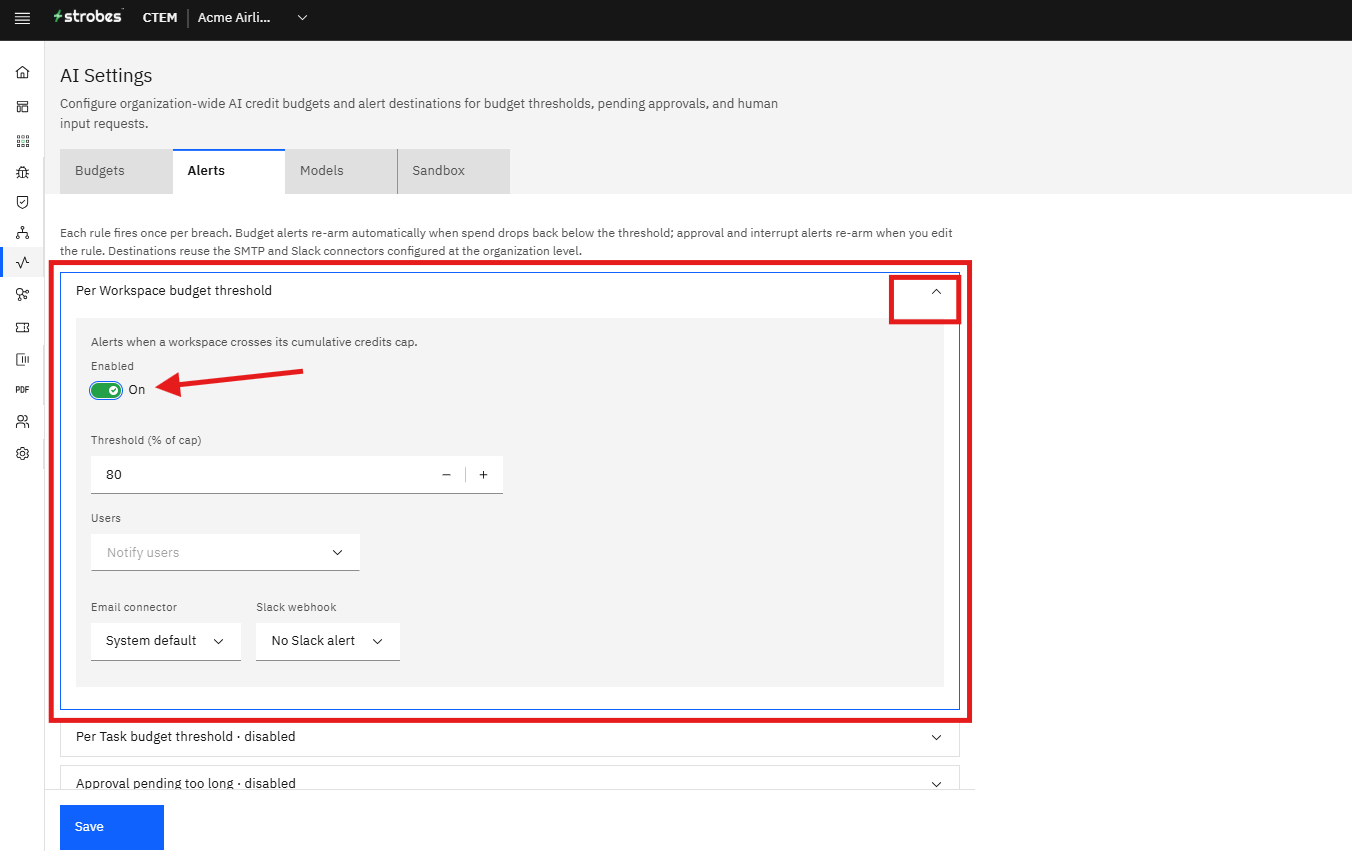
- Read the description that appears, confirming what will trigger the alert.
- Click the Enabled toggle to switch it from Off to On.
- Repeat for each rule you want turned on. You can expand and configure multiple rules before saving.
Saving your changes
Once you've enabled the rules you want, click Save at the bottom of the page.
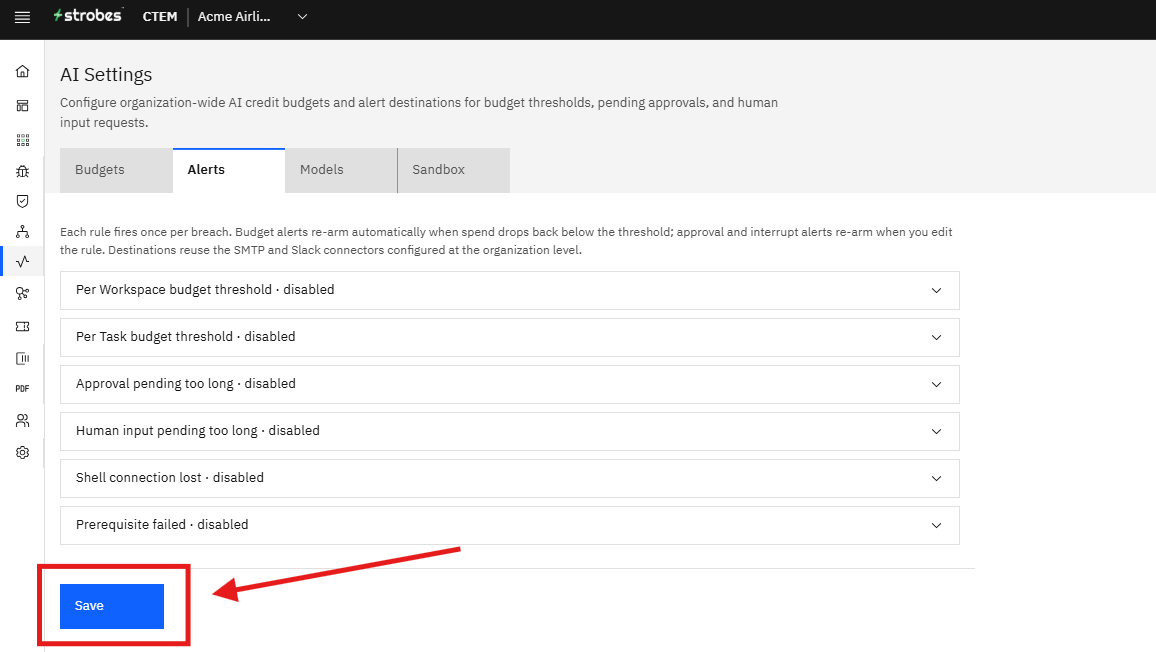
Changes won't apply until you save — if you switch tabs or navigate away first, any toggles you flipped will be lost.