
SAML - Configuring Google Workspace SSO in Strobes
Only the Owner of an organization has permission to enable SAML authentication. Follow the steps below to complete the setup using Google Workspace:
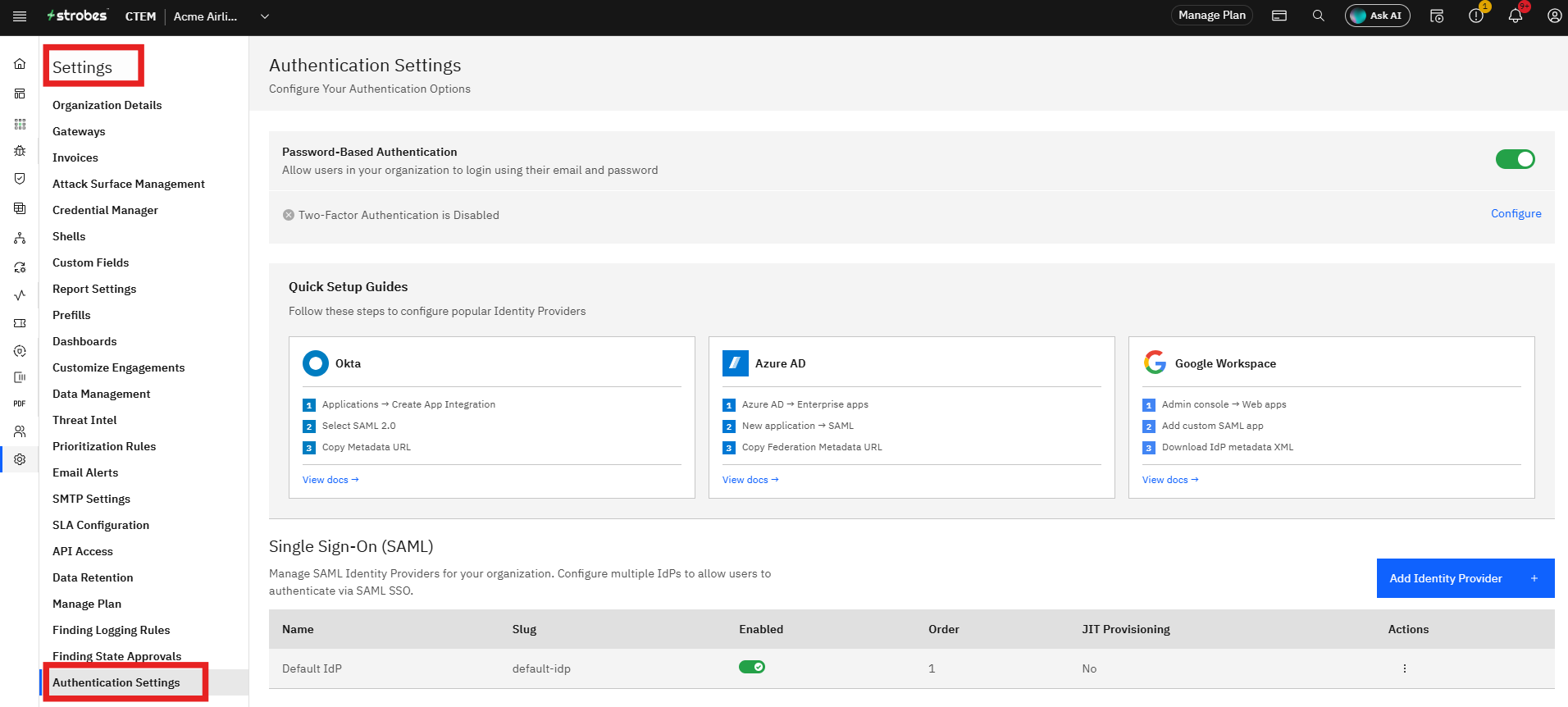
Step 1: Access Authentication Settings
- Log in to the Strobes platform.
- Go to Settings.
- Click on Authentication Settings.
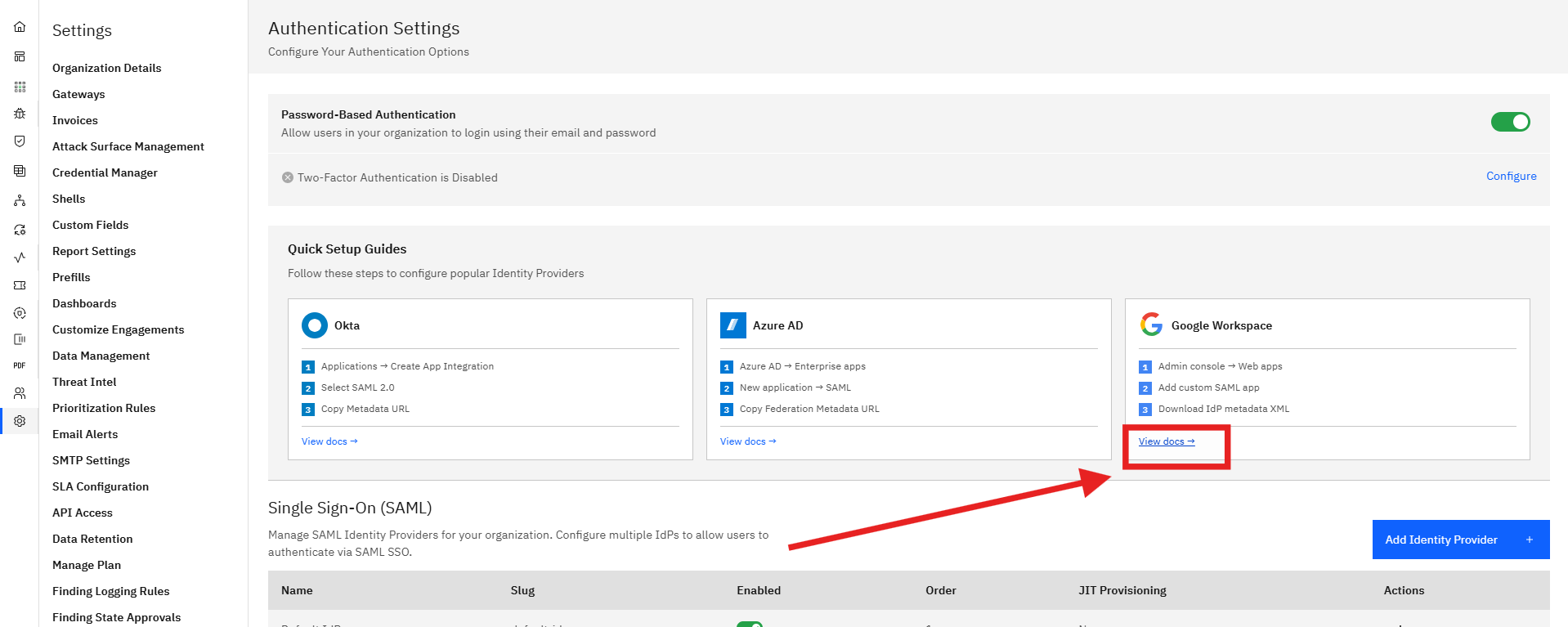
Step 2: Use the Setup guides
- Click on the "View docs" Under Google Workspaces.
- Make sure you follow all the steps and get all the data that is required for creating the Identity Provides.
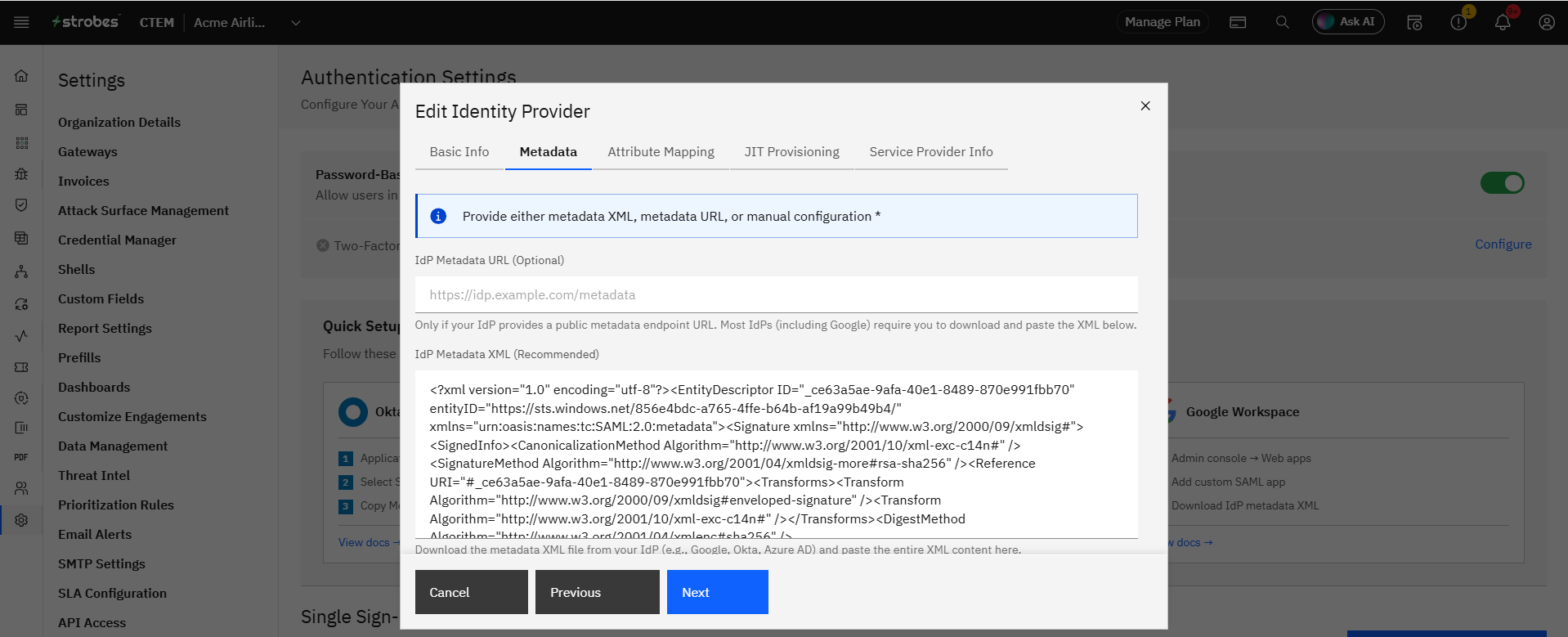
- Obtain your SAML IDP metadata file from Google Workspace.
Step 3: Upload the Google Workspace Metadata File
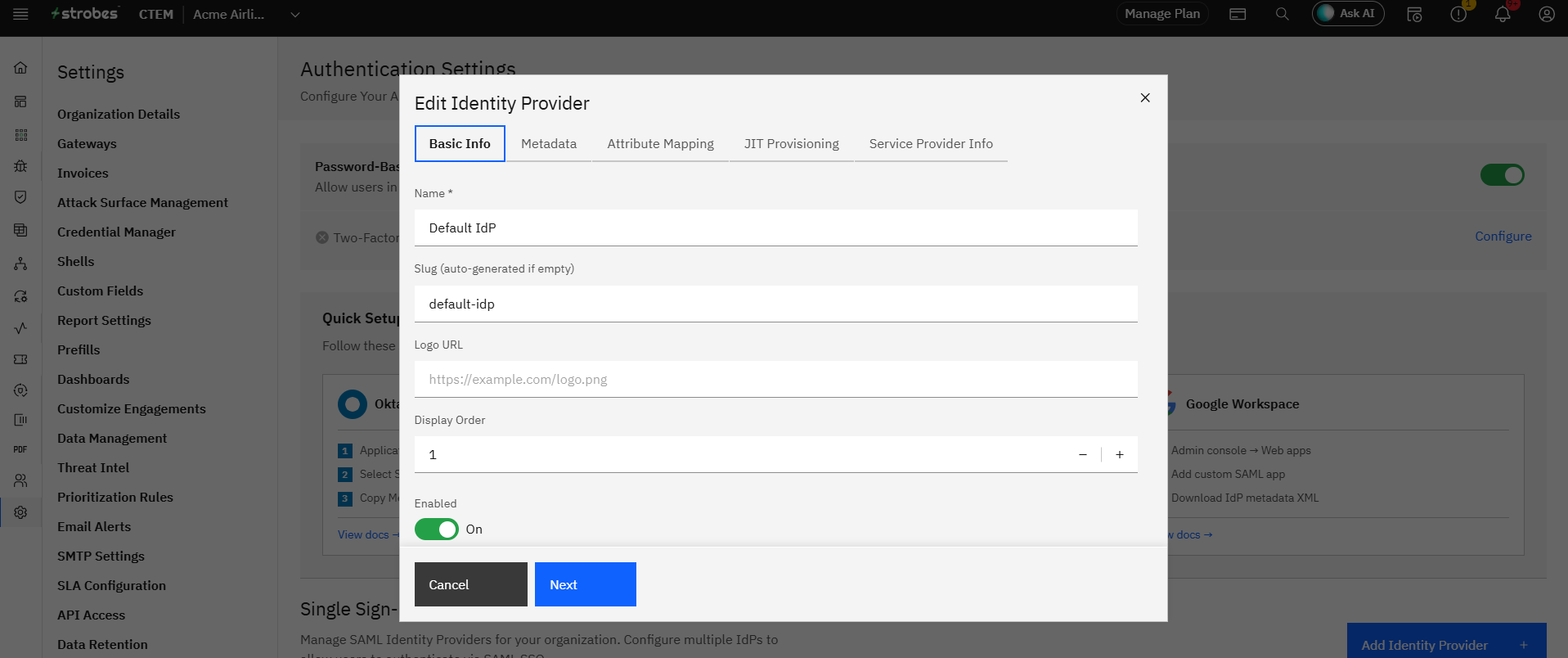
- CLick on "Add Identity Provider"
- Upload the metadata file in the provided field.
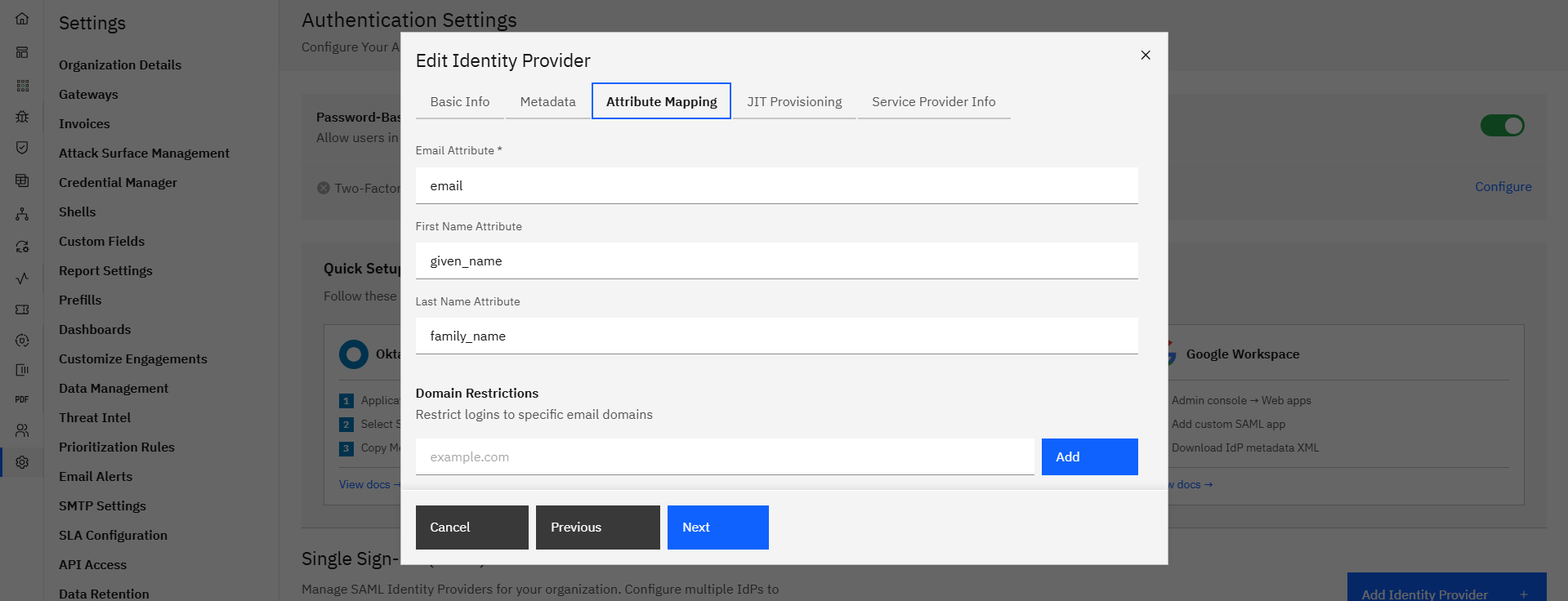
Step 4: Submit Configuration
- Click Update to complete the setup.
SAML authentication will now be active for your organization. Users will be able to log in using Google Workspace credentials.
Last updated: 8/25/26, 11:08 AM