
Configuring AI Budgets
Strobes AI agents consume credits every time they run a task — researching a finding, drafting a remediation, or working inside the sandbox. The Budgets tab in AI Settings lets you cap how many credits can be spent, at two levels: per workspace, and per individual task. This guide walks through what each setting does and how to configure it.
Where to find it
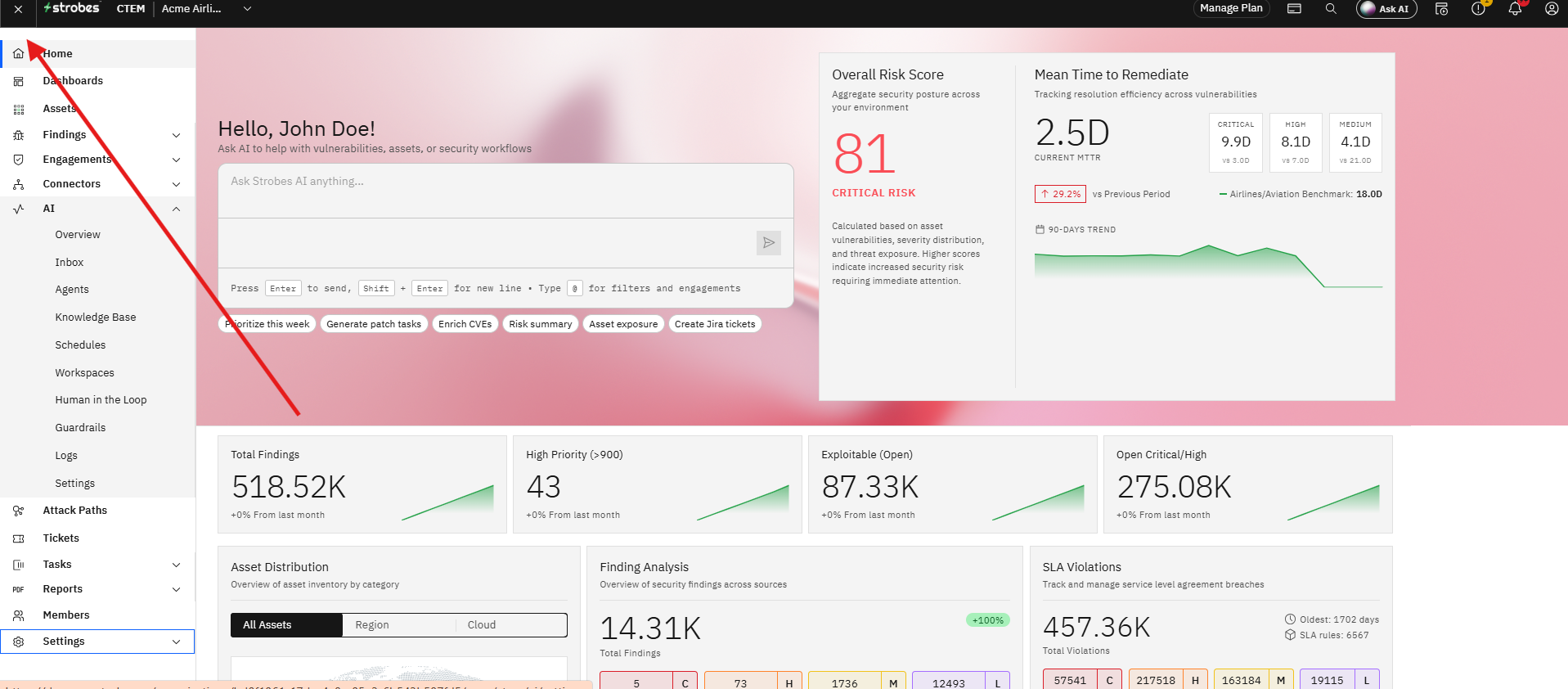
- Click the Main menu on the top left of the instance.
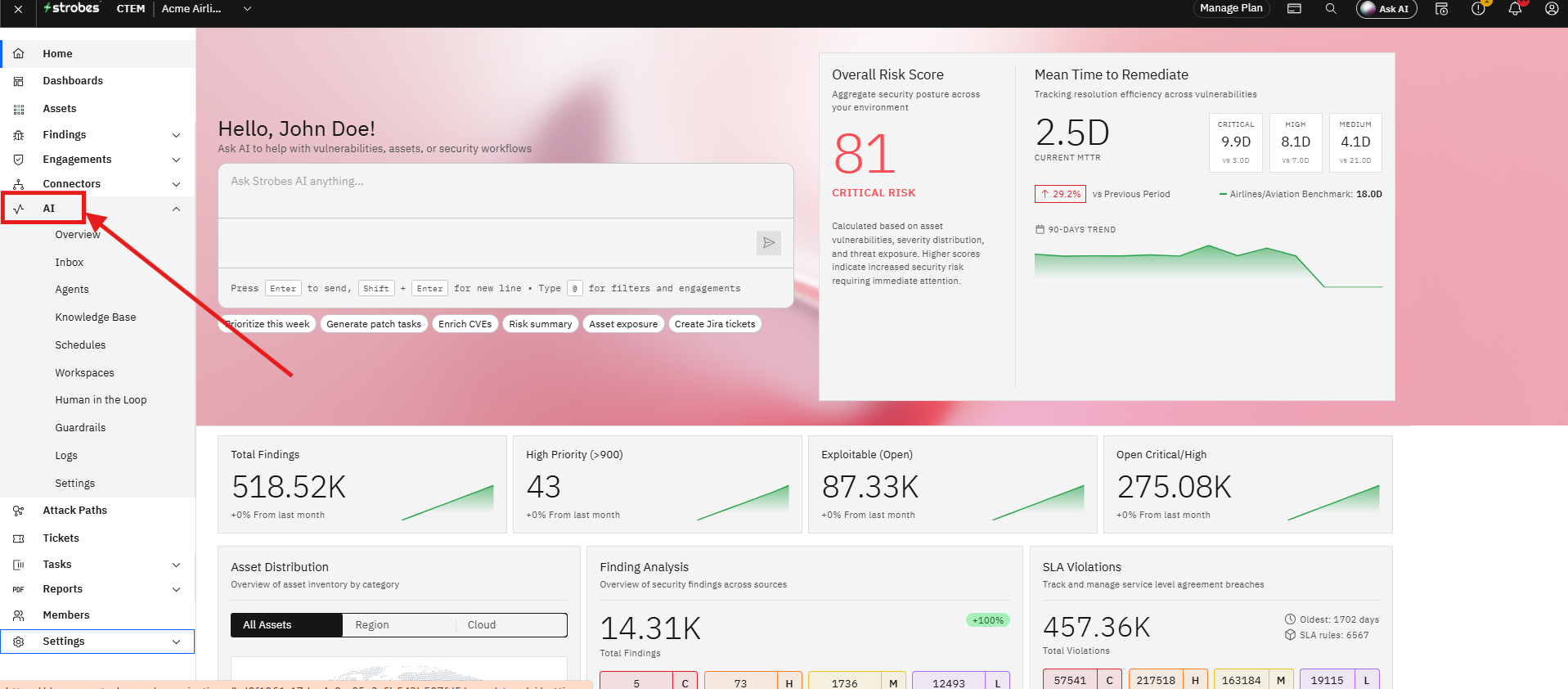
- Click AI.
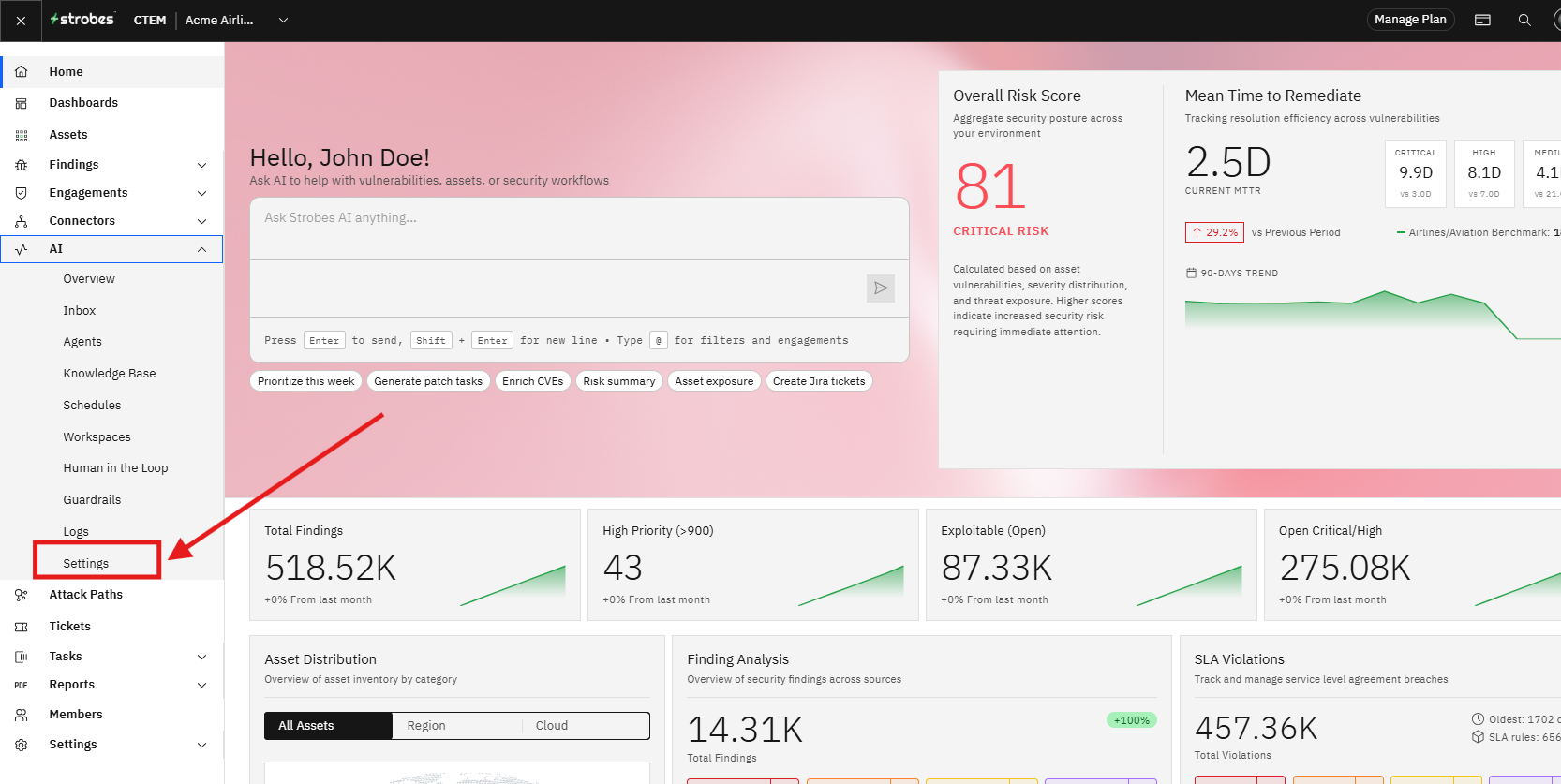
- Choose Settings under AI.
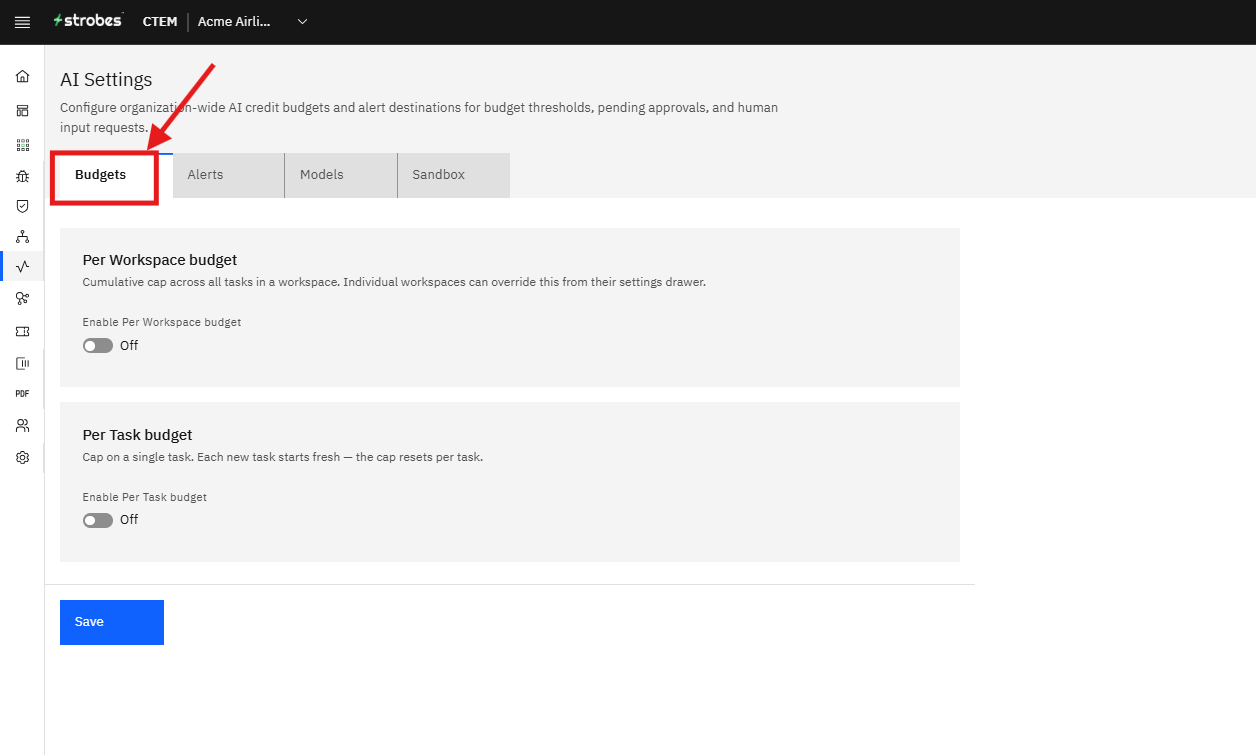
- The Budgets tab is selected by default. If you're on a different tab, click Budgets.
Per Workspace budget
This is a cumulative cap across all tasks running inside a single workspace. It's useful when you want to make sure one workspace — say, a long-running investigation with many agent tasks — doesn't quietly rack up unlimited spend. Individual workspaces can override this cap from their own settings drawer if they need a different limit.
To turn it on:
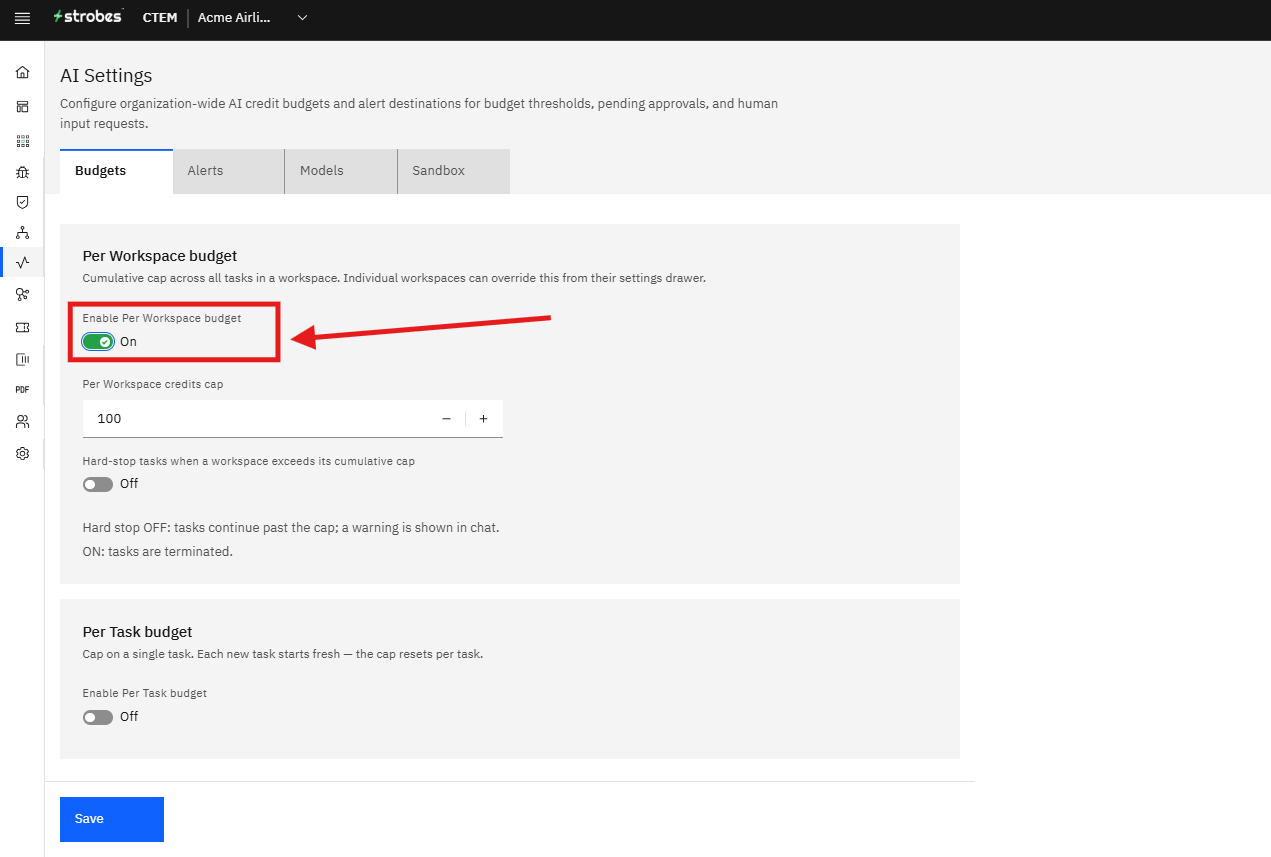
- Click the Enable Per Workspace budget toggle to switch it from Off to On.
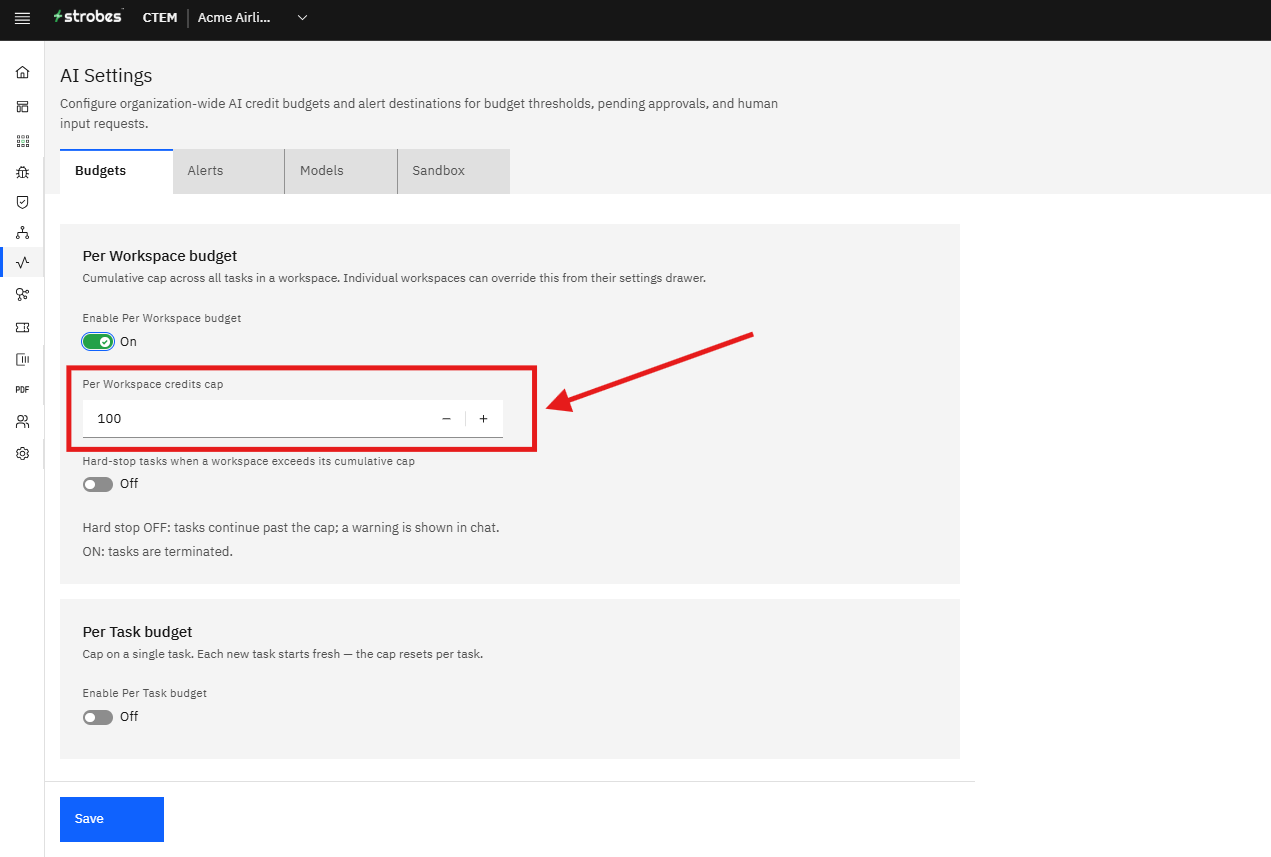
- A Per Workspace credits cap field appears. Enter the number of credits you want to allow for the workspace, or use the + / – buttons to adjust it.
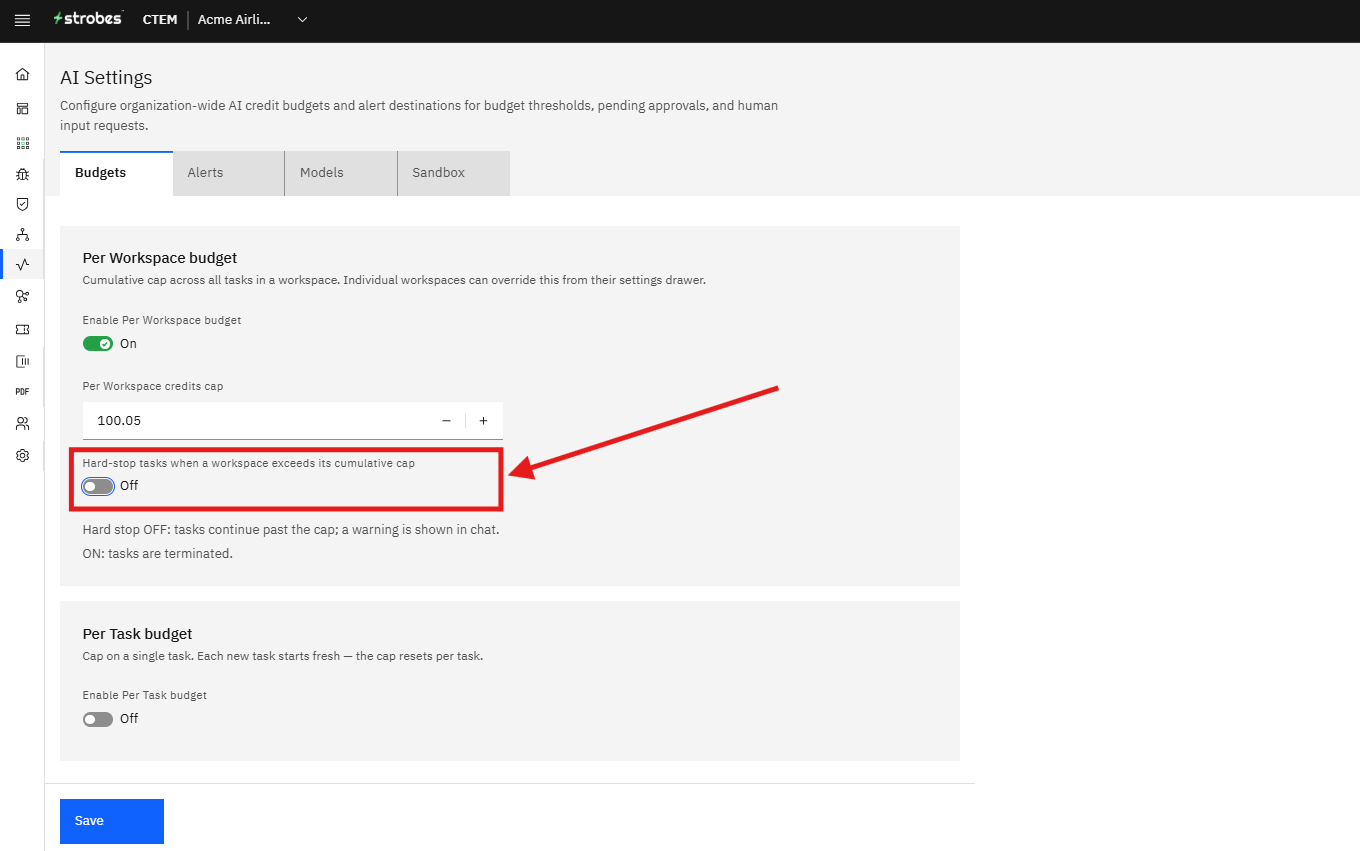
- Decide how strictly you want that cap enforced using the Hard-stop tasks when a workspace exceeds its cumulative cap toggle:
- Off (default): tasks continue running past the cap, but a warning is shown in the chat so your team knows spend has exceeded the limit.
- On: tasks are terminated immediately once the workspace crosses its cap.
Per Task budget
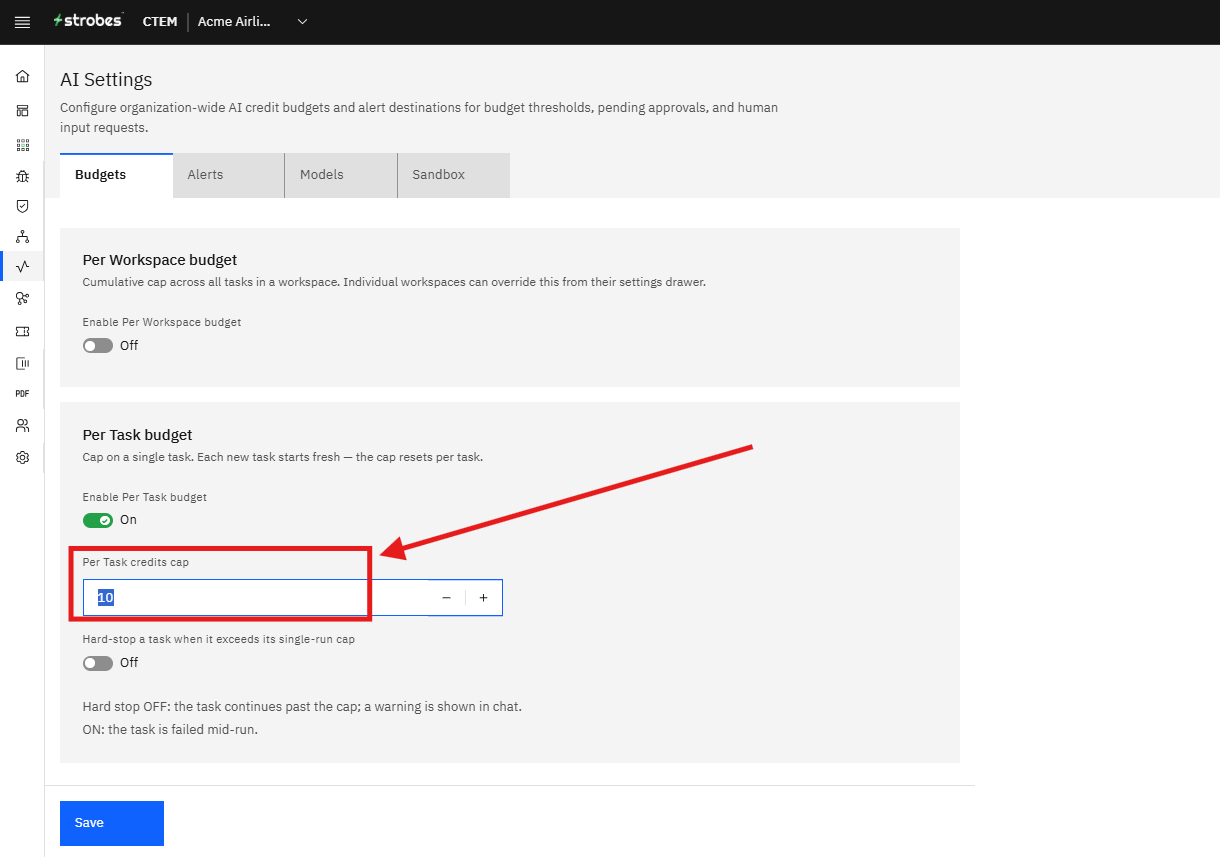
This is a cap on a single task rather than the whole workspace. Every new task starts fresh — the cap resets each time, so this is best for keeping any one task from running away with credits, regardless of how many tasks a workspace has already run.
To turn it on:
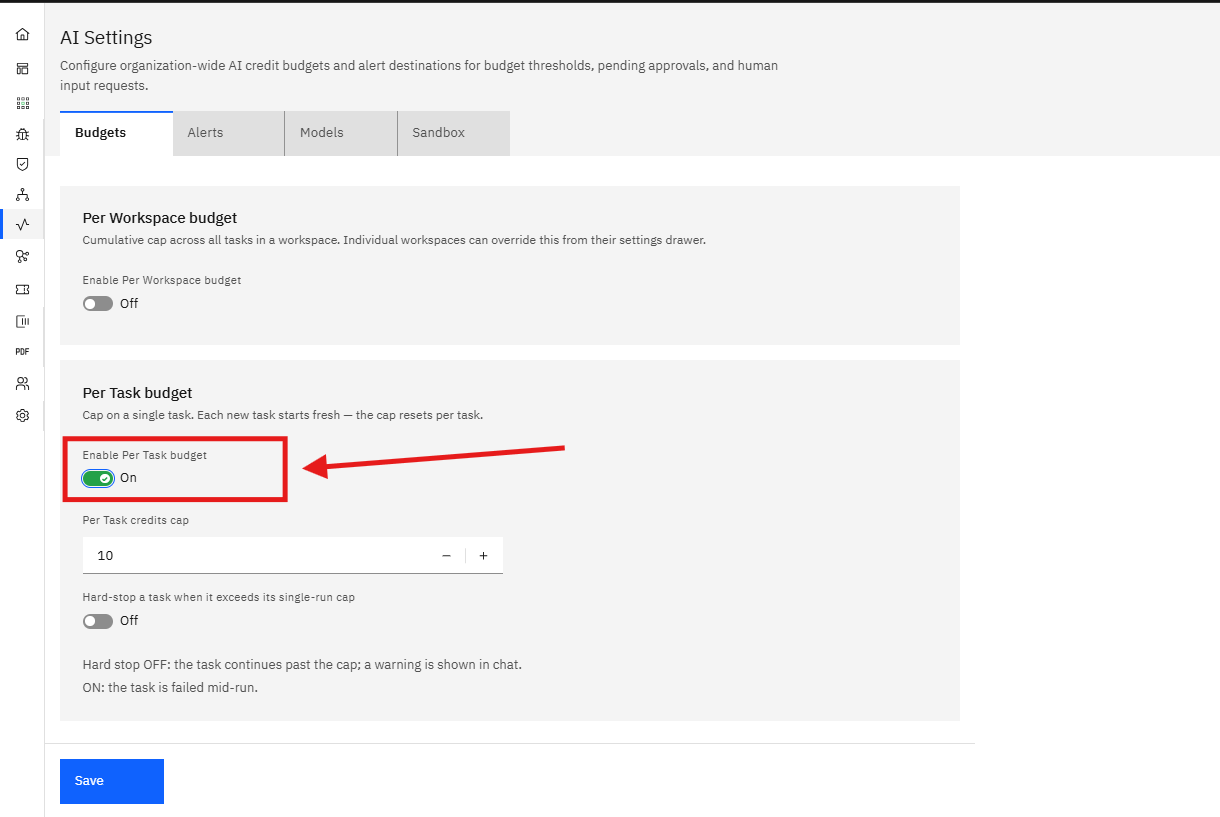
- Click the Enable Per Task budget toggle to switch it from Off to On.
- A Per Task credits cap field appears. Enter the number of credits allowed for a single task, or use the + / – buttons.
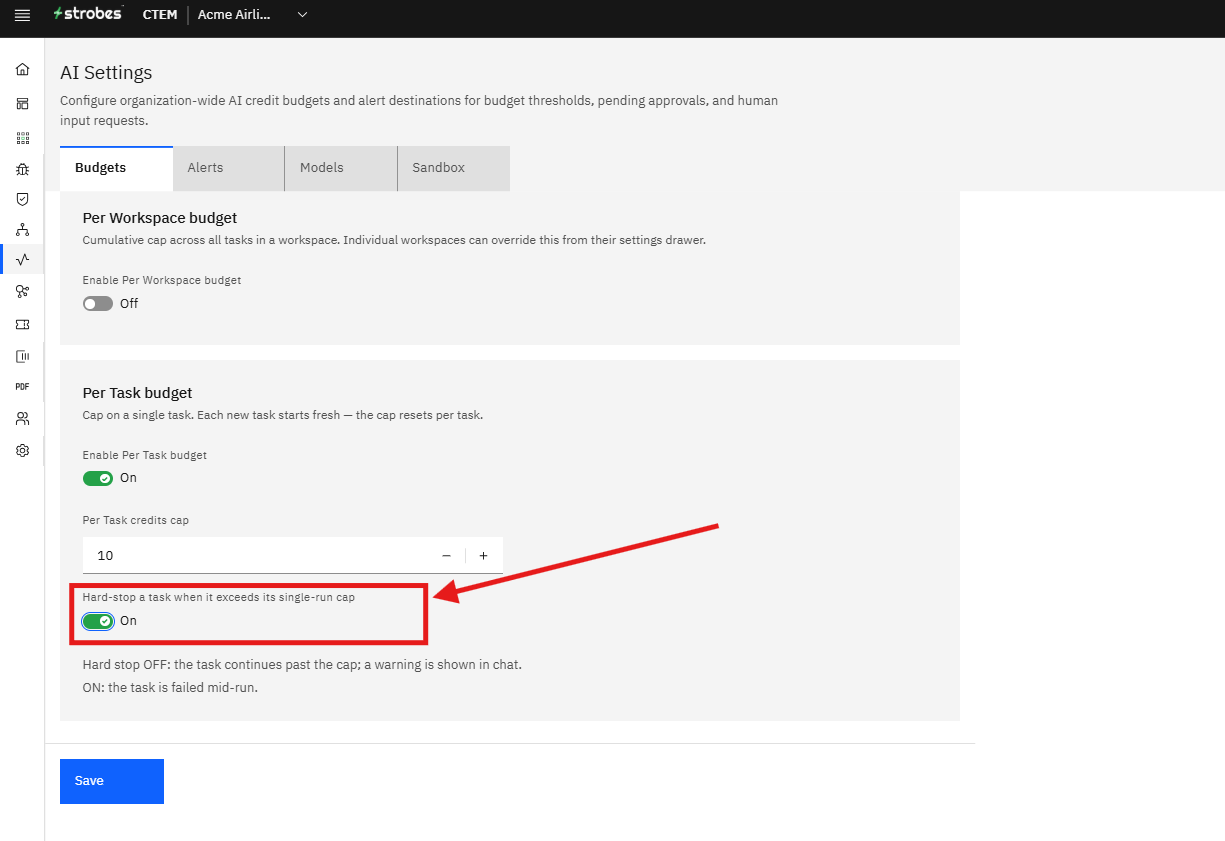
- Decide enforcement using the Hard-stop a task when it exceeds its single-run cap toggle:
- Off (default): the task continues past the cap, and a warning is shown in the chat.
- On: the task is failed mid-run as soon as it exceeds the cap.
Saving your changes
None of these settings take effect until you save them. Once you've configured the caps and hard-stop behavior you want, click Save at the bottom of the page.
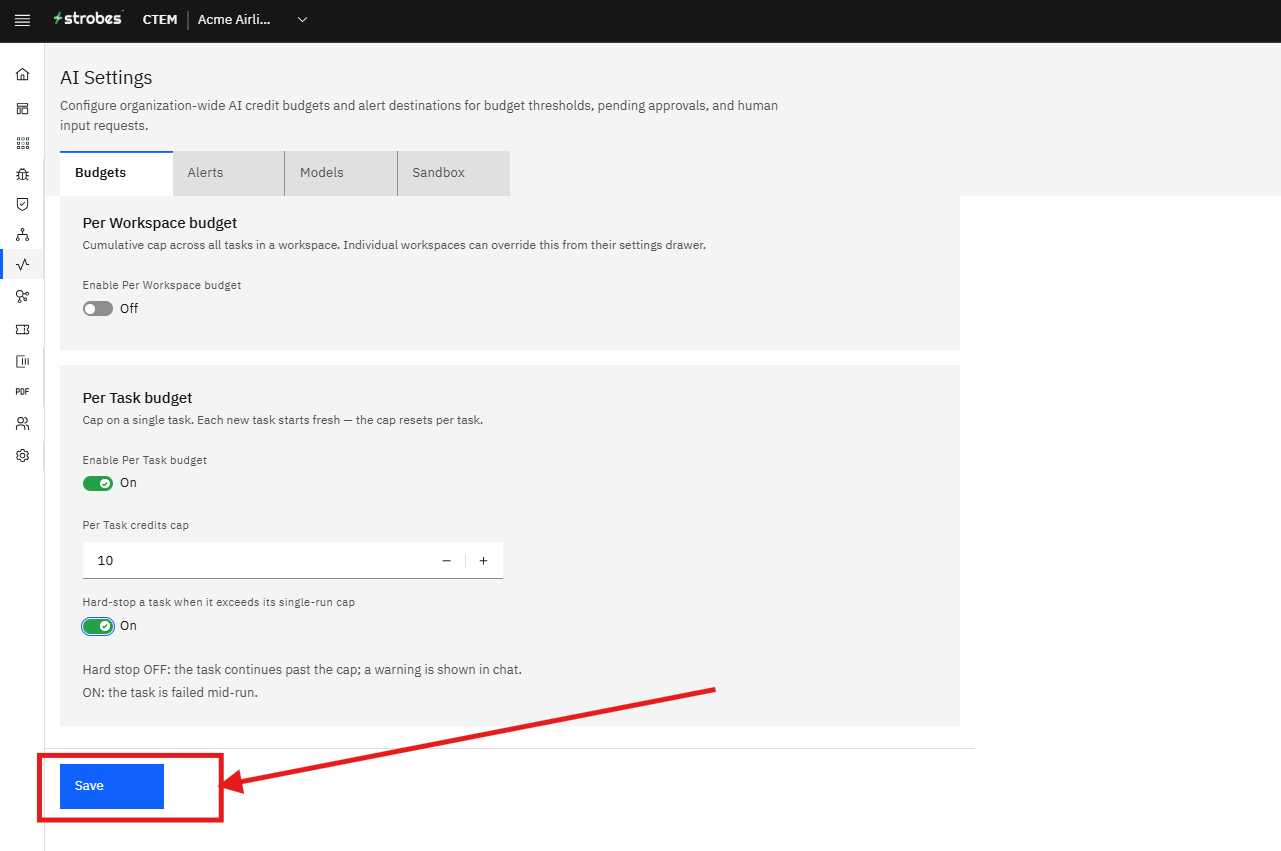
If you navigate away without clicking Save, your changes will be discarded.