
Engagement Summary Report Download
Overview
The Engagement Summary gives you a complete snapshot of an engagement — covering scope, vulnerabilities, team efforts, and more. Use it to track assessment progress at a glance and export detailed reports when you need to share findings with stakeholders.
Sections of the Engagement Summary
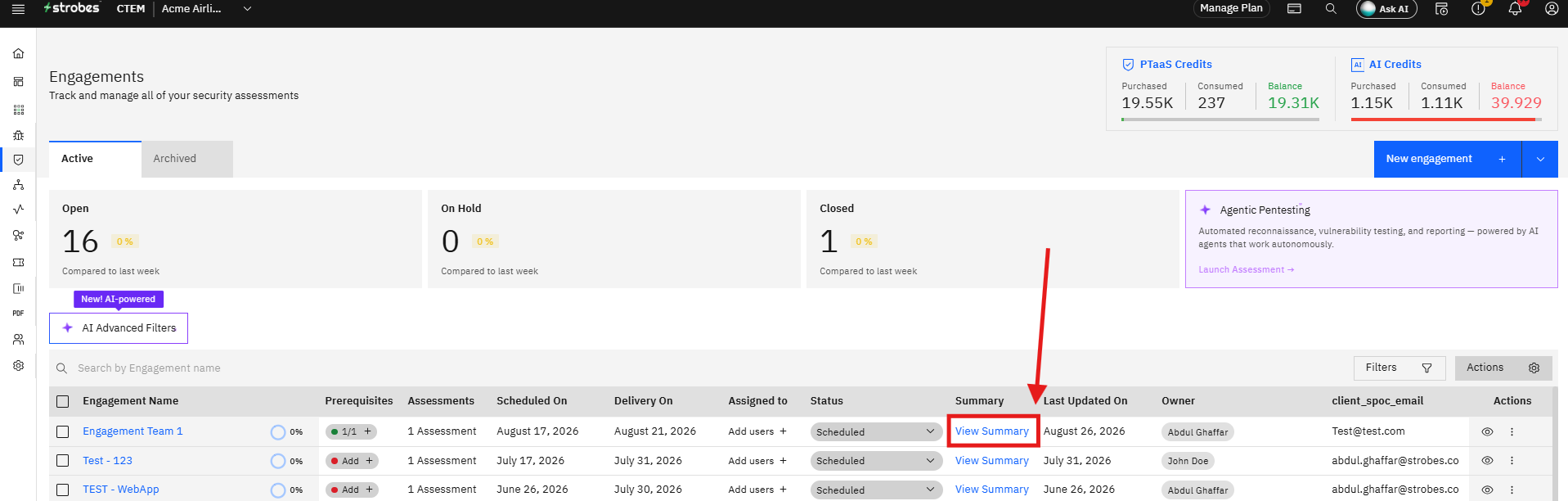
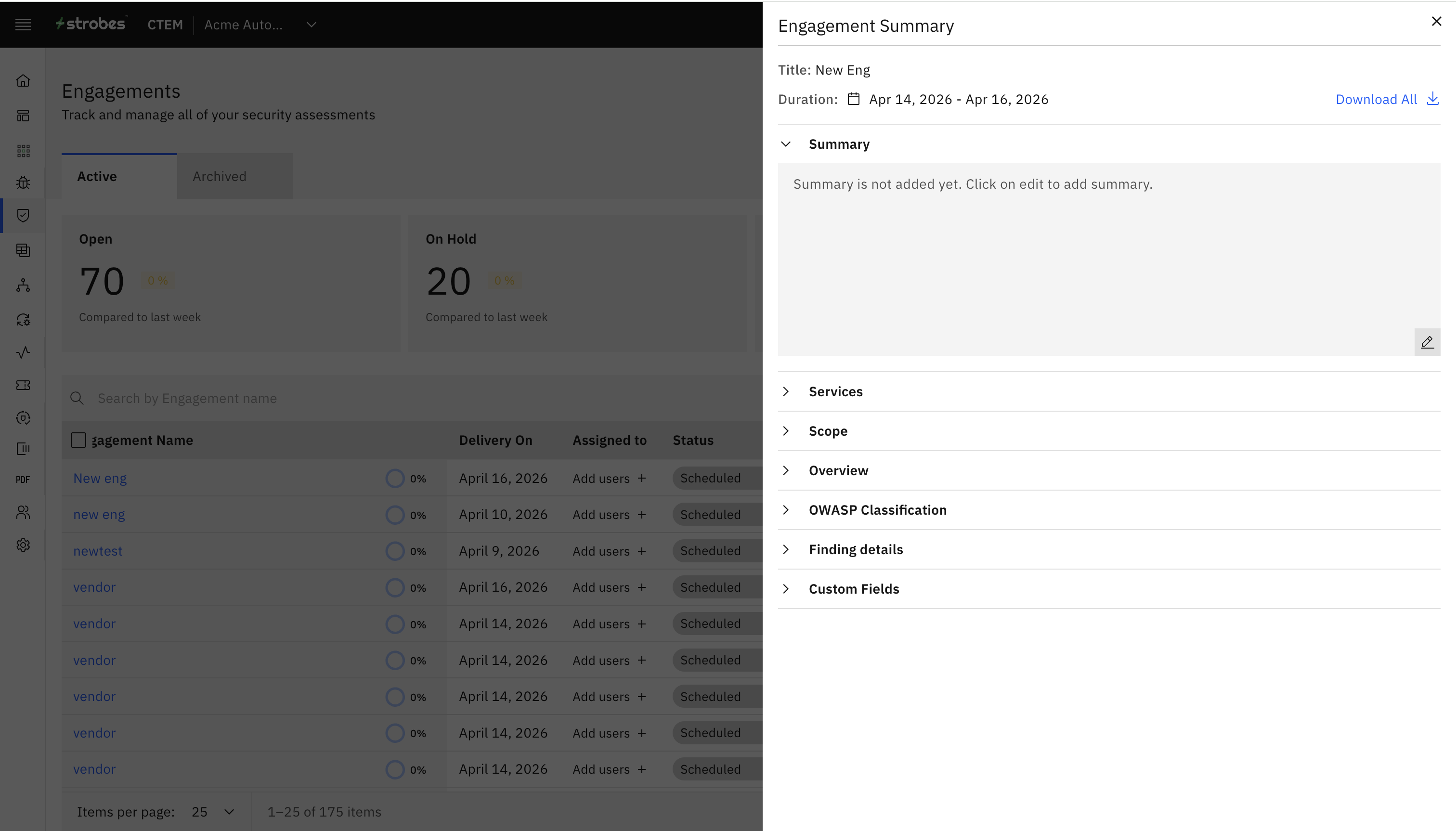
1. Summary
A free-text field where any user with access to the engagement can write or update a narrative summary. Use this to capture the purpose of the engagement, key observations, or any context that isn't captured in the structured data below.
2. Scope
Displays all assets included in the engagement's scope.
For each asset, you can see:
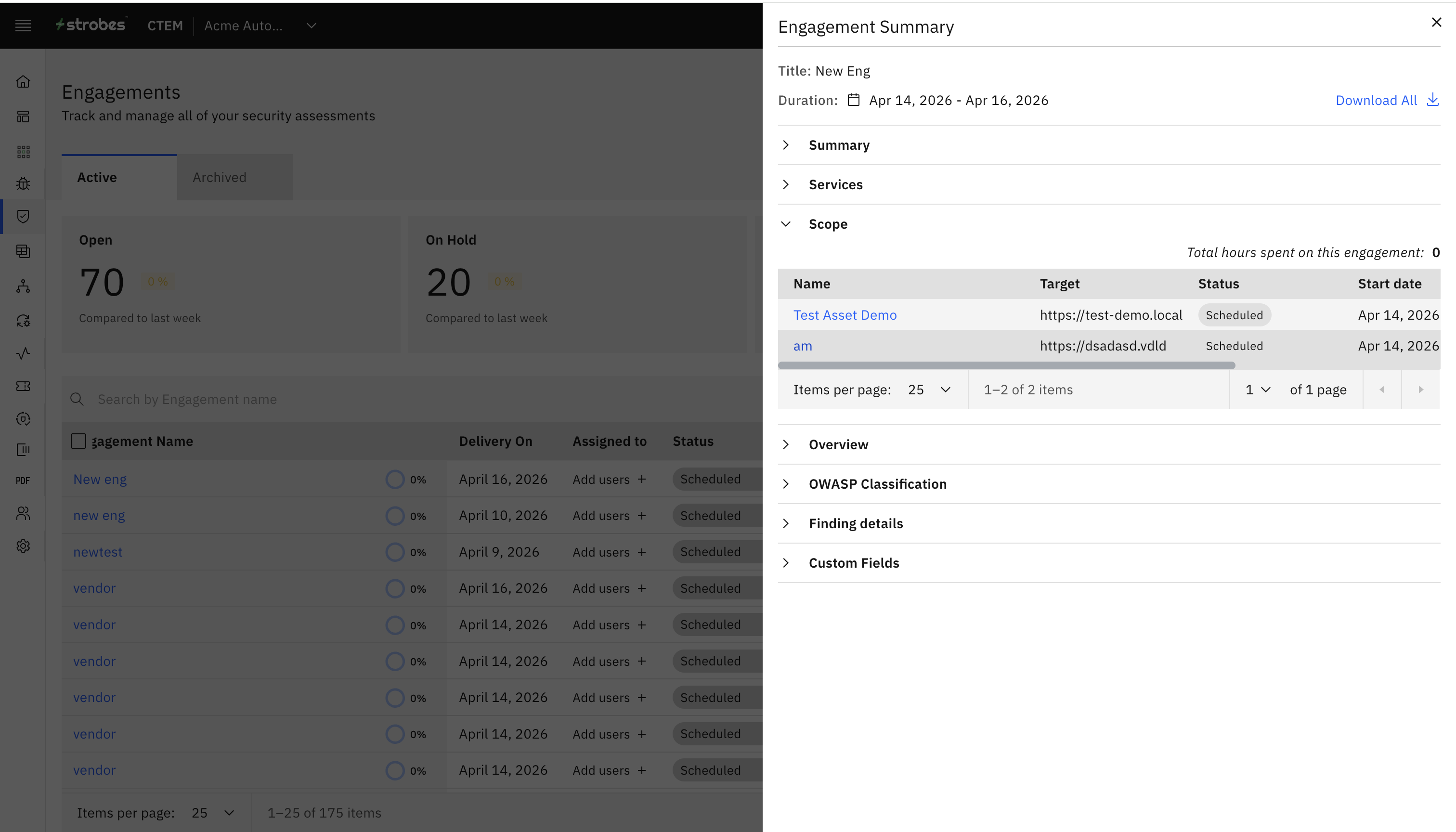
- Assessment status — the current state of testing for that asset
- Start date and End date — the testing window for each assessment
- Hours spent — the number of hours logged against each assessment
- Team members — the testers assigned to each asset
3. Overview
A visual breakdown of all vulnerabilities reported in the engagement, split two ways:
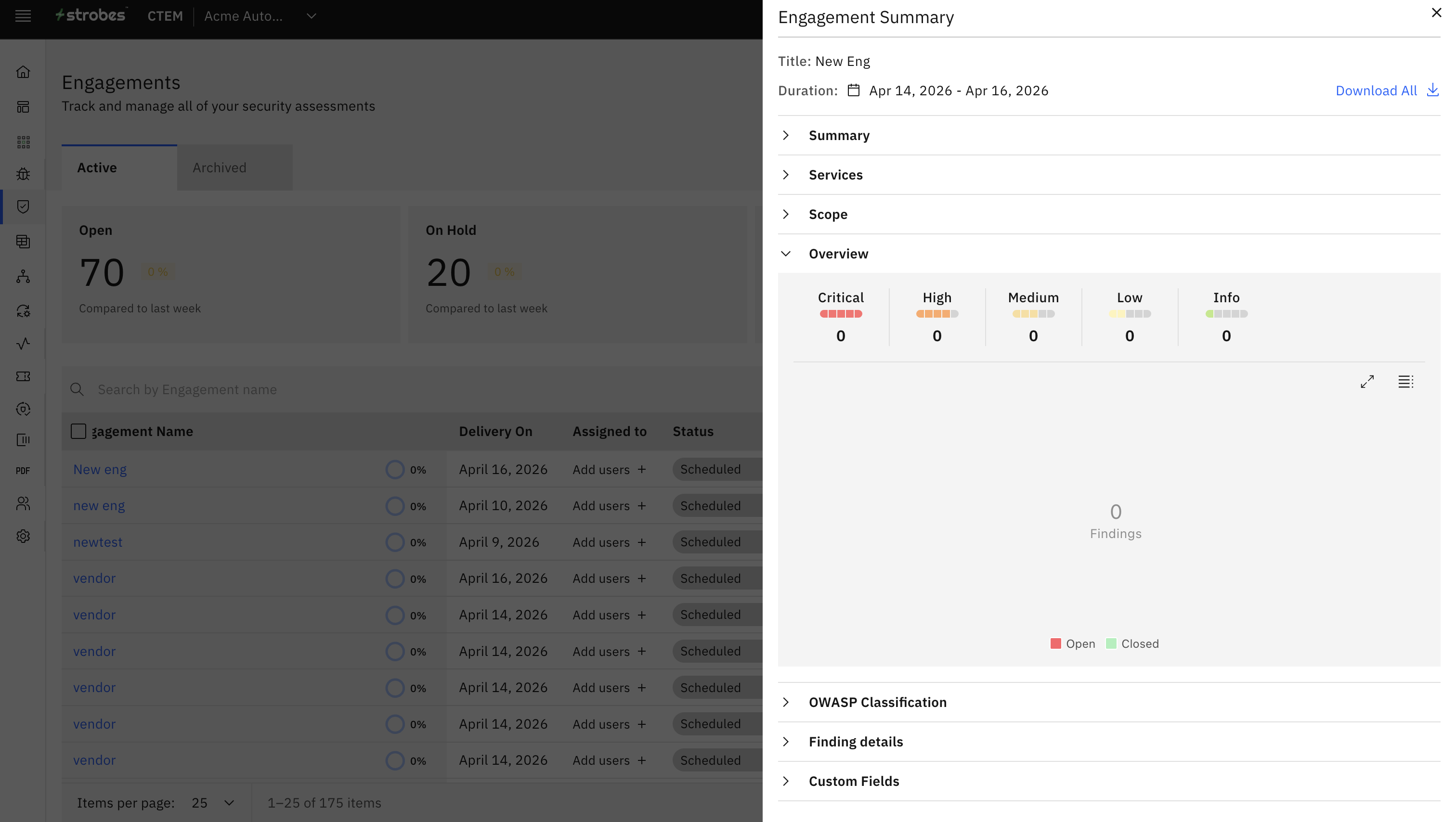
By Severity:
Severity | Description |
|---|---|
Critical | Highest risk — requires immediate attention |
High | Significant risk — prioritize remediation |
Medium | Moderate risk — address within standard SLA |
Low | Minor risk — remediate as capacity allows |
Info | Informational — no direct risk, noted for awareness |
By State:
State | Description |
|---|---|
Open | Vulnerability has been identified and is not yet resolved |
Closed | Vulnerability has been remediated or accepted |
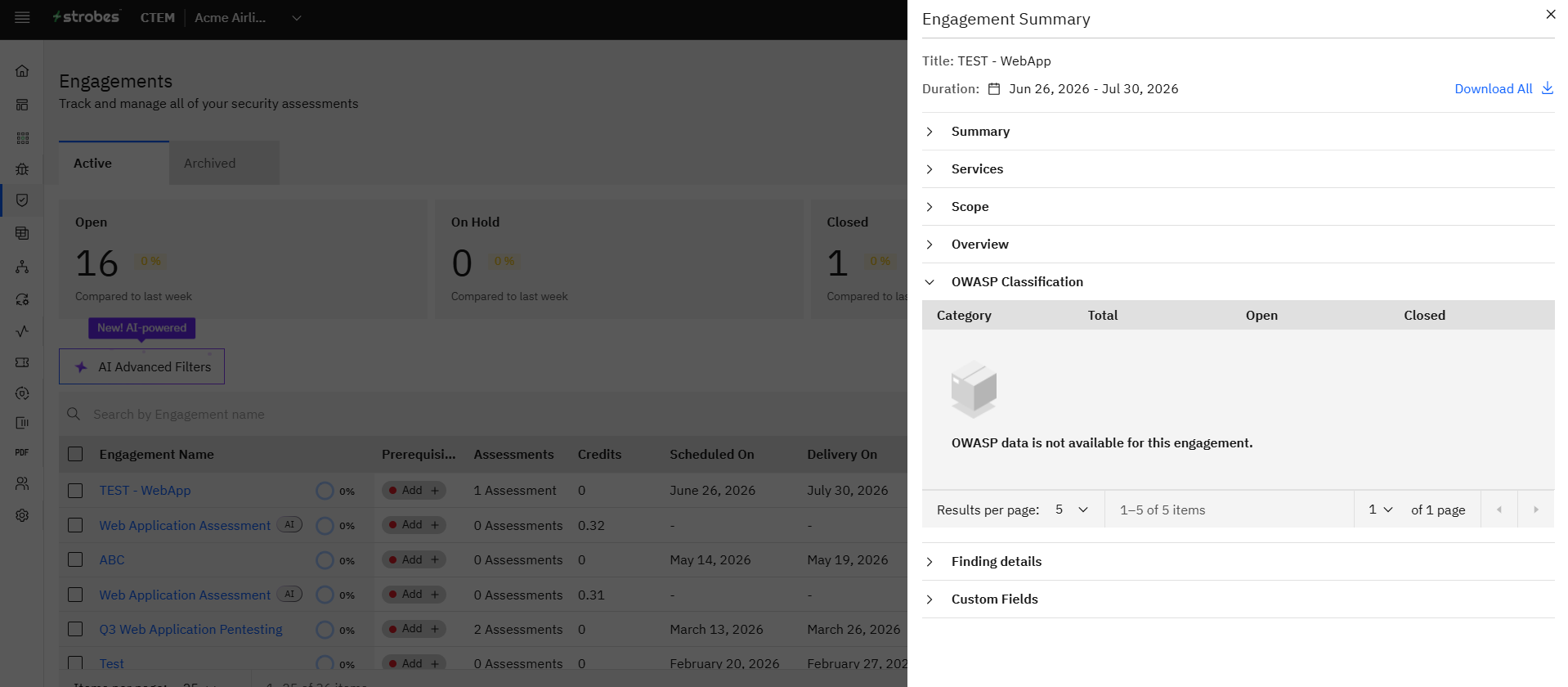
4. OWASP Classification
Displays how reported vulnerabilities map to OWASP categories. For each OWASP category present in the engagement, you can see the total number of vulnerabilities and how many are open versus closed. This is useful for identifying patterns and demonstrating coverage against a recognized security framework.
5. Vulnerability Details
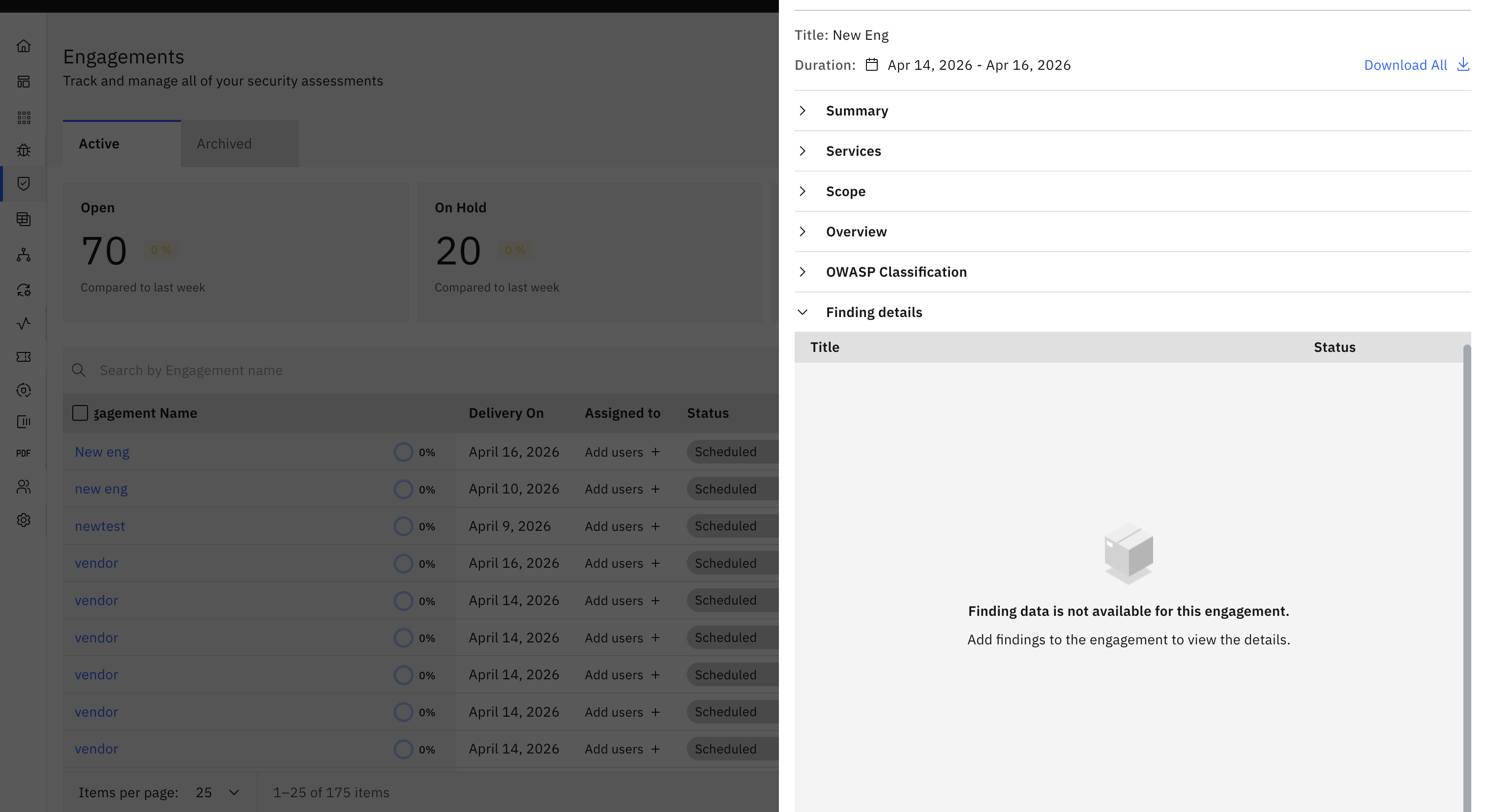
A complete list of every vulnerability reported in the engagement.
Use this section to review individual findings, check their severity and state, and drill into the details of specific issues.
Downloading the Engagement Summary Report
You can generate and download the Engagement Summary as a report at any time.
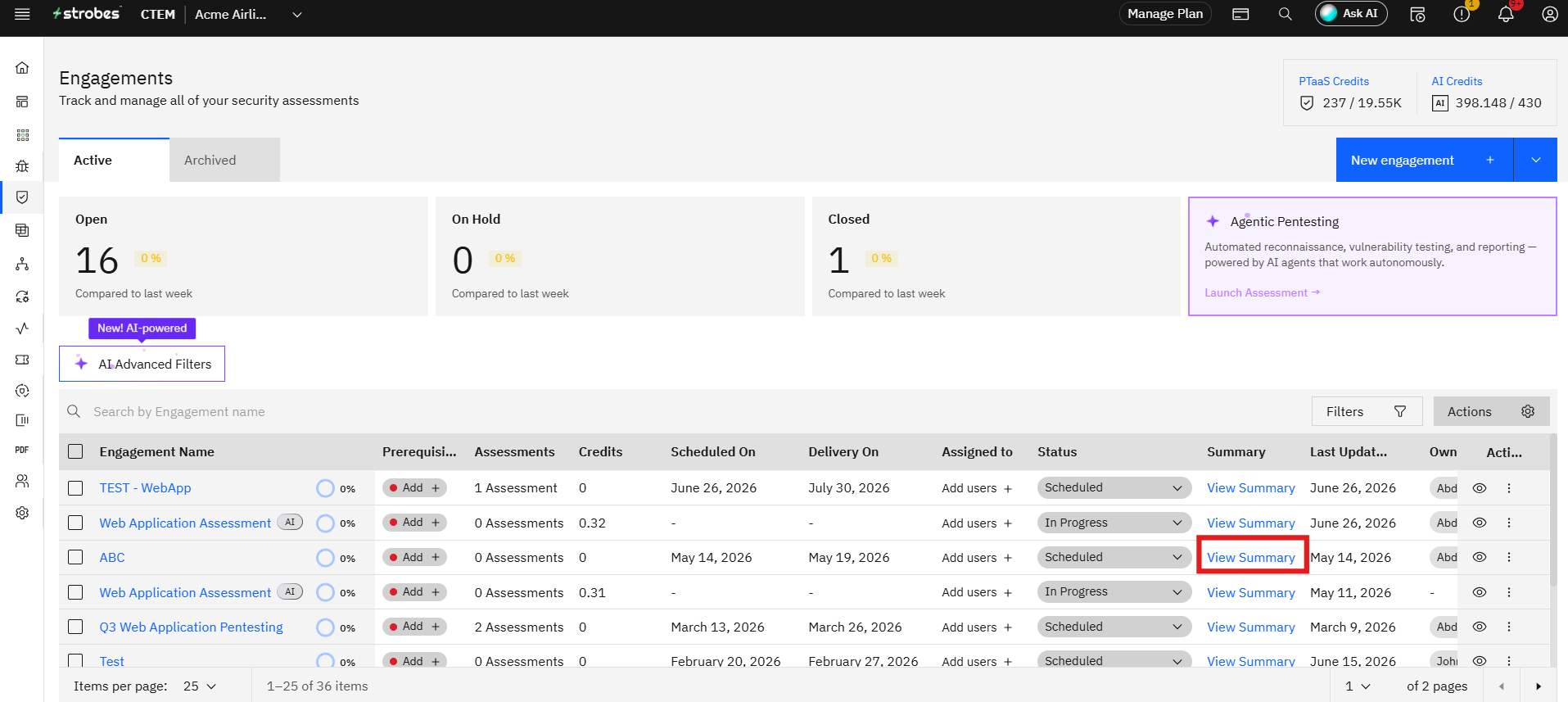
Step 1 — Open the Engagement Summary
Navigate to the Engagements page and click View Summary on the engagement you want to export.
Step 2 — Generate the Report
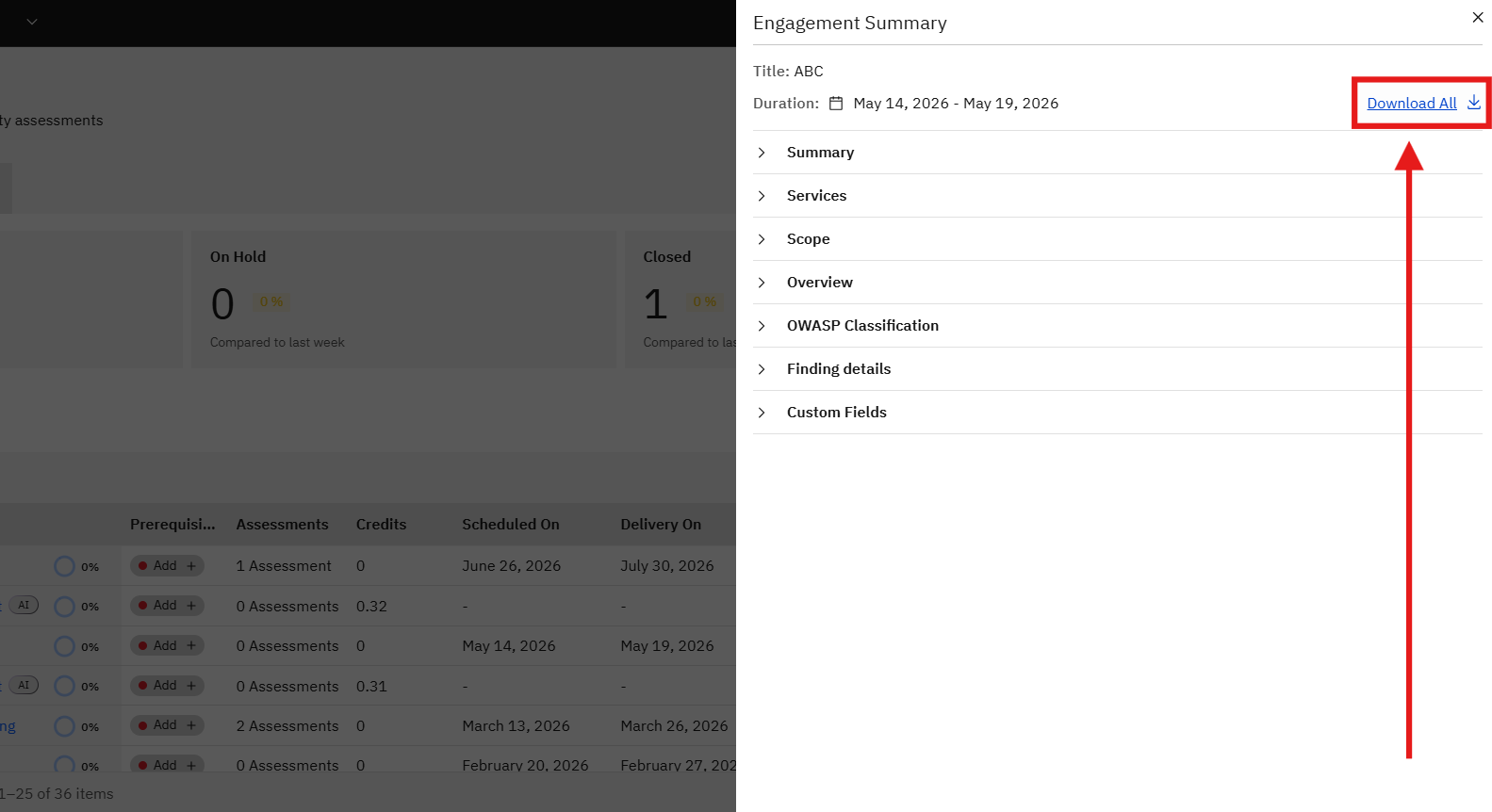
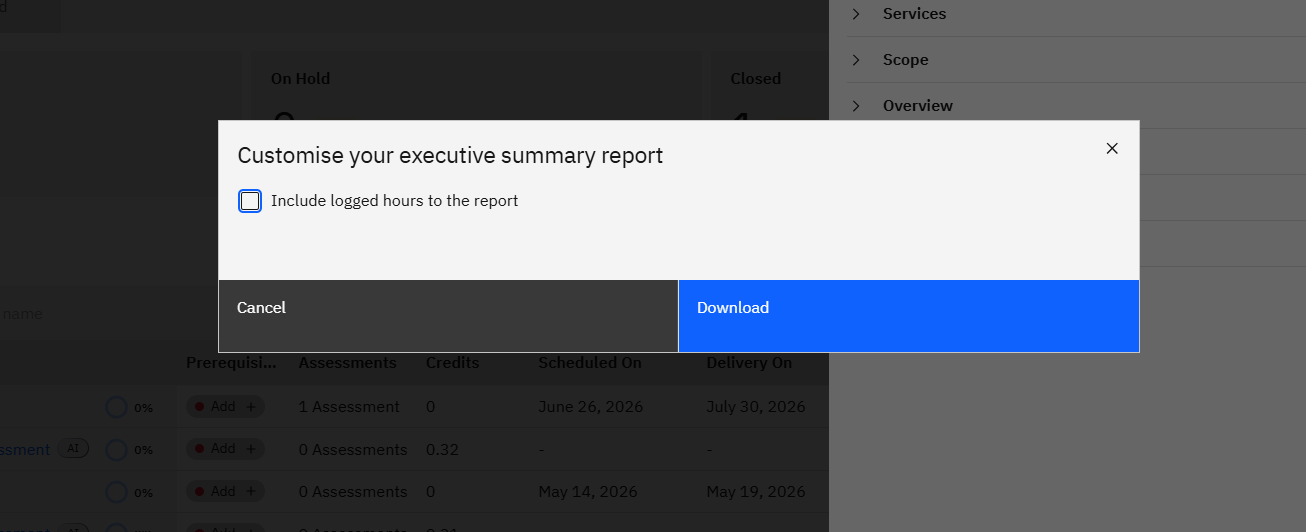
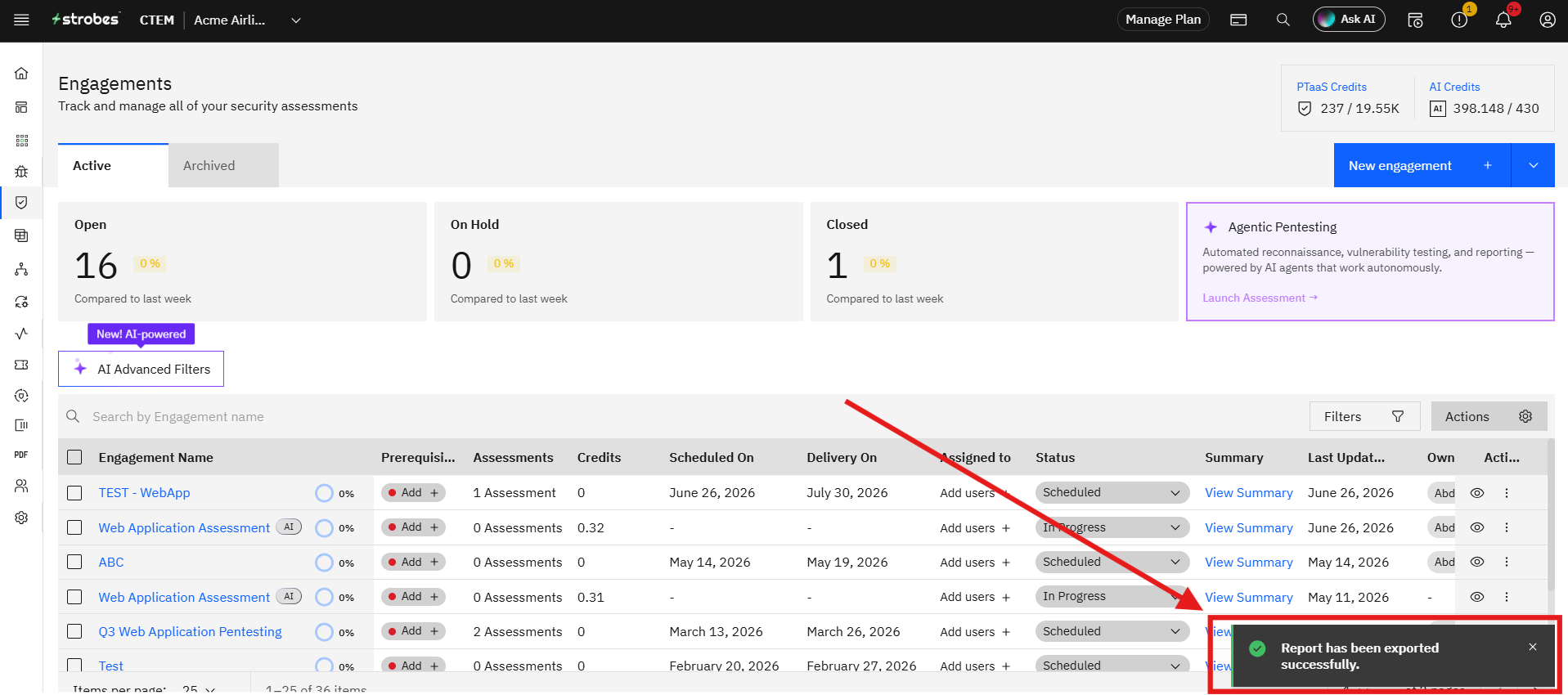
Click Download. Strobes begins generating the engagement summary report in the background.
Step 3 — Include Logged Hours (Optional)
If you want the report to include time tracking data, select Include logged hours to the report before confirming the download. This adds the hours logged per assessment to the exported document.
Step 4 — Access the Report
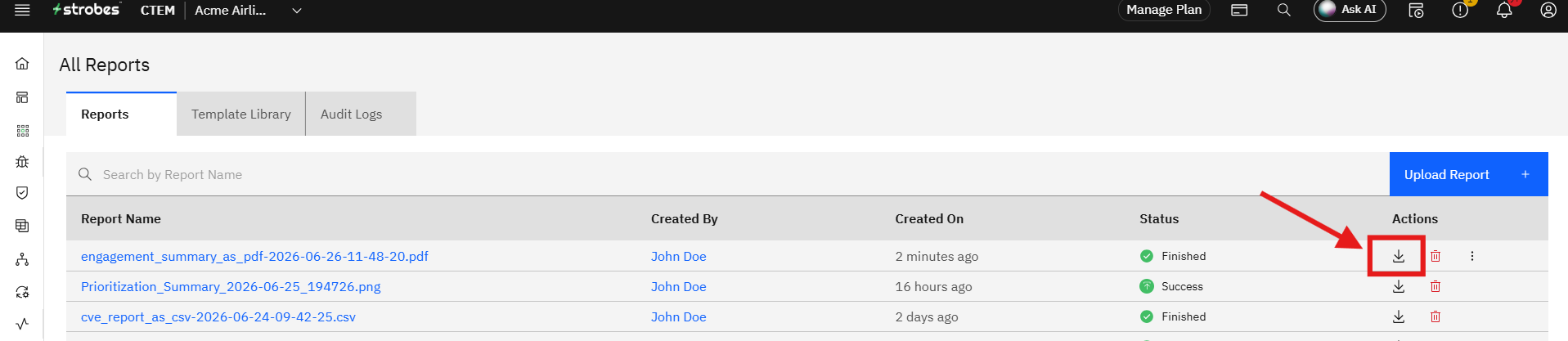
Navigate to the Reports tab within the same engagement. The generated report appears in the list.
Click Download to save it to your computer.
Tips
Keep the Summary field up to date. The free-text summary is often the first thing a stakeholder reads. Updating it as the engagement progresses — noting key findings or delays — saves time when it comes to writing the final report.
Use the OWASP Classification section for framework reporting. If your organization needs to report against OWASP coverage, this section gives you the data you need without any manual cross-referencing.
Include logged hours for client-facing reports. The hours logged per assessment can help justify effort and scope, particularly for managed service engagements where clients expect transparency on time spent.
Download the report after all findings are closed. For the most complete picture, generate the final summary report after the remediation round is complete so the vulnerability state counts reflect the current posture.