
Creating a Red Team Engagement in Strobes
What Is a Red Team Engagement?
A Red Team Engagement in Strobes is a full adversarial simulation — an AI-driven exercise that mimics the techniques, tactics, and procedures of a real attacker to test how well your defenses hold up. Unlike a routine vulnerability scan, a red team exercise is goal-oriented: the AI agent works through a structured attack chain to achieve specific objectives such as gaining initial access, escalating privileges, moving laterally, and exfiltrating data.
Strobes runs this using the Red Team Engagement playbook — a 10-phase framework built on MITRE ATT&CK, the Cyber Kill Chain, and PTES. The AI agent executes each phase autonomously or pauses for your approval at each gate, depending on how you configure it.
The 10 Phases of a Red Team Engagement
A Red Team Engagement in Strobes progresses through the following phases in sequence:
- Reconnaissance: Gathering intelligence on the target environment.
- Weaponization: Preparing attack tools and payloads suited to the target.
- Initial Access: Attempting to gain a foothold into the environment.
- Execution: Running malicious code or commands once access is established.
- Persistence: Establishing mechanisms to maintain access across reboots and interruptions.
- Privilege Escalation: Elevating access rights to gain higher-level control.
- Defense Evasion: Avoiding detection by security controls and monitoring systems.
- Lateral Movement: Expanding access to other systems and segments within the environment.
- Exfiltration: Identifying and simulating the extraction of sensitive data.
- Impact & Reporting: Documenting findings, attack paths, and recommendations.
Before You Start
- Role required: Owner or Manager access on your Strobes account.
- Scope definition: Have a clear list of in-scope domains, IP ranges, and any restrictions ready before starting. The AI agent only tests what you specify.
- Execution shell: If your targets are internal (not internet-facing), you must have a Bridge shell configured and connected on the target network. For internet-facing targets, the Strobes Cloud Sandbox can be used without any additional setup.
- Credentials (optional): If you want authenticated testing, have your credentials stored in the Strobes Credential Manager beforehand.
Part 1 — Open the New Workspace Wizard
Step 1 — Navigate to AI Workspace
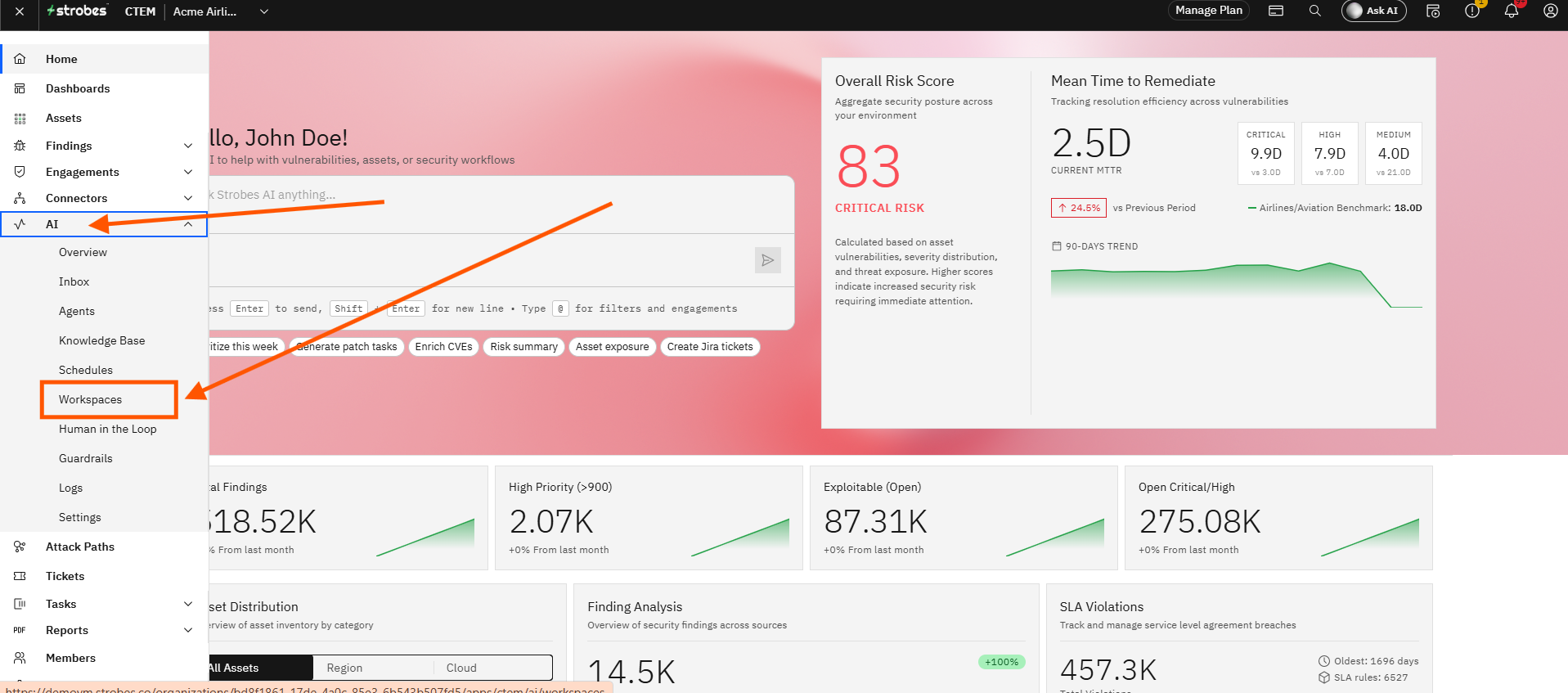
Click AI Workspace in the left sidebar. The AI Workspace section opens, showing any existing workspaces and a + New Workspace button.
Step 2 — Click New Workspace
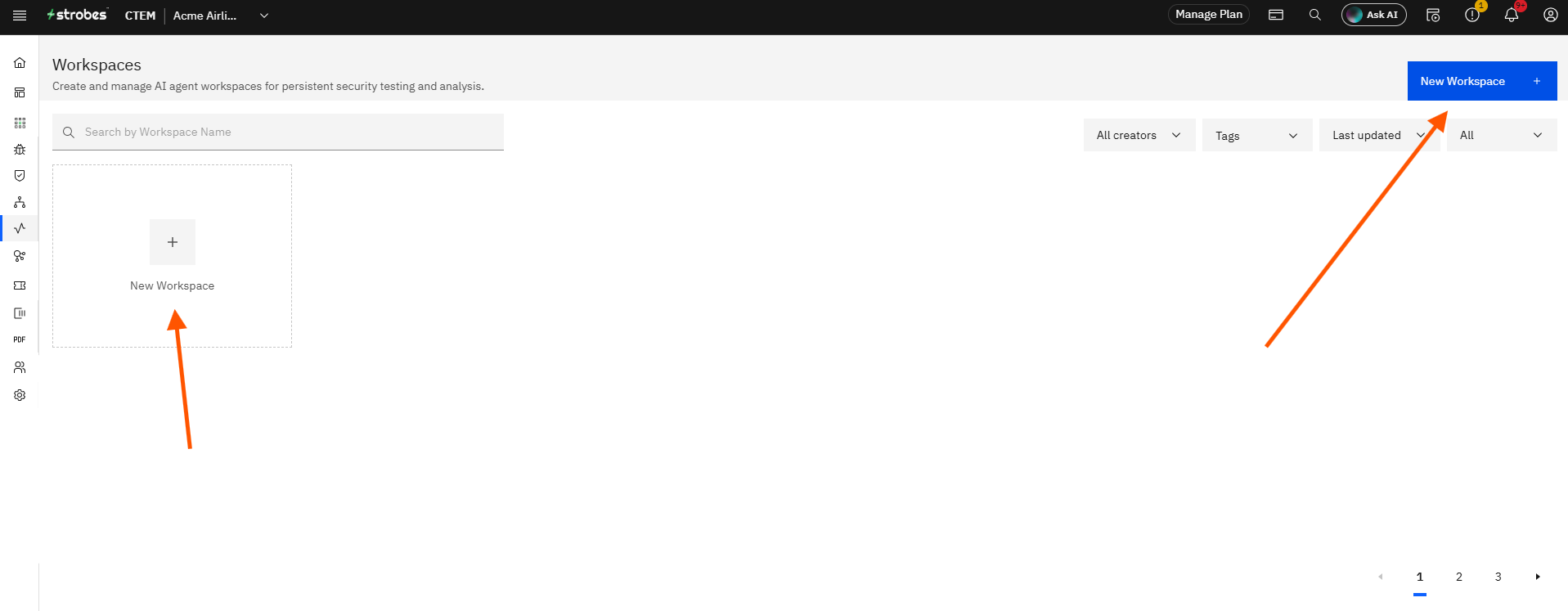
Click the + New Workspace button. The New Workspace wizard opens. The wizard has four steps shown in the left sidebar: Template, Scope, Configure, and Review.
Part 2 — Choose a Template
Step 3 — Scroll down to the Red team Engagement template
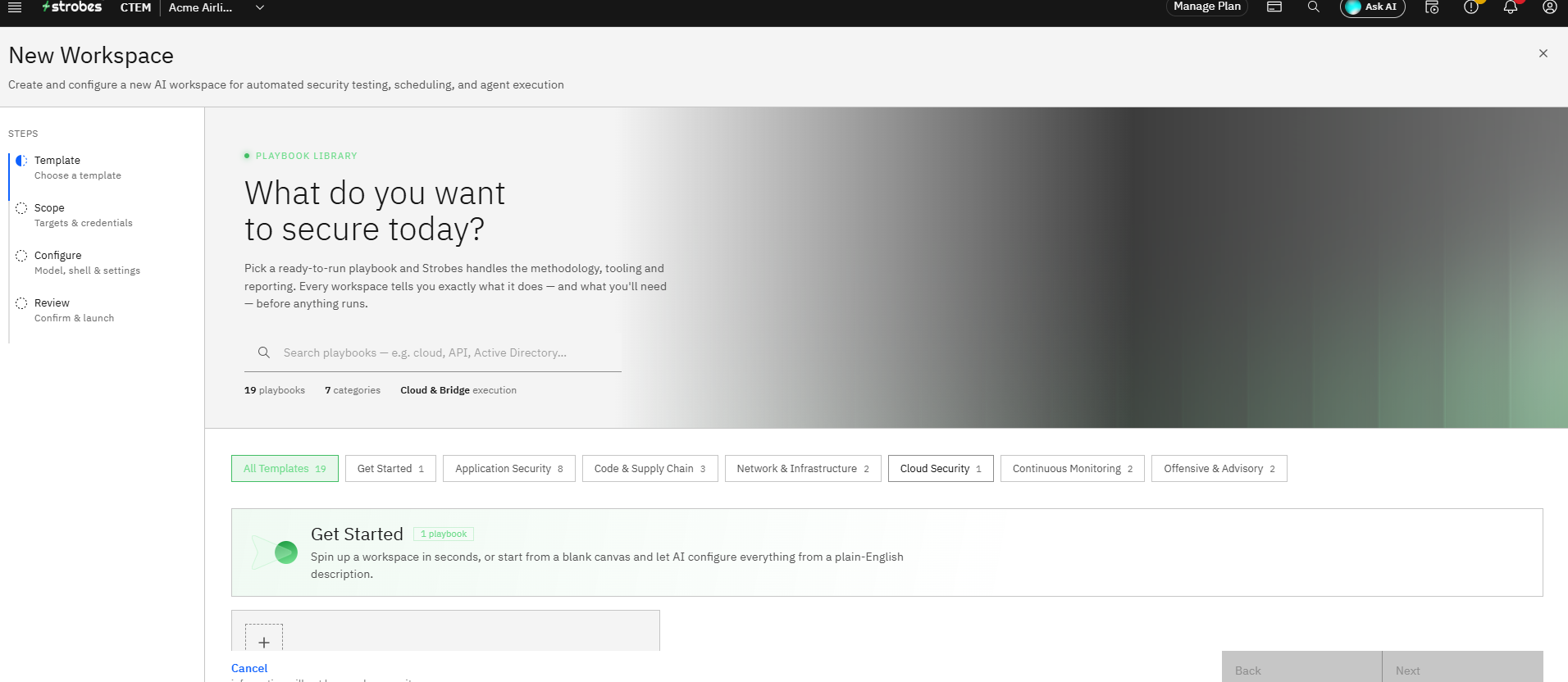
Step 4 — Select the Red Team Engagement template
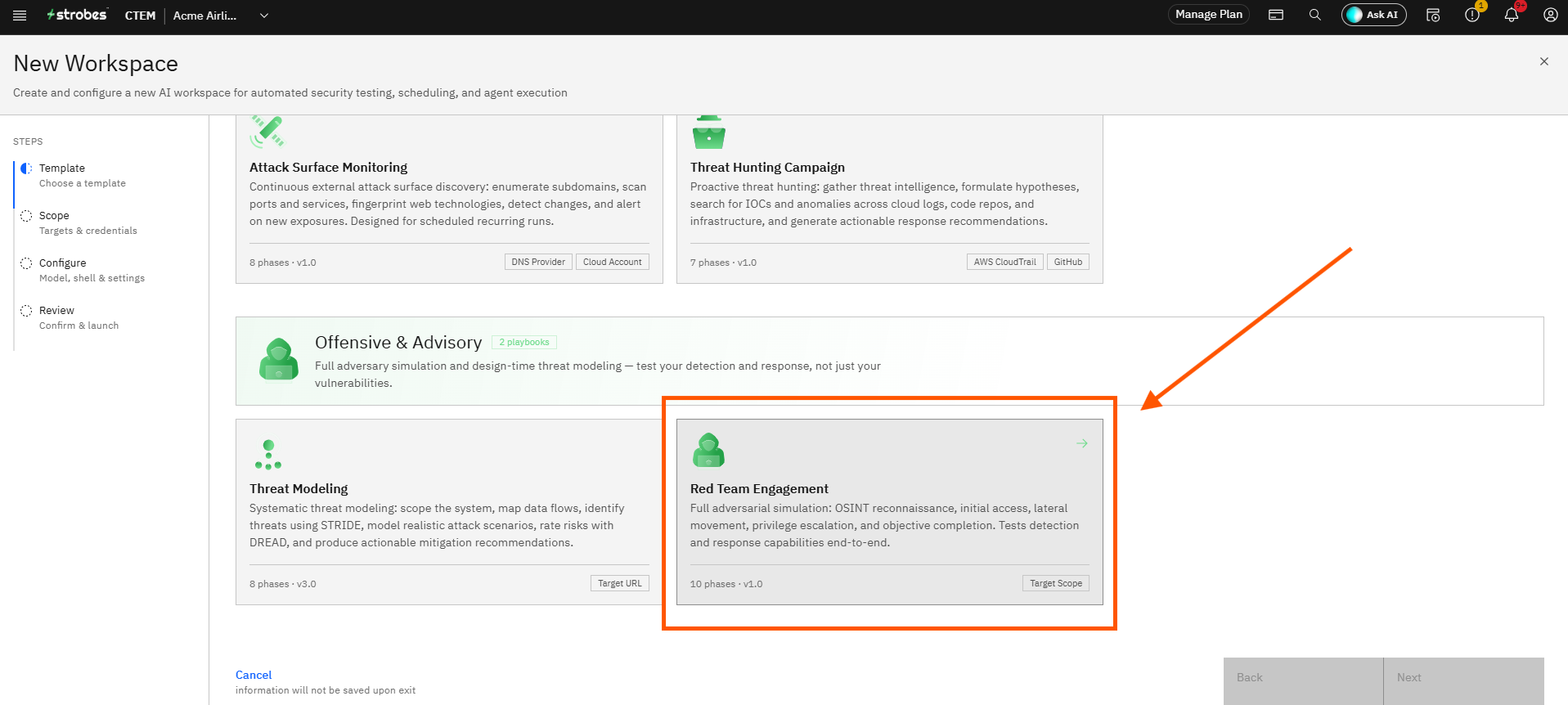
Locate the Red Team Engagement card under the Offensive & Advisory category and click Select. The card description reads: "Full adversarial simulation with multi-phase attack chains, lateral movement, and persistence — 10 phases | v1.0 | 4–12h." Standards covered: MITRE ATT&CK, Cyber Kill Chain, PTES.
Step 5 — Click Use this template
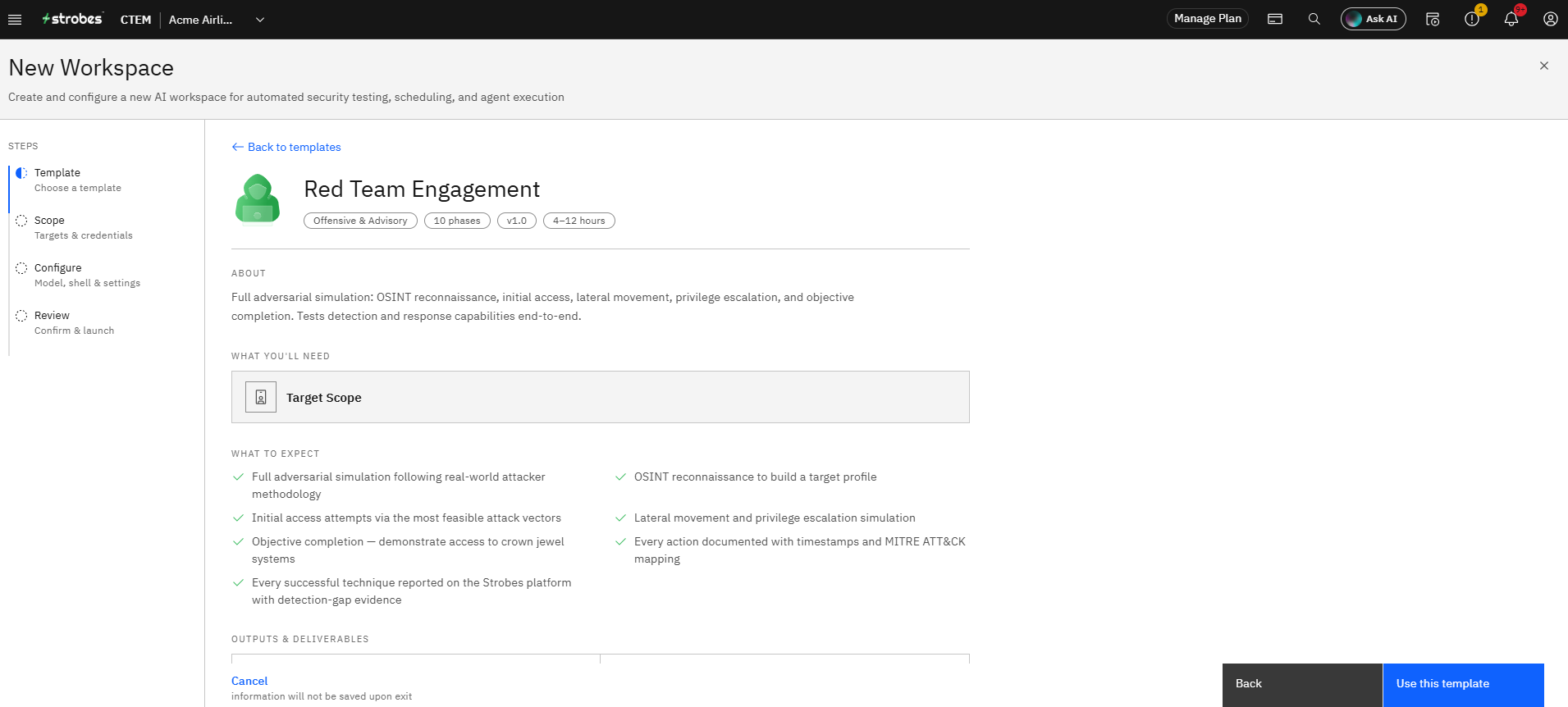
Click "Use this template". The wizard advances to the Scope step.
Part 3 — Define the Scope
Step 6 — Enter an Engagement Name
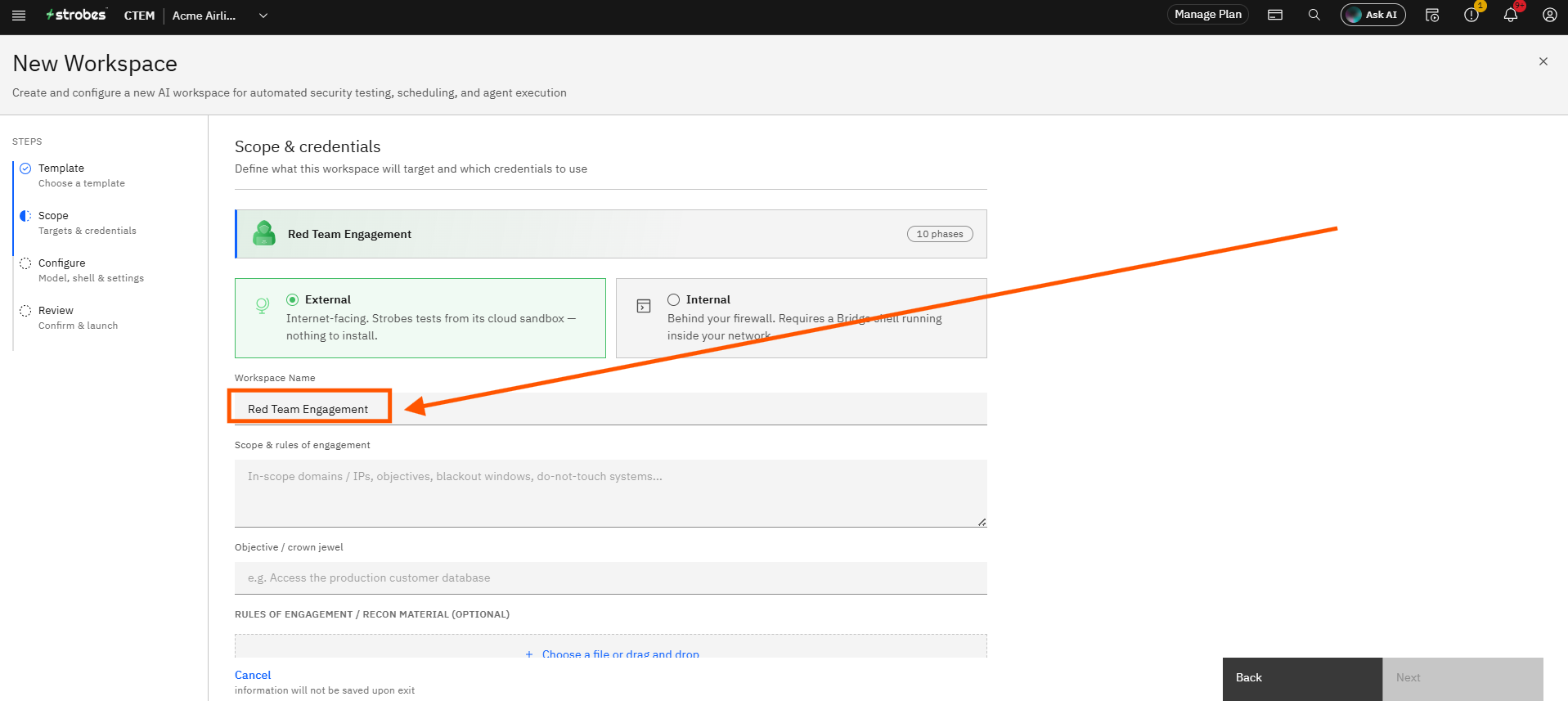
Click the Name field and type a name for this engagement. Use a name that identifies the exercise — for example, Q4 Red Team Exercise or External Red Team — September 2026.
Step 7 — Select the Execution Mode
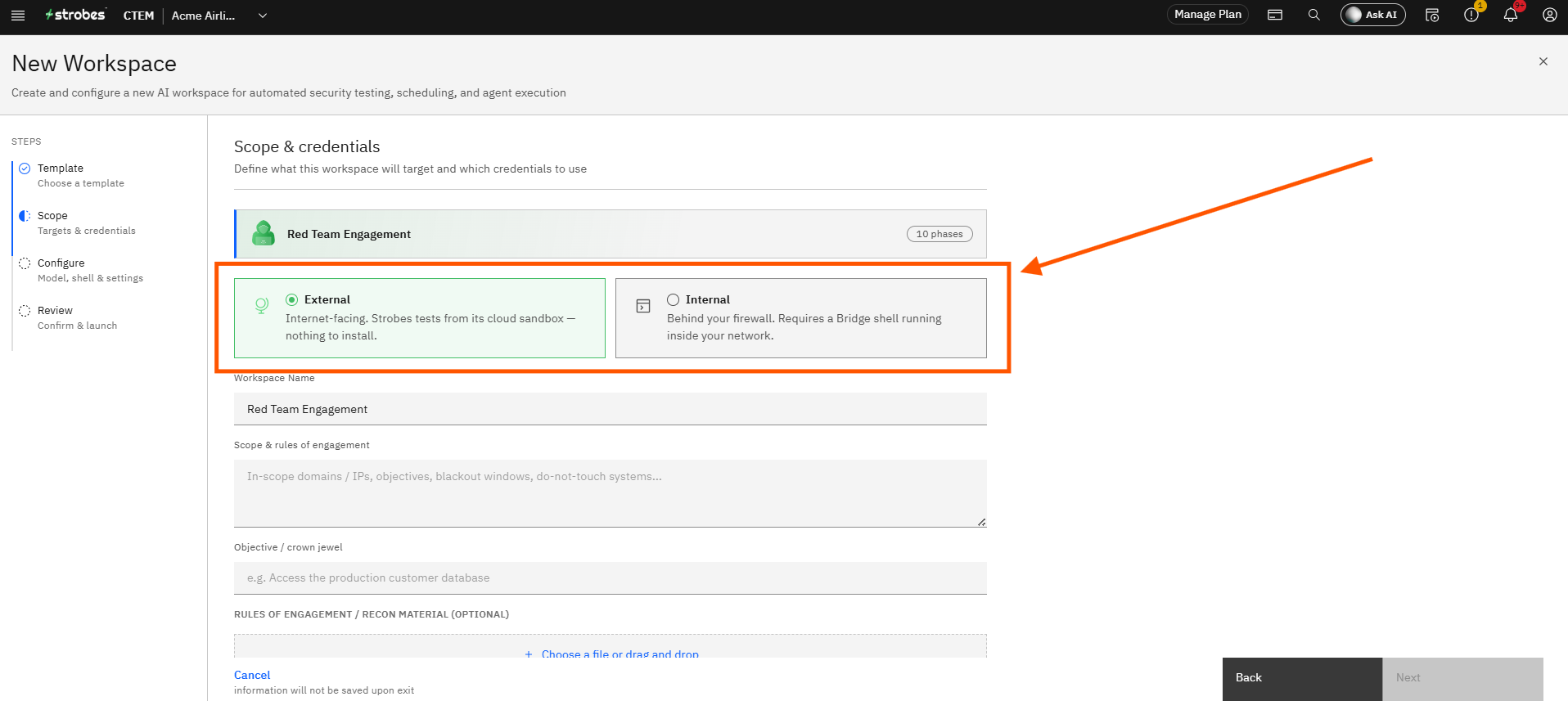
Select the execution mode that matches your target environment:
- External — The AI agent runs from the Strobes cloud infrastructure. Use this for internet-facing targets. No additional setup is required.
- Internal — The AI agent runs through a Bridge shell on your internal network. Use this for targets that are not reachable from the internet. A connected Bridge shell is required.
Click the card that applies to your environment. The selected card is highlighted with a green border.
Step 8 — Enter the Target Scope
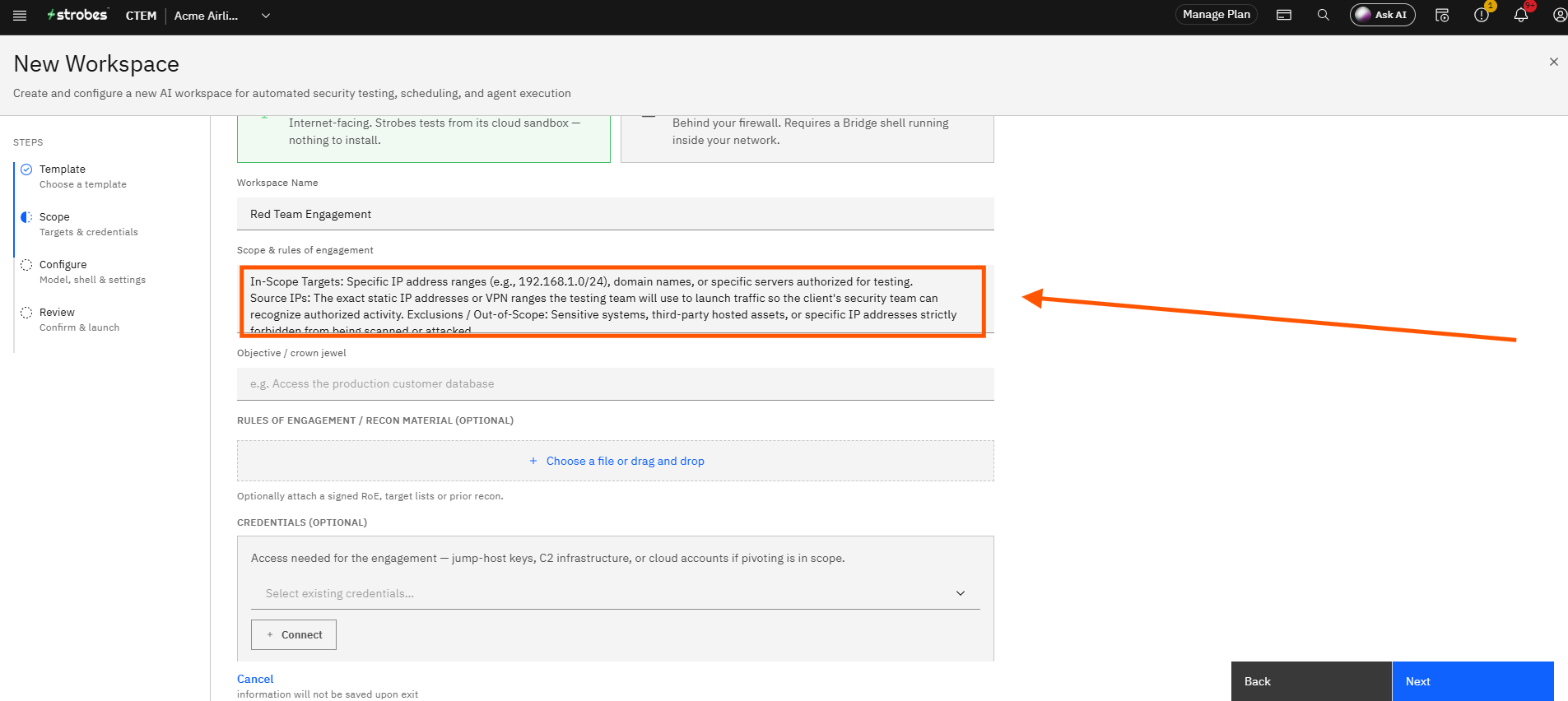
Click the Target textarea and enter your full scope definition. Be specific and complete. A well-defined scope should include:
- In-scope domains — the hostnames or subdomains the AI agent may test.
- In-scope IP ranges — the IP addresses or CIDR blocks permitted.
- Objectives — what the exercise is trying to achieve (e.g. identify vulnerabilities, validate exploitable findings).
- Blackout windows — time periods during which testing must not occur.
- Do-not-touch systems — systems explicitly excluded from testing (e.g. production databases, payment systems).
- Restrictions — any actions that are not permitted (e.g. no denial-of-service, no data modification).
The AI agent follows this scope definition throughout all 10 phases.
Step 9 — Attach Credentials (Optional)
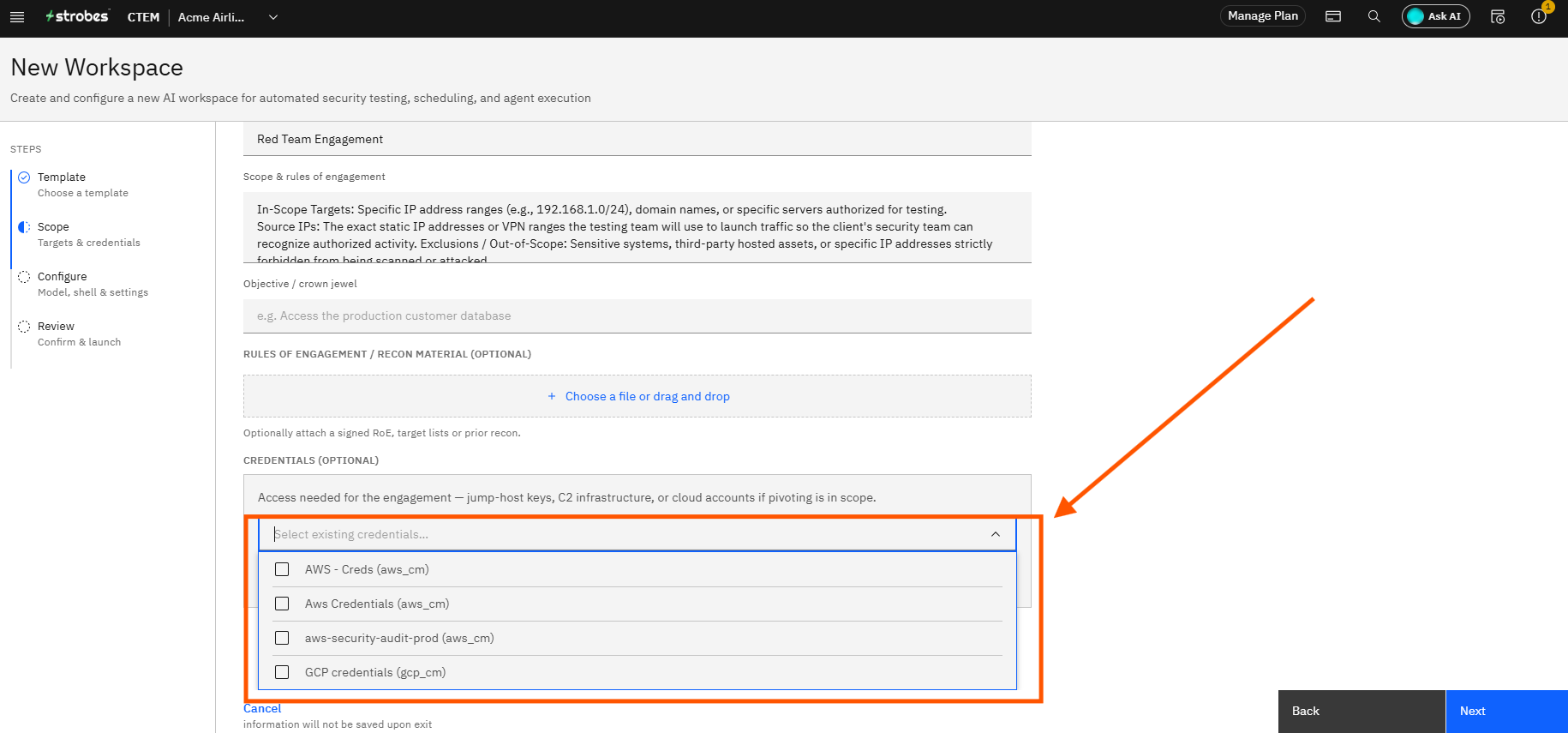
If your engagement requires authenticated testing, click the credentials dropdown and select a credential set from the Credential Manager. Credentials allow the AI agent to test authenticated application flows, APIs, and access-controlled services. If no credentials are needed, leave this field empty.
To add new credentials directly from this step, click + Add credentials to open the Credential Manager.
Step 10 — Click Next
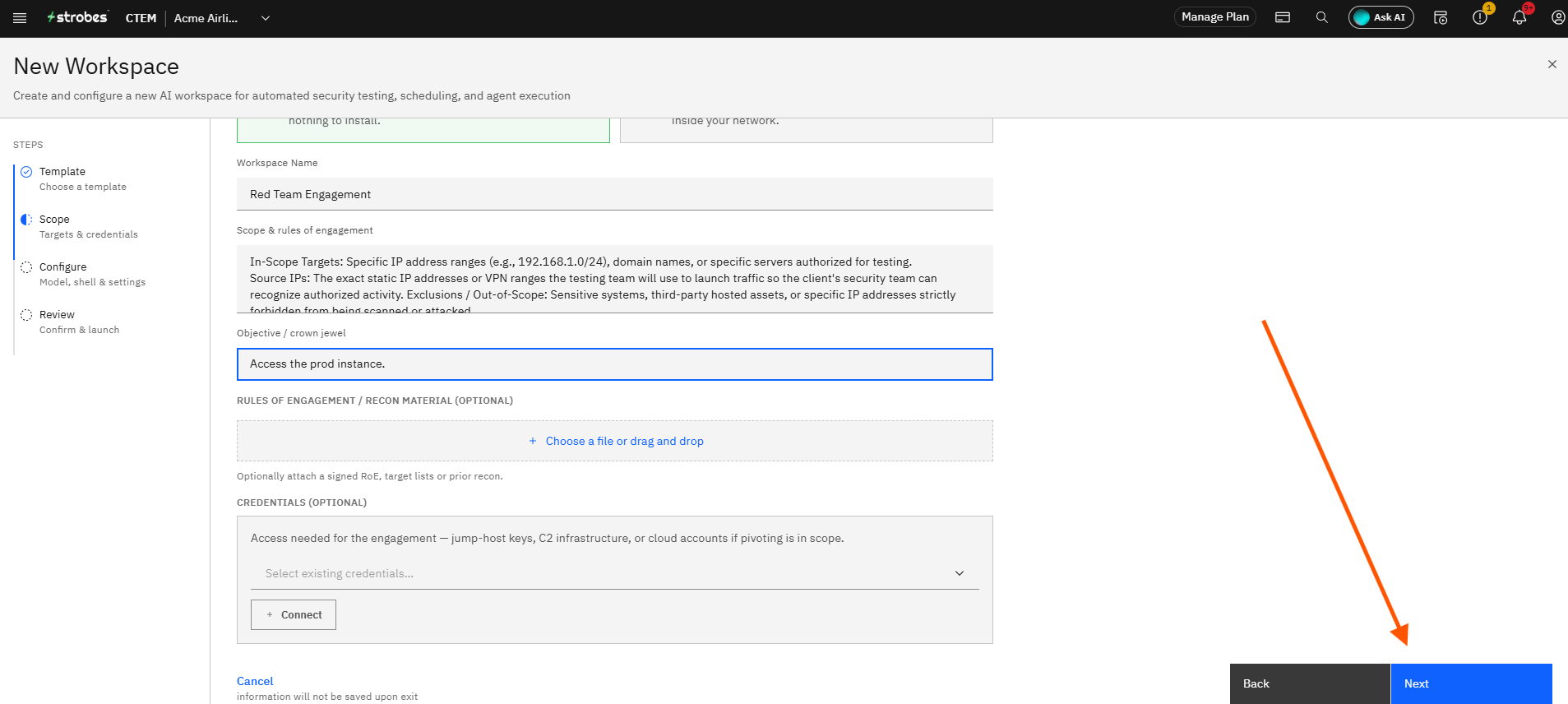
Click Next. The wizard advances to the Configure step.
Part 4 — Configure the Engagement
Step 11 — Select the AI Model
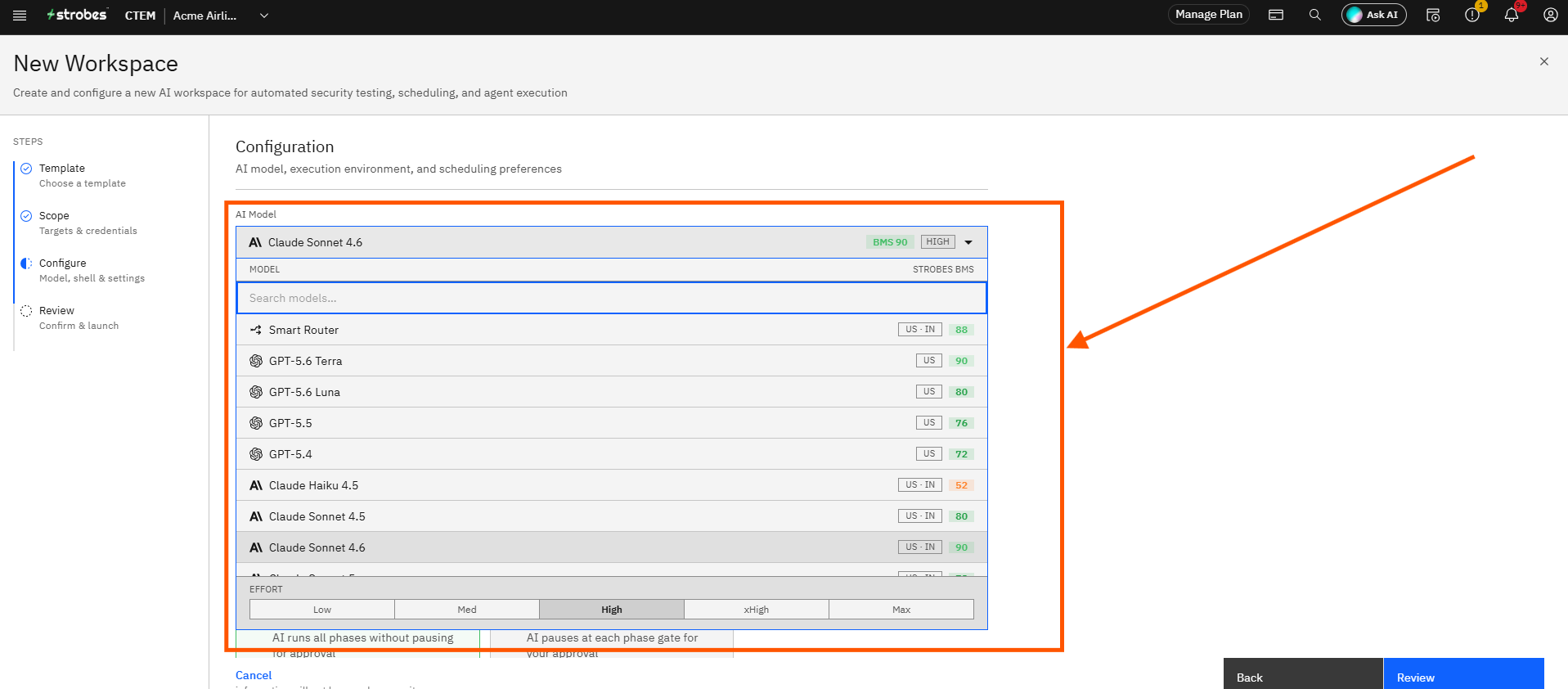
Click the AI Model dropdown and select the model you want to use for this engagement. Each model is listed with its Strobes Benchmarking Score (BMS) — a rating of cost-versus-performance on security tasks. Higher BMS scores indicate better performance on complex security work.
The default selection is Claude Sonnet 4.6 (BMS 90), which is recommended for red team engagements due to its strong performance on multi-step adversarial reasoning.
Step 12 — Set the Effort Level
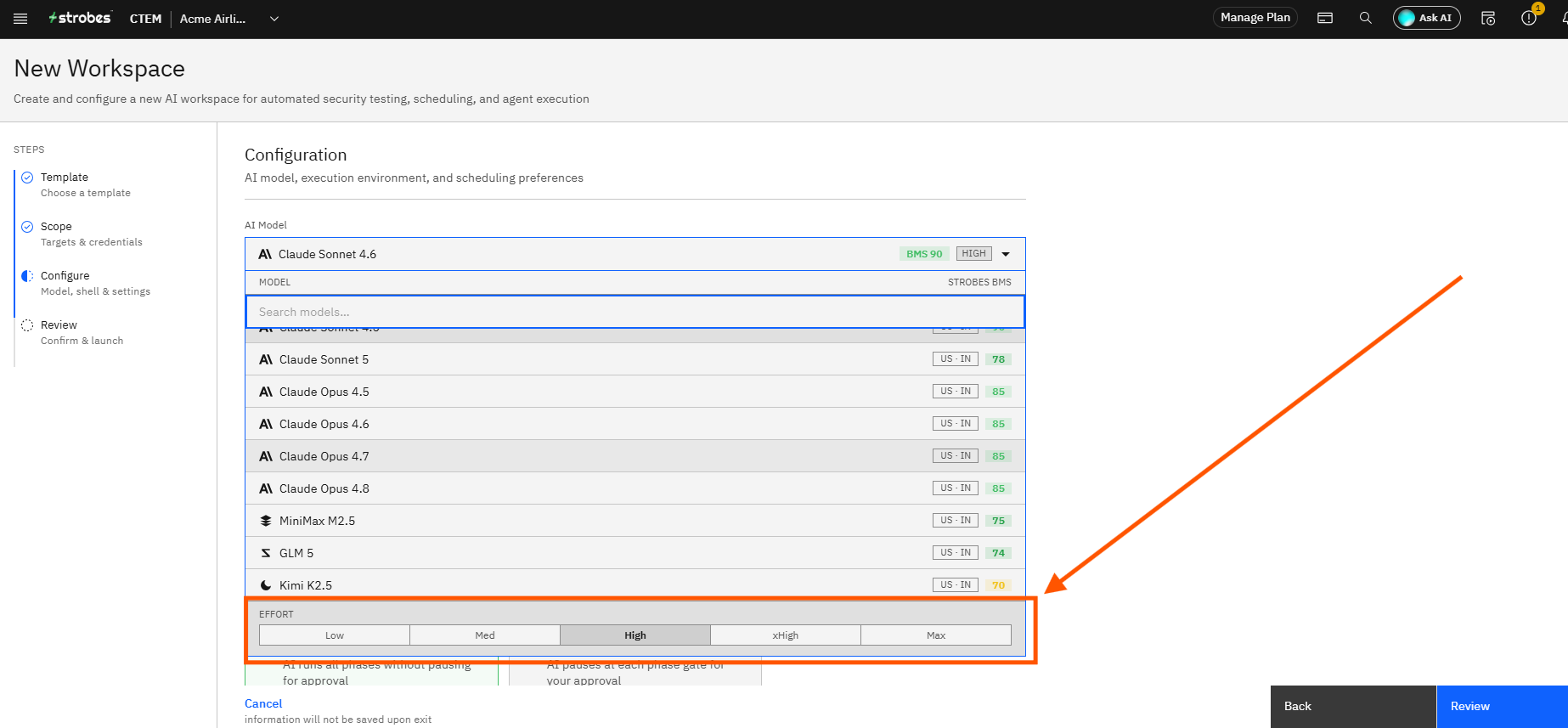
At the bottom of the AI Model dropdown, select an effort level. The effort level controls how thoroughly the AI agent explores each phase:
- Low / Med — Faster but less exhaustive.
- High — Balanced thoroughness and speed. Recommended for most engagements.
- xHigh / Max — Most exhaustive. Use when deep coverage is required and time is not a constraint.
Step 13 — Select the Shell Environment
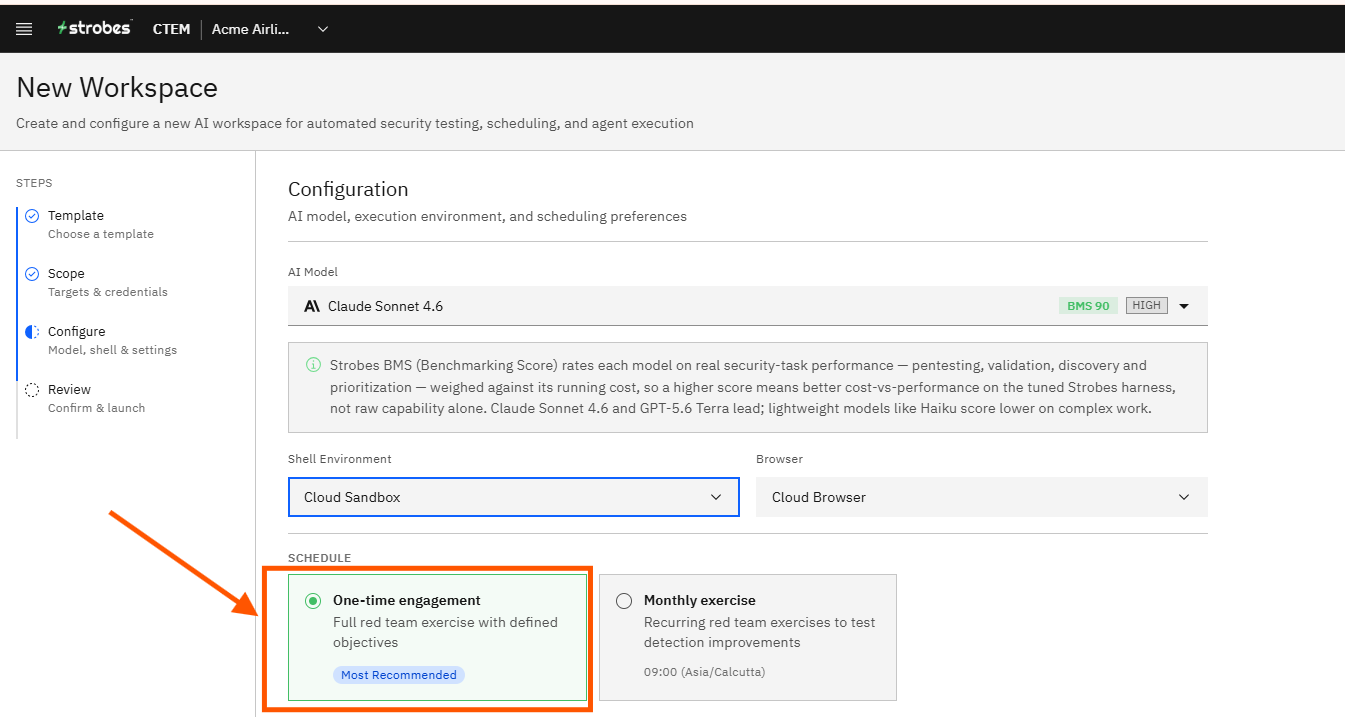
Click the Shell Environment dropdown and select where the AI agent will execute commands.
- Cloud Sandbox — The agent runs in the Strobes cloud environment. Suitable for external targets.
- Bridge shell — Select a connected Bridge shell from the list if you are testing internal targets.
Step 14 — Choose the Schedule
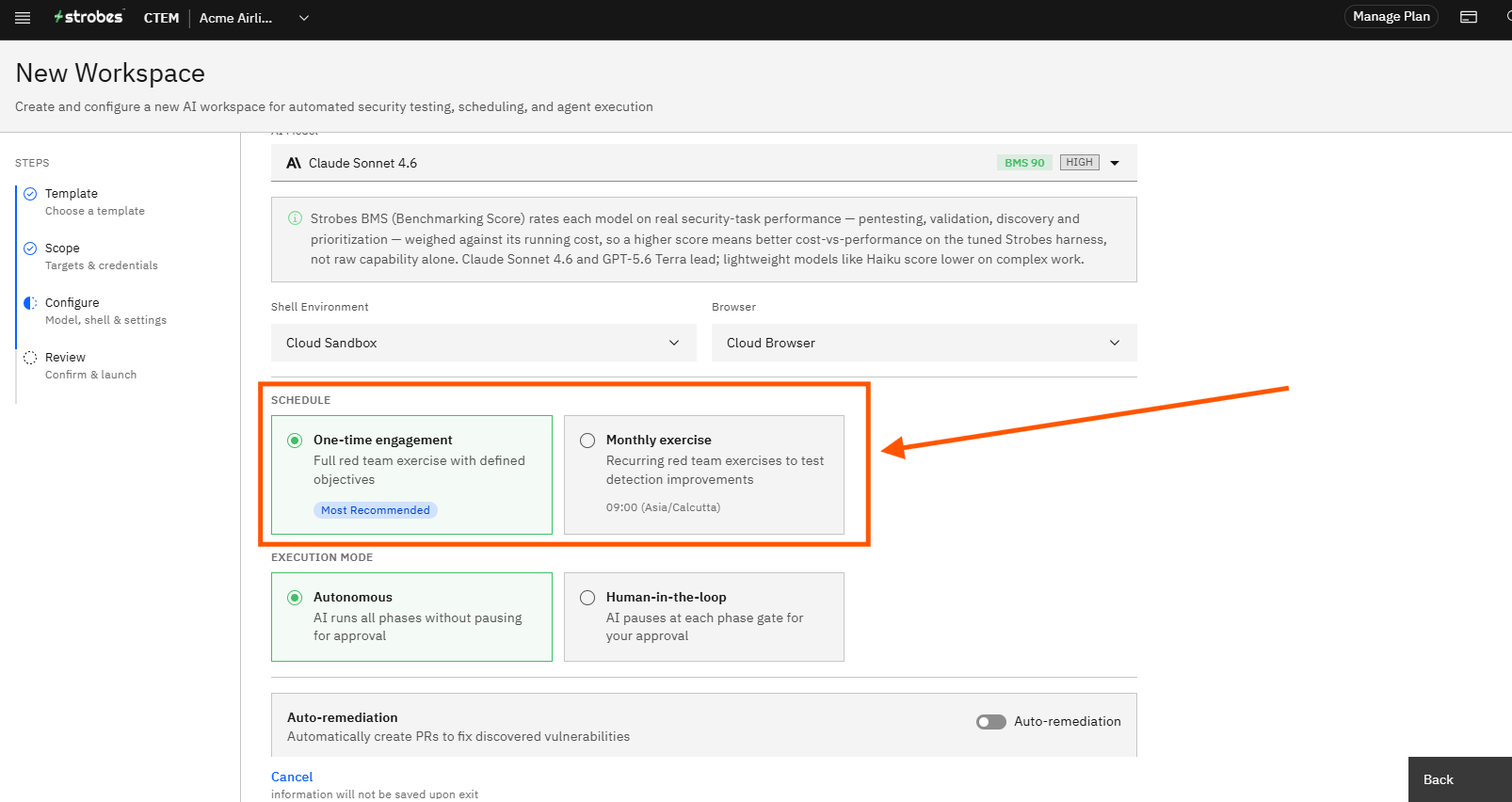
Select the schedule for this engagement:
- One-time engagement — Runs the full red team exercise once. Recommended for planned exercises with defined objectives.
- Monthly exercise — Schedules recurring red team exercises at a fixed time each month. Useful for continuously testing detection and response improvements over time.
Click the card that matches your requirement.
Step 15 — Select the Execution Mode
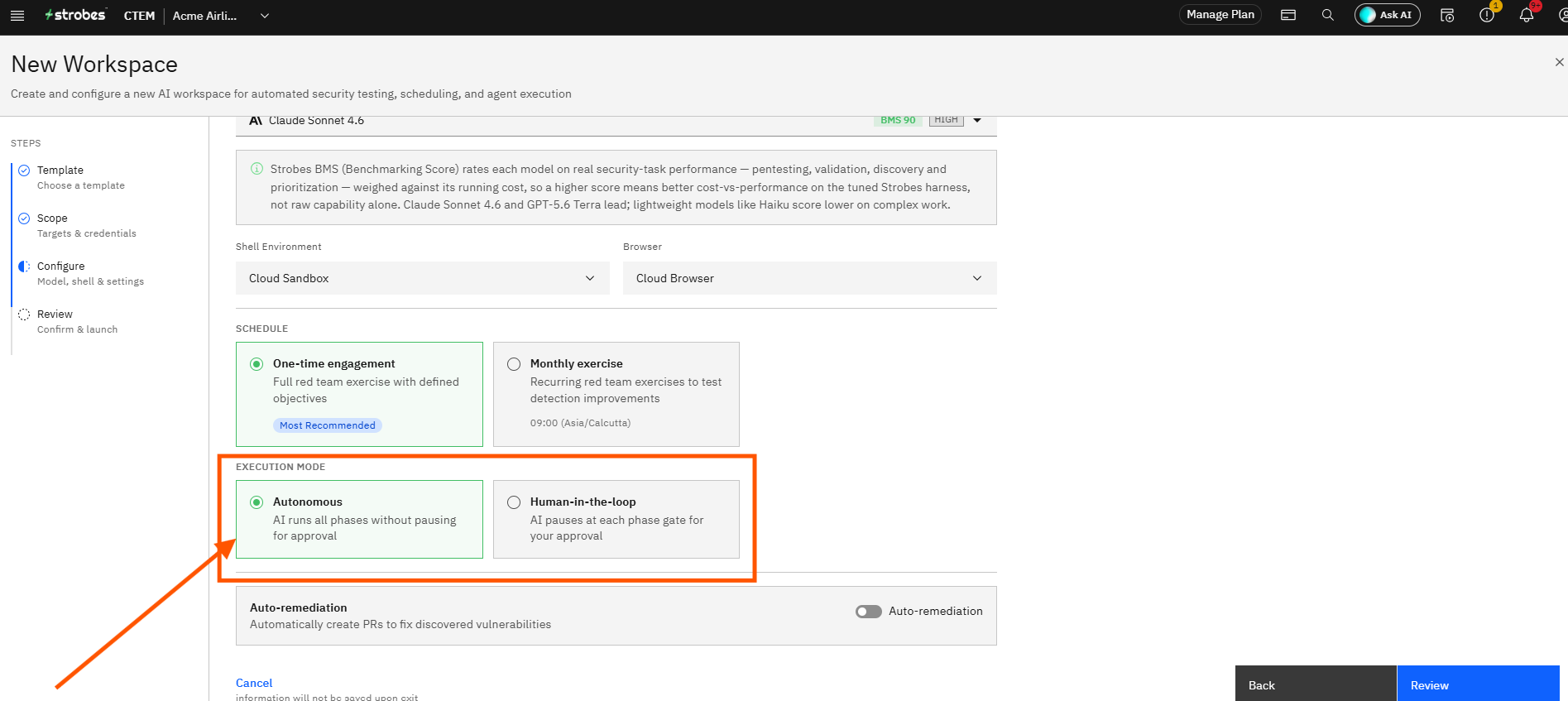
Select how the AI agent should progress through the 10 phases:
- Autonomous — The AI agent runs all phases without pausing. It completes the full engagement end-to-end without requiring your input between phases.
- Human-in-the-loop — The AI agent pauses at each phase gate and waits for your approval before proceeding. Use this when you want to review findings and decisions at each stage.
Step 16 — Click Review
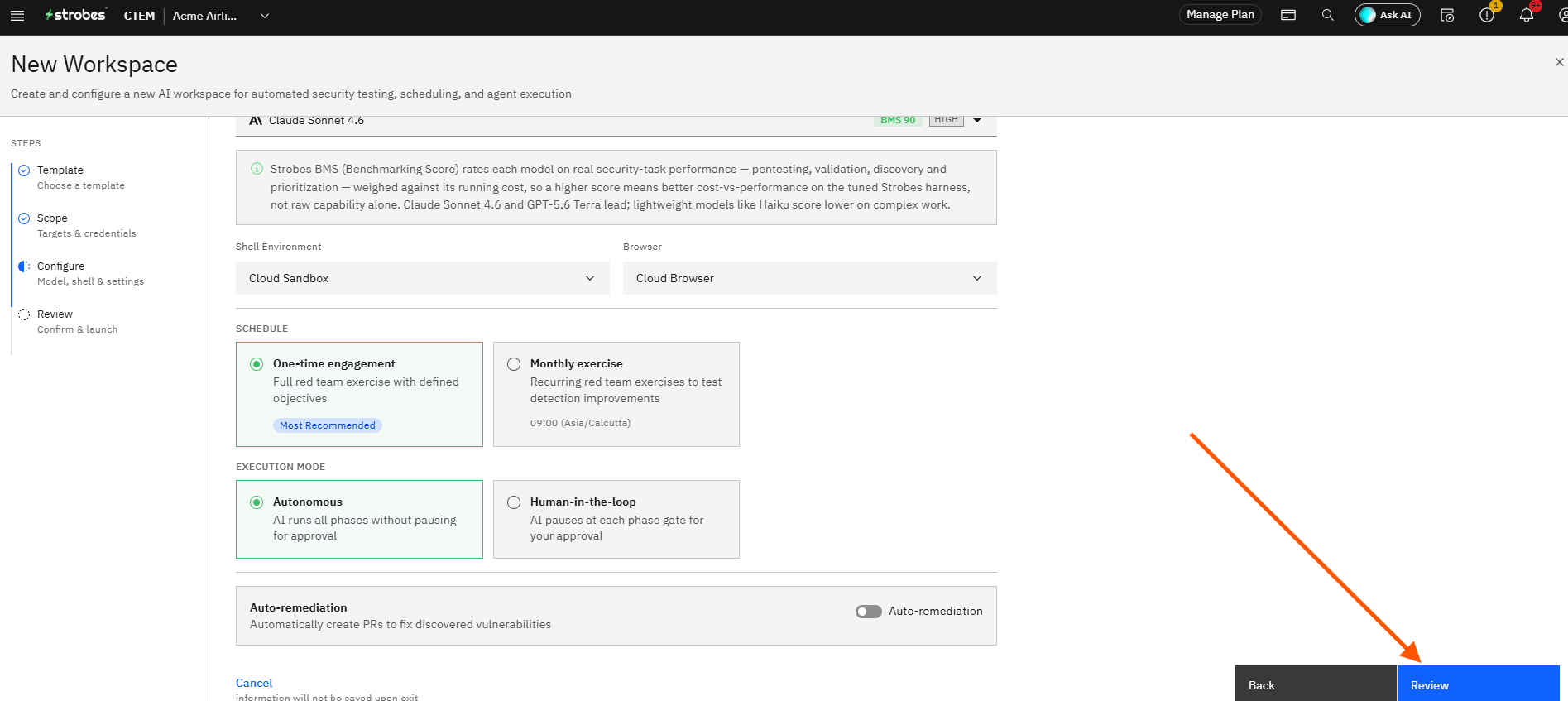
Click Review. The wizard advances to the final Review step.
Part 5 — Review and Launch
Step 17 — Review the Engagement Summary
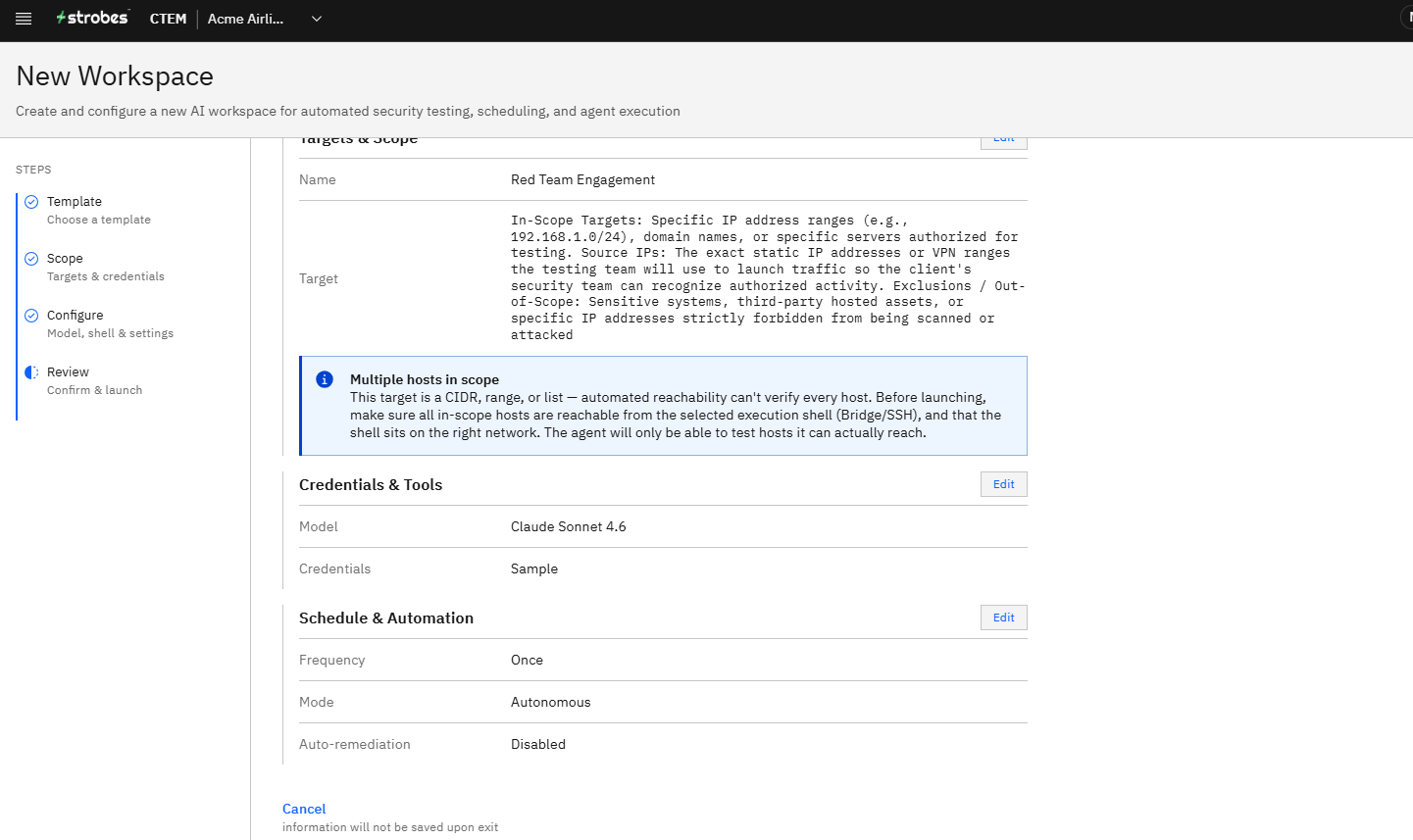
Review the complete engagement summary. The Review page shows a read-only summary of all your configuration choices across four sections:
- Template — The selected playbook (Red Team Engagement, 10 phases, v1.0).
- Targets & Scope — The engagement name, the full scope definition you entered, and any scope warnings.
- Credentials & Tools — The selected AI model and any credentials attached.
- Schedule & Automation — Frequency (Once or Monthly), execution mode (Autonomous or Human-in-the-loop), and auto-remediation status.
If anything needs to be changed, click the Edit button on the relevant section to go back and update it.
Step 18 — Click Create & Launch
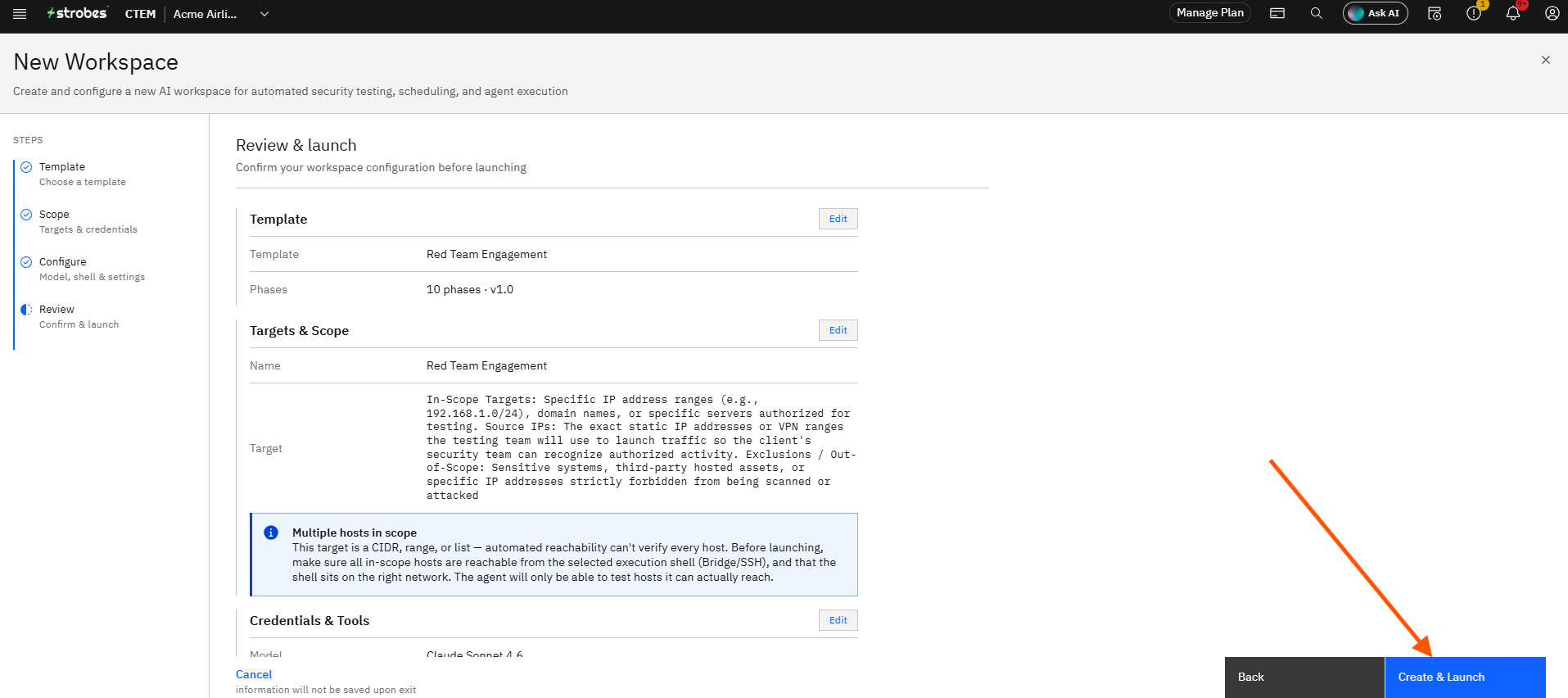
Click Create & Launch. Strobes creates the workspace and the AI agent begins the Red Team Engagement, starting with the Reconnaissance phase.
What to Expect from a Red Team Engagement
How It Works
Once launched, the Strobes AI agent works through all 10 phases of the Red Team playbook sequentially. In Autonomous mode, it runs without interruption — each phase feeds intelligence into the next, just as a real attacker would chain techniques together. The agent uses the scope definition you provided to constrain every action: it will not test systems, IPs, or domains outside the boundaries you set.
Each phase produces structured findings — attack paths, exploited weaknesses, and evidence — that are logged in real time inside the workspace. You can monitor progress from the AI Workspace view as each phase completes.
What the Engagement Covers
The engagement touches every major layer of your attack surface. During Reconnaissance, the agent maps your external footprint — open ports, services, subdomains, and technologies in use. During Initial Access and Execution, it attempts to exploit weaknesses to gain a foothold. Persistence and Privilege Escalation phases test whether an attacker could maintain and deepen their access. Lateral Movement assesses how far a compromise could spread across your environment. Exfiltration tests whether sensitive data could be extracted without triggering alerts.
What You Get at the End
At the conclusion of the engagement, Strobes produces a comprehensive report covering every phase:
- Attack paths discovered — step-by-step sequences an attacker could follow through your environment.
- Vulnerabilities exploited — findings with severity ratings, affected assets, and evidence.
- Detection gaps — phases or techniques that succeeded without triggering any alerts or controls.
- Remediation recommendations — specific, prioritized actions to close the gaps uncovered.
Why It Is Effective
Red team exercises are fundamentally different from vulnerability scans. A scanner tells you what is present; a red team exercise tells you what is exploitable and how far an attacker could go once inside. Because Strobes AI runs the engagement using established frameworks — MITRE ATT&CK, the Cyber Kill Chain, and PTES — the coverage is systematic and aligned with the techniques real threat actors use.
Running this on a recurring schedule (monthly) gives your security team continuous feedback on whether new controls and patches are working. Each exercise becomes a benchmark: if last month's attack path no longer succeeds, your remediation worked. If a new path opens up, you know immediately.
The Human-in-the-loop mode is particularly valuable for teams that want to use red team exercises as training — reviewing what the AI agent found at each phase, making a judgment call on whether to proceed, and building the team's instinct for attacker behavior over time.